


Explore Endpoint Takeover Prevention
Endpoint Takeover Prevention (ETP) helps protect managed endpoints by requiring digital signatures for protected actions and configurations. ETP covers:
- Data Sources
- Scripts and script execution
- Automations
- Software Repository package versions
- Moving endpoints between organizations and uninstalling agents
- Commands that initiate remote sessions
Authorized administrators use their Action1 Keys to sign protected actions and configurations. Before execution, the Action1 agent verifies the signature and checks that the signed content has not been altered.
How It Works
- An authorized user with the Enterprise Admin role cryptographically signs protected actions and configurations, such as scripts or Data Sources, using an Action1 Key protected by a Key passphrase. This Action1 Key is controlled by your Action1 organization and cannot be used, accessed, or recovered by Action1.
- Action1 Cloud securely delivers the signed command to the endpoint. (It does not need to decrypt or use the administrator’s Action1 Key to deliver signed protected actions and configurations.) The platform coordinates the action, but because it does not possess your unencrypted Action1 Key, it cannot create a valid authorization itself.
Before a protected action can execute, the Action1 agent running on the endpoint independently verifies the signature against trusted public keys in your organization’s ETP Keychain. It also verifies that the operation has not been modified since it was authorized. Only a correctly signed, unaltered protected action with a signature verified against a trusted public key can proceed through Action1’s existing security controls. If the signature is missing or invalid, the action was altered, or the signing key is untrusted or revoked, the agent blocks the action.
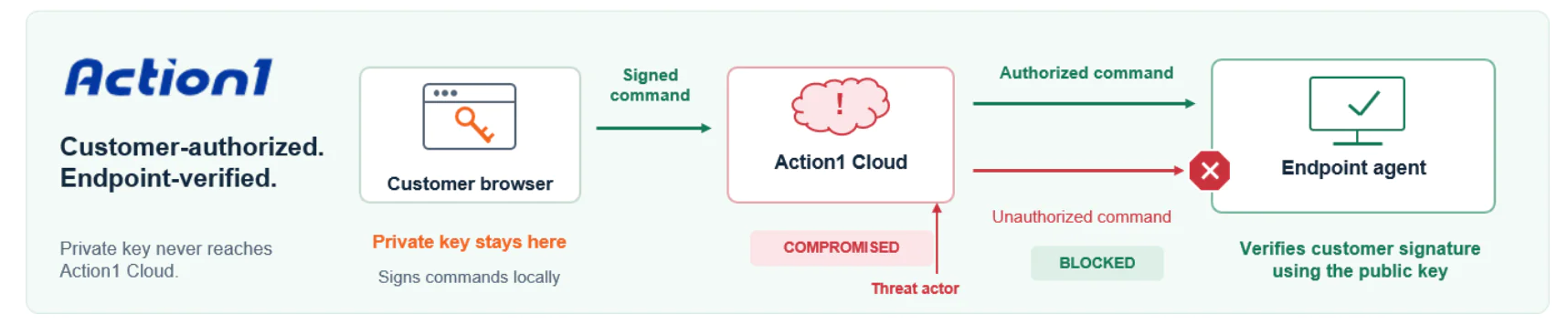
Your Action1 Key can be stored in Cloud Storage (the default) or Local Storage. In both modes, it is encrypted and protected by your Key passphrase.
- Cloud Storage: An encrypted copy of your Action1 Key is stored in Action1 Vault. Your browser retrieves and decrypts the Action1 Key locally, then uses it to sign protected actions and configurations. Action1 does not receive your Key passphrase or unencrypted Action1 Key. When prompted to sign a protected action or configuration in the Action1 web console, you do not need to select an Action1 Key file but just enter your Key passphrase.
- Local Storage: You store the encrypted Action1 Key file yourself. When prompted to sign a protected action or configuration, select your Action1 Key file and enter your Key passphrase.
Store your Key passphrase securely. If you use Local Storage, keep your Action1 Key file in a separate secure location.
Secure Agent Deployment
The installation token associates an Action1 agent with your Action1 organization. Each organization has its own token, which is used to install all agents in that organization. Without a valid installation token, an agent in an ETP-enabled organization cannot register in the Action1 console. For setup instructions, see Deploy Your First Action1 Agent.
The console displays the token only when it is created. Copy it and store it securely for future agent installations.