
Running and Stopping the Automation
Locate your automation in the Automations list.
To run the automation immediately:
- Click the Run Now button or select this command from the Actions menu.
- In the dialog displayed, specify the target endpoints where it should be run. These can be the ones included in the automation, or you can select other endpoints or groups.
Alternatively, you can use the Actions menu for these operations.
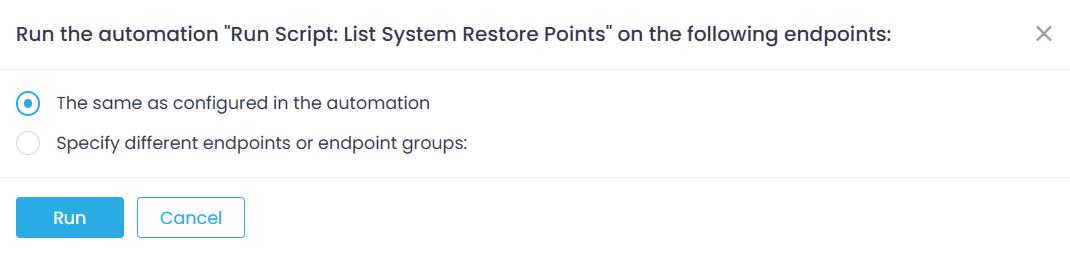
- Click Run.
You can track execution as follows:
- Open the Automations view.
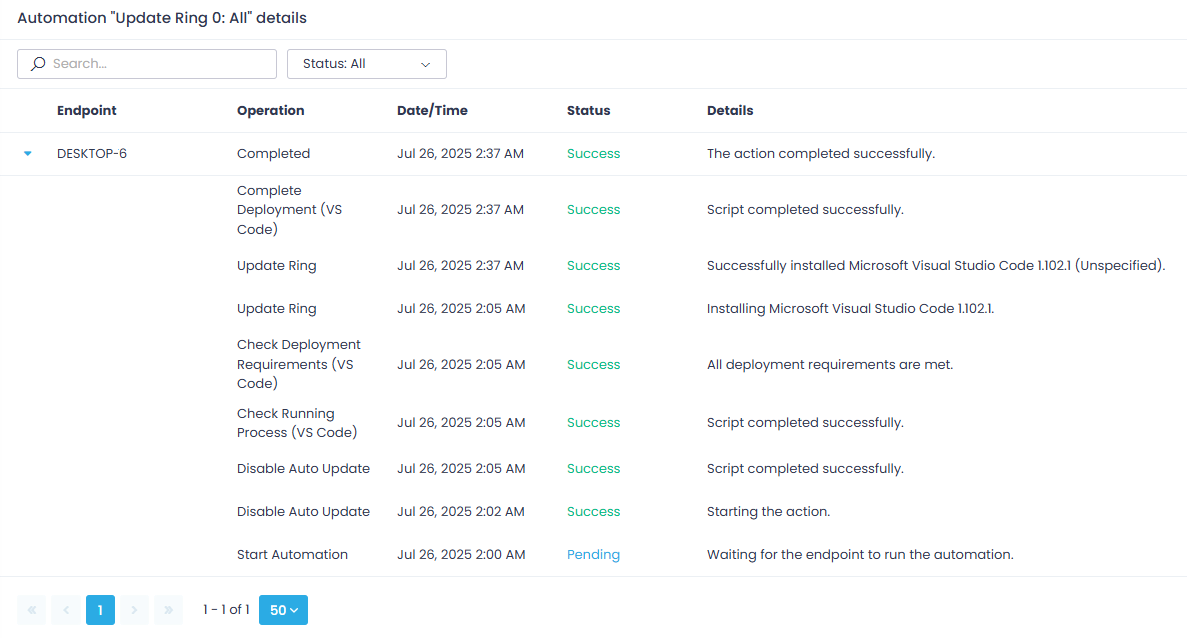
- Open the History view and from the list of all execution sessions select the one you need. This will open the <automation_name> details window, where you can examine the session log for each target endpoint.
To stop the running automation:
- Go to the History page and select the running automation.
- Click Stop.
See also: Automations List
How can I omit a software update from the automatic deployment?
For the automations with the Deploy Updates or Update Ring action, you may want to temporarily exclude deployment of selected updates – for example, until the vendor releases a fix.
- If you want to stop future automation runs entirely, open the automation wizard and, on its Schedule step, select No schedule yet.
- To exclude the updates without changing the automation schedule, open the automation wizard and on its first step, go to Pause updates and select the updates you want to be omitted.
You can also use the Paused switch in the automation’s Deployment Status view. When switched to Yes, it will instruct Action1 to omit the selected software update from the current and all subsequent (“outer”) rings in the chain.
See also: Software Updates: View Deployment Status & Pause Deployment


