


Updates Deployment and Reboot Behavior on Windows
This section describes how Windows updates are deployed on the managed endpoints with the Deploy Update automation, how the reboot is initiated during the automation run, and what factors can influence reboot behavior.
With the Automatically reboot option selected and reboot prompt enabled, the automation settings look as follows:
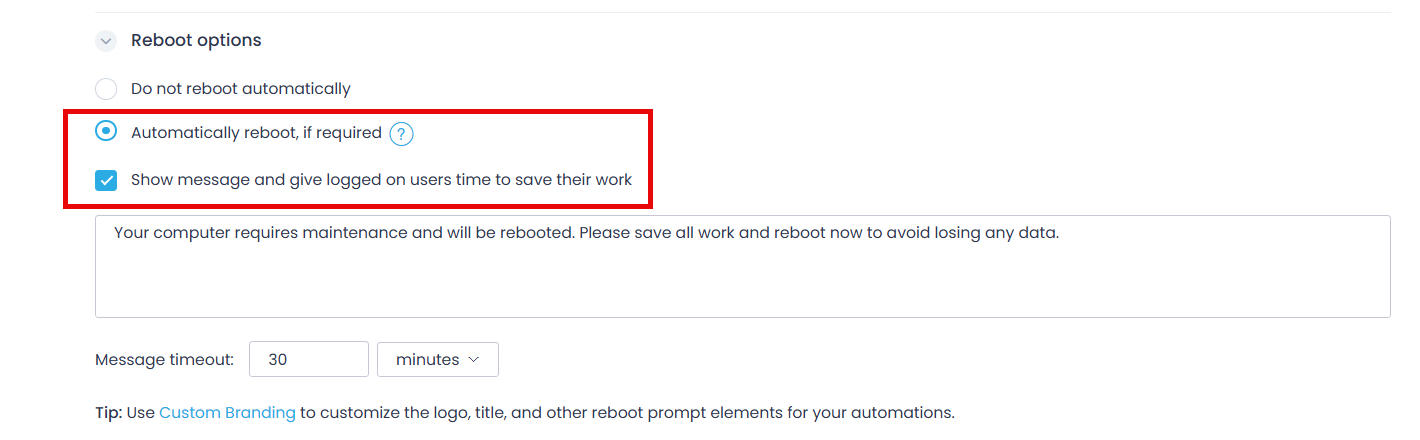
The system or app update process on Windows endpoints follows these steps:
- The automation starts, and the update is downloaded from the cloud.
- The update is installed on the endpoint.
- A reboot prompt is displayed to the logged-in user, and the countdown starts.
- The endpoint reboot is performed according to user’s response to the reboot prompt:
-
- Immediately — if the user clicks Reboot Now
- After timeout — if the user takes no action and the reboot prompt timeout expires. In the example below, the reboot prompt timeout is 7 minutes:
-
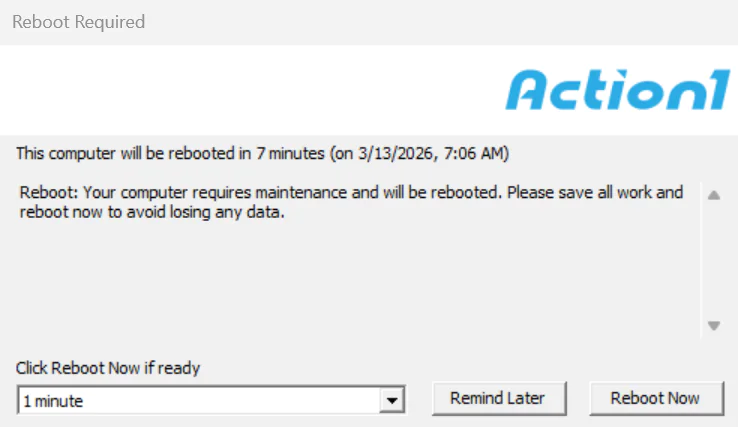
- If a user clicks Remind Later and specifies the timeout, the prompt will be shown after the selected interval.
- After the successful reboot, the automation is completed.
NOTE: The required reboot cannot be skipped. Clicking Remind Later in the reboot prompt does not prevent the need for a reboot. You can only choose to be reminded again or reboot now.
How do the automation completion deadline and reboot timeout influence the reboot attempt?
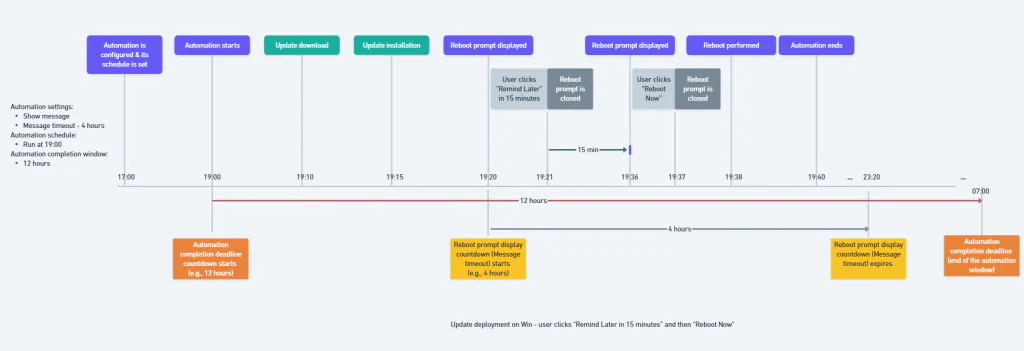
In general, the Action1 agent should perform all automation operations (download and install the update, reboot the endpoint) within the completion deadline. Thus, you should plan for this deadline thoroughly.
- For example, do not set the automation completion deadline to 1 hour if you need to deploy multiple system updates that require a reboot. Specify a more reasonable interval.
- Also, pay attention to the endpoint uptime: if it is off and then goes online just before the automation completion deadline, the agent may not be able to perform all automation operations within the remaining time interval.
The example flow is shown in the diagram below. To learn about some specific scenarios, see the “Reboot Behavior” section below.
What if the reboot prompt is disabled?
- The automation starts, and the update is downloaded from the cloud.
- The update is installed on the endpoint.
- The reboot is performed without a prompt, and the automation is completed.
The table below explains several scenarios and factors that can influence the reboot behavior.
| Scenario | Reboot behavior |
| A user is logged in and active/inactive OR no users are logged in OR multiple users are logged in | Whatever the user state is, the reboot will start immediately after the update is installed. |
| Endpoint is offline OR hibernating at the time of planned reboot | When the endpoint goes online, and automation completion deadline has not yet expired, the reboot will proceed according to its settings (without a prompt) |
| Endpoint rebooted after the schedule was set (automation was configured) but before the planned reboot. | System reboot that occurs before the scheduled reboot does not affect the scheduled one. |
| Action1 Agent service is not running at the time of planned reboot. | After the agent starts – and if the automation completion deadline has not yet expired – the reboot will proceed according to its settings (without a prompt). |
| Action1 host not reachable at the time of schedule set (automation configured) OR at the time of automation execution. | If Action1 host is unavailable at the moment when automation is being configured on the agent side, the agent will wait for the connection to be restored: – Then, if the automation completion deadline has not yet expired, the Automation will start and run according to its settings (including reboot). – If the automation completion deadline has already expired by the time the connection is restored, the automation will not start. |
| Time zone differences between Action1 agent and Action1 server. | Time zones do not affect reboot behavior. |
| Another reboot has already been scheduled at the time of the schedule being set (automation being configured). | Another scheduled reboot (e.g., system reboot) will take precedence, reboot within the automation will not occur, and error will be written to the Automation History. |
| Reboot time is in the past at the time the Action1 agent gets the automation configuration settings. | The reboot will run only if the scheduled time falls within the automation completion deadline. |
How can I customize the reboot prompt?
See the “Reboot Prompt Customization” section for detailed instructions.
Reboot Behavior
The next sections describe the factors that can influence the reboot behavior (when the reboot prompt is enabled in the automation settings).
User State
User state
Prompt
Reboot
Endpoint State
Endpoint state
Automation & reboot
- Then, if the automation completion deadline has not yet expired, the Automation will start and run according to its settings (i.e., reboot prompt and timeout)
- If the automation completion deadline has already expired by the time the connection is restored, the automation will not start.
Scheduling & Timing
Scenario
Behavior
NOTE: You can, however, include multiple OS updates within one automation. If these updates require a reboot, Action1 will perform the reboot only once, after the final update is deployed.