


Updates Deployment and Reboot Behavior on macOS
This section describes how macOS updates are deployed on the managed endpoints with the Deploy Update automation, how the reboot is initiated during the automation run, and what factors can influence reboot behavior.
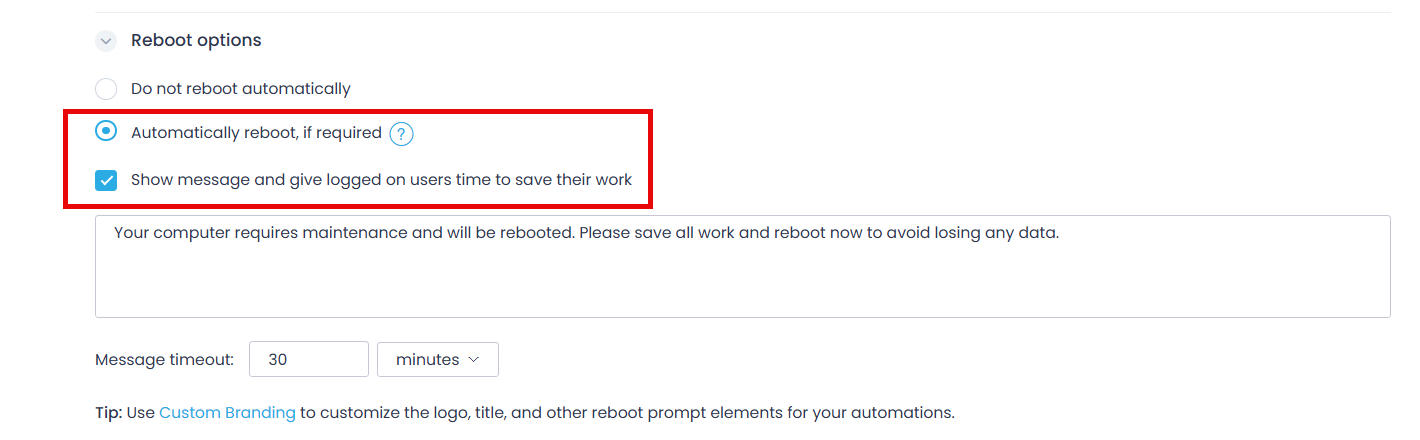
With the Automatically reboot option selected and reboot prompt enabled, the automation settings look as follows:
The system or app update process on macOS endpoints follows these steps:
- The automation starts, and the update is downloaded from the cloud.
- A reboot prompt is displayed to the logged-in user, and the countdown starts.
- The update setup runs.
- The endpoint reboot is performed according to user’s response to the reboot prompt:
- Immediately — if the user clicks Reboot Now
- After timeout — if the user takes no action and the reboot prompt timeout expires. In the example below, the reboot prompt timeout is 2 hours:
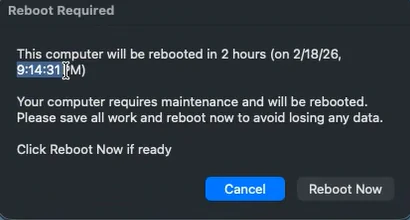
The prompt remains visible until the reboot or until the user clicks Cancel to hide it.
If a user clicks Cancel:
- Prompt is hidden.
- Reboot is not performed.
- Corresponding update deployment is not a success, so the following error is written to the automation history: “Reboot was canceled by the user. The macOS system update was not installed.”
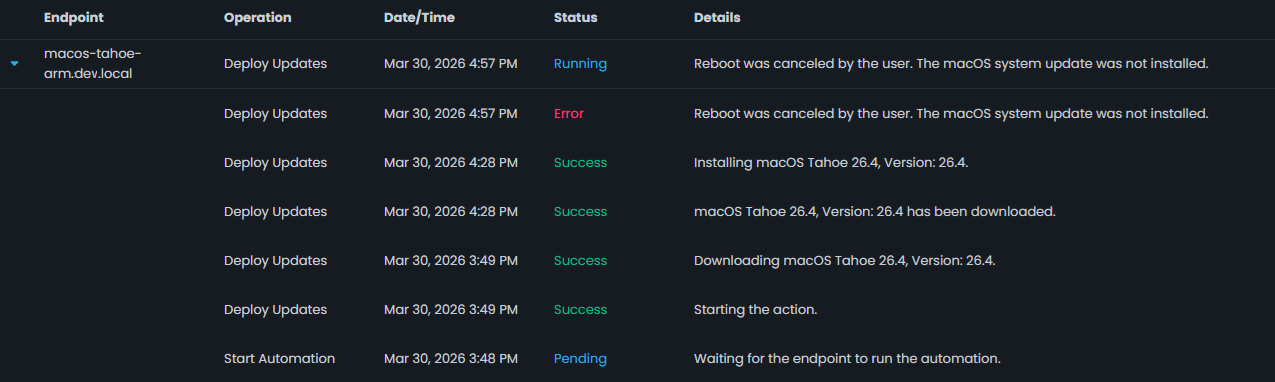
- After the successful reboot, the update deployment is completed.
NOTE: Clicking Cancel in the reboot prompt does not prevent the need for a reboot. If the automation is scheduled to run periodically, the reboot prompt will be shown at its next run. To complete the update deployment, the endpoint user should either click Reboot Now or take no action so that the reboot occurs after the reboot prompt timeout expiration.
How do the automation completion deadline and reboot timeout influence the reboot attempt?
In general, the Action1 agent should perform all automation operations (download and install the update, reboot the endpoint) within the completion deadline. Thus, you should plan for this deadline thoroughly.
- For example, do not set the automation completion deadline to 1 hour if you need to deploy multiple system updates that require a reboot. Specify a more reasonable interval.
- Also, pay attention to the endpoint uptime: if it is off and then goes online just before the automation completion deadline, the agent may not be able to perform all automation operations within the remaining time interval.
The general flow is shown in the diagram below. To learn about some specific scenarios, see the “Reboot Behavior” section below.
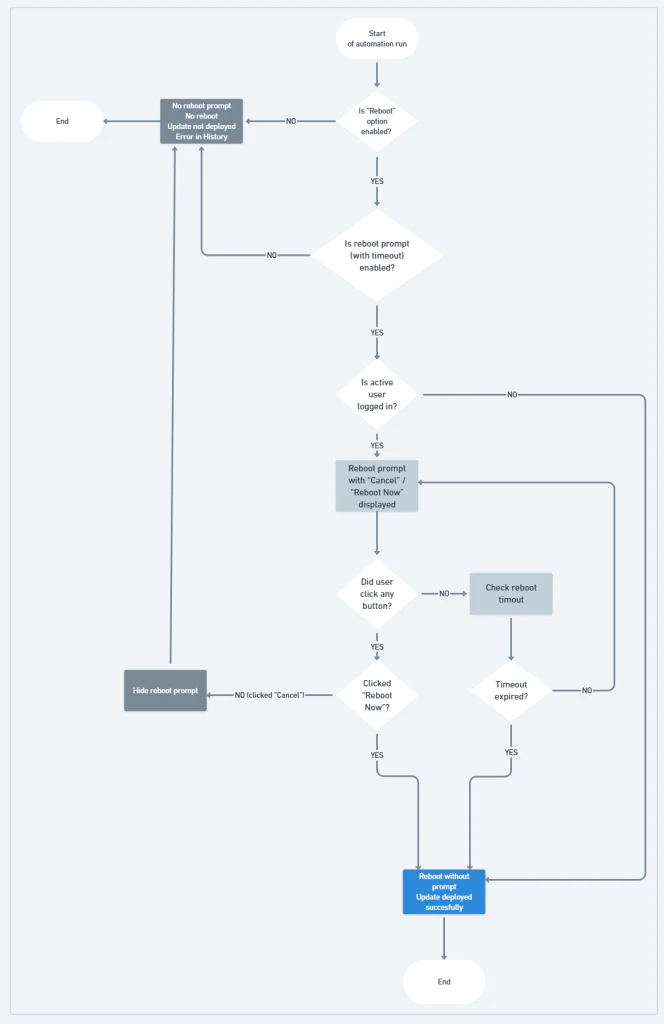
What if the reboot prompt is disabled?
In this case:
- No reboot prompt is displayed to the endpoint user.
- The update is not deployed.
- The automation fails, and an error is recorded in History, as in the example above.
How can I customize the reboot prompt?
See the “Reboot Prompt Customization” section for detailed instructions.
Reboot Behavior
The next sections describe the factors that can influence the reboot behavior (when the reboot prompt is enabled in the automation settings).
User State
User state
Prompt
Reboot
Endpoint State
Endpoint state
Automation & reboot
- E.g., if a user initiated a standard reboot by clicking "Restart", this does not affect a Deploy Update automation, which will run as usual (including the endpoint reboot).
- If another process installed the update and finalized its deployment with a reboot before the automation run time, Action1 will not trigger the additional reboot.
- If the agent already received the automation configuration, the automation will run as configured. E.g., if the deadline has expired, the automation does not start.
- If the agent did not receive the configuration, the automation starts after the connectivity is restored, as long as the deadline has not expired.