


Run sync and review sync status
This article explains how to start sync, what to expect during processing, and how to interpret the sync status shown by Action1 Connector for Jira.
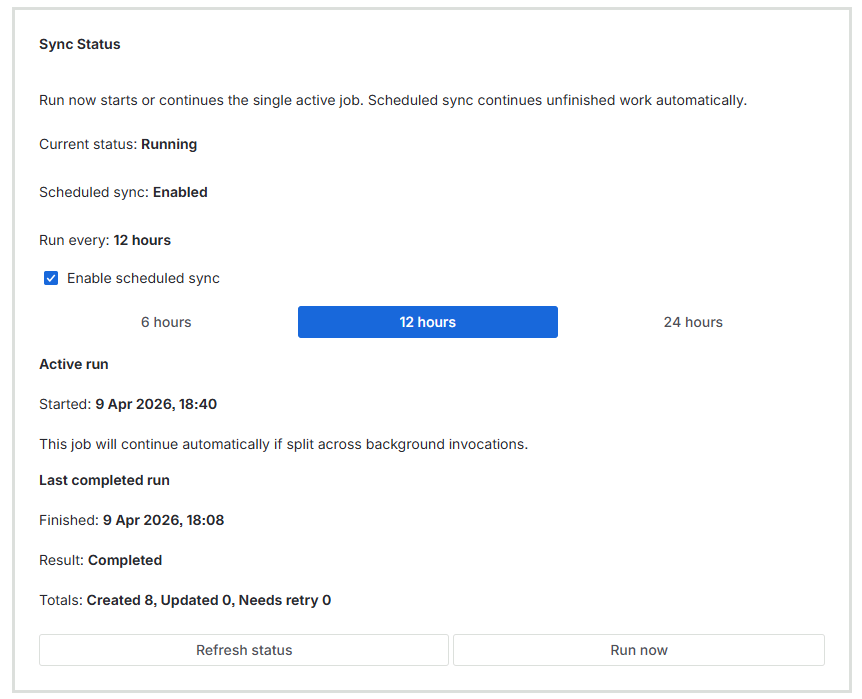
The connector uses a unified sync flow. You can start sync manually at any time, and you can also enable scheduled sync so Jira stays aligned with Action1 automatically.
Run sync manually
To start sync manually:
- Open Action1 Connector for Jira in Jira and go to Sync Status.
- Select Run now to start or continue sync.
-
- If there is no active sync job, the connector starts a new job.
- If a sync job is already active, Run now continues the existing job instead of creating a second overlapping job.
-
Enable scheduled sync
You can enable scheduled sync so the connector runs automatically on the selected cadence. Use scheduled sync when you want Jira tickets to stay aligned with Action1 without manually starting sync each time.
If scheduled sync is enabled:
- The connector runs on the configured cadence.
- Unfinished work continues automatically.
- You can still use Run now whenever you want to start or continue processing immediately.
What sync does
During sync, the connector evaluates the enabled Action1 signals and creates or updates Jira tickets based on your current configuration. Depending on the rules you enabled, this can include tickets for:
- Vulnerabilities
- Updates
- Reboot required endpoints
- Offline endpoints
- Automation failures
The connector may create new Jira tickets, update existing Jira tickets, or continue unfinished processing from an earlier run.
Understanding sync status
The Sync Status section helps you understand what the connector is doing now and what happened during the most recent run.
Typical customer-facing statuses include:
- Idle — the connector is not currently processing sync work.
- Running — the connector is actively processing sync work.
- Continuing unfinished work — the connector is continuing work from an earlier sync job, which did not finish within a single processing interval.
- Completed — the most recent sync job completed successfully.
- Needs retry — some work did not complete successfully and another attempt may be required.
What to expect during longer runs
For larger environments, sync may continue automatically in the background across multiple processing intervals. This is expected behavior.
You do not need to start a separate second job if the work is still continuing. The connector resumes the active job automatically until processing is complete or attention is required.
Review the latest run
The Sync Status section also shows information about the latest run, so you can quickly determine whether the connector completed successfully or if follow-up is needed. When reviewing the latest run, look for:
- The current or last status
- Whether work is still continuing
- Whether the connector needs to retry
- Summary counters for the completed run
Summary counters
The connector shows job-level summary counters for the sync work it performed. These counters help you understand what changed during the run, such as:
- How many Jira tickets were created
- How many Jira tickets were updated
- How many Jira tickets were closed
- How many items need to be retried
These counters reflect the job as a whole rather than only a single processing interval.
When to use Run now
Use Run now in the following cases:
- You have just changed the connection or rule settings.
- You have just added or updated organization mapping.
- You want to validate the integration after setup.
- Sync shows Needs retry, and you want to try again immediately.
- You want to continue processing without waiting for the next scheduled run.
When to review the target Jira space
After sync starts or completes, open the mapped Jira space and review the resulting Jira tickets. This helps confirm that:
- The expected Action1 conditions qualified for ticket creation
- Tickets were created in the correct Jira space
- Existing Jira tickets were updated as expected
Common status questions
Why does sync continue instead of finishing immediately?
Larger environments may require more than one processing interval. The connector continues automatically until the active work is complete.
Why does sync show Needs retry?
This usually means some work could not be completed successfully during the most recent attempt, and another run may be needed.
Can I select Run now while sync is already active?
Yes. If a job is already active, the connector continues that job instead of creating an overlapping second job.
Do I need to wait for the next schedule if work is unfinished?
No. Unfinished work continues automatically, and you can also select Run now to continue immediately.