


Update Ring Configuration
On the Update Ring step of the wizard:
- Specify what updates will be deployed on the target endpoints.
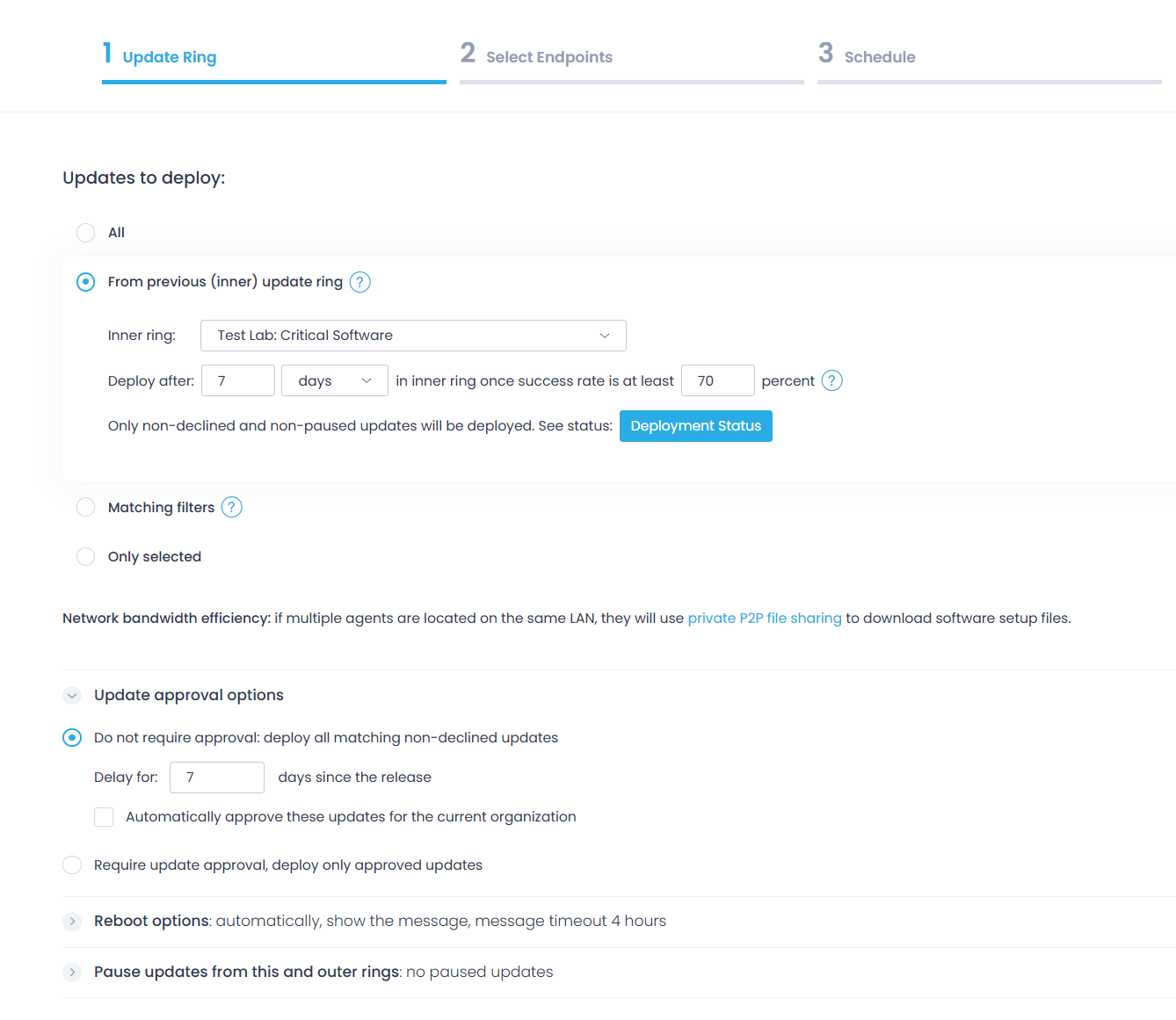
- All – this is the default option. You can use it to install all updates, irrespective of their severity or status.
- From previous (inner) update ring – use this option to proceed with deploying non-declined and non-paused updates from the previous ring. For example, if you are configuring Ring 1, you can deploy only the updates that were successfully validated within Ring 0.
NOTE: If you are configuring the initial update ring, this option is not applicable (since there are no previous update rings yet), so in this case, use Matching filters or another option, as described below.
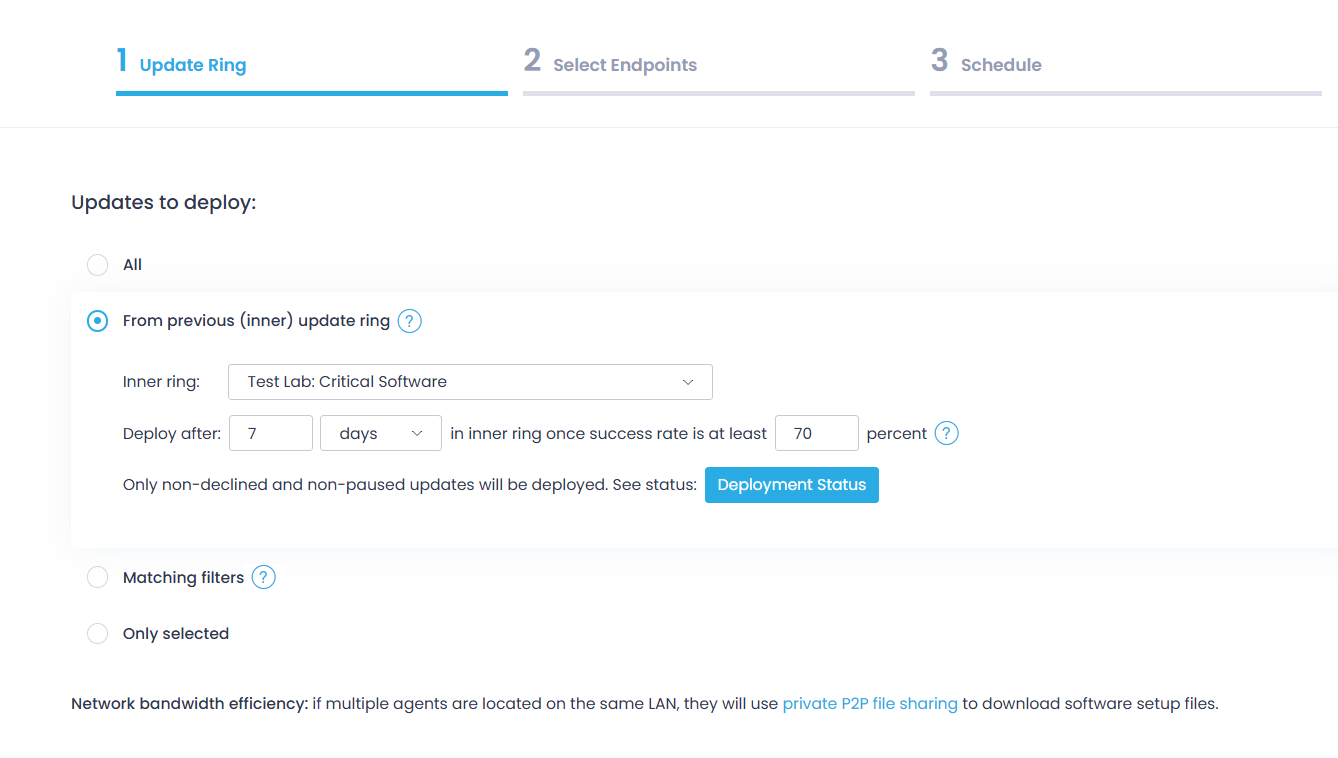
You can continue deploying non-declined and non-paused updates from the inner ring. Click Deployment Status to examine the updates deployed within the selected ring.
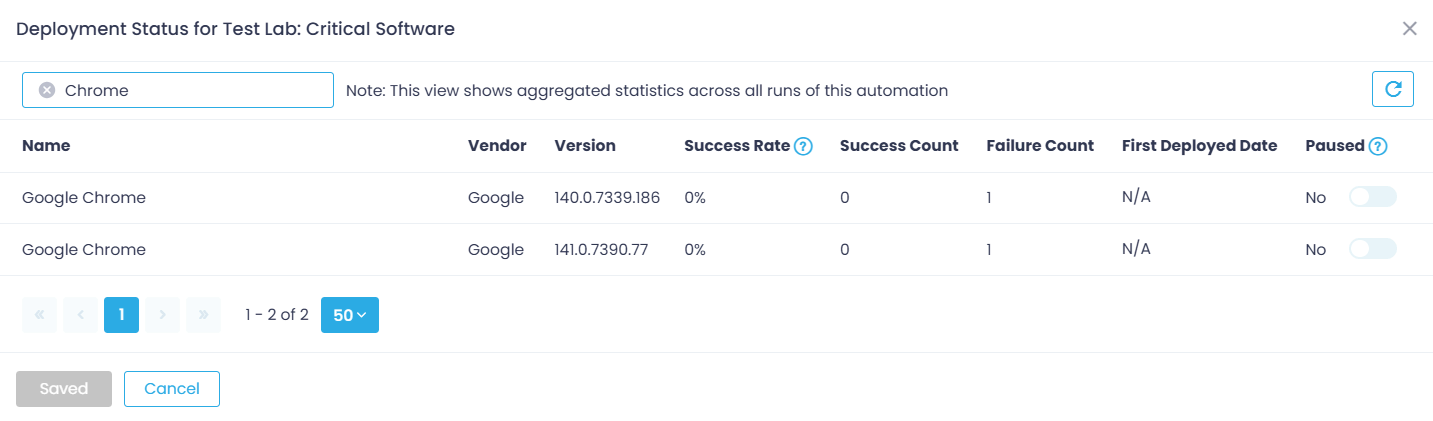
NOTE: The list displays aggregated statistics across all runs of the corresponding automation.
Paused updates will be omitted from the current and all subsequent (“outer”) rings in the chain. Use the toggle switch in the Paused field to omit the selected updates from the current and outer rings.
To filter the updates from the previous ring, you can configure certain criteria based on metrics (will be applied using logical AND).
Filtering criteria in detail
- min Success rate – the value is calculated using the following formula: Success Count / (Success Count + Failure Count) × 100
Default is 70%.
- min Success count – number of updates successfully deployed on at least N endpoints in the inner ring (default is 10 endpoints).
- Additionally, you can include only those that were first successfully deployed in the ring at least n days/hours/minutes ago (default is 7 days ago).
- Matching filters – use this option to install the updates that match your search criteria.
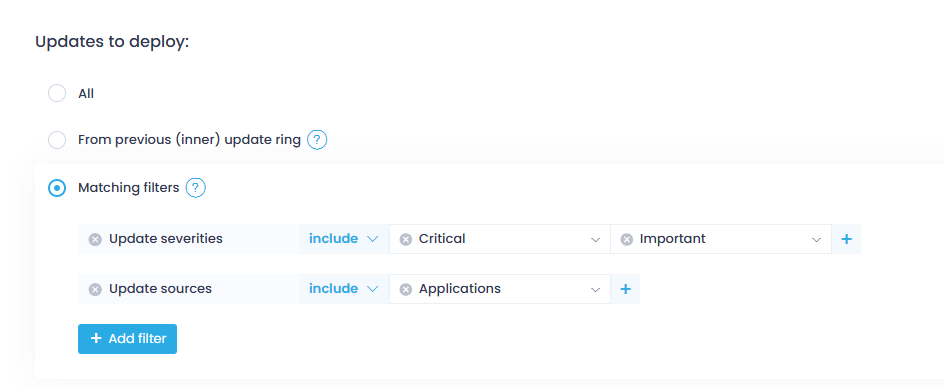
How can I configure filters?
- Add filters such as update source, update severity, etc.
- You can add several filters, and Action1 will search for and deploy updates that match them all at once (logical AND).
- Within each filter, you can provide several values, Action1 will search for any of them (logical OR).
- The values can be included or excluded. For example, search for and deploy security updates that are coming from Microsoft or Google but which severities are anything except Low.
- Only selected – use this option to install specific updates you’ve picked from the list. It shows all available updates in the organization.
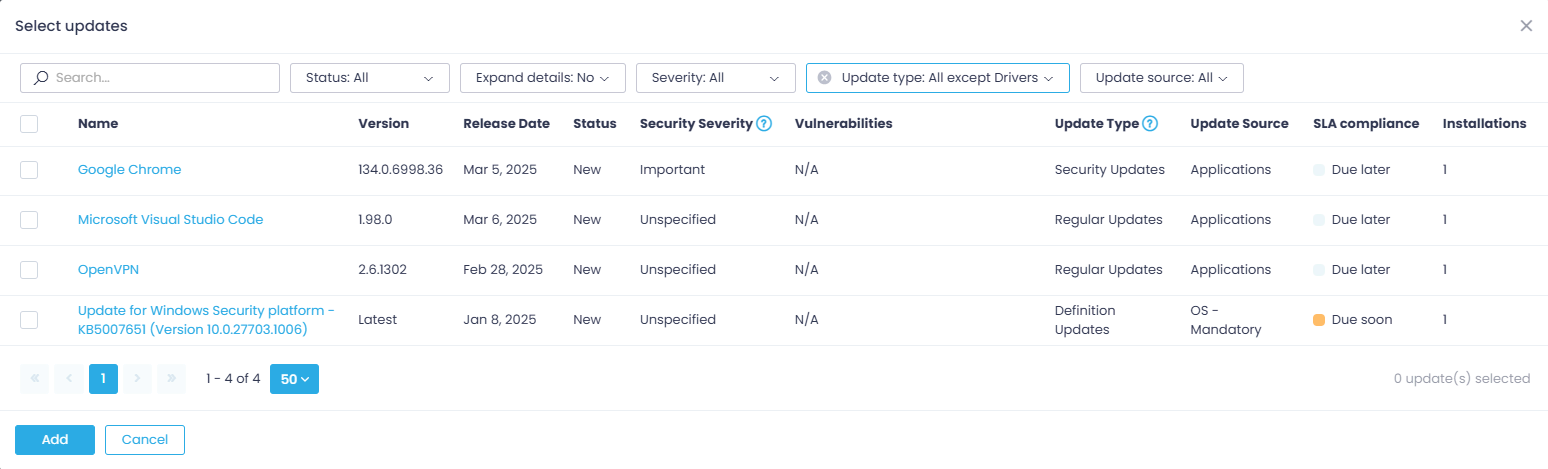
- If you have selected All, From previous (inner) update ring, or Matching filters, you can use Update approval options to define if you need updates to be explicitly approved before they can be scheduled for distribution.
-
- Do not require approval – automatically deploy all updates that match the criteria you specified earlier and that have a status other than Declined.
- Delay for – set the time period to wait before automatically installing the update,
- Also, you can select to Automatically approve these updates for the current organization, and the update status will be changed to Approved.
- Alternatively, you can select to Require update approval. If so, Action1 will deploy only the updates that match the specified criteria AND have a status Approved.
- Do not require approval – automatically deploy all updates that match the criteria you specified earlier and that have a status other than Declined.
-

NOTE: Update approval options are not shown if you choose Only selected in step 1 – if needed, you can reach the same effect by selecting Status: Approved when putting up the list of updates.
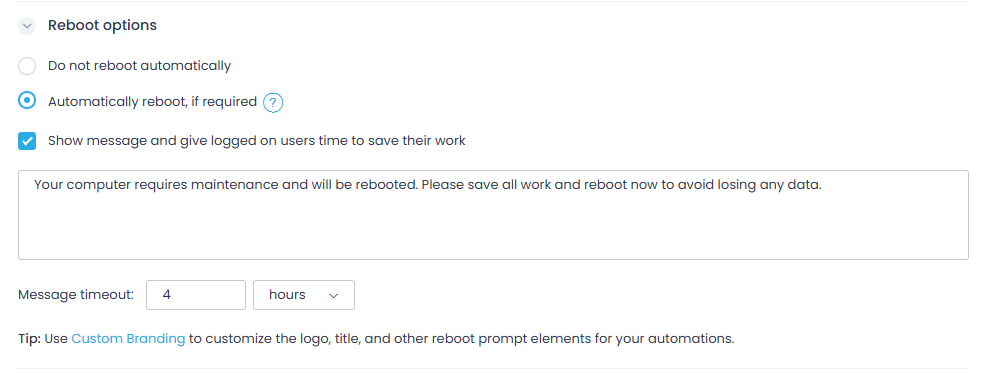
- Use Reboot options to specify whether to automatically reboot the target endpoint. You can also instruct Action1 to show a message to the endpoint users and give them time to save their work, and set the message timeout.
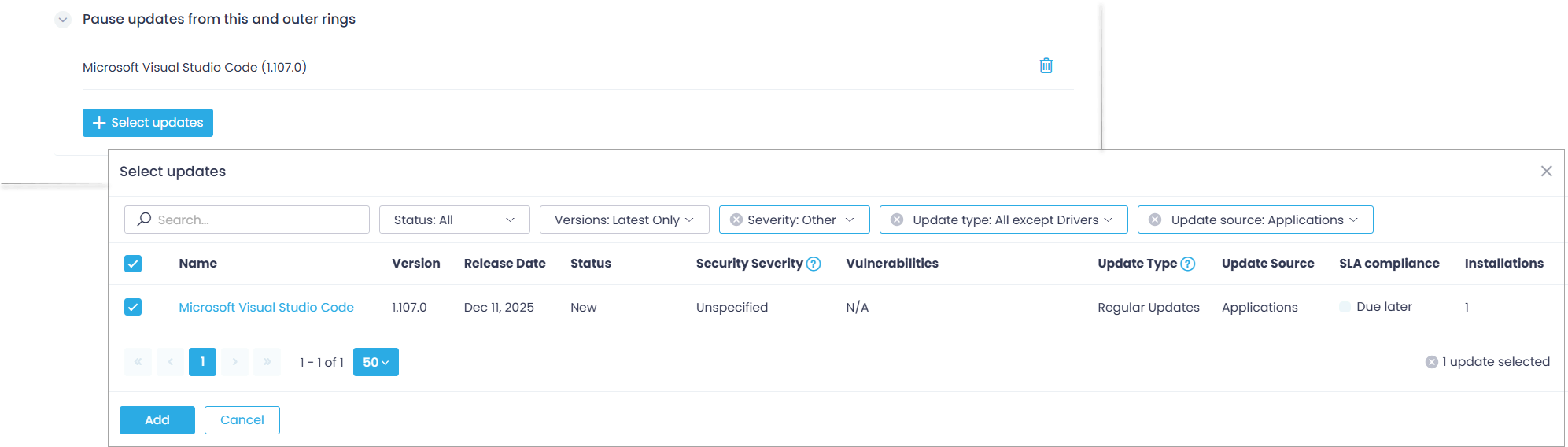
- You can Pause updates from this and outer rings – from the list of available updates, select the ones you need to omit from deployment within this ring (and, respectively, the next rings that follow).
- Finally, you can select to Deactivate updates in Windows settings – use it to disable Windows Update and push patches and KBs via Action1 only.

Then proceed with the next steps of the wizard to select target endpoints and configure automation schedule.