


Automate Critical Updates
After testing manual update deployment, you can create an automation that installs critical updates automatically.
To automate the deployment of critical security patches for OS and apps 1 day after they are released:
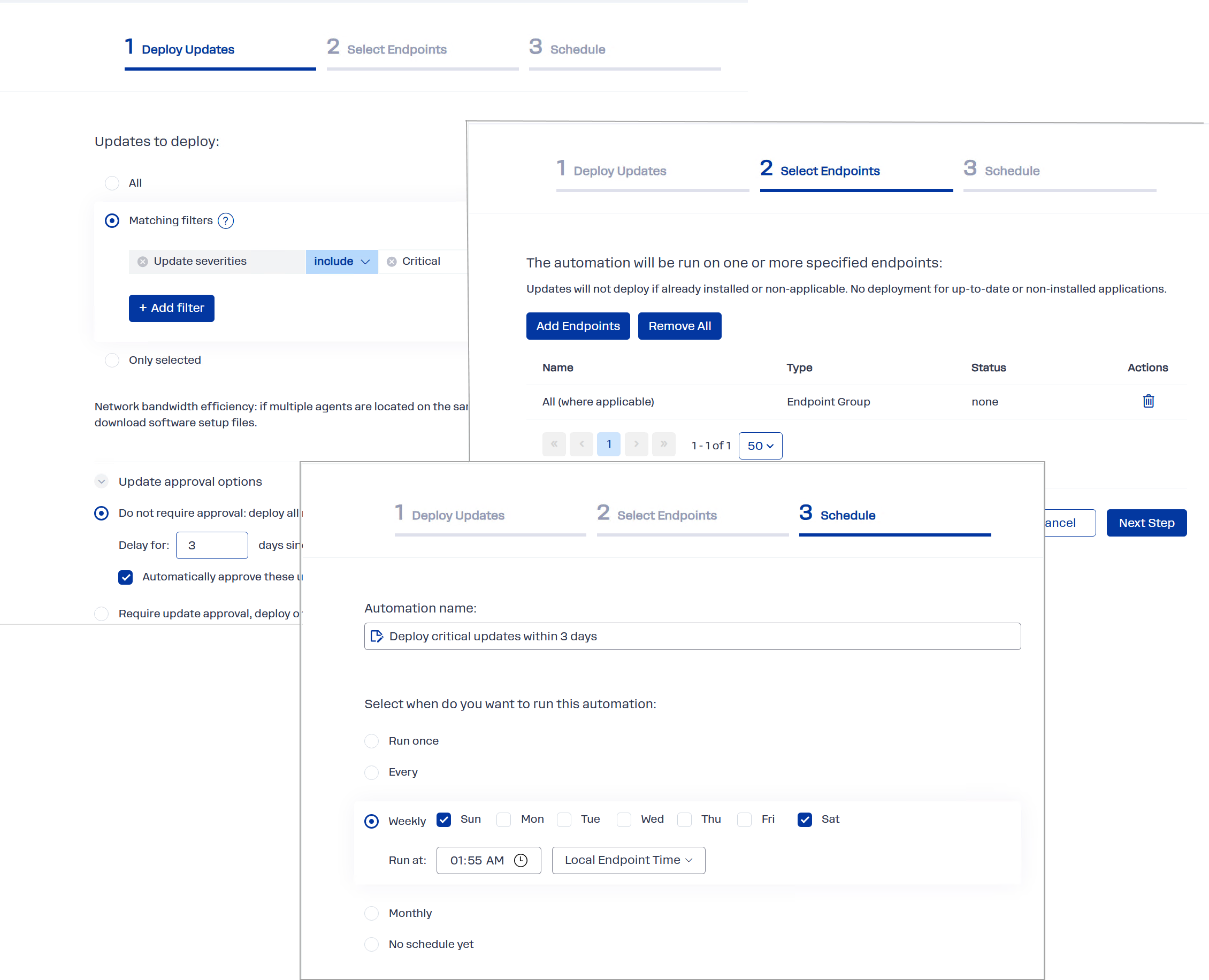
- Navigate to Automations, select New Automation, and click Deploy Updates.
- On the Deploy Updates step:
- a. Select Matching filters. Click Add filter, select Update severities, and select Critical.
b. Click Update approval options, select Do not require approval: deploy all matching non-declined updates. Enter 1 day as the delay parameter.
c. Adjust the Reboot options as needed.
- On the Select Endpoints step, click Add Endpoints and select the endpoints to include in this automation.
- On the Schedule step, specify when the automation should run — for example, weekly on Sundays and Saturdays at 2 AM.
- You will be prompted to sign the automation that will deploy the update. Provide your Action1 key and/or passphrase.
Action1 will begin deploying the selected updates and will report progress and results in real time.
See also: Automations Overview, Updates Deployment and Reboot Behavior on Windows, Updates Deployment and Reboot Behavior on macOS
Try later: Create another automation that requires manual approval of updates, and use the Update Approval section to selectively approve or decline updates. Another option is to create a broader automation to include updates beyond critical severity.