


Install Additional Agents
After installing the first agent, you can use the existing security configuration to deploy agents to other endpoints. Use your organization’s installation token for each additional agent. The console displays the token only when it is created. Copy it and store it securely for future agent installations.
- If no installation token exists for the organization, select Create Installation Token.
- If a token already exists but you no longer have it available, select Recreate Installation Token. You will need your Action1 Key to recreate the token. Recreating the token invalidates the previous token. Agents already installed using the previous token continue to work, but new installations must use the new token.
Important! Update any deployment tools, scripts, and scheduled installation tasks that use the previous token. Pending installations will fail if they use an invalidated token.
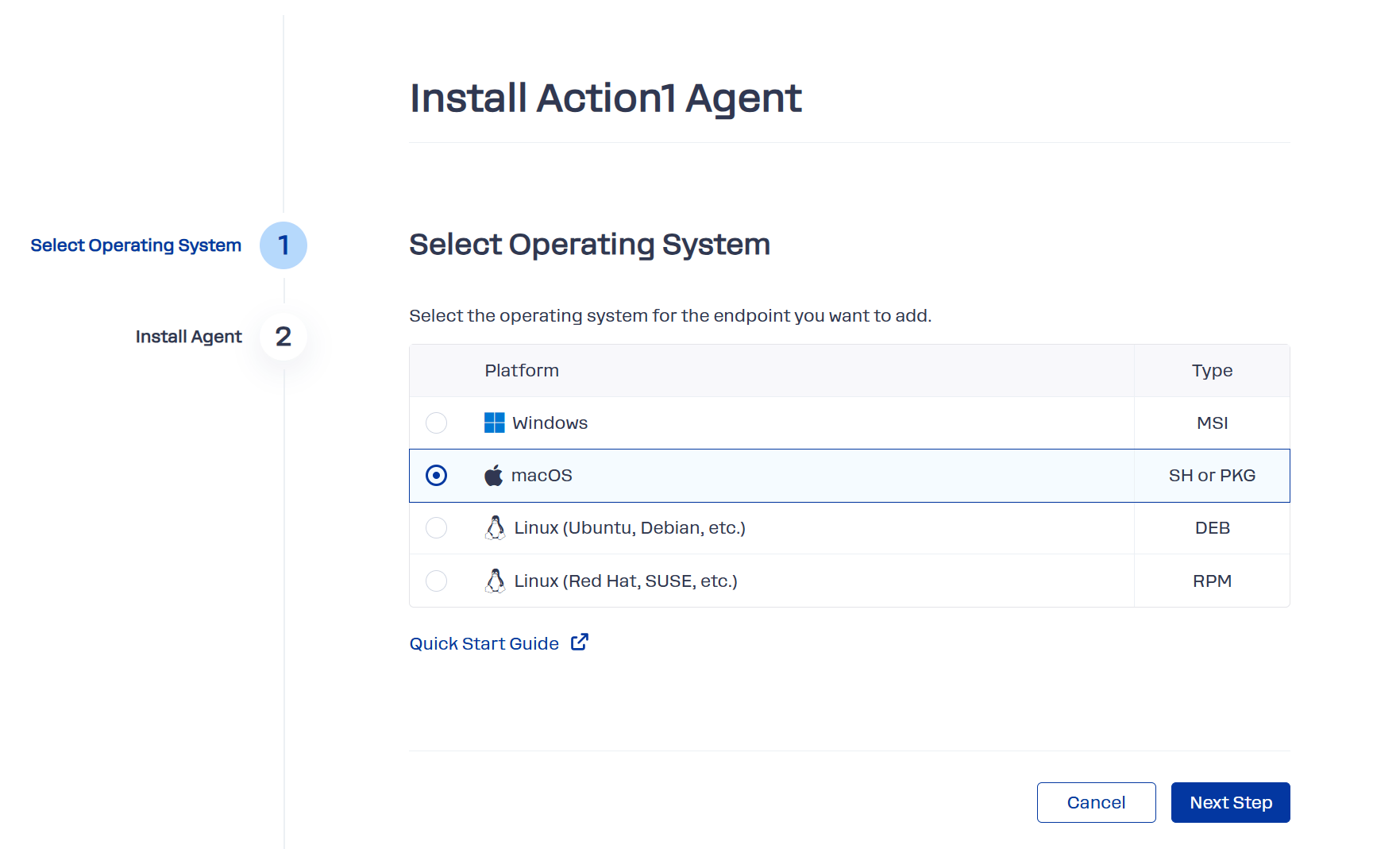
- Click +Install Agent to start the wizard.
NOTE: This wizard does not include key creation, but agent download and installation.
– The initial Action1 Key is created during the deployment of the first agent with the Getting Started wizard. See Deploy Your First Action1 Agent for details.
– All other key management tasks (creation, approval, etc.) should be performed on the Users & API Credentials or My Account page.
- Select the operating system of the target endpoint, then choose the preferred installation method and follow the related scenario.
Scenario A: Interactive installation
Use it when installing an agent directly on the endpoint.
- Select the endpoint operating system.
- Download the installation package.
- Run the installation package with administrative privileges.
- Provide the installation token to the agent using the corresponding command.
These steps are described in detail in the Deploy Your First Action1 Agent section.
Scenario B: Unattended installation
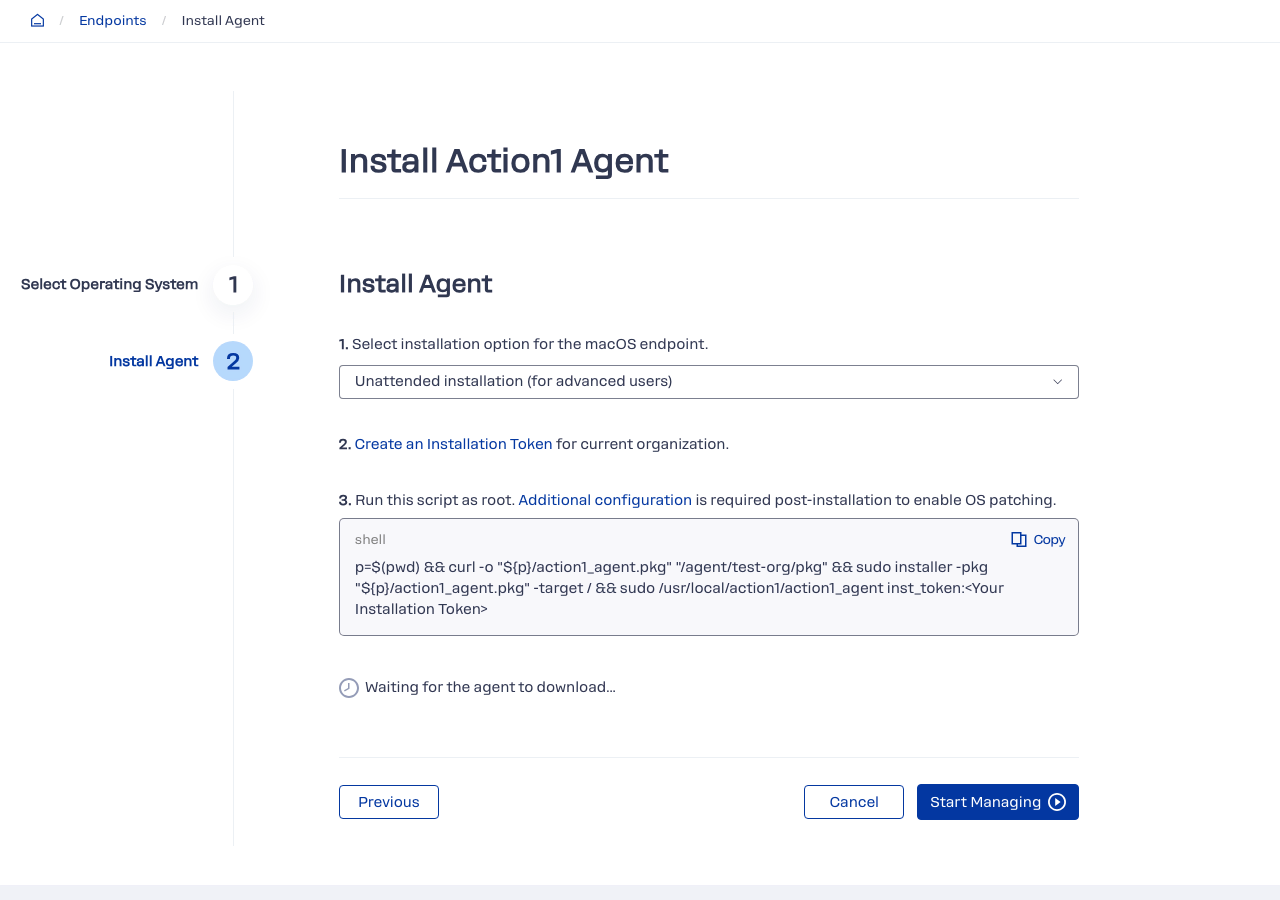
- Select Unattended installation in the agent installation wizard.
- Prepare the installation command for the target operating system, including your organization’s installation token as a script parameter.
- On the target endpoint, run the complete command with administrative privileges.
The script downloads the appropriate package, installs the agent, and registers it with your Action1 organization using the installation token.
See also: Manual Agent Installation
Scenario C: Installation with 3rd-party tools
If you want to deploy the agent with Microsoft Intune or another software-deployment tool:
- From the installation options, select Direct download.
- Download the deployment package from the specified URL.
- After downloading the package, copy and run the corresponding command using an account with administrative privileges, providing the installation token to the agent through a script parameter.
See also: Manual Agent Installation