


Application Restart Behavior During Updates
Some applications must be closed before a new version of the software app can be deployed to target endpoints. To control how Action1 handles these situations, use the Application restart behavior during updates advanced setting in the Action1 console.
NOTE: This functionality is supported for Windows applications only. Currently, this setting is available for a limited number of built-in applications.
This setting determines what happens when Action1 detects that a running application must be closed before an update can proceed. The following options are available:
- None — do not close the running apps, cancel the update deployment
- Force Close — close the application automatically, without prompting the user; the update then proceeds.
- Prompt & Force Close — ask the user to close the detected apps within 1 hour, then close them automatically and proceed with the update.
- Reboot (default) — reboot the target endpoint to close the detected apps; the update then proceeds.
By default, this setting is applied to the Action1 Enterprise. To configure it, a role with at least the Manage Advanced Settings permission is required.
How It Works
When configuring application version deployment settings, the pre-deployment scripts are provided on the Additional Actions tab. They are executed by the agent on the target endpoint and detect the running app processes that may conflict with the selected application update. These additional actions will handle the potential conflicts depending on the Application restart behavior during updates option selected:
- Reboot (default)— If a conflicting application is detected, Action1 resolves the issue by rebooting the endpoint. (When a conflicting application is found, the script returns a reboot exit code.) This closes the conflicting applications and allows the update to proceed. The reboot is handled as described in this section:
- The endpoint user receives a reboot prompt.
- The reboot occurs according to the user’s response to the prompt.
- After the reboot operation successfully closes the applications, the update deployment is completed.
- None — If a conflicting application is detected:
- No applications are closed.
- The update deployment is canceled.
- A corresponding error message is recorded in the automation History.
- Force Close — If a conflicting application is detected:
- Its process is closed automatically, without notifying the user.
- The update deployment proceeds immediately.
NOTE: Applications closed using this option are not restarted automatically afterward.
- Prompt & Force Close —If a conflicting application is detected:
- The endpoint user is shown a message listing the applications that must be closed and is given 1 hour to close them manually. For example:
“Installation of Adobe Acrobat Pro requires closing the following applications: Microsoft Outlook, Word, and Excel. Please close them within 1 hour. Action1 will then attempt to close any remaining processes automatically.” - Once the applications are closed, Action1 deploys the update and notifies the user upon completion.
- If the applications are not closed within 1 hour, Action1 attempts to force-close them.
- If the force-close attempt fails, the update deployment is canceled.
- The endpoint user is shown a message listing the applications that must be closed and is given 1 hour to close them manually. For example:
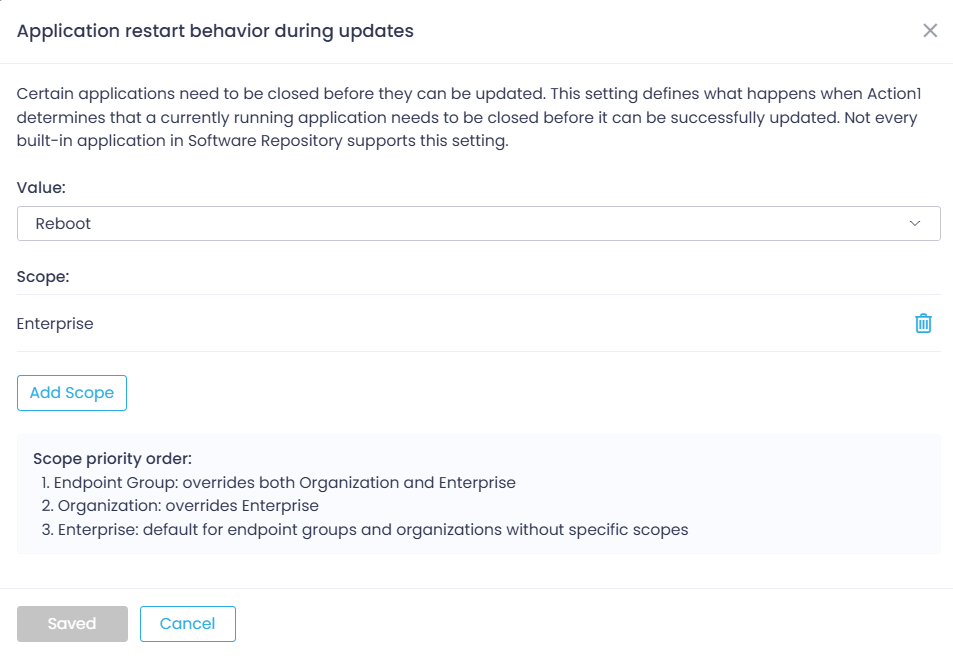
Example
As an app administrator, you need to change the Adobe Acrobat Reader DC app update behavior for the HQ Organization to Prompt & Force Close.
For that:
- Clone the Application restart behavior during updates advanced setting. The cloned setting will be shown in the list. (To check this, click Actions – they will include the Delete command, which is available for clones only.)
- For the clone, specify the desired Value (that is, Prompt & Force Close).
- Click Add Scope > Organization and select HQ.
The added scope will take priority over the Enterprise scope.
- To apply the same value to other organizations or endpoint groups, use Add Scope.
- To apply another value to other organizations or endpoint groups, click Clone and take the steps above.
Consider the scope priority order:
- Endpoint Group: overrides both Organization and Enterprise
- Organization: overrides Enterprise
- Enterprise: applies to endpoint groups and Organizations without specific scopes