


Map Action1 organizations to Jira spaces
This article explains how to map Action1 organizations to Jira spaces and how mapping affects where Jira tickets are created. Organization mapping is required because the connector needs to know where to route Jira tickets for each Action1 organization.
Why mapping is required
Before the connector can create Jira tickets, it must know which Jira space should receive work for each Action1 organization. Mapping lets you control where Action1-driven Jira tickets are created and helps route work to the correct team or workflow.
If an Action1 organization is not mapped, the connector cannot create Jira tickets for that organization.
Where to find mapping
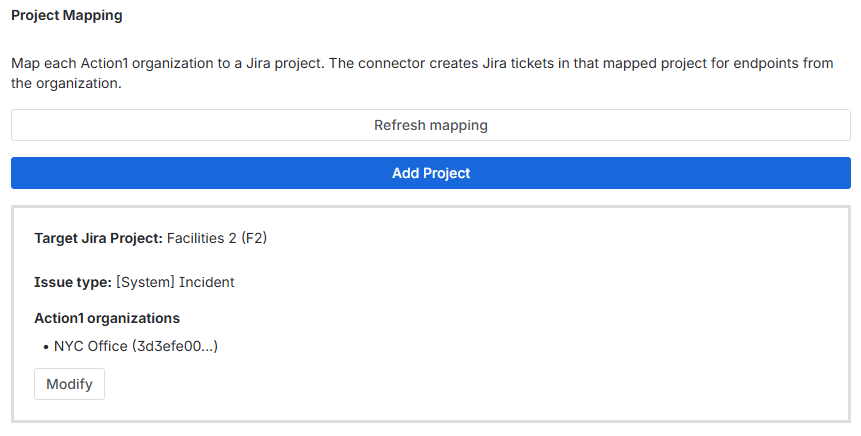
Open Action1 Connector for Jira in Jira and go to Project Mapping.
This section allows you to:
- View existing mappings.
- Add a new mapping.
- Change an existing mapping.
- Remove a mapping.
Add a mapping
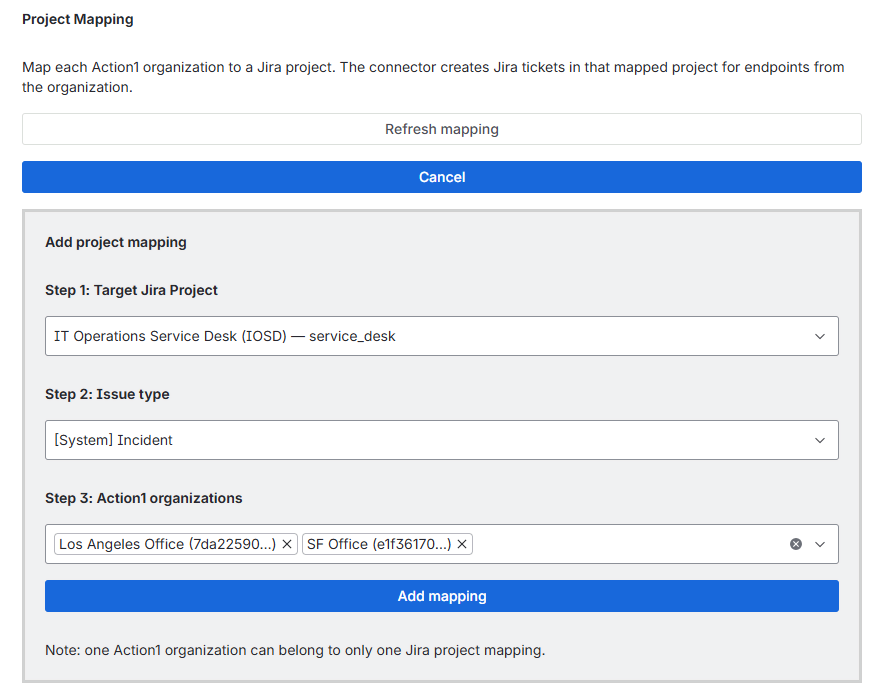
To add a new mapping:
- Open Project Mapping.
- Select the Action1 organization you want to map.
- Select the Jira project that should receive tickets for that organization.
- Select the Jira issue type to use for created tickets, if applicable.
- Save the mapping.
After the mapping is saved, the connector can use it during sync to route qualifying Action1 conditions into the selected Jira target.
Review available Jira projects
When choosing a Jira target, the connector shows only the Jira projects that are visible and available to the Jira administrative account currently using the app. If a project is missing from the list, do the following:
- Verify that the current Jira admin account has access to the project.
- Verify that the project still exists.
- Refresh and try again if permissions were changed recently.
This is the reason why different admins may not always see exactly the same project list.
Edit an existing mapping
You can update an existing mapping if you want an Action1 organization to route to a different Jira project or use a different Jira issue type.
To edit a mapping:
- Open Project Mapping.
- Find the existing mapping.
- Change the Jira target as needed.
- Save the updated mapping.
After the change is saved, future sync activity for that Action1 organization will use the updated mapping.
Remove a mapping
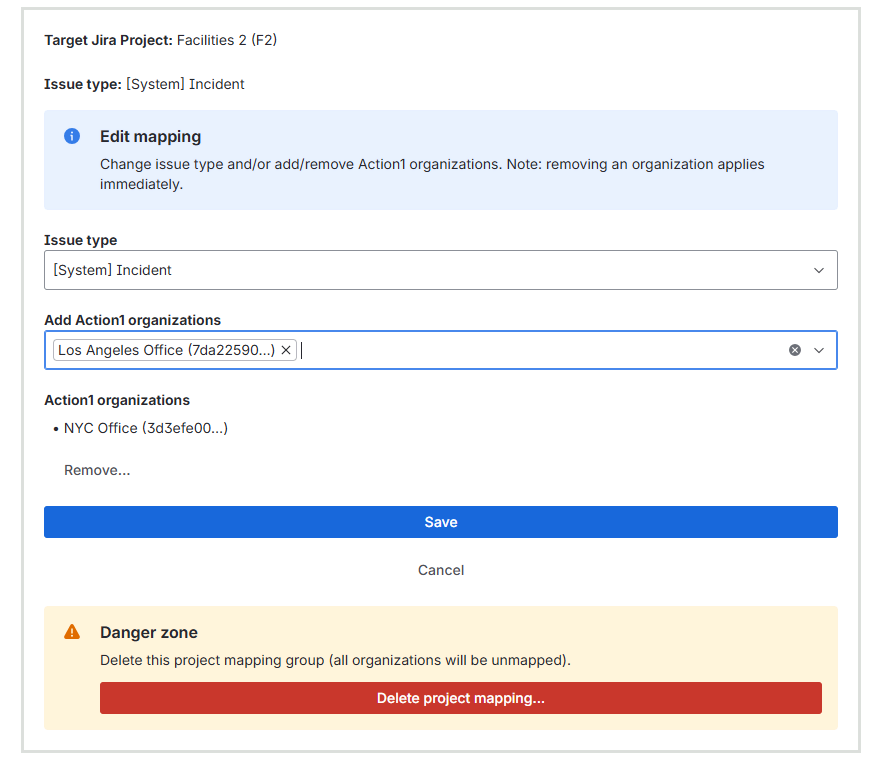
You can remove a mapping if an Action1 organization should no longer route work into Jira through that target.
If a mapping is removed, the connector can no longer create Jira tickets for that Action1 organization until a new mapping is added.
Recommended mapping approach
A common approach is to map each Action1 organization to the Jira project that best matches the owning team, business unit, or operational workflow. For example:
- Map one Action1 organization to an IT operations Jira project.
- Map another organization to a security or remediation Jira project.
- Keep organizations separated if different teams own follow-up.
This makes the resulting Jira tickets easier to route, review, and manage.
What happens after mapping is configured
After at least one mapping is configured, the connector can use that mapping during sync. When a qualifying Action1 condition is detected for a mapped organization, the connector creates or updates the Jira ticket in the mapped Jira target.
Mapping does not create tickets by itself. Ticket creation happens during sync and depends on:
- The configured rules
- The enabled signals
- Whether the Action1 condition qualifies
- Whether the organization is mapped
Verify your mapping
After saving a mapping, verify the following:
- The correct Action1 organization is selected
- The intended Jira project is selected
- The intended Jira issue type is selected, if applicable
- The mapping appears in the saved mapping list
Then run sync and confirm that the resulting Jira tickets appear in the expected Jira project.
Common mapping questions
Do I need to map every Action1 organization?
You only need to map the Action1 organizations that you want the connector to process into Jira.
What happens if an organization is not mapped?
The connector cannot create Jira tickets for that organization.
Why don’t I see the Jira project I expected?
The app shows only the Jira projects available to the Jira administrative account currently using the app.
Can I change a mapping later?
Yes. You can update an existing mapping at any time.
Does mapping create tickets immediately?
No. Mapping only defines where tickets should go. Tickets are created or updated during sync.