


Configure ticketing rules for the Action1 Connector for Jira
This article explains how to configure ticketing rules for Action1 Connector for Jira and how those rules affect Jira ticket creation and maintenance.
Use the Rules section to choose which Action1 signals should create Jira tickets and to adjust the conditions that determine when endpoints qualify.
What the Rules section controls
The Rules section controls:
- Which Action1 signals are enabled
- Which qualifying conditions should create Jira tickets
- How the connector evaluates supported signals
- How existing Jira tickets are maintained over time
The connector can create and maintain Jira tickets for these Action1 signal types:
- Vulnerabilities detected
- Updates required
- Reboot required
- Endpoint offline
- Automation failures detected
Rules do not create tickets by themselves. Ticket creation happens during sync and depends on:
- The enabled signals
- The configured rule conditions
- Whether an endpoint qualifies
- Whether the Action1 organization is mapped
How the ticket model works
The current ticketing model is endpoint-based. For each supported signal type, the connector maintains at most one Jira ticket for the same endpoint. This means the connector does not create a separate Jira ticket for every individual vulnerability, update, or automation record. Instead, it creates or maintains one Jira ticket for the endpoint and signal type, and the ticket groups the relevant details for that signal.
For example:
- One endpoint can have one Vulnerabilities detected ticket.
- The same endpoint can also have one Updates required ticket.
- The same endpoint can also have one Automation failures detected ticket.
This helps reduce duplicate ticket creation while keeping endpoint-level work visible in Jira.
Supported signal types
The connector supports the following Action1 signal types:
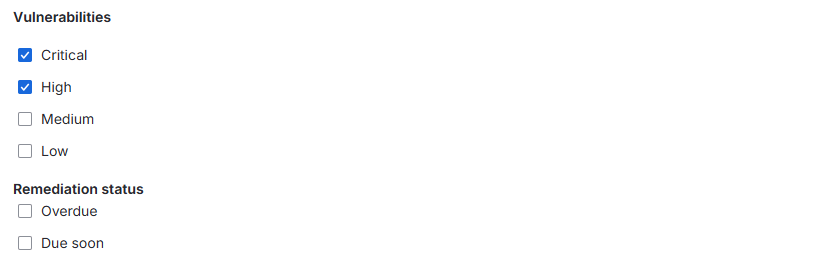
- Vulnerabilities detected — Use this signal to create Jira tickets for endpoints that match your configured vulnerability conditions. This is typically used when you want vulnerable endpoints to become tracked Jira work items. Depending on the available settings, vulnerability rules may include controls such as:
- Severity selection
- Age-based filtering
- Remediation or status-based filters
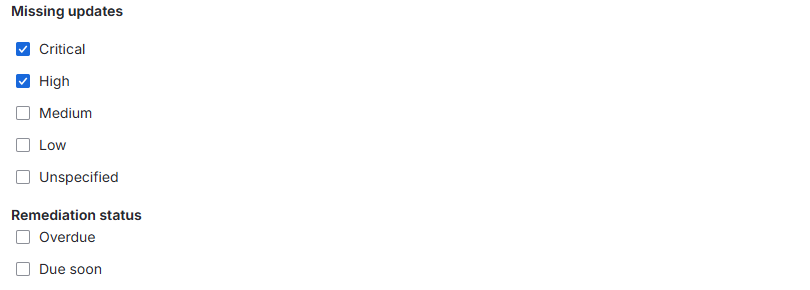
- Updates required — Use this signal to create Jira tickets for endpoints that require updates and match your configured update conditions. Depending on the available settings, update rules may include controls such as:
- Update severity levels to include
- Remediation or SLA-related filters
- Reboot required — Use this signal to create Jira tickets for endpoints that require a reboot. This is useful when reboot-required systems should be tracked as follow-up work in Jira.
- Endpoint offline — Use this signal to create Jira tickets for endpoints that have not checked in within the configured offline threshold. This is useful when devices that have not reported in for a certain number of days should be investigated.
- Automation failures detected — Use this signal to create Jira tickets for endpoints with qualifying failed automation results. This is useful when automation failures should become tracked Jira follow-up items.
- On the first sync run for this signal, the connector looks back over the configured recent time window to find relevant automation failures.
- After that initial run, the connector remembers the latest processed point and continues from there on future runs instead of starting from the beginning each time.
This helps the connector avoid repeatedly processing the same older automation failure records.
Enable or disable a signal
To enable or disable a signal:
- Open Rules.
- Find the signal you want to configure.
- Turn the signal on or off.
- Save the rule changes.
If a signal is disabled, the connector does not create Jira tickets for that signal during sync.
If a signal is enabled, the connector evaluates the configured conditions for that signal during sync.
Configure vulnerability rules
If Vulnerabilities detected is enabled, configure the conditions that determine which vulnerability cases should create Jira tickets. Typical rule controls may include:
- Severity levels to include
- Vulnerability age requirements
- Remediation or status-based filters
Use these settings to reduce noise and make sure Jira tickets are created only for the vulnerability conditions your team wants to track.
Configure update rules
If Updates required is enabled, configure the conditions that determine which update cases should create Jira tickets. Typical rule controls may include:
- Update severity levels to include
- Remediation or SLA-related filters
Use these settings to target the update conditions that are most relevant to your operational workflow.
Configure reboot required rules
If Reboot required is enabled, the connector creates Jira tickets for endpoints that require a reboot. This signal is generally simpler than vulnerability or update-based rules because qualification depends on whether the endpoint is marked as requiring a reboot.
Configure offline endpoint rules
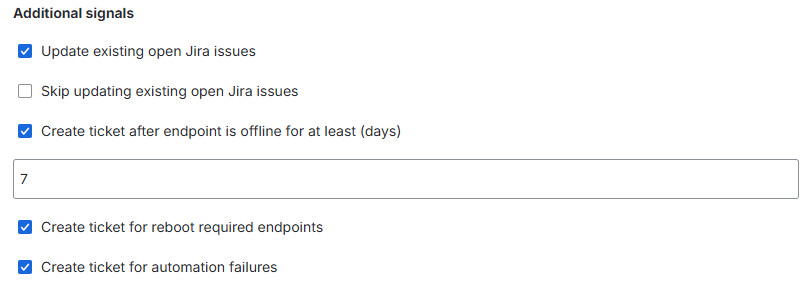
If Endpoint offline is enabled, configure the offline threshold to determine when an endpoint should qualify. For example, if you set the threshold to a specific number of days, endpoints that have not checked in for at least that amount of time can qualify for Jira ticket creation.
Use this rule to avoid creating Jira tickets for short, temporary gaps while still surfacing endpoints that appear meaningfully offline.
Configure automation failure rules
If Automation failures detected is enabled, the connector evaluates qualifying automation failure results and can create Jira tickets for affected endpoints. Use this signal when failed automation outcomes should become visible as tracked work in Jira.
- On the initial run, the connector evaluates recent automation failure history within the configured lookback window.
- After that, future runs continue from the last successfully processed point so that newly detected failures can be picked up without repeatedly reprocessing the full history.
Configure existing open Jira issue behavior
The connector also lets you control how it handles existing open Jira tickets. Available options include:
- Update existing open Jira issues — Choose this option if you want the connector to continue updating the content of an existing open Jira ticket when the endpoint still qualifies for the same signal. This is useful when you want the Jira ticket to reflect the latest grouped details for that endpoint and signal.
- Skip updating existing open Jira issues — Choose this option if you want the connector to leave existing open Jira tickets unchanged. This is useful when your team prefers to keep the original Jira ticket content stable after creation.
How ticket maintenance works
The connector is designed to create and maintain Jira tickets over time. Depending on the endpoint state and your current configuration, the connector may:
- Create a new Jira ticket.
- Update an existing Jira ticket.
- Avoid creating unnecessary duplicate Jira tickets.
This helps keep Jira aligned with Action1 while reducing duplicate ticket creation.
Existing ticket behavior
For qualifying endpoints, the connector may update existing Jira tickets instead of creating new ones. This helps preserve continuity for ongoing work when the same endpoint continues to qualify for the same signal.
Recommended rule setup approach
A common approach is:
- Start with the signals your team clearly wants to track.
- Narrow the qualifying conditions to reduce noise.
- Run sync manually.
- Review the resulting Jira tickets.
- Adjust the rules if you want more or fewer results.
This helps you tune ticket volume before relying on scheduled sync.
Common rule questions
Do enabled rules create tickets immediately?
No. Rules are evaluated during sync. After changing rules, run sync or wait for the next scheduled run.
What happens if a signal is disabled?
The connector does not create Jira tickets for that signal during sync.
Can one endpoint create more than one Jira ticket?
Yes, but only across different signal types. The connector maintains at most one Jira ticket per endpoint for each supported signal type.
Why did a Jira ticket update instead of a new one being created?
The connector is designed to maintain existing Jira tickets when appropriate instead of creating unnecessary duplicates.
Why did no Jira ticket appear even though the signal is enabled?
The endpoint may not have matched the configured rule conditions, the relevant Action1 organization may not be mapped, or sync may still be running or need a retry.
How does automation failure history work on the first run?
On the first run, the connector looks back over the configured recent time window for automation failures. After that, it continues from the last successfully processed point.