


Set up the Action1 Connector for Jira
This article explains how to install Action1 Connector for Jira, configure the main settings, and run the first sync.
After setup is complete, the integration solution can create and maintain Jira tickets based on supported Action1 endpoint signals.
Before you begin
Before you begin, make sure you have:
- An active Action1 account
- A Jira Cloud site
- Administrator access in Jira to install and configure Marketplace apps
- At least one Action1 organization that you want to route into Jira
To connect the integration to Action1, you will need:
- Client ID
- Client Secret
- Permission to read the required Action1 organizations
- The minimum Action1 role permissions required for this integration:
- View Endpoints
- View Automations and History
- View Vulnerabilities
- View Dashboards
If the API credentials do not have access to the required Action1 organizations, the integration may not be able to discover or process them correctly.
Typical setup flow
A common first-time setup looks like this:
- Install the app from Atlassian Marketplace.
- Generate Action1 API credentials.
- Configure the Action1 connection in Jira.
- Choose which signals should create Jira tickets.
- Map Action1 organizations to Jira spaces.
- Run sync manually.
- Review the resulting Jira tickets.
- Enable scheduled sync if you want the connector to continue automatically.
Step 1: Install the app from Atlassian Marketplace
To install the connector, you must have administrative permissions in Jira (to install Marketplace apps).
- In Jira, go to Jira Settings | Marketplace apps.
- Find Action1 Connector for Jira and install it.
- After installation is complete, open the app from the Jira administration area.
Step 2: Open the app in Jira
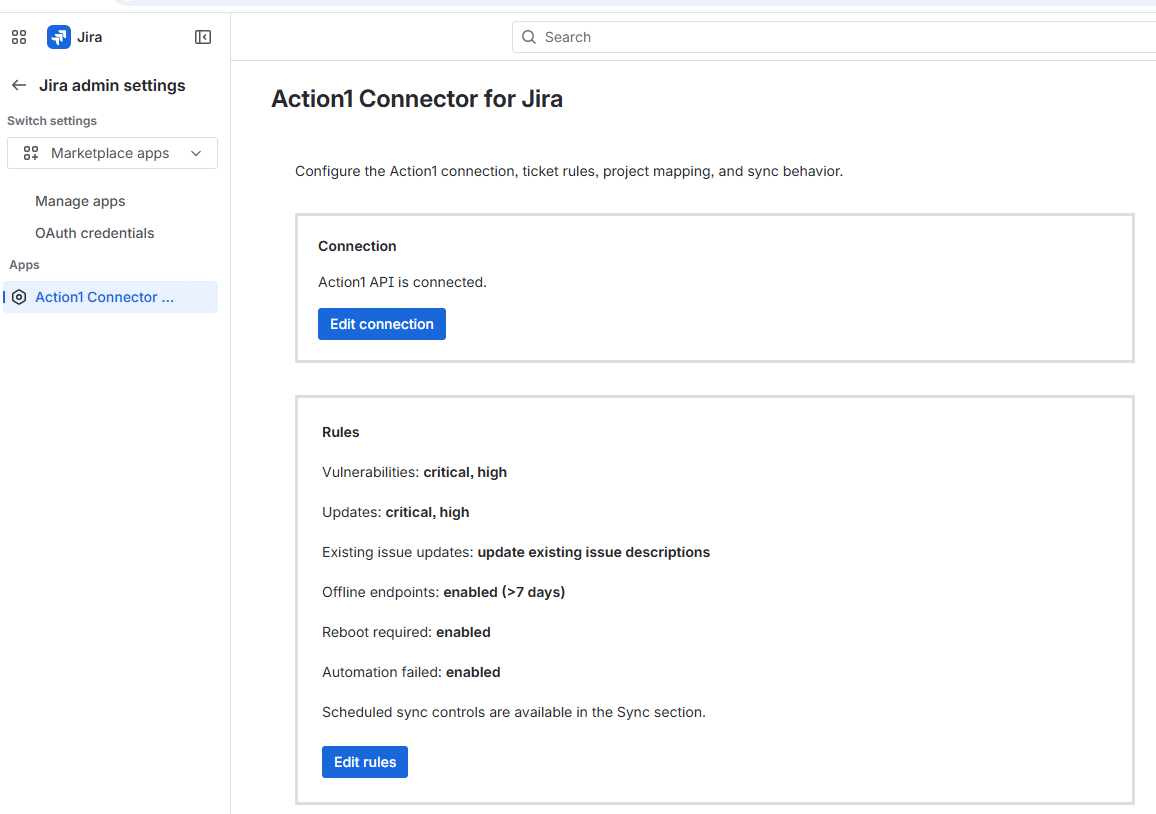
Open Action1 Connector for Jira from the Jira administration area. The main setup flow is organized into several sections:
- Connection
- Rules
- Project Mapping
- Sync Status
- Advanced / Support
Step 3: Generate Action1 API credentials
In Action1, create or locate the API access configuration that will be used by the Jira integration.
Make sure you have:
- the Client ID
- the Client Secret
- access to the Action1 organizations you want to sync
- The Action1 role for API credentials with the required minimal permissions (for read access):
- View Endpoints
- View Automations and History
- View Vulnerabilities
- View Dashboards
If the API credentials do not have access to the organizations you intend to map, the integration may not be able to discover them or process their data correctly.
Step 4: Configure the Action1 connection
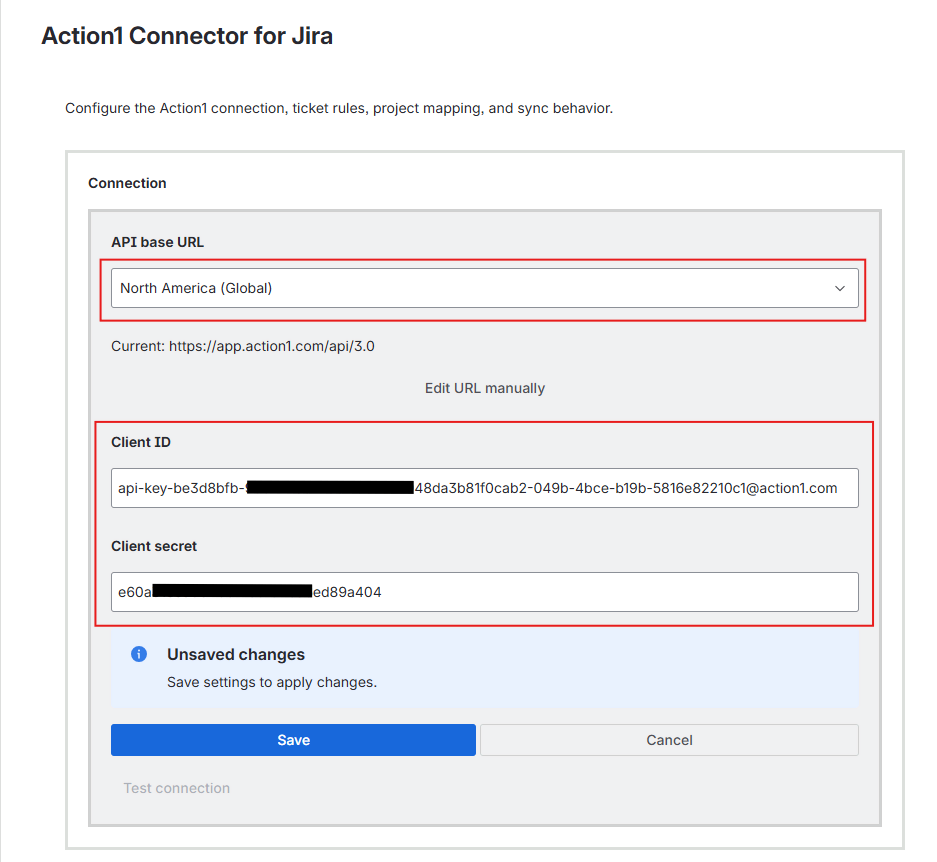
- Open the Connection section in the Jira app and enter the required Action1 connection details: API base URL, Client ID, and Client secret.
- Save the configuration and verify that the connection succeeds.
At this stage, the goal is to confirm that Jira can connect to Action1 and that the API credentials are valid.
Step 5: Configure ticketing rules
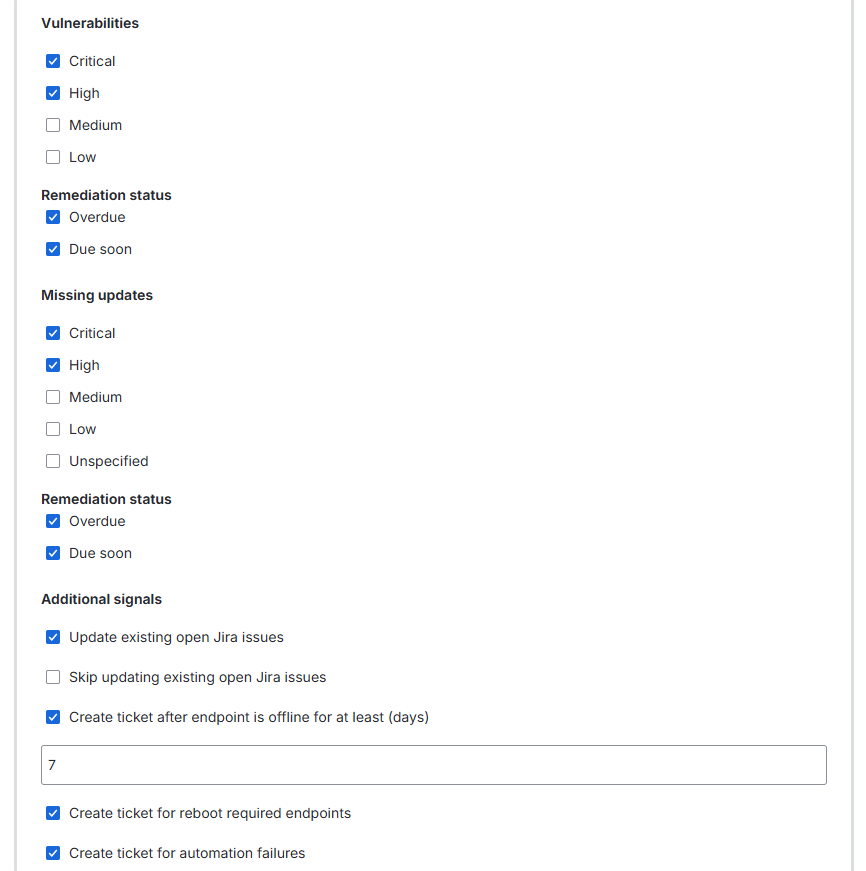
- Open Rules and choose which Action1 signals should create Jira tickets. Supported signal types include:
-
- Vulnerabilities detected
- Updates required
- Reboot required
- Endpoint offline
- Automation failures detected
- Adjust the rule settings to match the way your team wants Jira tickets to be created and maintained. For example, you can decide which signals should be enabled and which conditions should qualify endpoints for ticket creation.
Step 6: Map Action1 organizations to Jira spaces
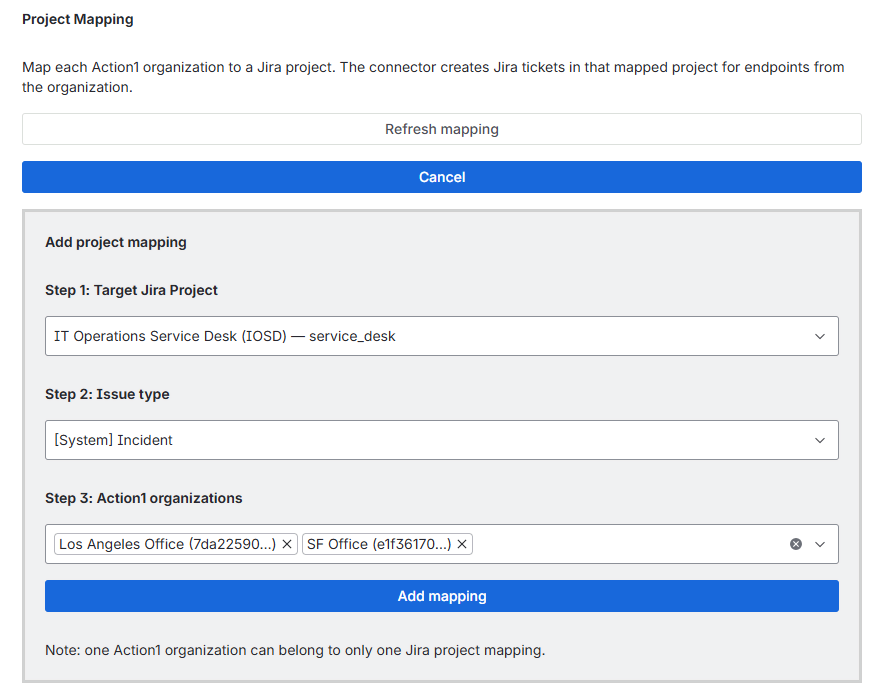
Open Project Mapping and map each Action1 organization to the Jira space where tickets should be created. This mapping determines where Action1-driven work will appear in Jira.
When selecting a Jira target during mapping, the app shows only the Jira projects that are available to the Jira administrative account currently using the app. If the expected Jira project does not appear in the list, verify that the current Jira admin account has access to that project.
Important! You should configure at least one mapping before running sync.
Step 7: Run your first sync
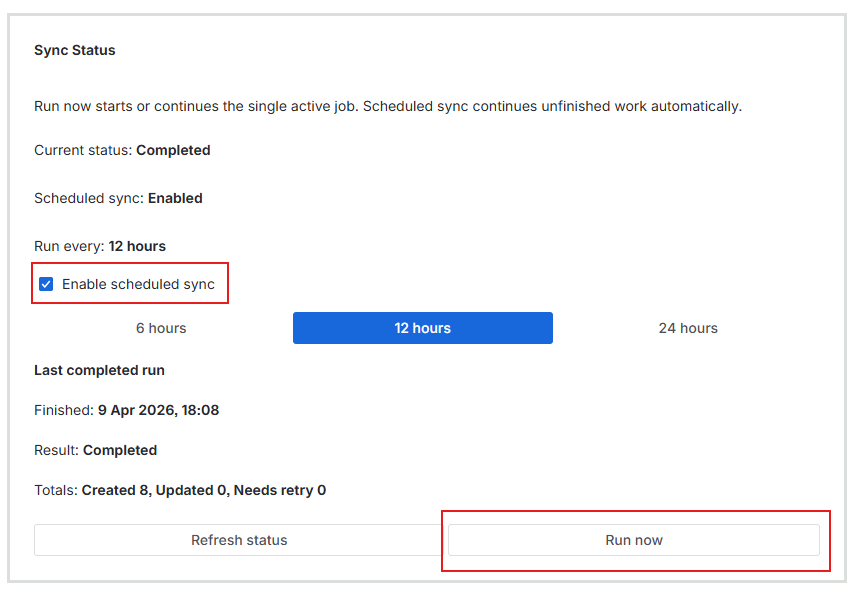
- In the Sync Status section, check the Enable scheduled sync checkbox.
- Start a manual sync using Run now.
- The connector will evaluate the enabled Action1 signals and create or update Jira tickets based on your current configuration.
Depending on the size of your environment, the sync may continue automatically in the background across multiple processing intervals. This is expected behavior for larger environments.
Step 8: Review the results in Jira
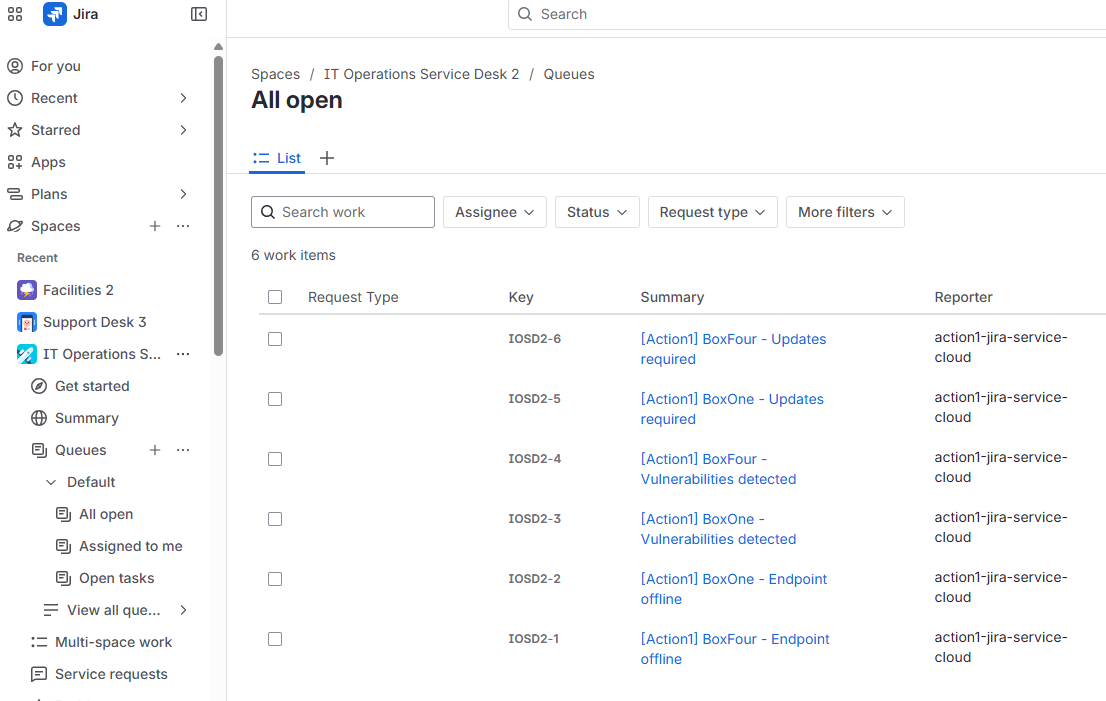
- After the sync starts, open the mapped Jira space and review the created or updated Jira tickets. You should see Jira tickets for qualifying Action1 conditions based on the rules you enabled.
- Use Jira to track ownership, follow-up, and remediation work.
Scheduled sync
You can also enable scheduled sync so the connector continues to keep Jira aligned with Action1 automatically.
Choose the schedule that best fits your workflow, and use manual sync whenever you want to start or continue processing immediately.
Verify your setup
After setup is complete, verify the following:
- The app is installed successfully from Jira Marketplace
- The Action1 connection is successful
- The required signals are enabled
- At least one Action1 organization is mapped
- The expected Jira project is visible during mapping
- Sync starts successfully
- Qualifying Action1 conditions result in Jira tickets in the expected Jira space
Next steps
After the initial setup is complete, continue with these articles:
- Run sync and review sync status
- Map Action1 organizations to Jira spaces
- Configure ticketing rules for the Action1 Connector for Jira
- Troubleshoot the Action1 Connector for Jira
- Action1 Connector for Jira FAQ
See also: Action1 Connector for Jira