


Creating an Automation
This is a general instruction on creating an Action1 automation. For a certain automation type, please follow the corresponding reference link.
- Navigate to the Automations page.
- Click + New Automation and specify an action to be performed by the new automation.
Tip: Alternatively, you can go to the Endpoints page, select the required endpoints, and start the automation wizard from the Actions menu.
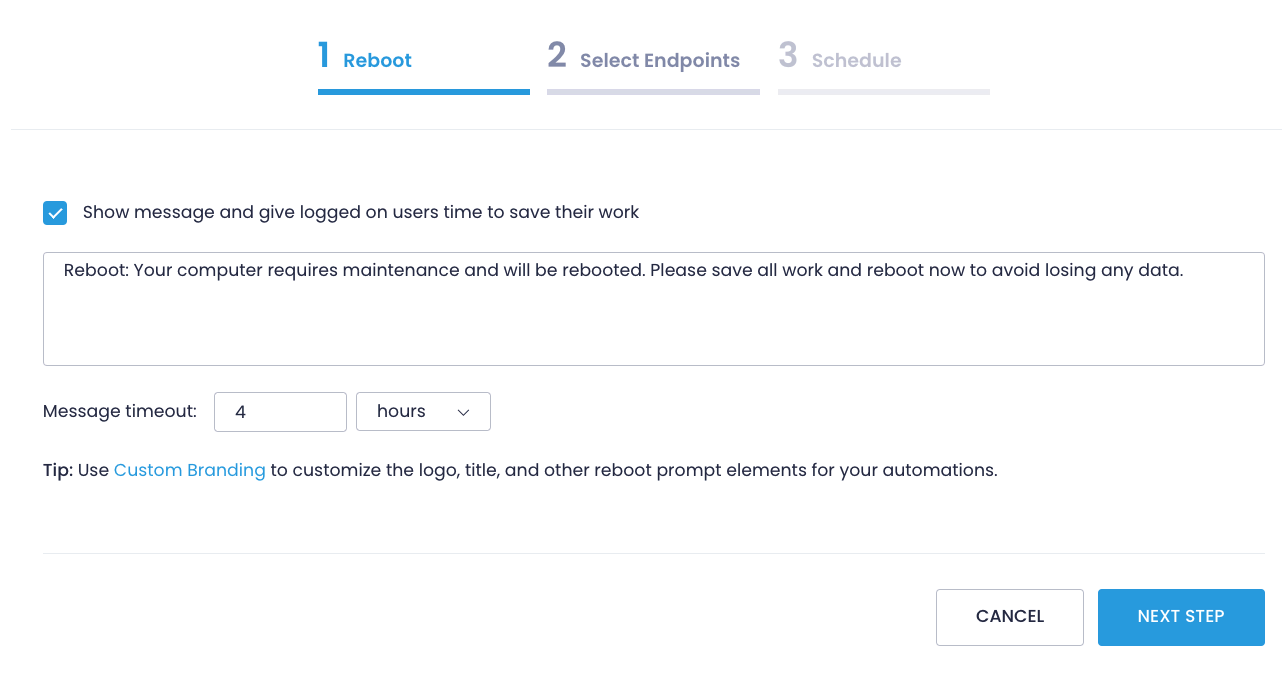
- Configure the settings for the action to be executed:
-
- Reboot (see Restart Endpoints Remotely for detailed instructions)
- Run Script (see Run Scripts Remotely for detailed instructions)
- Deploy Software (see Deploy Software for detailed instructions)
- Deploy Update (see Roll Out and Deploy Updates for detailed instructions)
- Uninstall Software (see View Installed Software for detailed instructions)
- Update Ring (see Update Rings for detailed instructions)
-
Available Actions for Automations on Windows, Mac, and Linux Endpoints
| Action | Description | Available for Windows? |
Available for Mac? | Available for Linux? |
| Deploy Software | Use to install more apps from the Action1 Software Repository. | Yes | Yes | No |
| Deploy Update | Use to install missing patches and critical updates. | Yes | Yes | Yes |
| Reboot | Use to reboot the endpoint. | Yes | No | No |
| Run Script | Use to enter a new script or select an existing one from the Script Library. You can also select to execute the script only if the automation condition script returns a non-zero error code. | Yes | Yes | Yes |
| Uninstall Software | Use to uninstall the software. | Yes | No | No |
| Update Ring | Use to roll out updates in stages. | Yes | Yes | No |
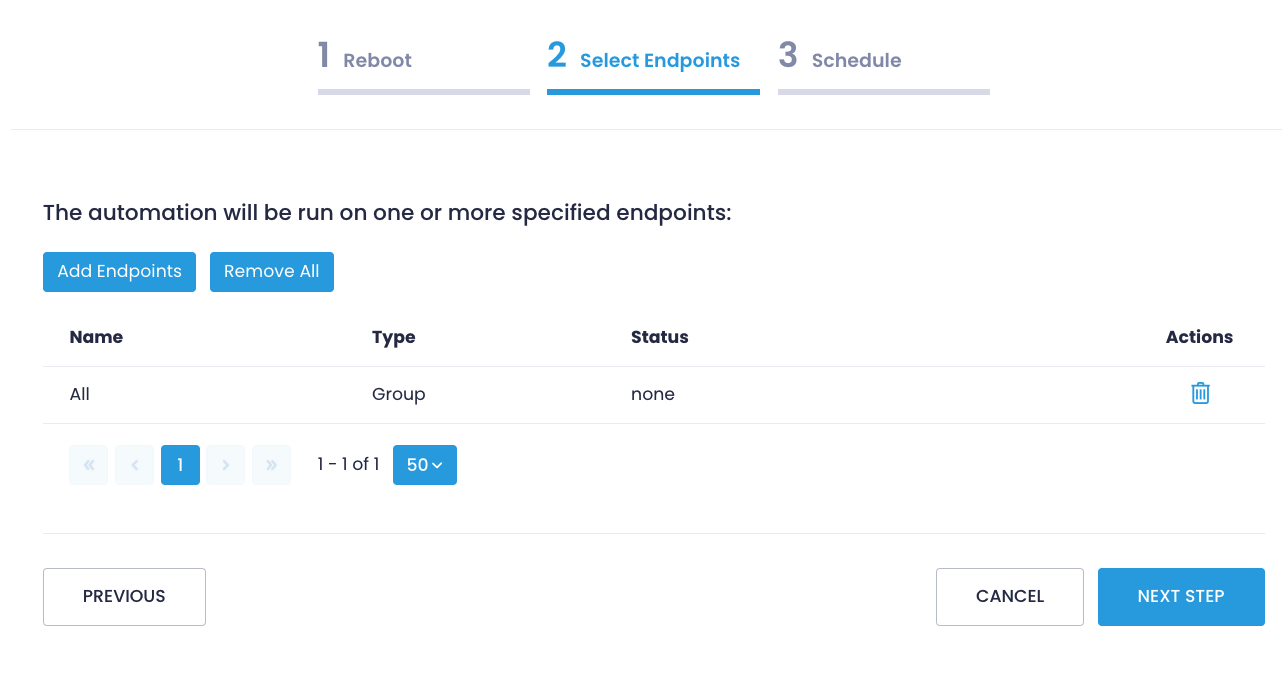
- On the Select Endpoints step, specify the target endpoints. Action1 enables you to add endpoints individually or as an endpoint group.
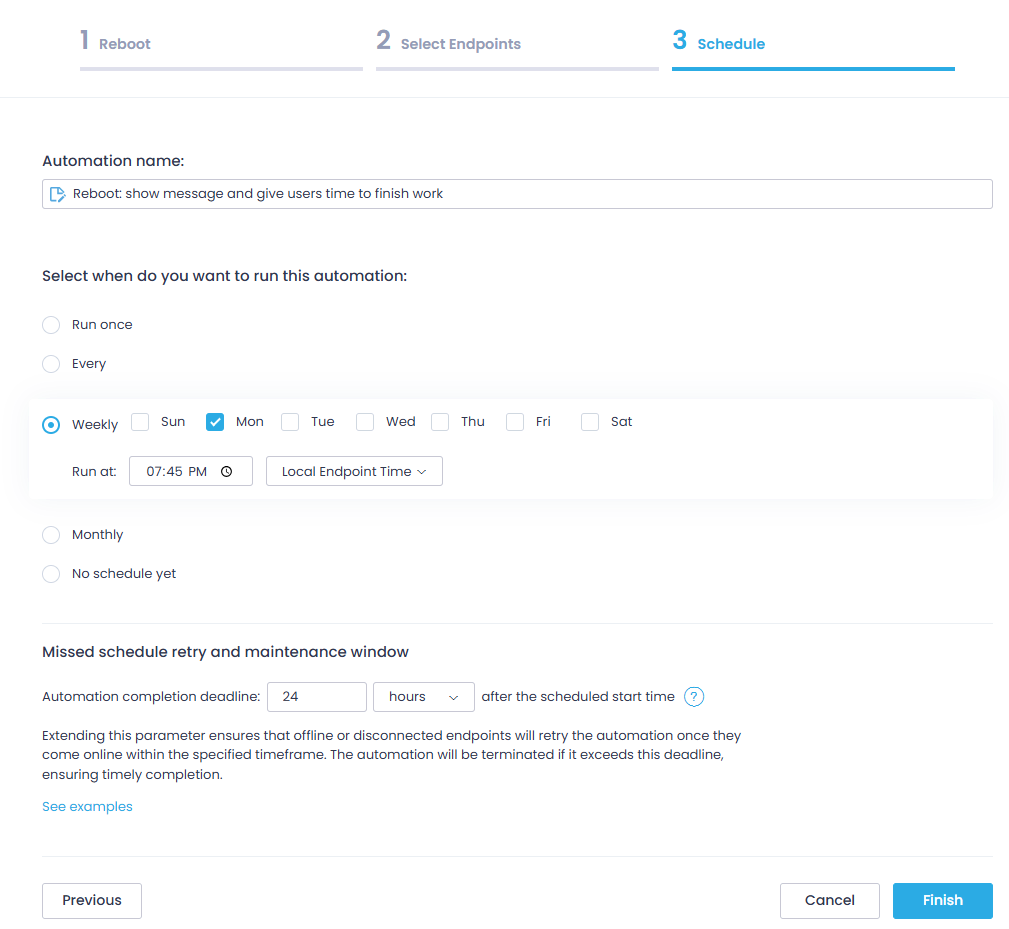
- On the Schedule step, provide an automation name and define how often you want to run the automation. You have the following options:
-
- One-time action: run the automation once, now or at a specified time.
-
NOTE: If the action (e.g., script execution) is configured with the Run Now option selected, it will not be included in the list of automations, since only actions with schedules are considered automations. However, its execution records will be displayed in the History page.
-
- Scheduled: run the automation every X hours, every day, every week, or every month.
- Not scheduled: run the automation later when needed.
- Set the Missing schedule time frame setting so that the powered-off endpoints can catch up with the automation. Make sure the time frame does not exceed the frequency of the execution, i.e., do not set it to 3 days for automations running daily.
- Once ready, click Finish.
New automation will be added to the list on the Automations page.