


Reboot Prompt Customization
If the Show message setting is configured in the Deploy Update automation (or Reboot automation for Windows endpoint), Action1 will notify the endpoint users about the upcoming reboot.
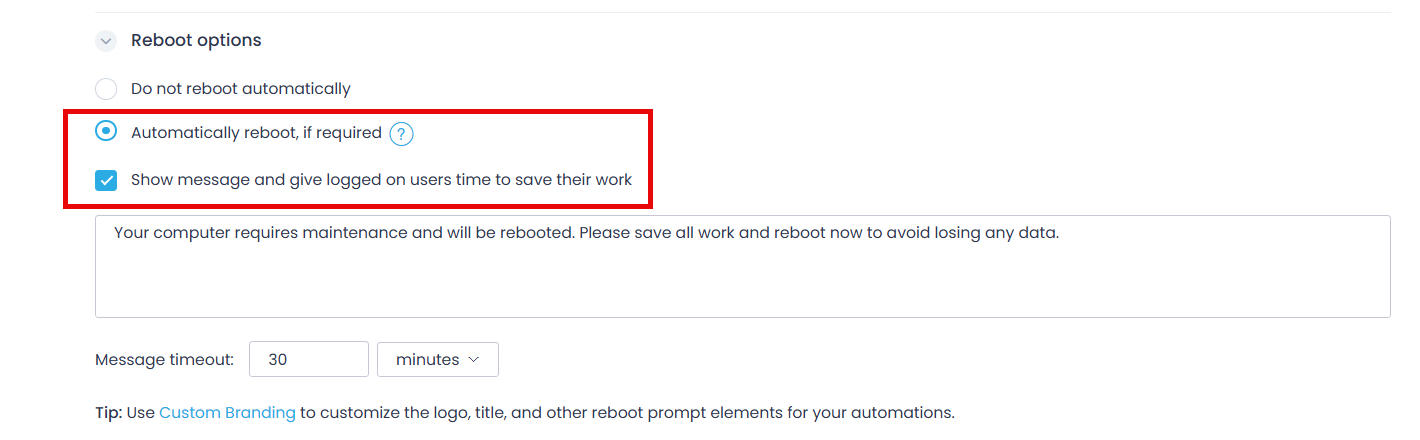
Within this setting, you can:
- Modify the notification text to be shown to the endpoint user
- Specify how long the reboot timeout should last (set the reboot_countdown value)
To customize the notification window caption and controls:
- Navigate to Configuration | Advanced and select Reboot Prompt Customization.
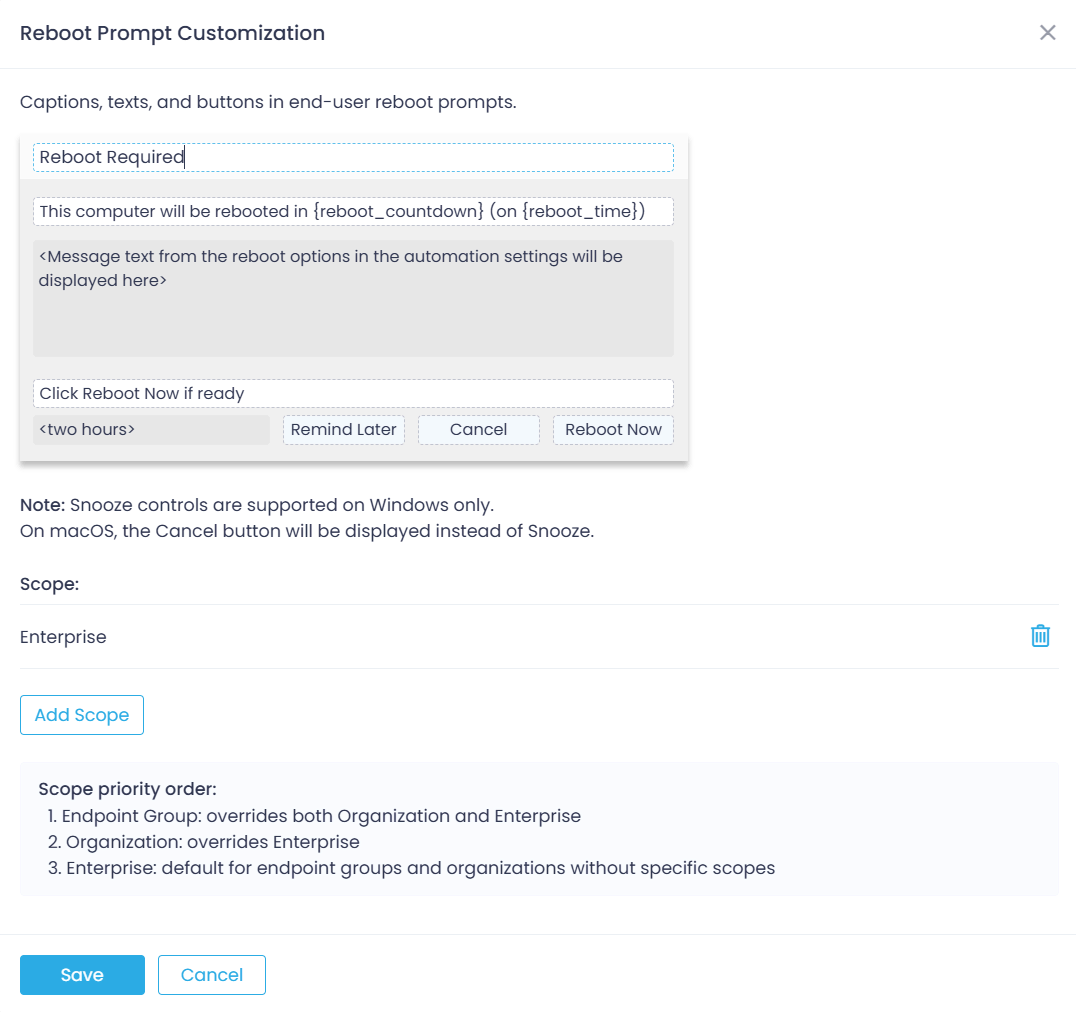
- You can modify the dialog elements outlined with the dotted lines:
- Dialog caption
- Warning message about the timeout
- Suggestion for user, e.g., “Click Reboot Now if ready.”
- The controls for initiating an immediate reboot (or not):
-
- For Windows: defaults are Remind Later and Reboot Now
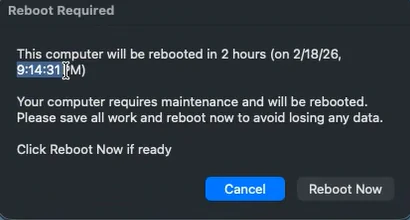
- For macOS: defaults are Cancel and Reboot Now
-
- You can apply these edits to a specific scope, such as a group or organization.
Some settings are not available for configuration:
- reboot_countdown is copied from Message timeout in the automation settings
- reboot_time is calculated based on the current time (that is, automation run time) and reboot_countdown value
- Message text is copied from the Reboot options of the automation settings.
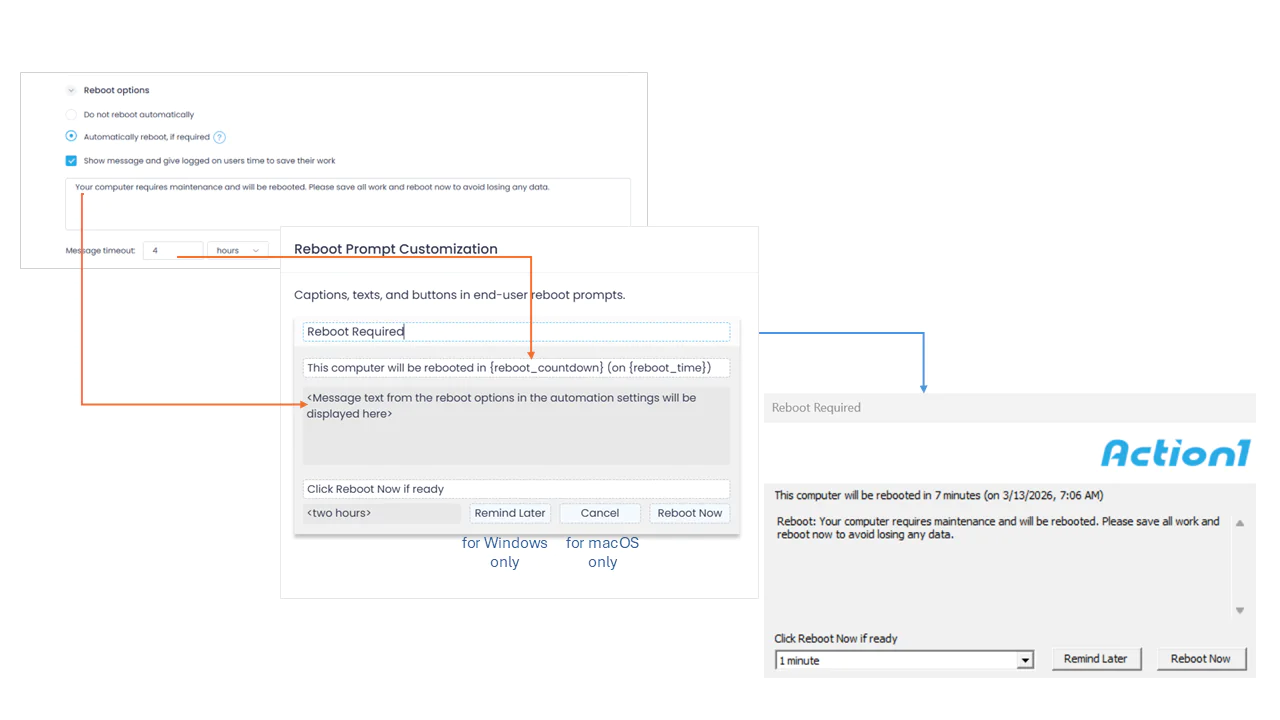
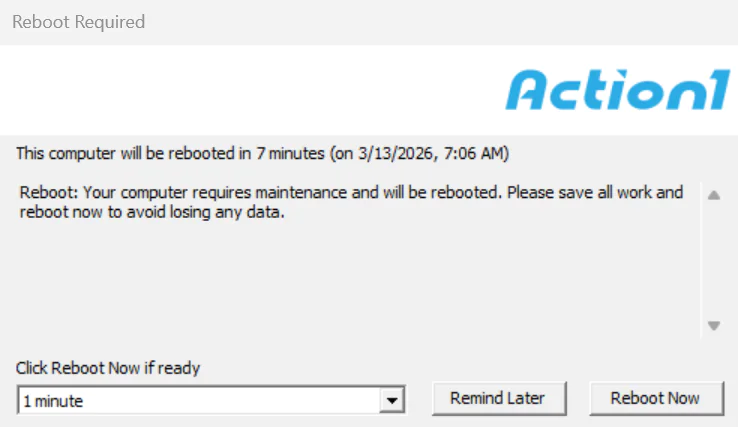
Example: reboot prompt shown to Windows endpoint user
This is how the reboot prompt will be shown to Windows endpoint user:
Example: reboot prompt shown to macOS endpoint user
This is how the reboot prompt will be shown to macOS endpoint user:
To learn about the scenarios with this prompt shown to users, see the appropriate sections: