


Installation with GPO for ETP-enabled Deployment
This article explains how to deploy the Action1 agent to domain computers using Group Policy when Endpoint Takeover Prevention (ETP) is enabled for your Action1 organization. The deployment uses a dedicated computer startup script provided by Action1.
When ETP is enabled, the Action1 agent requires an installation token to register with your organization. To automate installation, the startup script reads this token from a protected file share and passes it to the agent setup through the INSTALLATION_TOKEN property.
NOTE: The same token is used for all target endpoints in the organization.
How it works
- The administrator creates a Windows security group and adds the computers where the agent will be installed.
- The administrator creates a hidden file share containing the agent installer (MSI file), the deployment script, and a text file containing the installation token. The administrator restricts read access to computers in the security group, while retaining access for SYSTEM and administrators.
- The administrator creates a Group Policy Object (GPO) that applies only to computers in that group and runs the script at startup.
- The script runs under LOCAL SYSTEM and accesses the share using the computer account. It reads the installation token from the text file and installs the MSI silently.
NOTE: If the agent is already installed, the script exits.
Prerequisites
- An Active Directory domain and a file server that is a domain member.
- A management computer, such as a domain controller, with the Group Policy Management and Active Directory Users and Computers snap-ins installed.
TIP: On Windows Server, install the Group Policy Management and AD DS and AD LDS Tools features. On Windows 10/11, install the corresponding Remote Server Administration Tools (RSAT) optional features.
- Target endpoints running Windows 10/11 or Windows Server 2016 or later, with Windows PowerShell 5.1 installed. Each endpoint must have access to the file server over SMB (TCP port 445) and to the Action1 Cloud. See Firewall Configuration for details.
- The Action1 agent setup (MSI) and the installation token.To obtain the MSI and installation token, open the Action1 console, select Endpoints > Install Agent, and follow the installation wizard. See Deploy Your First Action1 Agent to learn more.
Required permissions
To configure the deployment
Task
Access rights
To run the installation
Component
Account
Access rights
NOTE: The token is not stored in the GPO because GPO settings are stored in SYSVOL, which all domain users can read.
Installation
In this procedure, FS01 is the example file server’s computer name, and FS01.example.com is its fully qualified domain name (FQDN). Replace both with the corresponding names of your file server.
Stage 1: Create a new group
- On the management computer, press Win+R, type
dsa.msc, and press Enter to open Active Directory Users and Computers. Right-click the container or OU where you want to create the group and select New > Group. - Enter the group name, for example
Action1 Agent Computers. Set the group scope to Global, and group type to Security. Click OK. - Add the existing target computer accounts to the group. Open the container or OU containing these accounts, such as Computers, select the accounts, right-click the selection, and select Add to a group….
- Enter the group name, click Check Names, then OK.
After you complete the deployment configuration, computers added to the group will also run the installation script at their next restart.
Stage 2: Prepare the deployment share
Perform the following steps on the file server using an account that belongs to its local Administrators group.
Step 1: Create the folder and the share
- On the file server, create a new folder, for example
C:\Action1Deploy. Right-click it and select Properties. - Open the Sharing tab and click Advanced Sharing….
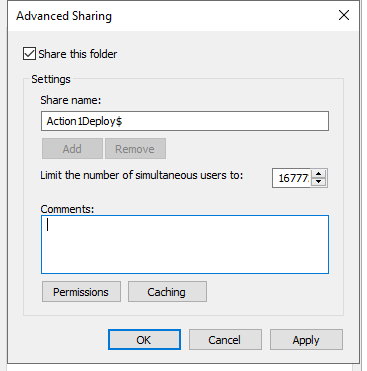
- Select Share this folder and enter a share name ending with
$, for exampleAction1Deploy$. The$hides the share from network browsing. You must still configure share and NTFS permissions to restrict access.
- Click Permissions. Remove Everyone, then click Add… and add the local
FS01\Administratorsgroup and the computer groupAction1 Agent Computersyou created at Stage 1. - Set the share permissions as follows:
Administrators: Full ControlAction1 Agent Computers: Read
- Click OK in both dialogs. The example folder is now shared as
\\FS01.example.com\Action1Deploy$.
Step 2: Set NTFS permissions
By default, the new folder inherits Users: Read & execute from the drive, which would allow every server user to read the files. Replace the inherited permissions.
- Open the Security tab and click Advanced.
- Click Disable inheritance and select Convert inherited permissions into explicit permissions on this object.
- Remove the entries for Users (both) and CREATOR OWNER.
- Click Add, then Select a principal, and enter
Action1 Agent Computers. Keep the default basic permissions: Read & execute, List folder contents, Read applied to This folder, subfolders and files. Click OK. - The result must contain only three entries: SYSTEM (Full control), Administrators (Full control), Action1 Agent Computers (Read & execute). Click OK.
Step 3: Copy the files
Copy the following files to that shared folder:
File
Content
These files inherit the folder’s permissions. Only computer accounts in the deployment group, SYSTEM, and members of the local Administrators group can read them.
Step 4: Prepare deployment script
Save the script provided below as Install-Action1Agent.ps1 in the shared folder you created, next to the MSI and the text file. Do not make changes to the script body.
Deployment script
Save the script as Install-Action1Agent.ps1 in the shared folder you created, next to the MSI and the text file. Do not make changes to the script body.
<#
.SYNOPSIS
    Installs the Action1 agent from a network share. Intended to run as a Group Policy
    computer startup script (runs as LOCAL SYSTEM, accesses the share as the computer account).

.DESCRIPTION
    - Skips installation if the Action1 agent service ($ServiceName, default A1Agent) already exists.
    - Reads the installation token from install-token.txt next to the script, so the token
      is not stored in the GPO itself (SYSVOL is readable by all domain users).
    - Runs: msiexec.exe /i  /qn INSTALLATION_TOKEN= REBOOT=ReallySuppress /l*v
    - Logs (no token) to %ProgramData%\Action1GpoDeploy\install.log; MSI log to
      %ProgramData%\Action1GpoDeploy\msi-install.log (the MSI masks INSTALLATION_TOKEN).
    Note: the msiexec.exe command line, including the token, is visible to process creation
    auditing (event 4688), Sysmon and EDR, and to PowerShell module logging (event 4103).

.EXAMPLE
    GPO startup script (Scripts tab):
      Script Name:       C:\Windows\System32\WindowsPowerShell\v1.0\powershell.exe
      Script Parameters: -NoProfile -ExecutionPolicy Bypass -File "\\FS01.example.com\Action1Deploy$\Install-Action1Agent.ps1"
#>
[CmdletBinding()]
param(
    [string]$SourcePath,
    [string]$MsiName = 'action1_agent.msi',
    [string]$TokenFileName = 'install-token.txt',
    [string]$ServiceName = 'A1Agent'
)

$ErrorActionPreference = 'Stop'

# $PSScriptRoot is empty in a param default when the script is started as -File from a UNC path.
if (-not $SourcePath) { $SourcePath = Split-Path -Parent $MyInvocation.MyCommand.Path }

$logDir = Join-Path $env:ProgramData 'Action1GpoDeploy'
$logFile = Join-Path $logDir 'install.log'
$msiLogFile = Join-Path $logDir 'msi-install.log'

function Write-Log([string]$Message) {
    $line = '{0} [{1}] {2}' -f (Get-Date -Format 'yyyy-MM-dd HH:mm:ss'), $env:COMPUTERNAME, $Message
    Add-Content -LiteralPath $logFile -Value $line -Encoding UTF8
}

if (-not (Test-Path -LiteralPath $logDir)) { New-Item -ItemType Directory -Path $logDir | Out-Null }

$exitCode = 0
$token = $null
try {
    Write-Log "Start. Source: $SourcePath"

    $msiPath = Join-Path $SourcePath $MsiName
    $tokenPath = Join-Path $SourcePath $TokenFileName

    $deadline = (Get-Date).AddSeconds(120)
    while (-not (Test-Path -LiteralPath $msiPath)) {
        if ((Get-Date) -gt $deadline) { throw "MSI not reachable: $msiPath" }
        Start-Sleep -Seconds 5
    }

    # Detect an installed agent by service name.
    if (Get-Service -Name $ServiceName -ErrorAction SilentlyContinue) {
        Write-Log "Action1 agent already installed (service $ServiceName). Nothing to do."
        exit 0
    }

    $token = [IO.File]::ReadAllText($tokenPath).Trim()
    if (-not $token) { throw "Token file is empty: $tokenPath" }

    Write-Log "Installing $msiPath with msiexec.exe"
    $p = Start-Process -FilePath "$env:windir\System32\msiexec.exe" -Wait -PassThru -ArgumentList @(
        '/i', "`"$msiPath`"", '/qn', "INSTALLATION_TOKEN=`"$token`"", 'REBOOT=ReallySuppress', '/l*v', "`"$msiLogFile`"")
    Write-Log "msiexec exit code: $($p.ExitCode)"
    if ($p.ExitCode -notin 0, 3010) { $exitCode = $p.ExitCode }
}
catch {
    $exitCode = 1
    Write-Log ('ERROR: {0}' -f $_.Exception.Message)
}
finally {
    $token = $null
}
exit $exitCode
What the script does
- Waits up to 2 minutes for the share to become reachable during startup.
- Exits if the
A1Agentservice already exists on the target endpoint, so it can safely run at every startup. - Reads the token from
install-token.txtand runsmsiexec.exe /i ... /qn INSTALLATION_TOKEN=... REBOOT=ReallySuppress. - Writes its own log (without the token) to
%ProgramData%\Action1GpoDeploy\install.logand the verbose MSI log to%ProgramData%\Action1GpoDeploy\msi-install.log. The Action1 MSI masksINSTALLATION_TOKENin the MSI log (INSTALLATION_TOKEN=**********).
Stage 3: Set up the Group Policy Object
Step 1: Create the GPO
- On the management computer, press Win+R, type
gpmc.msc, and press Enter to open Group Policy Management. Expand Forest > Domains > your domain. Right-click Group Policy Objects and select New. - Enter a name, for example
Action1 Agent Deploymentand click OK. - Right-click the new GPO and select Edit….
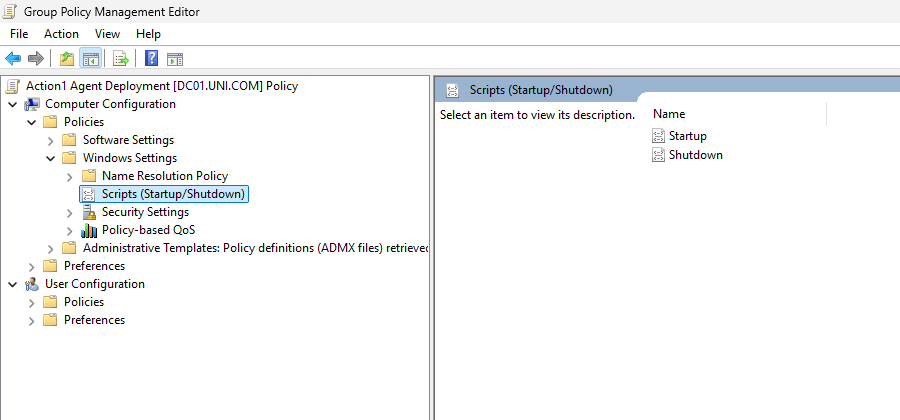
- In the Group Policy Management Editor, go to Computer Configuration > Policies > Windows Settings > Scripts (Startup/Shutdown) and double-click Startup.
- On the Scripts tab, click Add… and enter the following, providing the full UNC path to your file share:
- Script Name:
C:\Windows\System32\WindowsPowerShell\v1.0\powershell.exe - Script Parameters:
-NoProfile -ExecutionPolicy Bypass -File "\\FS01.example.com\Action1Deploy$\Install-Action1Agent.ps1"
- Script Name:
NOTE: The execution policy is set only for this script run and does not change the computer settings.
- Click OK in Add a Script, then click OK in Startup Properties.
Step 2: Make computers wait for the network connection at startup
Windows 10/11 clients start without waiting for the network by default, so a startup script may run before the share is reachable. To prevent this, do the following:
- In the Group Policy Management Editor, go to Computer Configuration > Policies > Administrative Templates > System > Logon and double-click Always wait for the network at computer startup and logon.
- Select Enabled and click OK.
- Close Group Policy Management Editor and return to Group Policy Management on the management computer.
Step 3: Limit the GPO to the computer group
- In Group Policy Management, select
Action1 Agent Deploymentunder Group Policy Objects. On the Scope tab, Security Filtering should contain Authenticated Users. - Click Add…, enter
Action1 Agent Computers, click OK. - Select Authenticated Users, click Remove, and confirm.
Group Policy Management Console displays a warning saying that computers need Read access to the GPO (Microsoft security update MS16-072, KB3163622). Click OK since Read access will be restored in the next steps.
- Open the Delegation tab, click Add…, enter
Authenticated Users, keep the Read permission, and click OK. - The resulting settings should be as follows:
Action1 Agent Computershas Read (from Security Filtering), which includes permission to apply the GPO.Authenticated Usershas Read only, so other computers can read the GPO but do not have permission to apply it.
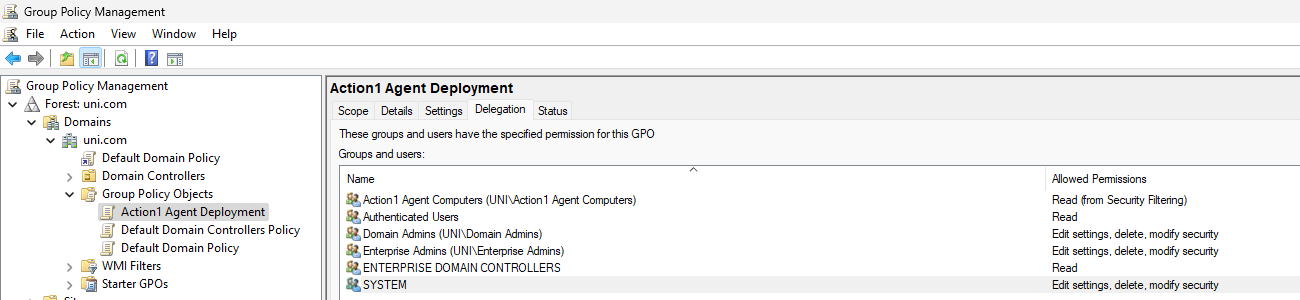
Important! Do not grant this computer group any rights other than Read/Apply. Edit or modify security rights on the GPO would allow any member computer to change a policy that runs as SYSTEM on every target computer.
Step 4: Link the GPO
- Right-click the domain (or the OU that contains the target computers) and select Link an Existing GPO….
- Select
Action1 Agent Deploymentand click OK.
Security filtering limits the GPO to the computer group, so linking it to the domain does not affect other computers.
Stage 4: Apply the Group Policy and verify the installation
- Restart one of the target computers. The script runs during startup, before the logon screen.
NOTE: Restarting the computer also ensures that its membership in the deployment group takes effect.
- On the target computer, open Windows PowerShell as an administrator and check the following:
- Run
Get-Service A1Agentand confirm that the Action1 Agent service has a status of Running. C:\ProgramData\Action1GpoDeploy\install.logcontains lines like:2026-10-21 09:26:43 [WS01] Start. Source: \\FS01.example.com\Action1Deploy$2026-10-21 09:26:43 [WS01] Installing \\FS01.example.com\Action1Deploy$\action1_agent.msi with msiexec.exe2026-10-21 09:26:50 [WS01] msiexec exit code: 0
- Run
- In a browser on the management computer or another computer with access to the Action1 console, open the Endpoints page and verify that the target computer is listed.
- If the endpoint is not shown, run
gpresult /r /scope computerin the elevated Windows PowerShell window on the target computer.Action1 Agent Deploymentmust be listed under Applied Group Policy Objects, andAction1 Agent Computersunder the computer’s security groups.
After the deployment
Before deploying to additional computers, make sure the share contains install-token.txt with a valid installation token and the GPO is still linked and enabled. If you removed the token file or unlinked or disabled the GPO, restore the required configuration first.
- To manage additional computers with Action1, add their computer accounts to
Action1 Agent Computersand restart them to apply the Group Policy. - The script runs at every startup of a computer in the group but exits if the agent is already present on the target endpoint. If the agent is removed from a target endpoint, the script reinstalls it at the next restart.
- To stop the deployment, you can remove the computers from
Action1 Agent Computersor disable the GPO link, or delete the token file from the share.
Security considerations and recommendations
- Treat the token file as a secret: anyone who can read it can register agents in your organization. The MSI itself is the same for all organizations and contains no secrets. Limit access to the computer group, SYSTEM, and administrators.
- The installation token is passed on the
msiexec.execommand line and may be captured in process-creation logs, such as Security event 4688, Sysmon, or EDR telemetry, or in PowerShell module logs (event 4103), depending on the logging configuration. Limit access to the Security event log, PowerShell logs and SIEM/EDR data that collect process command lines, or exclude these events from forwarding during the deployment. - After deployment to all target endpoints is complete, remove
install-token.txtfrom the share, remove the computers from the deployment group, or unlink the GPO. - If the token may have been exposed, generate a new one in the Action1 console and replace
install-token.txt.
Troubleshooting
| Symptom | Cause and fix |
GPO is not in the applied list; gpresult shows it as filtered out (Security) |
The computer is not in the group yet, or it was added without a restart. Check its group membership and restart the computer. |
GPO is not applied and gpresult shows “Inaccessible” |
Authenticated Users (or Domain Computers) lost Read access to the GPO. Repeat Step 3: Limit the GPO to the computer group in Stage 3. |
install.log is not created |
The script did not start or could not be read. Check the UNC path in the startup script parameters and make sure the computer group has Read access to the share and the folder. |
MSI not reachable in install.log |
The network or the file server was not available within 2 minutes of startup. Check Stage 3, step 2 and the file server. |
| Token file is empty | install-token.txt is empty or contains only whitespace. Add a valid installation token. |
An error indicating that install-token.txt could not be found, such as Could not find file '...\install-token.txt' |
The token file is missing from the deployment share. Create the file with the expected name and add a valid installation token. |
msiexec exit code other than 0 or 3010 |
See C:\ProgramData\Action1GpoDeploy\msi-install.log. |