Run Scripts Remotely
With Action1, you can assist your colleagues by running scripts remotely on multiple managed endpoints. Action1 supports PowerShell and CMD scripts for Windows machines and Bash scripts for macOS and Linux machines.
NOTE: To work with the scripts, an Action1 role with sufficient permissions (at least Use Scripts or Manage Scripts) is required. In particular:
- Using scripts from the Script Library will require at least the Use Scripts permission with the Script scope.
- Using ad-hoc scripts will require at least the Use Scripts permission with the Ad-Hoc Script scope. See Permissions in Detail for more information.
To instruct Action1 to run a script remotely:
- Navigate to the Endpoints page.
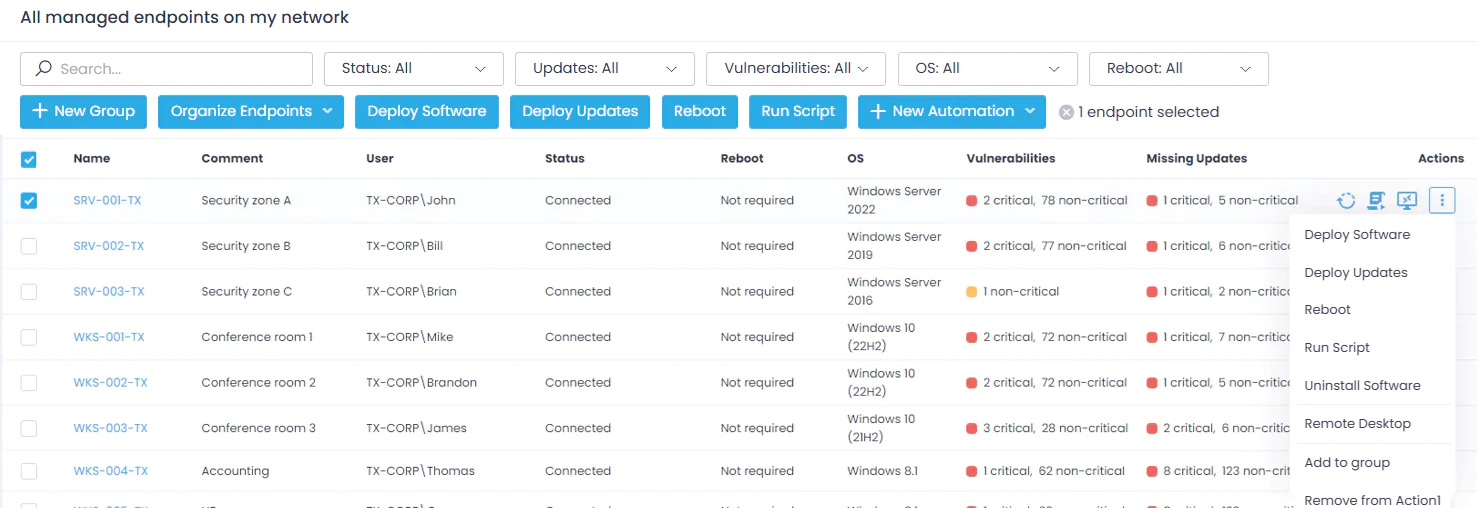
- Select one or several endpoints where you want to execute a script, and click Run Script. (You can also select this option from the endpoint’s Actions.)
Alternatively, navigate to Automations, click New Automation, and from the list of actions select Run Script. For more information, see Automation with Action1.
The Run Script wizard starts to help you with the script execution options.
On the Run Script step:
- Enter your own script content or select a script from the Script Library. If you are using the signed PowerShell script, use the upload option. See Using Scripts for details on script signing.
- If necessary, specify the script parameters – for example, a message to be displayed to device owners.
- The script should exit with exit code 0 on success. Your script can include a non-zero exit code indicating an error condition; besides, you can use a reboot code and then select the wizard option to Initiate a reboot if the script returns any of these exit codes.
NOTE: If there are multiple reboot codes in the script, enter them as a comma-separated list, without spaces. Do not use any other characters (such as semicolons).
Example script
The following PowerShell script for an app handling demonstrates the usage of multiple exit codes (10, 11, 12) and reboot code 100.
<# Demonstrates: - Exit codes for success/failure - Reboot code usage - App conflict handling #>

$ErrorActionPreference = "Stop"

$PkgName = "Example Application"
$RebootExitCode = 100

# Demo values:
# None
# Force Close
# Reboot
$ApplicationRestartBehavior = "Reboot"

$ConflictApps = @(
    @{ ProcessName = "notepad"; AppName = "Notepad" },
    @{ ProcessName = "winword"; AppName = "Microsoft Word" },
    @{ ProcessName = "excel"; AppName = "Microsoft Excel" }
)

function Get-RunningConflictApps {
    $runningApps = @()

    foreach ($app in $ConflictApps) {
        $process = Get-Process -Name $app.ProcessName -ErrorAction SilentlyContinue
        if ($process) {
            $runningApps += $app
        }
    }

    return $runningApps
}

function Stop-WithExitCode {
    param(
        [int]$Code,
        [string]$Message
    )

    if ($Code -eq 0) {
        Write-Host $Message
    }
    else {
        Write-Error $Message
    }

    exit $Code
}

function Handle-ConflictingApps {
    param($RunningApps)

    $appNames = ($RunningApps.AppName | Select-Object -Unique) -join ", "

    switch ($ApplicationRestartBehavior) {
        "None" {
            Stop-WithExitCode `
                -Code 12 `
                -Message "Installation of $PkgName cannot continue. Please close: $appNames"
        }

        "Force Close" {
            Write-Host "Closing conflicting applications: $appNames"

            foreach ($app in $RunningApps) {
                Stop-Process -Name $app.ProcessName -Force -ErrorAction SilentlyContinue
            }

            Start-Sleep -Seconds 3

            $stillRunning = Get-RunningConflictApps
            if ($stillRunning.Count -gt 0) {
                $stillRunningNames = ($stillRunning.AppName | Select-Object -Unique) -join ", "
                Stop-WithExitCode `
                    -Code 11 `
                    -Message "Failed to close: $stillRunningNames"
            }
        }

        "Reboot" {
            Write-Host "Installation of $PkgName requires a reboot because these apps are running: $appNames"
            Write-Host "Returning reboot exit code: $RebootExitCode"

            exit $RebootExitCode
        }

        default {
            Stop-WithExitCode `
                -Code 10 `
                -Message "Unknown ApplicationRestartBehavior value: $ApplicationRestartBehavior"
        }
    }
}

try {
    $runningApps = Get-RunningConflictApps

    if ($runningApps.Count -gt 0) {
        Handle-ConflictingApps -RunningApps $runningApps
    }

    Write-Host "No conflicting applications detected."
    Write-Host "All requirements are met."

    exit 0
}
catch {
    Stop-WithExitCode `
        -Code 1 `
        -Message "Unexpected error: $($_.Exception.Message)"
}
- Select the Script language. The following languages are supported:
-
- PowerShell, Cmd – for Windows
- Bash – for Mac or Linux
-
TIP: If you are adding a new script, it is recommended that you click Save in Script Library for future reuse.
NOTE: If you need to run a signed PowerShell script, use the upload option to enter the script. See Using Scripts for details on script signing.
- If needed, you can provide Automation condition ad-hoc script.
What is a condition script?
If you need the target endpoint to address some condition before running the main script (for example, make sure it was rebooted within the last 30 days), you can run a condition script:
- Action1 will run this script before the main script.
- If the condition script exits with a code other than 0 (this means that the condition was not met, and target endpoints are non-compliant), then Action1 will run the main script.
- The main script will bring the endpoint into compliance (for example, force a reboot if the number of days is more than 30).
To implement such a course of action, select Execute the script above only if the automation condition script returns a non-zero error code. Provide a condition script, specify its language, and exit codes.
NOTE: If there are multiple exit codes, enter them as a comma-separated list, without spaces. Do not use any other characters (such as semicolons).
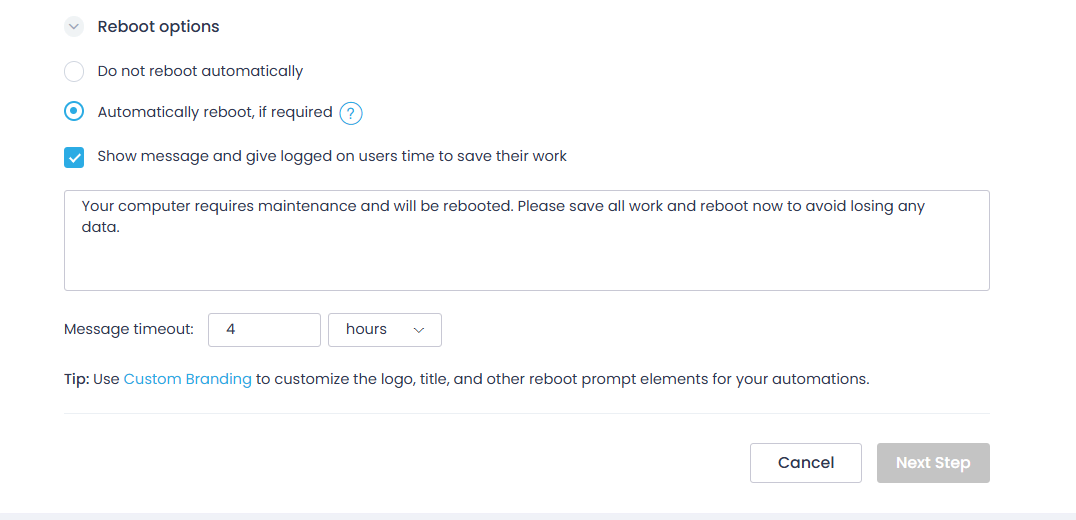
- Specify whether to reboot the target endpoint. You can also instruct Action1 to show a message to the endpoint users and give them time to save their work, and set the message timeout. To learn how to customise this message, see Reboot Prompt Customization.
If I select to reboot, how will this affect the endpoint users?
- For details on the reboot behavior of Windows endpoints, refer to this section.
- For details on the reboot behavior of macOS endpoints, refer to this section.
IMPORTANT! Reboot Options take precedence over the script properties. If you instruct Action1 to reboot the target endpoint upon a certain script’s exit code but then select Do not reboot automatically, the target endpoint will not reboot.
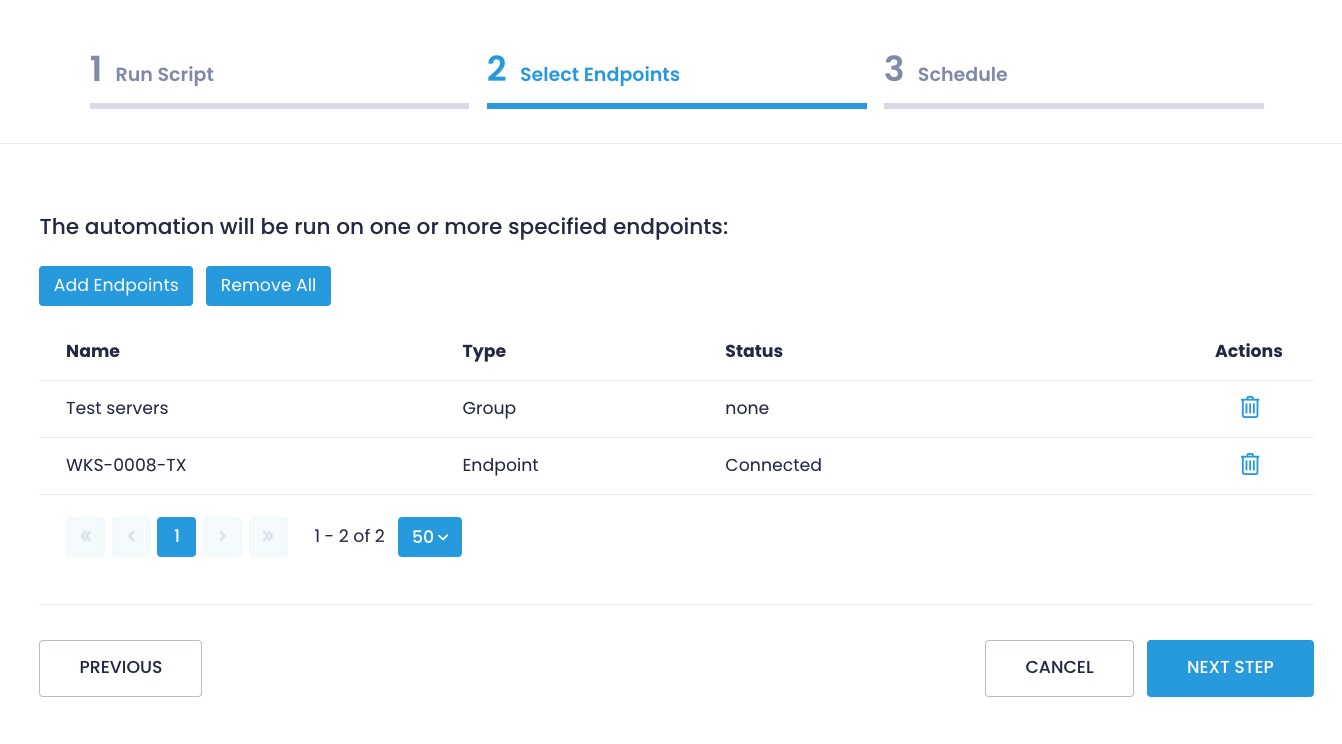
On the Select Endpoints step:
- Check the list of target endpoints.
- To include more targets, click Add Endpoints. You can pick endpoints individually or select an entire endpoint group.
On the Schedule step:
- Enter the automation name.
- Select when to run this automation.
-
- You can configure the automation to Run once – with any of these options:
- If you launched the Run Script wizard from the Endpoints view, you can choose Run now, that is, without any schedule.
- You can configure the automation to Run once – with any of these options:
-
NOTE: In this scenario, the action (script execution) will not be included in the list of automations. However, its execution records will be displayed in the History page along with the scheduled automations.
-
-
-
- Scheduled run At specified time is available in any case. Here you should select the required date, time, and timezone. The scheduled action (script execution) will be included in the list of automations, and its execution records will be displayed in History page.
- Alternatively, you can schedule the automation to run periodically:
- Every N hours, starting from the selected date and time.
- Weekly – every week on the selected day, for example, every Sunday at 01:00 AM (local endpoint time).
- Monthly – every month on the specified day, for example, on the first day of every month at 11:30 PM (current timezone).
-
-
NOTE: You can select No schedule yet and configure the schedule later. The new automation will be included in the list of automations as Not scheduled.
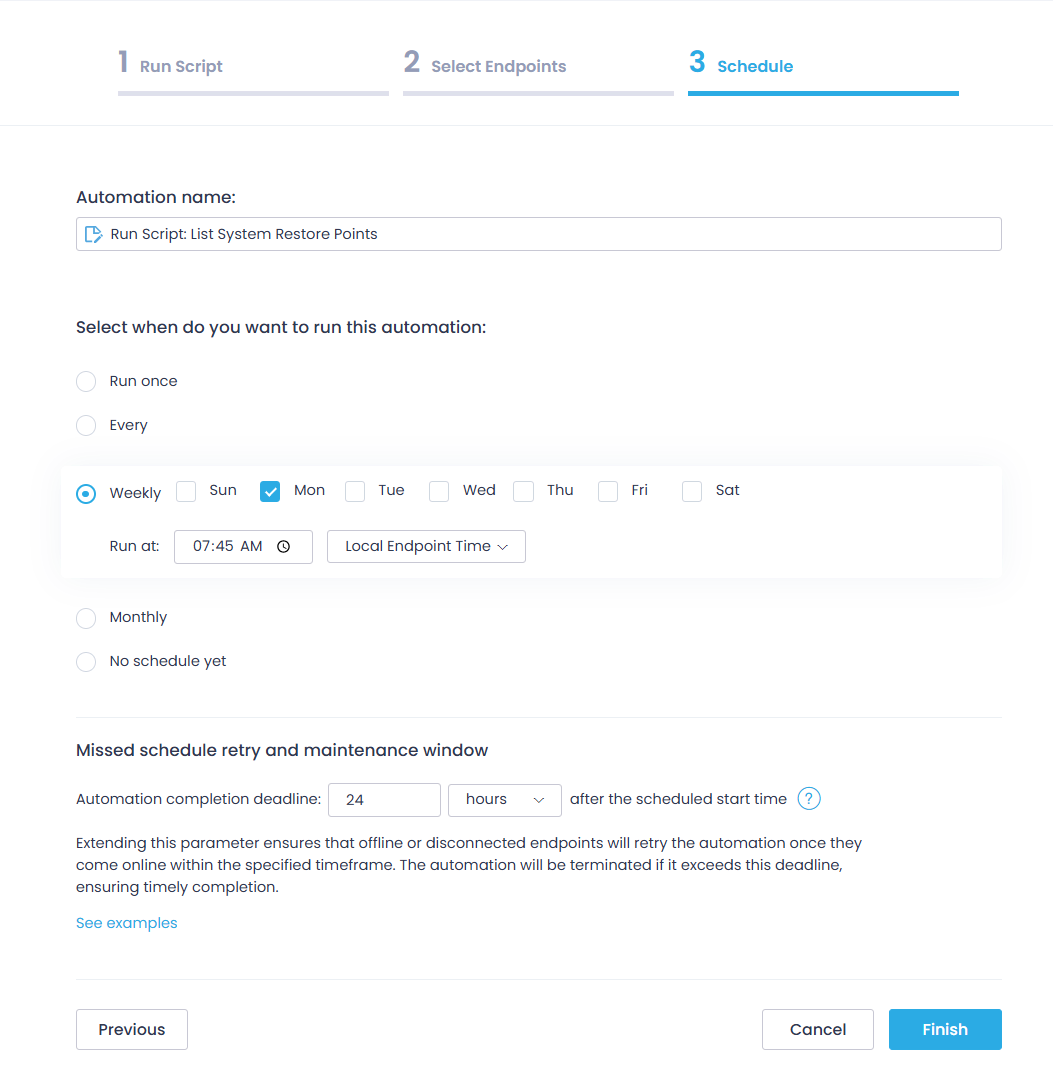
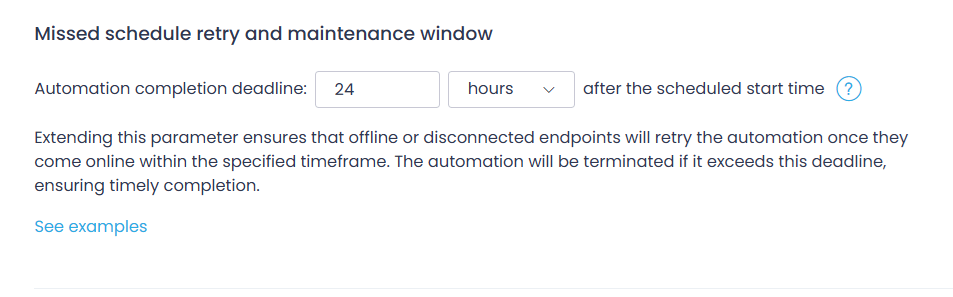
- In the Missed schedule retry and maintenance window section, specify the Automation completion deadline after the scheduled start time.This will instruct the offline or disconnected endpoints to retry the automation once they come online within the specified timeframe.
How this parameter works?
This parameter instructs the offline or disconnected endpoints to retry the automation once they come online within the specified timeframe. The automation will be terminated if it exceeds this deadline.
Example configuration:
- Automation is scheduled to run at 2 am
- The deadline/maintenance window is set to 8 hours
| Endpoint: | Powered on at: | The automation will… |
| A | 8 am | … start at 8 am, complete by 10 am |
| B | 12 pm | … not start |
| C | 2 am (online at scheduled time) | … start at 2 am, complete by 10 am |
NOTE: If you need to update this setting, make sure not to set the time frame to an interval longer than the frequency of action execution (that is, do not set it to 48 hours if the action is executed every day).
- Once ready, click Finish.
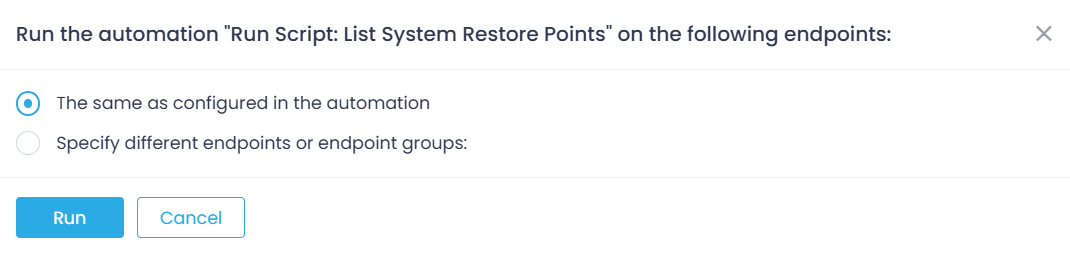
After completing the wizard, you will find the new automation in the Automations list. There, you can click Run Now to run the automation immediately. In the dialog displayed, specify the target endpoints where it should be run. These can be the ones included in the automation, or you can select other endpoints or groups.