
Uninstall Software
To uninstall a software app you have deployed with Action1, you need to configure an automation as described below.
To uninstall a software app:
- Navigate to the Installed Software view, select an application, and click Uninstall. The Uninstall Software wizard will be launched.
Alternatively, you can go to the Automations view, click + New Automation, and select Uninstall Software.
NOTE: The Uninstall Software automation is currently supported for Windows endpoints. For Linux endpoints, configure a Run Script automation, as described later in this section.
Tip: If you want to uninstall the app from a single endpoint, you can select the required endpoint in the Endpoints view and from its Actions menu select Uninstall Software.
- On the first step, verify the software application properties. You can also configure the Reboot options.
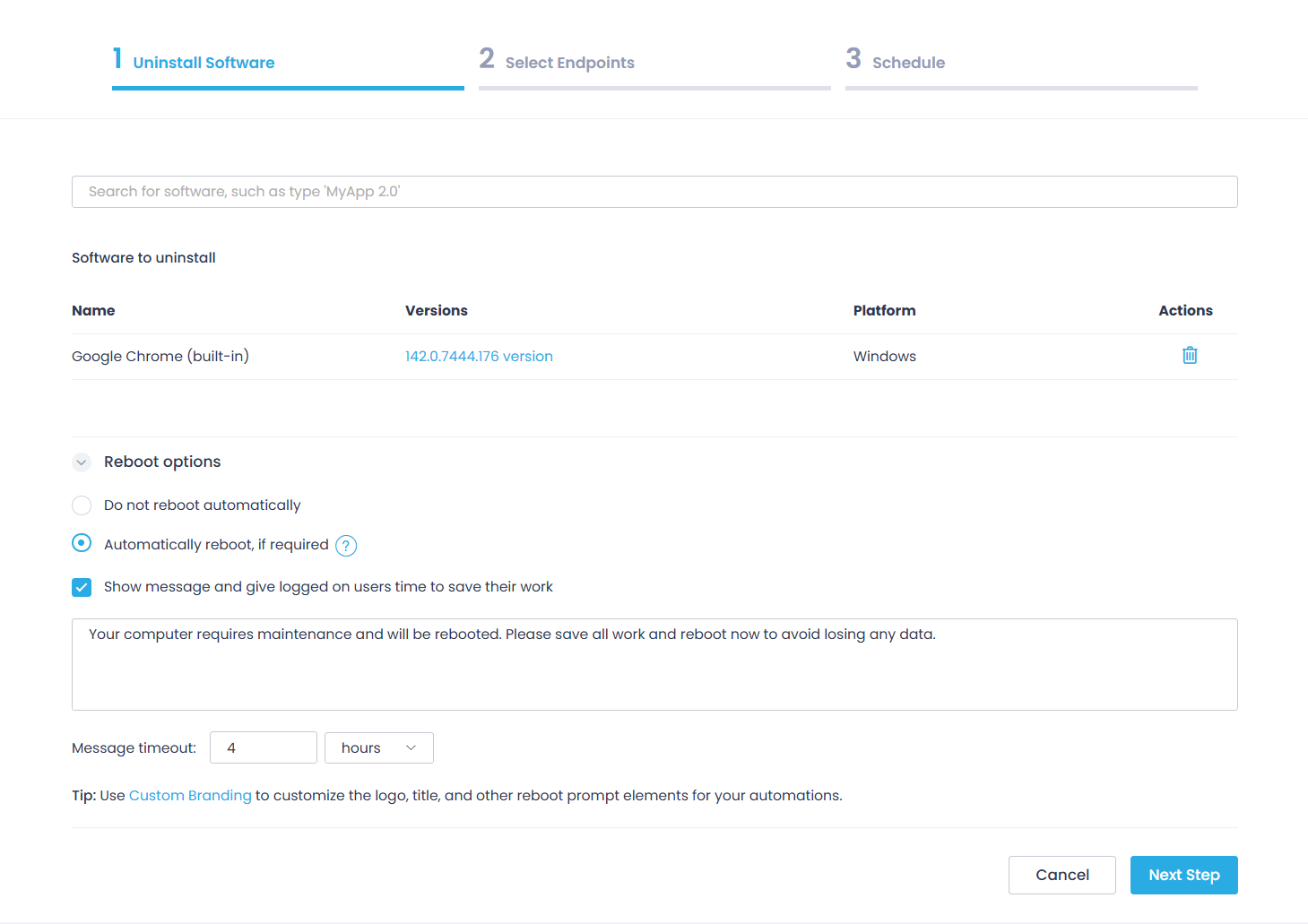
- Next, specify the endpoints from which the software should be uninstalled. You can add certain endpoints or an entire group.
Action1 will identify the endpoints where the selected software is currently installed and uninstall it. All other endpoints will remain untouched. - Finally, specify the automation schedule.
See also: Creating an Automation
Uninstalling Linux Software Packages
To uninstall a software package from a Linux endpoint, you need to configure a Run Script automation that will run the Remove Linux Package built-in script from the Script Library.
Before each uninstallation, the script initiates a dry run. If it completes successfully, the package is removed from the target endpoint using the native apt-get tool.
To uninstall Linux software package:
- Navigate to Automations and click + New Automation, then select Run Script from the list. The Run Script wizard will be launched.
Alternatively, you can go to the Automations view, click + New Automation and select Run Script. - On the first step, click Script Library and browse for Remove Linux Package script.
- Enter the package name as the script parameter. To uninstall multiple packages, specify them using a comma-separated list.
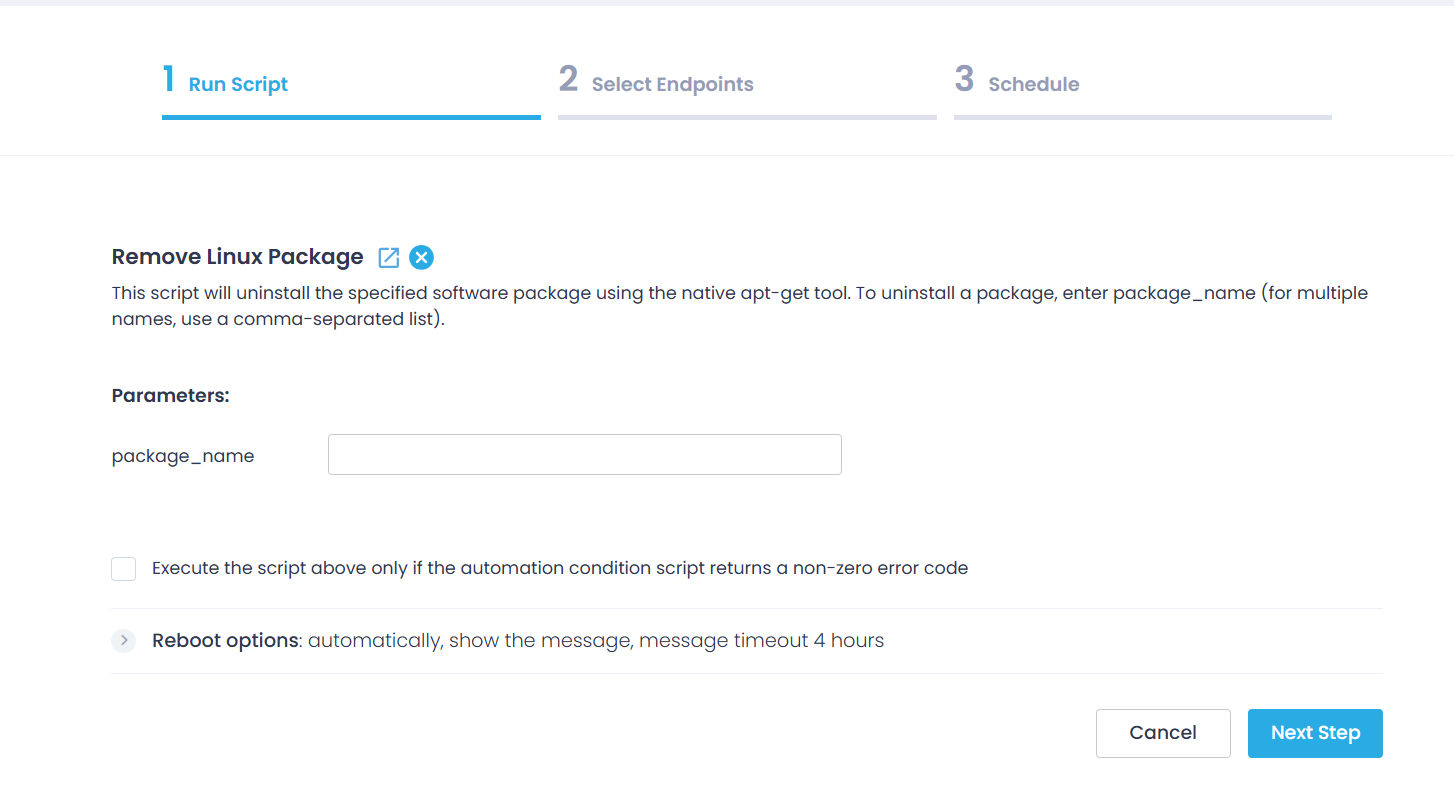
NOTE: The reboot options will not take effect for Linux endpoints and can be skipped in this case.
- Next, specify the endpoints from which the software should be uninstalled. You can add certain endpoints or an entire group.
Action1 will identify the endpoints where the selected software is currently installed and uninstall it. All other endpoints will remain untouched. - Finally, specify the automation schedule.