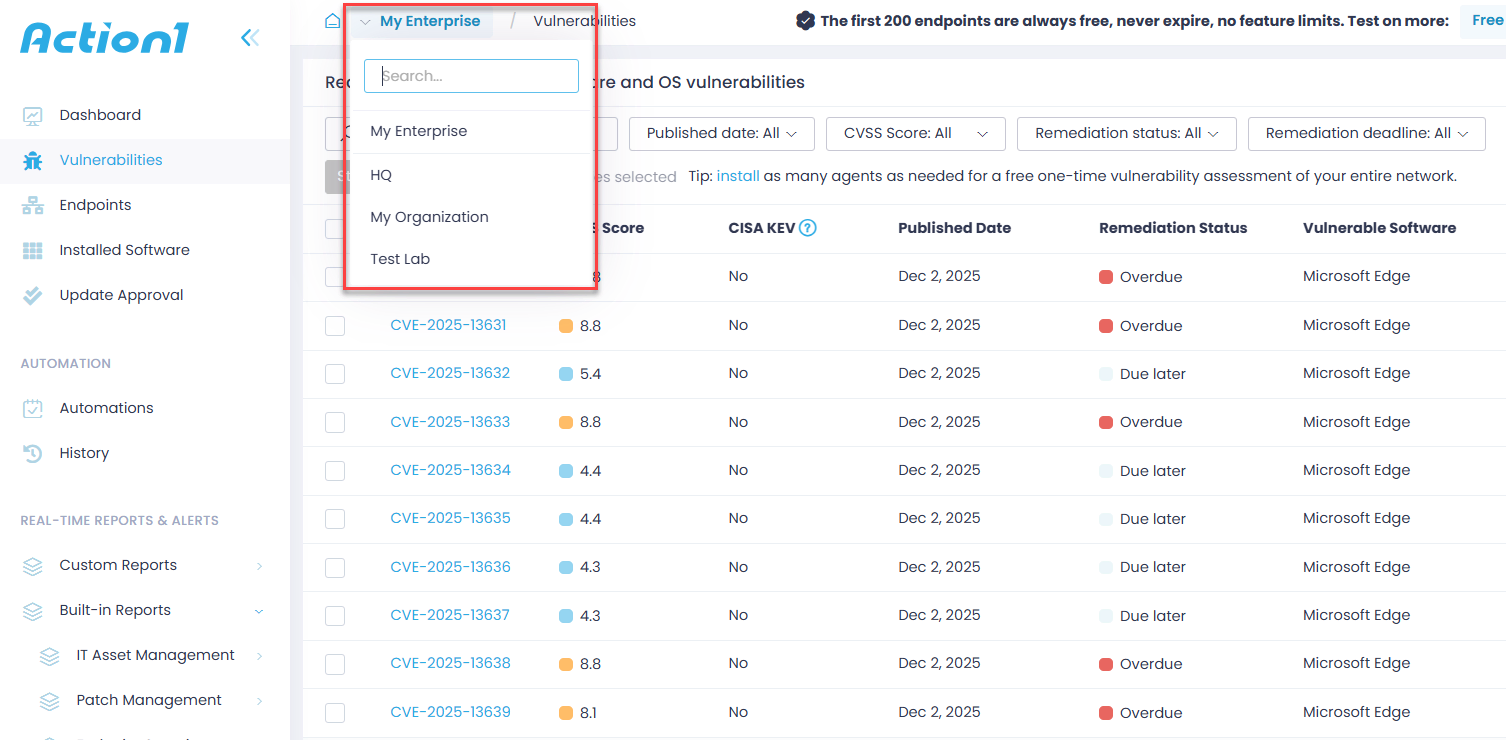
Switching to Another Organization or Enterprise
If you have multiple organizations within your Action1 account, you can select a certain organization or the whole Action1 enterprise when working with the Dashboard, Endpoints, Update Approval, Vulnerabilities, or Reports view.
- With the Action1 organization selected, consider that the data, settings, and management actions available in the central pane of the view apply to the endpoints in this organization only.
Example:
If you deploy an application to Windows 10 endpoints, Action1 will distribute it to Windows 10 endpoints belonging to the active organization only and omit all other Windows 10 workstations. The same works for report generation and automations. - When working with the Action1 enterprise, consider that data in the Endpoints view or the generated report will include the Organization column, naming the organization your managed endpoint belongs to.
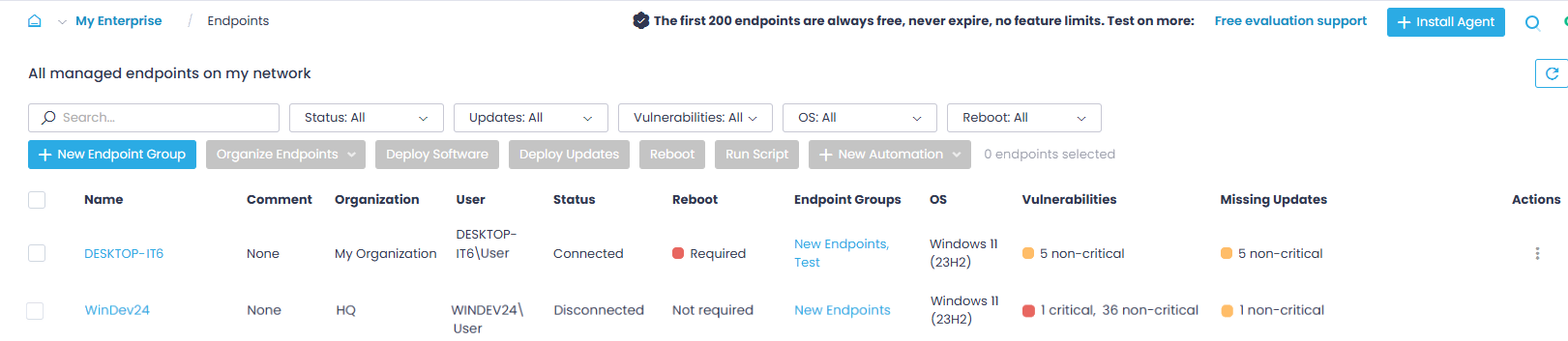
To switch to another organization or the whole enterprise:
- Go to the required view or report and take a look at the top of the central pane. It shows the entity (organization or enterprise) that is currently active.
- Click on the active entity name, then search for the organization or enterprise you want to work with, or select it from the drop-down list.