


Update Approval Workflow
In earlier Action1 versions, software update approvals were effective per enterprise; that is, if an update was approved for the Action1 enterprise, its status changed accordingly for all organizations where this update was available for deployment.
Using new, flexible approval options, you can approve software updates explicitly for certain Action1 organizations. This can be helpful, for example, for MSPs and large infrastructures.
NOTE: When implementing and planning for your update approval scope and flow, pay attention to the logic described in the “Aggregated Approval Status” section below.
Step 1: Select the updates
- Navigate to the Update Approval view for your current scope (Action1 enterprise or organization) and select one or several updates from the list.
- Click Approve.
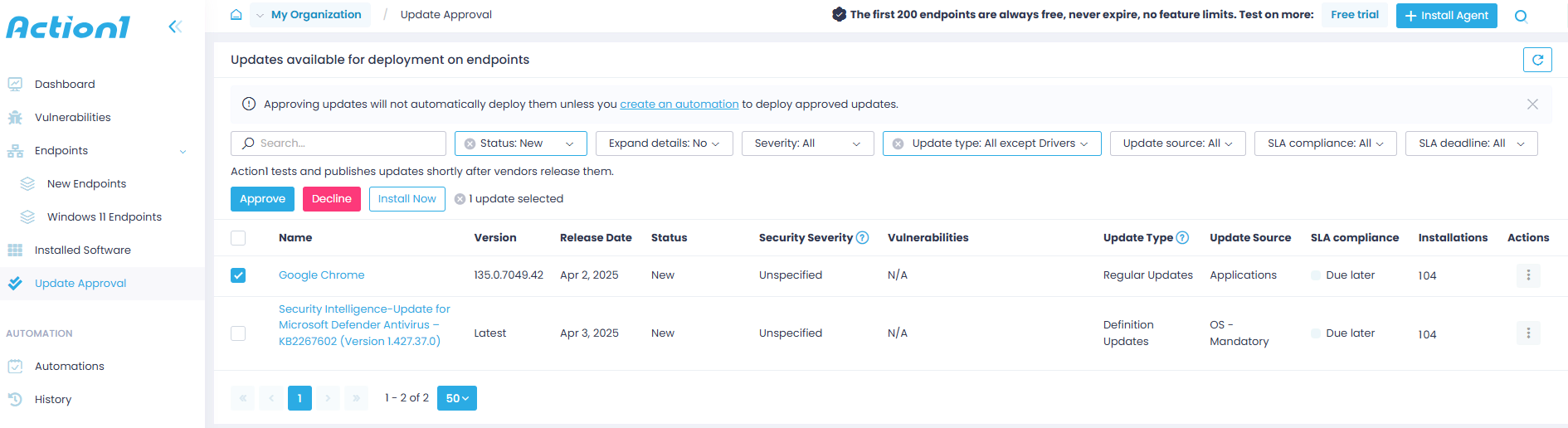
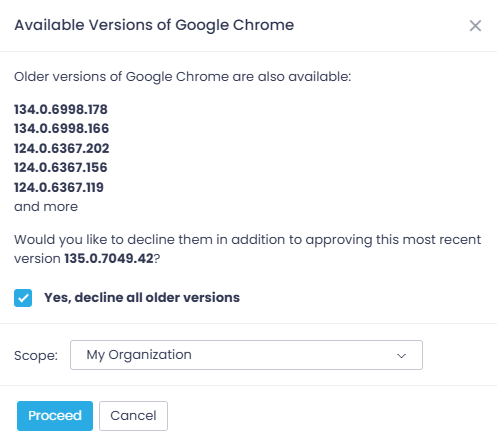
- If there are other versions available for the update of selected software, specify whether to decline all older versions of that software (along with the approval of the most recent version). If this option is not selected, the older versions will be installed during the corresponding automation runs.
Step 2: Specify scope
- Select the Scope for this operation (Approve in this scenario) to take effect:
-
- Action1 Organization you are currently working with (default scope)
- Action1 Enterprise, including all configured organizations.
-
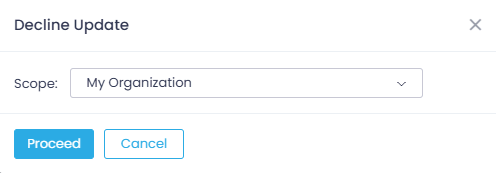
NOTE: You cannot change the scope for the updates that exist only at the Organization level (that is, apply to software packages only stored in the organization’s repository). This refers to Approve, Decline, and Reset to New operations.
- Click Proceed to save the settings and close the dialog. Wait for the approval status change to be applied.
What’s next?
The approved updates will be deployed during the next maintenance window, as configured in the update deployment automation(s). If you need to deploy any updates sooner, click Update Now in the Update Approval Status window.
When you return to the Update Approval view, navigate to the required update, and in the Status column examine its final status and scope (Organization level or Enterprise level).
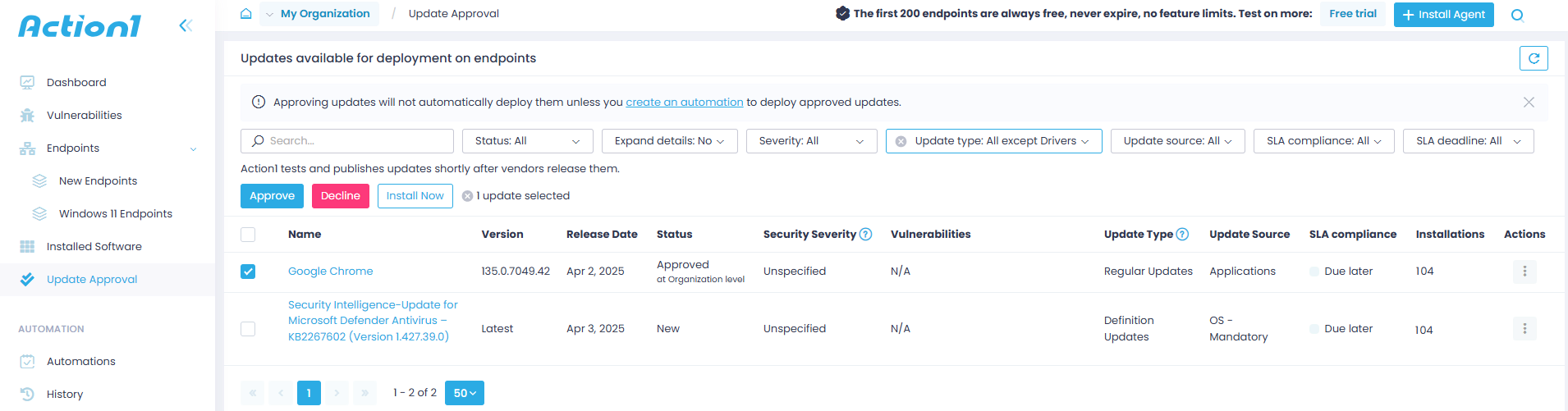
You can also initiate Reset to New for selected update’s status. This command is available from the update’s Actions menu.
Aggregated Approval Status
The resulting status for the software update (available on both Enterprise and Organization level) depends on its current status, initiated operation, and the scope you select.
Aggregated approval status will be assigned according to the following rules:
IF
AND
THEN
- remains Approved for that organization
- changes to Declined for the organizations where it was New
- remains Declined for that organization
- changes to Approved for the organizations where it was New
Message shown
Generally:
- If the update status at the organization level is New, then after the Approve or Decline action at the Enterprise level, this status will be changed accordingly (inheritance from the Enterprise).
- If the update status at the organization level is other than New (that is, Approved or Declined), then after the attempt to change it with Decline or Approve action at the Enterprise level, it will remain the same (precedence of the organization settings).
Status Change Examples
Example 1
Update has Declined status at the Organization level and New at the Enterprise level.
If you initiate the Approve action at the Enterprise level, the status for the current organization will not change.
The following message is displayed in the Action1 console:
This action will not change the status for the current organization, as it is already set to ‘Declined.’ However, it will update all other organizations where the update is still in the ‘New’ status, but not any other status overrides in other organizations.”
Example 2
An update has Approved status at the Enterprise level and Declined at the Organization level.
If you initiate Reset to New action at the Organization level, the update status at this level is reset and then instantly becomes Approved (due to inheritance from the enterprise).
The following message is displayed in Action1 console:
The final status will become ‘Approved’, as inherited from the Enterprise level.
Example 3
If you initiate Decline or Approve action, but a package is already in this status for the selected scope, then no changes occur.
The following message is displayed:
This update is already <status> at the <scope> level
Example 4
If you initiate Approve or Decline action, but the update already has this status at all levels, then no changes occur.
The following message is displayed:
This action will lead to no changes, as the update already has this status at all levels.
Example 5
If you initiate Approve, Decline, or Reset to New action for an update that exists only at the organization level (per-org software repository package), the Scope control is deactivated.
The following message is displayed:
Scope selection is unavailable because the package exists only at the organization level.
Automatic update approval
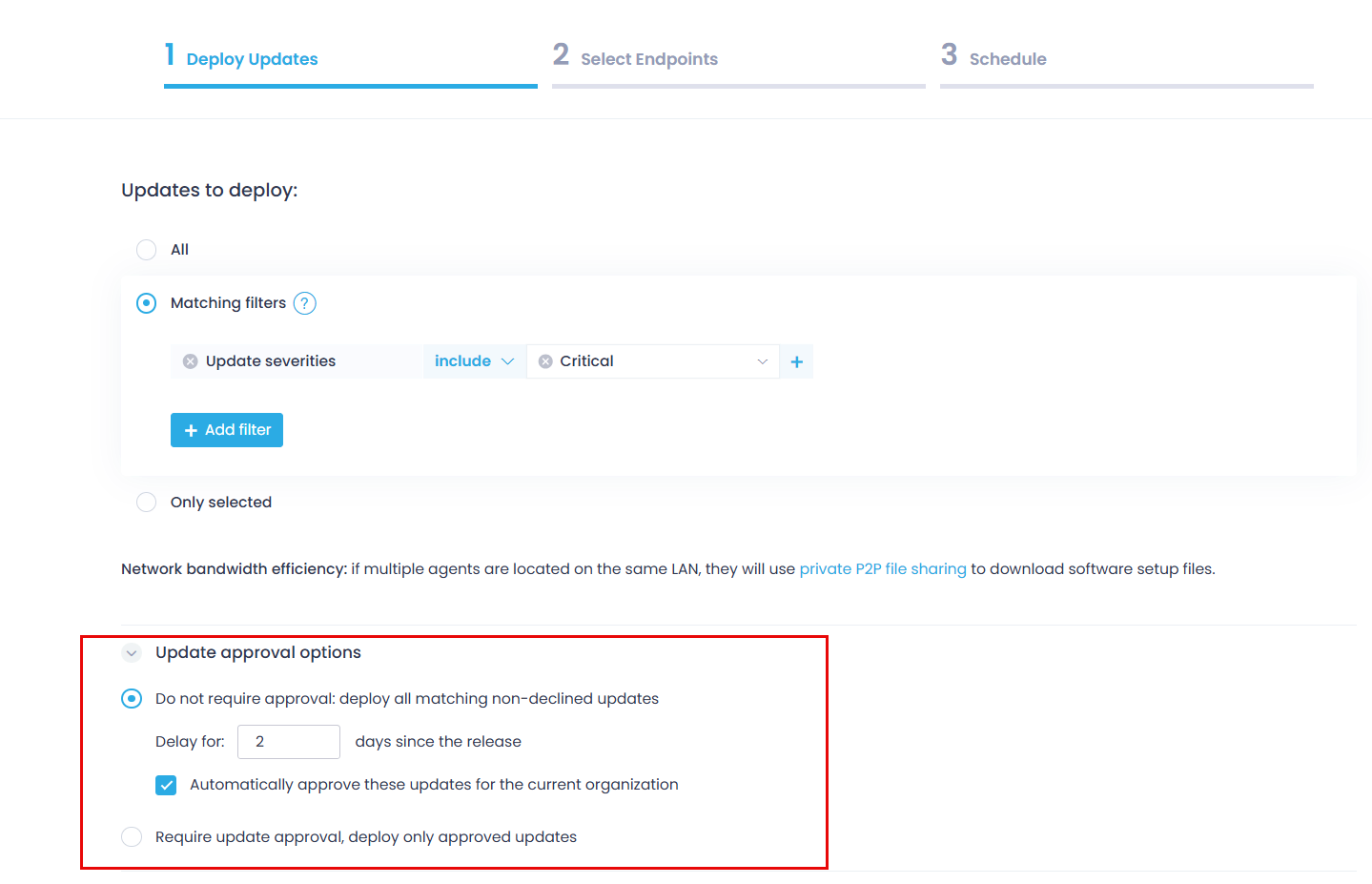
This option is available for Deploy Update and Update Ring automations. It is implemented as the Automatically approve these updates for current organization checkbox within the first step of the automation wizard.
IMPORTANT! If selected, this option will take effect within the current organization only! (Previously, it was effective for the whole enterprise.) That is, the update status at the Organization level will be automatically changed to Approved for the current organization. The only exception will be for those updates with Declined status, since this status change will take place after filtering out the updates with Do not require approval: deploy all matching non-declined updates option.
See also: Automate Patch Management