


Prepare Custom Packages for macOS
To facilitate application distribution and delivery, Action1 enables you to create custom software deployment packages, upload them to Action1 Software Repository and then deploy to your managed endpoints. Standard process for creating a custom deployment package for macOS app includes the following steps:
- Download the application setup provided by the vendor. Supported file types are PKG, DMG, ZIP.
- Prepare the install.sh script that will perform the installation, using the example for the corresponding setup file type, as described in the next sections.
- Pack the install.sh and common.sh scripts and application setup into a single deployment package.
- Upload the package into Action1 Software Repository and distribute it automatically to the managed endpoints.
Deployment package structure
Deployment packages for macOS applications in the Action1 Software Repository comprise the following files:
- Application setup file (obtained from the software vendor) of DMG, PKG, or ZIP type.
NOTE: If the application can target different architectures, make sure you have the setup file for each target architecture you need (for example, x86_64 or arm64).
- install.sh – a bash script that performs the installation and interacts with Action1 agent. You need to modify this file when you customize the package.
- common.sh – a script that implements checks and other operational functions. This file always stays the same for all packages.
To prepare a custom deployment package, you need to pack these three files into a single ZIP archive using 7-Zip or any other archiving tool.
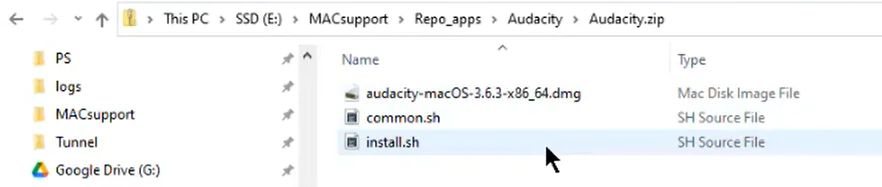
Install.sh script
The install.sh installation script has certain external named parameters; it receives their values from Action1 before starting the installation. For example:
- -m update parameter value instructs the script to operate in the update mode for the application that already exists.
- -s error parameter value will trigger an error if the script detects the application is open during the installation.
Parameter name
Description
Values
- In a simple scenario, you can provide, for example, the -s parameter value using Action1 console, as described in the next section.
- In the advanced scenario, you will need to define the internal parameters and specify their values, as described later in this document.
Simple scenario: customization with UI
In a simple customization scenario, you just clone the existing built-in software package and modify its install.sh external parameter values using Action1 web console.
For example, out of the box, the installation script works as follows: it checks whether the application is open during the installation; if yes, it stops the application and installs the update. However, you may want to change this behavior and instruct the script not to install the update but just display an error message without stopping the application. For that, take these steps:
- In Action1 console, clone the existing built-in deployment package.
- Go to this new package and select the required version.
- In the Installation settings, enter the following in the Silent install switch:
-s error - Click Save.
Advanced scenario: template-based customization
In this scenario, you can use the corresponding built-in software package as a template and customize the installation script parameters manually. Steps for customization are always the same:
- Use the software setup obtained from the vendor.
- Modify the install.sh file that corresponds to the software setup type.
- Pack these two files and common.sh file into a single ZIP archive.
- Upload the archive to Action1 Software Repository, as described in this section.
Customizing installation script
Depending on your setup file extension, you should configure a different set of parameters in the install.sh script. The biggest set of parameters is used by the install.sh script designed for DMG setup.
You can open the script using your editing tool and locate function main () to modify the parameters.
Parameter name
Description
Syntax
Example
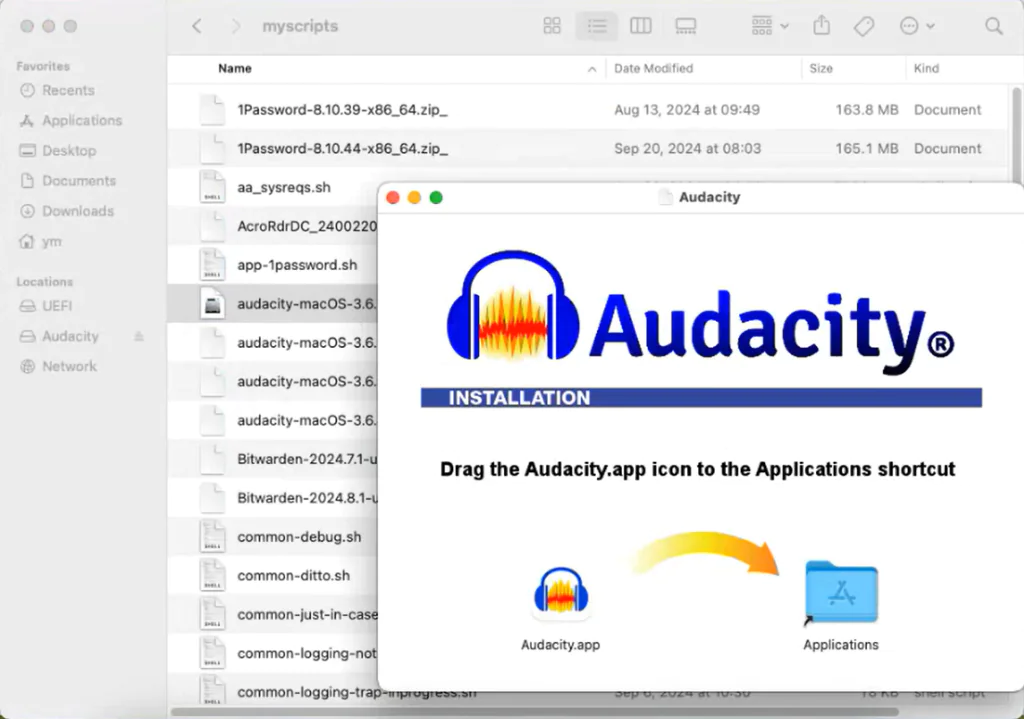
After you have modified the install.sh parameters, save the file, and include it in the ZIP archive together with common.sh and the application setup.
How can I debug my customized install.sh script?
For that, you can run your install.sh using bash command. This will eliminate the need to pack the files into software package, deploy and unpack them back and forth.
NOTE: Running install.sh requires root privileges, so use sudo to elevate your account privileges.
- To test the script operation, use bash command, for example:
bash install.sh -m install -p /Applications
This command will run the script in the install mode to help you test a new installation. - To test the upgrade mode, run a command like this:
bash install.sh -m upgrade -p /Applications -f Audacity.app - To maximize the logging level, use -v “DBG2” parameter value:
bash install.sh -m install -p /Applications -v “DBG2”
