
Moving Endpoints Between Action1 Organizations
Endpoints can belong to only one Action1 organization at a time, but can be moved between organizations.
NOTE: This capability is supported only for manually added endpoints.
To move the endpoints to another organization, a role with the Manage Endpoints permission is required.
Important! The steps described in this section apply to Windows endpoints only.
- For macOS endpoints, refer to this section.
- For Linux endpoints, this capability is currently not provided.
To move an endpoint to another organization:
- In the Endpoints view, select one or more endpoints you want to move.
- Click Organize Endpoints > Move to organization.
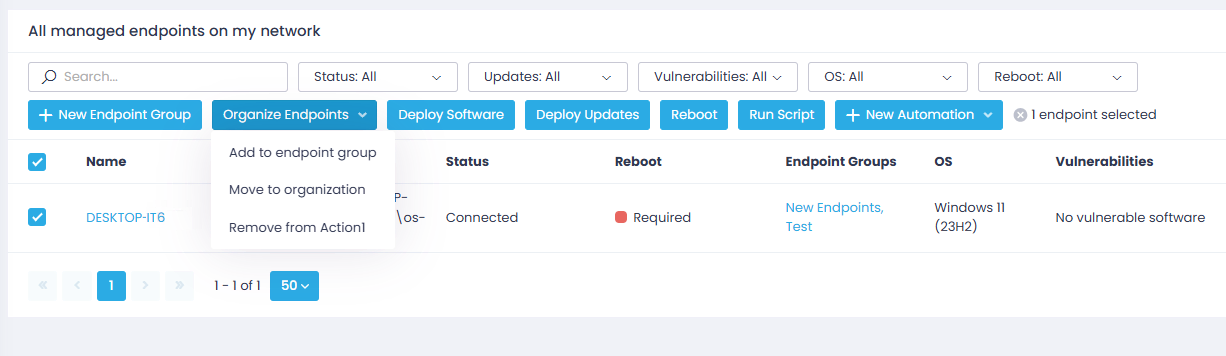
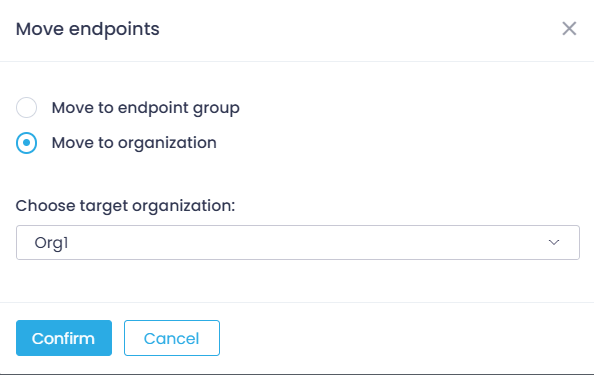
- In the dialog displayed, select the target Action1 organization.
- Click Confirm.
NOTE: If moved from the group to another organization, the endpoint is included in the New Endpoints group.
Also, if you want to move an endpoint that belongs to a group, you can do the following:
- Under Endpoints in the navigation pane, select the source group.
- Select the endpoint you need and click Organize Endpoints > Move selected to.
- In the dialog displayed, select Move to organization and choose the required target organization from the list.
- Click Confirm.
After moving to another organization, the endpoint will be included in the New Endpoints group.
Tip: To move a Windows endpoint to another organization, you can also use this API request.