
Enabling System Updates for Apple Silicon Devices
Important! Action1 does not support major macOS upgrades.
This section describes how to configure the Action1 agent on Apple Silicon computers to enable macOS system updates.
Important! If the procedures explained below are not completed, Action1 will be unable to deploy operating systems on Apple Silicon devices.
To configure system updates, Action1 will use one of the following methods:
Interactive configuration during agent deployment
When you deploy the Action1 agent interactively on a local machine (see Scenario 1), all required actions are performed automatically by the agent installer. You will be asked to enter user credentials interactively:
- First, the installer will request the administrative credentials it needs to deploy the agent.
-
Then it will display a system prompt for the credentials the sysadminctl utility needs to unlock the disk.
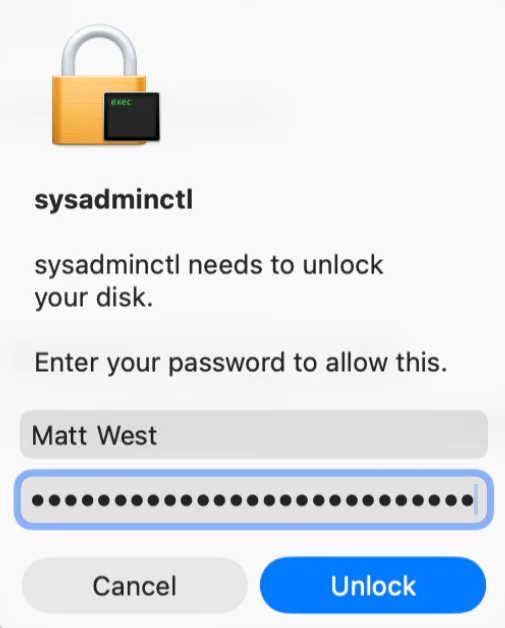
TIP: If your Mac has Touch ID (fingerprint authentication) configured, it can be used to authenticate the installer instead of typing a password.
See also: Manual Agent Installation on macOS Endpoints
Automated configuration using Action1 built-in script
If you installed the agent using an unattended method (including the download of the agent installer as a .PKG file and its deployment with MDM solution), you will need to enable system updates by running the Enable macOS System Updates script from the Script Library.
This script interactively prompts for administrative credentials from the logged-in macOS user:
- First, it will ask for the user’s consent.
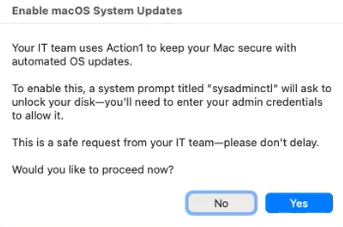
- Then it will display a system prompt for the credentials the sysadminctl utility needs to unlock the disk.
Timed on-screen prompts are shown during an active session and can be scheduled to appear periodically until the enablement process is completed (i.e., credentials are provided). To do this, configure the Action1 Run Script automation.
Customizing user prompts
You can customize the prompts using the script parameters.
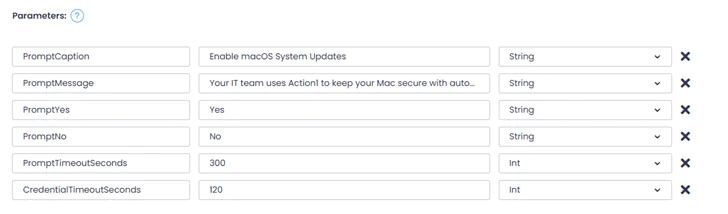
Prompt for user’s consent:
- PromptCaption – caption for the user’s consent dialog.
- PromptMessage – text message to be displayed in the user’s consent dialog.
NOTE: This is the only parameter that supports multiple lines of text. You must use \n if you need a line break and \\ if you need a backslash character.
- PromptYes, PromptNo – action buttons in the user’s consent dialog.
- PromptTimeoutSeconds – display timeout for user’s consent dialog, default is 300 seconds.
Prompt for credentials:
- CredentialTimeoutSeconds – display timeout for credentials entry dialog, default is 120 seconds.
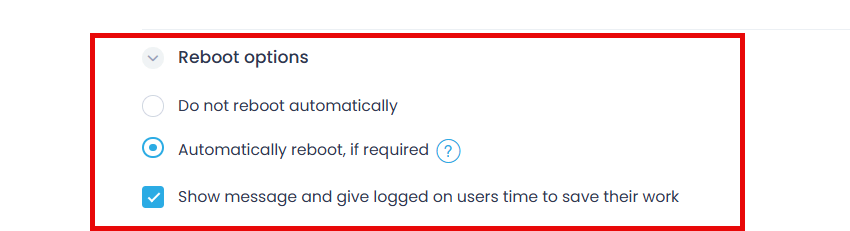
NOTE: For Action1 automations configured for your macOS endpoints, make sure they allow automatic system reboots (see Reboot options in the automation settings). macOS system updates require a reboot to complete, and disabling automatic reboots will block update deployment.
Troubleshooting
If something affects previously enabled system updates (e.g., the auxiliary user account or Keychain record is deleted), one of the following error messages may appear:
System update deployment error: account is missing.
System update deployment error: keychain record is missing.
System update deployment error: keychain error.
If the password for the auxiliary user account was changed using the system commands and no longer matches the one stored in Keychain, the following error will appear in the Automation History:
macOS system update automation was not enabled. sysadminctl[ ] Incorrect password for user Action1 OS Updater. Failed to enable secure token.
To resolve these errors, run this script in the Terminal app:
sudo bash /usr/local/action1/reenable_system_updates.sh
If the error persists after running the script, contact Action1 support.
Technical Details
To be able to install system updates on Apple Silicon, Action1 requires:
- an auxiliary user account
- a Keychain record for this account
- a secure token generated for this account
NOTE: To learn more about the macOS secure architecture, see Use secure token, bootstrap token, and volume ownership in deployments.
During the system updates enablement – either along with the interactive agent deployment or when running a script – an auxiliary user account (named action1_os_updater) is created, with a randomly generated strong password. This password is stored securely in the Keychain and is accessible only to the Action1 agent. A secure token is then generated for this auxiliary user account.
Auxiliary User Account Removal
During the agent uninstallation from the Action1 console, the uninstaller will attempt to remove the action1_os_updater auxiliary user and its Keychain entry. It may request additional permissions to complete the user removal.
The same procedure is performed during the unattended (silent) uninstallation with the following script:
bash /usr/local/action1/uninstall_agent.sh
See also: Removing Action1.
NOTE: If, for some reason, the auxiliary user was not removed automatically, it must be deleted manually, as well as its secure token.