
IP Allow List
This advanced setting helps you restrict access to Action1.
- By default, the list is empty, and access to Action1 is allowed from all IP addresses.
- If the list is not empty, access to Action1 is granted to the specified IP addresses only. Requests from all other IP addresses will be denied.
Important! To work with the audit trail, Action1 users need a role with at least the Manage Advanced Settings permission.
To populate or modify the list:
- In the Action1 console, select Advanced Settings > IP Allow List.
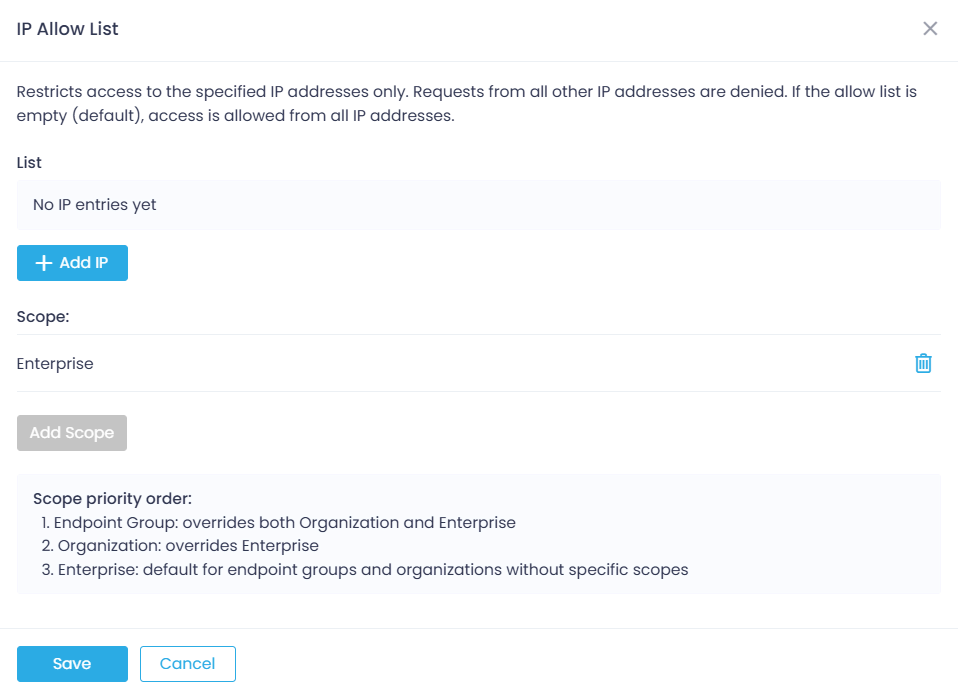
- Click +Add IP and enter the required IP address or CIDR block.
- The scope can currently be set to Enterprise only.
- When finished, click Save.
Important! To save this setting after populating the list, make sure your IP address is included in it. This is required to prevent your self-lockout as an Action1 administrator. Otherwise, the following error is returned: Your current IP address is not in the IP Whitelist.
- After you modify and save the list, an additional message will be shown, asking you to confirm the new settings. Read it carefully before you proceed.
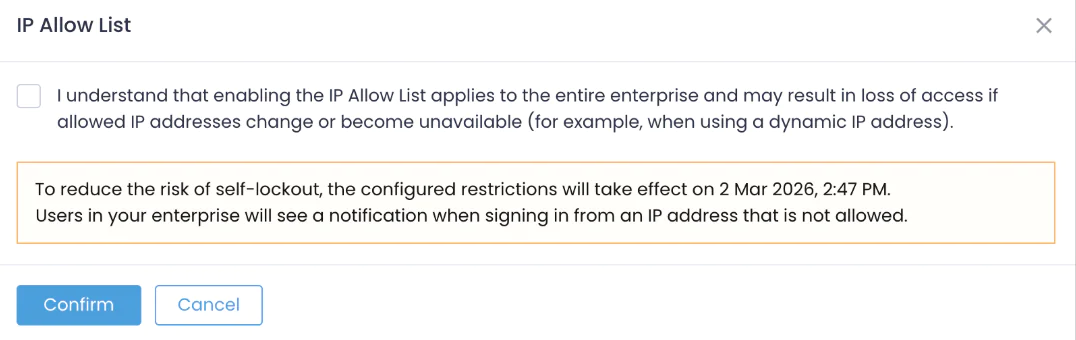
After IP restrictions are enabled, they will take effect after a 7-day grace period. Within this period, the enterprise users who try to sign in from a prohibited IP address will be able to use Action1, but will receive a warning on top of all views.
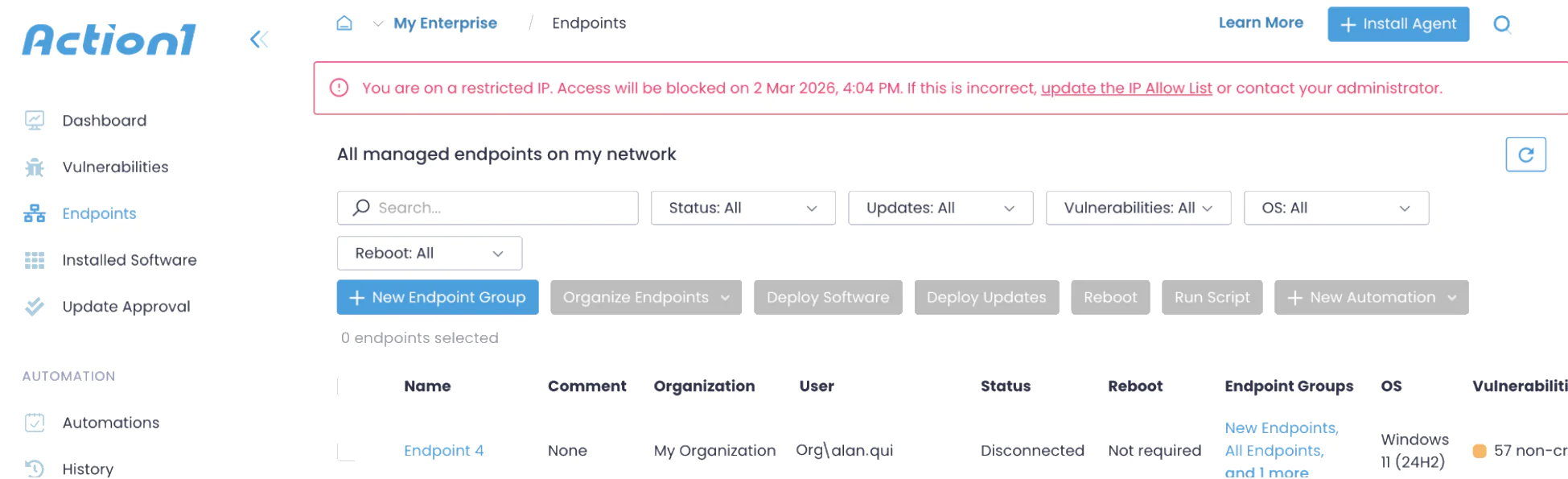
If this is inappropriate, users can contact the Action1 administrator to update the IP Allow List. Otherwise, after the 7-day grace period, their access to Action1 will be blocked.