
Adding a New Script, Editing or Deleting Scripts
Important! To add a new script, edit, or delete a script, a user role with Manage Scripts permission is required.
In this section:
Adding a New Script to the Library
- Navigate to Configuration | Script Library.
- Select + New Script to launch the wizard.
- On the General step, enter the script name and description.
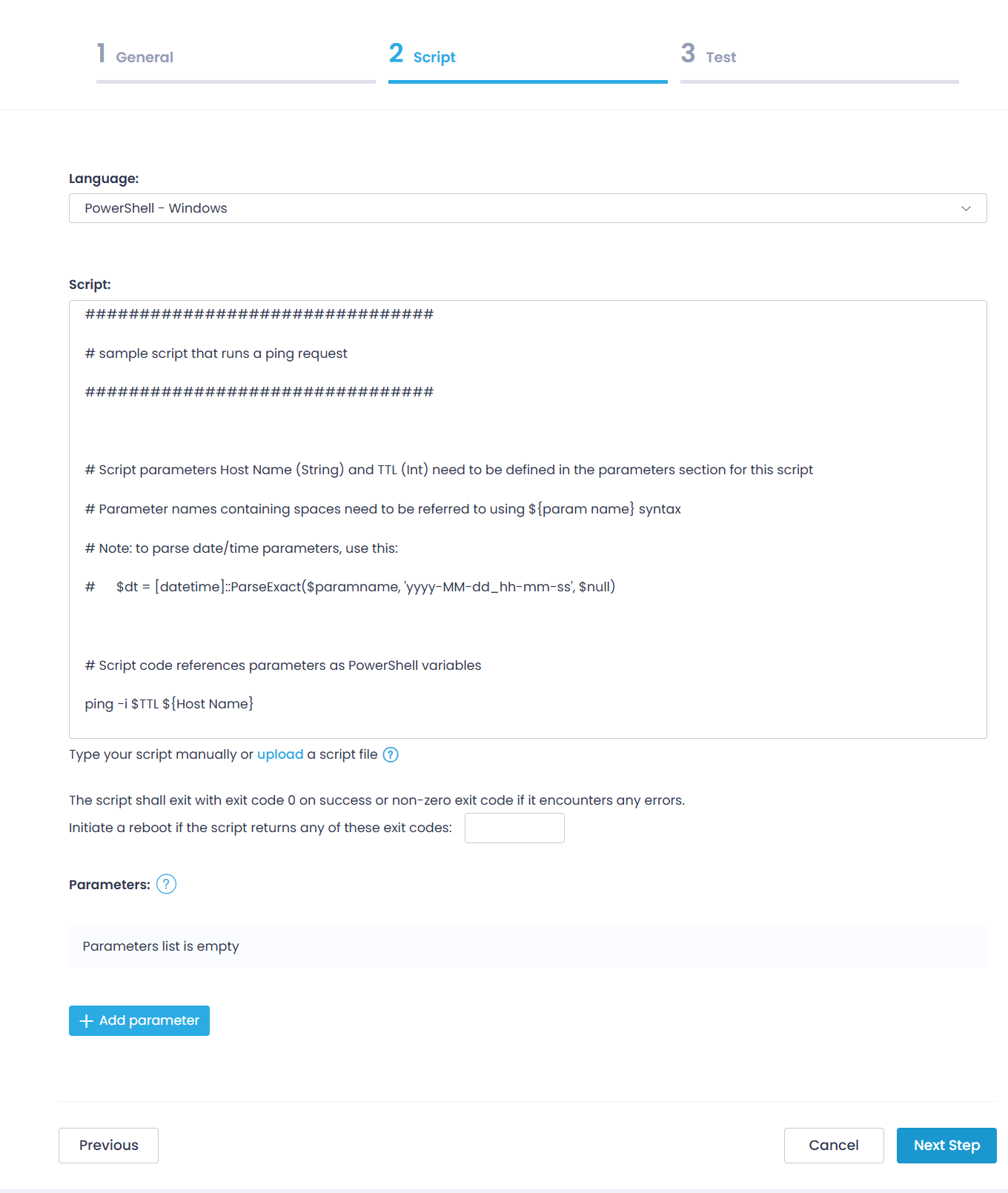
- On the Script step:
-
- Specify the script language (PowerShell, CMD, or Bash). To learn more about certain script types, refer to the Examples section below.
- Enter your script. You can type in the script body or upload a file.
-
NOTE: The upload option is recommended if you are using signed PowerShell scripts. See Script Signing for details.
-
-
- If necessary, specify exit codes for your script. It is recommended that your script exits:
- with exit code 0 on success
- with non-zero exit code if it encounters any error. In this case, you can instruct Action1 to initiate a reboot of the target endpoint.
- In the Parameters section, click + Add parameter and specify the name, default value, and type for each parameter used in the script.
- If necessary, specify exit codes for your script. It is recommended that your script exits:
-
NOTE: For details about supported parameter types and allowed values, refer to the Script Parameters below. Parameter values can be provided in the Script wizard and also when configuring an automation to run the script.
- On the Test step, verify the script operation. Select the target endpoint and click Run Script.
Tip: If necessary, you can modify parameter values on this step.
- Wait for the script execution to complete. Verify the results and finish the wizard.
A new custom script will appear in the Script Library.
Script Parameters
If you plan to create or customize a script that uses parameters, you will need to provide the parameter name, its default value, and type.
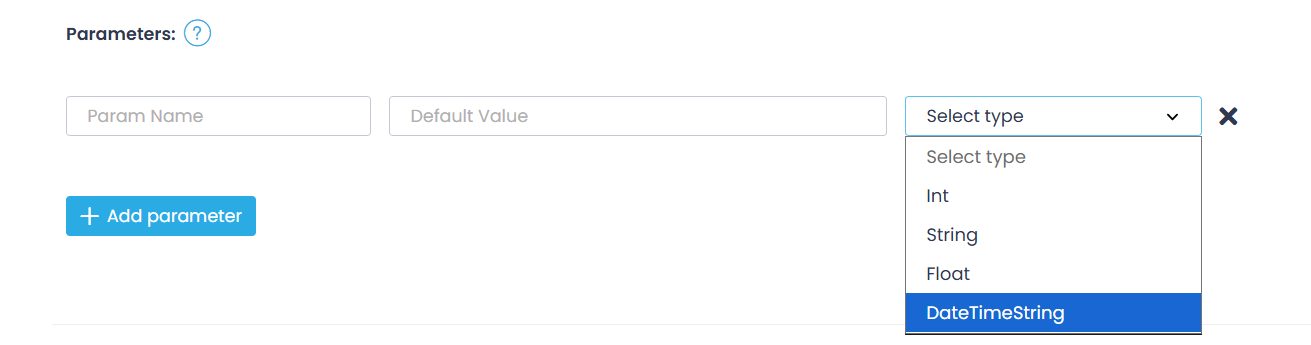
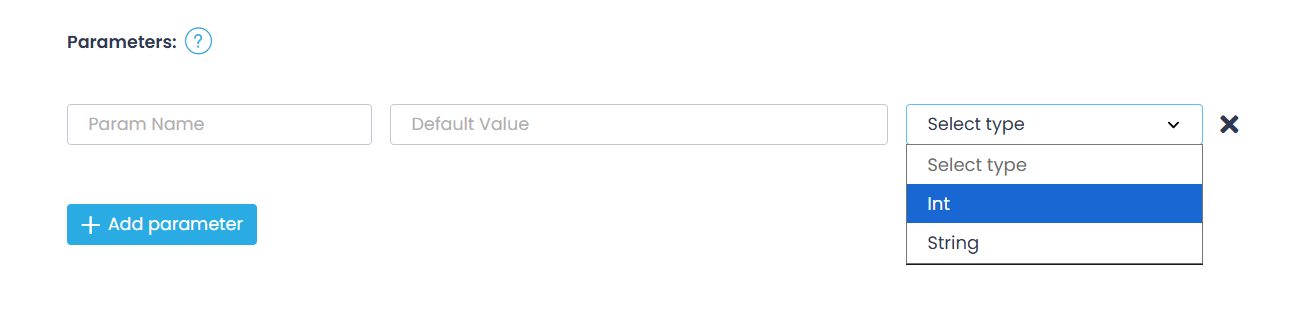
Action1 offers four parameter types for PowerShell and Cmd scripts intended for Windows endpoints, and two types for Bash scripts intended for Mac or Linux endpoints. These types are available for selection from the corresponding drop-down lists in the UI.
For Windows endpoints
For Windows endpoints, you can create PowerShell or Cmd scripts. The following parameter types are supported for them:
- Int – Whole numbers only (positive or negative), no decimal part.
- String – Text values (paths, names, URLs, flags).
- Float – Decimal numbers (e.g., 3.14).
- DateTimeString – Valid date/time. See the explanation below for details.
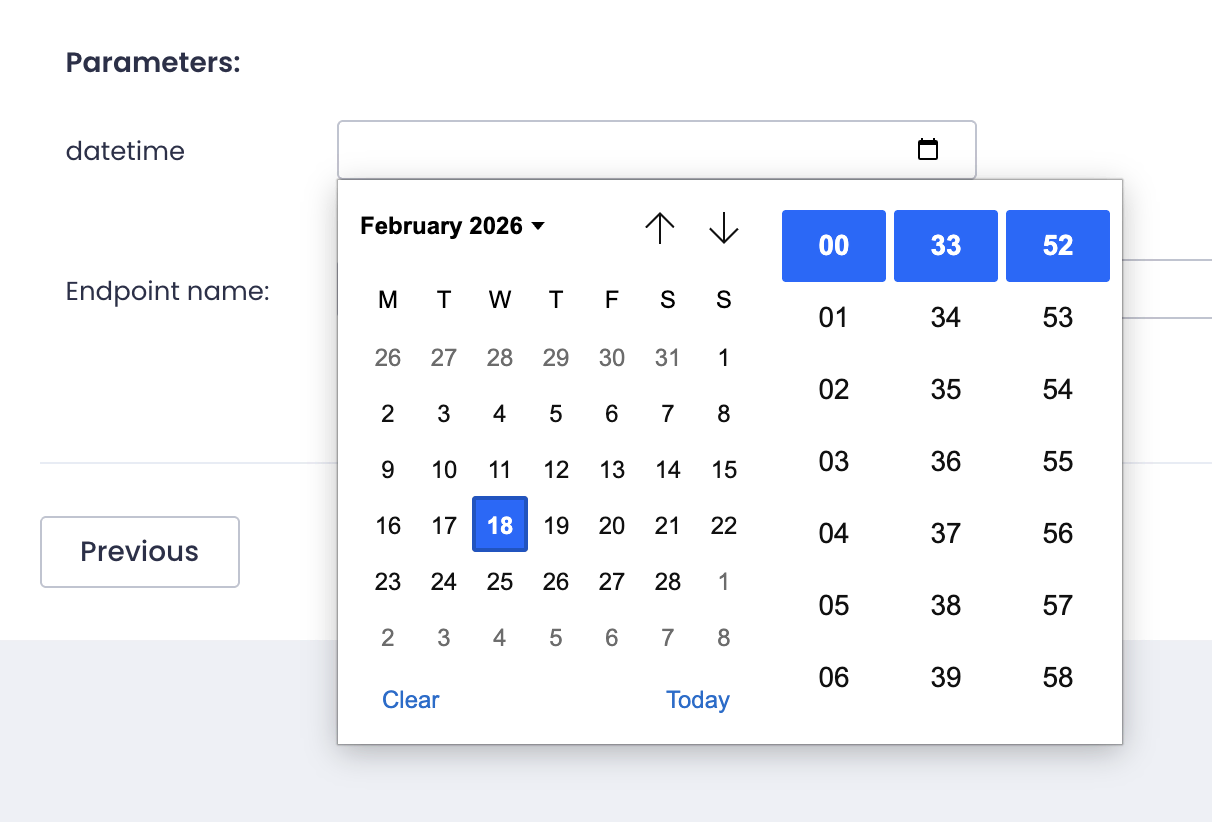
Using DateTimeString type
- Assign DateTimeString type to your parameter if you want the users to enter its value through a date-time picking control (calendar) in the Action1 UI:
- If you want the users to enter a value for this parameter manually using a string, you can assign it the String type. The following format of the date/time entry will then be expected:
yyyy-MM-dd_hh-mm-ss
Here:
- All numeric components must have 2 digits (or 4 digits for the year);
- The separators (dashes and underscore) are mandatory;
- The hours (hh) must be specified using the 12-hour format (e.g., 04).
In this case, remember to use the following function in your PowerShell script to parse the date/time input value:
dt=[datetime]::ParseExact(paramname, 'yyyy-MM-dd_hh-mm-ss', $null)
NOTE: If a parameter name contains a space, enclose it in brackets as ${param name}, e.g., ${Host Name}
For Mac and Linux endpoints
For macOS or Linux endpoints, use Bash scripts. The following parameter types are supported:
- String – Supports special characters. Use \ \ for a backslash and \n for a line break.
- Integer – Whole numbers only (positive or negative), no decimals.
Examples
For Windows endpoints: PowerShell
- On the General step of the New Script wizard, enter:
-
- “Ping Host” as Name
- “Send a ping to the specified host.” as Description
-
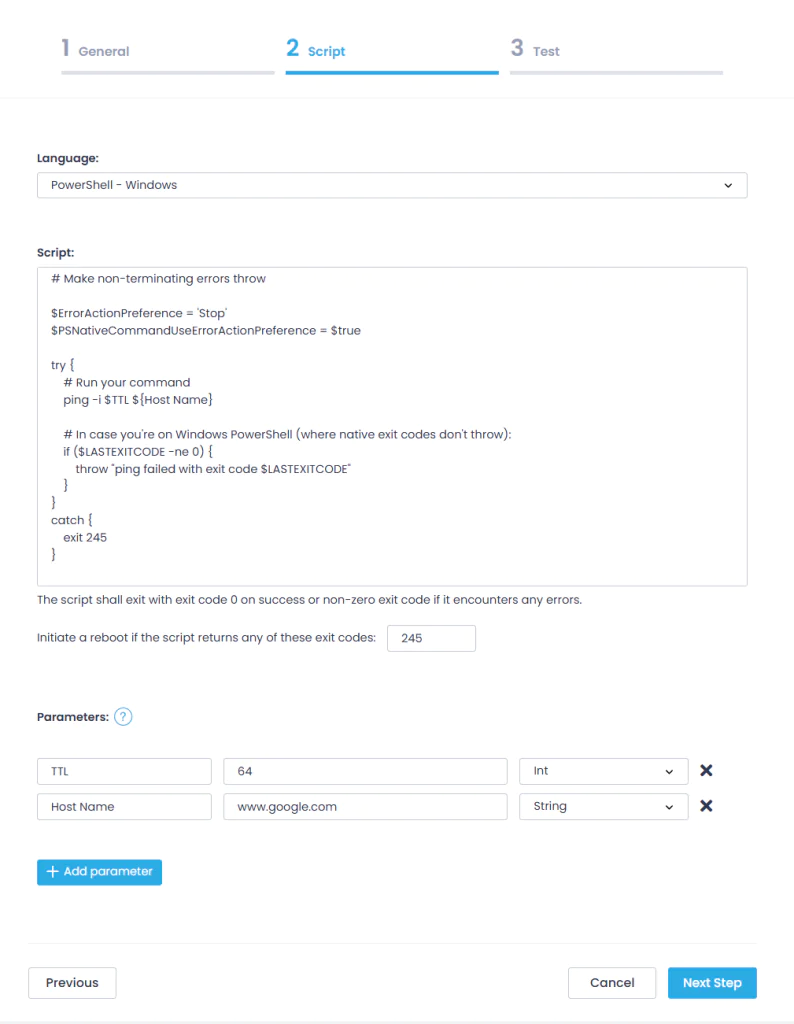
- On the Script step, enter a sample PowerShell script:
# Make non-terminating errors throw:

$ErrorActionPreference = 'Stop' $PSNativeCommandUseErrorActionPreference = $true try

{

# Run ping command

ping -i $TTL ${Host Name}

# In case where native exit codes don't throw:

if ($LASTEXITCODE -ne 0){

throw "ping failed with exit code $LASTEXITCODE"
  }

}

catch {

exit 245

}
NOTE: If a parameter name contains a space, enclose it in brackets as ${param name}, e.g., ${Host Name}
- In the Parameters section, click +Add parameter and define TTL and Host Name parameters, providing their names, default values, and types:
- Set TTL type to Int and value to 64
- Set Host Name type to String and value to www.google.com
- If you want to initiate a reboot if the script fails, enter the exit code other than 0, e.g., 245.
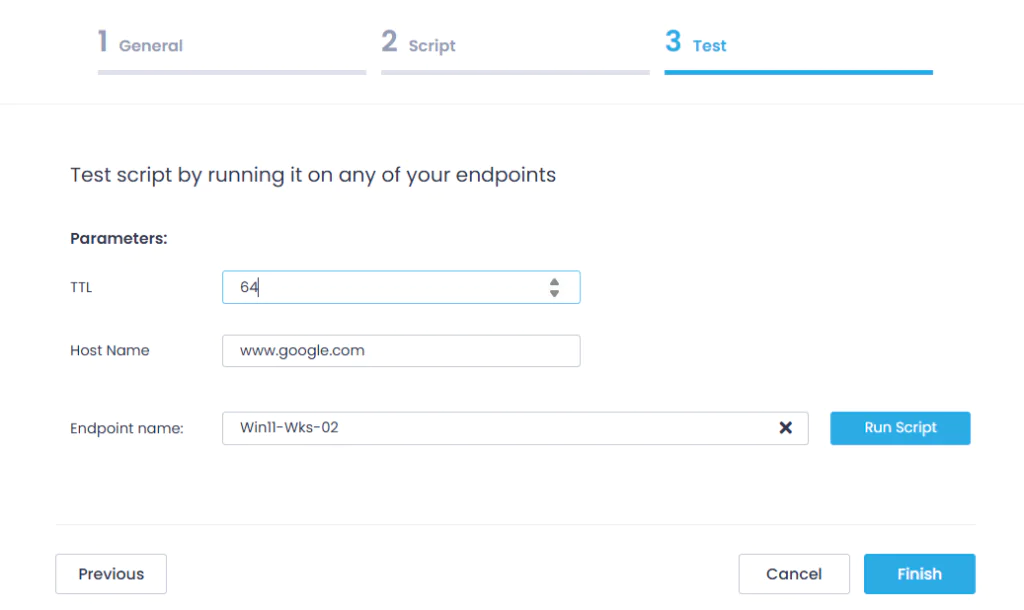
- Finally, on the Test step, select the target endpoint where the script will be executed, and click Run Script.
Tip: For testing purposes, you can enter a nonexistent host name to receive the exit code 245 and see if the reboot is initiated.
After completing the test run, click Finish.
For Windows endpoints: CMD
- On the General step of the New Script wizard, enter:
-
- “Ping Host” as Name
- “Send a ping to the specified host.” as Description
- On the Script step, proceed with a sample CMD script:
@echo off
ping -i %TTL% %Host Name%
- In the Parameters section, click +Add parameter and define TTL and Host Name parameters, providing their names, default values, and types:
- Set TTL type to Int and value to 64
- Set Host Name type to String and value to www.google.com
The script will refer to these parameters using %param name% syntax. The parameter values will be passed to the script at run time as environment variables.
- Finally, on the Test step, select the target endpoint where the script will be executed, and click Run Script. After completing the test run, click Finish.
For Mac and Linux endpoints: Bash
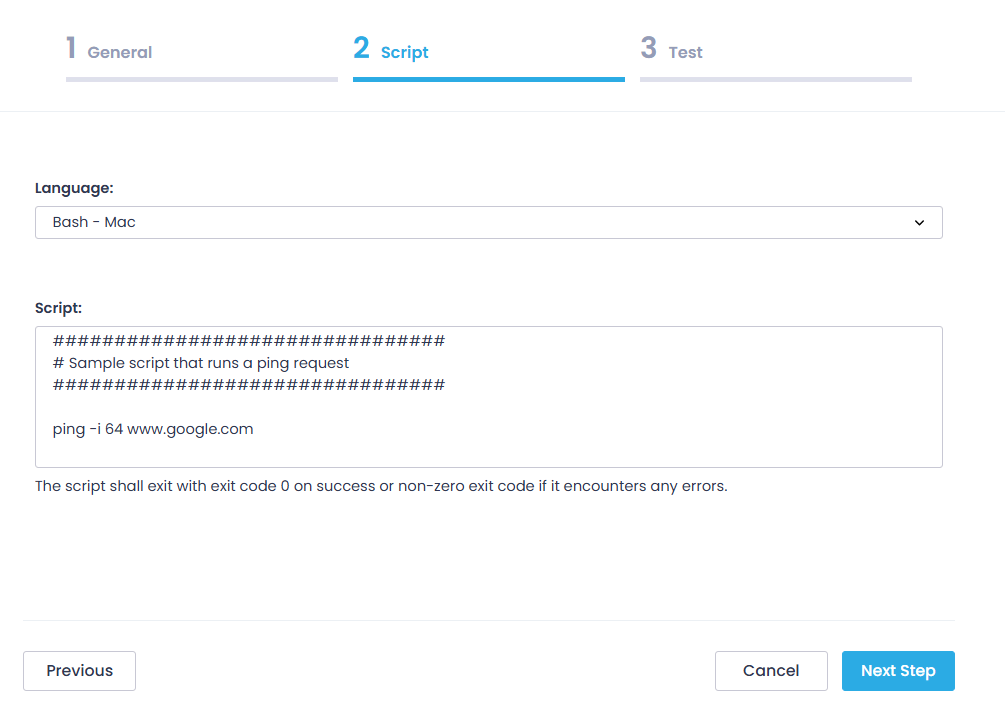
NOTE: Parameter configuration using the wizard is not supported for Bash scripts, so you should provide the required values within the script body.
To add a Bash script that will send a ping to www.google.com with a TTL=64:
- On the General step of the New Script wizard, enter:
- “Ping Host” as Name
- “Send a ping to the specified host.” as Description
- On the Script step, enter:
ping -i 64 www.google.com
NOTE: Reboot option is not supported for Bash scripts.
- Finally, on the Test step, select the target endpoint where the script will be executed, and click Run Script. After completing the test run, click Finish.
Editing or Deleting Scripts
- To modify a built-in script, you should Clone that script using the Actions menu next to it, and then edit the copy.
- To delete your custom script, select it in the Script Library and from the Actions menu, click Delete.
NOTE: Built-in scripts cannot be deleted, as they are maintained by Action1.