






TL;DR
- Best overall WinGet alternative: Action1 for cloud-based patching, software deployment, vulnerability management, reporting, and remote endpoint control.
- Best enterprise package manager: Chocolatey for Business for private repositories, package internalization, auditing, and Windows-focused deployment.
- Best lightweight command-line alternative: Scoop for developers and power users who want clean, repeatable Windows installations.
- Best for simple app maintenance: Ninite Pro for remotely updating a curated catalog of popular Windows applications.
- Best for on-premises Windows teams: PDQ Deploy & Inventory for scheduled deployments, scripting, inventory, and air-gapped environments.
- Best third-party patching add-on: Patch My PC for organizations already using Intune, ConfigMgr, or WSUS.
- Best for MDM and Microsoft 365 environments: Microsoft Intune for device management, compliance, app protection, and multi-platform administration.
- Why replace WinGet: It lacks a centralized console, remote deployment, built-in compliance reporting, staged patching, vulnerability prioritization, and fleet-wide visibility.
- Closest WinGet-style replacement: Scoop preserves the lightweight command-line experience but adds cleaner per-user installs and dependency handling.
- Best full platform replacement: Action1 closes most of WinGet’s enterprise gaps without requiring on-premises infrastructure.
- Selection advice: Compare OS coverage, remote endpoint support, automation, private repositories, reporting, custom packages, security controls, and deployment effort.
WinGet works great for fast software installation, uninstallation, and upgrades, but only for one endpoint at a time. It can’t give you the automation, flexibility, remote control, visibility, and reporting capabilities other software deployment and patch management platforms can. So if you’re reading this article, you’re likely on the lookout for retiring WinGet and equipping your company with a platform that delivers everything you need, under one roof, one license, and without workarounds. We hear you, and we’re here to help.
We cover 7 of the best WinGet alternatives, getting into each one’s key features, real-world pros, cons, and ratings from verified users across G2 and Capterra. Along the way, we’ll also break down what WinGet is (for anyone who hasn’t used it yet), how it works, and the commands it runs, so you’re comparing from a full picture, not just a hunch.
Read on, and you’ll walk away knowing exactly which platform tightens your security posture, cuts your team’s manual workload, and closes every gap WinGet leaves open.
Action1 is free for up to 200 endpoints. Forever. Watch the demo to see it in action. Or sign up in five minutes and start patching and deploying software right now.
What are the Best WinGet Alternatives?
The best WinGet alternatives are Action1 Patch Management & Software Deployment, Chocolatey for Business, Scoop, Ninite Pro, PDQ Deploy & Inventory, Patch My PC, and Microsoft Intune.
How We Evaluated the Best WinGet Alternatives
Picking the wrong replacement for WinGet doesn’t just waste a rollout, it can leave you right back where you started, still missing the automation, reporting, or control that sent you looking in the first place. To help you avoid that, we built our evaluation process around real data, not marketing claims.
We evaluated each WinGet alternative based on:
- Core evaluation criteria: Private software repository support, OS support, custom package deployment, software deployment automation, third-party application patching, remote endpoint support, patch compliance reporting, security and access controls, and ease of deployment.
- Consistent comparison: Each platform was evaluated against the same eight criteria, so private repository support and patching depth received the same attention as compliance reporting and access controls, not just the features easiest to market.
- Third-party review data: Ratings, recurring themes, and friction points were pulled from G2 and Capterra, prioritizing verified reviews from IT professionals, MSPs, and enterprise IT teams.
- Deployment model and time to value: Each tool was evaluated on whether it runs in the cloud, on-premises, or as a hybrid, and how much time and effort it takes to get from signup to your first successful deployment.
- Vendor documentation and pricing: We reviewed official vendor documentation and pricing pages as of July 2026 and confirmed the information directly on each vendor’s website rather than relying on a sales deck.
Quick Comparison of the Top WinGet Alternatives
| Tool | Package Source | Deployment | OS & Third-Party Patch Coverage | Automation & Software Management | Reporting & Compliance | Pricing & Free Tier/Trial | What It Adds Over WinGet | Best For |
|---|---|---|---|---|---|---|---|---|
| Action1 Software Deployment & Patch Management | Private, in-house-built repository, no public feed dependency. Supports custom packages. | Cloud-native, agent-based. | Windows, macOS, Linux, plus 310+ third-party apps, all autonomously patched. | Remote installs, updates, removals, scripts, custom packages, and scheduled automations, remote desktop, and an offline catch-up window. | 100+ built-in, customizable report templates covering patching, vulnerabilities, software and hardware inventory, security configuration, and more. | Free forever for 200 endpoints. Quote-based pricing after that. |
Autonomous risk-based patch management, cross-OS support, vulnerability management, real-time visibility, inventory, audit-ready reporting, MFA, RBAC, multi-tenancy. |
SMBs, large enterprises, MSPs, government agencies, non-profit organizations, and institutions in healthcare, finance, education, manufacturing, and the oil and energy sector. |
| Chocolatey for Business (C4B) | Public Community Repository by default. Supports private repositories with package internalization. | Self-hosted, requires standing up a Nexus repository server and SQL-backed Central Management. | Windows only, built for packaging, not vulnerability-driven patching. | CLI-driven package management, with centralized deployment plans and PowerShell scripts through CCM. | CCM tracks installed and outdated packages, deployment history, audit logs, and who installed or upgraded each package. | Starts at $18 per node per year, with a 100-node and $1,800 annual minimum. A 14-day trial is available. | Internal repositories, repeatable custom packages, offline internalization, end-user self-service, centralized deployments, and package auditing. | Windows organizations that need strict package control, private repositories, or offline deployment. |
| Scoop | GitHub-hosted buckets containing JSON app manifests. Custom buckets are supported. | Local, per-user Windows deployment with no agent, server, or cloud console. | Windows only, no third-party patch automation. | Installs, updates, removes, holds, imports, and exports apps while resolving dependencies automatically. | No centralized fleet reporting, audit dashboard, or compliance tracking. | Completely free and open source. | Cleaner user-level installs with automatic dependency handling, isolated app folders, fewer admin prompts, and easy removal. | Developers and power users looking for a go-to package manager for clean, lightweight, and repeatable Windows workstation setups. |
| Ninite Pro | Uses Ninite’s own curated app catalog and pulls installers from official vendor sites. You can’t add custom apps. | Cloud-based. An agent must be installed on each system before it can be managed. | Windows and third-party applications. | Install, update, and uninstall, but only from Ninite’s own app list. | Basic audit logs and CSV reports for installed apps and update status. No built-in historical or audit-ready compliance reporting. | $1 per month for the first 20 machines, $0.50 for the next 400, and $0.25 for each additional machine. A 14-day trial is available. | Saves time on repetitive app maintenance: one browser view, bulk actions, live status, and queued commands for remote or offline PCs. | Small and midsize teams that value simplicity over catalog depth and customization. |
| PDQ Deploy & Inventory | PDQ Package Library plus custom packages, MSI installers, and scripts. | On-premises. You must build and maintain the infrastructure. | Windows only, third-party patching via prebuilt packages. | Scheduled deployments, custom scripts. | Built-in and custom reports for hardware, software, and OS data. Audit logs are included, but compliance reporting usually needs some setup. | No free tier. A 14-day trial is available. $1,950 per administrator per year, covering unlimited endpoints. | Detailed inventory, dynamic device collections, scheduled targeted deployments, and custom scripts. | SMBs and enterprises managing on-premises, air-gapped, or VPN-connected Windows devices. |
| Patch My PC | Privately maintained repository with thousands of products. Custom Apps lets you upload EXE or MSI installers. | Hybrid, on-prem, cloud, or both together. | Windows and macOS third-party apps, delivered through Intune, ConfigMgr, or WSUS. | End-to-end third-party lifecycle automation, no native remote control of its own. | Patch compliance reporting, deployment visibility, and advanced CVE and threat analytics in higher plans. | $2 to $5/device/year, tiered, with a $2,000 to $5,000/year minimum. MSPs pay $0.50/device/month instead. | Automated third-party patch testing and CVE-based prioritization decisions. | Teams already using Intune, ConfigMgr, or WSUS that want to remove manual third-party packaging work. |
| Microsoft Intune | Microsoft Store apps, Enterprise App Catalog applications, and uploaded Win32, line-of-business, Apple, and Android apps. | Cloud-based. | Supports Windows, macOS, Linux, Android, iOS, iPadOS, and ChromeOS with varying capabilities. | App assignment, installation, configuration, protection, updating, removal, zero-touch provisioning, and remote wipe, lock, or retire. | Compliance reporting and analytics, audit-ready documentation from the admin center. | Plan 1 at $8/user/month. Plan 2 adds $4/user/month, Intune Suite adds $10/user/month. Often already included in M365 E3/E5. | Full device management and compliance policy enforcement across every platform. | Windows-centric companies that need app deployment, device management, compliance policies, MDM, and MAM in one cloud platform. |
The table says it all, the demo proves it. Action1 just works. Watch now or sign up free.
What is WinGet (Windows Package Manager)?
WinGet, short for Windows Package Manager, is Microsoft’s free command-line tool available on Windows 10/11 and Windows Server 2025 that lets you install, uninstall, upgrade, and configure applications and system settings through Command Prompt or PowerShell. Instead of downloading files and clicking through setup wizards, you type one command and WinGet handles the rest. Under the hood, WinGet is just the client, the actual work happens through the Windows Package Manager service running behind it.
WinGet Package Sources
WinGet pulls installers and upgrades from three default sources: the Microsoft Store catalog, the WinGet Community Repository for applications, and a separate WinGet Community Repository for fonts. But if you need more control, or a “pool” focusing on particular software titles, you can add your own sources:
- Community repositories: Open, public sources anyone can contribute packages to, which is why you get such a broad app catalog to pull from.
- Private and enterprise sources: Organizations like yours can host their own internal source through a REST API built to Microsoft’s official WinGet REST Source spec, keeping full control over what gets installed across your systems.
- Local manifests: You get the flexibility to point WinGet at a manifest file directly, which is especially helpful for testing a package before it’s published anywhere.
What are the Key WinGet Commands?
Six commands. That’s genuinely all you need:
- Install a program: winget install teams
- Update a program: winget upgrade teams
- Update everything at once: winget upgrade –all
- Remove a program: winget uninstall teams
- Search the catalog: winget search teams
- List installed programs: winget list
Additional tips:
- To get the full list of commands available in CMD or PowerShell, type: winget –help
- To update App Installer, the package that includes the WinGet client itself, run: winget upgrade Microsoft.AppInstaller
Why Look for a WinGet Alternative?
People look for WinGet alternatives because it was built for one person, one machine, not an organization. You don’t get centralized management, you can’t generate audit-ready reports, you have very limited automation flexibility and deployment controls, and there’s no remote control. WinGet gives individual Windows users a convenient way to install, update, or uninstall software on one endpoint, but it can’t manage, monitor, and secure an organization’s entire device fleet on its own.
- Limited centralized management: Like most package managers, WinGet is primarily designed to perform package operations on the machine where its client runs, not to provide a complete fleet-management console. Group Policy and Intune can wrap around it, sure, but that’s them getting the job done, not WinGet. In short, it gives you control over the endpoint next to you, not remote ones. On top of that, WinGet can’t run under the system account, which is exactly why it can’t be triggered centrally without bolting on something else.
- Limited patch compliance reporting: WinGet can list installed apps, show available upgrades, create local logs, and export matched packages to a JSON file, but that’s it. You can’t see historical patch data, generate executive reports, or produce audit-ready documentation. You also need to remember that exports depend on WinGet matching installed applications to a package source, so they may not account for all the software on an endpoint. For stronger reporting, you’ll need scripts or another management platform to collect and organize the data properly.
- Limited enterprise deployment controls: WinGet doesn’t provide testing features like update rings for staged rollouts. You can’t create autonomous processes that start at a specified time, reboot endpoints on schedule, or apply updates to the endpoints that were offline during the planned maintenance window.
- Limited private software repository capabilities: Microsoft gives you a REST API spec and some reference code, and from there it’s on you to stand up the source, secure it, and write and maintain your own manifests. It’s genuinely possible. It’s just not a quick side project for a two-person IT team.
- Need for remote software deployment: WinGet doesn’t offer a remote deployment option. You can only manage the endpoint that’s in front of you. No agent, no cloud console, nothing reaching out to touch a remote endpoint. If your team’s fully remote or hybrid, you’re pairing WinGet with Intune, ConfigMgr, PowerShell remoting, or an RMM, and letting that tool do the remote software management work.
- Need for automated patch management: WinGet doesn’t offer automated patch management capabilities like flexible scheduling, risk-based prioritization, staged rollouts, reboot management, ready-to-use report templates, and so on. The command “winget upgrade –all” works, and yeah, you can chain it to Task Scheduler and call it automation. But nothing’s checking those updates before they land, nothing’s staging the rollout, nothing’s retrying the machine that got missed last night.
Read Also: The Hidden Risk of Wrapped Dependencies: When Your Vendor’s Vendor Changes the Rules
Read Also: The Hidden Costs of Community-Maintained Software Repositories
Best WinGet Alternatives: Detailed Overview
The best WinGet alternatives are Action1 Patch Management & Software Deployment, Chocolatey for Business (C4B), Scoop, Ninite Pro, PDQ Deploy & Inventory, Patch My PC, and Microsoft Intune.
We’re now going to explore in detail the key features, pros, cons, and ratings from verified G2 and Capterra reviews for each platform, so you can better understand how each one addresses WinGet’s shortcomings, what you get for your money, and, most importantly, which platform is the right one for your company and its specifics.
Action1 Patch Management & Software Deployment
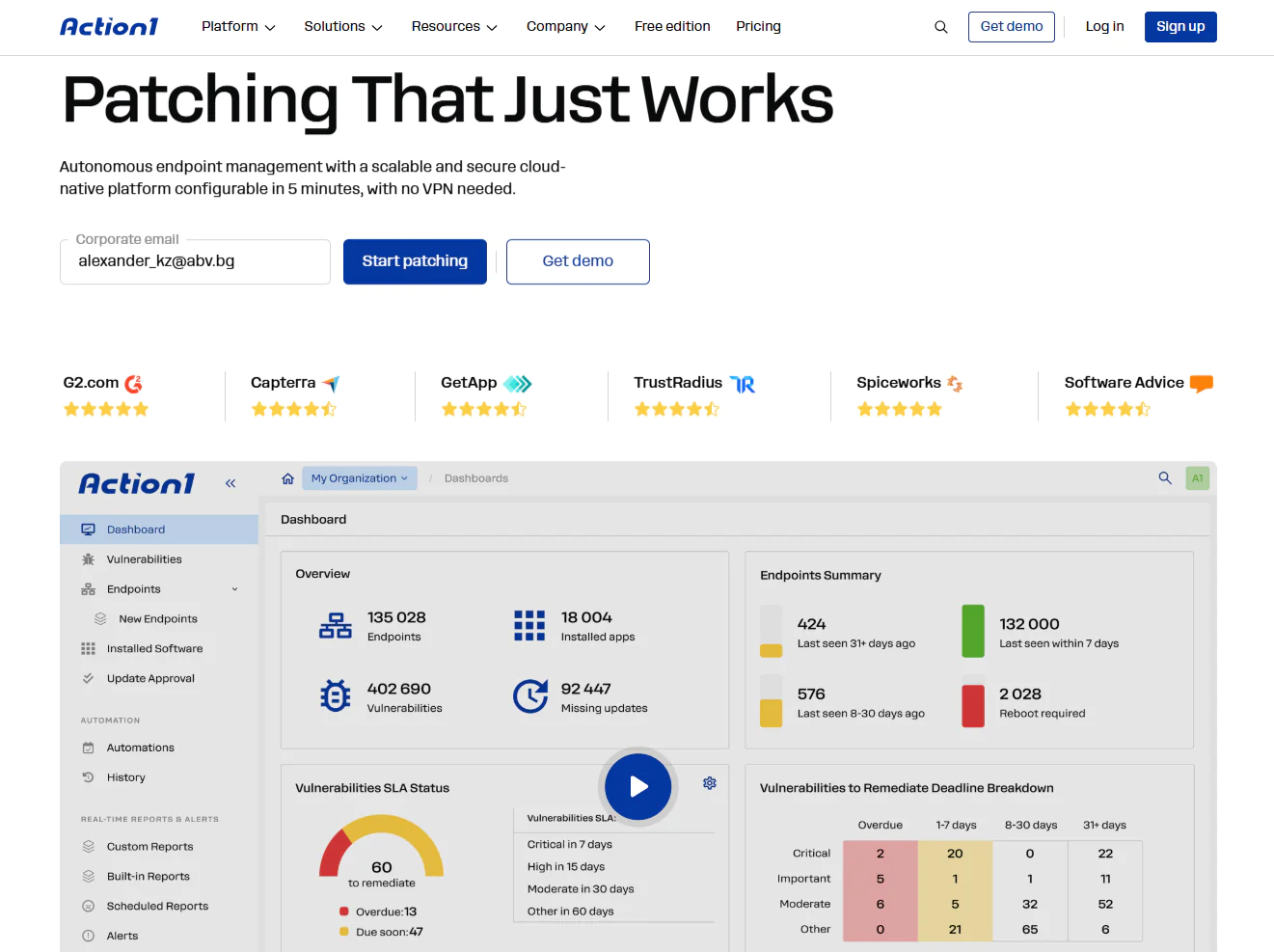
Action1 is a cloud-based autonomous endpoint management platform that automates OS and third-party patch management, software deployment, scripting, and reporting across on-premises and remote endpoints. It supports Windows, macOS, and Linux, simplifying the management of IT environments built on a mix of operating systems from one place.
It also lets you monitor, manage, and secure each of your systems directly from your browser, with no VPN or any hardware required, thanks to the platform’s agent-based architecture. You get real-time insights into patch status, compliance, device connectivity, and hardware, all from that same dashboard. That visibility is what lets IT teams replace manual work with autonomy, spend less time completing routine tasks, and address security gaps faster instead of chasing them one endpoint at a time. And you get all of that free for your first 200 endpoints, fully featured, forever.
Key Features
- Cross-platform support: Windows, macOS, and Linux.
- Autonomous patch management: Updates Windows, macOS, Linux, and 310+ third-party applications.
- Risk-based vulnerability management: Identifies vulnerabilities across operating systems and third-party apps in real time, displays their CVE identifiers, and prioritizes them based on factors such as CVSS severity and active exploitation in ransomware campaigns, assigning each a score from 1 to 10 based on risk level. Built-in remediation options let you push patches, apply compensating controls like software uninstallation, and isolate an endpoint from the network when no patch exists.
- Update rings for faster and safer rollouts: Patches roll out in staged rings, advancing from the test ring to the outer rings only once the predefined success-rate and deployment-count criteria are met. Unstable updates are automatically halted to reduce downtime risk.
- Private Software Repository: Each patch is thoroughly tested by Action1’s expert team, ensuring only reliable and secure updates reach your endpoints.
- Automation flexibility: You choose when, how, and on which endpoints the updates get applied. Reboot management stays under your control for immediate or delayed endpoint restarts.
- Offline endpoint catch-up window: If any of your endpoints are offline during scheduled maintenance windows, they’ll be patched automatically once they reconnect.
- Software and script management: With just a few clicks, you can deploy or remove prepackaged and custom apps remotely. Action1 executes built-in or custom PowerShell and CMD scripts on Windows endpoints and Bash scripts on macOS and Linux endpoints to handle different tasks.
- Real-time reporting and asset visibility: You get live insights into every endpoint’s patch, compliance, and health status, along with its hardware and software details. 100+ built-in customizable templates let you generate audit-ready reports in minutes covering patching, vulnerabilities, software and hardware inventory, security configuration, and more.
- Enterprise-grade access security: Role-based access control, MFA, and single sign-on via Entra ID, Okta, Google, or Duo secure every account.
- Peer-to-Peer (P2P) patch distribution: Downloads updates and patches once and shares them across your endpoints on the same local network, reducing external bandwidth usage and speeding up large update deployments without needing on-premises local cache servers.
- Browser-based remote access: Manage your on-premises and remote endpoints directly through your browser, from anywhere, anytime. No VPN is required, thanks to the platform’s agent-based architecture. Remote desktop functions let you take control of an endpoint’s screen, mouse, and keyboard.
- Multi-tenancy for MSPs and enterprises: Action1 supports the creation of multiple organizations under one account, each with its own endpoints, data, maintenance windows, and update approval workflows.
- Extensive integrations: Beyond its built-in capabilities, Action1 links to your IT and security stack through REST API, PowerShell, and OAuth 2.0, with native support for vulnerability scanners such as Microsoft Defender, Tenable, and CrowdStrike, ITSM tools like ServiceNow and Jira, identity providers such as Entra ID and Okta, and automation platforms such as Zapier.
- Custom endpoint attributes: Set up to 30 custom attributes per endpoint, either manually or through scripts, covering things like registry keys, warranty dates, BitLocker status, or free disk space. Use them to build dynamic endpoint groups and feed them straight into your reports.
- Full REST API access: Connect Action1 to your existing IT stack through a complete REST API with OAuth 2.0 authentication at no additional cost, supporting integration with PSA platforms, ticketing systems, client management tools, endpoint security tools, and custom workflows.
- Free for up to 200 endpoints: Fully featured with no functional restrictions, forever.
Pros
- Easy to deploy in just five minutes.
- Automates patch and update rollouts across operating systems and third-party applications.
- Cuts downtime risk through staged, controlled deployments.
- Includes built-in remote control and remote desktop.
- Rated the #1 easiest-to-use patch management solution by G2.
- Highly scalable, letting you grow from 100 to 100,000+ endpoints fast without adding on-premises infrastructure.
- Cloud-native platform that manages both on-premises and remote endpoints without needing a VPN.
- Includes built-in security controls, such as MFA, SSO, role-based access control, audit trails, malware patch scanning, and Patch Assurance, and is backed by SOC 2 Type II, ISO/IEC 27001:2022, and TX-RAMP certification.
- Intuitive, user-friendly interface.
Cons as per Verified G2 User Reviews:
- No mobile device management (MDM).
- No rollback capability.
Customer Story
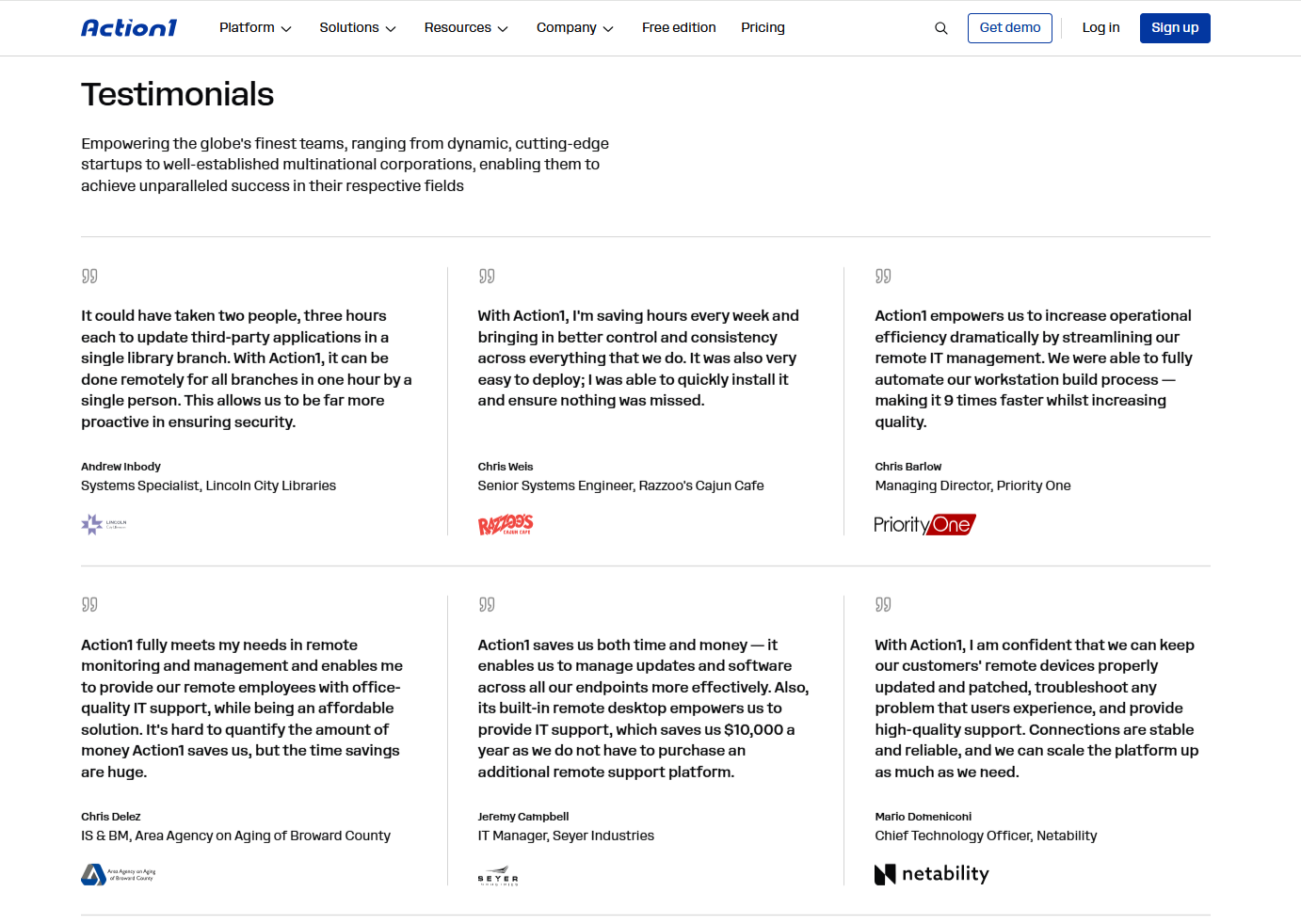
“Since the introduction of Action1, we have experienced significant improvements in our operational processes. The management of updates has become much faster and more transparent, while the entire process is now fully traceable and auditable. Previously, deploying patches required multiple manual steps and continuous follow-up. Today, the process is centrally managed, automated, and accurately documented. As a result, administrative workload has decreased, the risk of errors has been minimized, and our overall IT security level has significantly improved. Overall, the system not only ensures more efficient operations but also provides greater control and predictability in our day-to-day IT management.” – Márton Botzheim, Senior Information Technology System Administrator
Pricing
Action1 is free for your first 200 endpoints, fully featured, forever. After that, custom pricing applies based on a per-device model. The more endpoints you manage, the lower the price gets.
Get your personal pricing quote here or schedule a demo to see it in action first.
Best for
Action1 is best for SMBs, large enterprises, MSPs, government agencies, non-profit organizations, and institutions in healthcare, finance, education, manufacturing, and the oil and energy sector.
Reviews
- G2 Rating: 4.9/5 stars, based on 1,075+ reviews (at the time of update)
- Capterra Rating: 4.9/5 stars, based on 235+ reviews (at the time of update)
Chocolatey for Business (C4B)
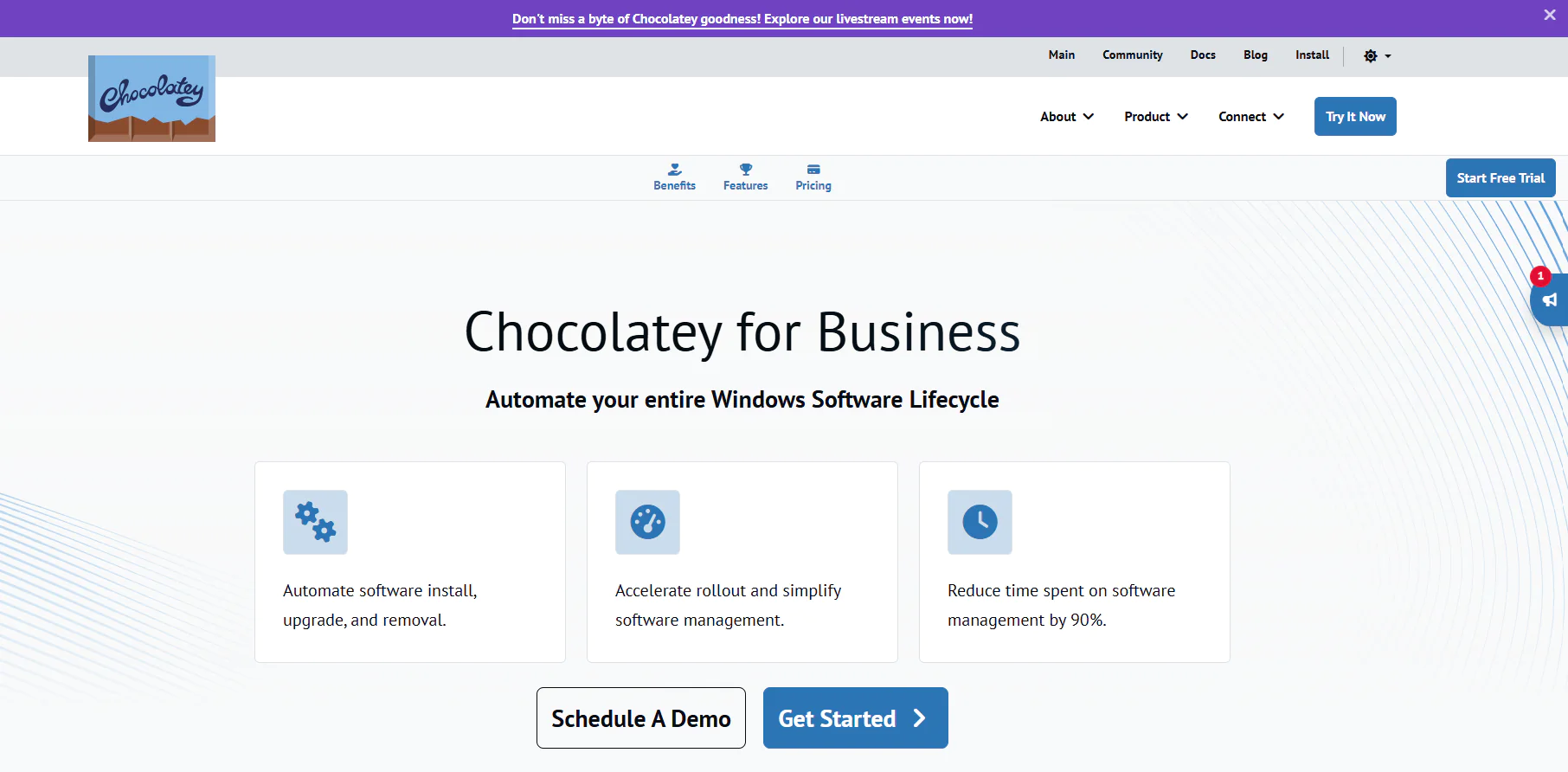
Chocolatey for Business (C4B) is Chocolatey’s enterprise tier, an automated Windows software management platform built specifically for business environments. Secure deployments run at scale, wherever your endpoints are located, backed by centralized endpoint oversight and real-time visibility that makes compliance and governance a lot less painful.
C4B gives you a single, standardized packaging format for installing, removing, and upgrading software across the board. It’s what lets you step away from leaning on the public Community Repository, since you can host your own private packages and internalize community ones instead, cutting the dependency on someone else’s feed to keep your organization running smoothly.
Key Features
- Package Builder: Builds packages straight from installers or from Programs and Features, trimming down the manual scripting and packaging work that would otherwise fall on your team.
- Package Internalizer: Pulls in community packages along with whatever remote resources their scripts rely on, then rebuilds those packages to run on embedded or internally hosted files. That cuts out external internet dependencies and makes your deployments far more consistent and repeatable.
- Self-service anywhere: Lets authorized users run approved installation workflows without receiving local admin rights. For instance, Chocolatey executes the permitted ‘choco install’ or ‘choco upgrade’ command in an administrative context, while IT retains control over available packages and commands.
- Package audit: Shows you a full history of past package installs and upgrades, including who ran them and when, so you get a searchable trail for both troubleshooting and compliance purposes.
- Chocolatey Central Management dashboard: Pulls together a centralized view covering installed and outdated packages, unique installed packages, deployment plans, managed software, endpoint counts, and broader system health.
- Programs and Features Synchronization: Keeps Chocolatey’s records accurate whenever managed apps get upgraded or removed outside of Chocolatey itself. The C4B sync command can also pull eligible existing apps from Programs and Features into Chocolatey’s management.
- Package reducer: Shrinks the footprint of your package installations automatically, a real help for organizations dealing with bandwidth constraints or large fleets.
- Runtime malware protection: Checks externally downloaded installation files for malware as they run, adding a security layer beyond what happens before they execute.
- System integration: Works alongside Intune, SCCM, Chef, Puppet, Ansible, and other tools you’re probably already running.
Pros
- Provides audit trails showing exactly who installed each package and when, giving you a clear record for troubleshooting and compliance reviews.
- Works in air-gapped, fully offline environments since you can internalize public packages instead of pulling them live.
- Checks every package for malware at runtime, adding a layer of protection before anything reaches your endpoints.
- Turns each .msi or .exe file into a standardized installation package in seconds, with no manual scripting needed.
- Plugs into tools you’re likely already using, including SCCM, Intune, Puppet, Chef, Ansible, and CI/CD pipelines.
- Lets end users install approved software on their own, no local admin rights required.
Cons as per Verified G2 User Reviews:
- The price runs high, especially for SMBs. Comparable tools on the market offer more features and broader coverage for the same cost or less.
- Installing Chocolatey for Business isn’t plug-and-play. Following the recommended enterprise deployment model may require your team to configure an internal NuGet repository, SQL-backed Central Management components, endpoint agents, and supporting automation.
- Package quality isn’t consistent, some can be outdated or broken, which opens the door to real downtime and security risk.
Pricing
Chocolatey for Business runs $18 per node, per year, with a 100-node minimum that puts your starting annual cost at $1,800. That covers everything in Chocolatey Pro, plus Central Management, Self-Service Install Management, Full Package Synchronization, Package Internalizer, and Package Audit. There’s no free tier for C4B itself, though Chocolatey Open Source stays free for organizational use.
Best for
Chocolatey for Business fits well for mid-to-large enterprises running Windows-centric environments that want tighter security and compliance tracking without overcomplicating software management.
Reviews
- G2 Rating: 4.5/5 stars, based on 15 reviews (at the time of update)
- Capterra Rating: 4.8/5 stars, based on 6 reviews (at the time of update)
Scoop
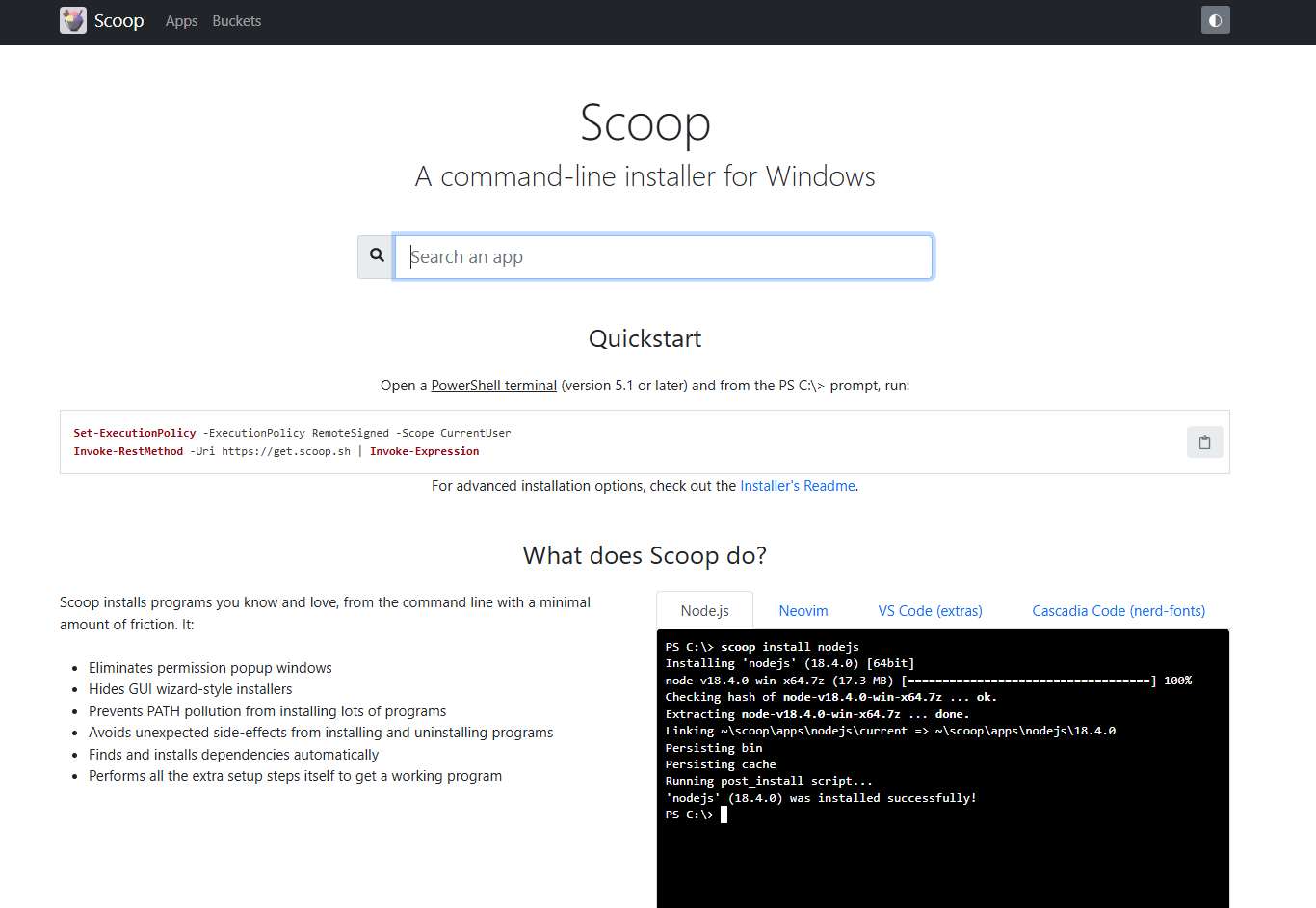
Scoop is a free, open-source command-line installer and package manager for Windows that lets you install apps, dependencies, and developer tools through short PowerShell commands without requiring admin rights for standard per-user installations. In reality, it works by installing everything into your user directory, without clicking through installer wizards or dealing with annoying “do you want to allow this app” popups. Software packages live in online collections called “buckets,” hosted on GitHub, and you can search for individual packages and install, update, or remove them.
Key Features
- No admin rights needed: Scoop installs apps into your user account, so its standard per-user installations don’t require admin access.
- Keeps your PATH tidy: Instead of scattering shortcuts across your system, Scoop keeps them all in one folder, so you always know exactly what’s available to run.
- Skips the installer entirely: Most programs need an installer file. Scoop just needs a zipped program and a short file describing how to set it up.
- Built for repeatable setups: Export your list of installed apps and use it to recreate the exact same setup on a new machine in minutes, no manual reinstalling required.
- Two separate collections: The main collection covers open-source CLI tools. A second one, called extras, covers everything else, including apps with a visual interface.
- Works best with self-contained apps: Scoop is built for programs that don’t make system-wide changes, such as modifying the registry or leaving files scattered outside their own folders.
- A few apps need one extra step: Programs with a graphical interface, like VS Code, sometimes need a couple of registry entries added after install. Scoop gives you the exact commands to run, so it only takes a minute.
- Borrows its philosophy from Homebrew: If you’ve used Homebrew or worked with Linux package managers, Scoop’s command-driven approach and repository-based workflow will feel familiar.
Pros
- Everything runs in “userland,” so you never hit a UAC prompt just to install something.
- Type a single command and you’re done, no browsing a website, no clicking through a wizard, no accidentally grabbing bundled junk along the way.
- Users consistently point out that the package repositories are solid and easy to search once you know your way around.
- Adding your own bucket or package is simple enough that even newer users pick it up fast.
- Great for backing up settings and managing standalone programs, without digging through folders by hand.
Cons
- Some installs pull in far more than expected, one user pointed to LibreOffice ballooning to 1.5GB with extra localization files nobody asked for.
- More than one user has called package search noticeably slow compared to how fast everything else runs.
- Scoop installs everything outside the usual Program Files folder, which means it skips the protections that UAC and NTFS normally provide, a real concern flagged directly by users discussing package manager security on Reddit.
- Apps installed through Scoop don’t register the way a standard Windows install does, so you won’t see them listed the same way in Windows the way you would with a typical installer, more than one user described it as a mix of portable and installed at once.
Pricing
Publicly available since 2014, Scoop remains completely free, with no paid tiers, license fees, or catch. It is open-source software released under the Unlicense and MIT License, so you can use it, inspect the code, or contribute without paying anything, whether you’re managing one machine or setting up a team of developer workstations.
Best for
If you’re comfortable with PowerShell and value clean installs, tidy paths, and version management, Scoop fits that workflow well. It’s aimed more at developers and power users than at everyday users who prefer a graphical installation experience.
Ninite Pro
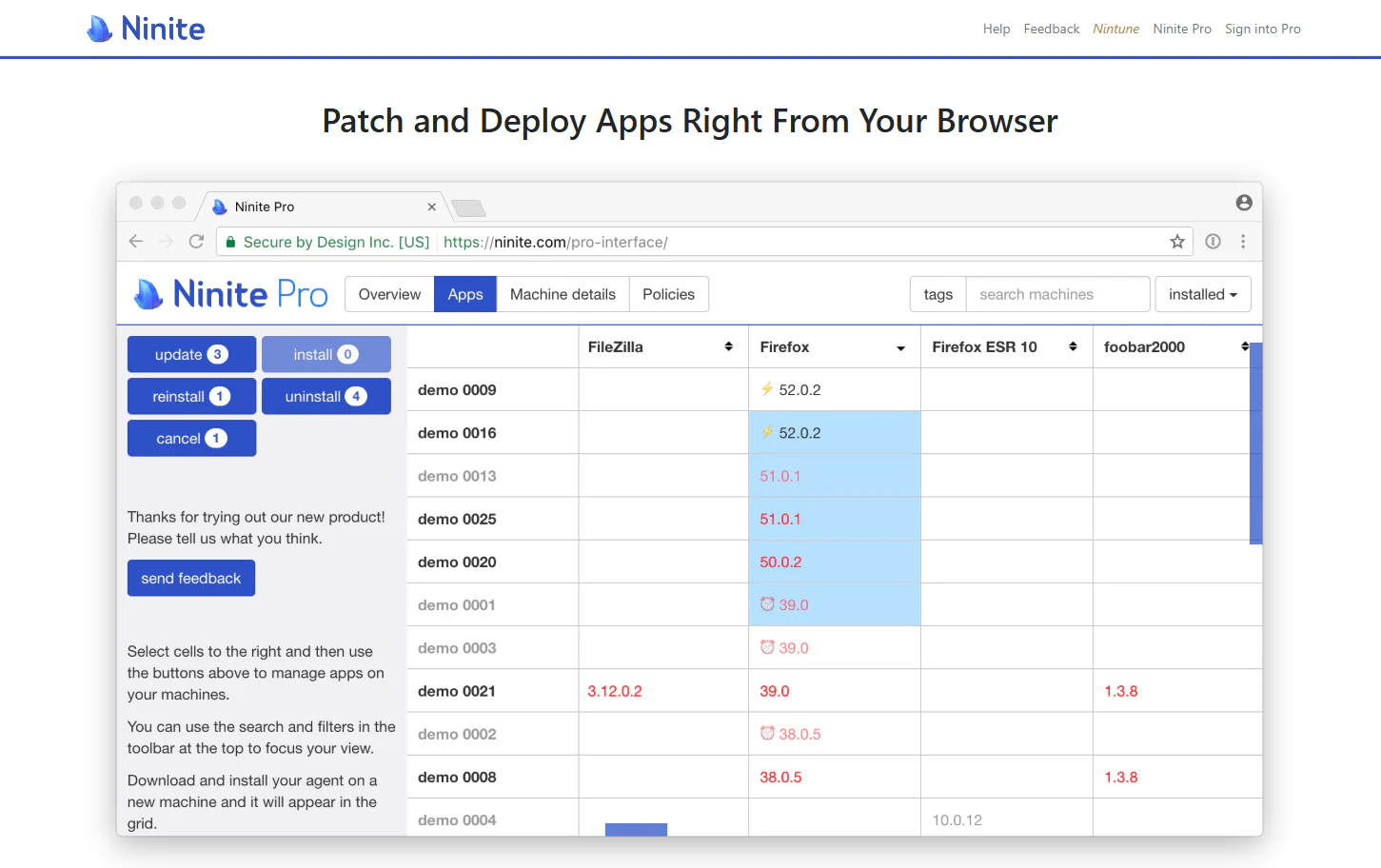
Ninite Pro is a cloud-based patch management platform built specifically for Windows environments, focused on patching and updating third-party applications. It won’t touch OS-level patching, but where it does operate, it’s genuinely strong, automating installs, updates, and removals across your fleet, all from a browser, with no VPN needed.
It hands you the flexibility to shape your own patching policy, so every endpoint stays secure and compliant without piling on administrative work or opening the door to unplanned downtime.
Key Features
- Lightweight agent: Runs with a minimal footprint on system resources.
- Third-party application patching: Automatically keeps supported Windows applications such as Google Chrome updated through Ninite’s curated catalog.
- Real-time remote monitoring and control: A live web dashboard shows every machine and the apps installed on it.
- App locking for specific versions: Prevents changes to apps that need to stay on a fixed version.
- Tagging, sorting, and filtering capabilities: Organize your endpoints however you want, by custom tags or status.
- Overview dashboard for patching status: Gives you a real-time snapshot of patch status across your entire network.
- Multiple deployment options: Push bulk installs through MSI, EXE, or a network-wide installer.
- Command-line interface for scripting and integration: Run Ninite through the shell to plug it into your RMM.
Pros
- One centralized console handles all your software installs and updates.
- Silent installs mean background updates without interrupting end users.
- Remote management lets you handle devices no matter where they are.
- Software installation across multiple devices runs on streamlined automation.
- Reporting capabilities hold up well.
Cons as per Verified G2 User Reviews:
- The application catalog is limited compared to other options.
- Failed patch installs don’t give you much to work with when troubleshooting what went wrong.
- Pricing runs higher than comparable tools.
Pricing
Ninite Pro works on a subscription model that scales based on how many machines you’re managing. Here’s the breakdown:
- 20,000 machines: $5,115/month
- 5,000 machines: $1,365/month
- 1,000 machines: $365/month
- 250 machines: $135/month
- 50 machines: $35/month
Best for
Small-to-mid-sized businesses running Windows-only environments where IT administrators want a straightforward way to keep a curated set of popular third-party apps updated.
Reviews
- G2 rating: 4.8/5 stars, based on 40+ reviews (at the time of update)
- Capterra rating: 5/5 stars, based on 4 reviews (at the time of update)
PDQ Deploy & Inventory
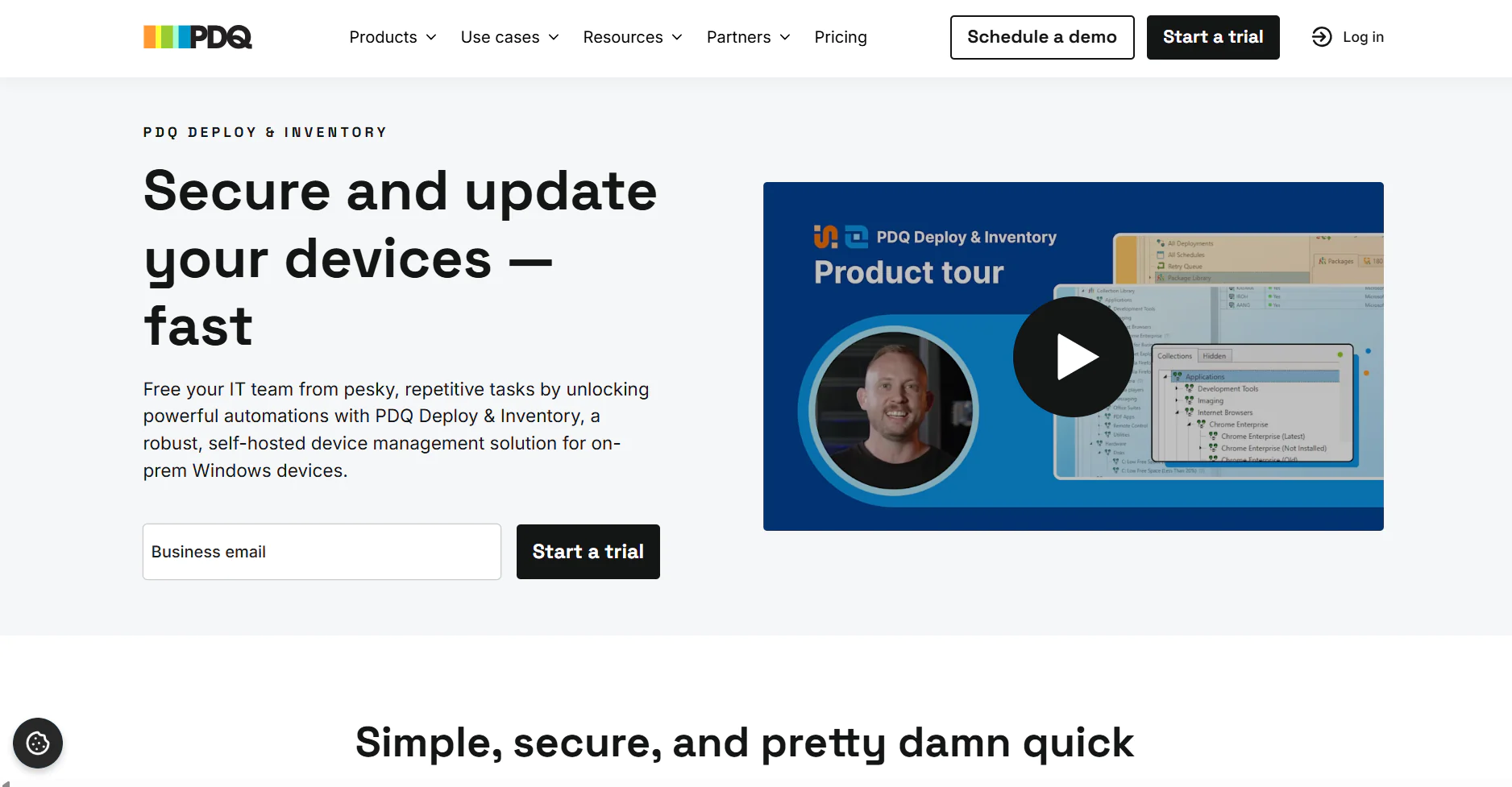
PDQ Deploy & Inventory is an endpoint management platform built to automate patching for both Windows OS and third-party applications. It’s an on-premises solution that requires an upfront investment on your part to set it up. The platform is designed for organizations that want to keep their data center and hardware fully in-house for one reason or another. It helps these teams automate vulnerability detection and remediation through patch deployments. While it’s primarily built to manage on-premises endpoints, it also supports remote ones, but only through a VPN connection. True to its name, the platform runs on two core components:
- PDQ Deploy handles third-party software updates, custom script deployment, and configuration changes.
- PDQ Inventory scans your network and pulls detailed information on your on-premises Windows machines, organizing them so your deployments land on exactly the right endpoints.

Key Features
- Windows OS support: Covers Windows OS for devices that are either on-premises or VPN-connected.
- Third-party patching: Deploys and updates 100+ popular third-party apps automatically through the pre-tested Package Library, no manual packaging required.
- Custom device groupings: Organize endpoints by testing needs, security purposes, or targeted deployment strategies.
- Automated deployment scheduling: Schedule update deployments with flexible timing to sidestep unexpected downtime.
- Custom script deployment: Deploy and manage scripts across your Windows devices.
- Automatic asset discovery: PDQ Inventory identifies and catalogs every on-premises device across your network.
- Package library: Includes popular application updates alongside tools for building your own custom deployment packages.
- Secure Windows device management: A complete tool suite built for IT professionals and enterprise environments.
Pros
- Automates patch management across Windows OS and third-party applications.
- Gives you real flexibility to schedule, test, and roll out patches on your own terms, cutting downtime during both planned and unplanned maintenance windows.
- Strengthens endpoint security while giving you sharper visibility across your fleet.
Cons as per Verified G2 User Reviews:
- No support for cross-OS platforms.
- Reporting capabilities are limited.
- Requires an initial hardware investment on top of the PDQ Deploy & Inventory license itself, with ongoing maintenance adding to the cost.
Pricing
PDQ Deploy & Inventory runs $1,950 per admin, per year, for the Standard plan. One license covers both tools, patching and inventory tracking together, so there’s no need to buy them separately. That includes scheduled patch management, custom deployments and scripting, plus group tracking and reporting.
If you’re running a larger fleet, volume and multi-year pricing options become available starting at 15 admin licenses, so costs stay manageable as you scale. And if you’re a small business (under 50 employees), a nonprofit, or a school, you qualify for a flat 15% discount, worth a look if you fit into one of those categories.
Best for
PDQ Deploy and Inventory suits on-premises Windows sysadmin teams that want a straightforward way to manage devices, deploy software, and track inventory, without taking on the complexity of a full endpoint management platform.
Reviews
- G2 rating: 4.8/5.0 stars, based on 270+ reviews (at the time of update)
- Capterra rating: 4.8/5.0 stars, based on 340+ reviews (at the time of update)
Patch My PC
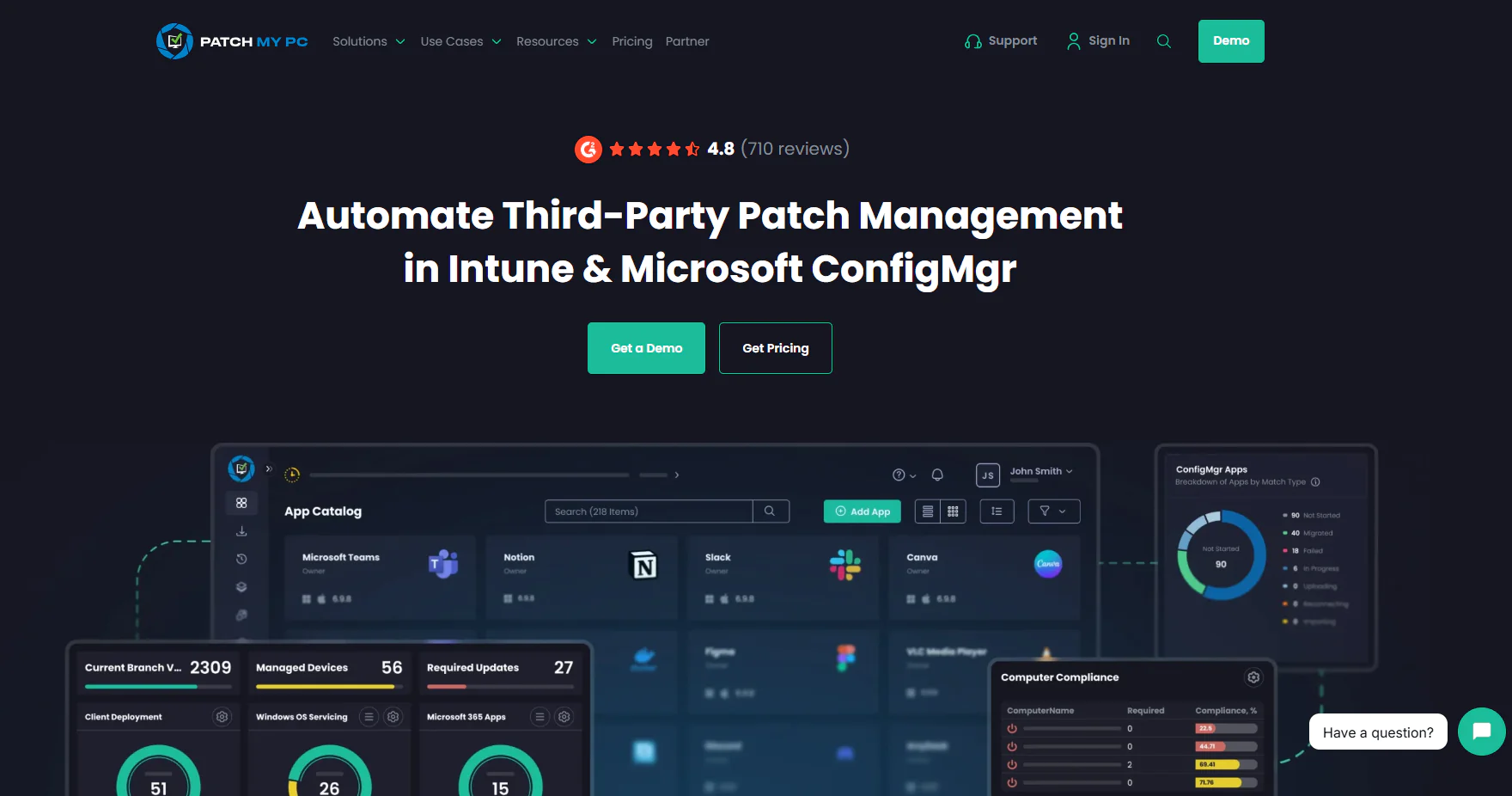
Patch My PC pairs an on-premises Publisher component with a connected cloud service, so you can run the platform on-prem, in the cloud, or as a hybrid of both, automating third-party application management through Intune, Microsoft ConfigMgr, and WSUS. It automates the entire patching process end to end, from spotting missing patches to testing, packaging, deployment, and reporting. Higher-tier plans add CVE and threat analytics, helping you figure out which application updates deserve priority. And most importantly, you can schedule automations outside business hours, so you can keep your team’s work uninterrupted while cutting downtime risk.
Key Features
- Third-party app discovery and deployment: Maps the apps installed across your endpoints, then lets you deploy fully updated versions through ConfigMgr, Intune, and WSUS. New apps get auto-configured and installed with zero manual packaging.
- Automated patch testing and prioritization: Spots new patches, automates testing and packaging, and prioritizes rollout based on risk level.
- Application lifecycle management: Supports efficient software management across the full application lifecycle, from initial deployment through updating and removal, while integrating directly with ConfigMgr and Intune to reduce manual rollout work.
- Endpoint analysis and compliance monitoring: Tracks compliance status, device health, and security events in real time.
- Third-party app catalog: Covers 3,583+ supported third-party software titles.
Pros
- Automates patch management end-to-end, saving you tens of hours a week on searching, packaging, and installing third-party updates.
- Keeps large, complex environments consistently up to date, without the drift or oversight gaps manual handling tends to create.
Cons as per Verified G2 User Reviews:
- The Custom Apps catalog feels bare-bones, with custom applications sometimes missing proper uninstallation options or enough customization for reliable deployments.
- Reporting and alerting could use real work, given the limited built-in report options and minimal ability to build custom ones.
- Bad patches can slip through and disrupt end users, including cases where specific Adobe updates caused problems across a portion of a company’s user base.
Pricing
Patch My PC runs on two pricing models:
Enterprise (per organization):
- Enterprise Patch: $2/device/year (minimum $2,000/year, up to 1,000 devices), covers third-party updates in WSUS and ConfigMgr.
- Enterprise Plus: $3.50/device/year (minimum $3,500/year), adds Intune support and automated app packaging.
- Enterprise Premium: $5/device/year (minimum $5,000/year), adds advanced reporting, CVE threat analytics, and real-time ConfigMgr actions.
MSP (per tenant):
- MSP: $0.50/device/month (minimum $250/month across all tenants), on-premises Publisher tool.
- MSP Plus: $0.50/device/month (minimum $25/month per tenant), fully cloud-based with no server required, plus customer self-serve access.
Best for
Patch My PC fits SMBs already running Intune, ConfigMgr, or WSUS, since it directly addresses their limitations, especially around third-party application support. Organizations relying on these programs typically don’t abandon them. Instead, they bring in Patch My PC as an add-on that strengthens both patch coverage and automation depth.
Reviews
- G2 rating: 4.8/5 stars, based on 735+ reviews (at the time of update)
- Capterra rating: 4.9/5 stars, based on 215+ reviews (at the time of update)
Microsoft Intune
Microsoft Intune is a cloud-based endpoint management platform built to help you securely manage devices, data, and apps, protecting your organization against ransomware, data breaches, and other cyber threats. It supports Windows, macOS, Linux, iOS, iPadOS, Android, and ChromeOS, though patching depth and endpoint management capabilities aren’t equal across all of them.
Windows gets the deepest native update management and policy enforcement of the bunch. macOS runs through Apple’s MDM framework with a different set of update controls, while Linux systems can be monitored and checked for compliance, but Intune can’t patch them directly.
With Intune, you can set security policies, control how data gets accessed and shared across both corporate-owned and personal devices, deploy and update apps, and keep every device aligned with your compliance requirements.
Key Features
- Unified endpoint management: Manage desktops, laptops, virtual machines, smartphones, tablets, and dedicated shared and kiosk devices, all from a single console.
- Mobile Device Management (MDM): Provision devices, roll out security policies, configure settings, and manage certificates without the hassle.
- Mobile Application Management (MAM): Keeps personal and corporate data separate on BYOD devices by enforcing controls at the app level instead of the device level.
- Conditional access: A device that fails your security requirements gets automatically locked out of corporate resources, applications, or sensitive data. You can also control wireless network access based on device compliance, user identity, and location.
- Remote device actions: Wipe, lock, or retire supported lost or stolen devices in just a few clicks.
- Zero-touch device provisioning: Supports modern management through Windows Autopilot by enrolling eligible devices, applying assigned policies, installing applications, and completing configuration with minimal manual intervention.
- App protection policies: Protect your enterprise data by blocking transfers between work and personal apps, and preventing screenshots or transfers to USB drives and unauthorized cloud storage.
- Compliance reporting and analytics: Pull clear insight into device health, compliance status, and overall security posture straight from the admin center. Generate data-driven reports, track policy adherence, spot non-compliant devices, and produce audit-ready documentation whenever you need it.
- OS and application update management: Relies on policies and rings to manage supported operating-system updates. For supported Windows Win32 applications specifically, Intune delivers newer versions through assignments, supersedence, and Enterprise App Management.
- Role-Based Access Control (RBAC): Set exactly who on your IT team can view, configure, or manage which devices, policies, and reports, enforcing least-privilege access across the board.
Pros
- Manages multiple device types through a single platform.
- Automates the most repetitive routine tasks.
- Covers Windows, macOS, Linux, iOS, iPadOS, Android, and ChromeOS.
- MDM and MAM capabilities rank among the best available.
- Windows Autopilot delivers automated device provisioning with minimal manual intervention.
- Confirms user identity, enforces compliance, and only then grants access to corporate resources, all from one cloud-based platform.
- Compliance features help protect organizational data on both company-owned and personal devices.
Cons as per Verified G2 User Reviews:
- Limited macOS, Linux, and third-party patching.
- Reporting stays fairly basic without Advanced Analytics.
- Comes with a steep learning curve.
Pricing
Microsoft sells Intune bundled inside Microsoft 365 E3 or E5, or as standalone add-ons to Intune Plan 1 for organizations outside those subscriptions.
Through Microsoft 365 (recommended path):
- Microsoft 365 E3: $39.00/user/month with Teams, or $30.45/user/month without Teams, billed annually. Includes unified endpoint management and protection, antivirus and antimalware, shadow IT discovery, identity and access management, plus the full Office app suite, Teams, Windows for Enterprise, and 1 to 5+ TB of cloud storage per user. Starting Q3 2026, Microsoft is folding in Remote Help, Advanced Analytics, and Intune Plan 2 capabilities (Tunnel for MAM, Firmware-over-the-Air updates, and specialty device management) at no extra cost.
- Microsoft 365 E5: $60.00/user/month with Teams, or $51.45/user/month without Teams, billed annually. Includes everything in E3, plus endpoint security, identity threat detection and response, SaaS security, risk-based conditional access, extended detection and response, and Security Copilot. Starting Q3 2026, E5 also gains Endpoint Privilege Management, Cloud PKI, and Enterprise Application Management on top of everything E3 already offers.
Standalone (for organizations not on E3 or E5):
- Intune Plan 1: $8.00/user/month. The required base license for every add-on below.
- Intune Plan 2: $4.00/user/month, add-on to Plan 1. Adds specialty and shared device management, Tunnel for MAM, and FOTA updates.
- Microsoft Intune Remote Help: $3.50/user/month, add-on to Plan 1.
- Microsoft Intune Endpoint Privilege Management: $3.00/user/month, add-on to Plan 1.
- Microsoft Intune Advanced Analytics: $5.00/user/month, add-on to Plan 1.
- Microsoft Intune Enterprise Application Management: $2.00/user/month, add-on to Plan 1.
- Microsoft Cloud PKI: $2.00/user/month, add-on to Plan 1.
- Intune Suite: $10.00/user/month, add-on to Plan 1. Bundles all five modules above (EPM, EAM, Advanced Analytics, Remote Help, Cloud PKI) for less than buying two or more of them separately.
Best for
Intune fits well for SMBs and enterprises running primarily Windows-based endpoints, especially those that need strong mobile device management (MDM) and mobile app management (MAM) capabilities. It’s a solid pick if you want complete Windows patching coverage and don’t mind bringing in supplementary tools to cover Linux and macOS patching.
Reviews
- G2 rating: 4.5/5 stars, based on 260+ reviews (at the time of update)
- Capterra rating: 4.5/5 stars, based on 40+ reviews (at the time of update)
Why Action1 is a Strong WinGet Alternative
Action1 is a strong WinGet alternative because it does the three things WinGet can’t: reach every endpoint, on-premises or remote, from one dashboard, patch automatically instead of by hand, and generate audit-ready reports in minutes instead of never. It’s also cross-OS, catches and fixes vulnerabilities before you have to chase them down, and handles scripting, deployment, and reporting together. Here’s how each of those actually works, starting with the dashboard itself.
- Centralized cloud-based software deployment: From your browser, you can install, uninstall, or update software across all your managed endpoints, the ones in the office and the ones on the other end of the world. The platform’s agent-based architecture makes that possible, so with just a few clicks you can build automation that runs across thousands of endpoints at once.
- Remote deployment without VPN dependency: You get the same level of control over your on-premises and remote endpoints. Action1 is cloud-native and agent-based, so it works without special hardware, a VPN, or complex setup. In fact, it takes as little as 5 minutes to create an account, deploy the agent, and start protecting your endpoints.
- OS and third-party application patching: Action1 autonomously patches Windows, macOS, Linux, and 310+ third-party applications. It uses update rings for staged deployments, where only reliable patches meeting the criteria you’ve set progress from ring to ring, while unstable ones don’t. For the best coverage, Action1 also automatically patches any endpoints that were offline during the scheduled deployment as soon as they come back online.
- Software deployment logs and patch compliance reporting: Action1 gives you enterprise features like real-time reporting and 100+ built-in, customizable report templates covering patching, vulnerabilities, software and hardware inventory, security configuration, and more. In minutes, you can generate regulatory compliance documentation, even for offline endpoints, thanks to cached data.
- Risk-based vulnerability management and remediation: Action1 comes with strong security features built around risk-based vulnerability management. It uses risk-based prioritization based on CVE, CVSS, CISA KEV, and active exploitation in ransomware campaigns to assign a score from 1 to 10 to each code flaw. It identifies vulnerabilities automatically across your OS and third-party apps, and offers one-click remediation through patch deployments, or through applying and documenting compensating controls like uninstalling the vulnerable software or isolating the endpoint from the network until a patch is released.
- Private software repository: Action1’s team of experts maintains and updates the secure private software repository. Each patch and update gets tested for security and reliability before being added to the repo. New apps also get added throughout the year, so the catalog keeps growing.
- Deploy custom EXE, MSI, CMD, BAT, PS1, and ZIP packages: Upload and deploy custom packages in EXE, MSI, CMD, BAT, PS1, or ZIP format directly through the Software Repository. Add a remote PowerShell install script to handle any required pre- or post-installation logic, and control silent install switches, deployment scope, and install actions per machine across your fleet, not just per user. If the built-in catalog misses something you’re running, custom packages close that gap.
WinGet vs Action1
Now let’s examine the key differences between WinGet and Action1 across the categories that actually matter: package source, OS support, patch management, vulnerability management, reporting, and remote control. That’s how you find out which one actually automates your routine tasks, cuts down manual work, and boosts your overall efficiency and security, not just which one sounds better on paper.
| Category | WinGet | Action1 | Winner |
|---|---|---|---|
| Package Source | Microsoft Store and the WinGet Community Repository by default, plus a separate repository for fonts. Private sources are possible, but you have to build and host your own REST API to get one. | Private repository, built in, tested by Action1’s own team before anything reaches your endpoints. | Action1 |
| OS Support | Windows only | Windows, macOS, Linux | Action1 |
| OS and Third-Party Patch Management | None. WinGet installs and updates the apps you tell it to, but it doesn’t scan for outdated software, patch the operating system, or update anything on its own. | Patches Windows, macOS, Linux, and 310+ third-party apps autonomously, with new apps added to the catalog constantly. Updates roll out in stages, so unstable patches never reach your whole fleet at once. | Action1 |
| Vulnerability Management | None. WinGet has no vulnerability scanning or risk scoring of any kind. | Identifies vulnerabilities automatically across your OS and third-party apps, scores each one from 1 to 10 based on CVE, CVSS, CISA KEV, and active exploitation data, and offers one-click remediation. | Action1 |
| Reporting | No built-in reporting at all. You can export a local JSON snapshot of what’s installed, but there’s no dashboard, no history, and nothing audit-ready. | Real-time visibility into every endpoint, wherever it’s located or however it’s connected, backed by 100+ built-in, customizable report templates covering patching, vulnerabilities, inventory, and security configuration. | Action1 |
| Remote Endpoint Control | None. WinGet only touches the machine you’re running it on, no agent, no console, no way to reach another device. | Works equally well on remote and on-premises endpoints, no VPN, extra hardware, servers, or complex configuration needed. Built-in remote desktop lets you take control of a system directly and troubleshoot issues on the spot. | Action1 |
WinGet Alternatives by Use Case
The best WinGet alternative varies by use case. Action1 leads in patch management, remote deployment, MSP support, and compliance reporting. PDQ Deploy & Inventory fits self-hosted enterprise deployment, and Scoop is the closest match for lightweight package management. Here’s the full breakdown, patch management first, then every other use case worth knowing about.
| Use Case | Best Alternative | Why it’s the Right Pick for You |
|---|---|---|
| Private Software Repository | Action1 Software Deployment & Patch Management | You get a platform built around its own private, in-house repository, so there’s no dependency on a public feed at all. Every patch is tested by Action1’s own team before it reaches your endpoints, and you can still deploy fully custom EXE, MSI, CMD, BAT, PS1, or ZIP packages on top of it. |
| Enterprise Software Deployment | Action1 or PDQ Deploy & Inventory | If you want to scale from 100 to 100,000+ endpoints without standing up any infrastructure yourself, Action1 is the pick. If you’d rather keep everything self-hosted and on-premises, air-gapped or VPN-connected environments included, PDQ Deploy & Inventory gives you that same deployment control on infrastructure you manage and own. |
| Patch Management | Action1 Software Deployment & Patch Management | OS and third-party patching run autonomously through update rings (groups of endpoints), where patches roll out in stages. You set the success metrics and deployment counts, unstable updates get stopped automatically, and offline endpoints get caught up the moment they reconnect. That’s what autonomy means: you set the rules, and the software does the dirty work. |
| Remote Endpoints | Action1 Software Deployment & Patch Management | Manage every endpoint straight from your browser, no VPN, no server, no extra hardware to set up. Push installs, updates, or removals to your whole fleet with a few clicks, wherever those endpoints happen to be, and take direct remote control when you need to. |
| Windows Package Management | Scoop | If what you actually liked about WinGet was the lightweight, command-line simplicity, Scoop gives you more of that, not less. It installs everything into your own user folder with no admin rights required, keeps your PATH clean, and lets you script your whole environment for repeatable setups. |
| MSPs | Action1 Software Deployment & Patch Management | Action1 supports multi-tenancy out of the box, so you can run multiple client organizations under one account, each with its own endpoints, maintenance windows, and update approval workflows, exactly the separation an MSP managing several clients actually needs. |
| Compliance Reporting | Action1 Software Deployment & Patch Management | You get 100+ built-in, customizable report templates covering patching, vulnerabilities, inventory, and security configuration, all audit-ready and generated in minutes. When your compliance team needs proof, you’re not scrambling to build it from scratch. |
Frequently Asked Questions
What are the Limitations of WinGet?
The most obvious and daunting limitations of WinGet are that it has no central management console, no real-time visibility over your systems, no built-in compliance reporting, and no remote deployment capabilities on its own. It only installs software on the machine you’re running it on. The list of limitations goes on, with no risk-based prioritization, no automated patch scheduling, and no straightforward way to set up a private repository without building your own REST API from scratch.
Is WinGet Good for Enterprise Software Deployment?
No, WinGet isn’t good for enterprise software deployment, because it lacks a centralized management dashboard, patch compliance reporting, remote deployment capabilities, risk-based prioritization, automated scheduling, and a private software repository. Being pre-installed on many current Windows systems makes WinGet convenient, but it doesn’t turn the client into an enterprise deployment platform for environments with 500 to 100,000+ endpoints. In reality, some IT teams wrap it into Intune as a workaround, but that still runs into admin-context and SYSTEM-scope issues on the way.
Does WinGet Work with Microsoft Intune for Enterprise Deployment?
Not natively. WinGet has no built-in Intune integration, so you have to wrap WinGet commands into a Win32 app package using tools like the Microsoft Win32 Content Prep Tool, then deploy that through Intune. Even then, real friction remains. Apps scoped to “machine” installs need administrator access under the SYSTEM context, and WinGet often isn’t present there by default, so installs can silently fail or still prompt individual users for credentials, defeating the point of centralized deployment in the first place.
How do I Know When it’s Time to Switch from WinGet?
It’s time to switch from WinGet when software installations requiring administrator privileges must be approved endpoint by endpoint, when you can’t immediately generate the patch or compliance report you need, or when you’ve bolted scripts onto Task Scheduler just to create basic automation. Any of those signals that you need a platform capable of centralizing and automating patching, vulnerability remediation, software deployment, and reporting.
What Should I Look for in a WinGet Alternative?
First, decide whether you need one of the lighter third-party package managers or a complete endpoint management platform. Then look at centralized management, automated patch deployment, third-party application coverage, vulnerability prioritization, remote endpoint support, compliance reporting, ease of setup, and scalability. Those factors determine whether you’re actually closing WinGet’s gaps or simply trading one manual workflow for another.
Can Action1 Replace WinGet?
Yes, and it closes every gap WinGet leaves open. Where WinGet gives you a single machine and a command prompt, Action1 gives you a cloud-native platform that patches autonomously across your whole fleet, pulls from its own secure private repository, and lets you deploy custom packages exactly the way you need to.
You get real-time reporting where WinGet gives you nothing, remote endpoint control where WinGet gives you nothing, and an offline catch-up window so nothing slips through when a machine’s been off the grid. Security and scale are covered too, with MFA, RBAC, and multi-tenancy for teams managing more than one environment, plus the integrations to tie it into whatever else you’re already running. And yes, it’s still free for your first 200 endpoints, fully featured, forever.
What is the Easiest WinGet Alternative to Migrate to?
Action1 is the easiest WinGet alternative to migrate to, because the platform is cloud-native and agent-based, and it takes literally 5 minutes to create your account, deploy the agent, and start patching, installing software, remediating vulnerabilities, and generating reports through the intuitive interface. On top of that, it’s free for up to 200 endpoints, fully featured, forever.
You can install the agent remotely across all your endpoints through scripts for Windows, macOS, and Linux, or deploy it through Intune if that’s already part of your stack. What all that means is that you can have an enterprise-grade autonomous patch management and software deployment platform that costs you $0 for up to 200 endpoints, installs in minutes, scales seamlessly, and most importantly, automates the routine tasks eating up half of every single workday of yours.
Final Recommendation
WinGet works well as a free way to install new software, remove what you don’t need, and apply application upgrades from the command line, but its limitations are real. No centralized management console, no built-in compliance reporting, no automated patch scheduling, and no remote deployment of its own. Those are the reasons IT teams start looking elsewhere the moment they’re managing more than a handful of machines.
This article made it clear that:
- Action1 resolves nearly every one of WinGet’s shortcomings. It patches Windows, macOS, and Linux autonomously through update rings, deploys custom packages, gives you 100+ customizable report templates, and runs entirely from the cloud with no VPN or server required. It’s also free for your first 200 endpoints, fully featured, forever.
- Chocolatey for Business (C4B) is the pick if you want to manage packages through private repositories, internalize community packages, and maintain a standardized command-line workflow. However, it remains Windows-only and requires infrastructure your organization must operate.
- Scoop is the closest match if what you liked about WinGet was its lightweight command-line workflow. It uses simple commands to install, update, remove, and switch between supported application versions while resolving dependencies automatically.
- PDQ Deploy & Inventory is a strong fit if you want to stay fully on-premises, but it’s Windows-only and requires real upfront infrastructure investment to get running.
- Patch My PC is a smart, focused choice if you’re already running Intune, ConfigMgr, or WSUS and just need stronger third-party patching bolted on, but it doesn’t handle general-purpose deployment on its own.
- Ninite Pro is genuinely the easiest option if all you need is a fixed catalog of popular apps kept updated, but its catalog is limited and it can’t handle custom or in-house software.
- Microsoft Intune makes sense if you’re already deep in the Microsoft 365 ecosystem, but its patching depth outside Windows is limited, and full third-party coverage requires additional paid add-ons.
What that all means is that the right WinGet alternative for your environment depends on your specific gaps, whether that’s missing reporting, limited remote deployment, or the need for real patch management instead of just installs and updates. Our top recommendation is Action1, because it closes nearly every gap WinGet leaves open, and does it without asking you to build your own infrastructure to get there. All of that with minimal manual effort, cost, and complexity.
Make the switch in less time than it took you to read this. Watch the demo or start free.
Sources and data used in this comparison: This comparison is based on vendor documentation and pricing pages, user reviews from G2 and Capterra, and our internal analysis of each platform’s software deployment and patch management capabilities.





