






TL;DR
- SCCM remains a powerful endpoint management platform, but its on-premises architecture, complex infrastructure, SQL dependencies, Windows-first design, manual third-party application packaging, and high administrative overhead are pushing many organizations toward modern cloud-native alternatives.
- This guide compares the 10 best SCCM alternatives in 2026: Action1, Microsoft Intune, ManageEngine Endpoint Central, NinjaOne, Automox, Ivanti Neurons for UEM, PDQ Connect, HCL BigFix, Omnissa Workspace ONE UEM, and Atera, evaluating each platform’s strengths, limitations, pricing, deployment model, OS support, and real-world customer ratings.
- Evaluation criteria include cloud vs. on-premises architecture, cross-platform operating system support, third-party application patching, software deployment, private software repositories, compliance reporting, remote endpoint management, automation capabilities, security controls, ease of deployment, and total cost of ownership.
- The article provides detailed recommendations by use case, including the best SCCM alternatives for SMBs, enterprises, MSPs, cloud-first organizations, cross-platform environments, remote workforces, operating system deployment, application deployment, and patch management.
- Organizations planning to migrate from SCCM will find a practical migration framework covering infrastructure assessment, workload discovery, pilot deployments, application migration, phased rollouts, security validation, compliance verification, and eventual SCCM retirement.
- Cloud-native endpoint management platforms significantly reduce operational complexity by eliminating on-premises servers, SQL databases, VPN dependencies, distribution points, and manual infrastructure maintenance while improving automation, scalability, and remote device management.
- The guide concludes that the best SCCM replacement depends on your environment, endpoint count, operating systems, security requirements, compliance obligations, deployment preferences, and automation needs rather than selecting a single platform for every organization.
In this article, we’re going to introduce you to the best SCCM alternatives on the market, including Action1, Microsoft Intune, ManageEngine Endpoint Central, NinjaOne, Automox, Ivanti Neurons for UEM, PDQ Connect, HCL BigFix, Omnissa Workspace ONE UEM, and Atera.
We’ll look at their pros, cons, key features, pricing, and actual ratings on G2, Capterra, and Gartner Peer Insights. But before that, let’s define what Microsoft SCCM actually is and which limitations might make you look for a better replacement. Toward the end of the article, we’ll show you how to choose the right SCCM alternative for your environment, which tools work best for different use cases, how to migrate from SCCM, and what to consider before making the switch.
What are the Best SCCM Alternatives?
The best SCCM alternatives are Action1, Microsoft Intune, ManageEngine Endpoint Central, NinjaOne, Automox, Ivanti Neurons for UEM, PDQ Connect, HCL BigFix, Omnissa Workspace ONE UEM, and Atera.
Quick Overview Comparison Table of the Top SCCM Alternatives
Before we step into the detailed reviews, let’s have a quick look at each platform’s core focus, key strengths, architecture type, who it’s best for, and whether it offers a free tier, a limited free trial, or neither.
Action1 is free for up to 200 endpoints, fully featured, forever! Watch the demo to see it in action. Or sign up in five minutes and start managing, securing, and updating your endpoints.
|
Platform |
Core Focus |
Best for |
Supported OS |
Deployment Model |
Key Strengths |
Free Tier/Free Trial |
|---|---|---|---|---|---|---|
|
Autonomous endpoint, patch, and vulnerability management. |
SMBs, large enterprises, MSPs, manufacturers, healthcare, finance, and government agencies. |
Windows, macOS, Linux. |
Cloud-native, agent-based. |
Autonomous risk-based patch management, vulnerability remediation, browser-based Windows remote control, scripting,software deployment, P2P, private software repository, real-time reporting. |
Free tier for up to 200 endpoints, fully featured, forever. No credit card required. |
|
|
MDM, MAM, and identity-driven endpoint security, with native Windows patching. |
Microsoft-centric organizations that need tight control over corporate and personal devices. |
Windows, macOS, Linux, iOS, iPadOS, Android, ChromeOS. |
Cloud-based SaaS. |
Deep Microsoft identity and compliance integration, unmatched if you’re all-in on Microsoft. |
30-day trial available. Included in M365 E3, E5, and Business Premium. |
|
|
Unified endpoint management and security. |
SMBs, MSPs, large enterprises. |
Windows, macOS, Linux, iOS, iPadOS, Android, ChromeOS. |
Cloud-based and on-premises. |
UEM platform with strong MDM and a large third-party app catalog. |
Permanent free tier for up to 25 desktops and 25 mobile devices, with limited functionality. |
|
|
RMM, patch management, MDM, and backup. |
MSPs, large enterprises, and government agencies. |
Windows, macOS, Linux, iOS, iPadOS, Android. |
Cloud-native. |
Cross-OS and third-party patching, remote endpoint control, real-time reporting, MDM. |
Only 14-day free trial available. |
|
|
Patching, configuration management, and endpoint automation. |
SMBs, MSPs, and hybrid or remote IT teams. |
Windows, macOS, Linux. |
Cloud-native, agent-based. |
AI-powered automation, real-time endpoint visibility, Worklets, cross-OS and third-party patching. |
15-day trial available. |
|
|
AI-driven UEM with self-healing endpoint automation and ITSM integration. |
Mid-to-large enterprises and MSPs. |
Windows, macOS, Linux, ChromeOS, iOS, iPadOS, and Android. |
Cloud-based. |
AI-driven automation, real-time visibility, cross-OS support, automated patch management, zero-touch onboarding. |
No free tier or free trial available. You can only request a demo to see how the software works. |
|
|
Patch management, software deployment, and remote troubleshooting for Windows and macOS. |
SMBs and mid-size IT teams that want fast setup with low overhead. |
Windows and macOS only. |
Cloud-based, agent-based. |
Remote device management, patch and vulnerability management with real-world exploit prioritization, software and asset inventory, custom scripting. |
14-day free trial for up to 250 devices. |
|
|
Unified endpoint management, patching, compliance, and vulnerability remediation. |
Large enterprises. |
Windows, macOS, Linux, UNIX, AIX, Solaris, and HP-UX. |
Available on-prem or in the cloud. |
100+ OS patch coverage including UNIX and Solaris, 38,000+ compliance checks, threat prioritization via CISA KEV and MITRE ATT&CK, AI-driven runbook automation. |
30-day trial only. |
|
|
Omnissa Workspace ONE UEM |
Digital workspace platform combining UEM, identity, and app delivery. |
Large enterprises and MSPs. |
Windows, macOS, Linux, iOS, iPadOS, Android, ChromeOS. |
Cloud-native (on-premises available by exception only). |
Broad device and OS coverage, AI-driven automation, built-in security and compliance across the device lifecycle, proactive issue detection via DEX, phased app and update rollouts. |
30-day free trial available. |
|
RMM, PSA, patch management, ticketing, and AI-assisted IT management. |
MSPs and small to mid-sized IT teams. |
Windows, macOS, Linux. |
Cloud-based. |
Real-time monitoring, patch management, network discovery, script automation, IT Autopilot, remote access. |
30-day free trial available. |
How We Evaluated the Best SCCM Alternatives
Picking the wrong replacement for SCCM doesn’t just waste a rollout. It can leave you right back where you started, still missing the automation, reporting, or control that sent you looking in the first place. To help you avoid that, we built our evaluation process around real data, not marketing claims.
We evaluated each SCCM alternative based on:
-
Core evaluation criteria: Private software repository support, OS support, custom package deployment, software deployment automation, third-party application patching, remote endpoint support, patch compliance reporting, security and access controls, and ease of deployment.
-
Consistent comparison: Each platform was evaluated against the same nine criteria, so private repository support and patching depth received the same attention as compliance reporting and access controls, not just the features easiest to market.
-
Third-party review data: Ratings, recurring themes, and friction points were pulled from G2, Capterra, and Gartner Peer Insights, prioritizing verified reviews from IT professionals, MSPs, and enterprise IT teams.
-
Deployment model and time to value: Each tool was evaluated on whether it runs in the cloud, on-premises, or as a hybrid, and how much time and effort it takes to get from signup to your first successful deployment.
-
Vendor documentation and pricing: We reviewed official vendor documentation and pricing pages as of August 2026 and confirmed the information directly on each vendor’s website rather than relying on a sales deck.
What is Microsoft SCCM?
Microsoft System Center Configuration Manager, commonly called SCCM, is an endpoint management platform for hardware and software inventory, OS deployment, software updates, application delivery, compliance settings, reporting, endpoint health monitoring, and remote control across enterprise Windows environments.
Microsoft renamed SCCM to Microsoft Endpoint Configuration Manager, or MECM, in 2019, then rebranded it again as Microsoft Configuration Manager starting with version 2303. Most people still just call it SCCM out of habit. Before that it went by System Center Configuration Manager, and before that, Systems Management Server, so the naming has changed more than once.
Why Look for an SCCM Alternative?
SCCM, like any other software, has its limitations. For some organizations, they might be barely noticeable, but for others, they’re significant. The most frequently mentioned ones are:
-
Complex infrastructure management and ongoing maintenance: SCCM runs on-premises, so you must manage servers, SQL databases, and site hierarchies yourself. Add hardware, patching, and staff hours on top of that, and the bill at the end adds up fast. That’s a real problem, especially for SMBs with tight budgets.
-
Steep learning curve and specialized expertise: Many admins need weeks if not months just to grasp the basics, and in some cases even years before they’re fluent enough to manage every process with ease and use the full potential of SCCM.
-
Slow feedback and complex troubleshooting: The real problem here is that SCCM spreads its logs across separate files, distmgr, ccmsetup, WUAHandler, mpcontrol, and more, each covering a different piece of the pipeline. On top of that, errors often show up as cryptic hex codes, so tracking a failed deployment back to its cause might take hours, which is quite annoying.
-
Additional setup for remote and internet-based devices: Managing internet-based endpoints takes extra setup too. You can use a Cloud Management Gateway or Internet-Based Client Management, or keep devices connected through a VPN. Each option adds infrastructure, configuration, or operational overhead compared with a cloud-native platform.
-
Third-party patching and application packaging overhead: SCCM only patches Microsoft products natively. Everything outside that coverage requires workaround tools, or you’ll need to package and test every third-party app yourself. That’s not automated patching; it’s semi-automated. Instead of saving you time, it eats it.
-
No cross-platform support: With SCCM, you can patch endpoints across Windows environments. Linux and macOS are not supported. And that’s logical, since it’s a Microsoft product, but for companies with mixed-OS environments, it’s a core limitation.
-
Complex reporting and querying: SCCM equips you with basic reporting capabilities. If you need customizable and detailed reporting, then you’ll have to use SQL Server Reporting Services and write your own SQL queries against the SCCM database, just to create a report that should’ve taken a couple of minutes.
-
Potentially high total cost of ownership: Apart from paying for SCCM’s license, you have to invest in server hardware, storage, ongoing routine maintenance, and the staff hours needed to run it all. At the end of the day, the pricing doesn’t make sense compared to the restrictions and the manual burden coming with SCCM.
Detailed Comparison of the Top System Center Configuration Manager (SCCM) Alternatives
As we’ve already mentioned, the top SCCM alternatives are Action1, Microsoft Intune, ManageEngine Endpoint Central, NinjaOne, Automox, Ivanti Neurons for UEM, PDQ Connect, HCL BigFix, Omnissa Workspace ONE UEM, and Atera. Below, we’ll compare each of these solutions and discuss in detail who they’re best for, along with their key features, pros, cons, and pricing models. That way, you can make an informed decision on which one is right for your company based on what it offers and how it solves the biggest pain points you or your IT team face daily.
Action1 Patch Management & Endpoint Management Software
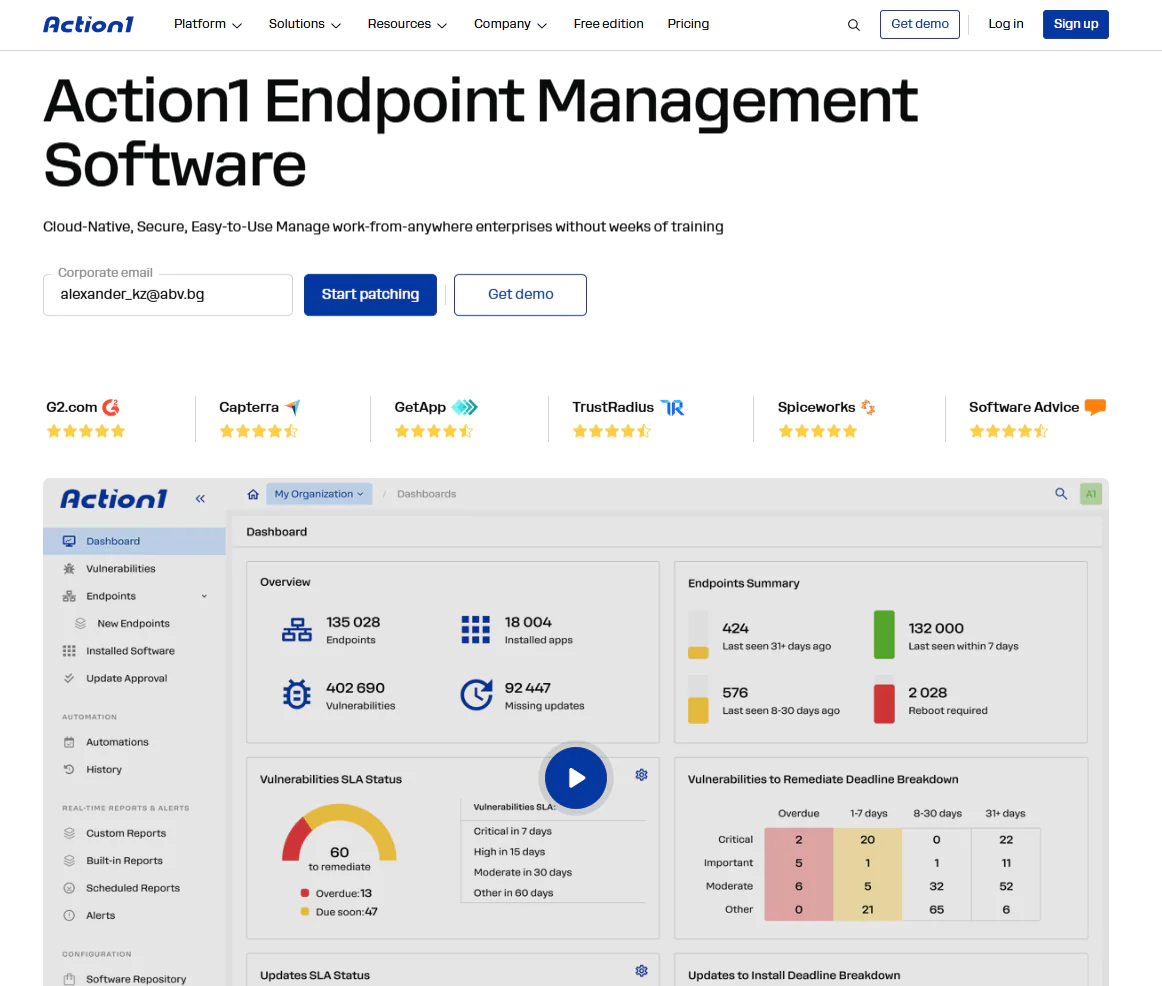
Action1 is a cloud-native, autonomous unified endpoint management platform supporting Windows, macOS, and Linux. It automates the most time-consuming processes of keeping your endpoints secure, compliant, and performing at their best, from OS and third-party patching to vulnerability management, software deployment and removal, and remote troubleshooting. Security policy enforcement, scripting, real-time monitoring, and reporting round out the platform, all handled from one console.
No VPN, no on-premises infrastructure, no lengthy rollout, just fast deployment that grows with you from a handful of endpoints to hundreds of thousands. As a result, manual effort is minimized, your network’s overall security posture can improve, tasks get completed faster, and your IT team isn’t stretched thin anymore, because a single administrator can handle thousands of endpoints through automation. It’s also the only tool in this comparison with a permanent, fully featured free tier for up to 200 endpoints, which makes it cost-effective too.
Best For
Action1 is best for SMBs, large enterprises, MSPs, government agencies, non-profit organizations, and institutions in healthcare, finance, education, manufacturing, and the oil and energy sector.
Key Features
-
Unified endpoint management: Gives you centralized control across desktops, laptops, servers, virtual machines (VMs), and cloud workloads.
-
Cross-platform OS support: Windows (including Windows Server), macOS, and Linux.
-
Autonomous OS and third-party patch management: Missing patch detection, testing, and rollout happen on their own through update rings. Once automation is configured and rings are set up, only stable patches advance from one ring to the next, while problematic ones get held back.
-
Risk-based patch management: Prioritize and roll out software patches and updates based on the level of risk they pose to your organization’s IT infrastructure and critical assets.
-
Vulnerability management: Real-time vulnerability detection with built-in remediation options for Windows and macOS endpoints
-
Policy-based patch management: You set the patching rules, controlling which updates go to which endpoints, when they run, how they’re tested, and whether each endpoint reboots right after deployment or at a more convenient time.
-
Basic browser-based remote access: Securely connect to and troubleshoot remote endpoints straight from your browser without a VPN, built to supplement your existing remote access tool rather than replace it.
-
Offline catchup window: If an endpoint is offline during a scheduled patch deployment, it gets patched automatically once it reconnects, with no extra action needed on your part.
-
IT asset inventory: Real-time visibility into the hardware details and online/offline status of your endpoints.
-
Custom endpoint attributes: Examples include attributes based on registry keys, installed or missing software, machine type such as VM, physical, laptop, or server, BitLocker status, free disk space, environment variables, BIOS version, and more.
-
Dynamic endpoint groups: Build endpoint groups automatically by name pattern, IP range, hardware, or membership in an AD OU or security group, combined with AND/OR logic.
-
Active Directory integration: Automatically deploys agents across multiple domains filtered by AD OU, syncing directly with your existing directory structure.
-
Software deployment: Streamlined rollout of prepackaged and custom applications.
-
Software uninstall: Bulk removal of unauthorized or legacy software.
-
Scripting automation: Built-in scripts plus support for custom PowerShell, CMD, or Bash scripting.
-
Real-time reporting: 100+ built-in report templates with customization options.
-
Custom reports: Clone and modify existing reports, or build new ones from PowerShell script output.
-
Role-based access control (RBAC): Granular access levels for user accounts, ensuring sensitive data and critical systems stay accessible only to the people who actually need them.
-
Single sign-on (SSO): Gives your employees seamless access to the platform through their existing identity provider, supporting Entra ID (Azure AD), Okta, Google, or Duo.
-
P2P patch distribution: Updates download once and get shared internally across other managed endpoints on the same local network, reducing external bandwidth usage and speeding up large deployments.
-
Private software repository: Each patch and update goes through thorough testing by Action1’s own team, ensuring only reliable, secure files reach your endpoints.
-
Real-time vulnerability data: Provides CVE numbers, CVSS scores, and exploitation indicators for supported Windows and macOS endpoints to support faster patching decisions.
-
Multi-tenancy: Create multiple organizations under one account, each with its own endpoints, data, and update approval workflow, ideal for MSPs managing several clients.
-
Full REST API access: Connect Action1 to your existing IT stack through a full REST API with OAuth 2.0 authentication at no extra charge, enabling integration with PSA platforms, ticketing systems, client management tools, endpoint security tools, and custom workflows.
-
Free tier: For up to 200 endpoints, fully featured, forever. No credit card required, no catch, just patching that works.
Pros
-
Quick setup, roughly five minutes from creating an account to having the agent deployed.
-
One administrator can monitor, manage, and secure thousands of endpoints no matter where they’re located.
-
Handles OS and third-party patching autonomously.
-
Cuts manual workload through automation.
-
Intuitive platform that’s easy to pick up.
-
Free forever for up to 200 endpoints.
-
No VPN or on-site infrastructure needed. Works just as well for office-based and remote endpoints, servers, virtual machines, and cloud workloads.
-
Your team always knows which vulnerabilities to tackle first, so critical exposures close out faster and low-priority issues never get in the way.
-
Scales smoothly from 200 to 200,000+ endpoints, with per-endpoint costs dropping as you grow.
-
Automates both software deployment and removal.
-
Generates audit-ready reports in minutes.
-
Patches reach endpoints quickly and bandwidth stays under control regardless of package size, thanks to P2P distribution that removes the need for local appliances or cache servers.
-
Has completed independent SOC 2 Type II and ISO/IEC 27001:2022 audits, is certified for TX-RAMP, and supports GDPR compliance, so you have independently verified evidence of the platform’s security and compliance controls.

Cons as per G2 User Reviews
-
No one-click rollback capability. Currently, rollback is available through script automation.
-
No MDM functionality.
Pricing
Action1 starts at $0.00 because it offers a free tier for up to 200 endpoints, fully loaded, forever. Scaling beyond the first 200 endpoints requires custom pricing, which you can request directly from the pricing page. The more endpoints you manage, the lower the per-endpoint price gets. When you’re ready to scale, expanding your coverage happens almost immediately.
Action1 Ratings
-
G2 Rating: 4.9/5 stars, 1,075+ reviews (at the time of update)
-
Capterra Rating: 4.9/5 stars, 235+ reviews (at the time of update)
How Action1 Compares to SCCM
Action1 closes most of the gaps SCCM leaves open. No servers, no SQL databases, no site hierarchies to maintain, just a cloud console that’s live in minutes. Patching runs autonomously across Windows, macOS, and Linux, third-party apps included, pulling only from Action1’s own tested repository instead of risky public package managers.
Troubleshooting gets simpler too. Instead of digging through a dozen chaotically scattered log files, you get one dashboard with real-time status and built-in reports, no SQL queries required. Remote and off-network endpoints just work, no VPN, no Cloud Management Gateway to stand up. Large rollouts stay light on bandwidth too, since P2P distribution shares each update across your network instead of pulling it separately per device. One thing it won’t replace outright is SCCM’s bare-metal OS imaging. Action1 handles OS version upgrades, not fresh deployments from scratch. For everything else, it’s built to be the lighter, faster alternative.
Microsoft Intune
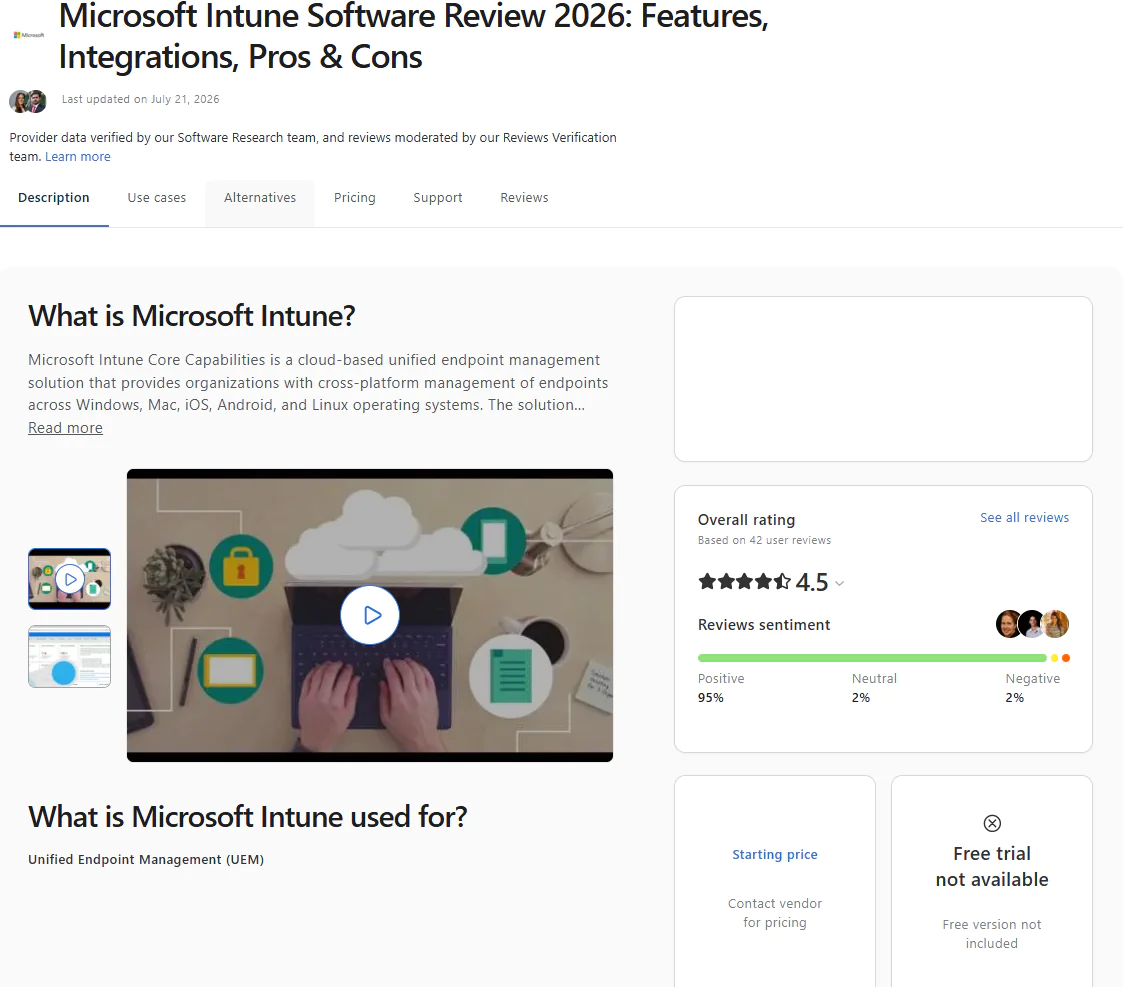
Microsoft Intune is a cloud-based endpoint management platform that manages corporate-owned and personal (BYOD) devices, their apps, and their data from a single place, without stepping on your employees’ privacy or personal space. It lets you set security policies, control how data gets accessed and shared across the organization, push out and update applications, and confirm every device meets your compliance bar. It runs alongside Microsoft Entra ID, Microsoft Purview Information Protection, and other Microsoft tools across the broader Microsoft 365 ecosystem.
Intune covers Windows, macOS, Linux, Android, ChromeOS, iOS, and iPadOS, though what it can actually do shifts by platform. Windows devices get the deepest native update and policy support. Apple devices rely on declarative device management policies that can target specific OS versions and enforce installation deadlines. Linux support leans mostly on enrollment, compliance, and Conditional Access rather than native OS patching.
Best for
Microsoft-centric IT environments of any size. It’s a natural fit if your organization already runs on Microsoft 365 and Entra ID and cares more about device compliance, MDM, and conditional access than deep cross-platform patching.
Key Features
-
Unified endpoint management: Manage and protect desktops, laptops, virtual machines, smartphones, tablets, and dedicated shared or kiosk devices from one place.
-
Mobile device management (MDM): Provision Android, iOS, iPadOS, and ChromeOS devices, push security policies, configure device settings, and manage certificates.
-
Mobile application management (MAM): Applies controls at the app level to protect corporate data on both managed and personal devices.
-
Conditional access: A device (when configured with Entra ID) that doesn’t meet your defined security requirements gets locked out of corporate resources, apps, and sensitive data. You can also govern wireless network access based on compliance status, user identity, and location.
-
Remote control: Wipe, lock, or retire supported devices remotely in a few clicks.
-
Zero-touch device provisioning: New endpoints get their security policies applied, apps installed, and settings configured on their own.
-
App protection policies: Stops transfers between work and personal apps and blocks screenshots or transfers to USB drives and unapproved cloud storage.
-
Compliance reporting and analytics: Surfaces device health, compliance status, and overall security posture right from the admin center. You can also build data-driven reports, track policy adherence, spot non-compliant devices and misconfigurations, and produce audit-ready documentation.
-
OS and application update management: Handles Windows updates through update rings, Apple OS updates through dedicated Apple update policies, and supported Microsoft and third-party Windows apps through Enterprise App Management.
-
Role-based access control (RBAC): Sets which devices, policies, and reports each admin can view or manage, keeping access on a least-privilege basis.
Pros
-
Manage multiple device types running different operating systems from one platform.
-
Trims time spent on routine daily work like patching, provisioning, and reporting.
-
Offers strong MDM and MAM capabilities.
-
Windows Autopilot handles zero-touch device provisioning at scale.
-
Conditional access policies check user identity and enforce compliance before granting access to corporate resources.
Cons as per G2 User Reviews
-
Remote Help, Endpoint Privilege Management, and Enterprise App Management require Intune Plan 2 or the Intune Suite at extra cost.
-
Reporting is fairly basic without Advanced Analytics.
-
New users often need training or frequent trips to vendor documentation to learn the software’s different features.
Pricing
Microsoft Intune bills per user, per month, annually. The plans are:
-
Plan 1: $8/user/month.
-
Plan 2: $4/user/month, added to Plan 1.
-
Intune Suite: $10/user/month, added to Plan 1.
Microsoft Intune Ratings
-
G2 Rating: 4.5/5 stars, 260+ reviews (at the time of update)
-
Capterra Rating: 4.5/5 stars, 40+ reviews (at the time of update)
How Microsoft Intune Compares to SCCM
Intune is very different from SCCM. It ties endpoint management closely to Microsoft Entra ID and can use device compliance in Conditional Access policies, so access to corporate resources can be blocked when a device doesn’t meet your requirements. Patching depth splits by platform, though. Windows gets the deepest native treatment, macOS uses dedicated Apple update policies, and Linux support leans more on enrollment, compliance, and Conditional Access than native OS patching.
Intune can package and deploy third-party Win32 apps without Enterprise App Management, while Enterprise App Management adds Microsoft’s prepackaged Enterprise App Catalog and streamlined update workflows. Licensing shifts too, since Intune is primarily licensed per user rather than per managed endpoint. For Microsoft 365 shops already living in Entra ID, that identity-first model is the real upgrade. For shops that value SCCM’s deep Windows management and traditional application packaging, Intune asks you to trade some of that legacy management depth for tighter identity and access control instead.
ManageEngine Endpoint Central
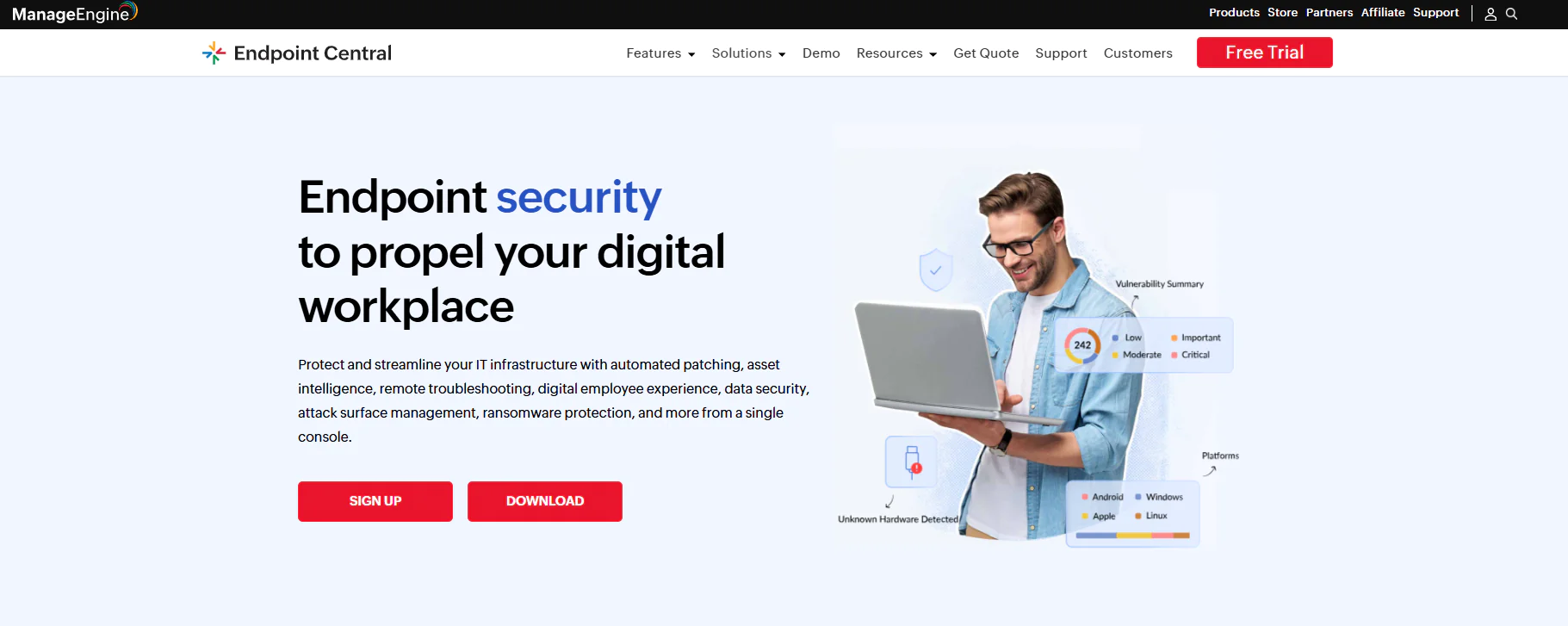
ManageEngine Endpoint Central is a comprehensive endpoint management suite that comes in both cloud and on-premises versions. IT teams use it to manage, monitor, and secure their endpoints no matter where they’re located. It supports multiple operating systems and automates patching, asset management, remote troubleshooting, and software deployment. But that’s not all, because the software strengthens endpoint protection with data loss prevention (DLP), ransomware protection, vulnerability management, and enterprise browser security tools.
Best for
Mid-to-large organizations and MSPs that want a complete UEM platform, not just a patching tool.
Key Features
-
Unified endpoint management: Manage on-premises and remote endpoints, including desktops, laptops, smartphones, tablets, servers, and virtual machines, all from one console.
-
Cross-OS platform support: Windows, macOS, and Linux.
-
Automated patching: Deploys patches automatically across Windows, macOS, Linux, and third-party apps.
-
Threat detection and remediation: Detects and remediates vulnerabilities automatically.
-
IT asset management: Tracks software and hardware assets, along with license and warranty details.
-
Mobile device management (MDM): Centralizes device, app, email, and content management to enforce security and compliance across your mobile fleet.
-
App deployment and management: Install or remove software across endpoints, and build application allowlists and blocklists to control what users can run through rule-based policies.
-
OS imaging and deployment: Builds and pushes Windows OS images with built-in driver management, along with the necessary applications, streamlining OS rollout across multiple machines.
-
Remote troubleshooting: Fix issues on remote endpoints directly through the platform without needing a VPN connection first.
Pros
-
Automates OS and third-party patching, device provisioning, scripting, and other repetitive maintenance work.
-
Lets you secure devices and enforce policies that protect both corporate and personal data.
-
Available as either on-premises or cloud-based.
-
Comes packed with a strong set of advanced security features.
-
Solid MDM capabilities for Android and iOS.
-
Rolls out patches in phases through test groups and APD policies, cutting downtime risk and speeding up vulnerability remediation.
-
Delivers real-time visibility across your entire endpoint fleet.
Cons as per G2 User Reviews
-
The interface isn’t as intuitive as expected, and building automations for the first time can feel confusing.
-
Occasional patch deployment failures that require restarting the automation or manually pushing the update to resolve it.
-
Agent drop-offs.
-
Limited customization for reports and dashboards.
-
Some reviewers report that patched endpoints still show as vulnerable even after being patched. Either way, it can cause real headaches, especially during audits
-
Assigning users to remote offices and managing provisioning gets complicated fast.
Pricing
ManageEngine Endpoint Central supports both cloud and on-premises deployment across every plan. Here’s the pricing breakdown for 50 endpoints and one technician:
-
Free tier: Up to 25 desktops and 25 mobile devices, forever, though functionality is limited.
-
Professional: On-premises at $795/year or $1,987 perpetual. Cloud at $104/month or $1,045/year.
-
Enterprise: On-premises at $945/year or $2,362 perpetual. Cloud at $124/month or $1,245/year.
-
UEM: On-premises at $1,095/year or $2,738 perpetual. Cloud at $139/month or $1,395/year.
-
Security: On-premises at $1,695/year or $4,238 perpetual. Cloud at $205/month or $2,045/year.
ManageEngine Endpoint Central Ratings
-
G2 Rating: 4.5/5 stars, 1,090+ reviews (at time of update)
-
Capterra Rating: 4.6/5 stars, 1,630+ reviews (at time of update)
How ManageEngine Endpoint Central Compares to SCCM
ManageEngine Endpoint Central sticks closest to SCCM’s actual playbook. It runs on-premises just like SCCM, but adds a cloud option SCCM never offered, so you’re not locked into one deployment model. OS imaging and deployment are a close match too, with full Windows imaging, driver management, and application deployment covering much of the same ground as SCCM.
Third-party patching comes built in, no manual packaging required, closing one of SCCM’s biggest pain points directly. It goes further with DLP, ransomware protection, and browser security layered on top, capabilities SCCM was never designed to handle. That said, G2 reviewers flag a learning curve and occasional patch failures worth knowing about upfront. For teams that want SCCM’s structure with modern security bolted on, this is the closest match on the list.
NinjaOne
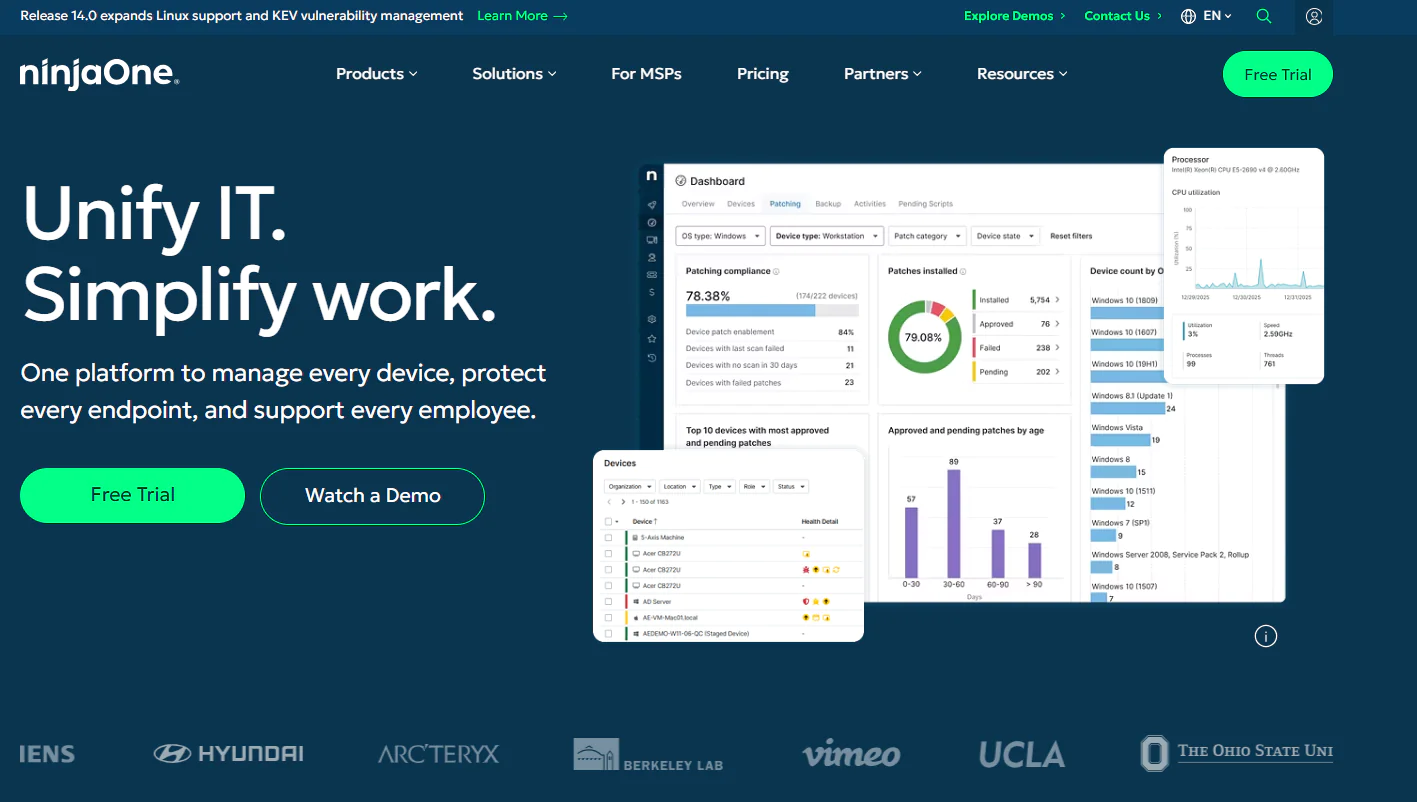
NinjaOne is a cloud-native IT operations platform that brings remote monitoring and management (RMM), automated OS and third-party patching, software deployment and removal, scripting, and backup management together under one roof. The interface is clean, the platform uses a lightweight agent, offers a strong set of automation capabilities, and the whole thing is built with MSPs and hybrid IT departments in mind, giving them the scalability and flexibility to get the most repetitive tasks off their plate without investing in new hardware or headcount.
It works equally well across on-premises and remote endpoints, giving you real-time visibility into patch, compliance, and security posture across your entire fleet. In short, it helps you complete routine endpoint management tasks faster, with greater efficiency and minimal manual effort on your part, while at the same time reducing your exposure to cyber threats, ensuring operational stability across your environment, and helping you stay audit-ready at all times and avoid nasty surprises when regulatory bodies come knocking.
Best for
NinjaOne works best for MSPs and hybrid IT departments, since it lets them add MDM, backup, or ticketing as they grow. That way, they manage multiple processes from one place, not just patching, RMM, or software deployment.
Key Features
-
Cross-platform OS support: Windows, macOS, and Linux.
-
Unified endpoint management: Desktops, laptops, smartphones, tablets, and servers, managed from a single console.
-
Third-party patching: Deploys patches automatically for hundreds of third-party applications across your managed endpoints.
-
Risk-based prioritization: Uses severity, CVSS scores, exploit context, and real-world threat intelligence to help prioritize vulnerabilities, while exposing CVE identifiers for reference.
-
Automation flexibility: Build a patching strategy tailored to your environment, cutting downtime risk and reducing back-and-forth with your team.
-
Endpoint remote control: Connect to and manage endpoints from anywhere without a VPN or local appliance.
-
Real-time reporting: Live visibility into patch and compliance status across every endpoint, with audit-ready reports available in minutes.
-
Asset discovery and management: Finds and catalogs hardware and software assets across your network, so you always know what’s running and where.
-
Mobile device management: Covers Android, iOS, and iPadOS. Whitelist or blacklist specific apps, and remotely lock or wipe lost or stolen devices.
-
Self-service portal: Lets end users submit tickets or find answers themselves, cutting down the steady stream of repetitive requests hitting your team’s queue.
-
Software deployment and removal: Bulk deploy or remove software across all endpoints or a specific group in just a few clicks.
Pros
-
Automates OS and third-party patching across your entire fleet.
-
CVSS scores, CVE context, and exploit intelligence help your team prioritize what actually matters first, not just whatever’s newest.
-
Meaningfully shrinks the gap between spotting a vulnerability and closing it.
-
Manages on-premises and remote endpoints from one place, no VPN required.
-
Covers desktops, laptops, servers, virtual machines, and mobile devices without juggling separate tools.
-
Scales alongside you as your endpoint count grows.
Cons as per G2 User Reviews
-
Reporting works but stays fairly thin.
-
The interface takes a bit of time before everything clicks.
-
Scripting is basic next to some competitors.
-
Reboot management has rough edges users have flagged more than once.
-
Rollback works cleanly on Windows, but macOS and Linux need scripting or manual intervention.
-
Patch deployment failures show up across both G2 and Capterra reviews.
-
Costs more than some alternatives offering comparable features.
Pricing
NinjaOne keeps its pricing private, so getting actual numbers means talking to their sales team directly. A 14-day free trial is available too, giving you room to test the platform and confirm it solves your biggest pain points before committing to a license.
NinjaOne Ratings:
-
G2 Rating: 4.7/5 stars, 5,020+ reviews (at the time of update)
-
Capterra Rating: 4.7/5 stars, 290+ reviews (at the time of update)
How NinjaOne Compares to SCCM
NinjaOne trades SCCM’s infrastructure for a cloud console that’s ready in minutes. No servers, no SQL databases, no sprawling setup to maintain, just log in and start managing. Third-party patching comes built in too, closing the manual packaging gap that eats up so much time in SCCM environments. Reporting stays fairly thin according to G2 reviewers, so if deep custom reporting matters, that’s worth weighing.
Remote endpoints work without a VPN, and troubleshooting starts directly from the NinjaOne console. What NinjaOne doesn’t fully match is SCCM’s imaging depth. OS deployment here is lighter, built more for ongoing management than ground-up provisioning. For MSPs juggling multiple clients, that all-in-one console beats stitching SCCM together with three other tools.
Automox
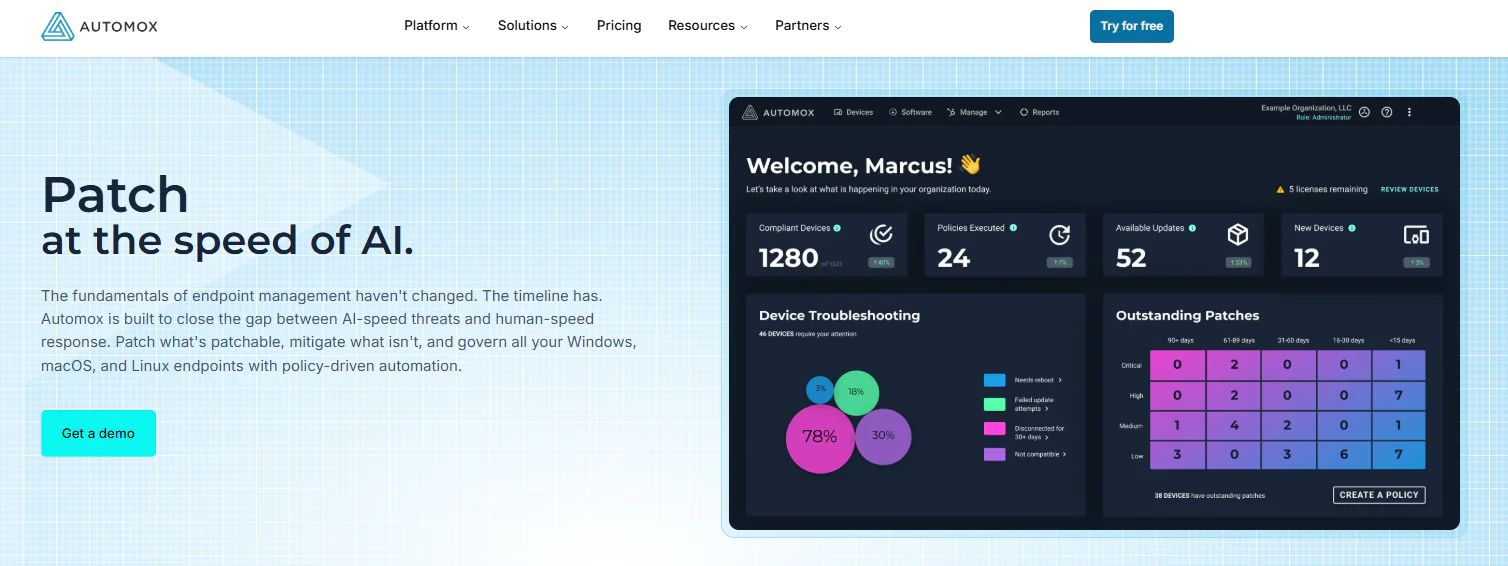
Automox is a cloud-native IT automation platform that centralizes patch management and endpoint control across Windows, Mac, and Linux environments. Beyond its automated OS and third-party patch management capabilities, it gives IT teams visibility into endpoint health and patch status while supporting software deployment, configuration enforcement, scripted remediation, and other administrative tasks through policies and Worklets. The platform covers the patching lifecycle from vulnerability identification and missing update detection to testing, deployment, and reporting. Its intuitive interface allows administrators to secure, update, configure, and manage devices whether they are in the same building or thousands of miles away.
Best For
Automox is best for cloud-focused IT teams managing distributed Windows, macOS, and Linux endpoints without relying on VPNs or on-premises management infrastructure. It is particularly well suited to mid-market organizations that need straightforward, policy-driven patch automation across remote environments without adopting the broader complexity of a full RMM platform.
Key Features
-
Automated patching for Windows, macOS, and Linux endpoints.
-
Automated patching for supported third-party applications.
-
Custom patching and configuration policies that can be created and enforced across selected devices.
-
Task automation that allows administrators to patch systems, change configurations, deploy software, and execute Worklets, with targeting based on hostname, IP address, operating system, or Active Directory organizational unit.
-
Detailed visibility into endpoint health, patch status, and current device conditions.
-
Role-based access control for managing user permissions within the platform.
-
A comprehensive API for integrating Automox with third-party tools and existing systems.
-
Prebuilt reports for monitoring endpoint activity, patching progress, and compliance.
-
A cloud-based architecture that supports remote management of endpoints from virtually anywhere.
Pros
-
Worklets provide scalable automation for scripted remediation, configuration changes, and repeatable deployments.
-
The platform is relatively easy to deploy and learn, without requiring additional on-premises infrastructure or major upfront hardware investments.
-
Its interface makes it easy to create policies, build automations, generate reports, and monitor endpoint activity.
-
The cloud-native architecture enables the platform to scale across distributed environments.
-
A unified dashboard provides visibility into endpoint compliance, patch status, and device health.
-
Strong automation capabilities help streamline the patch management lifecycle from detection through deployment.
-
Faster vulnerability remediation can reduce both planned and unplanned disruption.
-
Automating repetitive patching tasks saves time, reduces administrative effort and the risk of human error, and improves IT and security team productivity.
Cons as per G2 User Reviews
-
Patch reporting could offer greater customization and more detailed insights.
-
The platform does not include built-in patch rollback capabilities.
-
Remote control performance can occasionally be slow.
Pricing
Automox starts at $1 per endpoint per month with an annual commitment for its Patch OS plan, which covers Windows, macOS, and Linux OS patching. The Automate Essentials and Automate Enterprise plans use custom pricing with volume discounts, while annual billing saves 25% compared with paying monthly.
Automox Ratings
-
G2 Rating: 4.5 / 5.0 stars, 295+ reviews (at the time of update)
-
Capterra Rating: 4.7 / 5.0 stars, 150+ reviews (at the time of update)
How Automox Compares to SCCM
Automox is the better fit when SCCM’s infrastructure becomes more work than the endpoints it manages. Like other cloud-based tools, Automox skips the traditional server stack entirely, so there aren’t any SCCM site servers, SQL Server databases, or distribution points to keep running. Its agents simply check in, receive policies, and get to work.
Third-party patching is built in, with native coverage for more than 630 applications. Each third-party package gets scanned for malware before deployment, adding another security check to the process. Worklets add custom scripts for remediation and configuration, so experienced SCCM admins still get real automation depth without the same operational burden. Windows, macOS, and Linux devices can all be managed through one policy engine.
The main tradeoff is straightforward and worth understanding. Automox doesn’t replace SCCM’s bare-metal OS deployment capabilities, and it offers a 15-day trial rather than a permanent free tier. For teams tired of SCCM’s overhead but unwilling to give up real automation depth, Automox closes that gap well.
Ivanti Neurons for UEM
Ivanti Neurons for Unified Endpoint Management (UEM) is a cloud-based platform that gives your IT team real-time visibility and control over every endpoint on your network, including desktops, laptops, mobile devices, and IoT devices. AI powers the platform to deliver advanced automation for patching, compliance, onboarding, and vulnerability remediation, keeping manual effort low while security threats get handled promptly.
With Ivanti Neurons for UEM, you get full visibility across your network, closing blind spots and letting your IT and security teams shift from reactive fixes to strategic, efficient action. That translates to lower security risk, greater IT efficiency, and a seamless, resilient, secure digital experience for every user.
Best for
Mid-sized and large organizations, regulated industries, and distributed enterprises that need centralized, cross-platform endpoint management, automated patching, device lifecycle control, and real-time visibility across Windows, macOS, Linux, ChromeOS, mobile, and IoT devices.
Key Features
-
Cross-platform OS support: Windows, macOS, and Linux.
-
Unified endpoint management: Desktops, laptops, smartphones, tablets, and servers, all managed from a single console regardless of OS, device type, or location.
-
Automated OS and third-party patching: Automatically deploys routine updates and critical patches across supported operating systems and third-party applications.
-
Real-time asset discovery: Automatically finds endpoints across your network and keeps inventory continuously updated to reduce security risk and eliminate blind spots.
-
End-to-end lifecycle device management: Automated provisioning, zero-touch onboarding, and over-the-air deployment.
-
Digital Employee Experience (DEX): Tracks performance and usage data across devices and applications, giving your team the context needed to troubleshoot and resolve issues fast, without disrupting employee workflow.
Pros
-
Strong automation that cuts manual workload across the most time-consuming security tasks, like patch management, asset inventory, and scripting.
-
Closes or significantly reduces blind spots across your network, lowering the odds of incidents starting from weak links in your environment.
-
Monitor, manage, and secure your Windows, macOS, Linux, and ChromeOS endpoints from one place.
-
Cloud-based, so it runs without extra tools like VPNs or on-premises hardware investments.
-
Cuts down the time spent preparing regulatory compliance documentation.
Cons as per G2 User Reviews
-
Users describe the interface as non-intuitive. New users struggle to adjust, and learning the full range of functions to unlock the platform’s potential takes time.
-
The initial deployment can take longer than expected, particularly for larger enterprises managing more than 1,000 endpoints.
-
Occasional performance lag, mostly when handling a high volume of endpoints at once.
-
Costs more than alternatives offering similar functionality.
Pricing
Ivanti keeps pricing off its website. Getting actual numbers means contacting their sales team directly, since Ivanti runs on a custom, quote-based pricing model tailored to each company’s needs.
Ivanti Neurons for UEM Ratings
-
G2 Rating: 4.3/5 stars, 175+ reviews (at the time of update)
-
Capterra Rating: 3.0/5 stars, 1 review (at the time of update)
How Ivanti Neurons Compares to SCCM
Ivanti leans on AI-driven automation, while SCCM leans more heavily on manual configuration. It uses automation across patching, onboarding, and compliance to reduce the number of rules and repetitive tasks someone has to maintain by hand. Zero-touch provisioning handles modern device onboarding without traditional imaging, giving distributed teams a different deployment model from SCCM’s task-sequence-driven approach.
IoT and mobile fall under the same console too, device types current Configuration Manager doesn’t manage natively. The tradeoff shows up early: implementation can drag for larger enterprises, and G2 reviewers point to a real learning curve getting there. Pricing stays hidden behind a sales call, with no published numbers on Ivanti’s site. Still, for teams wanting AI-driven automation over rule-based patching, Ivanti pushes further than SCCM in that direction, just with more setup friction on the way in.
PDQ Connect
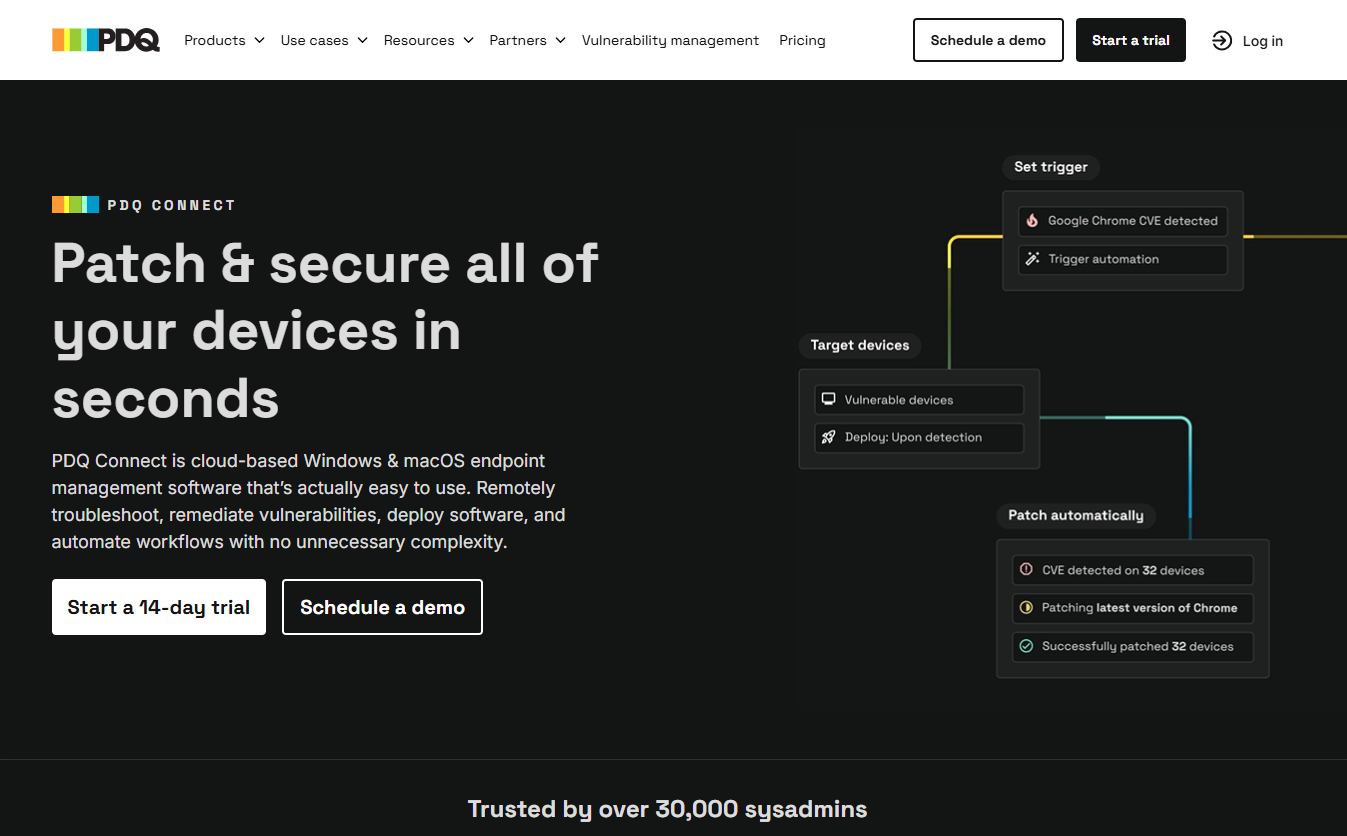
PDQ Connect is a cloud-native, agent-based endpoint management platform that streamlines the management of hybrid, remote, and on-site Windows and macOS endpoints. It eliminates costs associated with investing in SQL databases, distribution points, or VPN infrastructure. It automates OS and third-party patching, software deployment, scripting, hardware and software inventory, vulnerability remediation, and troubleshooting of remote endpoints. With it, you can monitor, manage, and secure your systems no matter their location, directly from your browser.
Best for
PDQ Connect is best for small to mid-sized organizations, educational institutions, nonprofits, and distributed teams that need straightforward patching, software deployment, inventory, vulnerability remediation, and remote support across Windows and Mac devices without maintaining on-premises infrastructure.
Key Features
-
Cross-platform OS support: Windows and macOS.
-
Automated patch management: Patches your Windows and macOS endpoints alongside their third-party applications to ensure your software stays up to date.
-
Vulnerability management: Scans enrolled devices for vulnerabilities, prioritizes detected risks, identifies affected software and endpoints, and supports direct remediation through recommended or custom packages.
-
Prebuilt and custom packages: Includes a maintained package library for hundreds of common applications while letting you create multistep packages for custom software, scripts, and configuration changes.
-
Real-time device inventory: Tracks installed software, hardware details, storage, uptime, operating system information, and other endpoint data as devices report back.
-
Remote desktop: Lets your team access remote devices, transfer files, handle UAC prompts, work across multiple monitors, and record support sessions.
-
Custom scanners and reports: Collects additional information such as files or registry values, then uses that data to create device groups and environment-specific reports.
-
Role-based access control: Limits access to deployments, vulnerabilities, remote sessions, and other platform functions according to each administrator’s responsibilities.
-
API and integrations: Premium plans include API access for connecting PDQ Connect with other IT workflows and business systems.
Pros
-
The agent-based architecture lets you patch, manage, and support endpoints anywhere they have an internet connection.
-
Setup is relatively straightforward, without the infrastructure planning and maintenance that SCCM usually demands.
-
Its interface is clean and easy to pick up, which helps you start deploying software without a long adjustment period.
-
The maintained package library saves time spent downloading installers, building packages, testing silent installations, and watching for new releases.
-
PDQ scans and tests its maintained packages before publication, including antivirus reputation checks and secondary engineering review.
-
Real-time inventory gives you a clear view of installed software, missing updates, device health, and vulnerabilities without waiting for lengthy synchronization cycles.
-
Custom packages, PowerShell scripts, scanners, and reports give experienced administrators plenty of room to shape the platform around their environment.
-
Public per-device pricing makes it easier to estimate costs before contacting the vendor.
Cons as per G2 User Reviews
-
PDQ Connect supports Windows and macOS, but it doesn’t currently provide native management for Linux, ChromeOS, or mobile devices.
-
Remote desktop requires an additional remote access agent on the endpoint and a local viewer on the administrator’s device. Some reviewers also report occasional slowness or unreliable connections.
-
Some capabilities available in PDQ Deploy and Inventory remain missing or weaker in PDQ Connect, particularly around detailed deployment progress and certain advanced administrative controls.
-
Vulnerability management, API access, and priority support require the Premium plan rather than the lower-priced tiers.
-
The 100-device minimum may make the entry cost harder to justify for very small IT environments.
Pricing
PDQ Connect charges annually per managed device and requires a minimum purchase of 100 devices, which is a real limitation for many teams.
-
Basic: $12 per device per year, including device inventory, rapid patch management, prebuilt and custom packages, custom fields and reports, and Windows and macOS device management.
-
Plus: $18 per device per year, adding automated deployments, remote desktop, role-based access control, and custom scanners.
-
Premium: $28 per device per year, adding vulnerability scanning and prioritization, one-click CVE resolution, API access, and priority technical support.
-
Discounts and trials: Free trials are available. Volume and multiyear discounts begin at 250 devices, while existing PDQ Deploy & Inventory customers may qualify for additional discounts. PDQ also offers separate MSP-focused pricing.
PDQ Connect Ratings
-
G2 Rating: 4.6/5 stars, 420+ reviews (at the time of update)
-
Gartner Peer Insights Rating: 4.6/5 stars, 80+ reviews (at the time of update)
How PDQ Connect Compares to SCCM
PDQ Connect is the obvious choice when SCCM’s infrastructure feels like another environment your team has to manage. It runs from the cloud and uses lightweight agents, so you don’t need site servers, SQL databases, distribution points, or a VPN before you can patch and support remote devices.
You can deploy software, run scripts, automate updates, track inventory, remediate vulnerabilities, and open remote desktop sessions from the same console. Windows and macOS support also gives you broader everyday coverage than SCCM alone.
SCCM still goes deeper for Windows imaging, task sequences, operating system deployment, and complex Microsoft-centered administration. PDQ Connect doesn’t cover Linux or mobile devices either. However, for teams that mainly need fast patching, software deployment, and visibility across remote Windows and Mac fleets, it removes much of the operational weight that makes SCCM difficult to maintain.
HCL BigFix
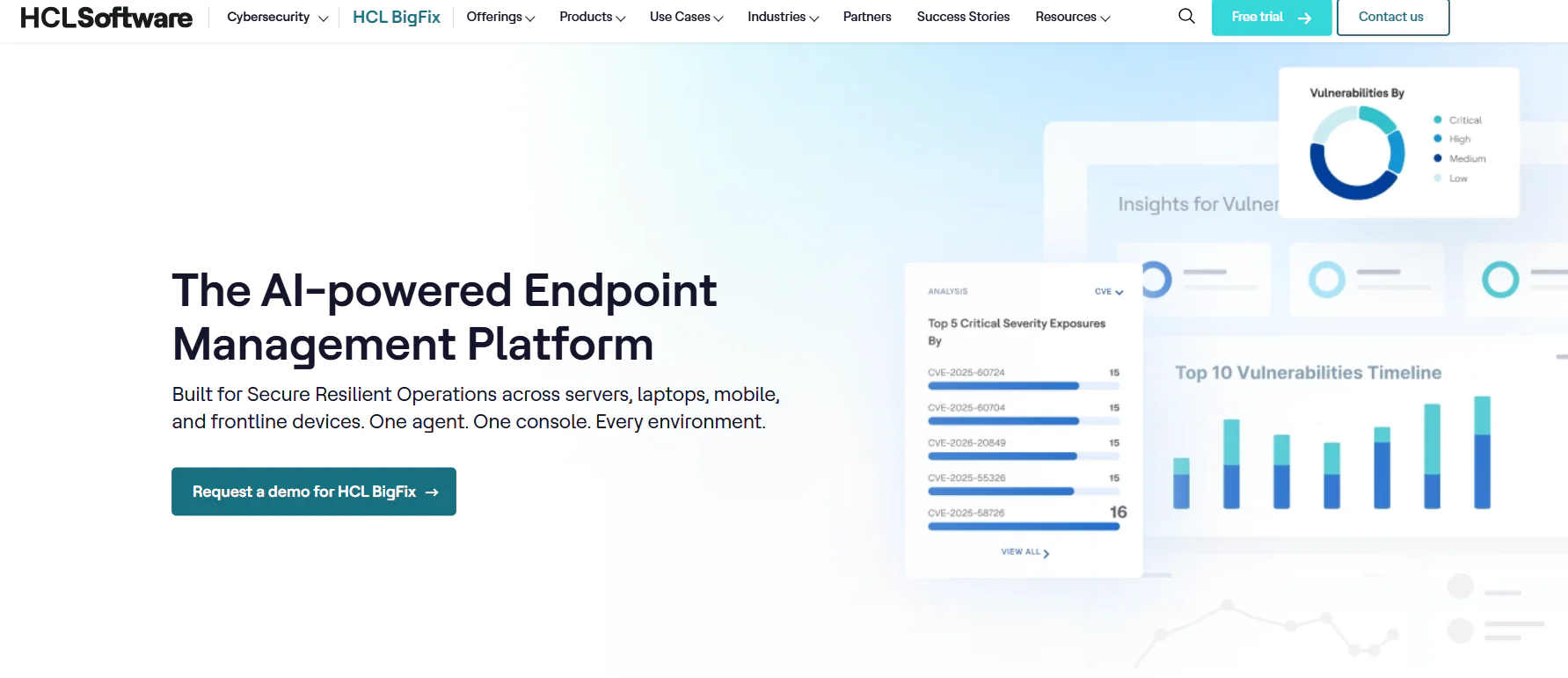
HCL BigFix is a unified endpoint management platform built for complex enterprise environments where scale, OS diversity, and compliance aren’t minor concerns, but daily realities. It automates patch management, compliance monitoring and enforcement, software deployment, and full server infrastructure lifecycle management, all from a single console.
One of its biggest strengths is patch content coverage, with pre-built and tested content spanning 100+ operating systems, including Windows, macOS, Linux, UNIX, AIX, Solaris, and HP-UX, plus a wide range of third-party software titles. That kind of breadth is genuinely rare in this space.
It automatically flags vulnerabilities and missing patches, then lets you control the deployment process exactly how you want it, keeping downtime risk low while closing gaps before they turn into incidents. Lightweight agents run quietly on each endpoint, pulling real-time data on system configuration, security status, installed software, and hardware details without dragging down performance.
The payoff is fewer vulnerabilities, less time spent on manual remediation, and an IT environment that actually runs the way you need it to.
Best for
Large enterprises, government agencies, financial institutions, healthcare organizations, and manufacturers that need scalable, cross-platform endpoint management, automated patching, continuous compliance enforcement, and deep control across complex on-premises, hybrid, and cloud environments.
Key Features
-
Cross-platform OS support: Windows, macOS, Linux, UNIX, AIX, Solaris, and HP-UX. Pre-built, tested patch content covers 100+ operating systems across on-premises, hybrid, and cloud environments.
-
Third-party application patching: Automatically finds and deploys patches across a wide catalog of third-party software titles.
-
Full server lifecycle management: Handles the entire server infrastructure lifecycle from one console, including provisioning, OS deployment, software distribution, patch management, and remote control.
-
Continuous compliance enforcement: Keeps regulated organizations aligned with PCI-DSS, the Health Insurance Portability and Accountability Act (HIPAA), and DISA STIGs through 38,000+ out-of-the-box checks.
-
Asset discovery and inventory: Tracks software and hardware assets across your entire environment in real time.
-
Real-time threat prioritization with automated remediation: Finds, ranks, and remediates vulnerabilities using threat intelligence pulled from the CISA KEV catalog and the MITRE ATT&CK Framework, so your team always knows what to fix first and why.
-
AI-driven runbook automation: Resolves server and application issues faster with 350+ pre-built runbook automations built for complex enterprise IT workflows.
-
Deployment flexibility: Available on-premises, in the cloud, or via BigFix SaaS Remediate, so you choose the model that fits your infrastructure and security needs, not the other way around.
Pros
-
Discovers assets in real time.
-
Automates compliance checks and vulnerability remediation.
-
Automates patching across 100+ operating systems.
-
Uses risk-based prioritization to close the most urgent vulnerabilities first, rather than working straight down a list.
-
Includes a self-service portal.
-
Deep scripting and API options for automating workflows and routine tasks with less manual work.
-
Scales smoothly as your environment grows.
Cons as per G2 User Reviews
-
Initial setup can be more complex and time-consuming than expected, especially for less technical users.
-
The web console is a known weak spot. Navigation isn’t intuitive, dashboards resist easy customization, and reporting doesn’t match the depth of the platform’s actual capabilities.
-
Reporting needs real improvement.
Pricing
HCL BigFix doesn’t list fixed pricing on its website. Getting actual numbers means contacting their sales team for a custom quote.
HCL BigFix Ratings
-
G2 Rating: 4.5/5 stars, 85+ reviews (at the time of update)
-
Capterra Rating: 4.0/5 stars, 3 reviews (at the time of update)
How HCL BigFix Compares to SCCM
HCL BigFix is the stronger choice when SCCM’s Windows-first design becomes too narrow for a mixed enterprise environment. It manages Windows, macOS, Linux, UNIX, AIX, Solaris, and HP-UX from one platform, while HCL publishes tested patch content for more than 100 operating systems, along with a wide range of applications, databases, and middleware on top of that.
That broader reach matters for organizations running legacy servers, regulated infrastructure, or several operating systems under one roof. BigFix also delivers near-real-time endpoint data and targeted remediation through lightweight agents, which can reduce the waiting and troubleshooting that often slow SCCM workflows.
The tradeoff is that BigFix isn’t automatically the simpler option. Initial setup, reporting, and administration can still demand experienced hands. SCCM may fit better in deeply Microsoft-centered environments that rely heavily on Windows imaging and Configuration Manager workflows.
Omnissa Workspace ONE UEM
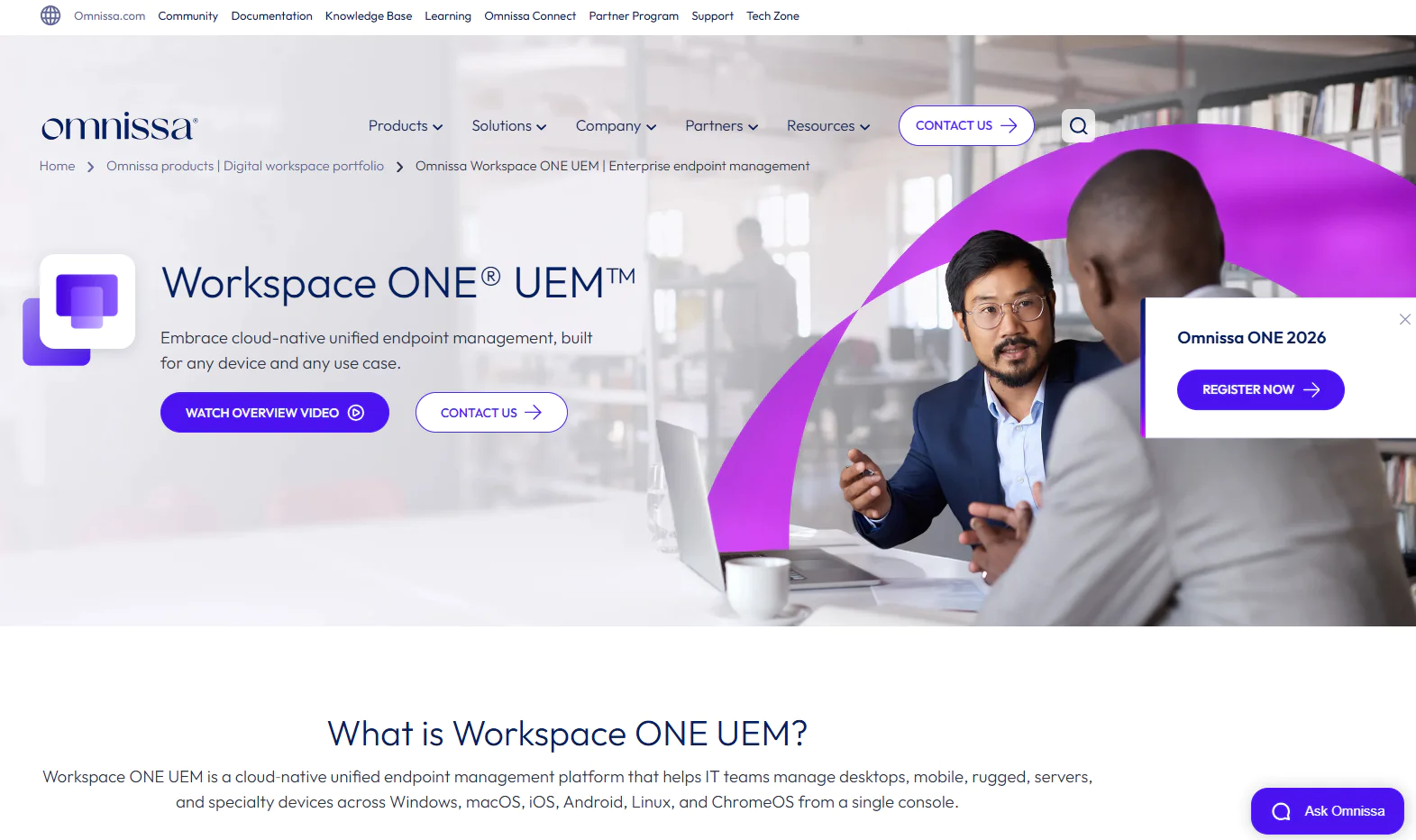
Omnissa Workspace ONE UEM is a cloud-native unified endpoint management platform built for large enterprises managing a mix of endpoints across different operating systems. It spans desktops, laptops, smartphones, tablets, rugged devices, and servers, letting IT teams monitor, manage, and secure all of them from a single place.
The platform automates repetitive work like patch management, software deployment and removal, device onboarding, and compliance enforcement through AI-driven automation. It also builds in security controls like conditional access, compliance policies, and device posture checks. Put simply, it protects your endpoints, keeps them compliant, and keeps everything running smoothly with minimal effort on your end.
Best for
Enterprises and MSPs managing large, mixed device fleets across desktops, mobile devices, rugged devices, and Linux servers, especially those needing zero-trust access control alongside deep OS-level device management.
Key Features
-
Cross-platform OS support: Windows, macOS, and Linux, with Linux management available in SaaS environments (UEM 2206+) through a command-line-driven agent, not available for on-premises deployments.
-
Unified endpoint management: Manage every endpoint from one console, regardless of OS or device type.
-
Passwordless single sign-on: Employees get one-touch access to every app they need, web app, SaaS tool, or native mobile app, without typing a password each time.
-
Conditional access: Enforces zero trust security by controlling access based on device compliance, user identity, network location, and more. A device that doesn’t meet the required security standards never gets in. Rather than just blocking access outright, Workspace ONE steers users toward compliance instead of leaving them stuck.
-
Automated app management: Install, update, and remove software across your entire fleet without touching a single device by hand. Covers Windows apps, mobile apps, and everything between, on a schedule or whenever needed.
-
Zero-touch device provisioning: Dynamic Smart Groups push the right configurations, Wi-Fi settings, VPN profiles, and apps to new devices automatically, based on user and device attributes. No laptop imaging required.
-
Data loss prevention: Blocks copy and paste between work and personal apps, restricts access from rooted or jailbroken devices, and enforces geofencing rules that cut access the moment a device leaves an approved zone.
-
Real-time visibility and reporting: Tracks application usage, device events, and compliance status across your environment in real time, with exportable reports for audits and regulatory needs.
-
Virtual app and desktop delivery: Through Horizon integration, users securely reach virtual desktops and sensitive applications from any device, anywhere, without data ever leaving your controlled environment.
Pros
-
Automates the most time-consuming maintenance work every IT team deals with daily.
-
Lets you monitor, manage, and protect endpoints from one place while keeping full control over task execution, for less downtime risk and more efficiency.
-
Delivers smooth, effortless scalability.
-
Comes with a strong set of security features.
-
Its SaaS deployment skips the need for dedicated on-premises UEM infrastructure or VPN-based management.
Cons as per G2 User Reviews
-
The interface isn’t as intuitive as advertised and can be confusing to navigate, mainly because many advanced options sit buried in menus, a real issue for less technical users.
-
Occasional performance issues, like slow loading times or connectivity hiccups.
-
Costs more than competitors offering comparable features.
Pricing
Five plans, billed monthly, based on 12 months prepaid with production-level support. Other term lengths and billing options are available too.
-
Mobile Essentials: $3.00 per device or $5.40 per user/month. Mobile device management and secure mobile apps.
-
Desktop Essentials: $4.00 per device or $7.20 per user/month. Enterprise desktop management.
-
UEM Essentials: $5.25 per device or $9.45 per user/month. Unified endpoint management across every platform.
-
Enterprise Edition: $10.00 per device or $15.00 per user/month. Intelligence-driven secure digital workspace.
-
Platinum Edition: $15.63 per device or $24.71 per user/month. Full autonomous workspace capabilities.
Omnissa Workspace ONE UEM Ratings
-
Gartner Peer Insights Rating: 4.3/5 stars – 25+ reviews
-
Capterra Rating: 4.6/5 stars – 40+ reviews
How Workspace ONE UEM Compares to SCCM
Workspace ONE UEM is the better fit when SCCM’s Windows-first model no longer matches the devices your company actually manages. It brings your mobile devices, rugged hardware, IoT endpoints, wearables, Windows systems, macOS devices, and supported Linux endpoints into the same console.
You also get zero-trust access controls that use device compliance and user identity to decide who can reach company resources, something SCCM wasn’t designed around. Linux support is available, although it’s SaaS-only and uses a command-line agent rather than the fuller graphical experience offered for Windows and macOS.
Workspace ONE UEM can technically run on-premises, but Omnissa now treats that as an exception, not a standard path, new on-premises deployments require engaging Professional Services directly, and cloud-based deployment is the default and recommended option for every new instance. SCCM still wins for deep Windows administration and traditional imaging, but Workspace ONE makes more sense when your priority is broad device coverage, modern access control, and one platform for your entire fleet.
Atera
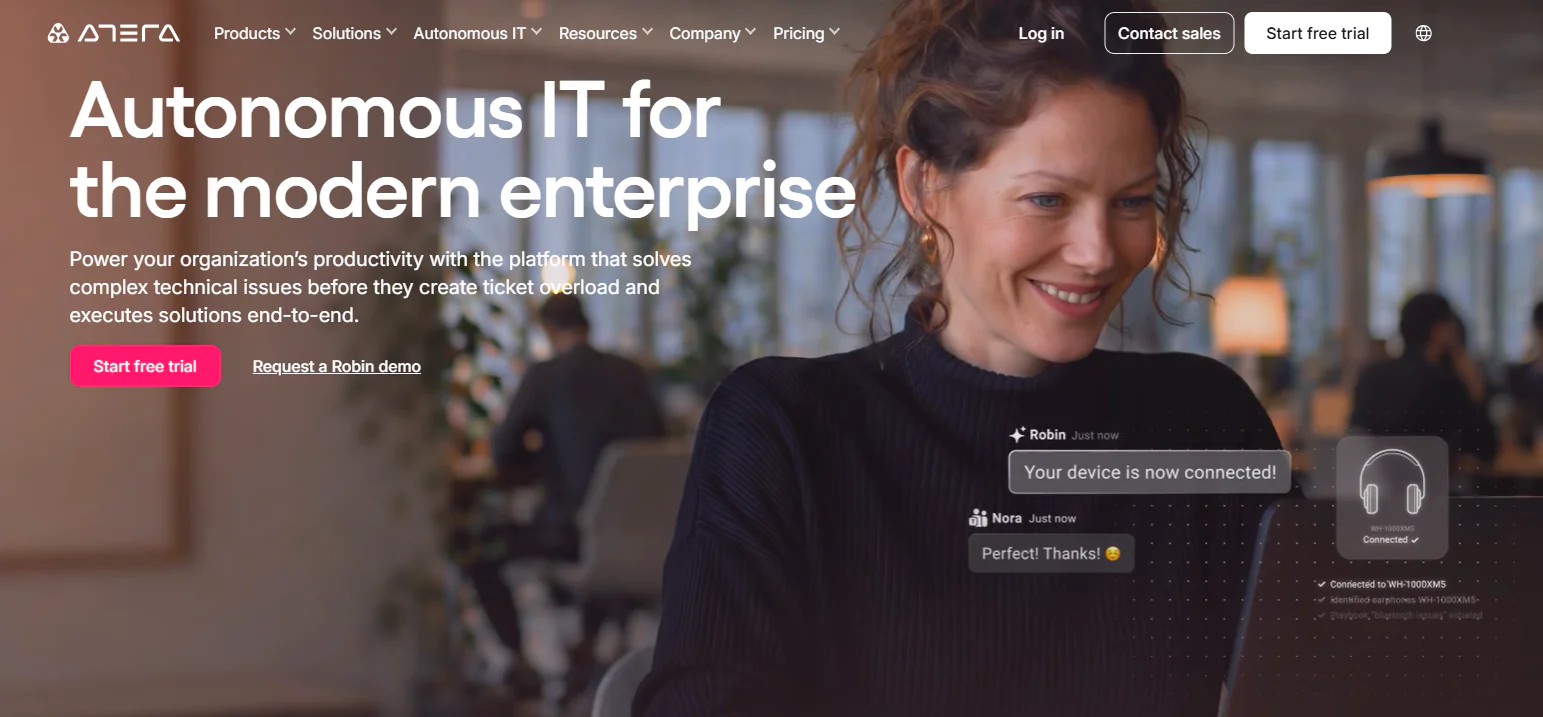
Atera is a cloud-native, all-in-one IT management platform that gives MSPs and IT departments patch management, RMM, PSA, and ticketing from a single console. On the patching side, Atera covers Windows, macOS, Linux, and a wide range of third-party applications. With it, you can automate patch management end to end, monitor endpoints in real time, and pull audit-ready reports in just a few clicks. The platform also uses IT Automation Profiles, letting you split endpoints into separate groups so you can test updates on smaller groups first and stop unstable patches before they trigger organization-wide downtime.
Best for
Atera fits MSPs and small to mid-sized IT teams managing device fleets that run mixed operating systems and are spread across different locations.
Key Features
-
Cross-platform OS support: Manages and patches Windows, macOS, and Linux endpoints.
-
Third-party application patching: Covers hundreds of supported third-party applications through Atera’s App Center.
-
Real-time infrastructure monitoring: Tracks infrastructure health, device performance, patch status, and compliance from one centralized dashboard.
-
AI-powered IT automation: Helps automate device troubleshooting, patch management, script creation, and other routine administrative tasks.
-
Advanced reporting and analytics: Lets you generate audit logs, compliance reports, and operational insights whenever they’re needed.
-
IT automation profiles: Allows you to group endpoints, apply separate automation policies, and test updates on smaller device groups before wider deployment.
Pros
-
Automates both OS and third-party patch management.
-
Cuts the time spent preparing regulatory reports from hours down to minutes.
-
Gives you full control over how and when updates roll out across your environment, so you can patch endpoints without interrupting employees during their workday.
-
AI-powered script generation helps you build custom PowerShell scripts for company-specific tasks without starting from zero each time.
-
Helps MSPs and IT teams handle service delivery, patch management, RMM, PSA, and ticketing from one console.
-
Offers an intuitive interface that most IT teams pick up quickly.
-
Provides enterprise-grade security built to safely automate and scale software updates across thousands of endpoints.
Cons as per G2 User Reviews
-
Some users report patch deployment failures that need manual intervention to finish the installation.
-
Limited third-party application coverage.
-
The cloud console slows down occasionally, especially when pushing patches to thousands of endpoints at once.
-
The mobile app offers fewer features than the desktop version.
Pricing
Atera charges per technician rather than per endpoint, so every standard plan comes with unlimited endpoints built in.
-
MSP plans: Pro costs $129 per technician per month billed annually or $139 billed monthly. Growth costs $159 billed annually or $189 monthly, while Power costs $209 billed annually or $249 monthly. Superpower requires a custom quote.
-
IT department plans: Professional costs $149 per technician per month annually or $169 monthly. Expert costs $189 annually or $229 monthly, while Master costs $219 annually or $269 monthly. Enterprise pricing requires a custom quote.
-
Free trial: Every plan includes a 30-day free trial, and Atera doesn’t require a credit card.
-
Optional add-ons: Network Discovery costs $29 per technician per month, while Work from Home costs $5 per end user per month.
Atera Ratings
-
G2 Rating: 4.6 / 5.0 stars, 1,240+ reviews (at the time of update)
-
Capterra Rating: 4.5 / 5.0 stars. 450+ reviews (at the time of update)
How Atera Compares to SCCM
Atera makes more sense when your team wants endpoint management and service delivery under one roof. Unlike SCCM, it combines patching, RMM, PSA, ticketing, billing, and remote support in the same cloud-based console, without site servers, SQL databases, or distribution points to maintain.
You can patch Windows, macOS, Linux, and supported third-party applications, then use IT Automation Profiles to test updates on smaller device groups before wider rollout. AI-assisted script generation also speeds up custom PowerShell work, saving your team from rebuilding common tasks from scratch.
Pricing runs per technician rather than per endpoint, so adding more devices doesn’t automatically increase the subscription cost. SCCM still offers deeper Windows administration and traditional OS imaging, while Atera fits MSPs and lean IT teams that want simpler operations, predictable scaling, and fewer disconnected tools.
Best SCCM Alternative by Use Case
If anyone tries to tell you that one UEM platform fits every environment perfectly, they probably work for that company, but that’s not us, and we won’t do such a thing. For us it’s way more important to help you find a platform that actually solves all your pain points, and helps you grow without worrying about cyberattacks, regulatory penalties, or how much workload your IT team can realistically handle. Below we’ll give you our honest take on where each platform actually delivers, so you can match the right tool to your specific environment and pain points.
|
Use Case |
Best SCCM Alternative |
Why it Wins |
Strong Alternatives |
|---|---|---|---|
|
Best Overall SCCM Alternative |
Action1 |
Closes the most SCCM gaps at once: autonomous patching across Windows, macOS, and Linux, no infrastructure to maintain, P2P distribution, a private software repository, and the only permanent, fully featured free tier in this comparison for up to 200 endpoints. |
ManageEngine Endpoint Central if you want SCCM’s on-prem structure with modern security layered on top. HCL BigFix if your environment spans far beyond Windows into UNIX, AIX, Solaris, or HP-UX. |
|
Best Cloud-Based SCCM Alternative |
Automox |
Skips SCCM’s server stack entirely, no site servers, no SQL databases, no distribution points. Agents check in, pull policy, and get to work, with third-party patching covering 630+ applications natively and malware scanning on every package before deployment. |
Action1 if you want that same cloud-native simplicity plus a 5-minute setup, no VPN, and browser-based remote access built in. PDQ Connect if you want cloud-native simplicity with public, per-device pricing. |
|
Best SCCM Alternative for Patch Management |
Action1 |
Autonomous, risk-based patching through update rings, testing on a small group first and stopping unstable patches automatically, backed by P2P distribution and a privately tested software repository. |
NinjaOne if you want CVE and CVSS-based prioritization built in. Automox if Worklets-style scripted remediation matters to your workflow. |
|
Best SCCM Alternative for Application Deployment |
ManageEngine Endpoint Central |
Matches SCCM’s own approach closely, builds and pushes full Windows OS images with drivers and apps included, plus allowlist and blocklist controls over what users can install. |
PDQ Connect if you want a maintained package library that’s pre-tested before publication. Action1 if you want streamlined deployment without needing on-prem infrastructure. |
|
Best SCCM Alternative for Small Businesses |
Action1 |
Free forever for up to 200 endpoints, fully featured, no functional limits, no credit card. For a small business, that’s enterprise-grade patching, vulnerability management, and remote access at zero cost until you actually outgrow it. |
PDQ Connect if you’re already past 200 endpoints and want simple, public per-device pricing. Atera if you want PSA capabilities and ticketing bundled in alongside patching. |
|
Best SCCM Alternative for Enterprises |
HCL BigFix |
Built specifically for large, complex environments, pre-built patch content across 100+ operating systems including UNIX, AIX, Solaris, and HP-UX, plus full server lifecycle management from one console. |
Omnissa Workspace ONE UEM if your enterprise fleet is mobile and device-type heavy, not just server-heavy. Ivanti Neurons for UEM if AI-driven automation matters more than raw OS breadth. |
|
Best SCCM Alternative for Managed Service Providers |
Atera |
Bundles patching, RMM, PSA, ticketing, and billing into one console, and bills per technician instead of per endpoint, so client device counts don’t drive the price up. |
NinjaOne if you want MDM and backup folded in alongside patching. Action1 if multi-tenancy with per-organization update approval fits your client structure better. |
|
Best SCCM Alternative for Remote Workforces |
Action1 |
Browser-based remote access and control for Windows endpoints, no VPN or Cloud Management Gateway to stand up, plus an offline catchup window that patches traveling devices the moment they reconnect. |
PDQ Connect if your remote fleet is strictly Windows and macOS. NinjaOne if remote endpoints need to be paired with MDM for mobile devices too. |
|
Best SCCM Alternative for Cross-Platform Environments |
HCL BigFix |
Covers the widest OS range in this comparison by far, Windows, macOS, Linux, UNIX, AIX, Solaris, and HP-UX, all from a single platform. |
Omnissa Workspace ONE UEM if your cross-platform mix leans mobile and rugged devices rather than legacy server operating systems. ManageEngine Endpoint Central if you want cross-OS coverage bundled with strong MDM. |
|
Best SCCM Alternative for Operating System Deployment |
ManageEngine Endpoint Central |
The closest direct match to SCCM’s own OS imaging, builds and deploys full Windows images with drivers and applications included, nearly feature for feature. |
HCL BigFix if OS deployment needs to extend across UNIX or Linux servers too. Note: Action1 does not replace this specific capability. It handles OS version upgrades, not bare-metal imaging. |
How to Choose the Right SCCM Alternative
Choosing the right SCCM replacement depends on two factors: your environment and the gaps you actually need the new platform to close. So you must first understand the specifics of your setup, your endpoint count, the operating systems in use, the third-party apps your organization relies on, which SCCM tasks you want automated instead of manually maintained, and where SCCM’s infrastructure has been costing you the most time or money.
Only then can you start searching for a platform that fulfills those expectations, solves the specific pain points pushing you away from SCCM, and helps you monitor, manage, and secure every system with far less manual effort and infrastructure overhead than SCCM demanded.
To help you focus on what actually matters in practice, we’ve put together a short list of capabilities the best SCCM alternative should offer. Let’s get into it.
List the Endpoint Management Features You Need
Start by listing every task SCCM already automates, like patching, OS imaging, software deployment, inventory, compliance, and remote access. From there, mark which ones are critical for you and which ones you don’t use because they don’t relate to your operational processes. The idea is to understand what you need and what you don’t, so when you’re having a conversation with the SCCM alternative’s sales team, you can directly tell them, “I need those, and I don’t want the rest, because they’re useless to my organization.” That’s a good practice for optimizing your monthly or annual software costs, so don’t miss the opportunity to pay for exactly what you need, nothing more, nothing less.
Compare Cloud-Based and On-Premises Deployment
First and foremost, make sure you know which deployment model you need, cloud-based, on-premises, or hybrid. Cloud-native platforms like Action1 and Automox eliminate the site servers and SQL infrastructure SCCM requires and can manage internet-based endpoints without a VPN or Cloud Management Gateway, while options like ManageEngine Endpoint Central and HCL BigFix offer on-premises deployment for teams that need to keep everything in-house. Purely on-premises solutions are preferred when you want to keep everything in-house, while hybrid models are widely used by companies that want to secure their office-based locations while also managing their remote employees’ systems. Your answer here narrows the field significantly, since deployment model shapes cost, maintenance burden, and how fast you can actually get running.
Confirm the Alternative Covers Every OS in Your Environment
If your business runs Windows, macOS, and Linux environments, or manages Android and iOS devices, then you must ensure the selected vendor supports all of them, so blind spots are out of the equation. To ensure that all of your systems are managed, secured, and compliant, you must make sure every single operating system is covered by your future SCCM alternative. Patching, software deployment, policy enforcement, reporting, real-time monitoring, and asset management should be managed from one place where possible, while you confirm that the capabilities you actually need are available on each operating system.
Assess Patch Management and Vulnerability Remediation Capabilities
Look for a vendor that offers autonomous patch and vulnerability management, with cross-OS patching across Windows, macOS, and Linux, plus a broad third-party application catalog. Your endpoints must be under constant monitoring, so vulnerabilities get identified in real time. You must be able to create your own maintenance windows for regular and emergency patching, with more or less testing depending on urgency, keeping both planned and unplanned downtime to a minimum. From there, you should be able to shape the entire process around your own workflow, from testing to deployment to reboot timing.
A strong patch manager should offer P2P patch distribution too, since it cuts bandwidth strain by sharing each update across your network instead of pulling it separately per device, along with a private software repository where packages are tested before they ever reach your endpoints instead of being pulled straight from community-maintained repositories. Risk-based prioritization matters just as much, since it streamlines vulnerability remediation and patch deployments based on real-world risk, not just severity scores.
If no patch is available yet for a specific security flaw, you need options to either isolate the endpoint from the network remotely or uninstall the vulnerable software as a compensating control until a fix ships. And last but not least, any endpoint offline during a scheduled maintenance window should get patched automatically the moment it reconnects. That combination ensures the broadest coverage, the fewest vulnerabilities left unaddressed, and the strongest protection across your entire environment.
Review the Software Deployment Capabilities
Confirm that you can deploy and remove software easily through automation. That should include prepackaged apps, custom packages, and bulk installs or uninstalls. Pay close attention to third-party app coverage too, since manual packaging is both time-consuming and one of SCCM’s biggest pain points, so a platform that handles it natively saves real hours. OS imaging is the other piece worth checking carefully. Some alternatives, like ManageEngine Endpoint Central from our list, replicate SCCM’s bare-metal imaging closely, while others only handle OS version upgrades on machines already in your fleet. That gap alone can decide whether a tool fully replaces SCCM or just narrows it.
Consider Automation and Reporting Requirements
Look for a high level of automation, especially for patch management tasks, since that’s one of the most time-consuming and never-ending processes. You must be able to configure the automation once, and from there, everything should happen on its own: testing, staged deployment progression, reboots, and installation on offline endpoints once they reconnect.
Scripting matters too, so confirm you can run custom PowerShell or Bash scripts across your fleet, and that this can happen remotely as well. In terms of reporting, look for pre-built and customizable audit-ready templates that let you not only prepare regulatory documentation in minutes, but also customize those reports for specific clients or other needs. And last but not least, look for real-time reporting for connected endpoints, along with clearly timestamped last-known data for offline ones that refreshes the moment they reconnect.
Confirm the Alternative Meets Your Security and Compliance Requirements
Confirm the alternative meets your security and compliance requirements with:
-
Role-based access control, so your team only sees or touches what their role actually requires.
-
Mandatory multi-factor authentication, not just an optional add-on, ideally with app-based options your organization can enforce beyond email codes.
-
Single sign-on, integrated with your existing identity provider.
-
Encrypted endpoint communication, confirm data moving between your endpoints and the platform stays encrypted in transit, not just at rest.
-
A full audit trail, filterable by organization and event type, with API access if your team relies on a SIEM or XDR.
-
Independent, verifiable audits and certifications, like SOC 2 Type II and ISO/IEC 27001, not just a claim that rides on the underlying cloud host’s compliance.
-
Active security testing, ideally through regular third-party penetration testing and a public vulnerability disclosure or bug bounty program, not just a one-time audit.
-
Least-privilege access from the vendor’s own side, confirm their staff can’t touch your account or data unless your organization explicitly authorizes it, like during a support request.
-
Data residency options, letting your organization choose where its data physically lives if your compliance requirements demand it.
That distinction between an independently audited platform and one simply hosted on a certified cloud provider is worth checking closely for your network, since an independently audited platform and a compliant cloud host aren’t the same guarantee.
Calculate Licensing and Infrastructure Costs
The number on the pricing page is almost never the number you’ll actually pay. Here’s what to check before you sign anything:
-
Price out the infrastructure you’re not seeing. An on-premises license quote doesn’t always reflect the server, SQL database, storage, and staff hours required to run the platform. Add those in, and a “cheaper” on-prem tool can easily cost more than a pricier cloud one over time.
-
Do the math at double your current size, not today’s. A price that looks fine at 200 endpoints can hurt at 500. Run the vendor’s calculator or pricing table against your growth plan for next year, not just your headcount right now.
-
Ask whether growth actually raises your bill. Some platforms charge per device or per user, so every new hire or endpoint adds cost directly. Others charge per technician or per seat on your team, meaning you can add hundreds of endpoints without the invoice moving. Know which one you’re signing up for.
-
Don’t confuse a trial with a free tier. A 14- or 30-day trial only proves the software works, it tells you nothing about what year two costs. A genuine free tier lets you run it in production, at real scale, for as long as you want, before you ever pay a cent.
-
Check for a minimum buy-in before you fall in love with a tool. Some vendors won’t sell you less than 100 or 250 seats, which can quietly double your cost per endpoint if your environment is smaller than that.
-
Factor in the sales call itself. If a vendor won’t publish pricing, budget the time it takes to get a quote, and the leverage you lose negotiating blind, into your actual timeline, not just the eventual dollar figure.
How to Migrate from SCCM to an Alternative
A software migration must be well planned to avoid, or at least minimize, mistakes and keep the transition as smooth as possible. So, to migrate from SCCM to an endpoint management alternative, you should:
Audit Your Existing SCCM Environment
-
Inventory every device, application, and policy SCCM currently manages. Don’t rely on stale documentation. Everything should be up to date so you don’t miss anything.
-
Export your device list, software catalog, and current compliance reports. It’s very important to keep your entire report library, or at least the portion covering the retention period your company’s regulations require.
-
Identify which use cases depend on SCCM-specific capabilities like task sequences, air-gapped device management, or deep software metering, since these may need to stay on SCCM longer than the rest of your environment.
Identify Required SCCM Features and Workflows
-
Create a list of SCCM features your team uses during day-to-day operations, and which ones are rarely or never used.
-
Don’t assume policies port over directly. SCCM baselines and GPO-style configurations rarely map one to one onto a new platform. Redesign around the outcome you actually need, not the exact SCCM setting.
-
Mark every third-party app package you’ve built manually, since this is usually the most labor-intensive part of any migration, not the platform switch itself.
Select and Test the Replacement Platform
-
Create a group of endpoints, ideally limited to non-critical, lower-priority systems. Then deploy the new software to them and start using it across that group to check how it works alongside an active SCCM client on the same system.
-
Go through every feature you’ll use daily, scripting, patch deployments, reporting, software deployments or uninstallations, applying compensating controls, and so on. Test the software under the real conditions your team encounters during a routine workday, and get to know it well before trusting it across your environment.
Plan Endpoint and Application Migration
-
Group your devices by site, department, or role to define a realistic rollout order.
-
Treat app packaging as its own project. Confirm install context, dependencies, and detection logic for every app before migration day, not during it.
-
Keep constant communication about the process with your service desk and users early, and most importantly, create and update support runbooks before the first real cutover. It’s important not just to explain to them what’s going to happen step by step, but also to assure them that if they run into any difficulties or need support, you’ll be there to help them work through it smoothly.
Run a Phased Deployment
-
Don’t rush into an organization-wide deployment. In most environments, that’s an awful idea. Instead, separate your endpoints into groups and deploy the software one group at a time. Give each group enough time, often 48 to 72 hours, to confirm everything works as expected and catch software conflicts or other issues before moving on.
-
Move workloads or device groups in phases, by site or function, rather than switching everything at once.
-
Keep SCCM fully operational for any device or workload not yet migrated.
Validate Security, Compliance, and Reporting
-
Compare patch compliance and deployment success rates between SCCM and the new platform during the overlap period.
-
Confirm RBAC, MFA, and audit logging are fully configured on the new platform before removing anything from SCCM.
-
Generate a full compliance report from the new platform and check it against your SCCM baseline for accuracy, not just completeness.
Retire the SCCM Infrastructure
-
Decommission SCCM only once production stability is proven and every dependent use case is formally closed out or migrated, not on a fixed date.
-
Remove SCCM agents, decommission site servers, and archive your exported inventory and compliance data for audit records.
-
Decommission or repurpose the SQL Server instance and related infrastructure once Configuration Manager no longer needs them.
Frequently Asked Questions About SCCM Alternatives
How do I Know When it’s Time to Switch from SCCM?
It’s time to replace SCCM when you want to manage Linux and macOS, leave infrastructure maintenance behind, create customizable reports, get real-time visibility, and have greater flexibility to schedule processes the way you envision them. When you feel that SCCM limits you or makes you look for workarounds while managing your routine daily tasks, it’s time to look for a stronger alternative.
What is the Best Alternative to SCCM?
The best alternative to SCCM is Action1, because it’s cloud-native, offers cross-OS platform support, an extensive third-party app catalog, a private software repository, P2P distribution, autonomous patching, software deployment, 100+ customizable report templates, RBAC, multi-tenancy, and more. Together, these features address several gaps SCCM leaves open. Last but not least, Action1 is free for up to 200 endpoints, fully featured, forever. So SMBs can use it across their environments without paying a single dollar, while MSPs and large enterprises can test it for as long as they want across a group of 200 endpoints before purchasing.
What is the Easiest SCCM Alternative to Migrate to?
Action1 is the easiest SCCM alternative to migrate to. Setup takes about 5 minutes to create your account, deploy the agent, and start managing endpoints, no infrastructure to stand up first. For rolling out across thousands of endpoints at once, you’ve got real options: the built-in Action1 Deployer pushes the agent through Active Directory automatically. GPO can distribute the MSI package the same way you’d deploy any other software. Or you can run it silently through Intune, SCCM itself, or a script using msiexec /i Action1Agent.msi /qn. Whichever fits your existing workflow, all of them skip manual, one-by-one installs entirely.
Why is Action1 a Stronger Alternative to SCCM?
Action1 is a stronger alternative to SCCM for organizations that want to address many of SCCM’s biggest limitations. It doesn’t require investment in hardware, servers, SQL databases, a VPN, or complex on-premises setup. Patching runs autonomously across Windows, macOS, Linux, and third-party apps. Software deployments and removals get automated in just a few clicks. Reports are ready in minutes. Remote endpoint management works through the browser without a VPN. And it’s also the only tool here with a fully featured free tier for up to 200 endpoints, forever.
Is There a Free SCCM Alternative?
Yes. Action1 is one free SCCM alternative, and its first 200 endpoints are fully featured and free forever. ManageEngine Endpoint Central also offers a permanent free tier, but with lower limits and reduced functionality. With Action1, you can use the platform for patching, software management, reporting, vulnerability remediation on supported Windows and macOS endpoints, real-time monitoring, and browser-based remote control for Windows.
Choosing the Best SCCM Alternative for Your Organization
The best alternative is different for every organization, and it depends on your endpoint fleet, the operating systems in play, and most importantly, the features that solve your biggest pain points or your most time-consuming processes. So nobody can tell you “X” software is the best for you, because nobody knows your IT environment better than you.
Need a cloud-native autonomous endpoint management platform that takes manual or semi-manual processes off your plate? That’s Action1. It supports Windows, macOS, Linux, and 310+ third-party apps, puts patching, software deployment, removals, and scripting on autopilot, and comes with a great set of security features like MFA and RBAC. On top of that, the first 200 endpoints stay fully featured and free forever, even if you later scale beyond the free tier. Action1 gives you autonomy, security, seamless scalability, and peace of mind knowing your endpoints are protected and compliant.
Your team’s fully bought into Microsoft 365 and Entra ID, with device compliance mattering more than deep cross-platform patching? Microsoft Intune is your fit. It manages identity right alongside devices and can tie access to device compliance through Conditional Access.
For teams that want one platform matching SCCM’s own playbook closely, imaging, patching, DLP, and MDM included, ManageEngine Endpoint Central is the closest match. It’s also the rare alternative available both on-premises and in the cloud, so you’re not forced to pick a lane.
MSPs and hybrid IT teams that want patching, MDM, and backup under one platform should look at NinjaOne. It keeps the interface clean and the automation deep without turning your stack into five separate tools.
When fast, cloud-native patching without the overhead of a full RMM platform is the priority, Automox delivers. Every third-party package gets scanned for malware before it ever reaches an endpoint, so speed doesn’t come at the cost of trust.
For teams that want AI-driven automation and zero-touch provisioning over raw simplicity, Ivanti Neurons for UEM is built for exactly that. It uses automation across onboarding, compliance, and patching to reduce the number of repetitive rules and tasks someone has to maintain by hand.
Running a fleet that’s strictly Windows and macOS and looking for the fastest, least complicated setup on this list? PDQ Connect wins there. No infrastructure, no VPN, just a clean console and public per-device pricing you can actually plan around.
Environments spanning far beyond Windows into UNIX, AIX, or Solaris call for HCL BigFix. Nothing else here comes close to its OS breadth or its depth for large, regulated enterprises.
Genuinely mixed fleets, mobile, rugged, IoT, and traditional endpoints alike, are where Omnissa Workspace ONE UEM stands out. Zero-trust access control comes built in, gating resources by device compliance the way SCCM never could.
MSPs wanting patching, RMM, PSA, and ticketing under one roof, billed per technician instead of per device, should take a close look at Atera. Adding endpoints doesn’t move your bill, which makes budgeting a lot less painful as you grow.
The best SCCM alternative depends entirely on your environment, your endpoint fleet, and the specific pain points you need to eliminate. Not the feature set each vendor offers. So when you start looking for a strong replacement, first get to know your environment, the gaps SCCM leaves, your budget, and of course your future growth plans. That combination of four factors, when considered well, opens your eyes and points you to the right software for your company.
We selected 10 of the best endpoint management platforms on the market to help you spend less time on vendor research and more time getting a clearer look at your own company’s needs. This list simply helps you pick the software that’s right for you, one that works not just on paper, but in reality.
Simplify your IT operations and take control of your endpoints with Action1’s autonomous endpoint management platform.
→ Start managing up to 200 endpoints for free
Sources, data, and editorial methodology
This comparison was researched and verified in August 2026 using official vendor documentation, pricing pages, and security and compliance materials, alongside verified user reviews and ratings from G2, Capterra, and Gartner Peer Insights. Each platform was evaluated against the same core criteria: private software repository support, OS support, custom package deployment, software deployment automation, third-party application patching, remote endpoint support, patch compliance reporting, security and access controls, and ease of deployment.
Action1 publishes this comparison. To keep it transparent and useful, we checked every product claim against primary vendor sources and looked for recurring patterns across third-party reviews rather than relying on isolated comments. Feature availability, pricing, and ratings were accurate at the time of publication and may change.





