One simple but powerful feature called update rings can eliminate all those fears. We’ll cover what they are, why they matter, how they work, how different ring structures compare (from 4-ring to 5-ring and customizable options), the sequential phases of update deployment, how they stack up against traditional patch deployment, what operating systems and third-party applications they support, and how both Microsoft Intune and Action1 implement them.
We’ll also walk you through a full step-by-step guide to building your update ring structure in Action1 and show you how this approach can transform the patch management process from a constant headache into something that just works.
Whether you’re supporting a small business or a large enterprise environment, this guide will help you build a more resilient, efficient, and risk-free approach to keeping your organization’s systems protected against the latest software vulnerabilities.
What are Update Rings?
Update rings are a patch management feature that separates your endpoints into sequential deployment groups and rolls out patches in stages, starting from a small controlled test environment and expanding outward automatically based on predefined success metrics. Patches either earn their way to the next ring or get stopped before they cause damage to the rest of your endpoints. In practice, this reduces downtime risks and ensures timely vulnerability remediation, while still giving you complete control over a process that runs on its own.
How Do Update Rings Work in Patch Management?
Update rings in patch management allow organizations to create a deployment structure that enables testing and validating patches to see whether they work as expected before rolling them out across every endpoint in their networks.
The idea is to start with the so-called ring zero (lab environment), deploying patches to a small number of test devices first to verify they’re working without causing any issues, then promote them to ring 1 (pilot group of endpoints) for further validation of their success rates. After passing pilot testing, organizations can deploy these patches to devices in ring 2 (larger group of endpoints). Finally, in ring 3 (broad ring), this set of updates can be rolled out across the entire network.
Why are Update Rings Important?
Update rings give you complete control over patch deployment from start to finish. You decide the rules, the system does the heavy lifting, and only patches that work the way they should ever reach your production systems. The staged rollout enables IT teams to detect and exclude problematic updates early that may cause application incompatibilities, performance degradation, or system crashes.
On top of that, update rings support deferred updates, letting you delay non-critical patches based on risk-based schedules so you’re not forced to deploy everything at once just because it’s available. This matters most for companies with hybrid and complex environments because they run the widest mix of software configurations, legacy systems, and endpoint types. A patch that works perfectly in a lab setting might behave completely differently once it hits production. But that’s exactly what update rings are built for. They catch those failures early, in the pilot group, before they have the chance to spread across the rest of the fleet.
When you put all of that together, you get faster remediation of critical vulnerabilities, stronger compliance across your environment, and the kind of operational stability that lets your business keep moving without unexpected interruptions.
In short, update rings are designed to:
- Stop faulty patches before they cause chaos across your endpoints;
- Autonomously roll out patches in stages;
- Improve endpoint stability and minimize planned and unplanned downtime;
- Remediate vulnerabilities faster;
- Help you comply with the regulations your business is subject to and keep you audit ready at all times.
Update Rings vs Traditional Patch Deployment
The biggest difference between update rings and traditional patch deployment is simple. With update rings, the system decides what moves forward and what gets stopped based on real deployment data and the success metrics you’ve set. With traditional deployment, your team makes those calls manually at every step, and if something slips through, it’s often already hit every endpoint it was sent to.
Traditional patch deployment needs your attention at every step. Your team has to find missing patches, test them, approve them for deployment, and monitor endpoint behavior after patching. And if a device is offline during a scheduled deployment, it just gets missed entirely until someone notices. Update rings handle that too, patching the device automatically the moment it reconnects.
Simply put, with update rings, the human factor is out of the equation, while traditional patch deployment makes every single step tightly dependent on manual action.
What OS and Applications Can Be Patched Using Update Rings?
With Action1, you can patch Windows, macOS, Linux, and third-party applications. But with Intune, natively, you can use the update ring structure to efficiently deploy updates to Windows operating systems only. For Windows devices, update rings are particularly effective for managing feature updates, quality updates, security patches, and upgrades to newer OS versions in a controlled and staged way. Microsoft incorporates this concept into its Windows Update for Business service, with Windows update rings providing granular control through fine-tuning options that allow administrators to deploy or defer updates.
That level of manual control works great for some teams, but Microsoft also built Windows Autopatch for those who’d rather have the whole thing managed automatically. It’s primarily available with Microsoft 365 E3 and E5 enterprise licenses, with limited functionality in Business Premium.
Windows Autopatch groups devices into four predefined deployment rings: Test at 0.5% of devices, First at 5%, Fast at 50%, and Broad covering the remaining 44.5%, ensuring updates are validated in smaller groups before reaching the rest of your fleet.
While Microsoft provides mechanisms to uninstall updates when issues are detected, this capability varies significantly by update type. Feature updates can typically be rolled back within 10 to 30 days, while quality updates may have more limited rollback options, and some security updates cannot be cleanly uninstalled once applied without using system recovery options.
Can macOS and Linux Endpoints Use Update Rings?
While macOS doesn’t implement the update rings concept used by Microsoft, it does support phased deployment capabilities through MDM solutions, including Microsoft Intune via Apple’s Declarative Device Management framework. Tools like Jamf Pro, Mosyle, and Kandji allow staged update deployments through Smart Groups and scoped policies, while Intune does it through DDM, letting you segment devices into pilot and broad deployment groups. Both approaches cover native Apple OS updates only and don’t extend to third-party applications.
With Linux, the situation is similar. Enterprise Linux distributions support staged update deployment through repository management:
- Red Hat Enterprise Linux uses Satellite Server with Content Views to control which updates are available to different server groups.
- SUSE Linux Enterprise employs SUSE Manager with channels for staged update rollouts.
- Ubuntu offers Landscape with phased update capabilities for controlled deployment.
Linux systems can also control updates through distribution-specific mechanisms such as package pinning for Debian and Ubuntu, version locking, and repository prioritization. While not called rings, these mechanisms provide similar functionality for gradually deploying updates across test, staging, and production environments.
You may wonder if there’s a way to update endpoints with different operating systems from a single platform using an update ring structure. In fact, there is. Patch management software like Action1 offers the update rings feature natively, allowing you to manage updates for both operating systems and third-party applications, all from one place. That simplifies and automates the entire update process, saving you time, resources, and plenty of headaches.
Update Ring Structures Explained
The most widely implemented configurations are 4-ring and 5-ring structures, but some organizations use customized ones to meet their specific environmental complexity, compliance requirements, and risk tolerance.
Each ring has its own set of endpoints, monitoring criteria, and success metrics that must be met before anything moves forward.
4-Ring Structure
The 4-ring deployment model creates a progressive validation framework that begins with an isolated lab environment to verify the patch’s functionality. Once verified, the updates advance to the pilot ring (5 to 10% of the endpoints) for validation on these devices.
The targeted deployment ring (20 to 30% of the endpoints) expands validation across different groups of workstations, while the final ring completes deployment for 100% of the endpoints in the organization’s network.
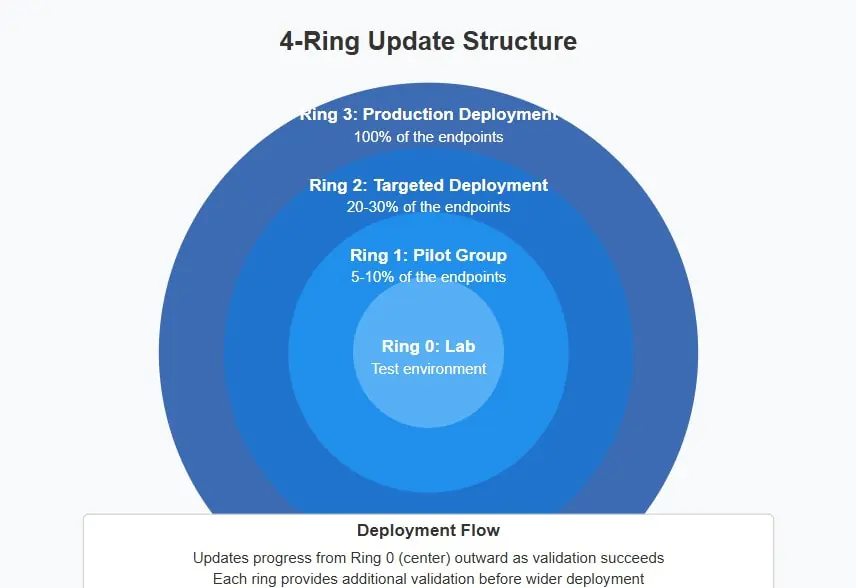
5-Ring Structure
The 5-ring structure adds an extra phase that enhances validation precision by separating critical infrastructure from standard deployment stages. The process follows a methodical progression, starting with lab environment validation, moving to pilot deployment (5 to 10% of endpoints), then advancing to targeted rollout (20 to 30% of endpoints) if specific criteria are met, followed by production deployment (60 to 70% of endpoints), and finally reaching critical systems in the last ring.
This approach incorporates an additional ring specifically to maximize protection for critical business systems. By ensuring patches undergo comprehensive validation before reaching systems where downtime would significantly impact business operations, organizations efficiently maintain security and operational stability across their networks.

Custom Ring Structure
Using advanced patch management software, organizations can customize their ring structures to adapt to specific business needs and environments by implementing deployment segments and criteria beyond percentage-based groupings. This approach offers the flexibility to create targeted deployment phases based on department functions, risk profiles, or system criticality.
For instance, smaller organizations may opt for a structure with fewer than four rings to simplify the process while ensuring robust protection. On the other hand, large enterprises with intricate infrastructures or specialized compliance needs can create structures with more than five rings for granular control over the process and extensive testing before rollout to their most critical systems. That flexibility means you can dial in exactly as much testing as your environment needs, without making the process heavier than it has to be or cutting corners where it matters most.
Update Ring Phases Explained
Here’s exactly what each ring does, from the first test to the final rollout.
Ring 0: Test Ring
The Test Ring is your lab environment where updates are tested on controlled test systems to verify functionality before being released to the workstations in the Pilot Ring.
Ring 1: Pilot Ring
Once the updates have been successfully tested and validated in the Test Ring, they can be deployed to a small group of endpoints in the Pilot Ring (early adopters). The Pilot Ring serves to further validate updates on 5 to 10% of the organization’s production endpoints before they’re cleared for wider deployment across the rest of the fleet.
Ring 2: Targeted Ring
After the updates have been deployed to the machines in the Pilot Ring and haven’t introduced any issues, they’ll be automatically installed on a larger group of workstations.
Ring 3: Broad Ring
If all of the updates work as expected, they’ll be deployed across every single endpoint in the organization’s network. By this stage, the updates have verified that they won’t impact endpoint stability and performance.
Ring 4: Critical Systems Ring
Not every organization needs Ring 4. But for those running domain controllers, database servers, ERP systems, payment processing infrastructure, or any endpoint where unplanned downtime directly impacts business operations, having a dedicated final ring makes a real difference. By the time a patch reaches Ring 4, it has already passed every preceding ring successfully, which means it has been tested, validated across pilot and targeted groups, and proven stable in broad deployment. That validation history is what makes it safe enough to touch your most critical systems. And if something was going to go wrong, it already did and got caught long before it got anywhere near here.
Update Rings in Microsoft Intune
Update rings were originally invented and introduced by Microsoft, who embedded the feature directly into Intune. From there, other third-party patch management platforms recognized how valuable it was and added it to their own feature sets.
What are Intune Update Rings?
Intune update rings are a feature that offers a staged, safer, and more intelligent update deployment model. The idea is to create groups of endpoints called rings, starting with a test ring containing just a small percentage of your systems that’ll receive the update first. Each subsequent ring expands that endpoint coverage, and when a patch proves stable in Ring 0, it automatically progresses to Ring 1, and so on, until it reaches every system in your network.
The great advantage of this approach is that you configure it once to automatically promote or stop updates depending on how they behave in each ring. That means two things. Timely vulnerability remediation and minimized downtime risks caused by unstable or faulty patches.
In Intune particularly, each update ring is configured as an Intune policy through the Microsoft Intune admin center and assigned to Azure AD or Entra ID device groups. Each ring policy controls when and how feature updates, quality updates, and driver updates get deployed across your devices.
Intune Update Ring Prerequisites
Before you create a single ring in Intune, make sure these boxes are checked or nothing will work the way you expect. First and foremost, your devices must be enrolled in Intune and Microsoft Entra joined or hybrid joined. That said, keep in mind that Entra registered devices aren’t supported for update ring policies that use the Windows Autopatch backend.
Second, your devices must have access to Microsoft update endpoints. If your firewall blocks them, your devices will likely be unable to receive updates no matter how well your rings are configured.
Third, telemetry must be turned on with a minimum setting of Required, and the Microsoft Account Sign-In Assistant service must be enabled, not just enabled but running. If it’s not, Windows Update stops working entirely.
Fourth, for feature, quality, and driver updates you need a Windows license that includes the Autopatch entitlement. Basic Intune licensing covers update ring policies for general Windows Update behavior, but the more advanced policy types require the right license tier, so check that too.
Last but definitely not least, if your environment has Group Policy Objects configured for Windows Update, those GPOs can override your Intune update ring policies entirely, causing devices to ignore deferral settings and install updates outside your defined schedule. With that in mind, take some time to check for any GPO setting that controls automatic updates and make sure it isn’t fighting your Intune configuration, because if it is you might end up pulling your hair out searching for the problem in all the wrong places.
Intune Update Ring Settings
Update ring policies in Intune give you flexibility in how you configure the settings that control how Windows updates are delivered and installed on your endpoints. In fact, the settings split into two main categories: Update settings and User experience settings.
- Update settings are where you have the most control. You can define deferral periods for quality and feature updates, or simply put, you can tell Intune to wait 10 days before deploying an update. You can also allow or block driver updates and control whether your endpoints check Microsoft Update for app patches alongside OS updates.
- User experience settings give you the opportunity to set active hours to avoid the annoying restarts during the workday. Another thing you can do is configure deadlines that force installation after a predefined grace period expires, and define a restart grace period to give your employees time to save their work before they see their endpoint rebooting. And if something doesn’t go as expected after a feature update, you can roll it back within a configurable window of up to 60 days.
Intune Update Ring Assignments
To assign a ring, go to the Microsoft Intune admin center, navigate to Devices, then Windows, then Manage Updates, then Windows Updates, and open the Update Rings tab. Select the ring you want to assign, go to Properties, and under Assignments click Edit. From there you can add the device groups you want that ring to apply to.
One important thing. Assign update rings to device groups, not user groups. That’s the better option because device group policies apply the moment a device checks in, without waiting for a user to sign in first. That is of immense importance for organizations where endpoints sit idle or get shared between employees. That helps ensure updates get deployed faster.
You can also mix include and exclude assignments in the same ring. Say you want Ring 1 to cover your pilot group but you’re not ready to touch your critical servers yet. Just exclude that group from Ring 1 and they won’t receive anything until you decide it’s time to move them forward.
One last thing worth knowing. If a device ends up in two groups that are assigned to different rings, Intune has to pick one. When settings from two rings conflict, Intune typically applies the longer deferral period, but the exact outcome depends on which settings are overlapping. That’s not always what you want. So before you start assigning rings, think through your group structure carefully. A little planning upfront saves you a lot of head-scratching later when a device isn’t behaving the way you expected.
Action1 Update Rings Feature
Action1 is a cloud-native autonomous endpoint management platform that implements update rings natively across Windows, macOS, Linux, and third-party applications, making it one of the few platforms that gives you true autonomous patch deployment across every endpoint in your environment, regardless of operating system or location. To remediate flaws not only faster but also smarter, the platform uses real-time assessment of software vulnerabilities and prioritizes them in the right order based on CVSS score, CISA KEV, CVE number, and indicators of active exploitation in the wild.
Update rings in Action1 follow a staged rollout approach to patch deployment, creating sequential rings of devices that receive updates in phases rather than all at once. The first ring includes test systems, followed by rings of increasingly critical production endpoints. What makes this approach so effective is the real-time confidence scoring system that analyzes patch performance data from each ring before allowing progression to the next.
This means that if a particular patch causes any unexpected issues in an early ring, the system automatically prevents it from moving forward and allows IT teams to manually exclude these updates from future deployment rings with just a few clicks.
The system works autonomously following predetermined rollout schedules but provides flexibility to intervene when necessary. IT teams can customize ring structures based on the organization’s specific requirements, whether that means extended testing for business-critical systems or rapid deployment for urgent security patches. This makes it an ideal solution for both SMBs and large enterprises looking to reduce downtime risks while ensuring timely remediation of critical vulnerabilities.
Using Action1’s update rings feature provides the following benefits:
- Smarter way to manage updates – Updates start in inner rings and move outward based on success metrics, which can be manually set based on your organization’s requirements.
- Less downtime, more control – Problematic patches are prevented from being deployed across your entire organization’s infrastructure. If any issues arise, they’ll be caught in the test or pilot ring.
- Efficient autonomous patching process – Using real-time confidence scoring, your IT team ensures only reliable updates move forward.
- Flexible scheduling capabilities – Test and deploy updates at convenient times without affecting core business operations and user experience.
- Faster remediation – Critical vulnerabilities always get addressed first.
How to Automate Software Update Rollouts with Action1 Update Rings?
The setup for a typical automated software update rollout in Action1 is straightforward. Just follow these steps.
Step 1. Log in to or sign up for Action1.
Step 2. Navigate to the Automations tab, click New Automation, and then select Update Ring.
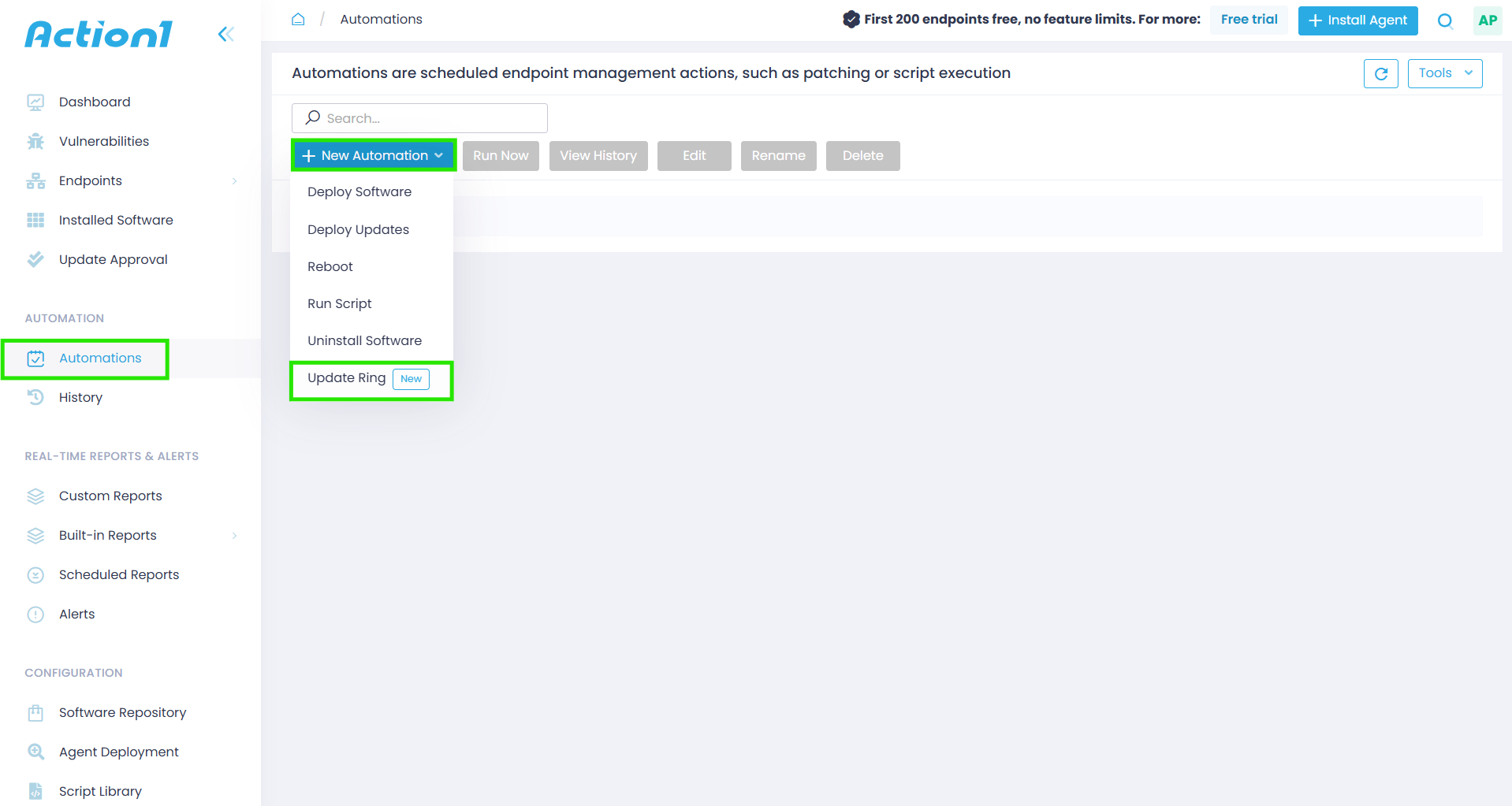
Step 3. Create Ring 0 (test group) and select the updates you want to deploy from the list of missing updates. You have four options to choose from:
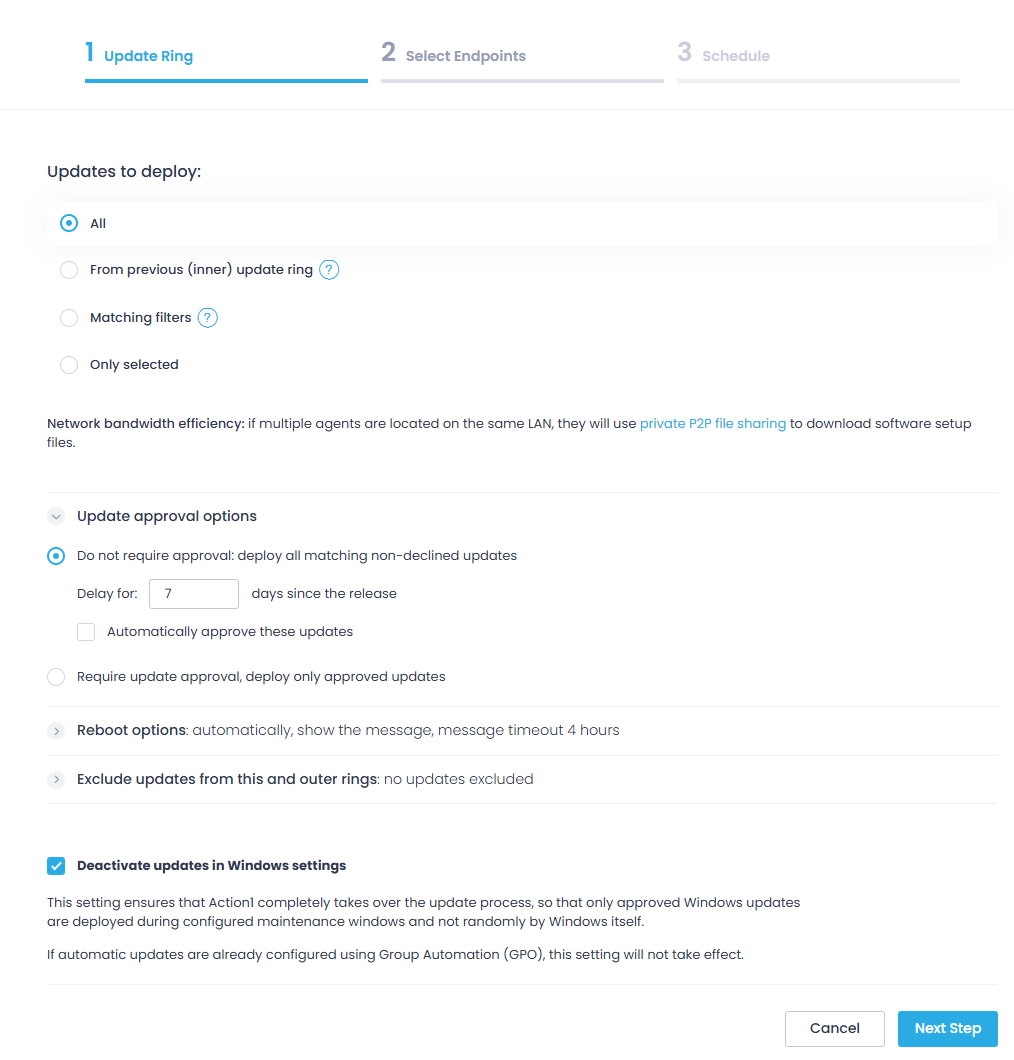
- All – the default option. Use it to install all updates regardless of their severity or status.
- From the previous (inner) update ring – only applicable to Ring 1, Ring 2, or Ring 3 after Ring 0 has already been created. Use it to continue deploying non-declined and non-excluded updates from the previous ring. For example, if you’re configuring Ring 1, you can deploy only the updates that were successfully validated in Ring 0.
- Only selected – installs exclusively the updates you’ve specifically chosen from the full list of available updates in your organization.
- Matching filters – installs only the updates that match your search criteria (update sources, update types, update severities, update names, and update vendors).
→ Creating Ring 0 with matching filters:
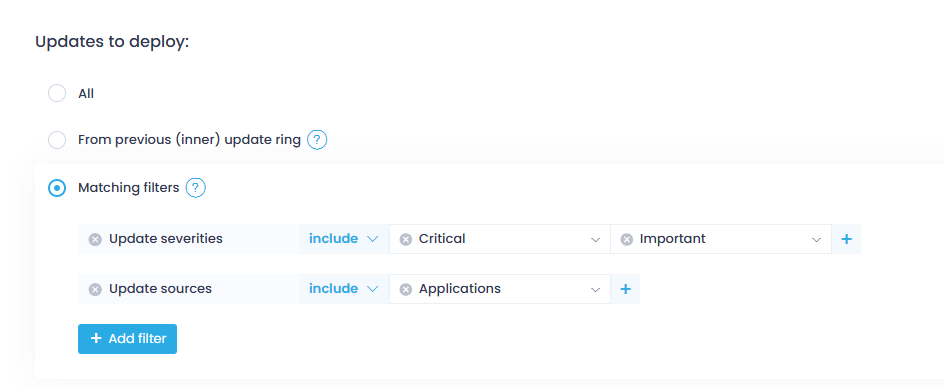
Wondering how to configure filters?
- Add filters such as update source, update severity, and more.
- You can add several filters and Action1 will search for and deploy updates that match all of them at once.
- Within each filter you can provide several values and Action1 will search for any of them.
- Values can be included or excluded. For example you can search for and deploy security updates from Microsoft or Google but exclude anything with a low severity rating.
→ Creating Ring 0 with only selected updates – use this option to install specific updates you’ve picked from the list. It shows all available updates in the organization.
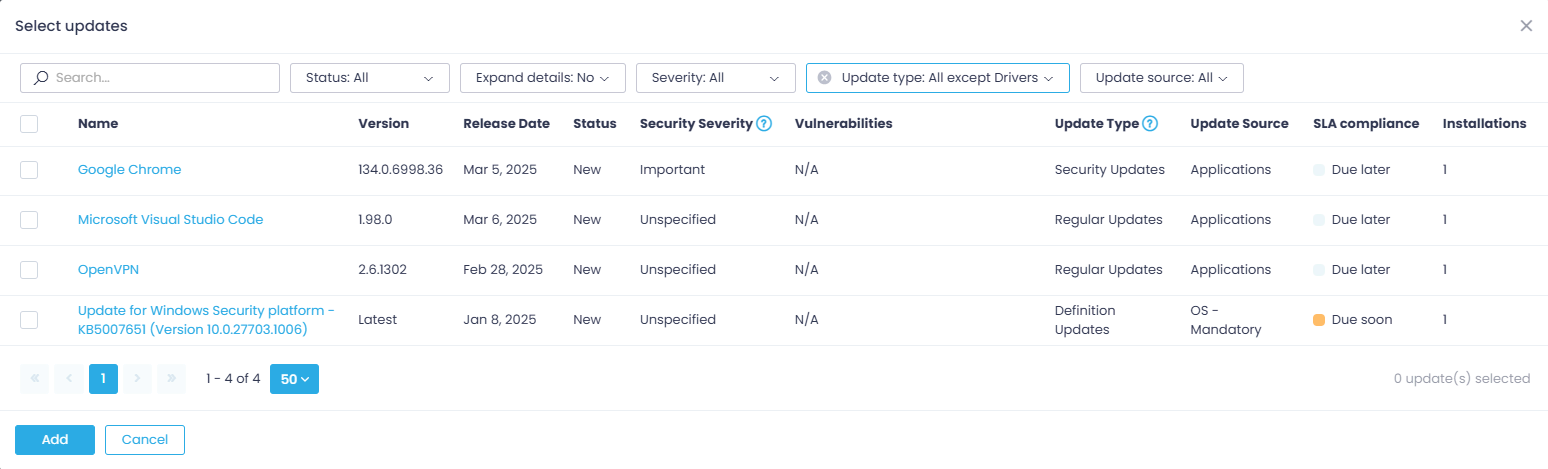
Step 4. If you selected All, From previous inner update ring, or Matching filters, you can use Update approval options to decide whether updates need to be explicitly approved before they can be scheduled for distribution:
- Do not require approval – automatically deploys all updates matching your criteria that haven’t been declined. You can also set a waiting period before installation begins and configure Action1 to automatically change the update status to Approved.
- Require approval – Action1 will only deploy updates that match your criteria and have a status of Approved.
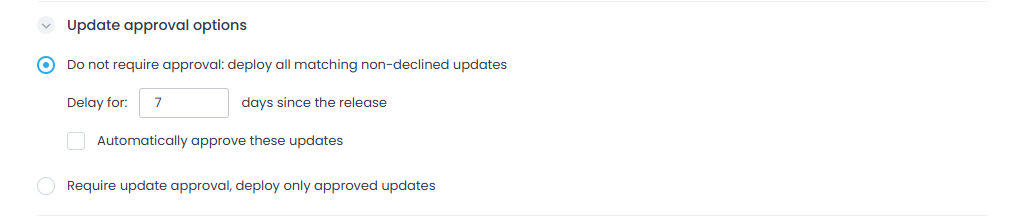
Note: Update approval options are not shown if you chose Only selected. If you need the same effect, select Status: Approved when building your update list.
Step 5. Use Reboot options to specify whether to automatically reboot the target endpoints after deployment. You can also configure Action1 to show a message to your employees giving them time to save their work before the reboot happens.
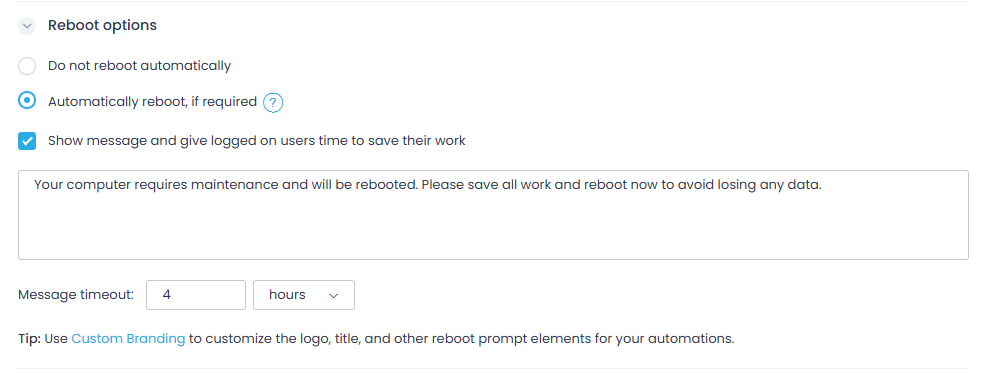
Step 6. Below the reboot options you’ll find a drop-down menu where you can exclude specific updates from this ring and all outer rings that follow. Select the updates you want to exclude from the list of available updates.
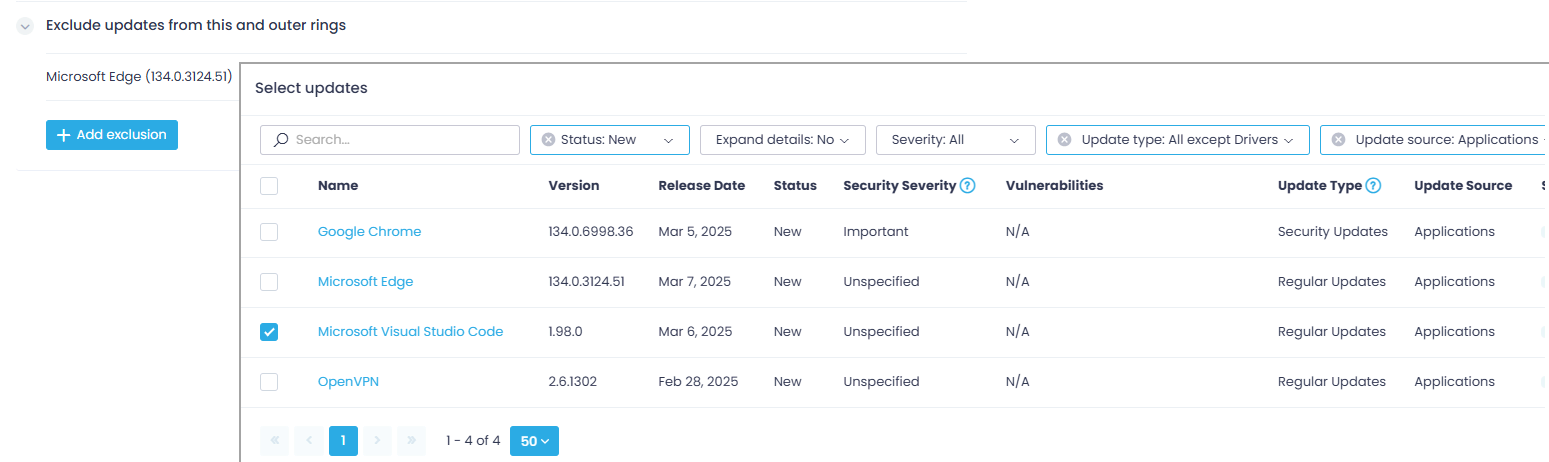
Step 7. Select whether to Deactivate updates in Windows settings. Use this option if you want to push all patches and updates exclusively through Action1 rather than letting Windows Update run alongside it.

Step 8. Complete the remaining steps of the wizard to select your target endpoints and configure an automation schedule that fits your organization’s needs. Make sure to specify an automation completion deadline after the scheduled start time. This tells any offline or disconnected endpoints to retry the automation the moment they come back online.
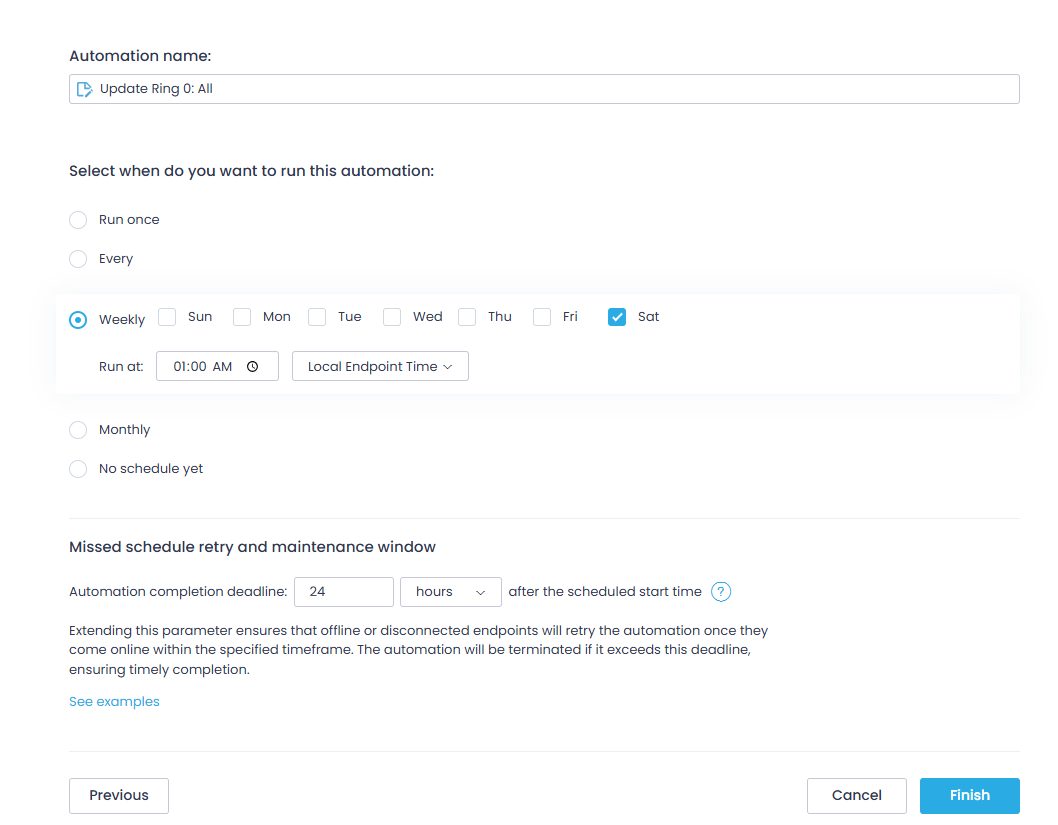
Note: If you update this setting later, make sure the timeframe you set is not longer than the frequency of action execution. For example, do not set it to 48 hours if the action runs every day.
Step 9. Create Ring 1 by selecting the From previous inner update ring option and choosing Ring 0 as the inner ring. You can also set filters that decide which updates are good enough to move from Ring 0 into Ring 1.
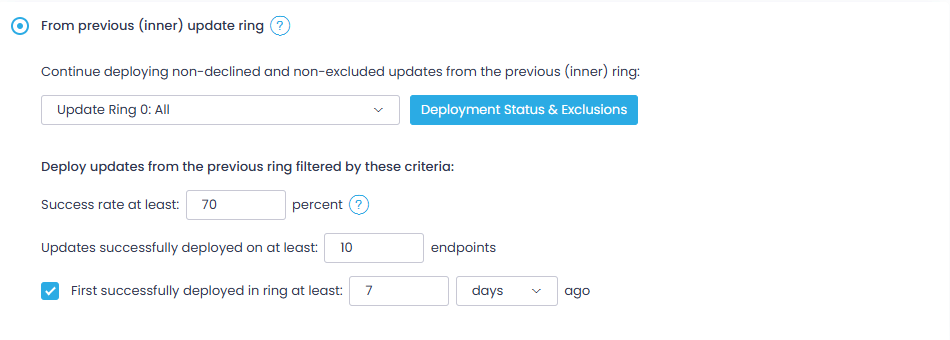
You can continue deploying non-declined and non-excluded updates from the inner ring. Click Deployment Status and Exclusions to examine the updates deployed within the selected ring.
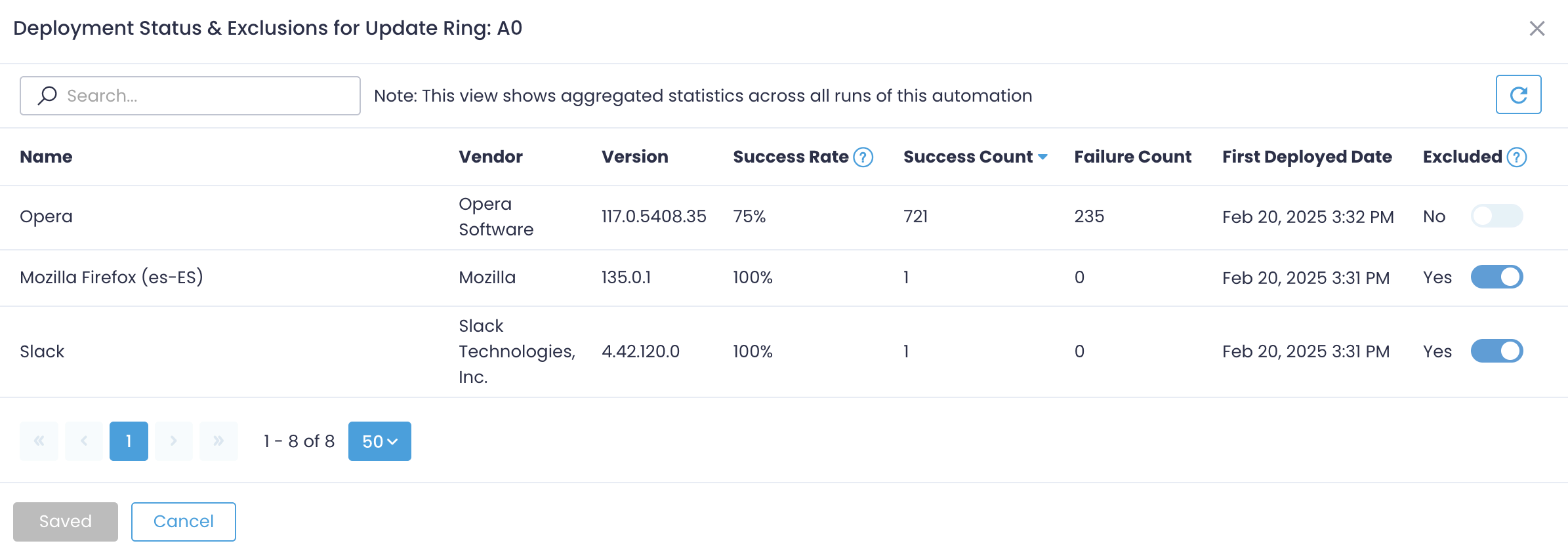
Use the toggle switch in the Excluded field to add or remove the selected update from the exclusion list in the automation settings.
To filter updates from the previous ring, you can configure certain criteria based on metrics, all of which will be applied using logical AND:
- Minimum success rate – calculated as Success Count divided by the sum of Success Count and Failure Count, multiplied by 100. The default is 70%.
- Minimum success count – the number of endpoints in the inner ring that must have successfully received the update before it progresses. The default is 10 endpoints.
- Time since first successful deployment – you can require that an update has been successfully deployed in the inner ring for at least a set number of days, hours, or minutes before it moves forward. The default is 7 days.
Once configured, select the group of endpoints you want to include in Ring 1 and set up the automation schedule the same way you did for Ring 0.
Step 10. Create all subsequent rings the same way.
Step 11. Monitor the deployment status of each ring by opening the Deployment Status view.
For your convenience, we’ve also put together a short video that walks you through the process step-by-step.
Frequently Asked Questions about Software Update Rings
What is a Test Ring?
A test ring is the very first ring in an update ring structure, where you test every patch or update on a small group of endpoints to check its stability. If it meets the success rate you’ve established, the patch progresses to the next ring. If it doesn’t, it gets automatically stopped from reaching any endpoints outside the test ring. The whole point is to catch any obvious problems caused by the update early, things like crashes, compatibility issues, or any other abnormal behavior that threatens and directly affects the normal operations of your endpoints.
What is a Pilot Ring?
A pilot ring is the second ring in the deployment process, right after the test ring, where the patch meets real production endpoints for the first time. It typically covers around 5 to 10 percent of all your systems, but still the less critical ones. The goal is to double-check the patch stability on more endpoints and see if it meets the success metrics, how it behaves, and whether everything works as expected. That way you catch any issues that didn’t show up in the test ring before the patch reaches the rest of your production systems.
What is a Broad Ring?
A broad ring is the third and in most cases the last ring in the update ring structure. It covers the remaining devices that weren’t part of the test and pilot rings, typically 80 to 90 percent of your production systems, and is where the patch finally reaches each and every system in your network. By the time this happens, the patch has already met the success metrics in the two previous rings, which is what makes deploying to this scale safe.
That said, some companies add one or two more rings after this one to separate their endpoints by department or into smaller groups for greater safety and to minimize the chances of running into unexpected issues further down the line. For most environments though, the broad ring is where the deployment finishes.
Can Update Rings Be Used for Third-Party Applications?
Yes and no, depending on which platform you use. With Action1, you can use update rings to patch both third-party applications and operating systems natively, all from one place. With Microsoft Intune, however, update rings are built specifically for Windows OS updates. What that means is that patching third-party apps like Chrome, Zoom, or Adobe through Intune requires either repackaging them as .intunewin files or adding a third-party patching tool to your toolset to handle that natively.
What is the Difference Between Update Rings and Windows Autopatch?
The difference between update rings and Windows Autopatch is in the control you have over the patching process. Update rings give you the opportunity to control every single step and decide how many rings will be created, which endpoints go there, what success metrics trigger automated progression, and when deployments run. Windows Autopatch is Microsoft’s managed service that just doesn’t give you such control, and does all of that for you automatically.
It creates its own predefined rings like Test, First, Fast, and Broad, and executes the process on its own, not on your vision. Which has its positives, but it also hides greater risks. If a patch causes issues across your fleet, you have less ability to stop it mid-rollout than you would with a fully customized update ring structure.
How Do Update Rings Handle Offline Endpoints?
When using update rings to deploy one or more patches, your offline endpoints get the update the moment they come back online. Both Action1 and Intune queue the deployments, and once the systems that were offline during the initial patching fire up, they get automatically updated. This functionality ensures all your endpoints are up to date, secure, compliant, running smoothly, and most importantly, don’t become the weak link that cybercriminals exploit to get into your network through an unpatched software vulnerability.
What Success Rate Should I Set for My Update Rings?
There’s no universal answer to that question, but there’s a helpful starting point we can give you. In Action1 the default success rate is 70 percent with a minimum of 10 endpoints successfully updated before a patch moves forward. Start there, monitor your deployments for the first week or two, and adjust based on what you see. For business-critical systems though, you should aim for 95 to 99 percent to avoid costly downtime, annoyed end-users, lost revenue, and many hours of fixing what worked perfectly fine before the patch. But at the end of the day, pick the number that works best for your environment.
So, Should You Use Update Rings?
Update rings eliminate the biggest pain points in patch management by streamlining and automating the process end to end. Instead of deploying OS and third-party updates all at once and hoping for the best, you have the opportunity to separate your endpoints into groups, start small, validate in stages, and only let patches that meet your predefined success metrics move forward from one ring to the next. Unstable or faulty patches get automatically stopped before they cause chaos across your systems, containing the impact to the affected endpoints where things are way easier and faster to resolve.
The process turns from manual or semi-automated to a fully autonomous one, where the human factor is out of the equation almost entirely. You only need to oversee it from time to time instead of managing every single step. If you’re looking for a way to give yourself or your team peace of mind knowing that every system across your network is updated, secured, and compliant with the regulations your company is subject to, Action1 is your answer.
Create your first account, deploy the agent, and start deploying Windows, macOS, Linux, and third-party updates autonomously, in stages, with less risk, greater coverage and efficiency, and minimal manual effort. The platform is cloud-native, agent-based, needs no VPN or local hardware, and starts patching every vulnerability across your endpoints in a way that makes you wonder how something so powerful can be so easy to set up.
Action1 is here to help you strengthen your security posture, minimize the attack surface, and reduce the window between when a software flaw gets identified and when it gets remediated. And here’s the best part: the platform is free for up to 200 endpoints, fully featured, forever.