






TL;DR
- The best software deployment tools for 2026 include Action1, Octopus Deploy, Total Software Deployment, DeployHQ, PDQ Deploy & Inventory, GitHub Actions, GitLab CI/CD, and Argo CD.
- There is no single best tool for every deployment scenario. Endpoint software deployment platforms and application/CI/CD deployment tools solve different problems, so the right choice depends on what you need to deploy and where.
- Action1 is the overall choice for endpoint software deployment, particularly for organizations managing remote endpoints and mixed Windows, macOS, and Linux environments.
- PDQ Deploy & Inventory is a strong option for Windows-focused IT teams, combining software deployment with inventory-based targeting and automation.
- Total Software Deployment is suited to organizations that want agentless software deployment across Windows environments.
- Octopus Deploy is designed for application deployment and release orchestration, making it more relevant to DevOps teams than traditional endpoint software management.
- GitHub Actions and GitLab CI/CD are strong choices for CI/CD-driven software deployment, particularly for development teams already working within their respective platforms.
- Argo CD is designed for GitOps-based continuous delivery to Kubernetes, making it a specialized choice for cloud-native environments rather than general endpoint software deployment.
- DeployHQ provides another application deployment option for teams that need to automate releases from source-code repositories to servers.
- When comparing software deployment tools, evaluate deployment capabilities, automation and control, remote scalability, supported operating systems and environments, management and security features, pricing, and user feedback.
Software deployment tools help us install, update, configure, and remove applications across multiple endpoints from a central console. They automate these processes, cut down our manual workload, and save hours every week. With these tools, we can package software, target specific users or device groups, schedule installations, automate rollouts, and, of course, track deployment status.
Most teams don’t start searching for a software deployment tool just because they’re curious. They start looking because pushing updates by hand across fifty endpoints eventually becomes the task eating up their work week. This happens day after day, month after month.
In this article, we’ll introduce you to eight of the best software deployment tools on the market: Action1 Software Deployment Tool, Octopus Deploy, Total Software Deployment, DeployHQ, PDQ Deploy & Inventory, GitHub Actions, GitLab CI/CD, and Argo CD. We’ll take a close look at their pros, cons, key features, and actual ratings on G2 and Capterra.
We’ll also define what software deployment tools are, how they work, and explain the difference between software deployment tools, application deployment tools, and software packaging tools. But that’s not all. You’ll also find guidance on how to choose the right software deployment tool for your organization, see which solutions work best for different use cases, and get answers to common questions that might come up as you explore this topic.
Our goal is for you to finish this article with a clear understanding of which software deployment tool is the best fit for your organization. Not just in theory, but one that actually works for you in practice.
Already know you want Action1? Your first 200 endpoints are free. No credit card required, no feature limitations, no trial clock running out. Start free right now. Want to see it running before you commit to anything? Watch the demo and get your questions answered first.
Best Software Deployment Tools at a Glance
The best software deployment tools are Action1, Octopus Deploy, Total Software Deployment, DeployHQ, PDQ Deploy & Inventory, GitHub Actions, GitLab CI/CD, and Argo CD. However, they aren’t all built for the same type of deployment. With the following table, we are going to give you more information about where each tool fits best.
| Action1 Software Deployment Tool | Octopus Deploy | Total Software Deployment | DeployHQ | PDQ Deploy & Inventory | GitHub Actions | GitLab CI/CD | Argo CD | |
|---|---|---|---|---|---|---|---|---|
| Deployment Type | Cloud-native endpoint software deployment and management. | Continuous delivery & release automation. | Windows network software deployment. | Git-based application deployment. | Windows endpoint software deployment. | CI/CD and workflow automation. | Integrated CI/CD automation. | GitOps continuous delivery. |
| Best for | SMBs, large enterprises, MSPs, manufacturers, healthcare, finance, and government agencies. | Small software teams, DevOps, platform teams, enterprises. | Small businesses, enterprises, Windows IT teams. | Freelancers, development teams, growing software companies, enterprises. | SMBs, mid-market, government, Windows sysadmins. | Developers, startups, software teams, enterprises using GitHub. | Small businesses, enterprises, public sector, education, finance, DevOps teams. | Platform teams, app teams, multi-cluster Kubernetes environments. |
| Supported Platforms/ Deployment Targets | Windows, macOS, and Linux endpoints. Software Repository for Windows/macOS, Linux via scripts. | Windows, Linux, macOS via SSH, Kubernetes, cloud services. | Windows PCs and servers. | SSH/SFTP, FTP/FTPS servers, cloud/storage targets. | Windows endpoints. | Linux, Windows, macOS runners; custom deployment targets. | Linux, Windows, macOS runners; custom deployment targets. | Kubernetes clusters. |
| Windows Software Deployment | Yes. Prepackaged apps plus custom MSI, EXE, and ZIP packages up to 32 GB. | Yes. Server and application deployments. | Yes. Core capability. | Yes. Windows Server through OpenSSH. | Yes. Core capability. | Possible through workflows, not endpoint management. | Possible through pipelines, not endpoint management. | No for Windows endpoint deployment. |
| Remote Deployment | Yes. Off-network, no VPN required. Missed schedules run after endpoints reconnect. | Yes. Servers, cloud, Kubernetes, SSH targets. | Yes. Reachable Windows network devices. | Yes. Remote and private servers. | Yes. Local or VPN-connected devices. | Yes. Depends on workflow connectivity. | Yes. Through runners and pipeline jobs. | Yes, for Kubernetes clusters. |
| Software Package Deployment | Hundreds of prepackaged apps plus custom MSI, EXE, PKG, and multifile ZIP packages. | Yes. Built-in and external package feeds. | Yes. MSI, EXE, macros, snapshot packages. | Code/files rather than endpoint packages. | Yes. Package Library and custom packages. | Workflow-based, not endpoint package management. | Development packages via Package Registry. | Kubernetes manifests, Helm charts, and Kustomize apps; not endpoint packages. |
| Automation & Configuration Management | You can schedule deployments, target specific endpoint groups, run scripts remotely, and automate repetitive deployment and maintenance work your team would otherwise handle manually. | Releases, environments, approvals, triggers, runbooks, variables, and deployment configuration. | Concurrent installs, updates, uninstalls, and snapshot-based installation configuration. | Auto-deploy, schedules, build pipelines, rollbacks, environment variables, and deployment rules. | Schedules, recurring deployments, scripts, custom steps, and Inventory-based targeting. | Event and scheduled workflows, environments, approvals, and secrets. Configuration via scripts or external tools. | Pipelines, jobs, rules, environments, and approvals. Configuration via scripts or external tools. | Auto-sync, drift detection, self-healing, pruning, and declarative Git-based Kubernetes configuration |
| CI/CD / GitOps | Full REST API, OAuth 2.0, and PSAction1. Not a CI/CD platform. | CD platform; integrates with GitHub Actions, Azure DevOps, Jenkins, TeamCity, and others. | No native CI/CD focus. | Deployment and CD-focused; integrates with GitHub, GitLab, Bitbucket, and APIs. | Not a CI/CD platform. | Native CI/CD. | Native CI/CD. | CD only, normally paired with separate CI. |
| Deployment Model | Cloud-native SaaS. No VPN, appliances, or on-prem cache servers required. | Cloud or self-hosted. | Locally installed. | Cloud SaaS. | Self-hosted. | GitHub.com with hosted or self-hosted runners; Enterprise Server uses self-hosted runners | SaaS, self-managed, or Dedicated. | Self-hosted in Kubernetes. |
| Free tier/ Free trial | Not open source. First 200 endpoints are fully featured and free forever. | Free tier available. | 30-day trial. | Free plan available. | 14-day free trial. | Free usage available; self-hosted runner is MIT-licensed open source. | Open-core; Free plan available. | Open source, Apache 2.0. |
| Pricing | $0 for your first 200 endpoints. Custom pricing above 200. | Free; Cloud Professional from $4,330/year and Enterprise from $24,600/year. Server Professional from $2,080/year and Enterprise from $15,600/year. | Lifetime license based on Windows node count. | Free; paid plans from £9/month annually. |
$1,950/admin /year, including PDQ Inventory. |
GitHub Free: 2,000 hosted-runner minutes/month for private repos; standard hosted runners are free for public repos. |
Free; Premium $29/user/ month; Ultimate custom. |
No software license fee; infrastructure costs still apply. |
- Data Freshness: All data was collected and last validated on August 14, 2026.
How We Evaluated the Best Software Deployment Tools
Choosing among the best deployment tools based on the longest feature list doesn’t mean much if those features aren’t built for the type of deployment you actually need. That’s incredibly important to recognize, because endpoint software deployment, application delivery, CI/CD, and GitOps all solve very different problems. So, the idea we applied in our evaluation process was not to force every tool into the same box. Instead, we assessed each one based on the job it’s actually built to do.
That’s why we evaluated the tools based on:
- Core deployment capabilities: We looked at what each platform can actually deploy, where it can deploy it, which operating systems or environments it supports, and whether it handles custom packaging, application releases, scripts, containers, or other deployment artifacts.
- Automation and deployment control: Scheduling, deployment targeting, staged rollouts, approvals, retries, rollback options, pipeline automation, synchronization, and other controls relevant to each platform’s deployment model were a major part of the evaluation.
- Remote deployment and scalability: We considered how each tool reaches its deployment targets, including off-network endpoints, servers, cloud environments, and Kubernetes clusters. We also looked at what changes as deployments scale.
- Management, visibility, and security: Reporting, deployment status, inventory where applicable, RBAC, SSO, audit capabilities, and other controls were considered alongside deployment functionality.
- Real user experience: We reviewed recurring strengths, limitations, and friction points reported by users on G2 and Capterra, where sufficient review data was available.
- Vendor documentation and pricing: Features, supported deployment targets, free tiers, trials, licensing models, and pricing were verified against official vendor information available as of August 2026.
What are Software Deployment Tools?
Software deployment tools are applications that let you remotely install, uninstall, update, and configure software packages across endpoints like computers, servers, VMs, and mobile devices connected to your organization’s network. They save you time and manual effort by letting you schedule those actions automatically, instead of handling them one device at a time. From a centralized management console, you get a detailed view of what is on these endpoints, so you can easily make any changes without needing physical access or manual setup on each individual device.
Keep in mind that software deployment tools can also be integrated with CI/CD (Continuous Integration and Continuous Deployment) pipelines in a DevOps environment. That lets teams deploy new features and fixes to end users continuously.
How Software Deployment Tools Work
The exact workflow depends on whether you’re deploying software to endpoints or application code to runtime environments. For endpoint software deployment, the process usually follows four basic steps. The tool discovers each endpoint and the software already on it. Then it lets you package and schedule the install, update, uninstall, or configuration change based on the rules you set. After that, the rollout begins, and once it’s done, the last step is to verify successful completion.
In reality, these steps look like this:
- Discovery: Through an installed agent or another connection method, the tool identifies the operating system and installed third-party applications on your endpoints, along with their current versions. That gives the platform the information it needs to determine which software is outdated, missing where required, needs configuration, or should be removed from a particular endpoint.
- Packaging and targeting: When you install, uninstall, update, or configure software, you select or prepare the package you want to deploy, whether it comes from a private software repository, a community-maintained one, or your own custom package. Then you set the rules for which endpoints the action applies to, decide on the schedule, and specify when those systems should reboot.
- Staged or immediate rollout: These tools let you choose either an immediate or staged rollout. With an immediate rollout, the software deployment, update, configuration, or removal happens in one wave. With staged rollouts, your endpoints get grouped so the chance of unexpected instability affecting your employees’ productivity gets minimized as much as possible. Problems get caught early instead of spreading throughout the organization. Large rollouts also stay efficient because some tools share each package peer-to-peer across the local network instead of pulling it separately to every device. This keeps bandwidth in check.
- Silent execution and verification: Many deployment tools can run installs, updates, and uninstalls silently in the background, so whoever is using the machine isn’t interrupted in the middle of their work. Some can also automatically retry deployments when an offline device reconnects. Once the process ends, the platform reports whether each action completed successfully and provides you with detailed information about the result.
Software Deployment Tools vs Application Deployment Tools: What’s the Real Difference?
The real difference between software deployment tools and application deployment tools comes down to what’s being deployed and where it’s going.
Software deployment tools push deployment-ready software, OS patches, drivers, and third-party or custom apps out to endpoints like laptops, desktops, virtual machines, and servers.
Application deployment tools, on the other hand, push custom-built code and releases into runtime environments like staging, production, or clusters. Pay attention, though, because it’s not always a clean split. A couple of tools in this comparison straddle both worlds, which the table below calls out directly instead of forcing them into a box they don’t fully fit.
| Endpoint Software Deployment Tools | Application Deployment Tools | |
|---|---|---|
| What gets deployed | Installable apps, software packages, updates, and scripts. Some tools also deploy OS patches and drivers. | Application code, builds, releases, deployment packages, containers, or application configuration, depending on the tool. |
| Where it goes | Managed endpoints such as desktops, laptops, workstations, and servers. | Application environments and infrastructure such as servers, cloud services, virtual machines, and Kubernetes clusters. |
| Who uses them | IT admins, sysadmins, MSPs, and endpoint management teams. | Developers, DevOps teams, platform engineering teams, and release engineering teams. |
| Typical trigger | Manual or scheduled deployment, or an automation policy. | Code push, commit, merge, release or pipeline event, Git desired-state change, scheduled run, or manual deployment. |
| Example tools from this list | Action1, PDQ Deploy & Inventory, Total Software Deployment | Octopus Deploy and DeployHQ focus directly on application and release deployment. GitHub Actions and GitLab CI/CD can orchestrate application deployments as part of broader CI/CD workflows, while Argo CD handles GitOps continuous delivery specifically for Kubernetes. |
Software Deployment Tools vs Software Packaging Tools: Where One Job Ends and the Other Starts
As we already explained, software deployment tools let you install, uninstall, update, or configure software. You get control over when and how these processes happen, on which endpoints, and whether the systems reboot immediately or at a more convenient time, like outside business hours.
Software packaging tools decide what that software actually looks like before it ever gets deployed. They wrap raw installers, scripts, and files into a single, silent-install-ready package with the right metadata, detection logic, and dependencies built in. In plain English, one answers where and when. The other answers what, exactly, we’re installing.
For greater clarity on the topic, we’ve prepared a short table for you that should make things as clear as possible.
| Software Deployment Tools | Software Packaging Tools | |
|---|---|---|
| What they do | Take software, application artifacts, or configuration and deliver them to the endpoints or environments where they need to run. | Prepare or repackage application files and installers into deployment-ready packages that another system can distribute or install. |
| Core output | A completed deployment, such as an app installed or updated on an endpoint, a release pushed to a server, or an application synchronized to a Kubernetes environment. | A deployment-ready package or package definition containing the files, installation logic, and metadata needed for distribution. |
| Where they sit in the workflow | Most deployment tools sit downstream of packaging. They take software that’s ready to deploy and deliver it to the target. Some platforms also include package creation or build capabilities, so the boundary isn’t always absolute. | Usually upstream. They prepare software for deployment before it gets distributed. Some deployment platforms have packaging capabilities built in, so the two steps don’t always require separate tools. |
| Who uses them | IT admins, sysadmins, MSPs, developers, DevOps teams, platform teams, and release teams, depending on the type of deployment. | IT admins, packaging engineers, endpoint teams, developers, DevOps teams, and MSPs, depending on what’s being packaged. |
| Typical trigger | A scheduled or manual rollout, automation policy, code or pipeline event, or Git change, depending on the deployment model. | A new or updated application, custom in-house software, or an installer that needs to be standardized or prepared for automated deployment. |
| Example tools from this list | Action1, PDQ Deploy & Inventory, and Total Software Deployment focus on endpoint software deployment. Octopus Deploy and DeployHQ focus on application and release deployment. GitHub Actions and GitLab CI/CD can orchestrate deployments as part of broader CI/CD workflows, while Argo CD handles GitOps continuous delivery specifically for Kubernetes. | None are dedicated software packaging tools. However, Total Software Deployment and Octopus Deploy include genuine package-creation capabilities as part of their broader deployment workflows. TSD supports Silent, Macro, and System Shot package-creation methods, while Octopus can create ZIP and NuGet packages through its CLI. |
Best Software Deployment Tools, Broken Down One by One
Now it’s time to explore in detail the top software deployment tools, including Action1 Software Deployment Tool, Octopus Deploy, Total Software Deployment, DeployHQ, PDQ Deploy & Inventory, GitHub Actions, GitLab CI/CD, and Argo CD. We’ll look at their pros, cons, key features, and actual ratings on G2 and Capterra.
Action1 Software Deployment Tool
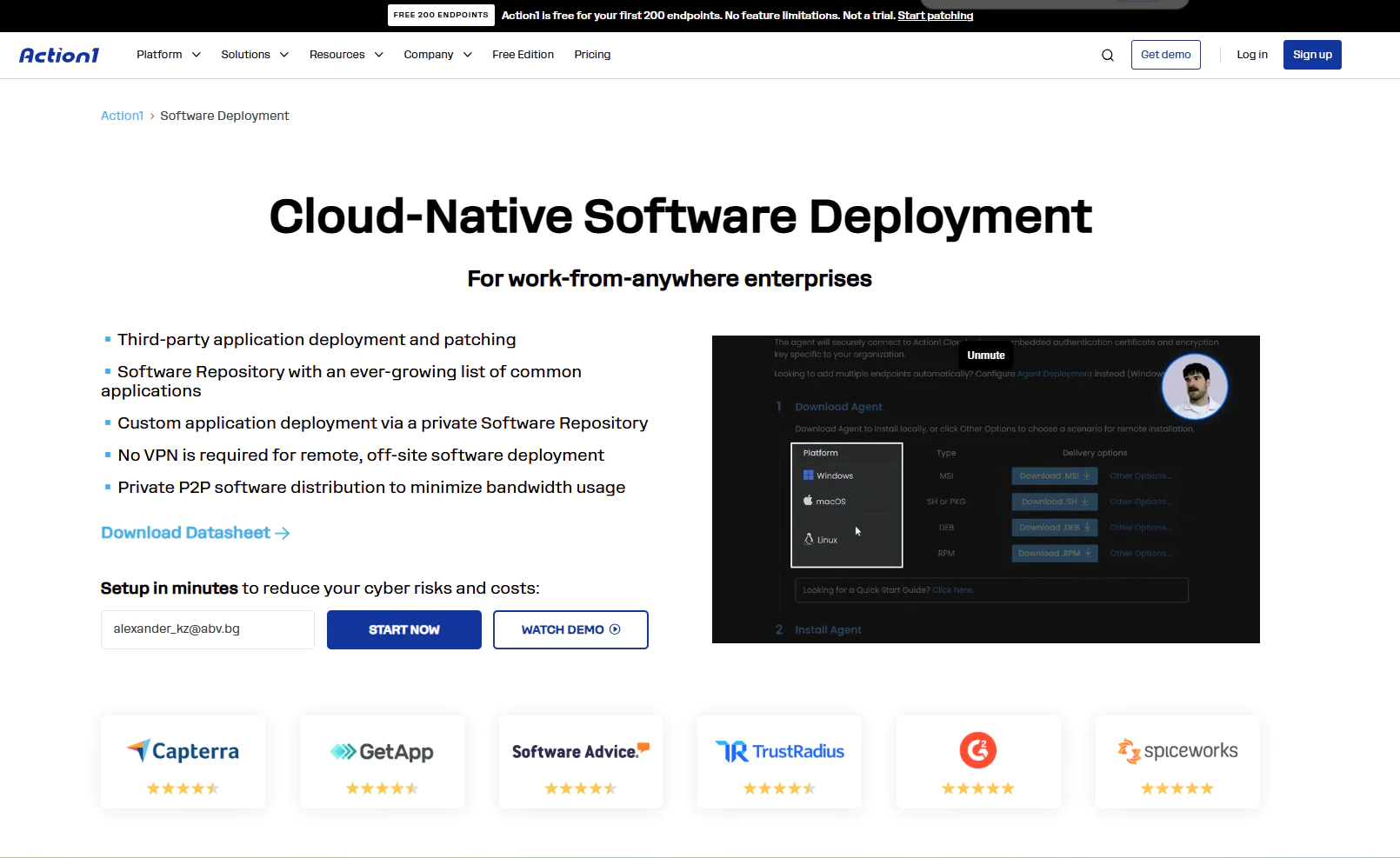
Action1 is a cloud-based autonomous endpoint management platform that automates OS and third-party patching, software deployment, removal, configuration, scripting, and reporting across both on-premises and remote endpoints. It supports Windows, macOS, and Linux, making it easier to manage mixed-OS environments from one centralized console.
Its agent-based architecture also lets you monitor, manage, and secure your systems directly through a browser, without requiring a VPN or on-premises appliances. From the same dashboard, you get real-time visibility into patch status, compliance, endpoint connectivity, software and hardware inventory, and other important device data. That visibility helps IT teams replace repetitive manual work with automation, spend less time on routine maintenance, and close security gaps faster instead of chasing them one endpoint at a time. And you get all of that free for your first 200 endpoints, fully featured, forever.
Best for
SMBs, large enterprises, MSPs, government agencies, nonprofits, plus healthcare, finance, education, manufacturing, and energy companies all use it. It’s less of a fit if built-in MDM is a hard requirement alongside patch and software deployment, since that’s not part of the platform, yet.
Key Features
- Cross-platform coverage: Deploys and manages software across Windows, macOS, and Linux endpoints.
- Software deployment: Push out prepackaged apps or your own custom packages in a few clicks, remotely, across your entire fleet.
- Third-party application support: Covers 310+ third-party titles alongside custom software, so you’re not stuck packaging everything yourself.
- Software uninstall: Strip out unauthorized or legacy software in bulk, remotely, without touching each machine by hand.
- Staged rollout through update rings: Patches/Updates move outward from a small test group to wider rings automatically, only advancing once your defined success criteria are met. Unstable rollouts get halted before they spread further.
- Automation flexibility: Decide when, how, and on which endpoints a deployment runs, plus whether affected machines restart immediately or on a delay you set.
- Offline endpoint catchup: Endpoints that miss a deployment while offline pick it up automatically the moment they reconnect, no manual follow-up needed.
- Scripting across your fleet: Run built-in or custom PowerShell and CMD scripts on Windows endpoints, or Bash scripts on macOS and Linux, to handle deployment-adjacent tasks at scale.
- Bandwidth-efficient distribution (P2P): Each package downloads once, then spreads peer-to-peer across your local network, no local cache servers or appliances required.
- Private and secure software repository: Prepackaged applications in Action1’s Software Repository are privately maintained, rather than pulled directly from a public or community-maintained repository.
- Real-time deployment visibility: Live status on every endpoint’s deployment, patch, and health state, plus hardware and software detail, all from one dashboard.
- Audit-ready reporting: 100+ built-in, customizable templates covering deployments, inventory, and compliance, ready to export in minutes.
- Remote access, browser-based: Reach any endpoint’s screen, mouse, and keyboard straight from your browser, no VPN, thanks to the platform’s agent-based setup.
- Dynamic endpoint targeting: Group endpoints automatically by attribute, whether that’s hardware, OS, installed software, or membership in an Active Directory OU, and target deployments to exactly the right group.
- Custom endpoint attributes: Define up to 30 custom fields per endpoint, manually or via script, then use them to build targeting groups or feed straight into reports.
- Multi-tenancy for MSPs: Run multiple organizations under one account, each with its own endpoints, deployment settings, and update approval workflow.
- Locked-down access controls: Role-based permissions, single sign-on through your existing identity provider, and multi-factor authentication protect every account.
- Open API access: A full REST API with OAuth 2.0, no extra cost, plugging into your existing PSA, ticketing, ITSM, or endpoint security stack.
- Free tier: Fully featured for your first 200 endpoints, forever, no functional limits.
Pros
- Five minutes. That’s roughly how long it takes to go from creating an account to actually managing your first endpoint.
- Windows, macOS, and Linux support.
- Rollouts happen in stages automatically, which means way less manual pushing software to devices one at a time.
- Remote access is baked right in. No separate tool to reach into an endpoint when something needs fixing.
- #1 easiest-to-use patch management solution as ranked by independently verified customers on G2.
- You can start small and grow into the hundreds of thousands of endpoints without bolting on extra infrastructure as you scale.
- Cloud-native. Remote and on-prem endpoints get treated the same, no VPN standing in the way.
- Reports that would normally take hours to put together come out audit-ready in minutes.
- The interface doesn’t require a training manual. Most people figure it out fast.
Cons as per G2 User Reviews
- No one-click rollback yet. If you need to undo a deployment, you’re leaning on script automation for now.
- No MDM.
Pricing
Action1 starts at $0.00 because it offers a free tier for up to 200 endpoints, fully loaded, forever. Scaling above that requires a custom quote, which you can request directly from the pricing page. The more endpoints you manage, the lower the per-endpoint price gets. When you’re ready to scale, expanding your coverage happens almost immediately.
Action1 Ratings
- G2 Rating: 4.9/5 stars, 1,170+ reviews (at the time of update)
- Capterra Rating: 4.9/5 stars, 235+ reviews (at the time of update)
Octopus Deploy
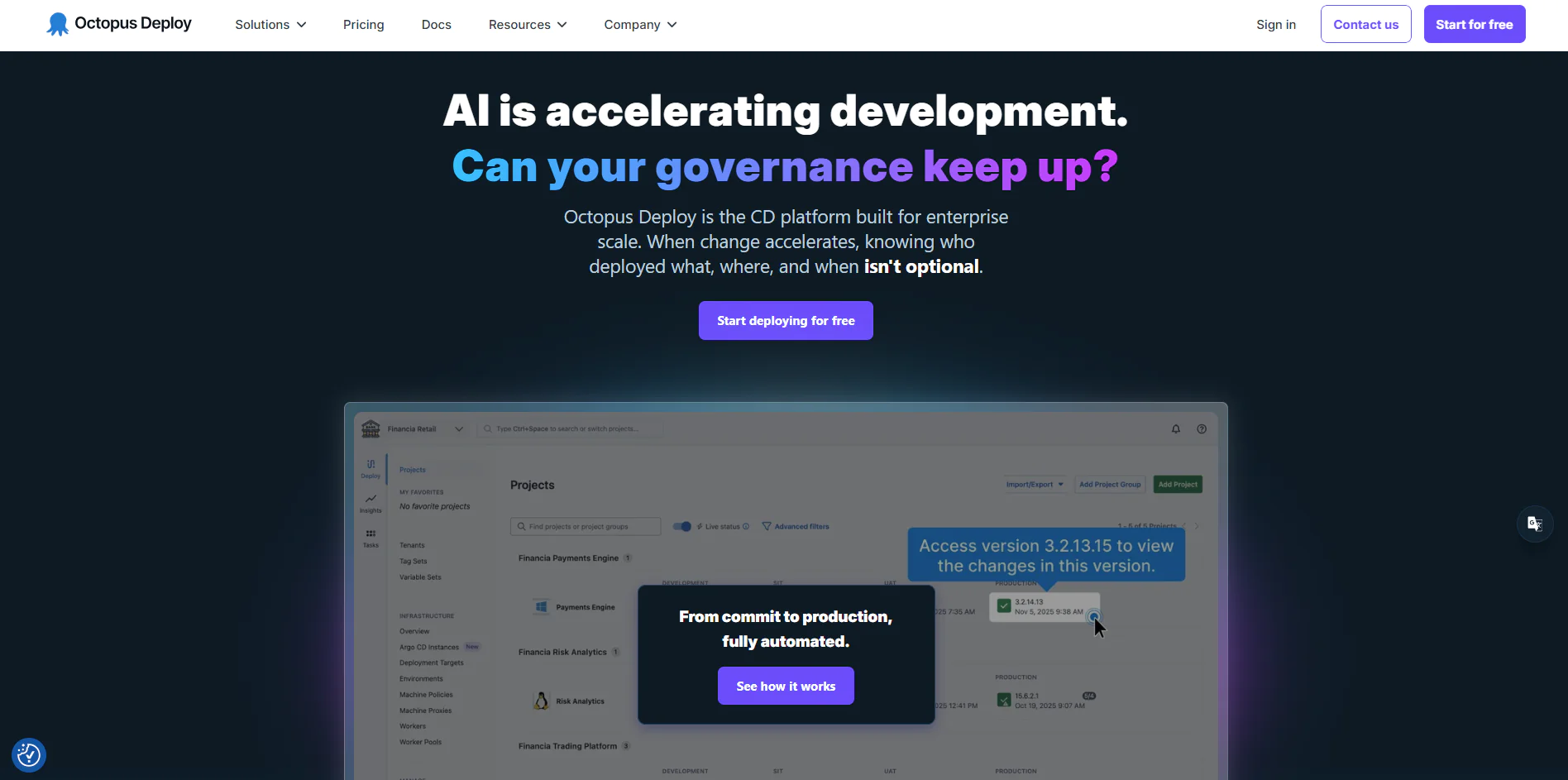
Octopus Deploy is a continuous delivery platform built for teams that have outgrown “just call a deployment script” as their release strategy. It picks up where your CI tool leaves off. Once GitHub Actions, Jenkins, or TeamCity finishes building and testing your code, Octopus takes that package and handles deployment automation across your dev, staging, and production environments, with approval gates, variable management, and rollback built into the process instead of duct-taped on. That split is exactly why development and operations teams end up relying on it alongside whatever CI tool they already use.
What actually sets it apart is scale. Octopus can model deployments across genuinely complicated setups, thousands of customer-specific instances, retail locations, hospitals, and edge servers, using something it calls tenanted deployments. That is not something most CI/CD tools even attempt, since they’re built for a single pipeline pushing to a handful of environments, not one release process fanning out across multiple Kubernetes clusters, servers, and cloud providers to reach thousands of your separately configured targets.
Best for
Octopus sits closer to the application deployment tools side of the table than the endpoint side, and honestly, it’s one of the tools that straddles categories rather than fitting cleanly into either. It’s built for teams releasing application code that touches real infrastructure management, not IT admins pushing software to laptops. Enterprise teams running complex, multi-environment release pipelines get the most out of it, and SaaS companies deploying the same application to dozens or hundreds of customer-specific environments are exactly the use case tenanted deployments were built for. Small teams shipping one app to one environment will likely find it more machinery than they need.
Key Features
- Release orchestration: Moves your build through dev, staging, and production in a defined, repeatable sequence, with approval gates at whichever stage needs a human sign-off.
- Deployment targets: Reaches Windows and Linux servers, Kubernetes clusters, and targets across multi-cloud environments, including AWS, Azure, and Google Cloud, through supported deployment methods such as Tentacle and SSH.
- Tenanted deployments: Runs the same deployment process across thousands of your separately configured customers or physical locations without duplicating the underlying pipeline for each one.
- Runbooks: Extends automation beyond application releases into repeatable operational work, including database maintenance and infrastructure automation, with the same controlled and auditable process your deployments get.
- Role-based access control: Locks down who can actually push to your production environment, with every change logged for audit purposes.
- Progressive delivery: Supports rolling, blue-green, and canary release strategies instead of forcing an all-at-once push.
- Full API coverage: Anything you can do through the UI, you can do through the API too, useful if you want deployment folded into your own tooling.
- Flexible hosting: Runs as a managed cloud instance or self-hosted on your own infrastructure, your call.
Pros
- Handles deployment complexity that would otherwise turn into hundreds of lines of custom scripts.
- Tenanted deployments are a genuinely rare capability. Most CD tools have no real answer for “deploy the same app to a thousand customers separately,” and reviewers running that scenario specifically credit Octopus for solving it.
- Proven at real enterprise scale.
- Deep audit logging and RBAC make it a real fit if you’re working in a regulated or compliance-heavy environment.
- Works with whatever CI tool you already use instead of forcing a switch.
Cons as per G2 and Capterra User Reviews
- Steep learning curve for complex, multi-project pipelines. This is the most consistently repeated complaint across reviews spanning several years.
- Multiple recent reviewers say costs can climb quickly as their deployments scale.
- The dashboard gets harder to navigate once your project count grows into the dozens or hundreds.
- Tracking down where a specific variable is used across deployment and runbook steps gets genuinely difficult at scale.
- Built-in reporting and analytics stay fairly basic for teams that want deeper deployment metrics.
Pricing
Octopus Deploy offers separate pricing for Octopus Cloud and Octopus Server.
Octopus Cloud:
- Free: $0/year for up to 10 projects.
- Professional: Starts at $4,330/year for 20 projects
- Enterprise: Starts at $24,600/year for 100 projects
Octopus Server:
- Free: $0/year for up to 10 projects.
- Professional: Starts at $2,080/year for 20 projects.
- Enterprise: Starts at $15,600/year for 100 projects.
Professional and Enterprise include all core features, unlimited users, and unlimited spaces. Tenants and machines are available as add-ons, so the final price depends on the number of projects and additional capacity your environment requires.
Octopus Deploy Ratings
- G2 Rating: 4.4/5 stars, 55+ reviews (at the time of update)
- Capterra Rating: 4.8/5 stars, 60+ reviews (at the time of update)
Total Software Deployment
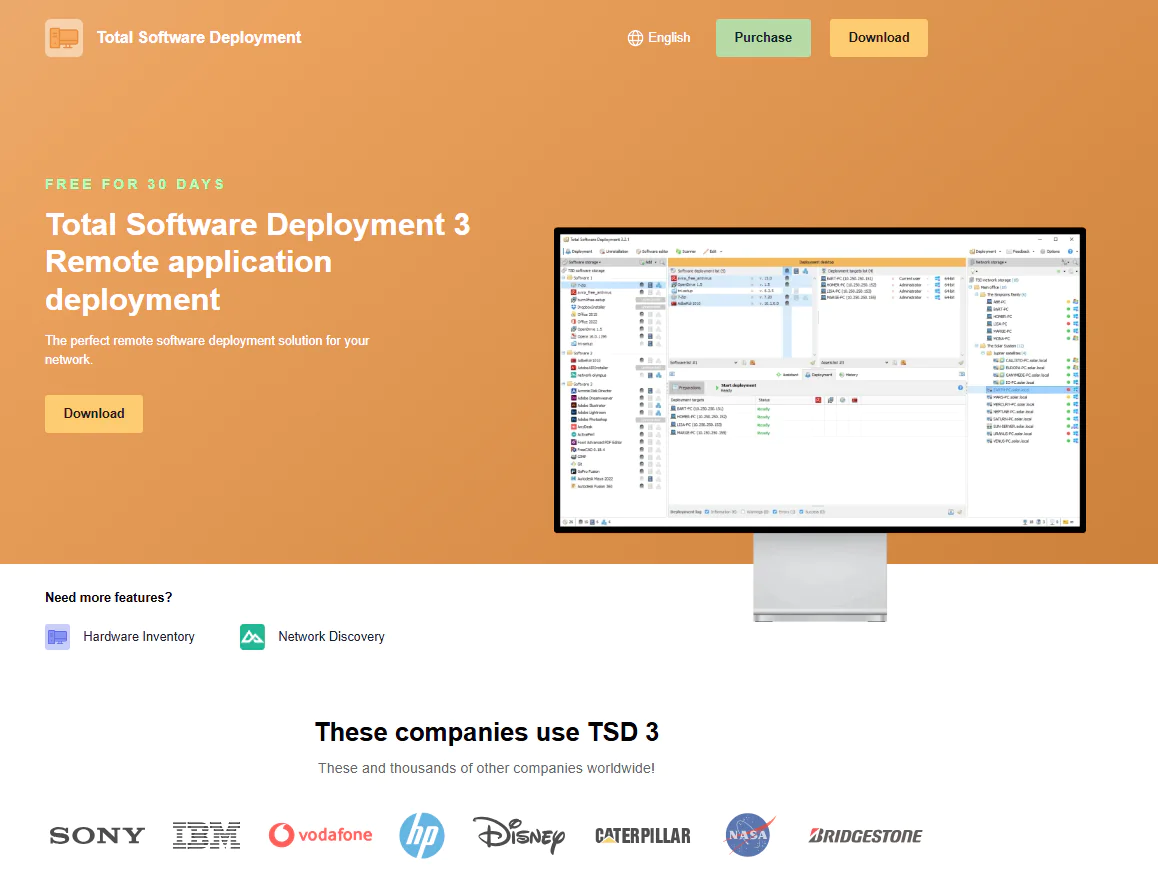
Total Software Deployment (TSD) is built for Windows environments. It doesn’t require a permanently installed agent on your endpoints to function. You install the admin console on just one machine, point it at your network, and the software uses administrator access to scan reachable Windows computers and deploy software to them. During deployment, TSD temporarily installs its deployment service on the target machine, then removes it along with the deployment files once the process is complete.
It works with MSI, EXE, and other supported installer types, so you can push a wide range of software with just a few clicks. What’s genuinely impressive is what happens when a package refuses to cooperate. Some installers need manual interaction no matter what you do. TSD gets around that in two ways. First, it can record your interactions with the installer once and replay them during deployment using its Macro method. Second, for particularly stubborn software, it can use its System Shot method to capture the file and Windows Registry changes made during installation and turn those changes into a deployment package.
Best for
Total Software Deployment is a strong fit for small businesses and Windows-centric IT teams running an internal network, especially if their environment is entirely on-premises and they prefer to avoid agent installation on every machine. On the other hand, that directly means the software is less suited to mixed-OS organizations, since it supports only Windows. It’s not an option either for teams managing devices scattered across multiple locations, because it operates by scanning reachable machines directly rather than reaching out to endpoints wherever they are.
Key Features
- No permanently installed agent: Runs from one admin console using administrator credentials, with no persistent client software installed on the endpoints you manage.
- Automatic network scanning: Multi-threaded scanning finds every Windows machine within an IP range, domain, or workgroup in minutes, even on large networks.
- Software inventory: Builds a full picture of what’s installed and which versions, so you know exactly where you stand before deploying software updates across your network.
- Concurrent deployment: Handles software distribution to multiple machines at the same time instead of working through your fleet one install at a time.
- Silent install beyond MSI: Detects the installer type automatically and applies the right command-line flags, so EXE and other non-MSI packages install unattended too.
- Recorded custom deployment: For installers with no native silent option, records your interactions once and replays that script across the rest of your network.
- Snapshot deployment: Captures every system change made during a genuinely stubborn install, then reproduces those same changes on other machines.
- Bulk uninstall: Removes software from one workstation or runs a batch uninstall across many at once.
Pros
- No permanently installed agent to maintain. The admin console handles deployment from a single point.
- Handles installer types beyond MSI, where some built-in Windows tools stop short.
- Snapshot and macro-recording features solve for the installers that flatly refuse silent mode.
- One-time licensing, no recurring subscription fee.
- 30-day free trial.
Cons
- Windows-only, no macOS or Linux support, so mixed-OS environments need a separate tool for the rest of their fleet.
- Built around scanning reachable network machines, it’s not designed for managing devices that roam outside your network the way cloud-native endpoint tools are.
Pricing
TSD is licensed per node, one-time payment, no recurring subscription. Pricing starts at $100 for 25 nodes and scales up through tiers (50, 100, 250, up to 2,000+ or unlimited), with the per-node cost dropping as you license more. Educational, government, and nonprofit organizations get 30% off, and there’s a 50% discount for switching from a competing product. MSP and IT consultant licensing is available separately for managing client environments. A 30-day free trial is offered before purchase.
Total Software Deployment Ratings
- G2 Rating: –/– 0 reviews (at the time of update)
- Capterra Rating: –/– 0 reviews(at the time of update)
DeployHQ
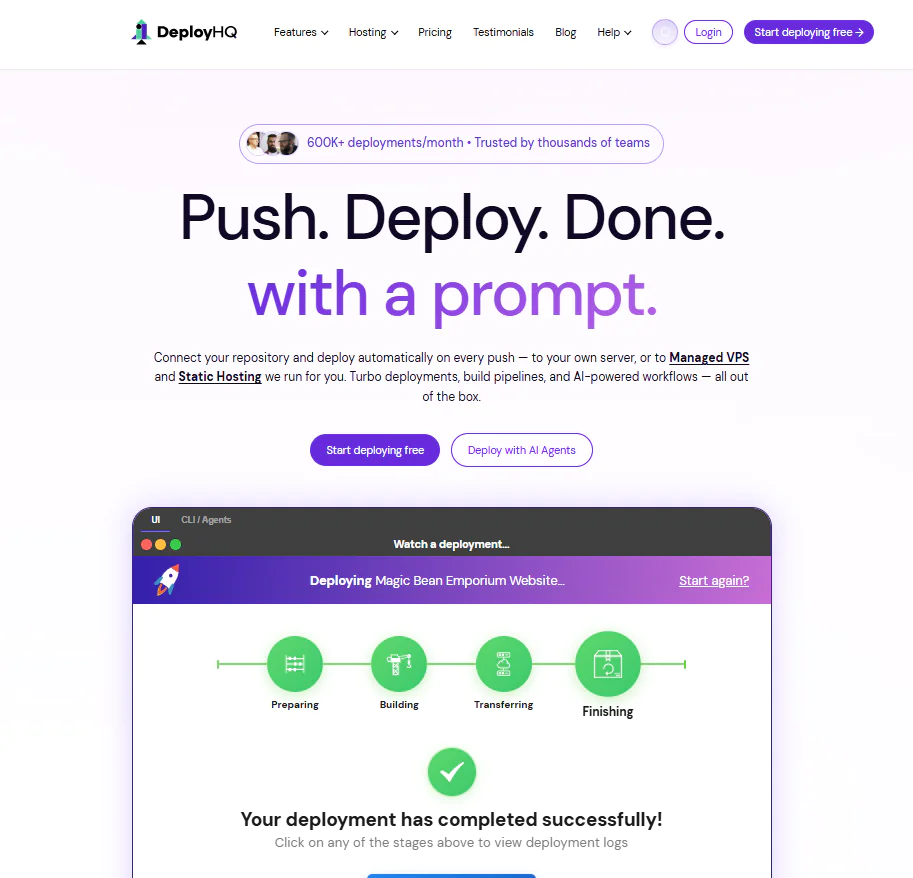
DeployHQ is a cloud-based deployment automation platform built around a pretty simple idea: get the code out of your repository and onto the servers where it needs to run without turning every release into a manual SSH session. Connect GitHub, GitLab, Bitbucket, or a self-hosted repository, configure your deployment targets, and you can release manually, on a schedule, or use automated software deployment whenever new code hits a configured branch.
A great thing about DeployHQ is that it can build your project, install dependencies, run tests, and prepare the files for deployment before anything goes live. Once that’s ready, the platform takes care of the actual release, with zero-downtime deployments, rollback, deployment checks, build caching, and deployment availability rules handling the process. That, of course, means reliable deployment with minimal manual work. One thing you must know about DeployHQ is that it’s more focused on application deployment than endpoint management, meaning it’s not built to help you push an MSI across 5,000 employee laptops, but to take code from your repository and move it through multiple environments until it reaches the servers or cloud platforms where the application really runs.
Best for
DeployHQ is best for freelancers, web developers, agencies, small development teams, growing software companies, and enterprise development teams that need deployment automation with less manual work instead of building an overly complicated DevOps stack. It’s not the right fit if you need to push software directly to employee endpoints instead of code to servers. That’s endpoint deployment territory, not DeployHQ’s.
Key Features
- Automatic deployments: Connect GitHub, GitLab, Bitbucket, or another supported repository and have your application deployed automatically whenever code is pushed to a configured branch.
- Multiple deployment environments: Route different branches to development, staging, and production, so you can manage multiple environments from the same workflow.
- Build pipelines: Run dependency installs, tests, asset compilation, and custom build commands before your code reaches production.
- Zero-downtime deployment and rollback: Use deployment strategies that let you release without interrupting your application and quickly roll back if something goes wrong.
- Flexible deployment targets: Deploy through SSH, SFTP, FTP, or FTPS to your servers, as well as supported cloud platforms and services.
- Deploy behind firewalls: Reach your private servers through the DeployHQ Agent without opening inbound firewall ports specifically for DeployHQ.
- Scheduled deployments and deployment availability: Schedule releases when it suits your team and block deployments during maintenance windows or other sensitive periods.
- Deployment Checks: Run SSH and HTTP checks before or after deployment, plus pre-build vulnerability scans, to verify your release is ready and working properly.
- Build Cache and Turbo Deployments: Reuse cached dependencies and speed up transfers when your project contains large numbers of files.
- Team permissions and SSO: Control who on your team can access projects and deployment targets, including production environments.
- API, CLI, and agents: Automate deployment tasks, trigger releases, manage schedules, and connect DeployHQ with the rest of your stack.
Pros
- Easy to set up and start working with, with no complex configuration process.
- Automatic deployments can be triggered as soon as you push code to a configured branch.
- Zero-downtime releases, rollback, deployment checks, schedules, and freezes help you reduce deployment risk and minimize manual effort.
- With it, you can deploy across servers, private infrastructure, hosting platforms, and supported cloud services.
- Branch-based workflows make it easy to separate development, staging, and production environments.
- Works with GitHub, GitLab, Bitbucket, and your existing development workflow.
Cons as per G2 and Capterra User Reviews
- Initial SSH key and server setup can take some manual work and may not feel obvious the first time.
- Build environment configuration can feel quite limited, especially if your deployment process needs more granular control.
- You can’t deploy to an individual server from the UI once it is part of a server group, although the API provides a workaround.
- Some third-party integration workflows can feel very limited, including sending webhooks directly through commands in DeployHQ.
- A few users report occasional minor bugs with the platform itself, although they also say these are usually resolved quickly.
- Some users mention higher costs when older plans are discontinued or certain features move to higher-priced tiers.
- The interface feels a bit outdated, reminding some of software from the early 2000s.
Pricing
DeployHQ has a permanent free plan if you’re managing personal projects. It includes 1 project, 5 servers, 1 concurrent deployment, 30 build minutes, 1 user, and up to 3 deployments per day.
All paid plans include unlimited deployments and come with a 10-day free trial with no credit card required. Annual billing saves 10%.
- Solo: $9/month when billed annually. Built for freelancers, with 3 projects, 15 servers, 3 concurrent deployments, and 200 build minutes.
- Pro: $19/month when billed annually. Built for small teams, with 10 projects, 50 servers, 3 concurrent deployments, unlimited build minutes, and unlimited users.
- Business: $39/month when billed annually. Designed for growing infrastructure, with 20 projects, 100 servers, 5 concurrent deployments, unlimited build minutes, and unlimited users.
- Enterprise: $99/month when billed annually. Built for more complex deployments, with 50 projects or more, 250 servers, 8 concurrent deployments, premium support and calls, team management, SSO, and priority deployments.
DeployHQ also offers Managed VPS Hosting and Static Hosting as add-ons. Both are currently in beta and free during early access, with final paid pricing still to be announced.
DeployHQ Ratings
- G2 Rating: 4.5/5 stars, 64 reviews (at the time of update)
- Capterra Rating: 5.0/5 stars, 12 reviews (at the time of update)
PDQ Deploy & Inventory
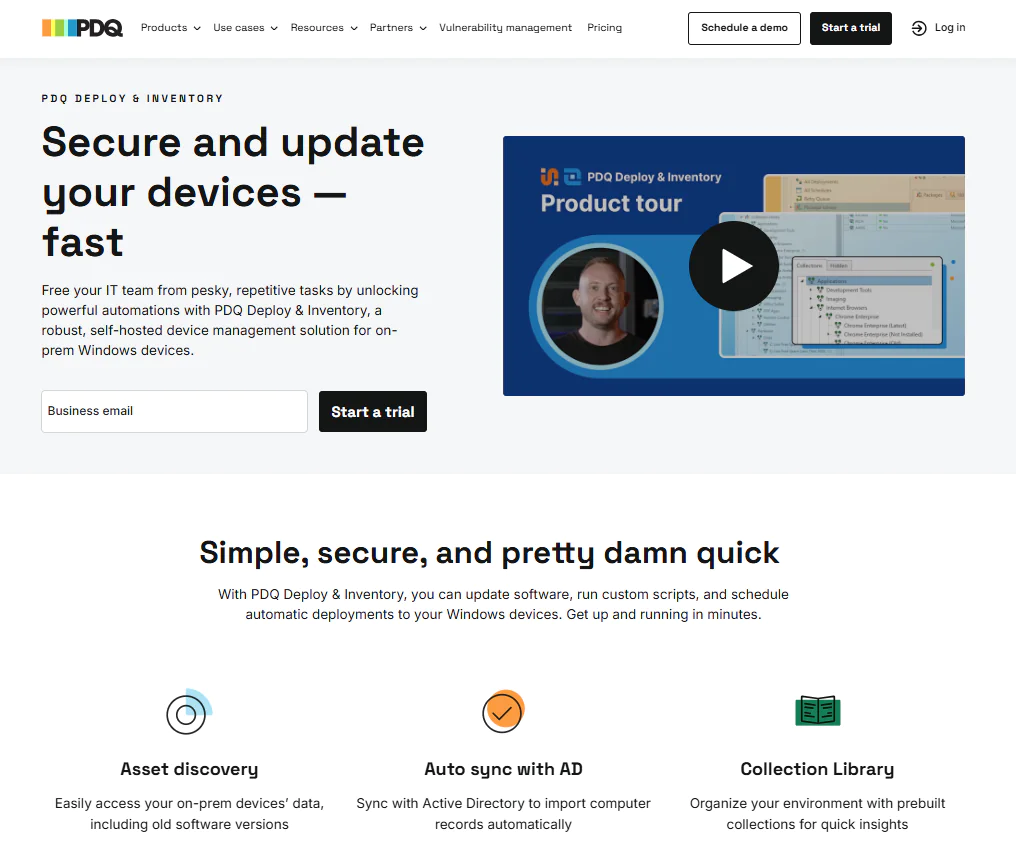
PDQ Deploy & Inventory is a self-hosted endpoint management platform that automates software deployment, patching, scripting, and inventory management across Windows endpoints. It’s an on-premises platform that you run within your own environment rather than a cloud-native service. It’s specifically built for organizations that want to keep their endpoint management infrastructure in-house for one reason or another.
When it comes to the software deployment process, the platform lets you remotely install, update, uninstall, and manage applications across multiple Windows machines without having to work on each endpoint individually. You can use ready-to-deploy applications from its Package Library or create your own custom software packages when the software you need isn’t already there.
Despite being designed mainly to manage on-premises endpoints, it also supports remote ones, but they generally need to connect to your corporate network through a VPN. At its core, the platform is built on two components, as its name suggests:
- PDQ Deploy helps you deploy and update third-party software, create custom packages, run scripts, automate deployments, and handle configuration changes across your Windows endpoints.
- PDQ Inventory scans your network, collects detailed hardware and software information on your Windows machines, and organizes them so your deployments reach exactly the right endpoints.

Best for
PDQ Deploy & Inventory is best for SMBs, mid-market organizations, government agencies, and Windows sysadmin teams that need an easy way to manage software deployment, automate recurring maintenance, and track inventory across on-premises or VPN-connected Windows endpoints. It’s not built for mixed-OS environments since coverage stops at Windows and devices reachable through the local network or VPN.
Key Features
- Windows endpoint support: Manage Windows workstations and Windows Server systems across your environment.
- Package Library: Get ready-to-deploy applications that you can push across multiple Windows devices without building every package yourself.
- Custom packages: Create your own custom software packages when the application you need isn’t available in the Package Library.
- Software installation and removal: Install, update, uninstall, repair, and make other software changes across multiple Windows endpoints.
- Custom device groupings: Organize your endpoints for testing, security purposes, and more targeted deployment strategies.
- Scheduled and recurring deployments: Automate software deployments based on your preferred schedule instead of triggering each one manually.
- Offline deployment retries: Automatically retry deployments when your targeted endpoints were offline during the original deployment.
- Custom scripting: Run PowerShell and other supported scripts across your Windows devices for deployment and maintenance tasks.
- Automatic asset discovery: Use PDQ Inventory to discover and catalog Windows devices across your network automatically.
- Active Directory integration: Get tight integration with Active Directory for automatic synchronization and easier targeting of computers across your environment.
- Inventory-based targeting: Use installed applications, software versions, device characteristics, and other PDQ Inventory data to decide exactly which endpoints receive a deployment.
- Deployment status and reporting: See which installations succeeded or failed so you can quickly identify endpoints that still need attention.
Pros
- Automates Windows and third-party application patch management across your environment.
- Gives you plenty of flexibility to schedule, test, and deploy software or patches based on your preferences while minimizing disruption during planned maintenance windows.
- Gives you ready-to-deploy applications while still letting you create your own custom deployment packages.
- PDQ Inventory gives you better visibility across your endpoints and helps you target deployments more precisely.
- Supports recurring deployments and automatic retries when your targeted endpoints are temporarily offline.
Cons as per G2 and Capterra User Reviews
- No cross-OS platform support, since it works only across Windows-based endpoints.
- Basic reporting capabilities, according to some users.
- Managing remote endpoints is more limited compared with cloud-native tools because your devices generally need to be on the local network or connected through a VPN.
- Since it’s self-hosted, your team is responsible for running and maintaining the infrastructure.
Pricing
PDQ Deploy & Inventory costs $1,950 per admin per year, with both PDQ Deploy and PDQ Inventory included in the license. Each licensed administrator can manage an unlimited number of endpoints.
A 14-day free trial is also available.
PDQ Deploy & Inventory Ratings
- G2 Rating: 4.8/5 stars, 270+ reviews (at the time of update)
- Capterra Rating: 4.8/5 stars, 340+ reviews (at the time of update)
GitHub Actions
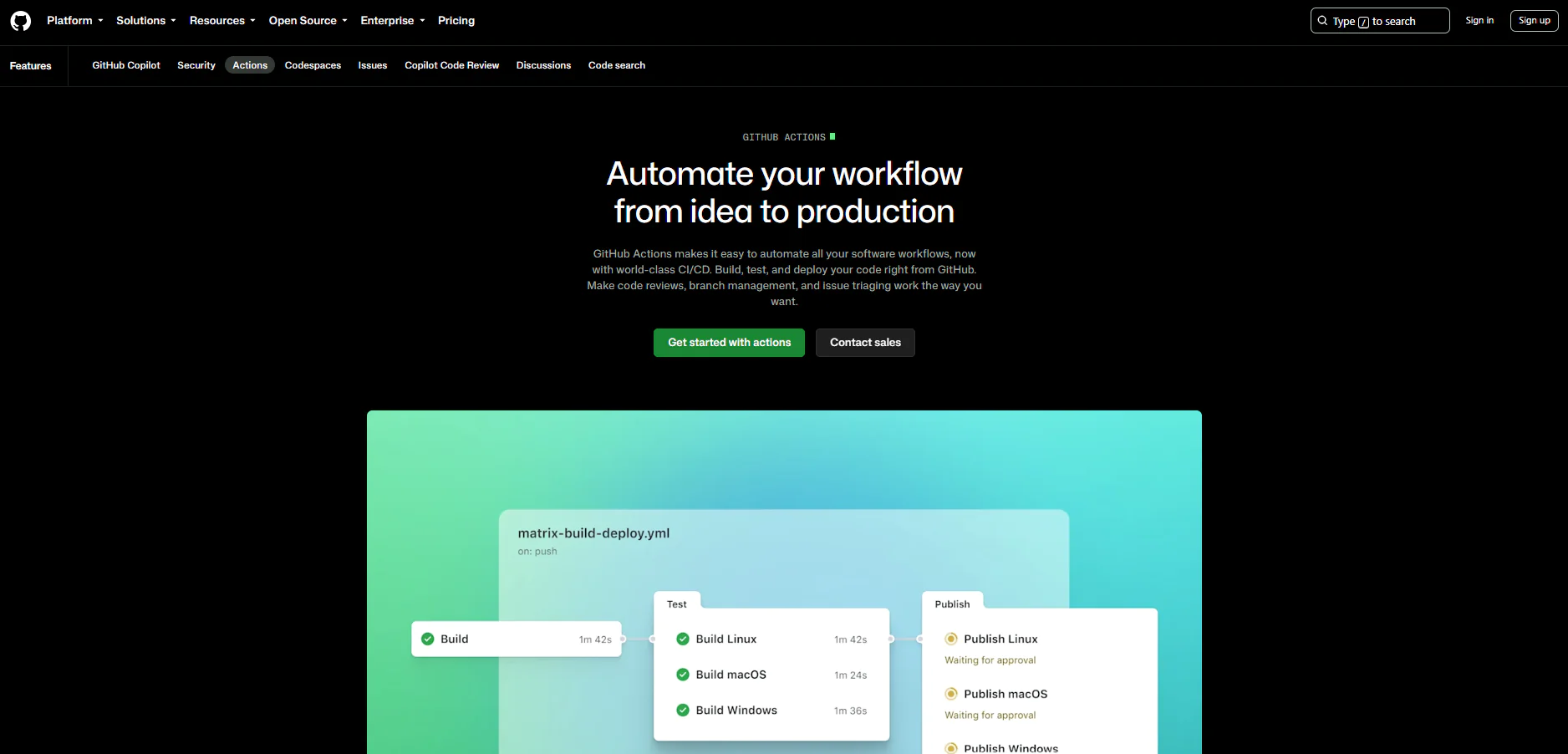
GitHub Actions is a CI/CD and workflow automation tool built directly into GitHub. You can define deployment workflows in YAML alongside your code, specify exactly what triggers them, and include build, test, approval, and deployment jobs in the same process. A workflow can start after a push or pull request, run on a schedule, or be triggered manually.
The software is extremely helpful for teams whose code is stored on GitHub and who use it for version control. You don’t have to use a separate CI/CD platform just to get your build and deployment workflows running in the right way. Instead, you can use GitHub-hosted runners or your own self-hosted machines, then test across Windows, Linux, and macOS, and move your application through development, staging, and production from the same platform. You have everything you need in front of you from start to finish.
However, there’s one thing you need to know about GitHub Actions. It’s not built for endpoint software deployment. It’s designed for CI/CD and workflow automation around your code, not for distributing ready-to-use software across employee endpoints.
Best for
GitHub Actions is best for developers, DevOps teams, platform engineers, startups, and enterprises that already use GitHub and want to automate further CI/CD without making any significant changes in their established workflow.
Key Features
- Event-driven workflows: Automatically start your build, test, deployment, or other automation when events such as pushes and pull requests happen, or run workflows manually or on a schedule.
- GitHub-hosted and self-hosted runners: Run your workflows on GitHub-hosted Linux, Windows, and macOS machines or use your own infrastructure when you need more control over the environment.
- Matrix builds: Test your application across multiple operating systems, runtime versions, or other configurations without writing a separate job for every combination.
- Deployment environments: Create development, staging, and production environments and protect deployments with approvals, branch restrictions, environment secrets, and other deployment protection rules where your plan supports them.
- Deployment concurrency: Control overlapping workflow runs so you don’t accidentally have multiple deployments targeting the same environment at the same time.
- Reusable workflows: Build reusable workflows that your repositories can call instead of copying the same YAML configuration every time.
- Actions Marketplace: Add reusable actions for deployment, cloud services, testing, packages, and other development tasks instead of building every integration yourself.
- Secrets and OIDC: Store sensitive values as GitHub secrets or use OIDC to request short-lived credentials from supported cloud providers instead of keeping long-lived cloud credentials in your workflows.
- Live workflow logs: Follow workflow runs in real time and use job logs and workflow history to find out where a failed build or deployment went wrong.
- Multi-container testing: On Linux runners, test applications together with databases or other services inside your workflow before you move the release any further.
- GitHub Packages integration: Build, publish, and use software packages alongside your repositories and GitHub Actions workflows.
Pros
- Keeps your CI/CD workflows right next to the code your team already manages in GitHub.
- Automates builds, tests, and deployments as soon as the GitHub events you define actually happen.
- Gives you both GitHub-hosted and self-hosted runners, so you’re not locked into one execution environment.
- Lets you test across Windows, Linux, macOS, different runtime versions, and multiple configurations with matrix workflows.
- Gives you a huge ecosystem of reusable actions, so you don’t have to build every piece of your workflow from scratch.
- Standard GitHub-hosted runners are free for public repositories, which makes Actions especially attractive for open-source projects.
- Deployment environments, approvals, protection rules, secrets, and OIDC give you plenty of control over how code reaches sensitive environments.
Cons as per G2 and Capterra User Reviews
- If you’re new to GitHub Actions, expect a learning curve, especially once YAML, CI/CD logic, and more advanced workflows enter the picture.
- Once your workflows become more complex, building and maintaining them can take more time than you might expect, especially if your team doesn’t have much experience with GitHub Actions.
- Permissions can also become a headache as your company grows, since managing repository access, roles, tokens, and security settings across multiple teams isn’t always simple.
- The price can start climbing once you need more CI/CD minutes, higher-tier plans, or advanced security features, so the free or cheaper plans may not stay enough as your usage grows.
- If you’re working with large repositories or heavier Actions pipelines, you may notice slower performance, and some users also report that deployments can take longer than they’d like.
- The interface can start feeling crowded when you’re dealing with lots of repositories, workflows, pull requests, and settings, which can make finding what you need take longer than it should.
Pricing
GitHub Actions doesn’t require a separate subscription. Its included usage depends on your GitHub plan, with a monthly allowance of GitHub-hosted runner minutes for private repositories. Standard GitHub-hosted runners are free for public repositories, while self-hosted runners don’t consume GitHub Actions minutes, although you’re responsible for the infrastructure they run on.
- GitHub Free: $0/month, with 2,000 GitHub Actions minutes per month for private repositories.
- GitHub Pro: $4/month for an individual account, with 3,000 GitHub Actions minutes per month.
- GitHub Team: $4/user/month, with 3,000 GitHub Actions minutes per month.
- GitHub Enterprise Cloud: Starts at $21/user/month and includes 50,000 GitHub Actions minutes per month.
GitHub Ratings
- G2 Rating: 4.7/5 stars, 2,395+ reviews (at the time of update)
- Capterra Rating: 4.8/5 stars, 6,190+ reviews (at the time of update)
GitLab CI/CD
GitLab is a DevSecOps platform where you can manage source code, CI/CD, application deployments, security testing, and project planning from the same place. With it, you can define your CI/CD pipeline in a .gitlab-ci.yml file, and GitLab Runner does the work you configure for building, testing, packaging, and deploying your application. On GitLab.com, you can use GitLab-hosted runners, or you can register self-managed runners when you want to run processes on your own infrastructure.
The bigger your delivery setup gets, the more GitLab starts to show its potential and capabilities. A small pipeline is easy enough almost anywhere, but things get harder and messier when you have several services, different repositories, jobs that depend on one another, and multiple teams pushing changes at the same time. For such complicated situations, features like parent-child or multi-project pipelines come in handy.
GitLab also gives you quite a bit of control over release management before code reaches production. You can track environments and previous deployments, decide who is allowed to deploy where, add approvals for sensitive environments, run security checks in the pipeline, and roll changes out gradually with canary deployments. That not only automates your work but also lets you put rules around how that deployment happens and who gets to push it through.
And yes, that means GitLab is made for software delivery, not for installing apps like Teams on your employee laptops. In plain English, GitLab is the right call when your developers are shipping an application and want the code, pipeline, security checks, approvals, and release process tied together in one place.

Best for
GitLab is built for developers, DevOps teams, and platform engineers who want to manage source control, CI/CD, application deployment, and security with just one tool instead of five. GitLab is also best for teams with larger or more complex pipelines, or those that want a choice between GitLab.com, GitLab Self-Managed, and GitLab Dedicated.
Key Features
- Built-in CI/CD pipelines: Define your build, test, package, and deployment jobs in .gitlab-ci.yml and run pipelines based on pushes, merge requests, schedules, manual actions, and other supported pipeline sources.
- GitLab-hosted and self-managed runners: Use GitLab-managed infrastructure for supported hosted offerings, or register runners on your own infrastructure when you need more control over where and how your jobs run.
- CI/CD Catalog: Find and reuse versioned CI/CD components instead of copying the same pipeline configuration from one project to another.
- Parent-child and multi-project pipelines: Split a large pipeline into smaller pipelines inside the same project, or connect pipelines across different projects when your application spans multiple repositories or services.
- Deployment environments: Create development, testing, staging, production, and custom environments while keeping track of what code is deployed to each one.
- Deployment history and rollback: See previous deployments for each environment and roll back to an earlier deployment when something goes wrong.
- Protected environments: On Premium and Ultimate, restrict who can deploy to sensitive environments and use deployment approvals to add another checkpoint before production releases.
- Canary deployments: Release a new version to only part of your application fleet first, so you can catch problems before exposing every user to the change.
- Built-in security scanning: Run basic SAST and secret detection scans on all tiers, while Ultimate adds deeper vulnerability management, security workflows, reporting, policies, and other enterprise security capabilities.
- Deployment safety controls: Use features such as deployment freeze windows, protected secrets, environment access controls, and concurrency controls to reduce the chances of an unwanted deployment reaching production.
Pros
- Keeps your source code, CI/CD pipelines, deployment information, security scanning, and project work connected inside the same platform.
- Gives you plenty of flexibility for larger pipelines through reusable CI/CD components, parent-child pipelines, multi-project pipelines, and dependency-based execution.
- Lets you use GitLab-hosted runners or your own self-managed runners, depending on how much control you need over the infrastructure running your jobs.
- Keeps a deployment history for your environments, so you can see what is currently deployed and go back to an earlier version if you need to.
- Lets you run basic SAST and secret detection without paying for Ultimate, while the higher tier adds the more advanced security and vulnerability management features.
- Supports canary deployments when you don’t want to send a new version to your entire user base at once.
Cons as per G2 and Capterra User Reviews
- Expect a learning curve. GitLab crams so many features into one platform that you can genuinely feel lost for a while before you figure out how to use every function of the software.
- The interface is not that intuitive. Some settings hide deeper in the menus than they should, and finding a specific option or function sometimes takes more time than it should.
- Once your repositories grow, once merge requests pile up, or pipelines get more complex, GitLab starts to slow down. Some users have shared their concerns with slower page loads, slower pipeline runs, and a platform that just feels heavier at scale.
- If you run GitLab on your own infrastructure, be prepared to give it some attention. Self-managed instances can use a fair amount of CPU and RAM, and you’re the one responsible for keeping the environment healthy and maintained.
- Runner management can also become its own job once you scale up. Autoscaling runners, hybrid environments, capacity, and resource usage need more monitoring and configuration than simply turning CI/CD on and forgetting about it.
Pricing
Pricing is split across Free, Premium, and Ultimate, with the same tiers available for both GitLab.com and Self-Managed deployments. There’s also GitLab Dedicated if your enterprise wants a fully managed, single-tenant environment with more isolation and control.
- Free: $0/user/month. On GitLab.com, you get 400 compute minutes per month and 10 GiB of Git repository and LFS storage per project. Private top-level groups are limited to 5 users, although that cap doesn’t apply to public groups, Self-Managed Free, paid plans, or qualifying community programs.
- Premium: $29/user/month, billed annually. This raises the allowance to 10,000 compute minutes per month and 500 GiB of repository and LFS storage per project, while adding advanced CI/CD, team project management, SLA management, and priority support.
- Ultimate: Custom pricing. You get 50,000 compute minutes per month and 500 GiB of repository and LFS storage per project, plus application security testing, software supply chain security, vulnerability management, compliance and governance, strategic portfolio management, and other enterprise features.
- Additional compute minutes: If you need more than your plan includes, hosted runner usage costs $10 per 1,000 additional minutes. Jobs running on your own self-managed runners don’t use that monthly compute-minute allowance.
GitLab CI/CD Ratings
- G2 Rating: 4.5/5 stars, 900+ reviews (at the time of update)
- Capterra Rating: 4.6/5 stars, 1,220+ reviews (at the time of update)
Argo CD
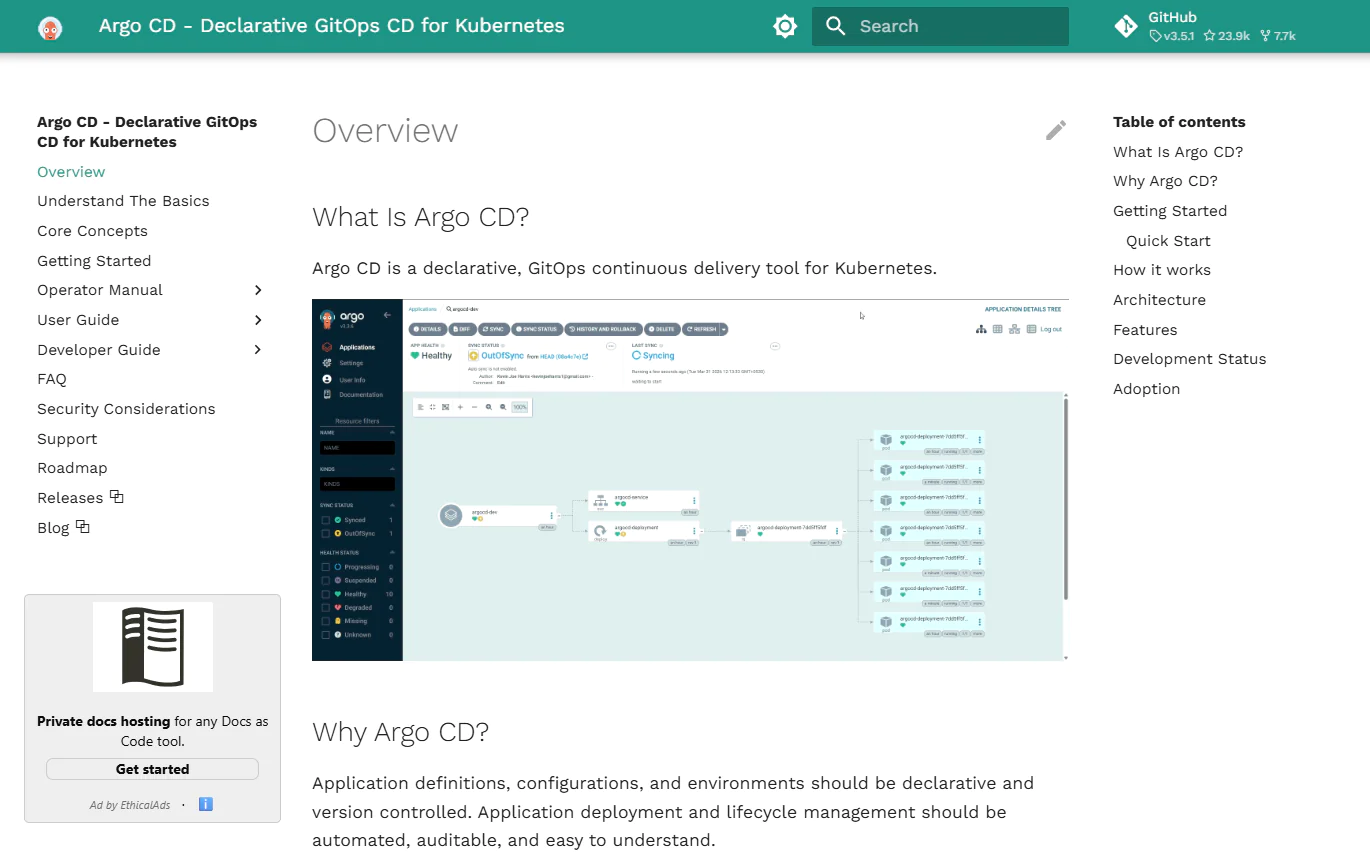
Argo CD is a GitOps continuous delivery tool built specifically for Kubernetes, and the whole idea behind it comes down to one principle: Git is the source of truth. It gives you the ability to define what your apps should look like in Git, whether that’s with Helm charts, Kustomize configurations, Jsonnet, or plain YAML. Argo CD continuously watches your live cluster to make sure what’s actually running matches what Git says it should be. The moment those two states no longer match, Argo CD flags the application as OutOfSync. From there, you can sync it manually or configure automated sync, including self-healing if you want it to correct changes made directly to the live cluster. Your call.
It’s open source under the Apache 2.0 license, and it’s part of the Argo project, which holds Graduated status within the Cloud Native Computing Foundation, CNCF’s highest project maturity level. In other words, we’re talking about a mature project with proven production adoption, not an early-stage experiment. Argo CD itself runs inside Kubernetes as a set of components that includes its application controller, so you don’t need to stand up a separate deployment server outside your Kubernetes environment just to make it work.
Best for
Argo CD is built for developers, DevOps teams, and platform teams managing Kubernetes. It handles continuous delivery, drift detection, and automated reconciliation, but it isn’t a general infrastructure provisioning tool. In other words, use it to keep the desired Kubernetes application state in sync, not as a replacement for every tool that creates the infrastructure underneath it.
Key Features
- GitOps-based deployment management: Keep your desired application state in Git while Argo CD continuously compares it with what’s actually running in your Kubernetes environments.
- Automated and manual synchronization: Decide whether you want to review and trigger deployments yourself or have changes in Git synchronized automatically when Argo CD detects that an application is OutOfSync.
- Automatic self-healing: If somebody changes resources directly inside your cluster, you can enable self-healing so Argo CD brings the live state back in line with what you defined in Git.
- Multi-cluster deployment: Manage applications across multiple Kubernetes clusters instead of running a separate deployment process for every environment.
- Multiple configuration formats: Work with Helm, Kustomize, Jsonnet, plain YAML or JSON manifests, and custom configuration management plugins rather than being tied to one way of defining Kubernetes applications.
- ApplicationSets: Generate and manage multiple Argo CD Applications from templates, which becomes particularly useful when you’re dealing with lots of clusters, applications, or monorepos.
- Deployment history and rollback: Track previous application deployments and roll back to an application configuration committed in Git when you need to return to an earlier state.
- Drift detection and visualization: See when the live state of an application no longer matches Git and inspect the differences instead of trying to figure out what changed manually.
- Application health monitoring: Check the health and sync status of your Kubernetes resources directly from the web interface instead of relying only on command-line checks.
- SSO, RBAC, and multi-tenancy: Control who can access and manage applications through RBAC while integrating authentication with supported identity providers and SSO methods.
- Deployment hooks: Use PreSync, Sync, and PostSync hooks when your rollout needs extra steps before, during, or after synchronization.
- CLI, webhooks, audit trails, and metrics: Automate through the CLI and access tokens, react faster to repository changes through webhooks, keep audit records of application events and API calls, and expose metrics to Prometheus.
Pros
- Once Git becomes your source of truth, you get a much clearer picture of what should be running and whether your Kubernetes clusters actually match it.
- Drift detection saves you from having to manually hunt down changes made directly in a cluster, since Argo CD shows you when the live and desired states no longer agree.
- You decide how hands-on you want to be, with manual sync for tighter control or automated synchronization and self-healing when you’re comfortable letting the platform handle more of the work.
- Multi-cluster support and ApplicationSets give you a much cleaner way to manage larger Kubernetes environments than repeating the same deployment setup cluster after cluster.
- You’re not forced into one templating system, since Helm, Kustomize, Jsonnet, plain manifests, and custom plugins can all fit into the workflow.
- With automated sync, your CI pipeline can make the change in Git without needing direct access to the Argo CD API server just to trigger the deployment.
- There’s no commercial license to buy, and the project has a large open-source community behind it.
Cons as per G2 User Reviews
- If you’re new to Kubernetes or GitOps, expect a learning curve. Argo CD itself isn’t impossible to understand, but the initial setup, sync policies, projects, and more advanced deployment options can take some time to really get comfortable with.
- Troubleshooting can be frustrating when something goes wrong. Several users mention unclear error messages and confusing OutOfSync states, which can leave you digging through manifests and logs just to figure out what Argo CD is unhappy about.
- Permissions become trickier as your setup grows. RBAC, project configuration, SSO groups, and application-level access can take quite a bit of work when different people and teams need different levels of control.
- Large environments can start feeling heavy. Users report UI lag, slower synchronization, higher resource consumption, and more difficulty viewing applications with lots of services, components, or clusters.
- Argo CD handles the CD part very well, but that’s also where its job stops. It doesn’t provide continuous integration, and it’s built specifically around Kubernetes, so you’ll still need other tools if you want to build and test your code or deploy outside Kubernetes.
Pricing
The project is open source under the Apache 2.0 license, so there’s no per-user, per-cluster, or per-application software license you need to buy from the Argo project.
What you do pay for is everything around it. You still need Kubernetes infrastructure to run Argo CD, and your team is responsible for installing, configuring, upgrading, monitoring, and maintaining it. There are commercial vendors that sell managed platforms and enterprise products built around Argo CD, but those are separate products with their own pricing, not paid editions of open-source Argo CD itself.
Argo CD Ratings
- G2 Rating: 4.6/5 stars, 39 reviews (at the time of update)
Which Software Deployment Tool Fits Your Use Case?
Below, you’ll see how these software deployment solutions fit different use cases, so you can narrow down which one makes the most sense for your environment.
Action1 is free for up to 200 endpoints, fully featured, forever! Watch the demo to see it in action. Or sign up in five minutes and start managing, securing, and updating your endpoints.
| Use Case | Winner | Why it Wins | Strong Alternatives |
|---|---|---|---|
| Best Overall Software Deployment Tool | Action1 | One console, three operating systems supported. Automates patching, software deployment, uninstalls, scripting, and reporting. It’s free forever for up to 200 endpoints, fully featured. Cloud-native, agent-based, reliable, and cost-effective. | PDQ Deploy & Inventory if your endpoints are Windows-based. Octopus Deploy if your DevOps teams are shipping application releases, not just ready-to-use software titles across office endpoints. |
| Best Software Deployment Tool for IT Admins | PDQ Deploy & Inventory | Built specifically for Windows sysadmins. Package Library plus custom packages, with inventory-based targeting so deployments hit exactly the right machines. Licensed per admin, not per endpoint. | Action1 if you need macOS and Linux in the same console. Total Software Deployment if you want to skip the agent entirely. |
| Best Software Deployment Tool for Windows | Total Software Deployment | It doesn’t require a permanently installed agent and is built specifically for Windows. Snapshot capture and macro recording solve the problem of installers that refuse silent mode. That’s something most Windows tools simply can’t do. | PDQ Deploy & Inventory for teams wanting inventory and packaging in one place. Action1 is also a strong option, since it gives you strong Windows support alongside macOS and Linux, with enterprise-grade features at $0 for up to 200 endpoints. |
| Best Remote Software Deployment Tool | Action1 | Reaches endpoints off your network through the agent installed on them. Any device that’s offline when a deployment goes out picks it up automatically when it reconnects. | Octopus Deploy for remote infrastructure across servers, cloud, and Kubernetes. PDQ Deploy & Inventory if VPN-connected Windows devices are sufficient for your setup. |
| Best Software Package Deployment Tool | PDQ Deploy & Inventory | Ready-to-deploy apps from the Package Library, custom packages when you need them, and multi-step packages that chain installs, scripts, and reboots into one deployment. | Action1 for cross-platform software deployment with P2P bandwidth savings. Total Software Deployment for silent installs beyond MSI, including installers that need macro recording or snapshot-based deployment. |
| Best Cross-Platform Software Deployment Tool | Action1 | It covers Windows, macOS, and Linux. You can install, remove, and update software across these operating systems from one place, even with one automation. | GitHub Actions and GitLab CI/CD if your definition of cross-platform means testing and building across different operating systems, not managing software across endpoints. |
| Best Software Deployment Tool for DevOps Teams | GitLab CI/CD | Source control, CI/CD, deployment, and security scanning all live in one place. | Argo CD if your team is Kubernetes-only and wants GitOps specifically. GitHub Actions if you’re already storing code in GitHub. |
| Best Software Deployment Tool for CI/CD | GitHub Actions | Native CI/CD tied directly to the repository your team already uses. Plus, it comes with a massive Actions Marketplace, so you’re not building every integration manually from scratch. | GitLab CI/CD if you want CI/CD, strong source control, and security managed from a single platform. Argo CD if you specifically need GitOps for Kubernetes. |
| Best Software Deployment Tool for Enterprise Environments | Octopus Deploy | With it, you can manage thousands of customer-specific instances through the same deployment process. That’s a capability that really makes Octopus Deploy an obvious choice here. | GitLab CI/CD Ultimate for enterprises wanting security and compliance together with deployment. PDQ Deploy & Inventory for large, Windows-only fleets. |
| Best Software Deployment Tool for Small IT Teams | Action1 | Action1 is free for up to 200 endpoints, forever, fully featured. With it, you can automate software management end-to-end at the endpoint level. You can also use it for automating patching, scripting, reporting, real-time monitoring, and more. | Total Software Deployment if you have a small Windows-only network. PDQ Deploy & Inventory if you want Windows software deployment and inventory in one place. |
What are the Key Capabilities of Software Package Deployment?
Software package deployment is a complex, interconnected process that covers everything from preparing MSI and EXE packages to installing software in bulk, automating updates, and managing your own applications and scripts. If that sounds a bit unclear, we’ve created a short table that explains things better, with more details.
| Capability | What it Actually Means | How it Works in Practice |
|---|---|---|
| Software package deployment | Taking software that’s ready to install and getting it onto one or many of your endpoints in a repeatable, automated way. | You choose the package, decide which systems will receive it, and deploy it immediately or on a schedule. Software deployment tools automate that process, but the exact delivery method depends on the platform. The software may reach your endpoints through an installed agent or directly over the network, and the deployment can complete automatically without manual effort on your part. |
| Deploying MSI and EXE Packages | MSI and EXE are two of the most common Windows installer formats you’ll work with, but they behave differently. | MSI packages use Windows Installer and support standardized command-line options for unattended deployment. EXE installers use vendor-specific logic, so you normally need the correct silent-install parameters unless your deployment platform already knows how that particular installer works. |
| Creating and managing deployment packages | Preparing the installer, files, commands, scripts, dependencies, and installation logic you need to deploy an application reliably across your systems. That’s a totally different job from just sending the package to your endpoints. | Depending on the platform, you might define the package manually, add several deployment steps for more complex deployment workflows, capture an installation, use a system snapshot, or build the package through a CLI. Once it’s ready, you can store it, update it, and reuse it whenever you need, as many times as necessary. |
| Bulk software installation and uninstallation | Installing or removing applications for a particular group or across all of your endpoints with just a few clicks, instead of doing it manually one by one. | You just target the endpoints, create an automated process for deploying or removing a particular app or group of apps, and run it. From there, the software deployment tool starts installing or uninstalling the software on all selected devices automatically. |
| Automating software updates | Keeping operating systems and third-party applications up to date across your endpoints where the platform supports patching. Depending on the tool, the process can be automated from missing update detection through scheduling, testing, and deployment. | The platform detects missing updates, then lets you set policy-based automation that determines when and to which endpoints the updates will be deployed. Where supported, you can also automate staged testing or pilot deployments to reduce the risk of downtime. |
| Managing custom applications and scripts | If the tool’s built-in catalog doesn’t already have the app you need packaged, you can upload your own package, such as an in-house app, line-of-business software, or other custom software. | You can bring your own installer, files, commands, and deployment logic for the applications your organization uses. Depending on the platform and endpoint OS, you can also run PowerShell, CMD, or Bash scripts for prerequisites, configuration changes, remediation, or correcting configuration drift related to the deployment. |
How to Choose the Right Software Deployment Tool (Without Getting Burned Later)
Choosing the right deployment tool comes down to one thing: how well it fits your environment. So, before you compare tools, their pricing, or their feature lists, look at the jobs that are part of your daily work, the endpoints you manage, and the amount of operational work each platform will leave with your team.
Start With What You Actually Need to Deploy
Start by identifying what you actually need to deploy, because an MSI going to employee laptops, for example, is a completely different job from application code moving into production. So, pull your last five deployments and look at what they involved: third-party apps, scripts, custom software, patches, or application releases. Next, pick the most tedious and complex one, such as a deployment with dependencies, reboots, custom parameters, or unique uninstall logic. If the tool you’re considering can only handle the easy cases well, it won’t solve your biggest pain points or take the most time-consuming processes off your plate. Your deployment history is a better requirements list than any vendor’s feature page.
P.S. Based on that information, you can even turn those requirements into a questionnaire, then send it to each vendor’s sales team. Their answers won’t replace independent research, but they’ll tell you quickly whether a vendor can actually handle your most complex deployments, which saves you hours of guessing on your own.
Know Every Device and OS You’re Actually Managing
Write down each operating system and device type found across your network. Windows, macOS, Linux, servers, VMs, on-premises desktops, and remote laptops all need to be covered by your software deployment tool without workarounds. Next, check what each OS actually supports: package deployment, scripting, inventory, patching, reporting, and remote management. “Supported” and “supported well” are very different claims, and that matters.
Endpoint Tool or Application Deployment Tool? Decide This First
Decide whether you need a tool for distributing ready-to-use applications like Chrome or Teams to endpoints, or one for moving code, builds, containers, or releases from repositories built around version control systems such as Git into runtime environments.
Can it Actually Reach Your Remote Devices?
If your environment is fully remote or hybrid, choose a deployment tool that manages off-network systems without VPNs or constant LAN access. Next, ensure it can automatically execute missed deployments when devices reconnect. Remote deployment isn’t just about reaching a particular device, it’s about how well it manages everything, making sure nothing gets missed and those endpoints get the same level of management as the on-premises ones.
Agent-Based or Agentless? Here’s What Actually Matters
Agent-based tools monitor your endpoints constantly, giving you a persistent way to reach, inventory, and manage them, which is especially useful when devices leave the office.
Agentless tools, on the other hand, avoid installing another service, but they depend on network reachability, admin credentials, ports, or operating system services. Neither model is best for everyone; it really depends on what you want and how your environment is built. Ask yourself what breaks when a device leaves your LAN. If remote access depends on a VPN or another workaround, that matters far more than whether the product can call itself agentless.
Assess Automation and Scheduling Capabilities
A major factor when comparing automated deployment tools is how much flexibility they give you in terms of automation and scheduling. Ask what happens when the first ten machines fail to get the software during deployment. Can you stop the rollout? Is it controlled manually, automatically, or both? Is there a retry process only for the affected devices? Can it hold the next stage, or show you exactly why they failed? Basic scheduling saves clicks, but better automation adds targeting, conditions, maintenance windows, approvals, staged rollouts, reboot controls, and sensible failure handling.
Check Integrations with Your Existing IT Stack
Start with the systems your deployment process already touches, such as your directory service, identity provider, ITSM, ticketing, PSA, SIEM, monitoring tools, or internal automation. Then ask what the integration can actually do. Can it only send a notification, or can it read data, trigger actions, and update records? Check the API, too, including what it exposes and whether access changes by plan.
Assess Security and Access Controls
Ensure the vendor offers MFA, SSO, granular RBAC, and audit logging. That is the minimum for a tool that is safe to use and automates your manual work. For your critical systems, you might need to separate package creation from approval and production deployment. You also must be able to scope admins to specific groups or actions. And last but not least, ask your vendor how support access works too. Who can enter your tenant, under what conditions, what approval is required, and whether all of that gets logged.
Compare Scalability and Management Complexity
Find out how easily you can scale from 200 to 2,000 or even 10,000 endpoints. Would that require additional hardware investments, infrastructure changes, or new maintenance costs? Cloud-native platforms can usually scale much faster because you don’t need to deploy and maintain additional on-premises infrastructure as your environment grows. On-premises platforms, however, may require additional hardware, configuration, ongoing maintenance, and, for remote devices, VPN connectivity or another way to reach the corporate network. That can make scaling slower and more operationally demanding than with a cloud-native platform.
Try Before You Buy, Every Time
Check if the vendor offers a free tier, free trial, or a demo. If a free tier is available, that’s the best option since you’ll be able to check the software’s capabilities in practice, across your environment, for as long as you like. The free trial also gives you that option, but only for a limited period like 14 or 30 days. And a demo can just demonstrate the capabilities, but not in your own environment.
Frequently Asked Questions About Software Deployment Tools
How do Software Deployment Tools Handle Failed Installations?
Software deployment tools handle failed installations by logging the failure and the affected endpoint, and many of them stop there. However, some tools can retry automatically, wait until an offline endpoint reconnects, or stop a staged rollout after repeated failures. This not only gives you valuable information about why the deployment failed, but, where supported, also lets the platform retry automatically without requiring your attention.
Can Software Deployment Tools Remove or Uninstall Applications Remotely?
Yes, software deployment tools can remotely uninstall, install, and even update applications. For uninstallation, you can do it in two ways: either directly from the platform with just a few clicks or through scripting.
Can Software Deployment Tools Deploy Third-Party Applications?
Yes. For endpoint-focused software deployment tools, deploying third-party applications is often a core capability. Some vendors distribute these applications through privately maintained software repositories, while others support packages from public or community-maintained repositories. Depending on the platform, you can automate deployment to individual endpoints, specific groups, or larger portions of your environment.
Can Software Deployment Tools Target Specific Users, Devices, or Groups?
Yes, software deployment tools give you the flexibility to target individual devices or groups, and some tools also offer user-based targeting. Grouping can depend on directory membership, operating system, installed software, hardware, location, or other endpoint data.
Do Software Deployment Tools Support Pre-Deployment Testing or Pilot Groups?
Yes, some software deployment tools support package testing on pilot devices or staged groups before expanding the rollout. For effective software deployment, your pilot group should represent the real environment, including the awkward devices and configurations, not just clean machines owned by IT. That gives you a much better chance of catching problems before they spread.
Why Choose Action1 for Software Deployment?
Action1 is a cloud-native autonomous endpoint management platform that turns software deployment, removal, and updates into a fully automated process. With it, you can deploy more than 310 prepackaged applications or bring your own custom MSI, EXE, PKG, and multi-file ZIP packages, with package files up to 32 GB. This gives you the flexibility to manage both standard and in-house software from one place.
Prepackaged applications come from Action1’s privately maintained, secure software repository. For larger rollouts, P2P distribution allows a package to be downloaded once to one endpoint and then shared with the rest of the endpoints connected to the same local network. This saves external bandwidth and accelerates installations and updates.
In terms of scheduling flexibility, Action1 gives you plenty of control. You can target specific endpoint groups, schedule deployments at your convenience, automate software removal, run custom scripts, and automatically catch up systems that were offline when the deployment was originally scheduled. The platform also uses update rings, which enable phased and autonomous patch rollouts. Updates move from inner to outer rings based on success metrics. Qualified patches advance automatically, reducing downtime risk while ensuring timely vulnerability remediation.
On top of that, you get real-time visibility into what’s installed and what’s happening across your endpoints. You can monitor hardware specs, patch status, compliance, software details, and much more. After all, it’s difficult to manage your environment effectively if you don’t know exactly what’s in it.
If you want to connect Action1 with the tools your team already uses, its REST API, OAuth 2.0 support, and PSAction1 PowerShell module give you even more ways to trigger and automate endpoint management workflows. In short, with Action1, you get everything you need in one place for automating software deployments, uninstallations, and updates.
Watch the demo and see why thousands of IT teams choose Action1. Or start free for up to 200 endpoints.





