






TL;DR
- WSUS relies on several network ports to synchronize updates, communicate with Microsoft Update, and distribute patches to Windows endpoints. Proper firewall configuration is essential for reliable update delivery.
- The primary WSUS ports are 8530 (HTTP) and 8531 (HTTPS) for client-to-WSUS and upstream server communication, while 80 (HTTP) and 443 (HTTPS) are used for outbound connections to Microsoft Update and related Microsoft services.
- Successful WSUS deployments require correctly configured firewall rules, DNS resolution, SSL certificates (when using HTTPS), Group Policy settings, and network routing to ensure clients can detect, download, and install approved updates.
- The guide covers common networking scenarios, including upstream and downstream WSUS servers, disconnected environments, replica servers, proxy servers, load balancing, and troubleshooting connectivity or synchronization issues.
- Administrators should also understand WSUS limitations, including dependence on on-premises infrastructure, Windows-only management, manual maintenance, and Microsoft’s ongoing shift toward cloud-based endpoint management solutions.
- Modern cloud-native patch management platforms eliminate many WSUS networking challenges by managing endpoints over the internet without requiring VPN connectivity, complex firewall configurations, or on-premises WSUS infrastructure while providing automated patching, third-party application updates, vulnerability remediation, and real-time compliance reporting.
- Following WSUS networking best practices—including using HTTPS where possible, restricting unnecessary inbound access, monitoring synchronization health, maintaining firewall rules, and regularly validating connectivity—helps improve security, reliability, and patch compliance across enterprise environments.
What WSUS Ports are Required? (Inbound and Outbound Overview)
Windows Server Update Services (WSUS) requires specific ports to coordinate patch management between Microsoft Update servers, other WSUS servers and internal Clients, i.e. Servers, Virtual Machines, Desktops and Laptops. Ports 8530 (HTTP) and 8531 (HTTPS) are used for internal client-to-server and server-to-server communication, while ports 80 (HTTP) and 443 (HTTPS) are used for outbound connections to Microsoft Update servers. Understanding which port applies in which direction is the foundation of any WSUS firewall rule setting and critical for patch management operations as modern networks isolate internal and external network traffic. Legacy WSUS configuration also communicates with internal clients, and WSUS server traffic uses ports 80 and 443. Administrators should configure firewall rules according to their deployment model; modern WSUS installations created with dedicated IIS websites typically use ports 8530 and 851, whereas older deployments may continue to use 80 and 443 for internal communication.
| Port | Protocol | Direction | Purpose | Default or Legacy |
| 80 | HTTP | Outbound | Microsoft Update synchronization and legacy client traffic. | Legacy / Standard Outbound |
| 443 | HTTPS | Outbound | Secure Microsoft Update synchronization and legacy secure client traffic. | Standard Outbound |
| 8530 | HTTP | Inbound | Standard client-to-server reporting and downstream server replication. | Default (Modern) |
| 8531 | HTTPS | Inbound | Secure client-to-server reporting and downstream server replication. | Default (Modern) |
WSUS server outbound ports to Microsoft update servers
Port 80 (HTTP) is the legacy outbound channel that allows WSUS servers to connect to Microsoft Update servers via HTTP for synchronization. While it still functions, it transmits metadata in plain text and should be replaced with port 443 in all modern deployments. Communication with Microsoft servers is only used for downloading updates and is strictly outbound, meaning Microsoft servers never initiate connection requests back into the internal WSUS infrastructure. Port 443 (HTTPS) is the recommended outbound port for WSUS synchronization with Microsoft servers, such as the secure transfer of update catalogs, metadata, and Update binaries. Outbound ports are strictly used for upstream synchronization of the WSUS server to Microsoft update servers and not for internal connections to ensure that firewall rules remain effective for secure outbound connections. For example, the perimeter firewall is configured with a rule allowing only a specific IP address of the corporate WSUS server to access the internet via Port 443. In modern infrastructure, port 443 (HTTPS) is the industry standard for outbound connections to sync Updates metadata and validate package integrity from Microsoft Update servers, and port 80 (HTTP) remains a legacy fallback or is used strictly for downloading updates. However, it is recommended by security frameworks to enforce HTTPS for all outbound connections to prevent man-in-the-middle attacks.
WSUS server inbound ports from downstream servers
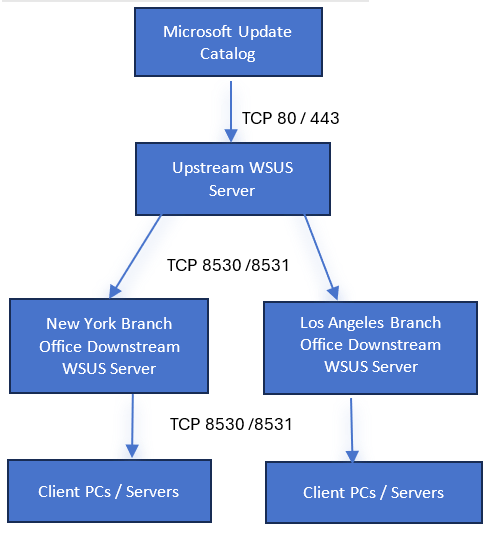
Downstream WSUS servers function as local distribution points for updates to client computers and must connect with Upstream WSUS servers using dedicated ports 8530 for HTTP requests and 8531 for HTTPS. These ports allow downstream servers to synchronize approved updates and metadata from upstream servers, and firewall rules on port 8530 and 8531 must be configured to allow inbound connections between upstream and downstream WSUS servers. For example, a branch office downstream WSUS server connects to the central WSUS server through TCP port 8531 to get recent updates and distribute to endpoints located at the branch office. Using the same pair of ports, 8530 and 8531, for both downstream WSUS servers and clients simplifies firewall rule management in large infrastructure; administrators do not need to distinguish between client IP ranges and downstream server IP ranges at the port level. Port 8531 (HTTPS) usage is preferred even in internal communication, from upstream servers to downstream servers and clients, as it encrypts data in transit, especially when traffic is passing through WAN or untrusted network segments. Inbound firewall rules on the upstream WSUS server should restrict access to only known downstream servers to reduce MITM attack exposure and improve overall security posture.
Client computer ports to WSUS server
Managed client computers connect to the WSUS server through port 8530 (HTTP) or 8531 (HTTPS) for approved patches. These pathways allow the client computer Windows Update Agent to scan against the WSUS catalog, report compliance status, and download approved patches. For example, an employee’s desktop sends a hardware compliance report to an internal WSUS server via http://WSUS-local:8530 or downloads a security update from a WSUS-local server. Communication is initiated by client computers rather than by the internal WSUS server; as a result, only inbound access to the WSUS server needs to be allowed, and on the client side, outbound firewall rules are configured to allow access to the WSUS server’s configured port. Legacy WSUS 3 SP 2 server deployment running on older Internet Information Services (IIS) uses standard web ports 80 (HTTP) and 443 (HTTPS). Organizations maintaining legacy infrastructure should keep in mind the WSUS server ports based on the deployment options and configure inbound rules on WSUS and outbound rules on target clients accordingly to avoid synchronization failures.
WSUS Network Topology
Below are the topology diagrams illustrating WSUS communication flows for single- and multiple-server scenarios.
Single WSUS Server Network Topology

Multiple WSUS Server Network Topology
Firewall Rules for WSUS Server to Microsoft Domains (Internet-Facing)
Upstream WSUS servers require outbound TCP rules on port 80 (HTTP) or port 443 (HTTPS) to reach Microsoft Update servers through the internet. Without these firewall rules, the synchronization process cannot initiate, and the WSUS server will report a sync failure error, regardless of its internal configuration. Organizations should create only outbound firewall rules for upstream WSUS servers on port 443 (HTTPS). As the traffic flow from upstream WSUS is strictly outbound and on HTTPS, no inbound WSUS firewall ports need to be opened, and communication is secured via HTTPS.
Allowing the WSUS server to reach Windows Update on the internet
Administrators should also configure bypass rules for Upstream WSUS server outbound traffic if they use SSL/TLS inspection, web proxies, or content filtering gateways, as such interference can cause synchronization failures or prevent update downloads. For example, a firewall that performs HTTPS inspection can cause WSUS synchronization errors until Microsoft Update domains are excluded from inspection.
Required Microsoft domains and connection endpoints
Windowsupdate.microsoft.com, download.windowsupdate.com, and update.microsoft.com are the primary endpoints used by WSUS during synchronization to retrieve the Update Catalog. Windowsupdate.microsoft.com is one of the primary endpoints; actual Update installation files and cabinet (.cab) files are hosted on distributed content delivery networks (CDNs) for faster download region-wise. The following is the exact Microsoft FQDN allowlist for outbound firewall rules to be added on the upstream WSUS Server:
- http://windowsupdate.microsoft.com
- http://*.windowsupdate.microsoft.com
- https://*.windowsupdate.microsoft.com
- http://*.update.microsoft.com
- https://*.update.microsoft.com
- http://*.windowsupdate.com
- http://download.windowsupdate.com
- https://download.microsoft.com
- http://*.download.windowsupdate.com
- http://wustat.windows.com
- http://ntservicepack.microsoft.com
- http://go.microsoft.com
- http://dl.delivery.mp.microsoft.com
- https://dl.delivery.mp.microsoft.com
- http://*.delivery.mp.microsoft.com
- https://*.delivery.mp.microsoft.com
Firewall Rules for Client Computers Connecting to WSUS
To facilitate Internal patch distribution, firewalls and network routing must allow managed client computers to communicate directly with downstream WSUS servers. Internal communication relies on specific inbound ports designated during the WSUS server installation process in IIS. Administrators must choose between ports 8530 (HTTPS) or 8531 (HTTPS) to balance the patch deployment according to target clients and security framework mandates.
Port 8530 (HTTP) for client-to-WSUS communication
Port 8530 is commonly used in internal inbound TCP connections with WSUS servers, as Windows update packages are digitally signed, and the HTTP protocol can be used for internal communication. Firewalls must allow inbound TCP port 8530 traffic targeting the WSUS server so that client computers can connect to the WSUS server to detect, download, and install updates. Restricting IP address sources ensures that only managed corporate endpoints can access the WSUS infrastructure and prevents unauthorized network scanning. For example, firewall rules are configured to permit TCP port 8530 connections only from 10.10.0.0/16 corporate network segment devices to connect with a downstream WSUS-1 local server. Port 8530 is the default inbound port for all new WSUS server deployments to avoid conflicts with other web applications that may already be using ports 80 or 443.
Port 8531 (HTTPS/TLS) for encrypted client-to-WSUS communication
Port 8531 is the inbound TCP port used when WSUS is configured to enforce SSL/TLS for client communication, and it encrypts the entire session, including Update metadata requests, clients’ self-registrations, and status reporting. Port 8531 is strongly recommended for production environments, especially when the WSUS server provides updates for clients across untrusted network segments such as VPN, WAN, or DMZ. Encrypted communication helps reduce the risk of traffic interception and supports best security practices. Configuring port 8531 requires two coordinated changes beyond just adding firewall rules: first, add an IIS binding on the WSUS server with a valid and trusted SSL certificate, and second, change the WSUS URL through Group Policy update, i.e., updating http://wsus-server1:8530 to https://wsus-server1:8531. If these changes are not incorporated correctly, clients will either fail to connect to the WSUS server or keep using the old HTTP endpoint.
Configuring Client Computers to Point to the WSUS Server
Editing Group Policy to specify the WSUS server URL (with port)
After deploying WSUS and opening the required firewall ports, client computers must be configured to contact the correct WSUS server URL, i.e., https://wsus-server1:8531. This configuration is typically applied via Group Policy objects in Active Directory and must include the WSUS connection URL, including the correct server name and port. If the URL or port is incorrect, clients will silently fail to register with WSUS because Windows Update does not assume a WSUS default port, unlike browsers, which default to port 80 or 443.
Specifying the intranet WSUS server URL including port number
To configure the WSUS update endpoint, navigate to the specific GPO in Group Policy Management Console (GPMC):
- Computer Configuration > Administrative Templates > Windows Components > Windows Update > Specify intranet Microsoft update service location and enable the policy.
This setting directs Windows Update clients to obtain updates from the internal WSUS server rather than directly from Microsoft over the internet.
- Target server path must be entered as a fully qualified domain name (FQDN) or IP address along with the listening port, i.e., https://wsus-server1.contoso.com:8531
iii. Configure both update and statistics server URLs with the same value, i.e., https://wsus-server1.contoso.com:8531. Leaving either field blank or adding a hostname without the port will cause client registration failure.
- When group policy refreshes on the client side upon restart or force update, these URL values are written directly to the client’s local machine registry under the “HKLM\SOFTWARE\Policies\Microsoft\Windows\WindowsUpdate\WUServer” path. Admins can verify quickly from this registry that the client machine received the correct URL value without a GPO reporting cycle.
Enabling client-side targeting via Group Policy
Client-side targeting allows the WSUS server to automatically assign computers to pre-defined WSUSU computer groups based on the group name specified in Group Policy. It eliminates the need to manually move computers into groups within the WSUS console after clients are registered.
Verifying the client computer’s connection to WSUS
After applying the WSUS Group Policy, run “gpupdate /force” in an elevated command prompt on a target computer. After that, run “wuauclt /detectnow” for legacy Windows operating systems or “usoclient StartScan” on Windows 10 or later. These commands instruct the Windows Update agent to instantly try to contact the WSUS server. Any failure or error can be seen from Windows Event Viewer under “Applications and Services Logs > Microsoft > Windows > WindowsUpdateClient”. Event IDs 16 and 25 with error code 0x80072EFD typically indicate a failed WSUS server detection attempt. Error code 0x80072EFD is generic and translates only as ERROR_INTERNET_CANNOT_CONNECT without giving the exact root cause, so administrators need to check and verify common root causes including:
- Check if the WSUS and IIS services are running.
- GPO contains the correct WSUS URL.
- Ports 8530/8531 are reachable; use Test-NetConnection to verify.
- Verify inbound Windows Firewall rules for WSUS.
- Check the DNS resolution for the WSUS server using nslookup.
- For HTTPS deployments, check SSL certificate validity.
- Check the proxy configuration.
Basic Client to WSUS connectivity test using PowerShell
You can verify that the client can reach the WSUS server using the default port 8530 or port 8531 using the cmdlet below. This is useful for health checks and troubleshooting connectivity before jumping into investigating client issues or update synchronization.
Test-NetConnection -ComputerName WSUS01.contoso.com -Port 8530
A successful result will look like below. The key indicator would be “TcpTestSucceeded” with True or False.
ComputerName : WSUS01.contoso.com
RemoteAddress : 10.10.10.15
RemotePort : 8530
InterfaceAlias : Ethernet
SourceAddress : 10.10.10.50
TcpTestSucceeded : True
A failed result will look like below.
ComputerName : WSUS01.contoso.com
RemoteAddress : 10.10.10.15
RemotePort : 8530
InterfaceAlias : Ethernet
SourceAddress : 10.10.10.50
TcpTestSucceeded : False
Firewall Rules Between WSUS Servers (Upstream/Downstream)
Organizations with distributed infrastructure often deploy multiple WSUS servers in a hierarchy to reduce internet bandwidth usage and a centralized Update approval process. In these multi-tier deployments, downstream WSUS servers synchronize updates and metadata from an upstream WSUS server using the same ports used by clients i.e. 8530 (HTTP) and 8531 (HTTPS). This architecture requires specific firewall rules for upstream and downstream WSUS servers’ communication, and upstream servers to Microsoft Update servers via the internet. Downstream servers connect with upstream servers through port 8530 or 8531, and upstream servers connect with Microsoft Update servers via port 80 or 443.
Port configuration for upstream-to-downstream WSUS server communication
WSUS server hierarchies do not require dedicated synchronization ports because downstream servers communicate with upstream servers using port 8530 or 8531, the same as the client. The upstream WSUS server requires an inbound firewall rule on TCP port 8530 or 8531 to accept connections from downstream servers. Inbound firewall rules must include the static IP addresses of WSUS servers to only permit connections from approved servers and to restrict unauthorized devices from scanning or making calls to upstream WSUS servers. The downstream WSUS servers must be configured with the correct upstream server URL, including the correct WSUS port number. An incorrect protocol, server name, or port configuration can prevent synchronization and result in connection errors. The upstream server URL should match the actual IIS and SSL settings configured on the upstream server. For example, a downstream WSUS server in a branch office can be configured to synchronize from an upstream server in the main branch with “ https://WSUS-main.contoso.com:8531 “.
Proxy Server Configuration for WSUS
A WSUS server typically resides inside a network without direct internet access and generally depends on an HTTP proxy to reach the Microsoft Update server on the internet. Proxy server configuration in WSUS server governs the outbound Updates synchronization traffic and does not affect the traffic between upstream and downstream WSUS servers and client computers. Some organizations implement a dual proxy design, where the upstream WSUS server uses an authenticated proxy to synchronize updates from Microsoft servers, while internal clients access WSUS servers directly through a separate unauthenticated proxy. For example, an Upstream server behind the DMZ network securely makes connections to Microsoft Update servers via an authenticated proxy server and internal downstream WSUS servers, and clients connect to the upstream server through an unauthenticated proxy.
Configuring WSUS to route traffic through a proxy server
WSUS can be configured to use a proxy server through the WSUS Console → Options → Update Source and Proxy Server. Administrators can enable proxy options and specify the proxy server hostname or IP address, port number, and authentication credentials (if required). This configuration ensures that WSUS does not attempt a direct internet connection; instead, outbound connections to Microsoft Update servers are routed through the organization’s approved network path. After proxy configuration, run a manual synchronization to confirm that configurations work rather than waiting for the next scheduled synchronization.
Setting up two proxy servers for WSUS
A dual-proxy configuration is also supported by WSUS orchestration, where the upstream WSUS server uses an authenticated proxy for connection with the Microsoft Update server and the internal downstream WSUS server, or clients use a separate proxy configuration without authentication. This design prevents clients from authentication overhead and separates outbound traffic from internal network traffic. It’s particularly useful in large enterprises where strict access controls are enforced for external communication.
Securing WSUS with TLS/HTTPS (Port 8531)
By default, WSUS server-to-server communication uses the HTTP protocol on port 8530, which includes update metadata and approval information that travels unencrypted across the internal network. Moving this traffic from HTTP to the HTTPS protocol on port 8531 encrypts update metadata and client-server communication, preventing traffic interception while data travels across the network. This transition from HTTP to HTTPS involves installing a trusted SSL certificate, configuring IIS bindings, updating WSUS settings to recognize the secure FQDN, and relying on these changes to clients via Group Policy so that clients communicate on the correct URL. Once HTTPS is enabled, clients communicate with the WSUS server over port 8531, providing better protection for enterprise patch management. Although Update files themselves are digitally signed by Microsoft, SSL/TLS adds another layer of protection by securing the transport channel and WSUS server identity validation. For example, A WSUS server was originally serving updates over http://wsus1.contoso.com:8530 and is reconfigured to serve over https://wsus1.contoso.com:8531 . After configuration on the wsus1 server and GPO update, the client will now connect to https://wsus1.contoso.com:8531.
Enabling HTTPS on the WSUS IIS web server
To enable HTTPS on the WSUS server, administrators first require a valid SSL certificate from either an internal Certificate Authority (CA) or a trusted public CA. After acquiring an SSL certificate, administrators will bind it to the WSUS website in IIS Server Manager under HTTPS bindings, using port 8531 instead of the default HTTP port 8530. The certificate Common Name (CN) or Subject Alternative Name (SAN) should match the WSUS server’s FQDN to avoid any TLS validation failures on client systems. The existing HTTP binding can be left in place temporarily for testing, and after HTTPS is validated on the client side, it can be removed. After certificate and port binding, restart the WSUS administration site to ensure that the new certificate and port settings take effect before moving to WSUS server-level configuration steps.
Configuring WSUS IIS to enforce TLS for specific connections
After configuring HTTPS bindings in IIS, WSUS must be informed that SSL is now being used, and this can be accomplished by running the WSUSUtil.exe utility from an elevated command prompt. The utility is in the WSUS installation Tools directory, typically “C:\Program Files\Update Services\Tools”. After running the utility, run the command “configuressl wsus1.contoso.com”; here, “wsus1.contoso.com” is the FQDN of the WSUS server. This command updates the WSUS server’s internal configuration and database settings, so that the application now enforces SSL for secure communication, rather than just IIS passively offering HTTPS connection.
TLS/SSL signing certificate for WSUS client authentication
When an organization uses a certificate from a private CA or internal Certificate Authority, client computers must trust the CA for the provided certificate before they can establish HTTPS connections with the WSUS server. Administrators typically distribute the root certificate through Group Policy at Computer Configuration → Windows Settings → Security Settings → Public Key Policies → Trusted Root Certification Authorities, where the CA certificate is imported once and pushed to all domain-joined machines or target clients in a specific OU. Centralized certificate deployment simplifies certificate distribution and maintains consistent trust across large environments. Test the “gpupdate /force” command on one client and verify that the required certificate appears in its local trust store before rolling out the policy to all target clients.
Securing the SQL Server database connection
In large enterprise environments, organizations may use a remote SQL Server database instead of Windows Internal Database (WID), and the connection between the remote SQL Server and WSUS can itself be encrypted using SQL Server for native TLS support. SQL Server encryption helps protect Update metadata and administrative data while it travels through the network, which is particularly important in enterprise environments with segmented networks. TLS encryption can be enabled by installing certificates on the SQL Server instance and configuring clients to require encrypted connections. This implementation isolates database transactions from standard client update paths, securing back-end infrastructure on its respective SQL ports, while WSUS serves updates to its clients over port 8531.
Creating a code-signing certificate for local update publishing
While securing ports ensures data is transmitted safely, deploying custom or third-party patches through WSUS requires an additional layer of patch integrity verification, typically achieved with a code-signing certificate that digitally signs those patch packages. The certificates provide assurance to client computers that locally published updates are approved, originate from a trusted source, and are not tampered with. Administrators can create certificates from the internal CA and store them within the WSUSU server’s personal store. These certificates are then distributed to all managed client computers via Group Policy. Without these certificates, the clients in Windows Update Agent will refuse to execute the Updates.
WSUS Configuration Wizard Setup
Initial wizard settings and upstream sync source
The WSUS configuration wizard runs automatically the first time the WSUS console is opened after installing the role, and administrators can perform the initial setup choices. Administrators can choose whether to connect directly to Microsoft Update servers on the internet or to an Upstream WSUS server, and configure proxy settings, product selections, classification for synchronization, and scheduling information.
Upstream server and proxy settings in the wizard
The first important decision is the synchronization source for the WSUS server, whether this server will connect directly to Microsoft Update servers or an internal Upstream WSUS server. If the administrator is targeting another internal WSUS server, they must enter the Fully Qualified domain name (FQDN) along with the exact port it communicates on, i.e., 8530 or 843. Provide proxy settings as well to reach out to the upstream WSUS server and comply with firewall policies.
Selecting products, languages, and update classifications
The WSUS configuration wizard allows administrators to select which Microsoft products, i.e., specific Windows OS or productivity applications, supported languages, and update classifications, i.e., security updates, critical updates, or drivers, should be synchronized to this WSUS server from the Upstream server. Narrowing the selection to only the products and languages used in the internal environment significantly reduces the volume of metadata and patch content. WSUS must store and synchronize, which reduces both the database size and network bandwidth usage.
Configuring the synchronization schedule
The final step of the wizard is to configure a synchronization schedule to define the time and frequency of synchronization. Administrators can choose a manual sync model or configure automatic synchronization to occur daily at specific times. Scheduling automatic synchronization during off-peak timing or at night, e.g., 2 am, ensures that massive metadata downloads do not create a network bandwidth drain during productivity hours and newly released updates are also downloaded in time to be distributed across organizations in a timely manner. For example, the WSUS server is configured to synchronize automatically once daily at 2:00 AM to ensure that new updates are available before the start of the business day without consuming network bandwidth during peak productivity hours.
WSUS Computer Groups and Update Targeting
Computer groups let administrators organize client machines into logical sets, i.e., by department or location, so that update approvals can be targeted to specific groups rather than applying updates across the entire environment at once.
Approaches for assigning client computers to groups
WSUS supports both server-side and client-side targeting methods for assigning client computers to groups. With server-side targeting, administrators manually assign computers to groups using the WSUS console after clients are registered to the server. This approach provides centralized control but can become time-consuming in large environments.
Enabling client-side targeting
Client-side targeting is enabled through Group Policy and enforces Windows devices to automatically associate themselves with a designated WSUS computer group. Multiple GPOs can be used to assign different organizational Units to different target group names, allowing automated, policy-driven group management across organizations. For example, A GPO linked to the “Finance” OU sets the client-side targeting group name to “Finance-Workstation”, and every computer in that OU is automatically placed into the corresponding WSUS group.
Creating WSUS computer groups
Before client computers can successfully join a WSUS computer group via GPO, the corresponding group must exist in the WSUS Update Management repository. From the WSUS administration console, expand Computers, right-click on All Computers, and select the Add Computer Group option. Enter the group name that must match the string value used in Client-side GPO i.e. “Finance-Workstation”.
Discover our complete WSUS Setup Guides
| Topic | Short Description |
| WSUS Alternatives | Compares seven leading WSUS replacements based on cross-platform and third-party patching, automation, reporting, remote endpoint support, deployment model, and suitability for different IT environments |
| WSUS Patch Management Guide | Explains how WSUS centrally synchronizes, approves, deploys, and monitors Microsoft updates, along with its benefits, limitations, and alternatives |
| WSUS EOL | Explains what Microsoft’s WSUS deprecation means, how long WSUS will remain supported, and which migration paths and modern alternatives organizations should consider. |
| WSUS vs SCCM | Compares WSUS with SCCM across patching, software deployment, device management, reporting, complexity, cost, and suitable deployment environments |
| WSUS Windows 11 Update Guide | Provides a practical guide to configuring WSUS to approve, deploy, monitor, and troubleshoot Windows 11 updates across managed devices |
| Managing Third-Party Apps with WSUS | Explains how third-party applications can be patched through WSUS using external catalogs and publishing tools, including setup, signing, deployment, and reporting |
| WSUS Offline Update | Explains how to download and deploy Microsoft updates in offline or air-gapped environments using local repositories and removable installation media |
| WSUS Registry Settings | Documents the key Windows Update and WSUS registry values used to control update sources, schedules, reboots, device groups, and deployment behavior |
| How to Disable WSUS Registry | Provides step-by-step instructions for removing WSUS registry configuration so Windows clients can reconnect directly to Microsoft Update. |
| WSUS Server Cleanup Wizard | Explains how to run and automate the WSUS Cleanup Wizard to remove obsolete updates, inactive devices, expired metadata, and unnecessary files |
| WSUS Maintenance Guide | Provides a complete recurring maintenance routine covering superseded updates, database reindexing, content cleanup, synchronization health, and performance monitoring |
| WSUS Synchronization Failed Fix | Troubleshoots common WSUS synchronization failures caused by TLS, IIS, firewall, proxy, operating-system compatibility, and SUSDB database issues. |
| Intune vs WSUS | Compares cloud-based Intune with on-premises WSUS across update control, supported devices, infrastructure, security, costs, and migration considerations. |





