






TL;DR
- The WSUS Server Cleanup Wizard is a built-in maintenance utility that removes obsolete updates, expired metadata, superseded patches, inactive computer records, and unnecessary update files to improve WSUS performance and reduce storage consumption.
- The guide explains how to run the Cleanup Wizard, including launching it from the WSUS Administration Console, selecting cleanup options, understanding each maintenance task, monitoring progress, and validating the results after cleanup.
- Regular maintenance is essential for keeping WSUS responsive, reducing database fragmentation, improving synchronization speed, accelerating client update scans, reclaiming disk space, and preventing console slowdowns or timeout errors.
- The article also covers PowerShell automation, enabling administrators to schedule recurring cleanup tasks, integrate maintenance into existing scripts, and automate routine WSUS database housekeeping for enterprise environments.
- Organizations should understand WSUS limitations, including ongoing manual maintenance, on-premises infrastructure requirements, Windows-only management, database performance issues, and Microsoft’s continued shift toward cloud-based endpoint management.
- Modern alternatives discussed include Action1, Microsoft Intune, Windows Autopatch, Microsoft Configuration Manager (MECM/SCCM), ManageEngine Endpoint Central, NinjaOne, Automox, Atera, and Ivanti Neurons, which provide varying levels of automated patch management, endpoint management, reporting, and cloud-native administration.
- Following WSUS maintenance best practices—such as running cleanup regularly, reindexing the SUSDB database, declining obsolete updates, monitoring synchronization health, and reviewing compliance reports—helps maintain a stable, secure, and efficient Windows patch management environment.
The WSUS Server Cleanup Wizard is a maintenance tool in Windows Server Update Services (WSUS) that helps remove obsolete updates, outdated computer records, expired update versions, and unnecessary update files, improving WSUS performance and reducing database size and disk usage. It can remove computer accounts from the WSUS database that have not been checked in for a specified period, e.g., 30 days or longer. Deletes the actual installation files, i.e., “.cab” or “.exe,” stored in the WSUS local directory that are no longer approved. Identifies and removes expired updates that have been explicitly marked by Microsoft as expired because they are now invalid or pose a risk. Cleanup Wizard targets older versions of updates that have been superseded by newer releases.
Cleanup Wizard improves the performance of WSUS by removing unnecessary updates, which helps in faster synchronization, improved administrative console responsiveness, and more efficient reporting. Administrators can manually run the cleanup wizard from the WSUS administrative console and also leverage PowerShell Automation cleanup on regular intervals.
What is the WSUS Server Cleanup Wizard?
WSUS Cleanup Wizard is a built-in maintenance utility located inside the WSUS administration console. Its primary purpose is to automate the removal of redundant, stale, and expired patch data that accumulates over time during standard update cycles. This utility uses a routine maintenance schedule or is run immediately after a large-scale operating system upgrade cycle. Without regular cleanup, the WSUS database suffers from performance issues due to large index fragmentation, disk space problems that can lead to high CPU utilization, and admin console connection timeouts. Keeping the database clean and healthy ensures that downstream client machines can scan for compliance much faster without searching through thousands of irrelevant historical records
The Cleanup Wizard provides a graphical user interface (GUI) that lets administrators select maintenance options with checkboxes, making it useful for manual administration and occasional maintenance. WSUS also supports cleanup operations through PowerShell, enabling administrators to automate maintenance, schedule recurring cleanup jobs, and integrate them into larger maintenance scripts. For example, a small-business IT team can use the GUI Cleanup wizard manually for occasional maintenance, while large enterprise admins must schedule PowerShell cleanup scripts to run each month automatically. The Cleanup behavior described in this guide applies to WSUS running on Windows Server 2019 and Windows Server 2022, which are the widely deployed versions in current enterprise environments.
Cleanup Targets: Unused Updates, Expired Updates, Old Computers, Unneeded Files
Unused updates and update revisions: Updates that are no longer applicable to any computer in the environment and have been obsoleted or declined. Cleanup primarily removes metadata of updates and affects the WSUS database by deleting unnecessary records rather than removing update binaries from disk.
Computers not contacting servers: This cleanup option removes records of client computers that have not reported to the WSUS server for an extended period, such as retired, reimaged, or permanently disconnected devices. Only client records stored in the WSUS database are removed; this process does not affect Active Directory or devices themselves. For example, the metadata of a laptop record belonging to an employee who left the company over a year ago, and the laptop is repurposed with a new OS installation.
Unneeded Update files: This process removes the binaries, the “.cab” and “.exe” files, for updates that are declined, expired, or superseded. Unlike metadata cleanup from the database, this process reclaims the disk space by removing update binaries from the server. For example, WSUS removes a superseded 10 GB update package that is no longer referenced by any active deployment.
Expired updates: This option identifies and removes updates that Microsoft has officially marked as no longer applicable or supported. Cleanup removes expired updates metadata from WSUS database, reducing administrative clutter and making the update lists easier to manage.
Superseded Updates: These are the updates that have been replaced by newer updates that contain the same fixes along with additional security or quality improvements. Cleanup Wizard removes superseded updates that are no longer required according to WSUS maintenance rules, reducing the number of update records stored in the database. For example, an older, standalone Internet Explorer patch is deleted because it’s included in the latest cumulative update.
| Cleanup Option | What it Removes | Avg. Reclaimed Size / Impact | Safe Frequency |
| Unused Updates and Update Revisions | Database rows for older, revised iterations of existing patches. | High database row reduction (Thousands of rows). | Monthly |
| Computers Not Contacting Server | Client computer metadata for devices inactive for 30+ days. | Minimal disk space; high console performance gain. | Monthly |
| Unneeded Update Files | Actual binary installation files (.cab, .exe) from local storage. | Extremely High (Often 50 GB to 200+ GB). | Weekly / Bi-Weekly |
| Expired Updates | Updates officially retracted or invalidated by Microsoft. | Low disk space; cleans up deployment visibility. | Monthly |
| Superseded Updates | Patches completely replaced by newer cumulative rollups. | Moderate disk space; high client scan speedup. | Monthly |
How to Run the WSUS Server Cleanup Wizard?
Running the WSUS Server Cleanup Wizard is the primary method for removing obsolete updates, inactive computer records, expired update metadata, and unnecessary update files. But the time the cleanup wizard takes varies depending upon how often this process runs and how well maintained the WSUS server is. It can be completed in a few minutes if there isn’t too much to clean; however, on a neglected server that hasn’t been cleaned in months or years, the process can take 30 to 90 minutes. In severe cases, the database queries can overwhelm the system, causing the WSUS console to crash or throw connection timeout errors. It’s highly recommended to complete essential pre-cleanup steps, such as running a database reindex script on the SUSDB database and manually declining massive, older Windows cumulative updates to reduce the scope of data the cleanup wizard must process.
Launch the Wizard from the WSUS Administration Console
To launch the Cleanup Wizard, follow the steps given below:
- LLog onto the Windows Server hosting Wthe SUS role using an account with administrative privileges.
- Then open WSUS server from start menu or open server manager from tools menu.
- In the navigation pane, locate and select the top-level WSUS server node, which represents the local WSUS instance being managed. If multiple servers are managed, i.e., upstream or downstream, verify that the correct server is selected.
- With the server node selected, click Options in the center pane of the console, then choose Server Cleanup Wizard. Exact navigation path is “WSUS Administration Console → Server Name → Options → Server Cleanup Wizard”, which displays the available cleanup categories as selectable checkboxes.


Select Cleanup Options and Run
The Cleanup wizard presents five checkboxes, each targeting one cleanup category to clean obsolete data. While Microsoft allows all options to be selected simultaneously, administrators managing large environments or neglected WSUS environments often achieve better reliability by running certain cleanup operations separately. This approach divides the workload into multiple phases, reducing database load and lowering the risk of console timeouts, and helps identify which operation is consuming the most time or crashing the admin console. The safer approach is to separate operations into two categories:
Metadata-only operations: Unused updates, expired updates, superseded updates, and stale computer records. These options are primarily concerned with database cleanup and can run together simultaneously and run faster.
Unnecessary update: this option removes update content files that are no longer referenced by active updates and involves disk-level file deletion of potentially thousands of files and should be run separately. Especially on a neglected WSUS server, since it might be cleaning from a few gigabytes to hundreds of gigabytes and take most of the time in cleanup.
For a neglected server that is being cleaned up for the first time in months, the recommended order is to first run superseded updates and expired updates together or one by one, then run unused updates and computer not contacted together, and finally run unneeded or unnecessary updates file cleanup.
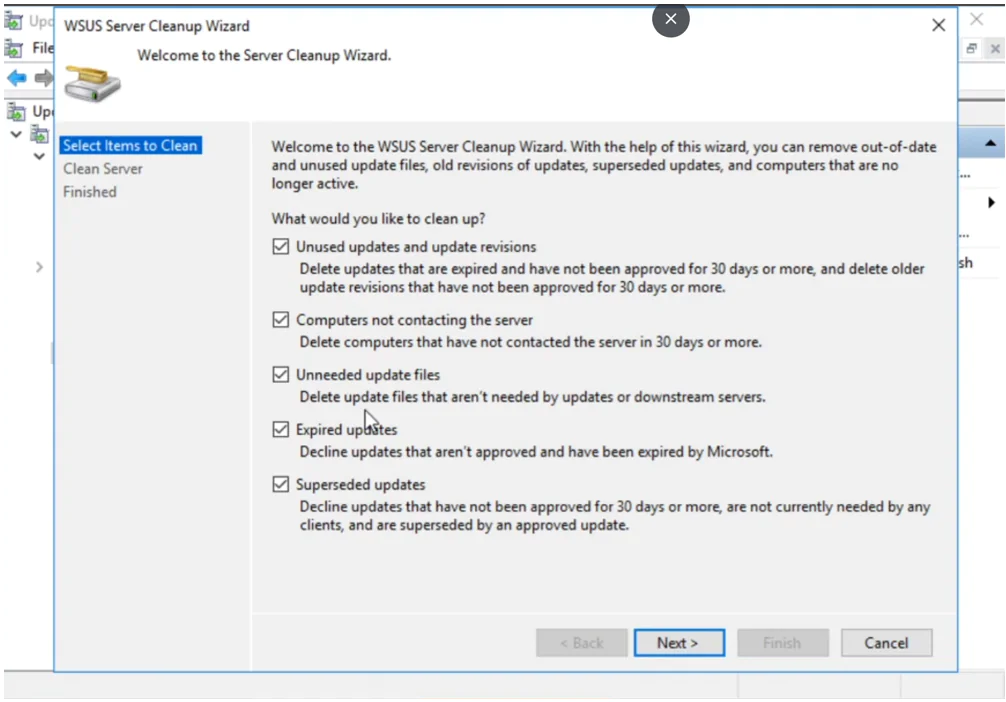
Pre-Cleanup: Decline Superseded Updates
Before running the WUSU server cleanup wizard, administrators should first decline superseded updates that are no longer required for deployment. Running the Cleanup wizard’s “Unneeded Update files option alone is insufficient because the wizard only removes content files for updates that are declined; the updates that remain approved, WSUS considers them active and retains their associated metadata and content files. For example, a Windows cumulative update from six months ago is in an approved state, and it will prevent WSUS from deleting its update files when the “unneeded update files” option is checked during the cleanup wizard, or even if the superseded updates option is also checked and a newer cumulative update is available.
Running a proper pre-cleanup decline process before running the Cleanup wizard significantly reduces both the wizard runtime, speeds up database processing, and the amount of disk space cleaned up. Similarly, if administrators are using PowerShell scripts for cleanup, the command “Invoke-WsusServerCleanup -DeclineSupersededUpdates” does not decline superseded updates that are already approved, only the ones that have not been marked as approved for installation.
PowerShell Script to Decline Superseded Approved Updates
The following is a PowerShell script to get all approved updates, filter them to those that are superseded and not declined, and identify any that are not needed by any client. First preview them, then disapprove them so the cleanup wizard can delete the unnecessary update files when it runs manually or via a PowerShell command.
PowerShell script
# Step 1: Load the WSUS PowerShell module and connect to the local WSUS server instance
$WsusServer = Get-WsusServer
# Step 2: Retrieve all updates currently in Approved status from the WSUS database
$ApprovedUpdates = Get-WsusUpdate -Approval Approved
# Step 3: Filter to updates that are superseded, not already declined, and unneeded by any client
$SupersededApproved = $ApprovedUpdates | Where-Object {
$_.Update.isSuperseded -eq $true -and
$_.Update.isDeclined -eq $false -and
$_.ComputersNeedingThisUpdate -eq 0
}
# Step 4: Preview the exact updates that would be declined, without changing anything
$SupersededApproved | Deny-WsusUpdate -WhatIf
# Step 5: Remove -WhatIf once the preview list is confirmed, then decline for real
$SupersededApproved | Deny-WsusUpdate
https://learn.microsoft.com/en-us/troubleshoot/mem/configmgr/update-management/decline-superseded-updates
PowerShell Alternative: Invoke-WsusServerCleanup
The Invoke-WsusServerCleanup cmdlet is the command-line alternative to the WSUS Cleanup Wizard, providing the same core maintenance operations without requiring the GUI. Instead of selecting checkboxes in the WSUS administrative console, admins specify cleanup tasks using PowerShell parameters, making the process easier to automate, schedule, and integrate into maintenance scripts. While both methods ultimately perform the same maintenance functions, PowerShell offers better flexibility for enterprise environments, where IT teams manage multiple WSUS servers or require unattended maintenance. One of the primary advantages of the PowerShell approach is its ability to support automation through Windows Task Scheduler and an unattended maintenance framework. For example, admins can run Invoke-WsusServerCleanup -CleanupObsoleteComputers -CleanupUnneededContentFiles as a single PowerShell command on a remote server.
| GUI Checkbox | PowerShell Parameter |
| Unused updates and update revisions | -CleanupObsoleteUpdates |
| Computers not contacting the server | -CleanupObsoleteComputers |
| Unneeded update files | -CleanupUnneededContentFiles |
| Expired updates | -DeclineExpiredUpdates |
| Superseded updates | -DeclineSupersededUpdates |
| (No GUI equivalent) | -CompressUpdates |
Cmdlet Parameters and What Each Cleans
The Invoke-WsusServerCleanup cmdlet supports multiple parameters, each corresponding to a specific maintenance operation within WSUS. Administrators can execute individual parameters or combine multiple parameters into a single cleanup command depending on maintenance requirements. For best results, the parameters should be executed in a logical order that prepares the WSUS database before reclaiming disk space.
- -CleanupObsoleteUpdates: This parameter removes obsolete update metadata and update revisions that are no longer required by WSUS because they have been replaced or are no longer referenced in database. It primarily reduces database size and improves query performance rather than reclaiming significant disk space.
- -CleanupObsoleteComputers: It removes computer records that have not contacted the WSUS server for an extended period, such as retired, reimaged or permanently disconnected devices.
- -CleanupUnneededContentFiles: this parameter deletes update files stored in the WSUS content directory that are no longer associated with active updates. Unlike metadata cleanup, this operation reclaims physical disk space and often requires longer execution time because it performs extensive file system operations.
- DeclineExpiredUpdates: this parameter automatically declines updates that Microsoft has marked as expired, making them not eligible for deployment and easier to remove during later maintenance tasks such as CleanupObsoleteUpdates operation.
- -DeclineSupersededUpdates: This parameter declines superseded updates that have not previously been approved for installation, allowing them to become included in later cleanup process by CleanupObsoleteUpdates. It is important to remember that DeclineSupersededUpdates operation will not include those superseded updates that are in approved state, as discussed in the pre-cleanup section above.
- –CompressUpdates: This is an additional parameter that is not available on GUI and it compresses obsolete update revisions within the WSUS database to reduce storage size and improve database efficiency.
| GUI Cleanup Wizard Option | PowerShell Parameter | Purpose | Recommended Run Order |
| Unused updates and update revisions | -CleanupObsoleteUpdates | Removes obsolete update metadata and revisions from the WSUS database. | Step 3 (Mid-Process) |
| Computers not contacting the server | -CleanupObsoleteComputers | Removes inactive computer records that no longer report to WSUS. | Step 1 (Quickest Task) |
| Unneeded update files | -CleanupUnneededContentFiles | Deletes update content files that are no longer referenced. | Step 5 (Final Sweep) |
| Expired updates | -DeclineExpiredUpdates | Declines updates that Microsoft has marked as expired. | Step 2 (Low Database Strain) |
| Superseded updates | -DeclineSupersededUpdates | Declines superseded updates that have not already been approved. | Step 4 (Heavy Processing) |
| (No direct GUI checkbox) | -CompressUpdates | Compresses update revisions to optimize database storage and improve efficiency. |
Automate WSUS Cleanup
Automating regular WSUS cleanup is one of the most effective ways to maintain a healthy update infrastructure. A monthly cleanup routine removes obsolete updates, expired revisions and unnecessary metadata before they accumulate. Automation not only helps prevent console and database query slowness but also addresses cleanup wizard timeout issues. For example, an administrator schedules a WSUS cleanup using a PowerShell script on the second weekend of every month after Patch Tuesday to keep the update database optimized with minimal administrative effort. Use Windows Task Scheduler to trigger a PowerShell Script to clean up WSUS rather than relying on an administrator to manually run the Cleanup Wizard.
Scheduling Monthly Cleanup Tasks
A complete automation routine should chain three operations in sequence: first, decline superseded updates; second, decline unwanted update types; and third, invoke the cleanup command to remove database references and reclaim physical disk space.
The following is the full cleanup script; save it as a “.PS1” file and run it on a scheduled time from Task Scheduler.
Create a task in Task Scheduler with a Monthly trigger set to “Second → Saturday” at your chosen time, running powershell.exe -NoProfile -ExecutionPolicy Bypass -File “C:\Scripts\WSUS-Cleanup.ps1″under the SYSTEM account with highest privileges. Set a 4-hour time limit on the Settings tab, then run it once manually to confirm it works and check the log in C:\WSUS-Cleanup-Logs\ before letting it run unattended.
#………………………………………………………………………
# WSUS Full Cleanup Script – Run as Administrator
# Logs output to a dated file in the script’s folder
$LogPath = “C:\WSUS-Cleanup-Logs\WSUS-Cleanup_$(Get-Date -Format ‘yyyy-MM-dd_HHmm’).log”
New-Item -ItemType Directory -Path (Split-Path $LogPath) -Force | Out-Null
# Start-Transcript will log everything that happens during the scripts execution.
Start-Transcript -Path $LogPath -Append
Import-Module UpdateServices
$WsusServer = Get-WsusServer
# Step 1: Manually decline approved-but-superseded updates no client needs
# (Invoke-WsusServerCleanup’s -DeclineSupersededUpdates only touches unapproved ones)
Write-Output “step1: Declining approved, superseded, unneeded updates…”
$ApprovedUpdates = Get-WsusUpdate -Approval Approved
$SupersededApproved = $ApprovedUpdates | Where-Object {
$_.Update.isSuperseded -eq $true -and
$_.Update.isDeclined -eq $false -and
$_.ComputersNeedingThisUpdate -eq 0
}
if ($SupersededApproved) {
$SupersededApproved | Deny-WsusUpdate
}
# Step 2: Remove obsolete computer records
Write-Output “Step 2: Cleaning obsolete computers…”
Invoke-WsusServerCleanup -CleanupObsoleteComputers
# Step 3: Decline expired updates
Write-Output “Step 3: Declining expired updates…”
Invoke-WsusServerCleanup -DeclineExpiredUpdates
# Step 4: Remove obsolete update metadata/revisions
Write-Output “Step 4: Cleaning obsolete updates…”
Invoke-WsusServerCleanup -CleanupObsoleteUpdates
# Step 5: Decline remaining unapproved superseded updates
Write-Output “Step 5: Declining superseded updates…”
Invoke-WsusServerCleanup -DeclineSupersededUpdates
# Step 6: Remove unreferenced content files
Write-Output “Step 6: Cleaning unneeded content files…”
Invoke-WsusServerCleanup -CleanupUnneededContentFiles
Write-Output “WSUS cleanup complete.”
Stop-Transcript
#………………………………………………………………………
WSUS SQL Database Maintenance
While the standard WSUS wizard removes old update files from disk, SQL database maintenance actively repairs and optimizes the underlying tables and database indexes where update metadata is stored. Without independent database optimization, the WSUS console will still lag and time out, even if there are no duplicate updates in the environment. Performing both types of maintenance provides better overall WSUS performance than relying solely on WSUS cleanup. Over time, database indexes become fragmented as metadata is added, modified, and removed, causing SQL queries to run more slowly. Rebuilding or reorganizing indexes on a scheduled basis keeps the database responsive and minimizes unnecessary resource consumption. Applying the official Microsoft custom index scripts directly targets and accelerates the query paths WSUS uses to check client compliance. These custom indexes prevent SQL servers from performing slow, resource-intensive full table scans every time a group of endpoints reports their patch status. While smaller environments running the default Windows Internal Database (WID) require automated PowerShell maintenance scripts via sqlcmd, large enterprises using a dedicated external SQL Server Cluster must run SQL T-SQL scripts manually through SQL Server Management Studio.
The following is a reference table that maps WSUS cleanup wizard options to their target database tables, the data assets they remove, and their recommended execution frequency.
| Cleanup Wizard Option | Target Database Tables | Assets & Records Removed | Recommended Frequency |
| Unused updates and update revisions | tbUpdate, tbRevision, tbProperty | Historical revisions of updates, old metadata, and unapproved patches that have been superseded. | Monthly (Post-Patch Tuesday) |
| Computers not contacting the server | tbComputerTarget, tbTargetGroupAssociation | Stale computer accounts and metadata for clients that haven’t checked in for a defined period (e.g., 30+ days). | Monthly |
| Unneeded update files | tbFileOnServer, Local WSUS directory (WsusContent) | Actual .cab and .exe patch binary files from the local hard drive that are no longer needed or approved. | Weekly |
| Expired updates | tbUpdate, tbBundleDependency | Updates that have been explicitly expired by Microsoft and are no longer valid for deployment. | Monthly (Post-Patch Tuesday) |
| Superseded updates | tbUpdate, tbInboundRecommendation | Updates that have been completely replaced by newer rollouts and are safely marked as “Declined.” | Monthly (Pre-Cleanup Chain) |
Troubleshooting: Cleanup Wizard Hangs or Times Out
Yes, this is a real and common problem in WSUS management. It’s not a sign that something is broken; admins who inherit or return to a WSUS server that hasn’t been maintained in months or years routinely see the WSUS server Cleanup wizard spin for hours before failing without explanation, and it usually happens because of how the wizard works, not because of configuration mistakes. The good news is that this problem is well understood and documented in Microsoft’s troubleshooting guidance and community forums, and it can be resolved with repeated cleanup passes followed by regular maintenance.
Root Cause: Neglected Database
When a WSUS database is not maintained for months or years, the native Cleanup Wizard attempts to process tens of thousands of expired updates and orphaned file records within a single, massive SQL transaction. This massive volume of simultaneous delete processing completely overwhelms the database engine, forcing the transaction logs to pile up rapidly and in large volume, causing the SQL subsystem to freeze up entirely. The same delete process that completes in minutes on a well-maintained database can take hours on a WSUS server with a massive backlog, and the Cleanup Wizard has no mechanism to extend its own timeout or resume a partially completed operation. This results in a Cleanup Wizard that appears frozen and then silently fails, without reporting how many records it actually processed or removed. Giving up after one or two failed attempts is the most common mistake, since the database cleanup is actually making incremental progress towards a healthy state even when the wizard does not report success. Each successful delete operation reduces the remaining workload in the database, making subsequent cleanup attempts faster and more likely to succeed.
Workaround:Run Cleanup in Multiple Passes
The most effective way to break through a clogged WSUS database, where cleanup attempts are timing out and the cleanup wizard is failing, is to perform cleanup in multiple passes, one step at a time. Target first only computers that haven’t contacted the server, then expired updates, and proceed in a sequence from the least-processing task to heavy-lifting unneeded update file deletion at the end. This technique allows the server to successfully commit smaller batches of delete operations, reduce the database size in increments, and gradually lower the overall database query size, leading to successful cleanup of the WSUS database. For example, a WSUS clean up wizard on a neglected server is taking too much time and crashing without success, experience admins, deselect all options and only select computers not contacting the server” and run the wizard. After this success, admin selects expired updates and run wizard again. After getting successful cleanup of expired updates, admin moves on to “unused updates and update revisions” and then to superseded updates and finally “Unneeded update files”. Once the backlog has been cleared through with multiple cleanup wizard runs with selected options, automate WSUS cleanup using Task Scheduler running every month with a PowerShell script so obsolete updates never accumulate again. Regular monthly maintenance keeps the SUSDB database optimized and prevents future cleanup wizard timeouts, resulting in consistent WSUS performance throughout the year.
Discover our complete WSUS Setup Guides
| Topic | Short Description |
| WSUS Alternatives | Compares seven leading WSUS replacements based on cross-platform and third-party patching, automation, reporting, remote endpoint support, deployment model, and suitability for different IT environments |
| WSUS Patch Management Guide | Explains how WSUS centrally synchronizes, approves, deploys, and monitors Microsoft updates, along with its benefits, limitations, and alternatives |
| WSUS EOL | Explains what Microsoft’s WSUS deprecation means, how long WSUS will remain supported, and which migration paths and modern alternatives organizations should consider. |
| WSUS vs SCCM | Compares WSUS with SCCM across patching, software deployment, device management, reporting, complexity, cost, and suitable deployment environments |
| WSUS Windows 11 Update Guide | Provides a practical guide to configuring WSUS to approve, deploy, monitor, and troubleshoot Windows 11 updates across managed devices |
| Managing Third-Party Apps with WSUS | Explains how third-party applications can be patched through WSUS using external catalogs and publishing tools, including setup, signing, deployment, and reporting |
| WSUS Ports Setup | Details the network ports, firewall rules, SSL, proxy, DNS, and routing configurations required for reliable WSUS synchronization and client communication |
| WSUS Offline Update | Explains how to download and deploy Microsoft updates in offline or air-gapped environments using local repositories and removable installation media |
| WSUS Registry Settings | Documents the key Windows Update and WSUS registry values used to control update sources, schedules, reboots, device groups, and deployment behavior |
| How to Disable WSUS Registry | Provides step-by-step instructions for removing WSUS registry configuration so Windows clients can reconnect directly to Microsoft Update. |
| WSUS Maintenance Guide | Provides a complete recurring maintenance routine covering superseded updates, database reindexing, content cleanup, synchronization health, and performance monitoring |
| WSUS Synchronization Failed Fix | Troubleshoots common WSUS synchronization failures caused by TLS, IIS, firewall, proxy, operating-system compatibility, and SUSDB database issues. |
| Intune vs WSUS | Compares cloud-based Intune with on-premises WSUS across update control, supported devices, infrastructure, security, costs, and migration considerations. |





