Windows Autopatch is a cloud service managed through the Microsoft Intune admin center. It automates update management for Windows, Microsoft 365 Apps for enterprise, Microsoft Edge, and Microsoft Teams. However, it does not patch Windows Server or general third-party applications such as Adobe Reader, Chrome, or Java. Fully offline and air-gapped devices are also unsupported because the service requires connectivity to Microsoft cloud services.
Because of these limitations, it is not a like-for-like replacement for every Configuration Manager or WSUS workload. If your environment includes disconnected networks, a server estate, or a lot of non-Microsoft software, Configuration Manager or another third-party patch-management solution may still be needed for those workloads.
What is Windows Autopatch?
Windows Autopatch is a cloud service that automates updates for Windows, Microsoft 365 Apps for enterprise, Microsoft Edge, and Microsoft Teams on enrolled devices. Once a device is registered, Autopatch automates much of the planning, deployment, sequencing, and monitoring of updates, including Windows quality and feature updates. This improves security and productivity across an organization.
Autopatch’s scope includes and excludes the following:
| In scope | Out of scope |
|---|---|
| Supported Windows 10 and Windows 11 client devices. Microsoft 365 Apps for enterprise Microsoft Edge Microsoft Teams | Windows Server Third-party software Devices that can’t reach Microsoft’s cloud endpoints Local-only domain-joined devices, without Microsoft Entra hybrid join |
NOTE: Windows 10 version 22H2 generally requires ESU after October 14, 2025. Currently serviced Windows 10 LTSC devices are supported for quality updates only.
Recent developments to note:
- April 2025 Licensing Expansion: Microsoft removed a feature-activation step that previously gated parts of the service. It also expanded the broader Autopatch feature set to Microsoft 365 Business Premium and Education A3/A5 customers. Current Autopatch entitlements also include Windows 10/11 Enterprise E3 or E5 through Microsoft 365 F3, E3, or E5, plus qualifying Enterprise E3/E5 VDA licensing.
- September 2026 Operational Note: Microsoft added an extra restart-required baseline for supported Windows 11 Hotpatch releases outside the normal quarterly cadence. Devices receiving it had to restart, including eligible Hotpatch-enabled devices.
What are the Main Windows Autopatch Limitations and Adoption Concerns?
Admins who have worked with Configuration Manager (formerly SCCM) or WSUS for years naturally have questions about what they would gain or give up by moving to Autopatch. A thread in r/SCCM, started by a Microsoft Autopatch product manager directly asking the community what was holding them back, surfaced a set of objections. Some of those concerns remain relevant, while others have changed as Microsoft has added new update-management controls.
The following table examines the most common objections against Microsoft’s Autopatch capabilities as of September 2026.
| Objection | What SCCM/WSUS offers | What Autopatch offers (Sept 2026) |
|---|---|---|
| Granular per-update control | Granular targeting, deployment scheduling, maintenance windows, and compliance tracking for individual software updates. Rollback or removal depends on whether the specific update supports uninstall and on the remediation method available. | Autopatch now supports manual approval of individual quality updates, automatic approval with a 0–30-day deferral, and the ability to pause an approved release (began rolling out Sept 1, 2026; all tenants by Oct 15). Pausing prevents the update from being offered to devices that have not yet installed it; it does not uninstall or roll back the update on devices that already received it. |
| Cost | Configuration Manager current branch requires active Software Assurance or equivalent subscription rights. Organizations also carry the infrastructure and operational costs of running the environment, so licensing remains part of the ongoing cost model. | Autopatch is included with qualifying Microsoft licenses, and there is no separate fee or per-device price. The real cost is a Microsoft 365 license tier upgrade. |
| Server patching | Full support for Windows Server update management. | Windows Server patching isn’t supported. For that, you’ll need another solution, such as Azure Update Manager for supported Azure VMs and Arc-enabled servers, Configuration Manager, or WSUS. |
| Offline/air-gapped support | Can support environments where client devices have no direct internet access. WSUS can provide an internal update source, while Configuration Manager can manage deployment within the network. | Fully offline and air-gapped environments aren’t supported because devices need internet access to Microsoft services. To register with Autopatch, a device must have communicated with Intune within the previous 28 days and be Microsoft Entra joined or hybrid joined, which excludes local-only domain-joined devices. |
| Reporting and retention | Detailed, long-retention reporting through ConfigMgr’s own database, with deployment status, compliance information, and error details. | Reports refresh every four hours. A new per-device Quality Update status report (introduced in Sept 2026) adds CSV export. Historical trend data covers the previous 90 days, while service data for a removed device is retained for up to 30 days. For multi-year audit and compliance needs, plan to archive the data outside Autopatch. |
| Failure details | Update failure and exit codes are documented in enough detail to translate a hex code into a specific cause. | Failure reporting reads as more generic. Admins may need additional Intune, Windows, or event-log data to troubleshoot failures. |
| Ring and schedule control | Per-timezone maintenance windows and precise reboot scheduling. | Uses update rings such as Test, First, Fast, and Broad, with configurable deferral and pause windows, but no UTC-based per-timezone scheduling. Beyond these default groups, there is limited control over creating new, more granular deployment groups. |
| Third-party update support | Configuration Manager supports third-party updates through partner or custom catalogs. Coverage depends on what those catalogs actually include. | Autopatch itself doesn’t provide general third-party app patching. If you need it, Intune Enterprise Application Management is a separate add-on that can automatically update eligible apps from the Enterprise App Catalog. |
| GCC (Government Community Cloud) and education licensing | ConfigMgr and WSUS can be used in government and education environments, subject to the applicable Microsoft licensing. | Included automatically for GCC customers on Microsoft 365 G3 or G5; the earlier $0 activation SKU requirement was removed. GCC High and DoD remain unsupported. A3/A5 access was added in April 2025. |
One more point worth mentioning: naming confusion. Windows Update, Windows Update client policies (formerly Windows Update for Business), Intune update rings, Windows Autopatch, Azure Arc, and Azure Update Manager all sound alike and overlap in functionality. Distinguishing between them is, in itself, a source of friction.
To clear up the terminology, here’s what each one does:
- Windows Update client policies define the update policy rules, such as deferrals, deadlines, and reboot rules.
- Intune update rings apply those rules to assigned device groups.
- Windows Autopatch is Microsoft’s managed service that automatically handles device ring distribution, rollout scheduling, and health monitoring for you.
- Azure Arc connects supported machines to Azure for management, while Azure Update Manager is used to assess and deploy updates to supported Azure VMs and Arc-enabled servers. For standard Windows 10/11 clients, Microsoft recommends Intune.
Why Use Windows Autopatch?
Microsoft’s value proposition for Autopatch rests on six claims.
- Closes the security gap: According to Microsoft, Autopatch aims “to keep at least 95% of Up-to-Date devices on the latest quality update.” This shrinks the window of exposure to known vulnerabilities compared with manual, batched patch cycles.
- Closes the productivity gap: Because updates are handled on an ongoing basis, users can get new features as Microsoft ships them instead of waiting for a separate internal rollout cycle. Feature updates roll out through multi-phase release policies that you can customize per Autopatch group.
- Frees up IT time: Quality and feature update reports refresh automatically every four hours and raise alerts for flagged devices, eliminating the need to build and maintain custom monitoring queries. Automating those routine workflows frees admin time for higher-value work.
- Reduces on-premises infrastructure investment: As a cloud-native service, Autopatch has no hardware requirements and needs no WSUS or ConfigMgr site servers for Windows client patching. It’s managed through Intune, uses Microsoft Entra ID for identity and device integration, and relies on Windows Update and other Microsoft cloud services to deliver updates.
- Simple onboarding: As of April 2025, Microsoft removed the manual feature-activation step for Autopatch. Qualifying tenants with Intune-managed devices now access Autopatch groups, reporting, and management capabilities automatically without needing an explicit opt-in activation step. Device enrollment also takes less time.
- Minimizes end-user disruption: Updates deploy sequentially through Test, First, Fast, and Broad rings rather than hitting every device at once. Microsoft states the sequencing responds to reliability and compatibility signals as they come in; the intent is to catch problems in an early ring before they reach the full device population. As of September 2026, admins can also defer a release for up to 30 days or pause it mid-rollout the moment it starts causing problems.
What Features and Capabilities does Windows Autopatch Offer?
Once a device is registered, Autopatch is managed through the Microsoft Intune admin center, with available features depending on the license tier. The main organizing concept is the Autopatch group, a logical container that links Microsoft Entra groups with software update policies for Windows update rings and feature updates, drivers and firmware, Microsoft 365 Apps for enterprise, and Microsoft Edge. In practice, it defines which devices are managed together and how updates are rolled out to them.
Features by License Tier — Business Premium / A3+ / E3+ / F3
The April 2025 change narrowed the licensing gap. Business Premium and A3+ now include the Autopatch management and reporting features listed below. Direct support requests to the Autopatch Service Engineering Team still require E3+ or F3. Microsoft also removed the separate feature-activation step for Business Premium and A3+ tenants.
| Feature | Description | Business Premium / A3+ | E3+ / F3 |
|---|---|---|---|
| Role-based access control (RBAC) | Control who can access your organization’s resources and what actions they can perform. | Included | Included |
| Update rings | Manage Update rings for devices running Windows 10 and later. | Included | Included |
| Autopatch groups | Define which devices are managed together and how updates are deployed to them. | Included | Included |
| Windows quality updates | Manage Windows quality update profiles for Windows 10 and later devices. Use targeted policies to expedite a specific quality update. | Included | Included |
| Hotpatch updates | Install eligible monthly security updates without a restart during Hotpatch months. Baseline updates still require a restart. | Included | Included |
| Windows feature updates and Multi-phase release policies with feature updates | Perform a controlled rollout of annual Windows feature updates. Use multi-phase release policies to create customizable deployments for Autopatch groups. | Included | Included |
| Driver and firmware updates | Supports both automatic and self-managed driver and firmware updates, with controls to deploy updates to Autopatch groups or rings and approve specific updates across the tenant. | Included | Included |
| Microsoft 365 Apps for enterprise updates | Maintain at least 90% of eligible devices on a supported version of the Monthly Enterprise Channel (MEC). | Included | Included |
| Microsoft Edge updates | Configure devices to receive Microsoft Edge updates through progressive rollouts on the Stable channel. | Included | Included |
| Microsoft Teams updates | Allow devices to benefit from the standard automatic update channel. | Included | Included |
| Intune reports | Monitor endpoint activity and health across your fleet. | Included | Included |
| Hotpatch quality update report | Get a per policy level view of the update statuses for devices that receive Hotpatch updates. | Included | Included |
| Enhanced quality/feature update reports and device alerts | Monitor and remediate managed devices that are Not up to Date and address device alerts to bring devices back into compliance. | Included | Included |
| Direct support requests to the Autopatch Service Engineering Team | Submit, manage, and edit support requests. | Not included | Included |
Is Windows Autopatch a Good Fit for Your Organization?
Windows Autopatch is a good option for organizations that:
- Are already licensed for Microsoft 365 Business Premium, A3/A5, E3/E5, or F3 and able to meet Autopatch’s prerequisites.
- Primarily manage Windows 10/11 client devices with reliable internet connectivity.
- Do not have a hard requirement to control individual update rollback.
- Are willing to move data retention and reporting needs into Intune’s shorter data window.
It’s a weaker fit for organizations that:
- Need to patch Windows Server as part of the same update-management workflow.
- Manage offline or air-gapped devices that cannot communicate with required Microsoft services.
- Require general third-party application patching through the same platform
- Have strict multi-year compliance reporting and data retention requirements.
- Need granular per-update or per-timezone controls.
For many organizations, the middle ground is to use Autopatch alongside Configuration Manager or WSUS. Autopatch can handle routine Windows client updates while Configuration Manager continues to manage servers, offline devices, and other workloads. Microsoft supports Autopatch on co-managed devices.
FAQs
Can Windows Autopatch replace SCCM or WSUS?
Not completely. Autopatch can take over much of the Windows client update workflow you may currently run through WSUS or Configuration Manager, but it isn’t a full replacement for Configuration Manager as a management platform. Windows Server patching, fully offline or air-gapped devices, general third-party application patching, OS deployment, and other Configuration Manager workloads still require another solution. Microsoft also requires Autopatch devices to be enrolled in Intune and connected to Microsoft cloud services.
Does Windows Autopatch patch third-party applications?
No. Windows Autopatch itself doesn’t provide general third-party application patching. For application updates, its built-in scope covers Microsoft 365 Apps for enterprise, Microsoft Edge, and Microsoft Teams. If you need third-party app updates, Intune Enterprise Application Management is a separate add-on that can automatically update eligible apps from the Enterprise App Catalog when auto-update is enabled.
Can Windows Autopatch be used with Configuration Manager?
Yes, through co-management. Configuration Manager must be cloud-attached to Intune, and the Windows Update policies, Device configuration, and Office Click-to-Run apps workloads must be set to Intune or Pilot Intune. Devices managed only by Configuration Manager aren’t supported. If you use Pilot Intune, your ConfigMgr admin is also responsible for making sure Autopatch devices are included in the correct collections.
What happens if a Windows Autopatch update causes problems?
You can pause the release to stop it from reaching more devices, then re-approve it to resume once the issue is fixed. Pausing does not roll back devices that already received the update. To do that, use the uninstallation option in Intune update rings, as long as the device is still eligible for uninstall. Because Autopatch releases update rings by ring, problems usually surface in the test ring first. That is exactly why a test ring should include endpoints from all your departments and contain all software used for business purposes.
Does Windows Autopatch eliminate reboots with Hotpatch?
No. Hotpatch reduces the number of required restarts, but it does not eliminate them. Eligible devices can install security updates without restarting during Hotpatch months, while the four planned baseline months still require a restart. Microsoft can also introduce additional restart-required baselines outside the normal quarterly schedule when needed. Devices that do not meet the Hotpatch requirements receive the standard cumulative update instead.
What is the difference between Windows Autopatch and Intune update rings?
Intune update rings are policies that control settings such as update deferrals, deadlines, restart behavior, and grace periods. Windows Autopatch is the broader service that uses those policies as part of an automated rollout process. Autopatch groups can distribute devices across up to 15 deployment rings, create the related update policies, and organize additional workloads such as feature updates, drivers and firmware, Microsoft 365 Apps, and Microsoft Edge. In practice, the main difference is how much of the configuration, device distribution, and rollout process you want to manage yourself.
Further Reading and Where to Get Help
- For technical documentation: Start with Microsoft’s Windows Autopatch documentation. It covers Autopatch features, prerequisites, configuration, deployment, reporting, and troubleshooting.
- For Autopatch updates and guidance: Follow Microsoft’s Windows Autopatch blog for announcements, guidance, and updates related to the service.
- For service changes and announcements: Check the Microsoft 365 admin center’s Message center for information about new and changed features, planned maintenance, release communications, and other important announcements.
- For community discussions: The Windows Autopatch Tech Community provides a place to ask questions, share experiences, and discuss Autopatch with other administrators. It’s where Microsoft staff often shows up to answer specific questions directly.
Why Action1 Offers More Complete Patch Management Than Windows Autopatch
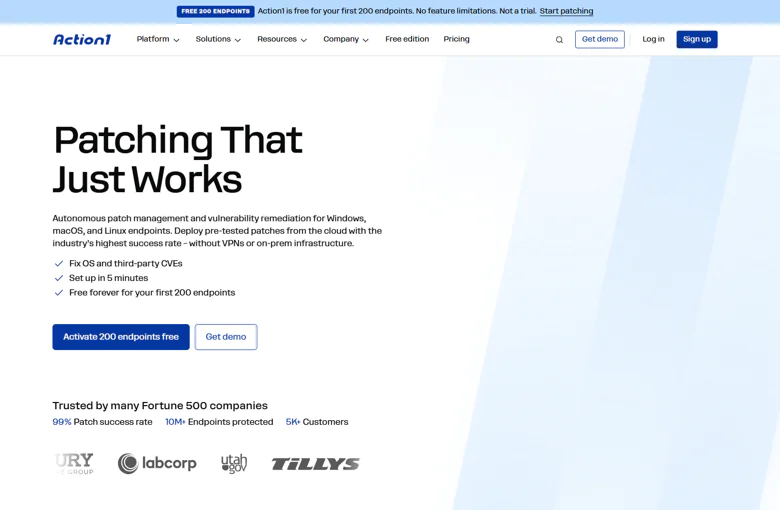
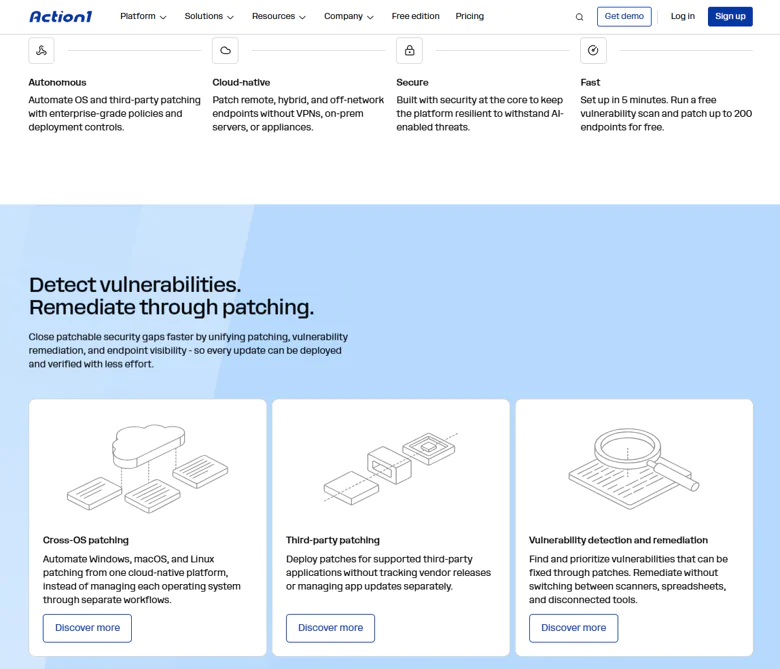
Action1 is a cloud-native, autonomous endpoint management platform that allows you to patch not only your Windows-based endpoints, but also macOS and Linux endpoints. It works equally well for on-premises and remote endpoints, servers, and virtual machines. More importantly, patching connects directly with vulnerability detection, remediation, automation, compliance tracking, and reporting. In simple terms, it automates end-to-end patch and vulnerability management. On top of that, the platform comes with its own scripting library and software deployment and removal capabilities to give you everything needed to manage and monitor your endpoints in real time, from one place, and automate the most time-consuming processes with just a few clicks.
- Broader patching coverage and control: You can patch operating systems and third-party apps, filter updates by severity, vendor, update type, and other criteria, and choose between manual and automatic approvals with a real-time progress bar for monitoring the deployment process live.
- Autonomous patching: Update rings let you roll missing patches out gradually from inner to outer rings. You can set success metrics and deployment counts, so only qualified updates move forward to the next ring automatically, while problematic ones do not. That minimizes downtime risks and accelerates vulnerability remediation.
- Flexible scheduling and offline catch-up window: You have the option to patch your endpoints immediately or on a schedule. If a device is offline during the deployment process, Action1 runs the missed schedule after it reconnects, which is especially useful for remote users, employees, and systems that are not always online.
- Private repository: Third-party updates come from a privately maintained, secure software repository supporting more than 310 apps, and it constantly keeps growing.
- P2P and custom software: Peer-to-peer distribution reduces external bandwidth usage by downloading an update to a single endpoint and sharing it with the rest connected to the same local network, without needing on-premises cache servers. This accelerates deployments significantly. You can also package and deploy your own software, with packages up to 32GB.
- Vulnerability detection and remediation: Vulnerabilities get detected and prioritized based on CVE IDs, CVSS scores, CISA KEV status, and known ransomware use in the wild. Action1 also relies on VulnCheck NVD++, NIST NVD, CISA KEV, MSRC, vendor release notes, and other sources to give you the most accurate information and categorization of each software flaw identified. From there, you can patch the vulnerability, remove unsupported software, isolate the endpoint from the network, or apply and document any other compensating controls when no patch is available.
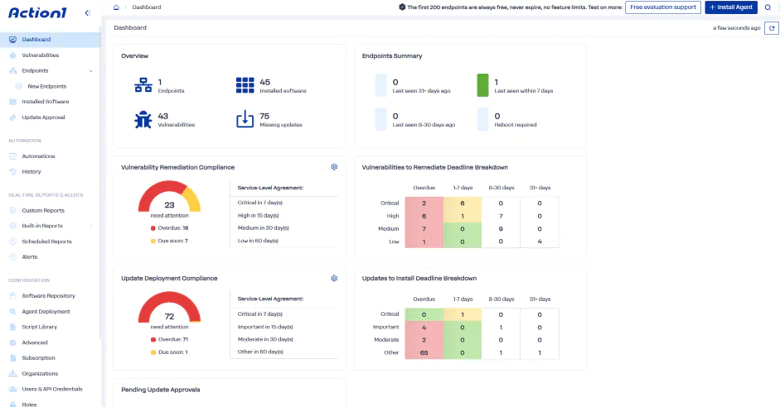
- Real-time patch and compliance visibility: You can track deployment progress, patch compliance, active vulnerabilities, and affected endpoints from the same platform instead of rebuilding the picture across separate tools.
- Advanced reporting: You get more than 100 built-in customizable report templates covering patching, vulnerabilities, software and hardware inventory, security configuration, and more. These reports use live data from all your connected endpoints, with cached information from offline ones, and support drill-down views, email subscriptions, CSV export, and customization of filters, columns, grouping, and ordering.
- Reboot control and governance: You can customize reboot prompts and postponement deadlines while keeping unnecessary disruption to a minimum. Multi-tenancy, separate update settings, and approval workflows per organization, as well as customizable RBAC, help you keep different customers, departments, or administrative responsibilities separated.
- Free tier: The cloud-native platform is free for up to 200 endpoints, fully featured, forever.
- Scalability: Action1 is truly scalable. You can go from 200 to more than 200,000 endpoints, and the more endpoints you manage, the lower the price gets. Since the platform is cloud-native and agent-based, you can easily deploy agents across all your new endpoints either with an existing deployment tool or through scripting, making the expansion an easy process to manage.