


Mean time to contain (MTTC) is the average time between detecting or confirming a security incident and taking effective action to stop the threat from spreading. It measures how quickly your team limits an incident’s impact, not how long it takes to resolve the underlying problem.
In many environments, containment happens through software. Endpoint agents, scripts, emergency patches, application controls, software removal, and configuration changes help IT and security teams act quickly. The speed and reach of your IT operations tooling can determine how quickly you contain a threat.
What is Mean Time to Contain (MTTC)?
MTTC measures the average time from detecting or confirming a security incident to effectively containing it. Containment means the threat cannot keep spreading: it cannot reach new devices, accounts or data. It does not mean the incident is fully resolved or its root cause has been eliminated. Investigation, cleanup, patching and recovery all come after the MTTC clock stops.
To calculate MTTC, add the elapsed time between detection and containment for each incident, then divide the total by the number of contained incidents.
MTTC = Total time from detection to containment ÷ Number of contained incidents
For example, if your team contains three incidents in 30, 60, and 90 minutes, the MTTC is 60 minutes. Use consistent start and end points when measuring incidents so you can compare results over time. A lower MTTC gives attackers less time to move laterally, steal data or deploy ransomware.
Many containment actions rely on software controls that let teams respond without physically accessing affected devices. Depending on the threat, your team can:
- Isolate an endpoint: Use an endpoint agent or endpoint detection and response (EDR) tool to restrict a device’s network access while preserving approved management or investigation traffic.
- Stop malicious activity: Terminate a malicious process or stop a compromised service.
- Remove or block software: Uninstall an unauthorized application or block a vulnerable application from running.
- Secure compromised identities: Disable a compromised account, revoke active sessions, or invalidate exposed credentials where supported.
- Change security controls: Push firewall rules, registry changes, or configuration updates through scripts or endpoint management policies.
- Apply an emergency mitigation: Disable an exploited service, restrict access to a vulnerable component, or apply a temporary configuration change until a permanent fix is available.
These actions can limit damage quickly, but teams must verify that the control took effect.
Start free with Action1. It’s fully featured and free forever for your first 200 endpoints. Or watch the demo to see how it works before you sign up.
What MTTC Measures?
MTTC shows how effectively your people, processes, and software controls work together to stop a threat. Four factors influence the result:
- Alert-to-action speed: How quickly does your team turns a security alert into a containment action. Excessive false positives, unclear ownership, and manual handoffs can delay action.
- Threat validation and scoping: How quickly analysts confirm suspicious activity, identify affected systems and accounts, and determine whether the threat has spread.
- Containment decisions and execution: How quickly authorized responders choose an appropriate action and carry it out with minimum business disruption.
- Tooling reach and execution speed: How fast your endpoint management and security tools apply the action to every affected device, including remote endpoints outside the corporate network. This factor is particularly important for distributed organizations and managed service providers.
Patching Containment or Remediation, and Where Does the MTTC Clock Stop?
The rule: An emergency mitigation counts as containment. Rolling the vendor patch out to every device and verifying it counts as remediation.
Containment limits an active threat (for example, disabling a vulnerable service, blocking a port, or removing the vulnerable version).
Remediation removes the underlying cause or vulnerability (for example, deploying the security update and confirming it on every endpoint).
| Containment action | Remediation action |
|---|---|
| Disable a vulnerable service to prevent exploitation | Deploy the security update, verify the fix, and re-enable the service |
| Terminate a malicious process and quarantine the suspected file | Remove persistence mechanisms, eliminate remaining malicious components, and restore clean software or system state |
| Block an application using its file hash or an application control policy | Uninstall the vulnerable application fleet-wide and update the allow list to prevent unauthorized reinstallation |
| Block the exploited port at the host firewall | Patch the service, then reopen the port only where the business needs it |
| Disable the compromised account and revoke sessions | Reset credentials and enforce multifactor authentication (MFA) |
| Block a malicious IP address or restrict access to an exposed service | Patch the exploited vulnerability, correct the underlying configuration, and verify that the exposure is closed |
When the MTTC clock stops
The MTTC clock stops when the mitigation is in place and verified on every affected device. It does not wait for the patch. For example, if your team disables an exploited service 20 minutes after detecting an incident, the containment time is 20 minutes. Deploying and verifying the vendor patch across 500 endpoints may take several more hours or days. That work belongs to remediation.
When no separate mitigation exists and the patch is the only fix, the patch is your containment action. In that case, installing it on the last affected device stops the MTTC clock and the remediation clock together. Record both times.
Important: Mitigation does not automatically satisfy a patching requirement or a Known Exploited Vulnerabilities (KEV) remediation deadline. Track the containment and remediation stages separately.
How Do You Find Every Affected Endpoint Before the MTTC Clock Stops?
Incident scoping helps determine which systems are affected and how far the threat has spread. A current software inventory makes this assessment faster by turning “which devices are affected?” into a query rather than a manual investigation. Scoping can continue as containment measures are deployed, but the MTTC clock stops only when the threat has been contained within the identified incident scope, and the team has verified that those measures worked.
Work through these questions in order:
- Which devices run the affected software or version? Query your endpoint inventory for the application, version, and operating systems involved. Compare the results with the vulnerability or incident details to identify affected devices.
- Which devices show indicators of compromise? Review EDR alerts and SIEM data for suspicious processes, file hashes, network connections, or other indicators associated with the incident.
- Which devices are offline? Compare the affected-device list with current agent check-in status. Flag devices that cannot receive or confirm containment actions.
- Which devices share the compromised account? Review identity provider sign-in logs, session records, and device associations to identify other endpoints that may be affected by the same compromised credentials.
Use multiple sources to scope the incident:
| Scoping source | What it tells you | Limitation |
|---|---|---|
| Software inventory | Which endpoints have the affected application or version installed | Stale inventory can miss recent installations, upgrades, or removed software |
| Vulnerability scan results | Which scanned systems have the identified vulnerability, with CVE identifiers | Unscanned, unreachable, or newly added endpoints may be missing |
| EDR or SIEM alerts | Which devices triggered detections or show the indicator of compromise | Alerts may not cover every affected device, and indicators can change |
| Identity provider sign-in logs | Which devices and sessions are associated with a compromised account | Device attribution may be incomplete, and logs may not reveal every session or affected endpoint |
A containment action queued for an offline device runs only when that device reconnects, and until then the threat remains active on it. Track every offline device as open until you confirm that the action ran and the required control took effect. Set an alert for devices that stay offline past your threshold.
Record the containment timestamp only after the last affected endpoint has been contained and verified. This gives you a safe stop point for MTTC reporting.
How Do You Calculate Mean Time to Contain?
Calculate the duration of each incident from detection to verified containment, add the durations, and divide by the number of incidents in the period.
MTTC = Sum of (containment time − detection time) ÷ Number of incidents
Consider five incidents in one month with different containment times:
| Incident | Detected | Contained | Duration |
|---|---|---|---|
| INC-1 | 09:00 | 09:30 | 30 minutes |
| INC-2 | 10:00 | 11:00 | 1 hour |
| INC-3 | 11:00 | 12:00 | 1 hour |
| INC-4 | 13:00 | 14:30 | 1.5 hours |
| INC-5 | Monday, 09:00 | Tuesday, 09:00 | 24 hours |
| Total | 28 hours |
The fifth incident took much longer because containment was delayed. Convert all durations to hours before calculating the mean.
| Mean (MTTC): (0.5 + 1 + 1 + 1.5 + 24) ÷ 5 = 5.6 hours |
|---|
| Median: Sort the Duration values in ascending order; the middle value is the median, i.e., 1 hour |
| 90th percentile (P90): The P90 estimates the time within which 90% of incidents are contained. With only five incidents, the exact value depends on the percentile calculation method. Using the nearest-rank method, P90 is 24 hours. |
One outlier, INC-5, drives the mean: without that incident the mean falls to 1 hour (4 ÷ 4). The median is 1 hour and barely notices the 24-hour outlier.
Reporting only the mean can obscure typical performance, while reporting only the median can hide serious delays. Track both, along with P90, to understand routine response speed and the long-running incidents that need attention.
Define Your Start and Stop Timestamps
Consistent start and stop points for the MTTC clock enable reliable comparisons across incidents, teams, and reporting periods. Select and document these events:
- Start: Use either the time the security alert is created or the time an analyst confirms the incident. Pick one and use it every time. Alert creation captures the delay before validation; confirmation starts the clock later and excludes that investigation time.
- Stop: Use the time the last affected endpoint is isolated or effectively mitigated, and the action has been verified. Do not use the time when someone approves, queues, or initiates the action.
- Timestamp sources: Use SIEM or EDR alert timestamps for the start. Use incident ticket timestamps, endpoint management action logs, and script-execution logs to establish when containment took effect and was verified.
Capture the chosen timestamps, time zone, and any exclusions in your measurement policy.
A Common MTTC Calculation Mistake
A common mistake is to add detection time, acknowledgment time, and resolution time together and label the result MTTC. That formula measures the whole incident lifecycle. It overlaps with mean time to detect (MTTD), mean time to acknowledge (MTTA) and mean time to remediate (MTTR), and it counts the same minutes twice.
MTTC measures the elapsed time from the defined detection (or confirmation) point to effective containment. Acknowledgment may occur during that window, and remediation may continue after it ends, but neither should be added as a separate duration.
Track MTTC by Incident Type and Severity
A single organization-wide MTTC can hide slow responses to high-risk incidents. Segment MTTC by incident type and severity so you can see where containment is lagging.
| Incident type | Critical | High | Medium |
|---|---|---|---|
| Exploited vulnerability | Track emergency mitigation speed and exposure of critical assets | Measure containment of affected applications and endpoints | Monitor mitigation delays and exposure scope |
| Malware on an endpoint | Measure isolation speed and prevention of further spread | Track process termination and containment across affected devices | Monitor containment of limited, confirmed infections |
| Compromised account | Track session revocation and containment of privileged access. | Measure account disablement and associated endpoint checks | Monitor containment of lower-impact account compromises |
| Unauthorized remote-access tool | Measure how quickly unauthorized access is blocked | Track removal or blocking across affected endpoints | Monitor closure of limited or lower-risk access paths |
For each segment, calculate the mean, median, and P90, provided the group contains enough incidents for the numbers to be meaningful. Define severity using factors such as exploitability, asset criticality, exposure, and business impact.
Review the results over time. If, for example, malware incidents have a consistently higher P90 than compromised-account incidents, investigate whether endpoint isolation, investigation workflows, or remote-device connectivity is delaying containment. In this way, you can use MTTC reporting to prioritize improvements.
How MTTC Fits into the Incident Response Lifecycle
Incident response runs in sequence, and each metric measures one stretch of it. The timeline shows where the MTTC clock runs. The National Institute of Standards and Technology (NIST) published SP 800-61 Rev. 3 in April 2025. It organizes incident response around the six CSF 2.0 Functions: Govern, Identify, Protect, Detect, Respond, and Recover. Detection maps to the Detect function, containment and eradication fall under Respond, while Recover focuses on restoring affected assets and operations to normal, secure working conditions.
- Detection: Detection starts the MTTC clock when your chosen measurement event occurs, such as alert creation or incident confirmation.
- Investigation and validation: Your team must determine which devices, applications, accounts, and services may be affected. A current software inventory helps answer “Which devices run the affected software or version?” in minutes. Without one, scoping takes hours of device-by-device checks, and every hour counts toward MTTC. Endpoint and identity data help identify additional exposure.
- Containment actions: The MTTC clock stops when the threat is effectively contained and action is verified across the affected scope.
- Remediation and recovery: After containment, deploy the patch fleet-wide, remove malicious components, redeploy clean software where necessary, and verify that systems meet security requirements. Finish with a post-incident review to identify response delays, improve procedures, and prevent recurrence. Remediation metrics measure this work, not MTTC.
How is Mean Time to Contain Different from MTTD, MTTA, and MTTR?
MTTC, MTTD, MTTA, and MTTR measure different stages of security incident response. Tracking them separately helps you identify whether delays occur during detection, alert handling, containment, or remediation.
| Metric | Clock starts | Clock stops | What it tells you | Software-side example |
|---|---|---|---|---|
| MTTD | When an incident begins, or when an observable event first occurs, according to your measurement policy | When the incident is detected | How quickly monitoring identifies a threat | EDR flags a malicious script on a workstation |
| MTTA | When an alert is generated or assigned | When an analyst acknowledges it, according to your policy | How quickly someone takes ownership of an alert | An on-call analyst accepts the EDR alert |
| MTTC | When the incident is detected or confirmed, using a consistent starting point | When containment is verified across the affected scope | How quickly the team stops the threat from spreading | A script disables the vulnerable service on every device that runs it |
| MTTR | Depends on the documented definition, such as when the incident is detected | Remediation is complete and verified | How quickly the team remediates, resolves, or recovers from an incident | The patch is deployed fleet-wide and compliance is confirmed |
Strong detection does not guarantee fast containment. Your monitoring may identify an attack quickly, but investigation delays, approval requirements, offline endpoints, or failed scripts can extend MTTC.
Read the four as a set. When MTTD is low and MTTC is high, the delay sits between alert and action: scoping, approvals, or tooling. When MTTA is high, the problem is alert routing and triage. When MTTC is low and MTTR is high, containment works but fixing the cause takes too long.
MTTR: Respond, Remediate, Resolve, Recover or Repair?
MTTR is an ambiguous acronym. It can stand for mean time to respond, remediate, resolve, recover or repair, and each version starts and stops at a different event. This makes comparisons unreliable unless you know what your organization wants to measure. Pick one meaning, write down its start and stop events, and keep it fixed. Specify which MTTR you are reporting (for example, MTTR – mean time to respond) and include the defined start and stop points whenever the metric is shared.
For patch-driven security incidents, use mean time to remediate when measuring how long it takes to move from detection to a verified fix on every affected device.
Mean Time to Detect (MTTD)
MTTD measures how quickly your monitoring and security processes identify an incident. It is the average time between the start of malicious activity and its detection. Define whether the clock starts at the first observable malicious activity or another agreed event, because the choice affects the result.
A shorter MTTD reduces the time a threat can operate undetected and shrinks the number of devices you have to scope, giving your team an earlier opportunity to investigate and contain it. Read MTTD next to MTTC to see whether delays occur before or after detection.
Mean Time to Acknowledge (MTTA)
MTTA measures how quickly your team acknowledges an alert and takes ownership. It is the average time between an alert being fired and a responder picking it up. Alert fatigue and unclear priorities can delay acknowledgment, so configure on-call routing and severity-based alert tiers to direct critical incidents to the right responders immediately. Track MTTA separately from the time required to contain the threat.
System Availability, SLA Compliance and MTBF
Service availability measures whether business-critical software and services remain accessible, while SLA compliance tracks whether agreed availability or response targets are met. Monitor and measure the uptime of the endpoint management (or EDR/XDR) service you use for containment actions, as well as any other SaaS tools in the containment path. An outage in that service directly increases MTTC.
Operational Metrics: Incident Volume, Severity and Escalation Rate
Track incident volume and severity to understand the demands on your response team, and monitor escalation rates to identify incidents that require additional authority. High escalation rates or repeated delays in critical incidents can raise MTTC while indicating shortcomings in response procedures, staffing, or tooling.
MTTC and Vulnerability Management Metrics
MTTC measures how quickly you contain a security incident, while vulnerability management metrics track how quickly you reduce exposure before and after exploitation occurs. The two are closely related because an unpatched, actively exploited vulnerability can become the entry point for an incident that requires containment.
Track MTTC with mean time to remediate vulnerabilities, patch latency, and the exposure window. Patch latency measures the time between a defined patch starting event and deployment, while the exposure window describes how long a vulnerable asset remains exposed to a threat. Define these metrics separately so you can compare containment performance with vulnerability remediation progress.
In the 2026 Verizon Data Breach Investigations Report, vulnerability exploitation became the top initial access vector for the first time, at 31% of breaches. Organizations fully remediated only 26% of the vulnerabilities in CISA’s KEV catalog in 2025, down from 38% the year before.
Fast patching can reduce the number of incidents that require containment in the first place. When a patch is unavailable or deployment cannot happen immediately, emergency mitigations such as disabling an affected service or restricting network access can limit exposure.
Use CISA’s KEV catalog to identify vulnerabilities known to be exploited in the wild and prioritize remediation. CISA updated its guidance in June 2026 with BOD 26-04, which establishes risk-based security update priorities for federal civilian executive branch agencies. Other organizations can use the catalog as a prioritization resource, but should not assume federal deadlines automatically apply to them.
Why Does Mean Time to Contain Matter in Cybersecurity?
The longer an attacker remains active in an environment, the more time they have to steal data, move laterally, escalate privileges, or deploy ransomware. Every uncontained hour widens the blast radius, increasing the number of affected endpoints, the disruption to business operations, and the cost of recovery. MTTC helps teams measure how quickly they limit that damage after detecting an incident.
The software angle is direct. When a vulnerability is under active exploitation, every hour without containment puts more unpatched endpoints at risk. IT and security teams need to identify affected devices, isolate compromised systems, disable exposed services, or deploy temporary mitigations before the threat spreads.
MTTC also gives leadership a concrete measure of operational effectiveness. Teams can report average containment time, the median, P90, incident severity, and trends over time. These measures help leaders see whether response processes are improving and where delays persist.
The financial stakes reinforce the need for timely action. IBM’s 2026 Cost of a Data Breach Report puts the mean time to identify and contain a breach at 247 days: 183 days to identify and 64 days to contain. Breaches with lifecycles longer than 200 days cost an average of $5.65 million, against $4.32 million for those contained within 200 days, and organizations using security automation extensively shortened the lifecycle by 65 days.
What Slows Down Mean Time to Contain?
Five factors cause most of the delay between detection and containment.
Alert Quality and False Positives
Noisy alerts force analysts to spend time separating genuine threats from false positives. This slows triage and can leave a real incident waiting while the team investigates lower-risk events. For example, repeated endpoint alerts about a blocked application may obscure a malware infection. Teams should tune detection rules, enrich alerts with endpoint and user context, and prioritize confirmed threats to identify incidents that need immediate containment.
Analyst Workload, Handoffs and Approvals
High alert volumes and unclear responsibilities can delay action even after an analyst confirms a threat. Every handoff, from the security operations center (SOC) to IT operations and then to change approval, can add time to MTTC. For example, a security analyst may identify a compromised endpoint but lack permission to isolate it. Approved emergency procedures, clear ownership, and role-based access to containment tools decrease waiting time.
Visibility and Context Gaps
With missing or outdated asset and software inventories, it is difficult to identify every affected endpoint, determine which software version is installed, and establish the full scope of an incident. For example, an inventory that misses a remote laptop running a vulnerable application can leave that device exposed after the rest of the fleet is contained. Accurate inventory and reliable endpoint check-in data help teams scope incidents faster.
Environment Complexity
Distributed environments make it harder to apply and verify containment consistently. Remote and off-VPN endpoints, mixed operating systems, cloud workloads, and SaaS applications may require different tools and procedures. For example, a script designed for Windows cannot automatically contain a threat on a Linux server. Teams need compatible management methods, platform-specific actions, and a way to track devices that remain offline until they reconnect.
Disconnected Security and IT Operations Tools
The SOC may detect a threat in an EDR platform, while IT operations control the endpoint management tool needed to isolate a device, remove software, or run a script. If the tools do not share alerts, asset details, and action status, staff must switch consoles, transfer information manually, and confirm results through separate channels. This can add delay to every incident, extending your MTTC.
How Do You Contain a Threat on Endpoints You Can’t Isolate?
When you can’t isolate an endpoint, contain the threat at a narrower level. Stop the malicious process or service, block the port, disable the compromised account, or remove the vulnerable software, so the business system keeps running while the threat stops spreading.
In real environments, domain controllers, production servers and point-of-sale systems can’t be taken offline without disrupting business. Where isolation is possible, use EDR isolation first. Keep narrower actions for systems that have to stay up.
| Situation | Why full isolation isn’t practical | Narrower containment action | Trade-off |
|---|---|---|---|
| Production server running a critical service | Isolation could interrupt a business-critical application | Stop the malicious process, disable the affected service, or block its exposed port | The service may lose functionality, and other attack paths may remain open (such as the server stays reachable) |
| Domain controller | Isolation could disrupt authentication and access across the environment | Disable a compromised account, revoke active sessions where supported, and block the specific malicious connection | Other compromised accounts or persistence mechanisms may remain |
| Remote endpoint off the corporate network | The device may be unreachable through internal network controls | Use its endpoint agent to stop a process, disable a service, or remove vulnerable software if the agent can still communicate | If the device is offline, the action may remain queued and unverified until it reconnects |
| Shared kiosk or point-of-sale device | Isolation could interrupt customer transactions or essential operations | Block the malicious application, terminate its process, or restrict the affected network connection | The device may remain exposed through other processes or connections, and users work in a degraded mode |
| Compromised user account on a healthy device | Isolating the device does not stop the account working elsewhere | Disable the account, revoke sessions, and reset credentials as appropriate. | User loses access until identity is verified |
These actions can reduce immediate risk when full isolation interrupts a critical service, but they only count as containment if they stop the threat’s spread or harmful activity.
Verify after each action. For example:
- After stopping a process, confirm that it has terminated and has not restarted.
- After blocking a port or connection, check that the traffic is blocked.
- After disabling an account, verify that active sessions are revoked and the account cannot sign in on any device.
- For remote endpoints, confirm that the queued action executed and the threat is no longer active.
If the check fails, the MTTC clock keeps running.
Define these narrower actions in your approved containment list. Specify when each action is permitted, who can execute it, what service impact to expect, and how to verify success. This helps responders act without waiting for case-by-case approval.
How Can You Reduce Mean Time to Contain?
To reduce MTTC, teams need enough context to identify affected assets, authority to act, and tools that can execute and verify containment across the environment. Standardized playbooks, automation, prepared scripts, and accurate software inventory reduce delays between confirming a threat and stopping its spread.
Improve Alert Fidelity and Context
Correlate alerts from EDR, SIEM, identity providers, and vulnerability scanners to build a clear picture of an incident. Attach device names, operating systems, installed software versions, missing patches, logged-in users, and asset criticality to relevant alerts. For example, an alert involving an actively exploited third-party application is easier to prioritize when responders can immediately identify every endpoint running the affected version. Better context speeds up triage and reduces time spent searching separate consoles.
Standardize Containment Playbooks for Common Scenarios
Write a playbook for each common scenario. Document the response steps, execution method, verification criteria, and escalation path for recurring incidents. Test the playbooks in tabletop exercises and controlled technical drills. Walk through each scenario end-to-end, time every step, and deliberately include failed actions, offline devices, business-critical systems, and situations that require narrower containment. Record every gap or slow handoff, fix the playbook, and retest until the response is reliable.
Adapt the following matrix to your environment:
| Scenario | Containment action | How it is executed | Target time* |
|---|---|---|---|
| Exploited zero-day in a third-party app | Disable the vulnerable feature or block/uninstall the affected application where feasible | Endpoint policy, script, or application control | Within 30 minutes of confirmation |
| Malware on an endpoint | Isolate the device, kill malicious processes, and quarantine the file | EDR isolation, then endpoint agent or script to stop the process | Within 15 minutes of confirmation |
| Compromised account | Disable the account and revoke active sessions | Identity provider controls and session revocation | Within 15 minutes of confirmation |
| Unauthorized remote-access tool | Stop the process and remove or block the application | Endpoint script or software management policy | Within 30 minutes of confirmation |
*Target times are illustrative. Set yours from your own baseline.
Automate Isolation and Other Manual Steps
Manual steps stretch MTTC and may introduce errors. Replace them with automation policies and scripts that trigger containment from trusted detections and act on every matching device at once. For example, when an alert names a vulnerable application version, a policy runs the mitigation script on every device that reports that version, including devices that reconnect later. Track execution results, failures, and devices that remain unreachable. Keep human approval for high-impact actions such as isolating a production server.
Give Responders Clear Authority to Act
Create a written list of pre-approved containment actions that responders can execute without waiting for approval. Include device isolation, stopping a malicious service, disabling a compromised account, and uninstalling unauthorized software. Define the conditions for each action, required permissions, expected service impact, and verification steps. For production systems, specify narrower alternatives and escalation rules. This reduces approval delays while keeping actions controlled and auditable.
Pre-Stage Scripts and Emergency Deployment Packages
Build a library of tested scripts for stopping or disabling services, terminating processes, blocking ports, uninstalling applications, and applying registry mitigations. Store each script with its parameters, a rollback step and the date of its last test. Have every script technically reviewed and tested on a pilot group before adding it to the library.
Let’s start with a generic PowerShell script that:
- Stops the service and sets its startup type to Disabled
- Set startup type back to Automatic and start the service
<#
.SYNOPSIS
    contain-service.ps1 - Emergency containment script for Windows services.
.DESCRIPTION
    Containment mode:
      - Records the current configuration (startup type, delayed auto-start flag,
        running state, and running dependent services) to a protected state file
      - Sets the startup type to Disabled first, so nothing can restart the service
      - Stops the service and its dependent services, with an enforced timeout
      - Optionally terminates the service process if it doesn't stop in time
      - Verifies that the service is Stopped and Disabled
    Rollback mode restores:
      - The original startup type, including delayed auto-start
      - The original running state
      - Dependent services that were running before containment
.PARAMETER ServiceName
    Service name of the Windows service to contain (for example, "Spooler").
    Wildcards aren't allowed.
.PARAMETER Rollback
    Restore the service to the configuration recorded during containment.
.PARAMETER TimeoutSeconds
    Maximum seconds to wait for the service to stop (default: 30).
.PARAMETER KillOnTimeout
    If the service doesn't stop within the timeout, terminate its process.
    Skipped when the process hosts other running services (for example, a shared svchost.exe).
    Windows treats a terminated service process as a service failure, so the service's
    recovery actions can fire. Check them first with: sc.exe qfailure <ServiceName>
.EXAMPLE
    .\contain-service.ps1 -ServiceName "BadService"
.EXAMPLE
    .\contain-service.ps1 -ServiceName "BadService" -KillOnTimeout
.EXAMPLE
    .\contain-service.ps1 -ServiceName "BadService" -Rollback
.NOTES
    Requires: Administrator or SYSTEM privileges, Windows PowerShell 5.1 or PowerShell 7+
    Exit codes: 0 = contained, restored, already contained, or service not found
                1 = failure
#>
[CmdletBinding(SupportsShouldProcess = $true)]
param(
    [Parameter(Mandatory = $true, Position = 0)]
    [ValidateNotNullOrEmpty()]
    [string]$ServiceName,

    [switch]$Rollback,

    [ValidateRange(1, 3600)]
    [int]$TimeoutSeconds = 30,

    [switch]$KillOnTimeout
)

$ErrorActionPreference = 'Stop'

# ---------------------------------------------------------------------------
# Helpers
# ---------------------------------------------------------------------------
function Test-Administrator {
    $identity  = [Security.Principal.WindowsIdentity]::GetCurrent()
    $principal = New-Object Security.Principal.WindowsPrincipal($identity)
    return $principal.IsInRole([Security.Principal.WindowsBuiltInRole]::Administrator)
}

function Initialize-StateDirectory {
    param([string]$Path)

    if (-not (Test-Path -LiteralPath $Path)) {
        New-Item -ItemType Directory -Path $Path -Force | Out-Null

        # Restrict to Administrators and SYSTEM. Well-known SIDs work on every Windows language.
        $acl = Get-Acl -LiteralPath $Path
        $acl.SetAccessRuleProtection($true, $false)
        foreach ($sidValue in @('S-1-5-32-544', 'S-1-5-18')) {
            $sid  = New-Object System.Security.Principal.SecurityIdentifier($sidValue)
            $rule = New-Object System.Security.AccessControl.FileSystemAccessRule(
                $sid, 'FullControl', 'ContainerInherit, ObjectInherit', 'None', 'Allow')
            $acl.AddAccessRule($rule)
        }
        Set-Acl -LiteralPath $Path -AclObject $acl
    }
}

function Wait-ServiceStopped {
    param($Service, [int]$Seconds)

    $sw = [System.Diagnostics.Stopwatch]::StartNew()
    while ($sw.Elapsed.TotalSeconds -lt $Seconds) {
        $Service.Refresh()
        if ($Service.Status -eq 'Stopped') { return $true }
        Start-Sleep -Seconds 1
    }
    $Service.Refresh()
    return ($Service.Status -eq 'Stopped')
}

# ---------------------------------------------------------------------------
# Preflight
# ---------------------------------------------------------------------------
if (-not (Test-Administrator)) {
    Write-Output "FAILED: $env:COMPUTERNAME - Script must be run as Administrator or SYSTEM."
    exit 1
}

# Get-Service treats * ? [ ] as wildcards, and service names can't contain \ or /
if ($ServiceName -match '[\*\?\[\]\\/]') {
    Write-Output "FAILED: $env:COMPUTERNAME - Invalid service name '$ServiceName'. Wildcards aren't allowed."
    exit 1
}

$svc = Get-Service -Name $ServiceName -ErrorAction SilentlyContinue
if (-not $svc) {
    Write-Output "$env:COMPUTERNAME : NOT FOUND - service '$ServiceName' doesn't exist on this endpoint"
    exit 0
}

# Use the canonical service name from here on (in case a display name was passed)
$ServiceName = $svc.Name
$wqlName     = $ServiceName -replace "'", "\'"
$StateDir    = Join-Path $env:ProgramData 'ServiceContainment'
$StateFile   = Join-Path $StateDir "$ServiceName.json"

# ---------------------------------------------------------------------------
# ROLLBACK MODE
# ---------------------------------------------------------------------------
if ($Rollback) {
    if (-not (Test-Path -LiteralPath $StateFile)) {
        Write-Output "FAILED: $env:COMPUTERNAME - No rollback state file found for $ServiceName"
        exit 1
    }

    try {
        $OriginalState = Get-Content -LiteralPath $StateFile -Raw | ConvertFrom-Json

        $startupType = switch ($OriginalState.StartupType) {
            'Auto'     { 'Automatic' }
            'Manual'   { 'Manual' }
            'Disabled' { 'Disabled' }
            default    { throw "Unsupported startup type in state file: $($OriginalState.StartupType)" }
        }

        $wasRunning     = ($OriginalState.Status -eq 'Running')
        $restoreDelayed = ($startupType -eq 'Automatic' -and [int]$OriginalState.DelayedAutostart -eq 1)
        $dependents     = @($OriginalState.RunningDependents | Where-Object { $_ })

        if ($PSCmdlet.ShouldProcess($ServiceName, 'Restore original configuration')) {

            # A disabled service can't be started, so a service that was Disabled
            # but running gets a temporary Manual startup type while it starts
            $interimType = if ($wasRunning -and $startupType -eq 'Disabled') { 'Manual' } else { $startupType }

            Set-Service -Name $ServiceName -StartupType $interimType

            # Restore delayed auto-start through the Service Control Manager
            if ($restoreDelayed) {
                $scOutput = & sc.exe config $ServiceName start= delayed-auto
                if ($LASTEXITCODE -ne 0) {
                    throw "sc.exe couldn't restore delayed auto-start (exit code $LASTEXITCODE): $($scOutput -join ' ')"
                }
            }

            if ($wasRunning) {
                Start-Service -Name $ServiceName
            }

            if ($interimType -ne $startupType) {
                Set-Service -Name $ServiceName -StartupType $startupType
            }

            # Restart dependent services that were running before containment
            $failedDependents = @()
            foreach ($dep in $dependents) {
                try {
                    Start-Service -Name $dep -ErrorAction Stop
                }
                catch {
                    $failedDependents += "$dep ($($_.Exception.Message))"
                }
            }

            # Verify
            $svc.Refresh()
            $afterWmi = Get-CimInstance -ClassName Win32_Service -Filter "Name='$wqlName'"

            if ($wasRunning -and $svc.Status -ne 'Running') {
                throw "Verification failed - expected Running, found $($svc.Status)"
            }
            if ($afterWmi.StartMode -ne $OriginalState.StartupType) {
                throw "Verification failed - expected StartMode $($OriginalState.StartupType), found $($afterWmi.StartMode)"
            }

            if ($failedDependents.Count -gt 0) {
                Write-Output "FAILED: $env:COMPUTERNAME - $ServiceName restored, but these dependent services didn't start: $($failedDependents -join ', ')"
                Write-Output "State file kept so rollback can be run again."
                exit 1
            }

            Remove-Item -LiteralPath $StateFile -Force

            Write-Output "$env:COMPUTERNAME : $ServiceName successfully restored"
            Write-Output "Status: $($svc.Status)"
            Write-Output "StartupType: $startupType"
            if ($restoreDelayed) {
                Write-Output "DelayedAutostart: restored"
            }
            if ($dependents.Count -gt 0) {
                Write-Output "Dependent services restarted: $($dependents -join ', ')"
            }
        }
        exit 0
    }
    catch {
        Write-Output "FAILED: $env:COMPUTERNAME - rollback failed for $ServiceName - $($_.Exception.Message)"
        exit 1
    }
Review dependencies and service impact, test the script in a controlled environment, and run it with appropriate privileges. Package approved scripts and emergency deployment files, so responders don’t have to write or troubleshoot them during an incident. Target every device running the affected software version, rather than handling endpoints one at a time. A device group built from inventory data does the targeting for you.
Keep Software Inventory and Patch Status Current
Maintain an inventory that identifies installed applications, versions, operating systems, and patch status. When a vulnerability emerges, responders can query the inventory to find affected endpoints instead of manually investigating each device. A regular patching cadence reduces the number of systems exposed to known vulnerabilities, which lowers the chance that a vulnerability-driven incident will require emergency containment. Review inventory freshness and patch status weekly, and treat any endpoint that has stopped checking in as a visibility gap.
What is a Good Mean Time to Contain?
There is no universal benchmark for a good MTTC. The right target depends on incident severity, business impact, the type of threat, and how quickly teams can apply and verify containment. Your own start and stop definitions all change the number, so a figure from another organization may not be helpful. Set internal targets based on your risk profile and operational capabilities.
The following targets are illustrative starting points, not industry benchmarks. Adjust them to reflect your environment and test whether your team can meet them.
| Incident severity | Illustrative containment target |
|---|---|
| Critical: active exploitation or widespread ransomware | Within 15 minutes |
| High: confirmed compromise with potential to spread | Within 30 minutes |
| Medium: localized threat with limited exposure | Within 4 hours |
| Low: contained, low-impact event with no evidence of spread | Within 1 business day |
Define when the clock starts and what evidence proves containment. Then start from your own data. Pull the last 90 days of incidents, calculate the median and P90 for each severity, and set the first target slightly below each baseline. A target that every incident already meets is too loose; a target that no incident meets will be ignored.
Track three numbers together: the trend, the median, and the P90.
- The median shows typical performance.
- The P90 shows how long the slowest 10 % of incidents take to contain.
- The trend shows whether performance is improving or degrading.
Break results down by severity and incident type to identify where delays occur. Review these figures monthly and reset targets each quarter.
What are the Challenges of Measuring MTTC Accurately?
Several common problems can distort MTTC results or make comparisons misleading.
- Unclear start and stop points: Starting the clock at alert creation versus analyst confirmation changes the result. Likewise, issuing a containment command is not the same as verifying that it worked. Document both your start and stop timestamps and apply the same rules to every incident.
- Inconsistent metric definitions: Define each metric explicitly and keep containment separate from permanent remediation. MTTR is especially ambiguous because the “R” can mean resolve, respond, remediate, or recover.
- Partial containment: Stopping one malicious process does not prove the attacker has lost access. Verify that the threat can no longer spread or continue harmful activity across the affected scope, including remote endpoints.
- Business-critical systems: Full device isolation may interrupt essential services. In that case, responders can block a malicious process, disable an affected service, or restrict a port. Verify that the narrower action stops the threat.
- Manually recorded timestamps: Times copied into tickets after the event can be incomplete or inaccurate. Use automated alert, endpoint-management, identity, and script-execution logs to capture start and containment times wherever possible. Record the time zone and document any manual corrections.
How Should Teams Report MTTC for Security Operations and Risk Management?
MTTC reporting should show whether the organization can contain threats within its risk tolerance, where response delays occur, and whether corrective actions improve performance. Pair containment metrics with incident severity, business impact, affected assets, and evidence that containment succeeded.
Aligning MTTC with Business Goals and Compliance Requirements
MTTC is not a compliance requirement on its own, but it is the evidence behind several. Map MTTC reporting to relevant security frameworks and obligations that require strong incident response.
- The NIST Cybersecurity Framework (CSF) 2.0 Respond function covers incident management, mitigation, and communication.
- ISO/IEC 27001:2022 includes controls for incident management, response, and learning from incidents.
- SOC 2 expects documented incident response procedures and proof that you follow them.
Keep operational targets separate from legal deadlines.
- The GDPR requires notifying the supervisory authority within 72 hours of becoming aware of a personal data breach.
- The US Securities and Exchange Commission (SEC) requires public companies to disclose material cybersecurity incidents on Form 8-K within four business days of determining materiality.
Neither deadline is an MTTC target.
Translate MTTC into risk language. Tell leadership how long a threat stays free to spread and how many devices it can reach in that time. Tie your targets to notification windows. For auditors, show a documented definition, timestamps from system logs, and proof that you act on the results.
Building MTTC Dashboards and Reports
Your dashboards should display four core panels:
- MTTC by severity: Average time to contain broken down by severity tier, compared against the internal target for each tier.
- MTTC trend over time: Show whether response is improving or degrading.
- Median and P90: Reveal typical performance and slower cases.
- Automatic containment rate: Report the percentage of incidents contained automatically and verified successfully.
Include overdue incidents, unresolved offline endpoints, and reasons for delays. Retain timestamps, action logs, verification evidence, and incident records to support audits and management reviews.
Frequently Asked Questions
Is Patching a Containment Step or a Remediation Step?
Deploying a patch is usually remediation because it fixes the underlying vulnerability. An emergency mitigation, such as disabling the vulnerable service or blocking an exposed port is containment. Track both actions separately to measure containment speed and vulnerability closure. If the patch is the only available fix, applying it to the last affected device ends the MTTC clock and the remediation clock together.
Can Scripting Reduce MTTC?
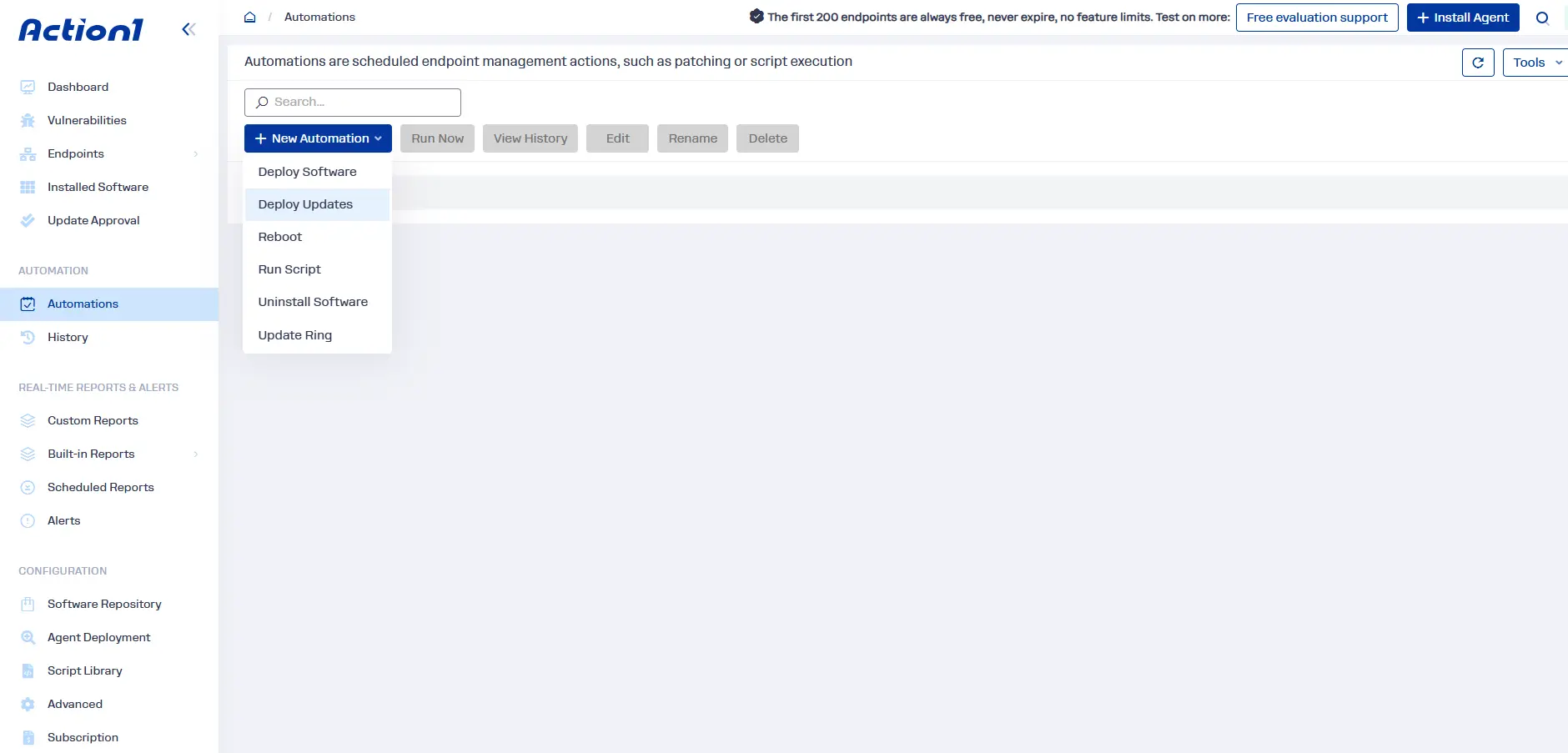
Yes. Pre-tested scripts run on every affected device at once instead of being executed manually, device by device. They can stop malicious processes, disable services, block ports, and remove unauthorized software from affected endpoints. Targeting by software version, immediate or scheduled execution, and automatic catch-up for offline devices remove long delays in the containment process.
How Does Vulnerability Management Affect MTTC?
Vulnerability management uses inventory and scan data to show which devices are exposed and then closes known exploited vulnerabilities quickly. When this process is fast, you face fewer urgent containment actions and reduce the risk of threats spreading across endpoints. A current inventory also shortens the scoping phase for the incidents that still occur. Track patch latency and the exposure window with MTTC.
What Actions Help Contain a Threat?
Depending on the incident, responders can isolate an affected device, stop a malicious process or service, remove vulnerable software, disable a compromised account, revoke active sessions, or block malicious network traffic. Choose actions based on the threat and business impact, then verify that they prevent further harmful activity or spread.
How Do You Measure MTTC Accurately?
Define consistent start and stop events, such as incident confirmation and verified containment on all affected devices. Use timestamps from security alerts, endpoint management, identity systems, and script execution logs. Segment results by incident type and severity, and report the mean with the median and P90 to reveal outliers. Verify containment before you stop the MTTC clock.
How Can Action1 Help Teams Move from Containment to Verified Remediation Faster?
Action1 is a cloud-native platform for autonomous endpoint management with built-in advanced patching and vulnerability management capabilities. It helps you contain a threat faster by monitoring your endpoints 24/7 through agents, showing which of them run the affected software, and enabling you to remediate or mitigate all of them at once, wherever your systems are. You can deploy the missing patches to remediate the vulnerability, or mitigate it by disabling ports, uninstalling the vulnerable software, or applying other compensating controls. Then you can check the dashboard to verify that everything worked as expected. If it didn’t work on some endpoints, you can retry the process to ensure complete coverage and eliminate blind spots. And finally, you can generate an audit-ready report covering the entire process in minutes using the 100+ built-in customizable templates. So Action1 helps you stop the MTTC clock with precision you can trust, minimal manual effort, advanced automation, and less downtime.
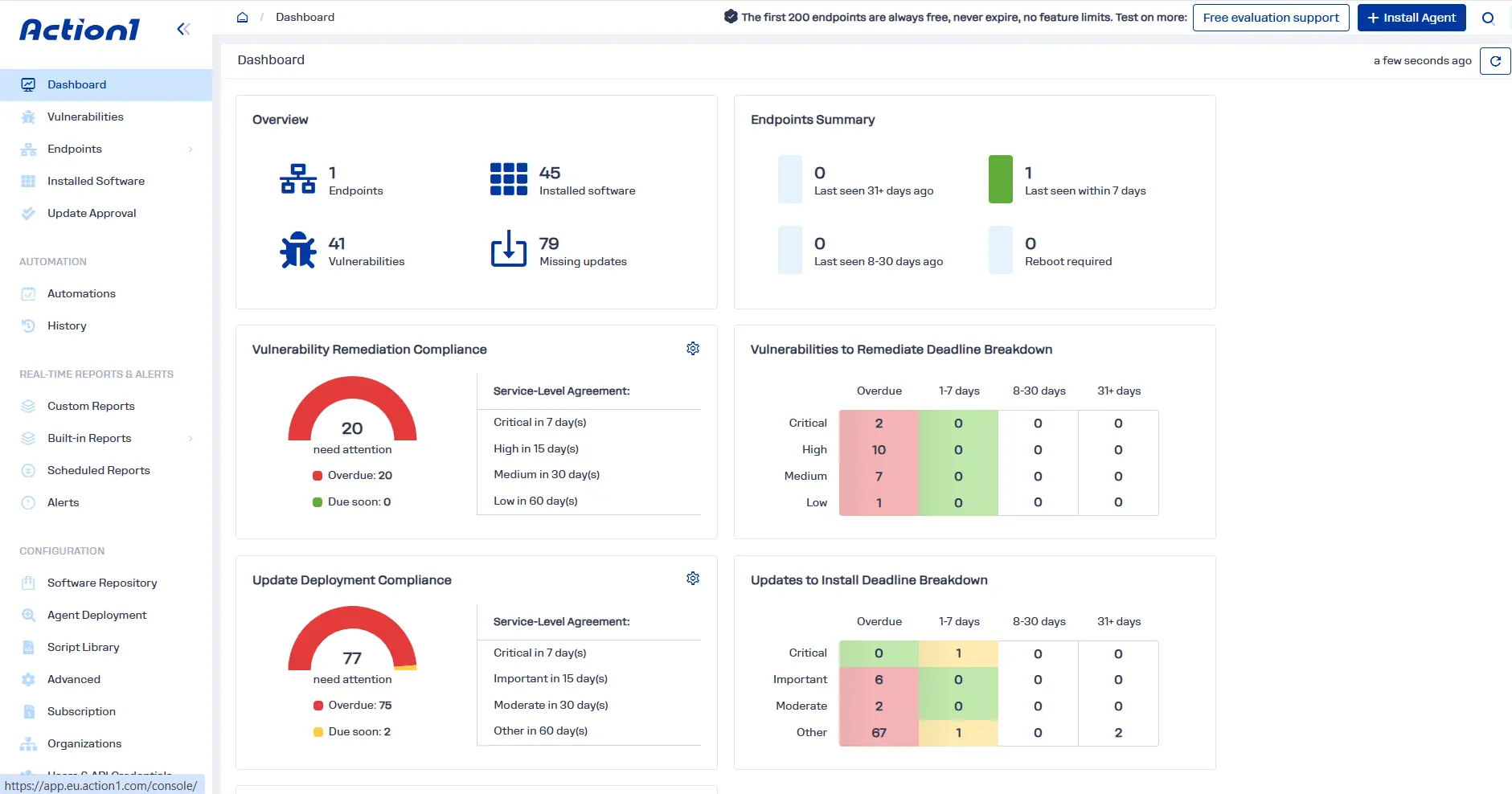
Now let’s take a closer look at the capabilities that speed up both containment and remediation:
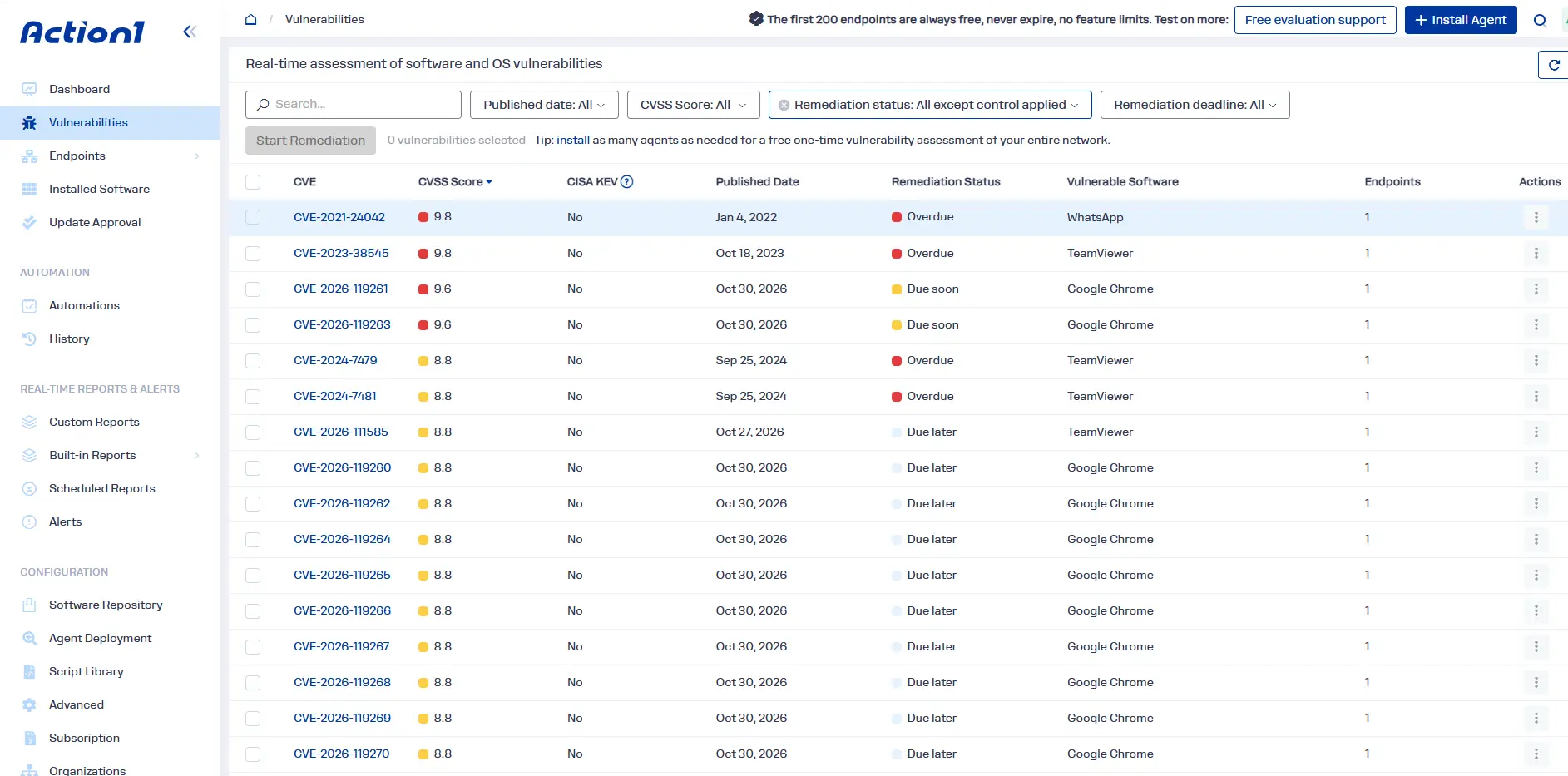
- Real-time software inventory: Shows installed applications and versions across all your endpoints in real time, helping teams identify devices running affected software in minutes.
- Vulnerability detection with exploitation context: Flags vulnerable software and operating system versions with CVE numbers, CVSS scores, CISA KEV status, and known ransomware use, drawing on multiple sources in addition to NIST NVD.
- Dynamic endpoint groups: Automatically groups devices by operating system, IP range, installed software, Active Directory membership, or custom attributes, so responders can target affected endpoints without selecting them individually.
- Scripting automation: Runs built-in or custom PowerShell, CMD, and Bash scripts on every targeted endpoint simultaneously, whether immediately or on a schedule.
- Software uninstalls: Removes unauthorized or vulnerable applications in bulk, targeting one version, all versions, or versions below a specified number.
- Built-in vulnerability remediation: Patches vulnerable software, removes unsupported or legacy applications, or documents compensating controls centrally when a permanent fix is unavailable.
- Cross-OS patching: Patches Windows, macOS, and Linux operating systems, plus third-party applications on Windows and macOS, from one console.
- Cloud-native architecture: Uses outbound-only connections without VPNs or on-premises hardware, supporting action on remote endpoints without delays caused by a disconnected VPN.
- Offline endpoint catch-up and alerts: Runs missed actions when endpoints reconnect and alerts teams in real time when devices remain offline beyond a configured threshold.
- Remote control and remote desktop: Lets you access and control any Windows endpoint from your browser without a VPN, supplementing your existing remote access tools.
- P2P distribution: Shares large patches and software packages between endpoints on the same network, reducing external bandwidth use without cache servers.
- Private software repository: Delivers third-party updates from its own privately maintained, secure repository rather than relying on community repositories such as Chocolatey or WinGet.
- Custom software packages: Deploys your own custom software through automatic or manual workflows, including MSI and EXE installers on Windows and ZIP upload packages on macOS. A macOS ZIP package must contain the vendor PKG installer and the required installation scripts.
- RBAC and audit trail: Lets authorized responders run pre-approved actions through customizable roles and records activity for later review.
- Real-time reporting and report templates: Combines live endpoint data with cached data from offline devices and provides more than 100 customizable templates for audit-ready reporting and remediation tracking.
Start free with Action1. It’s fully featured and free forever for your first 200 endpoints. Or watch the demo to see how it works before you sign up.