Virtual machines are endpoints like any other, running an operating system and a bunch of third-party applications, all of which need to stay current. Keeping that software patched minimizes your exposure to cyberattacks, keeps your workflow stable, and, of course, protects you and your company from regulatory penalties by staying audit-ready at all times. Today, we’re going to talk about what VM patching is, how it works, and the best practices that keep it running smoothly at scale. We’re also going to look at the different types of VM environments out there, how to choose the right solution for your setup, and how Action1 can turn the entire process into something that runs on its own.
What is Virtual Machine (VM) Patching?
Virtual machine patching is the process of identifying, testing, and deploying patches to your VM’s operating system and its third-party applications, basically to all the software it runs. These patches or updates remediate vulnerabilities, fix bugs, and introduce the latest interface and feature upgrades. In reality, organizations benefit from this process by minimizing the chance of falling victim to cyberattacks by strengthening their endpoints’ overall security posture. It also increases their teams’ productivity by fixing bugs that slow down daily operations and, importantly, helps them adhere to regulations they are subject to, protecting them from costly penalties and fines.
200 endpoints, autonomously patched, completely free, forever. Sign up now or watch the demo first.
How VM Patching Works
Virtual machine (VM) patching works by identifying, scheduling, testing, and applying updates to the host (the physical computer’s OS and apps) or the guest (the virtual machine’s OS and third-party software). The patching process might be manual or fully automated using third-party tools like Action1. Note that automated solutions treat the host and guest as entirely separate entities because each runs its own OS with its own separate set of patches.
Below you’ll find a more detailed explanation of each step in the process and what happens at each stage.
- Patch discovery and assessment: Missing patches get identified, then prioritized based on the severity of the vulnerabilities they’re remediating, following a CVSS score from 0 to 10.
- Patch testing and approval: Patches are installed on a small group of virtual machines to check for stability and reliability. Once they prove they work as expected, they get approved for an organization-wide rollout.
- Patch deployment: This is where you actually install patches across each virtual machine connected to your network. Deployment can happen in stages or all at once, but the staged approach is preferred because it protects you from unexpected downtime or other system instability.
- Reboot management: Reboots happen immediately or on a schedule. Some patches require a reboot to take full effect and refresh the system, though not all of them do.
- Patch verification and reporting: After completing the patch lifecycle and once your last endpoint is updated, you need to monitor each system for any instabilities over the next day or two. Then create audit-ready reports. If you’re using a patch management tool, this happens in minutes. Otherwise, it might take hours to do by hand.
VM Patch Management Best Practices
VM patch management works best when it’s done the right way. That means prioritizing patches by actual risk to your company, testing them thoroughly with systems from different departments, deploying them in stages, controlling reboots, and verifying the result afterward. The important part is reaching and installing the patch on every one of your VMs. But let’s take a closer look at what you need to do to align your patching strategy with the best practices known today.
Prioritize Critical Security Updates
Prioritize critical security patches first, but don’t let CVSS severity alone determine the order you patch them in. Instead, rely on multiple sources like CVSS score, active exploitation, internet exposure, attack complexity, privileges required, potential impact, business importance of the affected VM, and whether compensating controls already reduce the risk. CISA’s current risk-based approach also considers exposure, KEV status, exploit automation, and the technical impact an attack could achieve.
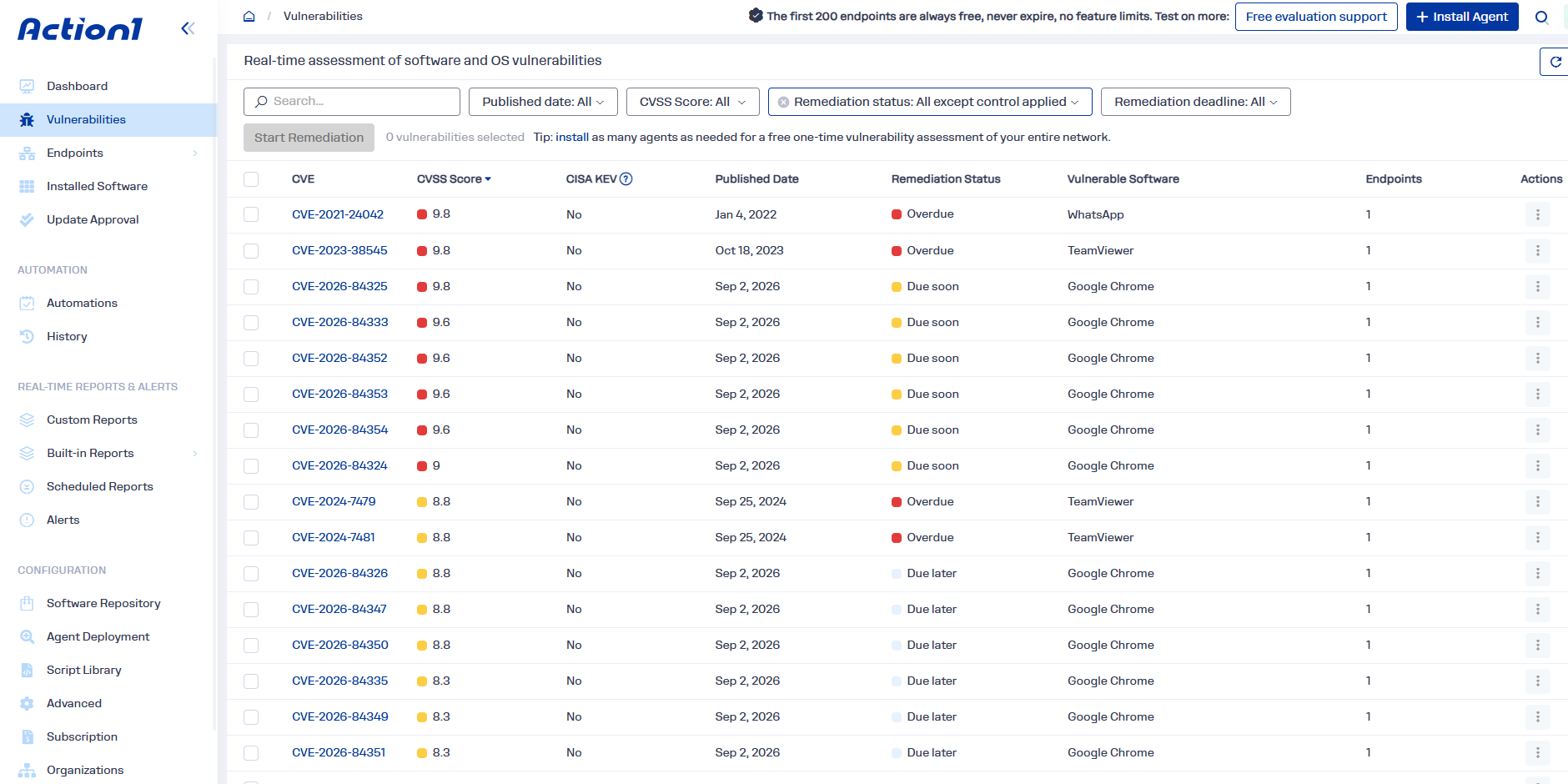
Let’s be blunt, manually prioritizing software vulnerabilities is not an easy task, nor is it effective or precise. Fortunately, patch management platforms do that for you and add another layer of intelligence. Action1, for example, doesn’t rely on a single vulnerability database. It combines information from VulnCheck NVD++, NIST NVD, CISA KEV, Microsoft MSRC, and vendor release notes. Only then does it calculate the risk and give you CVE and CVSS data, attack vector and complexity, indication of active exploitation, and whether that flaw is used in known ransomware campaigns.
This multi-source data gives you the most accurate prioritization, helping you not only deal with the most important vulnerabilities first but also accelerate the remediation process.
Test Patches Before Production Deployment
Always test new patches on a group of VMs that are non-critical to your business, not just on one VM running the same operating system. Make sure that group includes VMs using the same application version, drivers, security agent, storage configuration, network access, authentication method, and important services as all the other systems you manage.
After successful deployment, verify that the application starts, required services are running, ports respond, disks are mounted, scheduled jobs still work, authentication succeeds, and your monitoring and backup agents reconnect as expected. Your task is to create a true testing environment that mirrors your production environment. If any instability occurs, you can catch it early and decide whether to hold the update, apply compensating controls until a new version is released, or find the cause behind the disruption and fix it. This way, unexpected downtime can be avoided or at least minimized as much as possible.
Another important point is creating snapshots of your VMs before you even start testing. On Ubuntu VMs, package updates can restart affected services automatically through “needrestart,” meaning an update can report success but quietly disrupt the application running on top of it.
Snapshots are useful, but consider them a short-term rollback tool, not a true backup. Even VMware warns that snapshots aren’t backups, and long-running snapshots can hurt performance, especially on high I/O database VMs where the delta file grows quickly under heavy write activity.
Use Staged Patch Rollouts
Deploy patches across your VMs in stages so that one bad update can’t take down every VM serving the same workload. One of the best practices is to use update rings that allow you to create groups of endpoints, set specific success rates, and once an update proves its stability by meeting those rates, it automatically progresses to the next ring with more VMs. Problematic updates don’t move forward.
This helps you deploy patches faster and catch problems early, without worrying about organization-wide disruptions. To get that benefit and peace of mind, you must create your groups of VMs thoughtfully. In the testing ring, include different Windows VMs, Linux versions, application roles, regions, and infrastructure dependencies wherever they matter. A patch can install perfectly on nine VMs and then break the tenth, just because of a specific package or service dependency.
You have the flexibility to design rings and thresholds the way you envision, aligning with your organization and business hours. You have the tool, you just have to shape the process in a way that works best for you.
Schedule Maintenance Windows
Create both a regular maintenance window and an emergency one.
- Regular maintenance (patching) window: This is for planned patching, where updates happen on a given day, during off-peak hours or not, following a clear VM group structure. Include an offline catch-up window for VMs that were offline during the first deployment wave.
- Emergency maintenance (patching) window: This is for situations where a new patch is released to address a critical vulnerability that’s being actively exploited. It can be more aggressive with the rollout process, or you can keep the focus on testing before reaching every VM.
Having these two, or even more, maintenance windows in place gives you the peace of mind and freedom to approach every situation the right way and expect fast deployment with less planned and unplanned downtime.
Remember, patching the host itself is a separate operation from patching the guest VMs running on it, and usually needs its own window. If you’re on VMware, update vCenter Server before ESXi. Doing it backwards causes compatibility errors. Also check whether automatic updates are still enabled inside the guest OS, since that can leave two update mechanisms working on separate schedules and lead to unexpected installations or reboots.
Plan for Reboots and Rollbacks
Control and pre-plan the reboots and rollback options you have.
- Reboot management: Some updates don’t take full effect until the VM reboots, so reboots are an inevitable part of the patching process. Configure whether they happen immediately after the update or at a convenient time. Sometimes you must drain the VM from a load balancer, stop sensitive application services cleanly, confirm your recovery point, and make sure the VM can return to service automatically.
- Rollback management: A snapshot taken right before the patch installs gets you back to the pre-patch state in minutes, but it’s a delta file tracking changes since it was taken, not a full backup. Keep snapshots short-lived under 72 hours, and never snapshot high I/O VMs like database or mail servers during business hours. Know how you’ll restore the VM, the application state, and the data together, so if needed you can restore your virtual machines to the point before the update broke their operation.
Monitor Patch Compliance
Monitor the patch compliance of your VMs constantly, not just before or after a patch deployment. You must check what’s missing, what failed, what needs a reboot, and when each VM was last successfully addressed. Don’t just rely on the dashboard showing green for each virtual machine. You need real-time reporting, with up-to-date information, not data from days ago. Patch management platforms like Action1 give you detailed patch lifecycle reporting, so you can get information about successfully updated endpoints, failed deployments, pending reboots, and the overall compliance status of each asset.
Having all this data gives you everything needed to plan your next steps and retry failed patch updates where necessary. Don’t expect every update to roll out flawlessly across every virtual machine. Some might have been offline during the planned maintenance window, some might not have enough storage space, and others might have lost connection midway through the installation.
Every step above, on autopilot. Sign up free for 200 endpoints, or watch the demo first.
Types of VM Environments
| VM environment | How it works | Common platforms and examples | Patching reality |
|---|---|---|---|
| On-premises data centers | VMs run on physical servers sitting in a company-owned or controlled data center. A hypervisor splits that hardware into separate VMs, each running its own guest OS and third-party apps. | VMware ESXi, Microsoft Hyper-V, KVM. | You own the entire stack, host and guest, so nothing patches unless you schedule it. That is full control, but also a great responsibility. |
| Public cloud | Your VMs run on shared infrastructure owned by a provider like AWS, Azure, or Google Cloud. | Microsoft Azure Virtual Machines, Amazon EC2, Google Compute Engine. | The provider patches the physical hardware and virtualization layer. You are still fully responsible for patching the guest OS and everything running inside it. |
| Private cloud | Cloud-style infrastructure, self-service, virtualized, elastic, but dedicated entirely to your organization. It may run inside the company’s own data center or on infrastructure hosted by a third party. | VMware Cloud Foundation, OpenStack, Azure Local and similar private-cloud platforms. | Similar patching responsibility to on-premises in most cases, though this depends on your private-cloud service model, since a third-party-hosted private cloud can shift some of that responsibility depending on your contract. Either way, you get the tooling and automation options a public cloud platform typically offers. |
| Hybrid cloud | A mix of on-premises and public cloud, with VMs and workloads connected across both. | On-premises VMware or Hyper-V combined with Azure, AWS, or Google Cloud. | Genuinely harder patching process. You need one consistent patching policy working across two different infrastructure models. You end up with your on-prem VMs on one schedule and your cloud VMs drifting on another. Here, the patching is not the hard part, but keeping the same inventory, rules, and maintenance windows consistent across both worlds is the hardest thing. |
| Multi-cloud | VMs spread across more than one public cloud provider, AWS and Azure together, for example, rather than just one. | Azure + AWS, AWS + Google Cloud, or Azure + AWS + Google Cloud. | Every provider has its own management tooling, maintenance model, and operational quirks, though the actual guest OS patch cadence still comes from Microsoft, Red Hat, Canonical, or whichever vendor owns that release schedule. Without a patch management platform working across all of them, you’re going to get stuck checking more than one dashboard just to understand if everything is patched correctly. |
How to Choose a VM Patch Management Solution?
Choosing the right VM patch management solution comes down to two things: your environment and the features you expect to help you automate the process end to end, reduce risk, and cut down on manual effort.
- Operating system support: Look for multi-OS support, because in mixed environments, patching your VMs running Windows, macOS, or Linux from one platform really matters.
- Automation and scheduling: Choose a tool that lets you shape the patching process the way you envision it. Make sure it offers policy-based approvals, flexible maintenance windows, the ability to exclude specific packages from a run, offline catchup functions (auto-patching VMs upon reconnection), and reboot control.
- Testing and staged rollout: Update rings let you create as many groups of VMs as needed, validate patches on a small set of virtual machines, set success metrics, and only allow reliable patches meeting those metrics to progress automatically to the next rings for fleet-wide rollout.
- Vulnerability management: You need real-time reporting, multi-source vulnerability risk prioritization, and built-in remediation capabilities. All of these help you see the most severe flaws across your guest and host OS and third-party apps, and address them in the right order by patching or applying compensating controls.
- Rollback capabilities: One-click or script-based rollback options are a must. If any patch causes unexpected disruptions or downtime, you can withdraw the patch easily, so in minutes everything gets back to normal.
- Reporting and compliance: Dashboards should give you real-time information about patch status, endpoint compliance, and vulnerabilities. You must also have access to ready-to-use customizable report templates, so you can easily create audit-ready reports in a form auditors accept.
- Off-network function: If you have remote VMs outside your office, confirm whether the tool can patch them without needing a VPN. That’s highly important because it gives you the ability, with a single automation, to update all your virtual machines, both on-premises and remote.
- Deployment model: Cloud-native platforms are often the strongest fit for distributed, remote, hybrid, or multicloud environments, since they simplify multi-tenant and distributed management. On the other hand, on-premises options suit strict data residency needs.
- Cost and scalability: Check the pricing model and make sure you get the full functionality of the software at the stated price, and look out for add-ons that might double your bill at the end of the month. Also, ensure that you can scale from 100 to 100,000+ virtual machines easily, so nothing gets too complicated as your company grows.
How does Action1 handle Virtual Machine Patching?
Action1 is an autonomous cloud-native platform that automates the entire virtual machine patch management process end to end. It supports Windows, macOS, Linux, and more than 310 third-party applications. It’s cloud-native, so in under five minutes, you can start patching your VMs. You just need to create your account, deploy the agent, and start remediating vulnerabilities.
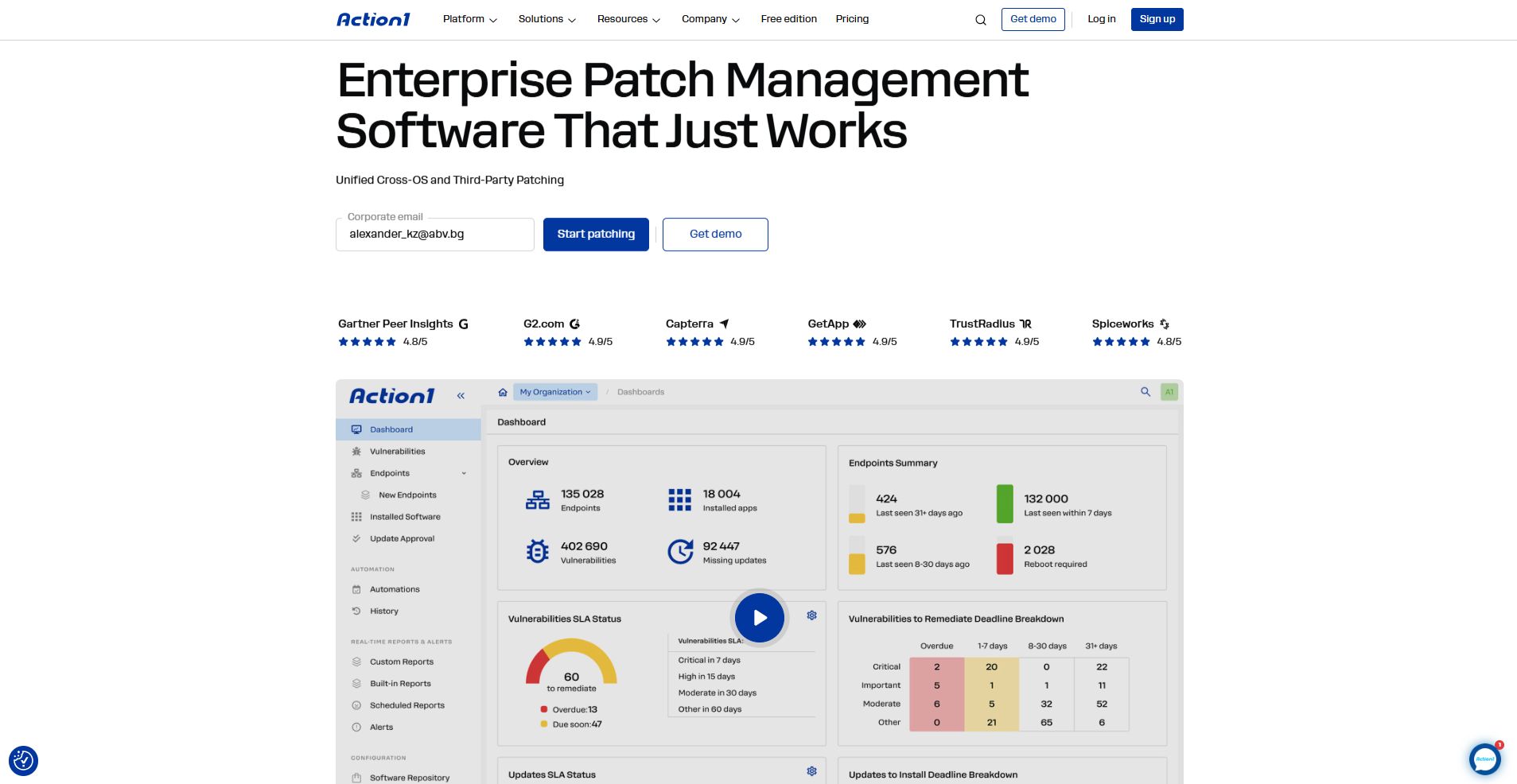
Once set up, Action1 monitors your VMs in real time, identifies existing vulnerabilities, prioritizes them using multi-source data, detects all missing patches, and allows you to deploy them on demand or schedule them for a convenient time. You can use the update rings feature for autonomous deployments, creating as many rings or groups of VMs as needed. Start small with a test ring, set your own success metrics and deployment counts, and once those are met, only stable patches progress to your next rings containing more and more of your virtual machines until every single one gets updated.
At the end, you can generate audit-ready reports in minutes by using the built-in customizable report templates. In plain English, Action1 treats your VMs as any other endpoint, running them through the same discovery, testing, deployment, and reporting lifecycle, with every step automated and running on autopilot once you set it up. You can deploy the agent inside the guest OS, and from there Action1 takes over the parts that eat up your time or your team’s time: finding what’s missing, deciding what’s safe to push, rolling it out in the right order, and proving it actually worked, all without anyone manually clicking through endpoint after endpoint.
Here’s what each part of that process actually looks like in practice.
- Vulnerability discovery and prioritization: Action1 identifies vulnerabilities across the OS and third-party apps on your VMs. It uses multi-source vulnerability data, pulling from NVD++, NIST NVD, CISA KEV, Microsoft MSRC, and vendor release notes. Based on this data, it gives you a final score and prioritization of each flaw. This is a continuous process, since Action1’s agent, once installed on your VM, never stops monitoring it.

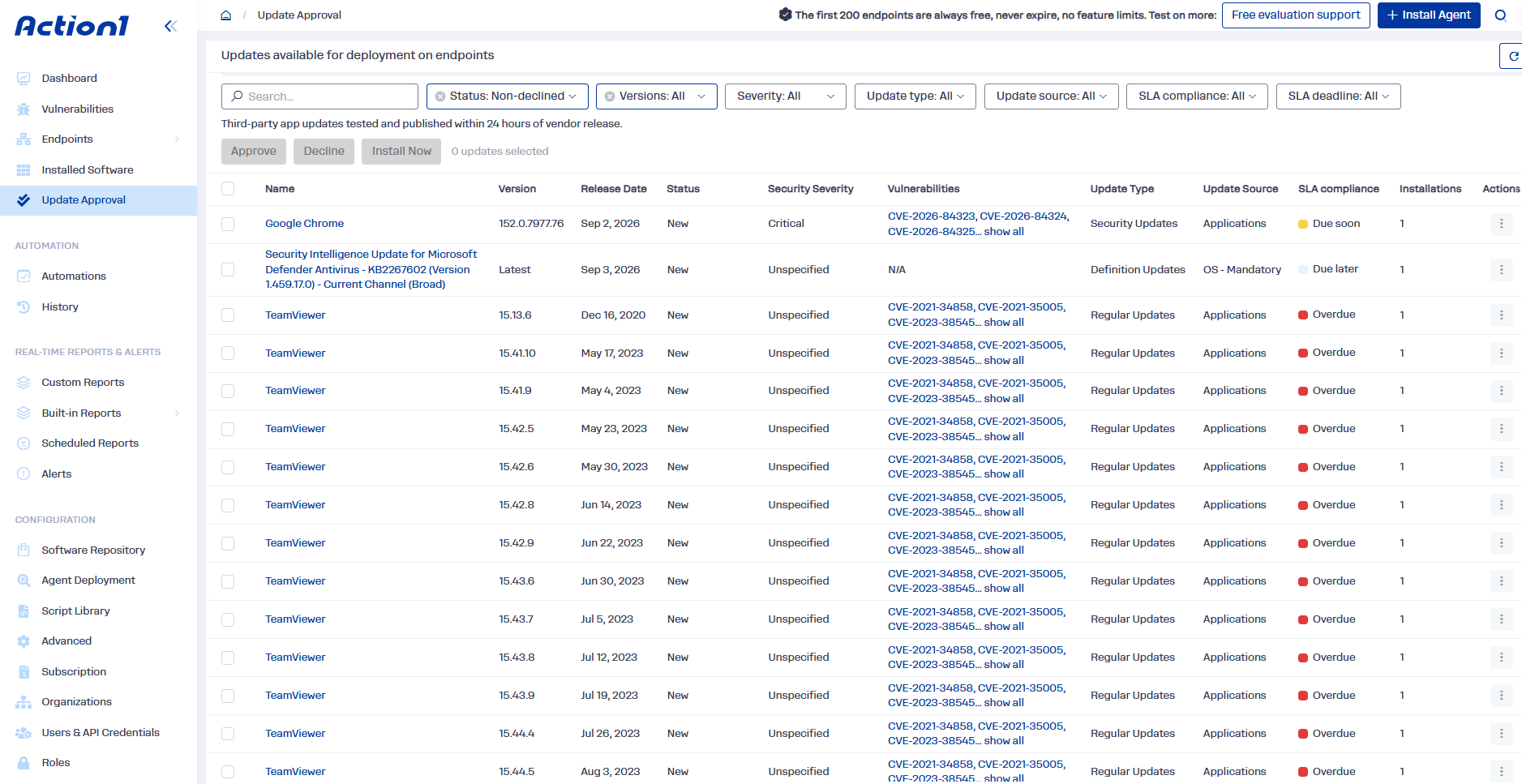
- Missing patch detection: Every missing patch gets listed, whether it’s for the OS or a third-party app. You get detailed information about each patch, including what it’s for, when it was released, its security severity, the vulnerabilities it remediates, update source, SLA compliance, and more.
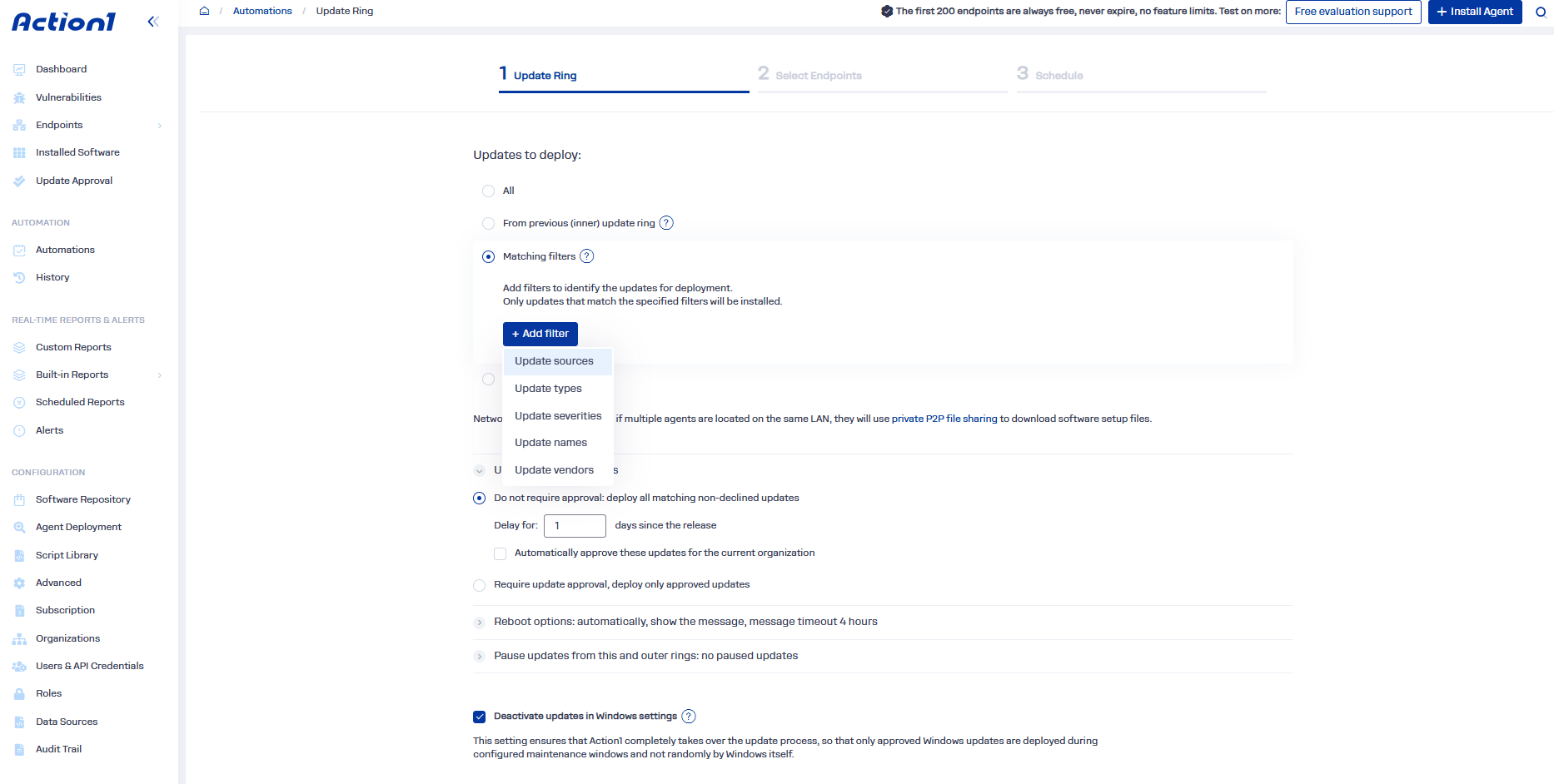
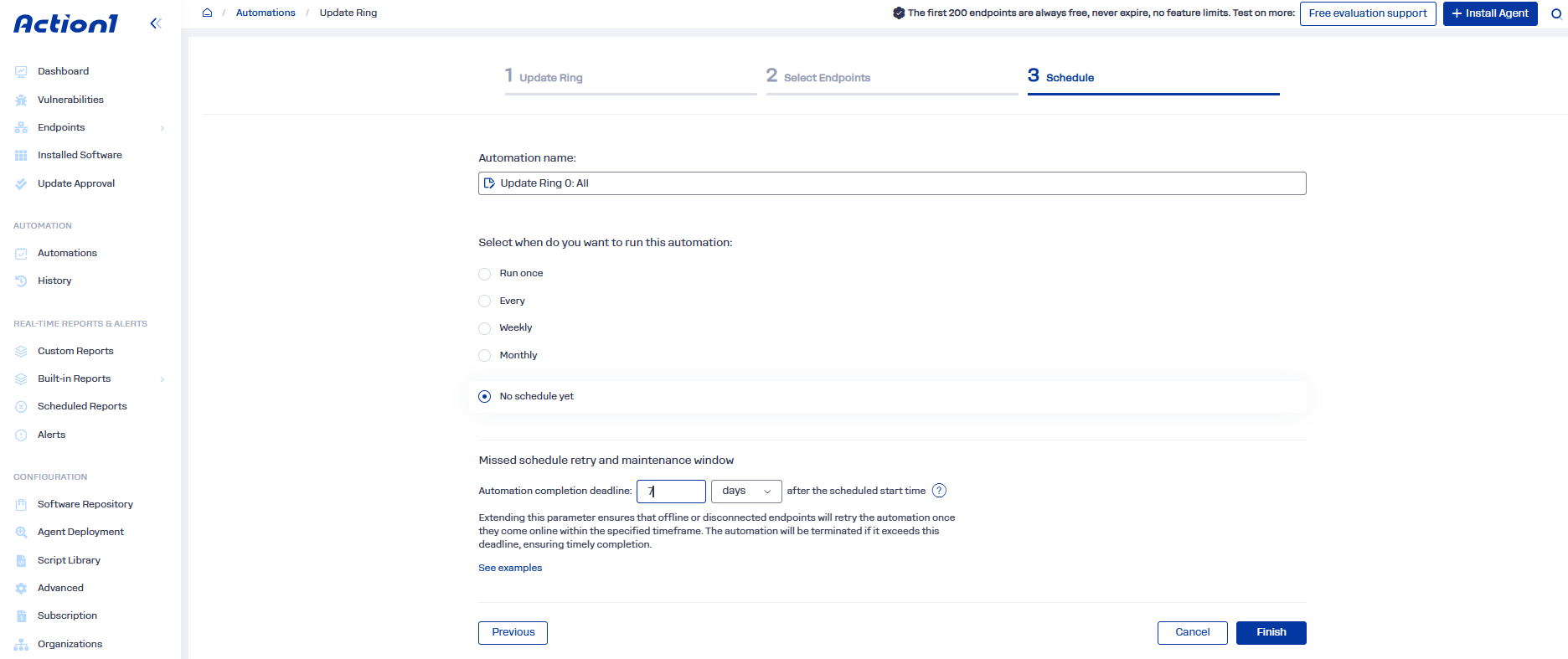
- Autonomous patch rollout through update rings: Each patch gets rolled out in stages. You create as many rings, or groups of virtual machines, as you need, set specific success metrics and update counts, and schedule when the rollout happens and when affected VMs reboot. From there, the patch deployment starts with the test ring. If it meets those success metrics, it progresses automatically to the next ring with more of your VMs. If not, it gets stopped. This process repeats with each following ring. The result is faster remediation, with no manual work and less downtime risk.
Read our step by step guide on how to use Update Rings automation.
- Offline catchup window: Each virtual machine that’s offline during a planned patch deployment gets updated automatically once it reconnects. You can control the catchup window and set it to seven, ten, or even more days.
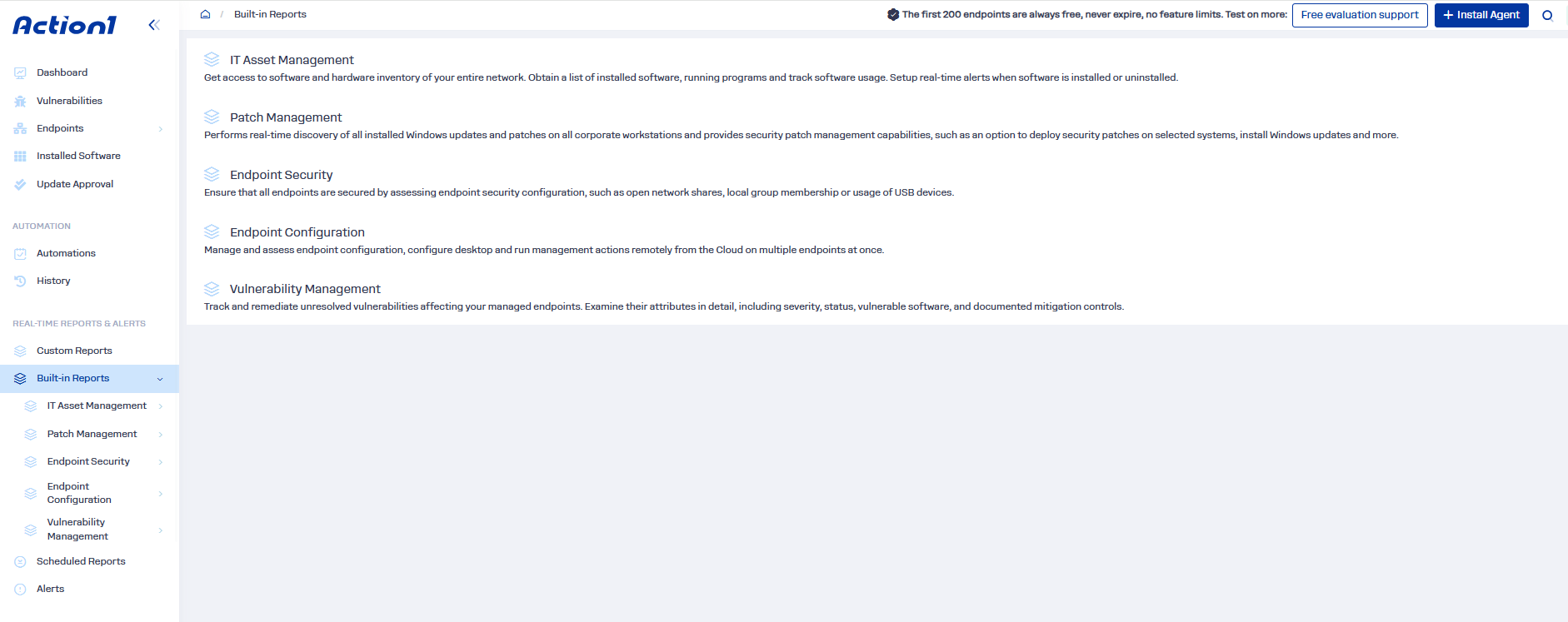
- Compliance visibility and reporting: Action1’s dashboard shows patch status in real time, so you always know exactly which VMs are patched and which still aren’t. After each patch lifecycle, you can generate detailed audit-ready reports with just a few clicks using the 100-plus built-in customizable templates. Staying compliant becomes much easier and takes less time and manual effort on your part.
- Private software repository and P2P patch distribution: The cloud-native platform comes with a privately maintained secure software repository. Each patch is thoroughly tested by an internal team of experts before being added to the repository. Once you start deploying patches to your virtual machines, Action1 distributes them using peer-to-peer technology, downloading the patch only once and then sharing it with the rest of the VMs connected to the same local network. This accelerates even large deployments and minimizes bandwidth usage as much as possible.
Frequently Asked Questions About VM Patch Management
Can You Patch a Virtual Machine While it is Running?
Yes, you can patch a virtual machine while it’s running. In fact, most guest OS and application patching happens while the VM is online and running. However, some patches require a reboot after successful installation to refresh system components and apply the new changes fully. That reboot causes downtime, which is why patching a running VM and patching it without any associated downtime aren’t the same thing. Also, keep in mind that updating the guest VM is a separate process from patching the underlying host.
Can You Patch a Virtual Machine Without Rebooting it?
Yes, you can patch a virtual machine without rebooting it. Many application and OS updates can be installed and take effect without requiring a restart. On the other hand, other patches, specifically kernel or core operating system updates, need a reboot so they can apply the new changes. Microsoft uses Hotpatch, and Red Hat uses kpatch on RHEL to apply certain security fixes to running systems without mandating a restart, but they don’t cover every update. These update tools are for reducing the reboot cycles across your endpoints, but not eliminating them entirely.
How is Patching a Virtual Machine Different from Patching a Physical Server?
At the guest operating system level, there’s not much difference. For example, a Windows or Linux VM still uses an OS, applications, and services that contain vulnerabilities needing patches just like a physical server. The real difference in VM patching is what sits around that guest. You’ve also got a host to maintain. VMs can be cloned or restored from older images, workloads can move between hosts, and several VMs may depend on the same physical infrastructure. That creates additional decisions around snapshots, maintenance windows, reboot order, and availability. Host and guest patching should always be treated as separate processes.
How Often Should Virtual Machines be Patched?
Critical patches addressing actively exploited vulnerabilities should be deployed as quickly as your risk and testing process allows, often within hours or days rather than weeks. This is especially important given that Action1’s 2026 Vulnerability Report found that 28.3% of vulnerabilities with publicly available exploits were used in attacks within 24 hours of disclosure. Routine security patches can follow a bi-weekly or monthly schedule. In fact, most organizations align this with vendor release schedules like Patch Tuesday. All the rest, such as minor bug fixes and non-critical updates, can be queued for your regular maintenance window. A good practice is to have both emergency and regular maintenance windows. The first is for applying patches to remediate vulnerabilities with the highest risk, and the second is to install everything else.
Do VM Templates and Golden Images Need to be Patched?
Yes, VM templates and golden images need to be patched, and this is one of the most commonly missed steps in VM patch management. A VM created from an outdated template starts life already behind on patches by default, since it inherits whatever state the template was in when it was saved. So you’ve got to rebuild or upgrade your golden images on a regular schedule and treat newly provisioned VMs as unverified until they’ve actually been scanned for vulnerabilities and missing updates. You can include Action1’s agent in those golden images, so when you create a new VM, you can immediately use Action1 to do the hard work for you.
How Should You Patch Clustered or High-Availability VMs?
Patch one node at a time. It’s a huge mistake to patch all of them simultaneously. Then you’ve got to confirm the cluster has actually failed over cleanly before moving to the next node. Keep in mind that restarting every VM in a cluster all at once doesn’t just risk downtime, it also creates a boot storm, with every node hitting shared storage at once to reload its OS, which can slow recovery instead of speeding it up. For load-balanced services, you’ve got to drain traffic from a node before patching it, and don’t bring the next node down until the previous one has fully rejoined and stabilized.
Can VM Patching Be Fully Automated?
Yes, from vulnerability identification and missing patch detection, through deployment, reboot handling, and compliance reporting, tools like Action1 can automate end-to-end VM patching. Such platforms constantly monitor your virtual machines for vulnerabilities across their OS and third-party applications. When they identify any, they use a risk-based prioritization approach, list the missing patches, and let you create a policy-driven patching process that you can shape the way you envision it. You can schedule testing and deployments, reboots, retry windows, and many other functions, so in the end, everything gets automated. You’ve just got to oversee the process, check the end result, and generate audit-ready reports that help you provide the necessary documentation during audits.
Are Windows VMs Patched Differently from Other Operating System Types?
Windows VMs follow the same patching process as any other guest OS. Discovery, prioritization, staged rollout, and reboot management are all handled the same way, so nothing about the core mechanics changes. The only real difference is the release cadence and tooling. Windows VMs follow the monthly Patch Tuesday schedule and can use Hotpatch to cut down on reboots. Linux VMs follow each distribution’s own calendar and rely on tools like kpatch or Livepatch for the same purpose.
The Key to Successful VM Patch Management
Effective patch management comes down to knowing what needs to be fixed first, testing before production, deploying patches in controlled stages, managing reboots, having rollback options, and verifying that every VM actually reached the required patch level. That process should cover both Windows and Linux workloads, those that are on-premises, in the cloud, or somewhere in between. Just remember that guest and host patching remain separate jobs, and a dashboard that looks perfect means almost nothing if offline VMs, stale templates, or failed deployments are being overlooked.
At scale, doing all of this manually becomes difficult very quickly, if not impossible. For such cases, automation makes the real difference. Action1 brings autonomy to the VM patching process, around vulnerability discovery, risk-based prioritization, missing patch detection, staged deployment through update rings, offline catch-up, and real-time compliance reporting. In plain English, you define how the process should work, and the platform does much of the repetitive work from there.
Already know you want Action1? Your first 200 endpoints are free. No credit card required, no feature limitations, no trial clock running out. Start free right now. Want to see it running before you commit to anything? Watch the demo and get your questions answered first.