



TL;DR
- WSUS centralizes Windows update management, allowing IT teams to control how Microsoft updates are distributed across endpoints and servers.
- Organizations use WSUS to reduce bandwidth consumption, improve update consistency, and maintain greater control over patch deployment schedules.
- Administrators can approve, decline, test, and schedule updates before they reach production systems.
- WSUS supports compliance efforts by providing visibility into update status and patch deployment progress across managed devices.
- Common challenges include limited third-party patching, complex maintenance requirements, scalability concerns, and remote workforce limitations.
- Modern IT environments often supplement or replace WSUS with cloud-native patch management platforms that support remote endpoints and automated remediation.
- Best practices include phased deployments, pilot groups, regular server maintenance, update testing, and compliance reporting.
- WSUS remains valuable for Microsoft-centric environments, particularly organizations with on-premises infrastructure and strict update control requirements.
- Cloud-native alternatives provide broader OS support, third-party patching, real-time reporting, and simplified management for hybrid work environments.
- Choosing between WSUS and modern patch management solutions depends on infrastructure, compliance requirements, remote workforce needs, and operational complexity.
If you have managed a fleet of Windows machines, you probably have heard about WSUS. WSUS stands for Windows Server Update Services and it powers patch management for organizations since the mid-2000s. Its earliest version was called Server Update Services (SUS), but the core idea remains the same.
What is WSUS?
WSUS is a server role that lets IT administrators control how Microsoft updates, fixes, and other types of releases get distributed across a network. Instead of every laptop, desktop, and server reaching out to Microsoft Update individually, a WSUS server downloads the updates once and then hands them out internally. Imagine it as a local warehouse for patches. Updates come in through the front door, get inspected, and only then go out to the relevant machines.
WSUS also provides administrators with a console where they can review what updates are available, decide which ones to approve, and target specific groups of computers for deployment. This enables them to deploy a critical security patch immediately and hold a feature update for testing.
Now for the elephant in the room. WSUS is deprecated. Microsoft announced this in September 2024, and the news rattled IT departments. But deprecation does not mean that WSUS stops working some time soon. It means that Microsoft has stopped adding new features and wants customers to move to cloud-based tools like Microsoft Intune, Windows Autopatch, and Azure Update Manager. While WSUS will keep functioning and continue to receive security and quality updates, organizations should start thinking about their long-term patch management strategy.
This guide walks through everything you need to know about WSUS: how it works, why it still matters, how to set it up and run it, and what alternatives are available as Microsoft moves away from it.
Why Update Management Matters?
Update management is the process of controlling how software updates are tested, approved, and rolled out in an IT environment. It sounds like a routine job but it’s far more demanding than that. A missed patch can leave a known vulnerability unattended. An update deployed without testing can lead to widespread outages. Good update management brings security, stability, and productivity to every device in an organization.
Security Importance
Many security breaches happen because attackers find a system running outdated software with a known, published vulnerability. Microsoft releases security updates regularly to close these gaps. If those updates sit unapplied, you are leaving doors unlocked. A formal update management process, like the one WSUS supports, helps administrators identify which machines are exposed and quickly deploy updates to protect them.
Operational Importance
Updates keep systems running smoothly. Bug fixes resolve glitches. Driver updates improve hardware compatibility. Without a managed update process, your environment is a patchwork of machines with different software versions, different patch levels, and different degrees of risk. For IT teams, it translates into harder troubleshooting and painful audits.
Core Business Value of WSUS
WSUS has been the default choice for many organizations for nearly two decades. It is free, built into Windows Server, and solves real problems. Here is what WSUS brings to the table:
- Centralized update control: Administrators can view what updates exist, decide which ones to approve, and push them out on their own schedule from a single console.
- Automation of update processes: With approval rules, scheduled update synchronization with Microsoft Update, and PowerShell scripting, IT staff can free itself of repetitive manual work.
- Improved security posture: By deploying security updates in a timely manner, you can close known vulnerabilities faster.
- Bandwidth efficiency: Machines do not have to download the same update separately from the internet. The WSUS server pulls it once and redistributes it over the local network.
- Support for distributed environments: You can provision multiple WSUS servers for branch offices, regions, and business units, so that updates reach remote machines without overwhelming a central internet connection.
How does WSUS Work?
Similar to DNS and DHCP, WSUS is a role that you can add to a Windows Server installation. Once installed, the Windows Server becomes a WSUS server and runs the services needed to synchronize, store, and distribute updates. Administrators can manage it through the WSUS Administration Console, a graphical tool that is built into the server. For smaller setups, one WSUS server may be sufficient. Larger organizations, however, need multiple servers to support different offices.
Connection to Microsoft Update
At least one WSUS server in any deployment must talk to Microsoft Update directly. This server:
- Checks in with Microsoft’s servers.
- Pulls down metadata about the available updates.
- Downloads the actual update files.
Administrators decide how frequently this synchronization happens. It is recommended to set it to a daily basis so that the WSUS catalog stays current.
Update Source Model
You should limit the number of WSUS servers that can connect to Microsoft Update. The server that does connect is called an upstream server. It becomes the source of updates for other WSUS servers on the network, which are referred to as downstream servers. This creates a hierarchy: updates flow from Microsoft, to the upstream server, then to downstream servers, and finally to client machines.
One upstream server can supply updates to many downstream servers. From a security perspective, it’s easier to protect a smaller number of internet-facing systems.
Client Update Flow
On the client side, machines are pointed at a WSUS server through Group Policy or local registry settings.
- The Windows Update Agent on each device regularly checks in with its assigned WSUS server to see if any updates have been approved for it.
- If something new is waiting, the client downloads it from the WSUS server over the local network and installs it.
From an end user’s perspective, updates still arrive through the Windows Update interface. Behind the scenes, though, the entire process is managed and monitored by the organization’s IT team.
WSUS Server Architecture
The size and structure of an organization determines how its WSUS deployment should be set up. A small business with 150 computers needs a very different setup than a global enterprise with branch offices. The following table lists the main architectural options and when each one makes sense.
| Architecture | Description | Best suited for |
| Single-server WSUS deployment | One WSUS server synchronizes with Microsoft Update and distributes updates to all clients. | Small businesses with a single site and a modest number of devices. |
| Multi-server WSUS deployment | Two or more WSUS servers manage the update workload, split by factors such as location or department. | Mid-sized to large organizations with multiple sites or heavy client loads. |
| Upstream and downstream server design | One or a few servers connect to Microsoft Update (upstream) and feed other servers (downstream). | Organizations that want to limit internet exposure while distributing updates to multiple locations. |
| Multi-tier hierarchies | Several upstream and downstream servers, corresponding to an organization’s geographic structure. | Large enterprises with regional offices and centralized IT governance. |
| Branch office considerations | Downstream servers placed at branch locations, sometimes allowed to sync directly with Microsoft Update. | Organizations with branch offices that have limited bandwidth to headquarters. |
| Mobile device considerations | Roaming laptops and devices configured to connect to the nearest available WSUS server. | Organizations with a mobile or hybrid workforce that moves between locations. |
To choose the right model for your organization, you should weigh internet bandwidth against intranet bandwidth, central control against local flexibility, and security exposure against convenience.
WSUS Administration Models
Once the physical architecture is in place, you need to decide how much control each WSUS server has over its own update decisions. WSUS offers two administration modes, and your choice defines how much day-to-day work falls on local versus central IT teams.
| Mode | How it works | Who manages approvals |
| Autonomous Mode (Default) | Under this mode, each WSUS server gets its update content from an upstream source, but local IT staff have the authority to approve updates and manage deployment settings. This works well for organizations that prefer distributed administration, where different sites have different testing requirements, maintenance windows, and risk levels. | Local administrators at each server |
| Replica Mode | Under this mode, a downstream server does not make its own approval decisions. It mirrors the upstream server, inheriting its update approvals and deployment settings. This mode suits organizations that want centralized control, where a single team makes patching decisions for the entire company. | Central administrators only |
In practice: Organizations tend to settle on autonomous mode for flexibility, then use shared approval rules and documented policies to standardize things.
Managing Client Machines with WSUS
This section covers how client devices connect to a WSUS server, how grouping helps with targeted rollouts, and how to keep tabs on machines that fall behind.
Connecting Clients to WSUS
To get client machines to talk to a WSUS server, you can do either of the following:
- Use Group Policy to direct the Windows Update Agent on each machine toward the internal WSUS server instead of Microsoft Update.
- Use a registry-based approach to configure the Windows Update settings manually (through scripts or manual edits). This method is used for machines that are not joined to an Active Directory domain.
Once configured, clients check in automatically on a regular schedule, without any input from end users.
Heads up: Organizations may use both approaches simultaneously, with Group Policy managing domain-joined devices and registry settings being used for standalone or non-domain machines. However, if both methods are applied to the same machine, the Group Policy settings win.
Client Grouping
Different machines require updates on different schedules, and WSUS uses computer groups to make that possible. You can create groups based on factors such as department, location, device role, or risk tolerance, and then target specific updates at specific groups.
Best practice: Create a small pilot group of test machines that receive new updates first. If no issues arise, proceed with rollout to the rest of the organization.
Targeted Update Deployment
For targeted deployments, computer groups and approvals work together. For example, you might approve a critical security patch for every computer group immediately, and hold a feature update back for the pilot group only. This level of control is why organizations stick with WSUS even though it is now deprecated. It lets IT teams match the urgency of an update to business risk levels.
Discovering Machines with Pending Updates
With WSUS reporting tools, you can scan the environment to see which machines are missing approved updates. This is useful for catching devices that have been offline, machines that failed to install a patch, or new devices that joined the network without picking up the update baseline.
Tip: Regular checks close the gap between “we approved this update” and “every machine has it”.
Scheduling Updates
Organizations do not want updates installing in the middle of a workday, especially those that require a reboot. WSUS, combined with Group Policy settings for the Windows Update Agent, allows you to define maintenance windows, such as overnight or weekend hours, when updates can download and install. This saves end users from interruptions while keeping machines current.
Update Review, Approval, and Distribution
This section walks through how administrators review what Microsoft releases, decide what to approve, and push it out to relevant devices at the right time.
Reviewing Updates
When WSUS synchronizes with Microsoft Update, it pulls down metadata for every available update, including its classification, the products it applies to, and any known issues that Microsoft has documented. Administrators review and filter this list by criteria like severity, product, and release date to figure out which updates are relevant to their environment.
Testing Updates
Before deploying an update organization-wide, IT teams run it through a test group first. This could be a handful of IT staff machines, a lab environment, or a small pilot group of machines from different departments. The purpose is to catch compatibility problems or unexpected behavior before thousands of users encounter it.
Approving Updates
Approval is the step where you give a green signal for an update to be installed on client machines. You can approve updates manually, one at a time, or set up automatic approval rules for certain categories, such as critical security updates for a product. You can also approve updates for specific computer groups, in which case an update might be approved for the pilot group today and for everyone else next week.
Distributing Updates
After approval, updates are automatically distributed. Client machines check in with WSUS, see that a new update applies to them, and download it from the local server. You can set deadlines to ensure that updates are installed by a certain date. This is especially true for critical patches that cannot wait indefinitely for users to get around to them.
Monitoring Deployment
WSUS provides status reports that show which machines have successfully installed an update, which are pending, and which have failed. You need to look into failure scenarios, since a failed install means that a machine remains exposed to the vulnerability the update was meant to fix. Monitoring turns patch management into a continuous process of checking, fixing, and verifying that updates have been successfully installed.
WSUS Automation Capabilities
Manually approving updates, checking reports, and resolving update-related issues work fine for a handful of machines but it’s impractical for environment with hundreds or thousands of endpoints. Automation is what makes WSUS viable at scale, so Microsoft has provided two primary automation methods:
- Update approval automation: The console supports automatic approval rules, which can approve updates based on classification, product, or deployment group without an administrator clicking anything.
- PowerShell automation: Windows PowerShell includes a set of cmdlets for WSUS that cover everything from approvals and synchronization to cleanup and reporting. Use this feature to script and schedule any number of repetitive tasks.
Benefits of PowerShell for WSUS
PowerShell automation has several benefits.
- It lowers the learning curve for administrators who have been using PowerShell for managing other parts of Windows Server, since the same scripting patterns apply.
- It keeps things consistent because a script runs the same way every time, unlike manual clicks that can vary from person to person.
- It frees up time, letting you focus on high-level tasks instead of executing repetitive processes.
In practice: A single script can handle tasks for multiple WSUS servers, which would be tedious to do by hand one server at a time.
WSUS and Unified Update Platform Support
Windows 11 used a newer update system called the Unified Update Platform (UUP), which changed how updates were packaged and delivered compared to older Windows versions. WSUS itself needed updates to recognize and distribute these new UUP packages. Microsoft added UUP support to WSUS for Windows 11 version 21H2 in March 2023. This allowed IT teams to continue using WSUS for Windows 11 updates.
Server Requirements for UUP
To support UUP, WSUS servers need one of the following:
- Install the prerequisite Microsoft update that enables WSUS to handle UUP updates. For instance, KB5022291 for Windows Server 2022 automatically adds the MIME types required for UUP updates.
- Manually add certain MIME types in Internet Information Services (IIS), the web server component that WSUS uses to deliver update content to client devices. Without this configuration, WSUS cannot distribute UUP updates properly.
Warning: If a WSUS server has not been updated with the required MIME type configuration, Windows 11 version 22H2 clients may fail to install updates from WSUS. Because this issue may not generate alerts, you must verify this configuration manually.
Performance and Bandwidth Considerations
Bandwidth conservation is one important reason why organizations use WSUS. Without WSUS, every machine downloads its own copy of every update directly from Microsoft, which can increase internet traffic drastically. WSUS downloads an update once and the internal network handles redistribution, which is faster and cheaper.
That said, internal networks are not infinite either. If hundreds of machines try to pull a large update from a WSUS server at the same time, it can saturate local network segments or the WSUS server itself may become congested. To tackle these issues, IT teams should:
- Assign different installation schedules to client groups.
- Deploy multiple downstream WSUS servers in large environments to distribute the load.
- Schedule synchronization between WSUS servers, and between the upstream server and Microsoft Update once or twice a day, that too during off-peak hours.
- Configure WSUS to download update files only after updates have been approved.
- For organizations with multiple offices, place downstream WSUS servers at each major branch to reduce the update traffic that needs to travel over the network to and from headquarters. By allowing branch servers to sync directly with Microsoft Update, you trade some centralized control for lesser cross-site traffic.
WSUS Licensing and Cost Considerations
The most appealing aspects of WSUS is its price tag, or rather, the lack of one. It ships as a built-in Windows Server role. So, if your organization has already licensed Windows Server for any purposes, you get WSUS with it. You do not have to purchase a separate product or manage a separate license key. This makes WSUS a cost-efficient option, particularly for small organizations that already run Windows Server infrastructure. The only real costs are:
- The server hardware or virtual machine resources needed to run the role.
- The storage required to host update files.
- The administrative time required to manage it.
WSUS Limitations
Like every other tool, WSUS also has its limitations.
General Limitations
WSUS only runs on Windows Server, hence licensing and infrastructure for Windows Server is a prerequisite. For businesses with Linux environments, it means purchasing Windows Server licenses just to support the patch management solution. Ironically, this adds a cost when WSUS is described as “free”.
Third-Party Update Management Limitation
WSUS handles Windows, Office, Defender, and other Microsoft software well. However, distributing updates for third-party applications, like browsers, PDF readers, and productivity tools from other vendors, is not its strong suit. Teams that have to patch a mixed software environment end up stitching together separate tools to cover the gaps.
Visibility and Reporting Limitations
WSUS provides basic reporting. Teams need to put in a huge manual effort or use third-party reporting tools to get a clear, audit-ready picture of patching status across the organization. For regulated, this inadequate reporting can become a real pain point.
Scheduling and Operational Limitations
WSUS does not support Linux and macOS devices. As a result, organizations with a mixed-device environment need separate tools to patch non-Windows systems. Scheduling options are also limited. They do not fully support organizations with remote or hybrid workers whose devices are not always online during planned maintenance windows.
Extending WSUS with Patch Management Solutions
Given WSUS limitations, organizations pair it with a third-party patch management solution to fill in the gaps. In this way, you can benefit from the WSUS functions that work well, like its tight integration with Windows Server, while addressing the areas where it falls short.
- Managing third-party updates: A modern software stack consists of dozens of applications from vendors other than Microsoft, and many of them need routine patching. Third-party patch management tools maintain catalogs that cover non-Microsoft software and automate the review-approve-deploy cycle for those applications in the same way that WSUS does for Windows devices.
- Improving patch compliance: Regulatory audits demand proof that your systems are patched within given timeframes, but WSUS just doesn’t have the reporting depth to back you up. To satisfy auditors and leadership, you need reporting tools with intuitive dashboards and audit-ready reporting that make it easy to point to a screen and say, “Here’s exactly what percentage of our environment is safe today.”
- Enhancing scheduling: Strict maintenance windows don’t work in a remote and hybrid world. If a remote laptop is offline or in a different time zone when your patch cycle runs, it gets left behind. Dedicated patch management tools fix this with flexible scheduling. They queue up the updates and deploy them the moment the device connects.
- Addressing vulnerabilities faster: As soon as a new vulnerability is disclosed, attackers rush to exploit it. By adding third-party patching capabilities to WSUS, security teams can use a single interface for visibility into both Microsoft and third-party software. This enables them to quickly identify exposed systems and push fixes to close the window of risk.
Planning a WSUS Deployment
When planning a WSUS deployment, teams must consider factors such as server count and available network bandwidth.
Determining Server Count
There is no fixed formula for how many WSUS servers an organization needs, but answering a few questions can help.
- How many client machines are there in total?
- Are they concentrated in one location or distributed geographically?
- How much load can a single server handle in the organization’s environment?
- does any single site have enough clients to justify its own server, or can it share one with another site?
Smaller businesses prefer a single server while larger ones benefit from splitting the load.
Internet Exposure Strategy
Every WSUS server that connects to Microsoft Update directly is exposed to the internet, which naturally introduces risk. Deciding which servers connect directly to Microsoft Update, and which rely on an upstream server, shapes your network design and security posture.
Quick tip: Designate one or a few upstream servers and have all your downstream servers pull update packages from there. This design reduces the attack surface.
Choosing an Administration Model
Your WSUS architecture should reflect how your company runs. If you have strict, centralized IT governance, you’re likely to choose replica mode so that your environment stays consistent. But if your business units operate like independent islands, choose autonomous mode to empower local admins to set their own patching preferences. Be sure to implement controls so that configurations don’t drift too far apart.
Planning for Performance
To anticipate internet and intranet bandwidth needs, estimate how much data will move through the WSUS system routinely. Large feature updates, cumulative updates, and driver packages consume massive amounts of data. Multiply that volume by the number of client machines to get a rough idea of your bandwidth needs. This number guides decisions such as where you place your WSUS servers, how you schedule syncs, and how many downstream servers you’ll need.
Maintaining WSUS
WSUS needs regular maintenance to run smoothly.
- Update Synchronization: WSUS servers should synchronize with Microsoft Update, and so should downstream servers with upstream servers, on a defined schedule. If synchronization fails and goes unnoticed, the WSUS catalog can fall behind. As a result, client machines will not receive recent updates even though everything may look fine on the surface.
- Routine Cleanup: Over time, WSUS collects obsolete updates, superseded versions, and unused update files that take up disk space and slow down the database. Run the built-in cleanup wizard periodically to remove this clutter and keep the server performance intact.
- Approval Rule Maintenance: Do not treat automatic approval rules as “set and forget”. Product lines change, new types of updates appear, and business priorities shift. Review your approval rules periodically so that they don’t accidentally auto-approve an update that brings down your environment.
- Monitoring Client Compliance: Regularly check which machines have successfully applied approved updates and which have not. If a machine has failed to update for a while, it represents a security risk. Monitoring can flag it, enabling you to fix the root cause before attackers can cash in on the delay.
- Keeping WSUS Servers Updated: The WSUS server itself runs on Windows Server, and that operating system needs its own updates too. Moreover, WSUS-specific updates and configuration changes, such as those needed for UUP support, must be applied to keep the server performing efficiently.
Practical WSUS Workflow
Here is what a WSUS workflow looks like.
Initial Architecture Setup
The process starts with deciding:
- How many WSUS servers are needed
- Where they will sit
- How they will connect to each other and to Microsoft Update
- Whether to configure replica or autonomous mode
Next, you need a map of your patch traffic so that updates don’t drag your network to a crawl. Every WSUS server that pulls updates directly from Microsoft needs internet access. To minimize risk, designate one or two upstream servers to face the internet, and isolate all downstream servers inside your private network. Fewer entry points mean tighter defense.
Client Configuration
Next, you need a way to direct your endpoints to their assigned WSUS server. Use Group Policy Objects (GPOs) or a device management tool for this purpose. Organize endpoints into computer groups that reflect how you want to manage and deploy updates.
You should also consider remote and hybrid work, where devices sit in different time zones and are not always pinned to the corporate network. In this scenario, group policies should be tuned with flexible scheduling options. Instead of working with fixed maintenance windows that remote laptops can potentially miss, updates should apply dynamically whenever a device checks in with the WSUS server.
Update Intake
As Microsoft releases new updates, WSUS synchronizes and pulls in the relevant metadata and files. But syncing everything from Microsoft is a recipe for an unnecessarily large database and wasted disk space. It is important to filter your intake to download updates for the specific language packs, operating systems, and applications that are active in your environment. Administrators then have a queue of relevant updates for review.
Testing and Approval
To prevent widespread disruption, establish a staged approval pipeline:
- Ring 0 (IT & Testing): Deploy the updates to a small group of non-critical machines to catch stability or performance issues.
- Ring 1 (Pilot / Early Adopters): Roll out the updates to a group of technical or early-adopter users in the environment. Once an update clears this stage, it can be approved for organization-wide deployment, sometimes automatically through pre-configured rules.
- Ring 2 (Production): The update must prove to be stable for several days before it is pushed out to the rest of the organization.
If you use automated approval rules, be sure to review them regularly so that they remain relevant to your environment.
Distribution and Installation
Approved updates flow out to client machines according to their group settings and any deadlines that have been set. Most of this happens automatically as client machines download and install updates during defined maintenance windows.
Remember, bandwith is a finite resource. Do not push massive updates or feature packs to every machine at the same time. Instead, use off-peak hours, staggered deployment deadlines, and branch-based caching to spread update traffic across your network.
Compliance Monitoring
Throughout the patching process, administrators keep an eye on reports that show installation success and failure rates. Machines that fail to update get flagged for follow-up, which could be a manual fix, a reinstall, or further investigation into why the update did not happen. Detailed reports also help organizations demonstrate compliance with internal policies and external regulations.
Optimization
Finally, the whole cycle feeds back into itself. Observe the deployment cycle, analyze it, and use your findings to refine bandwidth usage, synchronization schedules, computer group structures, and approval rules over time. This keeps the system healthy.
A WSUS server also requires regular maintenance. Expired updates, superseded patches, and orphaned drivers can clutter your database and tank performance. You should:
- Run the WSUS Server Cleanup Wizard at least once a month.
- Decline superseded and obsolete updates.
- Perform regular SQL database maintenance, including re-indexing.
How Action1 Helps as a WSUS Alternative?
As WSUS approaches the end of its lifecycle, organizations are looking for alternatives. and Action1 can be a great fit.
Unlike WSUS, which depends on Windows Server infrastructure, SQL Server or the Windows Internal Database, IIS, and Group Policy Objects, Action1 is a cloud-native platform. There is no need to deploy and manage servers. Devices connect directly to Action1’s cloud platform, which means that remote and hybrid endpoints can be patched without a VPN connection to the corporate network.
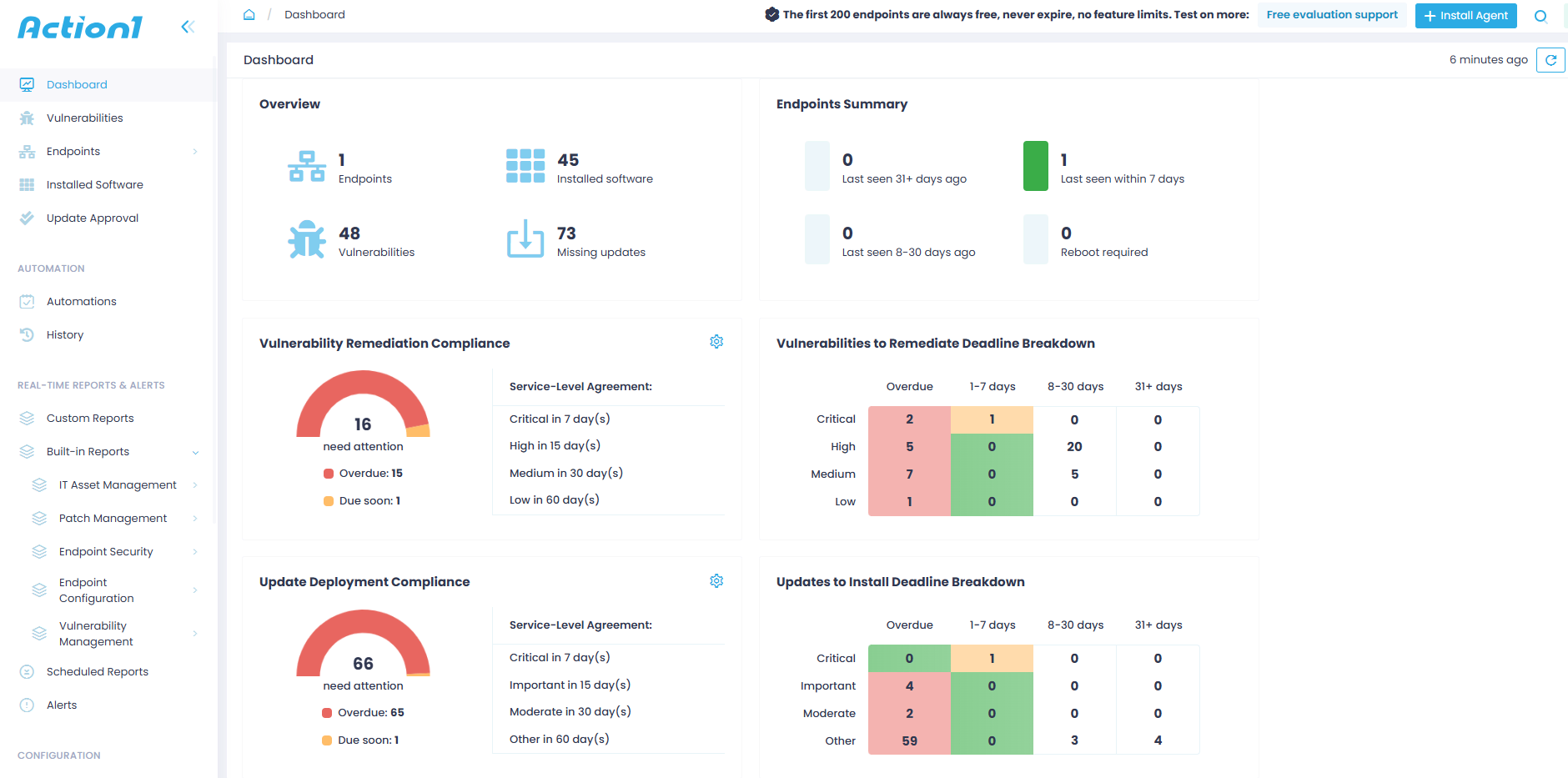
Action1 also addresses the limitations that have followed WSUS for years.
- While WSUS focuses on Microsoft products, Action1 patches a wide range of third-party applications. Its coverage includes Windows, macOS and Linux endpoints, something WSUS has never supported.
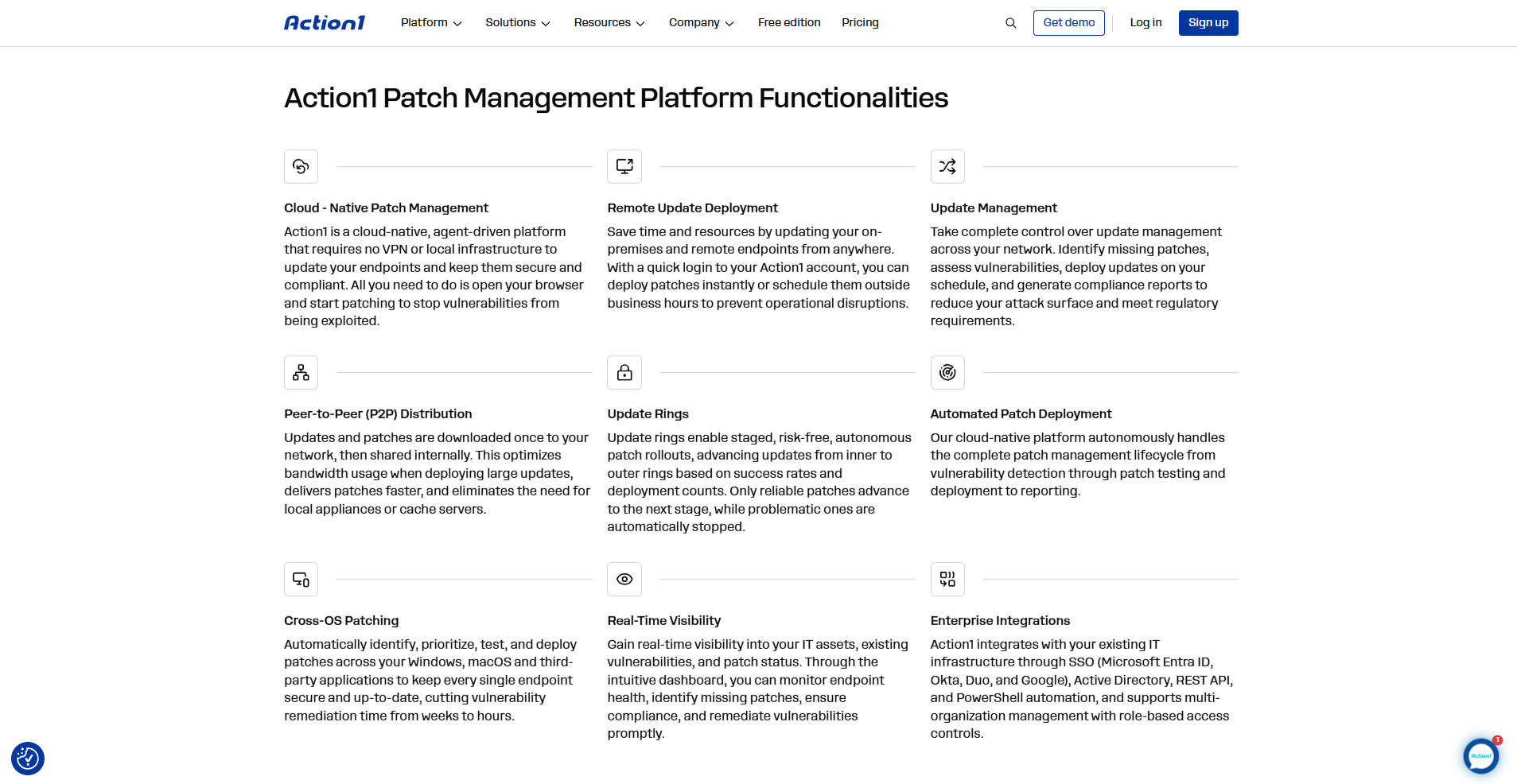
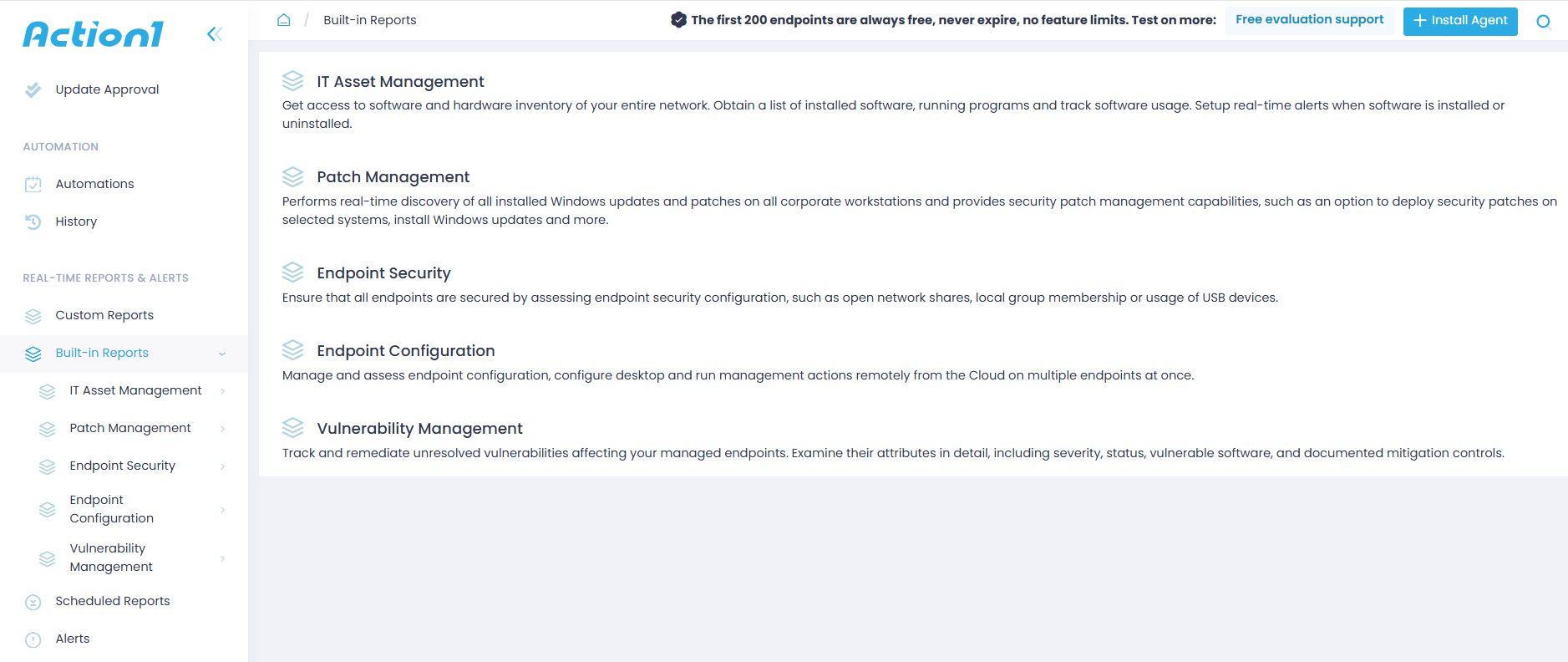
- On the reporting side, Action1 provides real-time visibility into missing patches and compliance status. It also boasts of a large library of built-in reports for security and compliance frameworks. Considering WSUS’s limited reporting capabilities, especially when preparing for audits, this is a big plus.
For organizations exploring options as WSUS support winds down, Action1 offers a practical path forward. It is built on the same core ideas of reviewing, approving, and distributing updates, but it removes the infrastructure burden and covers systems that WSUS could not manage.
Conclusion
For nearly two decades, Microsoft WSUS has helped IT administrators control how Microsoft updates reach their networks. It centralizes management, automates approvals, and saves bandwidth. But Microsoft deprecated it in September 2024, and the road ahead points to cloud-based tools like Intune and Windows Autopatch.
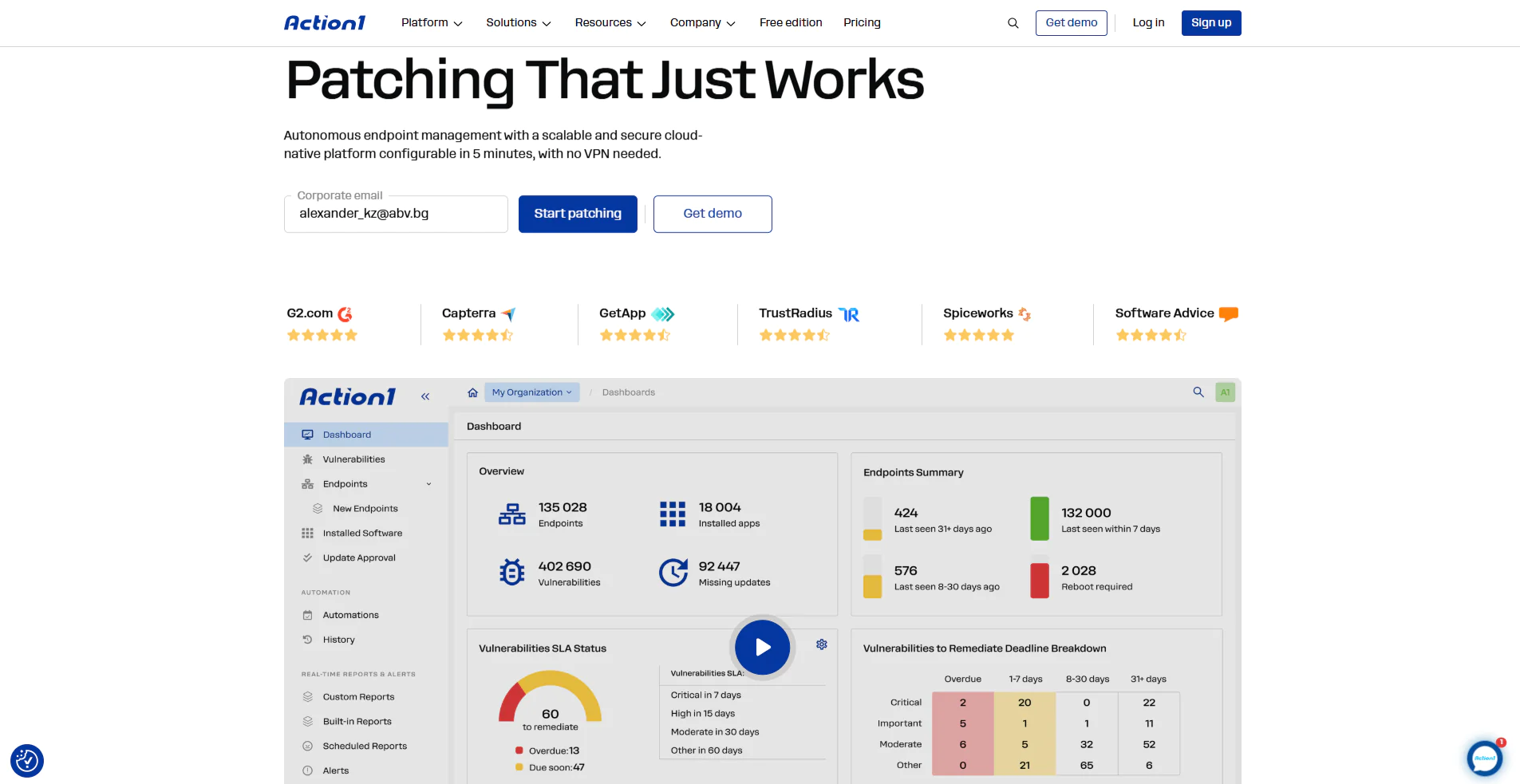
For now, WSUS still works, and pairing it with third-party tools can fill the gaps. Whether you stay the course or migrate to platforms like Action1, the goal stays the same: keep every device patched and the organization secure.