TL;DR
- Remote software uninstallation lets administrators remove applications from multiple Windows endpoints without logging into each device individually, using PowerShell Remoting, WinRM, CIM/WMI, PsExec, Intune, Configuration Manager, RMM platforms, and other enterprise management tools.
- Successful remote uninstallation requires WinRM (PowerShell Remoting) to be enabled, administrator permissions on target devices, proper firewall configuration (TCP 5985/5986), and trusted communication between management and endpoint systems.
- Different application types require different uninstall methods: MSI applications can be removed through Windows Installer (WMI/Win32_Product), while traditional EXE installers require reading uninstall commands from the Windows Registry. Microsoft Store (APPX) applications use an entirely separate deployment engine.
- Although WMIC can uninstall MSI applications, Microsoft has deprecated WMIC and removed it from newer Windows releases. Additionally, querying the Win32_Product class can trigger Windows Installer consistency checks and unintended application repairs, making registry- and PowerShell-based methods preferable.
- The guide demonstrates how to inventory installed software using WMIC, Get-Package, and registry queries before remotely uninstalling applications to ensure the correct software and uninstall commands are identified.
- A complete PowerShell automation script is included for remotely uninstalling both MSI- and EXE-based applications across multiple computers, featuring configuration management, logging, error handling, connectivity checks, PowerShell Remoting, and support for unattended deployments.
- The script automatically processes multiple endpoints, detects installer types, executes the appropriate uninstall method, logs successes and failures, continues processing even if individual devices fail, and creates centralized audit logs for administrators.
- Modern PowerShell remoting combined with registry-based uninstall detection provides a more reliable, flexible, and future-proof approach than legacy WMIC, especially for enterprise environments managing large numbers of Windows endpoints.
Remote software Uninstallation is the process of removing applications from one or more computers without requiring logging into those devices. Instead of signing into every workstation individually, an administrator executes the uninstall process from a management computer using PowerShell remoting, CIM/WMI, PsExec, Microsoft Endpoint Configuration Manager, Intune, or other enterprise management tools. Remote Uninstallation is particularly useful in environments with hundreds or thousands of endpoints where manually uninstalling software would be impractical and resource- and time-consuming. In the remote uninstallation process, an administrator connects to the target computer, validates that the application in scope exists on that system, retrieves the correct uninstallation method from the remote system, executes the appropriate uninstallation command, and verifies that the application has been removed.
Some of the common requirements for an automated script for remote installation and uninstallation of an application are as follows:
- PowerShell Remoting (WinRM) should be enabled at target endpoints, and they should be reachable across the connected network.
- The account running the script must have local administrator rights on the target computers.
- Both machines must be on the same domain or configured for trusted host communication if working outside of a domain-joined environment.
- Firewall rules must permit WinRM traffic, i.e., TCP ports 5985 for HTTP and 5986 for HTTPS.
Another important point administrators must understand is that the uninstallation process differs significantly across installation methods. Windows handles MSI and Exe installers using completely different engines. MSI packages are managed by a built-in Windows mechanism that registers a unique GUID in the registry, while EXE installers are custom-compiled executables, and Windows does not natively know how to uninstall them; a remote uninstallation script needs to query the respective registries to find the exact path to the vendor’s uninstall file. Apps installed via the Microsoft Store, e.g., calculator, Sticky Notes, or modern corporate line-of-business apps, do not use the registry uninstall strings or the MSI route. They are managed by the APPX/Provisioned Package deployment engine.
How to Uninstall Software with Command-Line / WMIC?
The Windows Management Instrumentation Command Line (WMIC) utility provides a command-line interface for interacting with Windows Management Instrumentation (WMI). One of its capabilities is to query installed MSI-based applications via the Win32_Product class and invoke their uninstallation methods without opening the graphical Programs and Features interface. When working with older Windows environments such as Windows 10 and 8, WMIC offers a quick way to automate software removal via scripts and command prompts. However, it is important to understand that WMIC executes commands on the computer where the command is running, i.e., the standard “wmic product where “Name=‘application Name’” call uninstall” command will uninstall the application locally. To perform a true remote uninstallation using wmic, the command is recommended to be wrapped inside a remote execute mechanism such as PowerShell Remoting i.e., invoke-command, PSExec, or a Remote Monitoring and Management (RMM) agent. Wmic can communicate over RPC/DCOM, but it requires a firewall exception for these legacy protocols. As a result, the wmic process queries the network synchronously and sequentially, which slows script performance.
When the WMIC uninstall command executes, Windows queries the Win32_Product WMI class to locate an installed MSI package that matches the specified product name. After finding the matching application, WMIC invokes the Windows installer uninstall method, which performs essentially the same operation as uninstalling the application through Programs and Features. The command returns a status code indicating whether the uninstallation request succeeded, failed, or encountered any issues. Although this process is straightforward, it only works reliably for MSI package installed applications that are registered with Windows Installer. Applications installed using EXE installer, portable software, Microsoft Store apps and other modern deployment technologies do not appear in Win32_product class and WMIC cannot uninstall them.
For example, if a remote machine has 7-zip software installed via its official MSI package, WMIC can easily query, locate and remove it with the command “wmic /nointeractive product where “name=’7-Zip 24.08 (x64)'” call uninstall”. However, if user downloaded a 7-zip EXE installer or installed another application i.e. Notepad++ from Microsoft Store, wmic will return no result and will fail to uninstall them as that application bypass the Windows installer registry mechanism.
Also, Microsoft has deprecated WMIC and it has been removed by default from Window 11, therefore administrators should first verify the WMIC is present on target machines before running automated script to uninstall applications. Another important consideration is that WMIC relies on the Win32_Product WMI class which has long been discouraged for application inventory and management task as querying this class can trigger a Windows Installer consistency check i.e. self-repair/reconfiguration for MSI applications that can cause unnecessary repairs, increased disk activity and unexpected changes across installed software.
List Installed Programs
Before running WMIC or any software uninstallation command, open Command Prompt with administrative privileges, as uninstallation operations typically require elevated permissions. Click on the Start menu or search bar and type “cmd”, choose Command Prompt, right-click, and run as administrator. Running the “wminc product get name” command returns an inventory of applications registered as an MSI installation on the system.
For example,
“Wmic product get name”
Name
Microsoft Access database engine 2010 (English)
Microsoft .NET Core Runtime – 2.1.9 (x64)
Microsoft .NET Core Host – 2.1.9 (x64)
The wmic command relies entirely on the Windows installer-based applications and completely misses the EXE-based applications, Microsoft Store apps, and any other modern installation-based applications. Modern PowerShell commands can be used to query multiple package providers simultaneously, and PowerShell can be used to directly read the Windows Registry paths where every standard application registers its uninstaller during installation.
“Get-Package | Select-Object Name, Version, ProviderName | Format-Table -AutoSize”
Name Version ProviderName
—- ——- ————
Notepad++ (64-bit x64) 8.7.7 Programs
Google Chrome 149.0.7827.201 Programs
Microsoft Edge 149.0.4022.98 Programs
Java Auto Updater 2.8.171.11 msi
AzureAD 2.0.2.182 PowerShellGet
“Get-ItemProperty HKLM:\Software\Microsoft\Windows\CurrentVersion\Uninstall\*, HKLM:\Software\Wow6432Node\Microsoft\Windows\CurrentVersion\Uninstall\* -ErrorAction SilentlyContinue | Where-Object DisplayName | Select-Object DisplayName, DisplayVersion | Sort-Object DisplayName”
DisplayName DisplayVersion
———– ————–
Google Chrome 149.0.7827.201
Microsoft .NET Core Host FX Resolver – 2.1.9 (x64) 16.100.27415
In order to get the installed applications list or uninstall software on remote computers, the recommended way is to leverage PowerShell remoting by enabling Windows Remote Management (WinRM) to allow administrative accounts to run commands remotely without exposing the environment to security risk. Configuring WinRM safely requires scoping the firewall listener exclusively to the domain profile to ensure that public or private networks cannot initiate connection requests. Also, enforce HTTPS or TLS protocols to ensure that command payloads and output remain protected against packet sniffing or man-in-the-middle attacks. Finally, restrict WinRM execution policies so that only allowed members of the local administrator group can execute remote commands.
Uninstall a Specific Program
The following PowerShell script is designed to remotely uninstall software from multiple Windows endpoints, using two different methods based on how the applications were installed. Applications installed using Microsoft Installer (MSI) packages are removed through the Win32_Product WMI class, while applications installed using traditional EXE installers are removed by reading the application’s uninstall information from Windows Registry and executing the uninstallation command through PowerShell Remoting. It includes two example configurations, one code block for Notepad++ (MSI-based) and one for 7-Zip (EXE-based).
Configuration section: It defines all the settings that control how the script operates before any uninstall operation starts. It defines the list of target computers, specifies which applications to uninstall along with their installer type, and stores any silent uninstall switches required for unattended execution.
Logging Helper section: A separate logging section is also defined to create a local log file that stores logs of the operation on the machine where the script is executed, targeting remote machines. The logging section also checks whether the log directory exists and creates it with New-Item if needed.
Main Execution Block: It performs the actual remote software removal process by looping through each computer in the configuration list, verifying that the device is reachable on the network, and then executing applications according to installer type. The script searches for the specified applications, initiates the uninstall process, captures the result and logs the outcome before moving on to the next computer. Comprehensive error handling ensures that failures on one system do not interrupt processing of the remaining endpoints.
#……………………………………………………………………………………………………………………
# Remote Application Uninstall Script
# Supports:
# – MSI applications (WMIC / Win32_Product)
# – EXE applications (Registry Uninstall String via PSRemoting)
#……………………………………………………………………………………………………………………
# i. CONFIGURATION
#……………………………………………………………………………………………………………………
$ComputerList = @(
” Workstation01″,
” Workstation02″,
“Workstation03”
)
# — CONFIGURATION FOR NOTEPAD++ (MSI) —
$ApplicationName = “Notepad++”
$InstallerType = “MSI”
$SilentArguments = “”
# — CONFIGURATION FOR 7-ZIP (EXE) —
# $ApplicationName = “7-Zip”
# $InstallerType = “EXE”
# $SilentArguments = “/S”
# Log file path located locally on YOUR computer running this script
$LogFile = “C:\Logs\RemoteUninstall.log”
#……………………………………………………………………………………………………………………
# ii. LOCAL LOGGING HELPER
#……………………………………………………………………………………………………………………
function Write-Log {
param([string]$Message)
$Time = Get-Date -Format “yyyy-MM-dd HH:mm:ss”
$Entry = “$Time : $Message”
Write-Host $Entry
# Create the local log directory if it doesn’t exist on your PC
$LogDir = Split-Path -Path $LogFile
if (!(Test-Path $LogDir)) {
New-Item -ItemType Directory -Path $LogDir -Force | Out-Null
}
Add-Content -Path $LogFile -Value $Entry
}
#……………………………………………………………………………………………………………………
# iii. MAIN EXECUTION BLOCK
#……………………………………………………………………………………………………………………
foreach ($Computer in $ComputerList)
{
Write-Log “———————————————”
Write-Log “Processing $Computer”
if (!(Test-Connection $Computer -Count 1 -Quiet))
{
Write-Log “$Computer is offline.”
continue
}
try
{
#……………………………………………………………………………………………………………………
# MSI APPLICATION (WMIC / Win32_Product)
#……………………………………………………………………………………………………………………
if ($InstallerType -eq “MSI”)
{
Write-Log “$Computer : Querying Win32_Product via WMI (This can take a few minutes)…”
$App = Get-WmiObject Win32_Product -ComputerName $Computer | Where-Object {
$_.Name -like “*$ApplicationName*”
}
if ($App)
{
Write-Log “$Computer : Found matching MSI application. Initiating uninstallation…”
$Result = $App.Uninstall()
if ($Result.ReturnValue -eq 0)
{
Write-Log “$Computer : MSI uninstall completed successfully.”
}
else
{
Write-Log “$Computer : MSI uninstall returned failure code: $($Result.ReturnValue)”
}
}
else
{
Write-Log “$Computer : MSI Application not found.”
}
}
#……………………………………………………………………………………………………………………
# EXE APPLICATION (Registry Method)
#……………………………………………………………………………………………………………………
elseif ($InstallerType -eq “EXE”)
{
Write-Log “$Computer : Querying remote registry for $ApplicationName…”
# Capture the exact outputs from the remote session to log locally
$RemoteOutput = Invoke-Command -ComputerName $Computer -ScriptBlock {
param($AppName, $ArgsToAppend)
$Paths = @(
“HKLM:\SOFTWARE\Microsoft\Windows\CurrentVersion\Uninstall\*”,
“HKLM:\SOFTWARE\WOW6432Node\Microsoft\Windows\CurrentVersion\Uninstall\*”
)
$AppsFound = Get-ItemProperty $Paths -ErrorAction SilentlyContinue | Where-Object {
$_.DisplayName -like “*$AppName*”
}
if (-not $AppsFound) {
return “EXE Application not found in registry.”
}
foreach ($Program in $AppsFound) {
$Command = $Program.UninstallString
if ($Command) {
# Standardize path extraction if path is wrapped in quotes
if ($Command.StartsWith(‘”‘)) {
$Exe = $Command.Split(‘”‘)[1]
$Args = $Command.Substring($Exe.Length + 2).Trim()
}
else {
$Split = $Command.Split(” “, 2)
$Exe = $Split[0]
$Args = if ($Split.Length -gt 1) { $Split[1] } else { “” }
}
# Combine registry arguments with script silent switches
$FinalArgs = “$Args $ArgsToAppend”.Trim()
# Execute the uninstaller silently on the target system
$Process = Start-Process -FilePath $Exe -ArgumentList $FinalArgs -Wait -PassThru
return “Uninstaller launched. Exit Code: $($Process.ExitCode)”
}
}
return “Matching application found, but missing a valid UninstallString.”
} -ArgumentList $ApplicationName, $SilentArguments
Write-Log “$Computer : Remote Status -> $RemoteOutput”
}
else
{
Write-Log “Invalid installer type specified.”
}
}
catch
{
Write-Log “$Computer : ERROR – $($_.Exception.Message)”
}
}
Write-Log “———————————————”
Write-Log “Completed processing all computers.”
#……………………………………………………………………………………………………………………
How to Uninstall Software Using Action1?
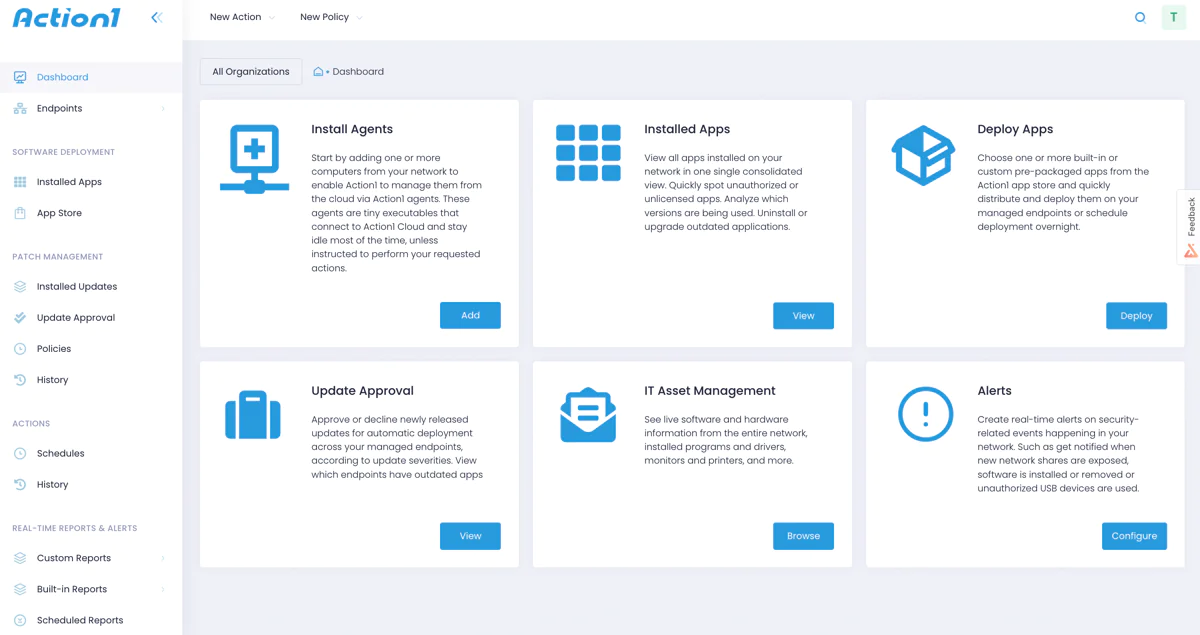
Struggling with remote software management? Looking to automate endpoint management while enhancing security? Action1’s enterprise-grade, cloud-native platform transforms the traditionally complex and time-consuming task of software installation/uninstallation into a seamless, automated process across your entire infrastructure.
Action1’s intuitive interface lets you effortlessly manage software uninstallation, whether you need to remotely remove programs from all or a particular group of endpoints in your network. Schedule removals at convenient times, track progress in real-time, and maintain detailed audit logs for compliance. Best of all, both organizations and home users can secure up to 200 endpoints completely free, forever, with no feature limits.
For your convenience, we have created a step-by-step guide to follow, making the process as easy as possible:
Step 1. Log in to your Action1 dashboard
Step 2. Enter AD Domain in Discovery Settings

Step 3. See All Managed Computers
Action1 will automatically find all domain computers and show them in the list of managed endpoints.
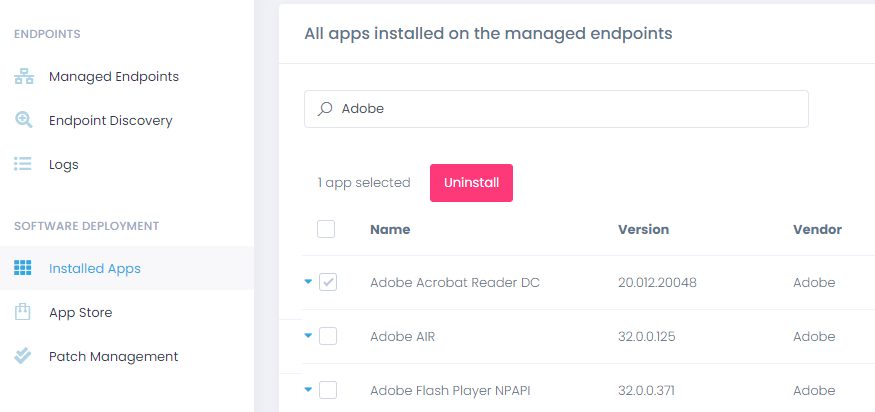
Step 4. Select Programs to Uninstall
Navigate to Installed Apps to see the entire list of programs installed on all computers on your entire network, filter the list by program name, and then select the apps you want to uninstall:
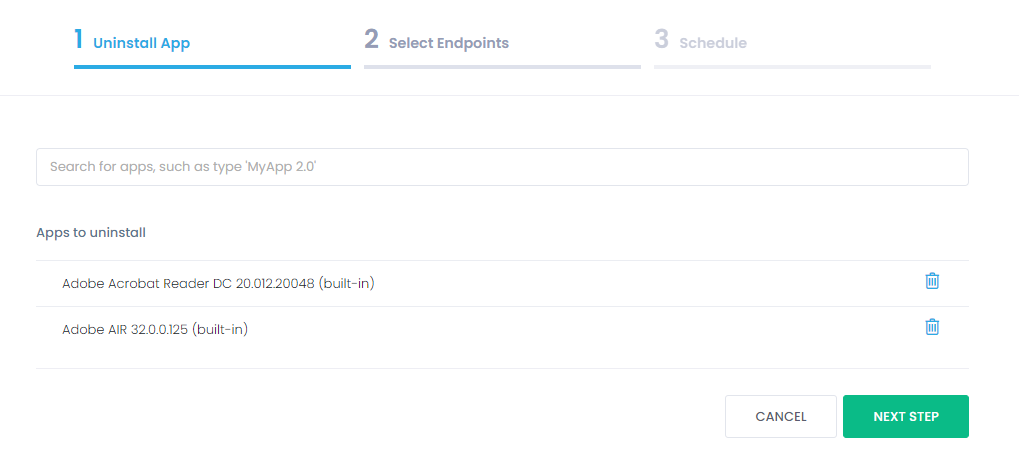
Step 5. Confirm Programs to Uninstall
Review the list and click “Next Step.”
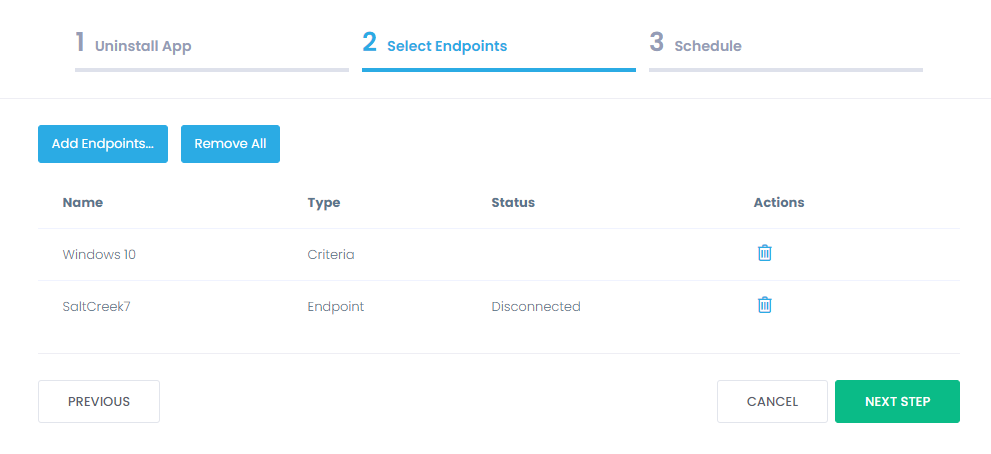
Step 6. Select Computers
Select the individual computers or groups of computers from which you want to remove the apps and click Next Step.
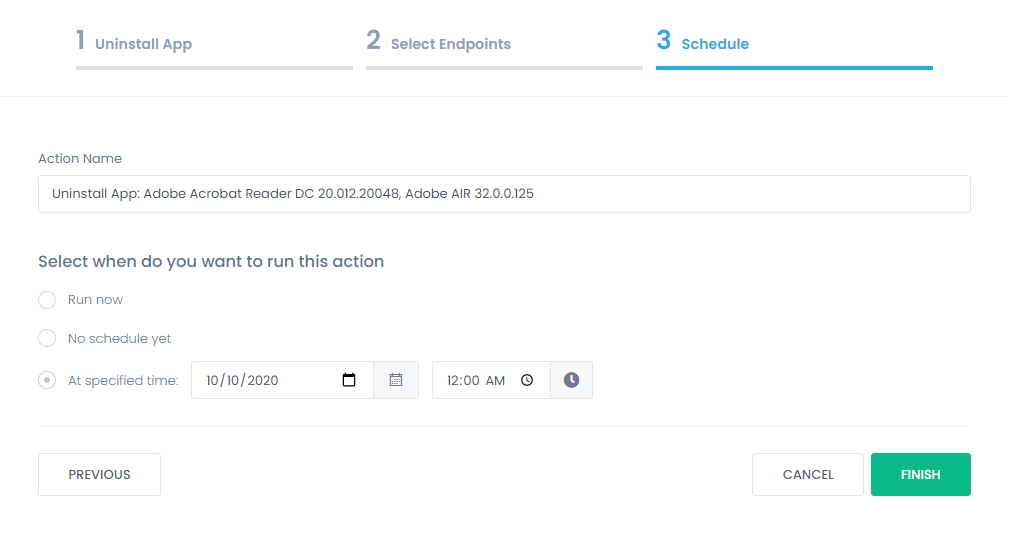
Step 7. Run “Now” or “Schedule”
You can then start the uninstallation immediately or set it to run later, such as overnight, to avoid any disruption to your users. Click Finish after choosing the appropriate uninstallation time:
Consider Using Action1 to Uninstall Software Remotely if:
- You need to perform an action on multiple computers simultaneously.
- You have remote employees with computers not connected to your corporate network.
Action1 is a cloud-based platform for patch management automation, software distribution tools, remote desktop, software asset inventory, endpoint management.