





TL;DR:
Windows Update for Business (WUfB) offers limited patch control and visibility. If you need more flexibility, security, or cross-platform support, this guide compares 9 top alternatives:
-
Action1 – Granular control, free for 200 endpoints
-
Intune – Native to Microsoft 365, limited 3rd-party support
-
Patch My PC – Strong Intune/WSUS integration
-
ManageEngine – Broad OS/app coverage, detailed compliance
-
PDQ – Best for on-premise setups
-
SolarWinds – Powerful but complex
-
Automox – Cloud-native, cross-platform
-
NinjaOne – AI-assisted patching
Windows Update for Business, also known as Windows Update client policies, has been a go-to update management tool for many years, allowing IT administrators to distribute Microsoft updates across their environments.
However, the software has many limitations, and struggles to keep up with modern IT demands. That’s the reason why many business leaders and administrators have no other choice but to search for more advanced platforms that can solve the pain points across their networks that WUfB can’t.
In this article, we’ll talk in detail about what WUfB is, what its limitations are, how to choose the right update management solution for your company, and provide you with a list of the best WUfB alternatives on the market by comparing their features, pros, cons, and G2/Capterra ratings.
What is Windows Update for Business (WUfB)?
Windows Update for Business (WUfB) is a cloud-based service offered by Microsoft that allows you to take control over Windows update management processes across your organization. WUfB delivers granular control over update deployment, where you decide when updates will be installed, which devices to target by using phased rollouts (servicing rings for testing), at what time, and whether to restart the endpoints after the update.
The software reduces management costs by integrating with tools like Intune and Group Policy, eliminating the need for on-premises infrastructure, and allowing you to keep all your endpoints, including remote ones, secure and compliant with minimal manual effort. WUfB is a free service for all organizations, available for Windows 10/11 Pro, Education, and Enterprise editions.
Key Features:
- Cloud-Based Architecture with P2P Delivery: WUfB delivers updates directly from Microsoft’s cloud servers and uses P2P delivery, which not only allows you to update remote endpoints but also minimizes external bandwidth usage and accelerates deployments.
- Phased deployments with servicing rings: With this feature, you can define groups of endpoints (testing, pilot, and rollout rings) to test updates before organization-wide deployment to ensure that the updates work as expected and won’t cause unplanned operational disruptions.
- Update Control: WUfB gives you full control over the update management processes, allowing you to deploy or defer updates, define specific deadlines for quality and feature updates, and decide whether endpoints should restart after successful deployment.
- Compliance Reporting: The software provides detailed compliance data for Windows security, quality, feature, and driver updates through Windows Update for Business reports, a feature accessible via the Azure portal. This allows you to monitor device compliance status, track update installation progress, and generate comprehensive audit-ready reports by integrating with Microsoft Entra ID, Intune, and Azure Workbooks.
- Simplified Management: WUfB eliminates the need for on-premises infrastructure like WSUS servers and provides full automation for update deployments across both on-premises and remote endpoints. This gives you the flexibility to control when and how updates are deployed while significantly reducing operational complexity and freeing up your IT team to focus on more important tasks.
What Are the Limitations of WUfB?
Windows Update for Business limitations include:
- Limited Granular Control Compared to WSUS: A serious drawback is that you can’t approve or reject individual updates like you could with WSUS. WUfB replaces this with deferral periods and servicing rings, which is generally beneficial, but not being able to approve or reject individual updates gives you less control over your environment.
- Complex Group Policy Setup for Larger Environments: If you are responsible for managing thousands of endpoints and you want multiple deployment rings to stagger bandwidth or test updates properly, you might end up creating tons of new GPOs through the Group Policy Management Console. This is the quickest way to turn update management into a nightmare, because it makes it hard for you to track what’s configured where.
- Reporting Requires Extra Setup and Has Gaps: The reporting feature requires you to configure a Log Analytics workspace and wait up to 48 hours before the data you need shows up. Plus, it doesn’t work with government compliance requirements (no GCC High or DoD support). Note that it won’t show data for Windows Server, Surface Hub, or IoT devices.
- Device Requirements Are Pretty Strict: Your devices must be Microsoft Entra ID joined or hybrid Microsoft Entra ID joined for management through Microsoft Intune or other mobile device management solutions. If you have Microsoft Entra ID-registered devices (like BYOD equipment), WUfB won’t work.
- Limited Update Pause Flexibility: You can only defer feature updates and quality updates for up to 35 days, and after that period, Windows deploys them by default whether you’re ready or not.
When WUfB Might Not Be Suitable:
- Strict Compliance Environments: WUfB is not suitable for organizations operating in heavily regulated industries like healthcare, finance, government, energy, and oil, critical infrastructure (utilities, telecommunications, transportation), and any organization subject to strict compliance frameworks like SOX, PCI-DSS, CMMC, NERC CIP, or FedRAMP requirements.
- Enterprise Environments Requiring Cross-OS Support : If you’re running a mixed environment with both new and older Windows, macOS, Linux, or specialized industrial control systems, WUfB won’t work for you. In these cases, you’ll need reliable patch management software that equips you with cross-platform OS and third-party application support, vulnerability identification, patch testing, deployment, and reporting features.
- When Total Control Over Updates Is Needed: WUfB does not offer the total control over the update process that can be found in tightly focused third-party patch management platforms. So if your company needs granular control over each step of the process, then Windows Update for Business isn’t the right fit.
Top WUfB Alternatives
The best WUfB alternatives are Action1, Microsoft Intune, Patch My PC, ManageEngine Patch Manager Plus, PDQ Deploy & Inventory, SolarWinds Patch Manager, Automox, and NinjaOne. However, each platform offers a different set of features and has its pros and cons.
That’s why we are going to explore them one by one to help you make an informed decision and equip your organization with the right patch management software that meets your requirements and successfully solves the biggest pain points in your environment.
Action1
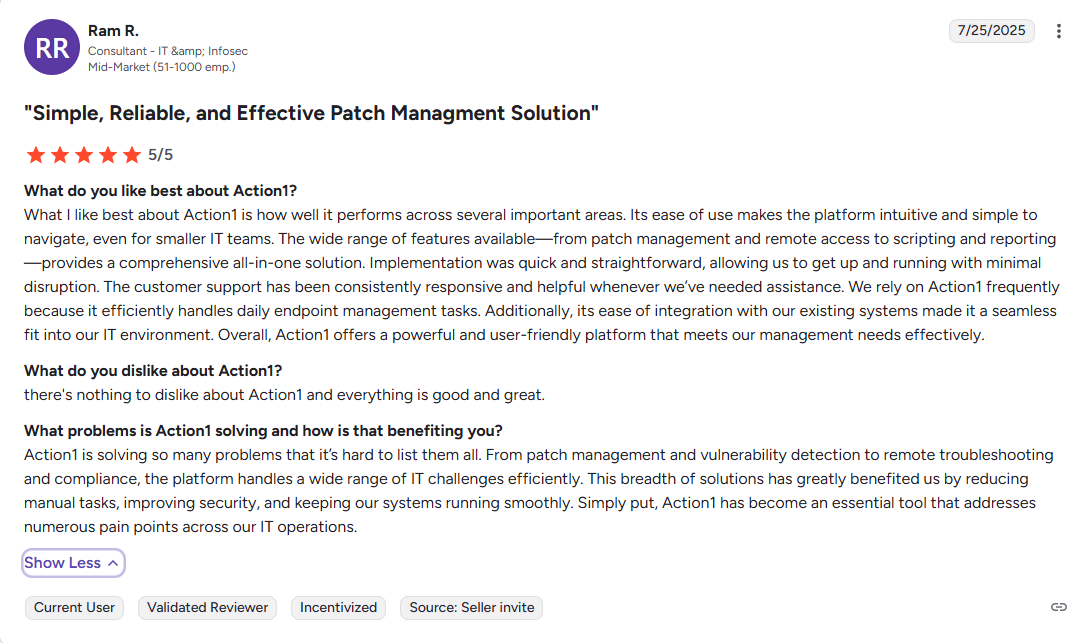
Action1 is a cloud-native autonomous endpoint management platform that successfully automates each step of the Windows, macOS, and third-party application patching process, from vulnerability identification and remediation to audit-ready report generation. The software offers infinite scalability, is highly secure, and takes only 5 minutes to install, allowing you to immediately start patching your endpoints to close vulnerabilities and strengthen your company’s overall security posture.
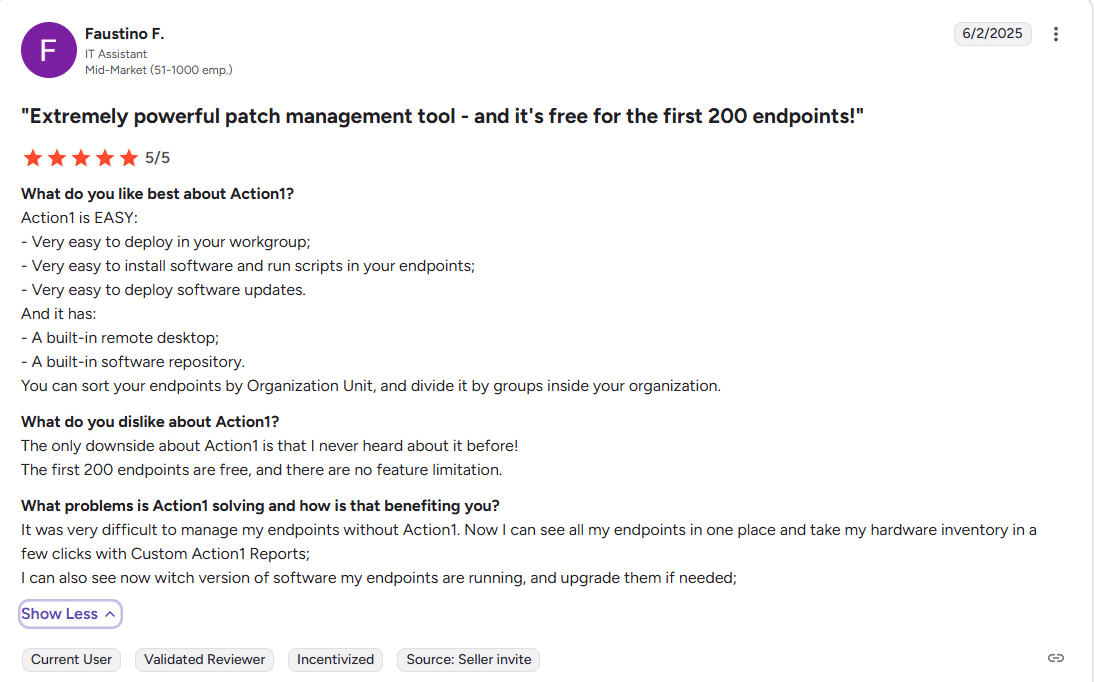
It offers a user-friendly and intuitive interface and a remarkable set of useful features and capabilities. With peer-to-peer patch distribution and real-time vulnerability assessment without needing a VPN, it eliminates routine labor and preempts ransomware and security risks on both your on-premises and remote endpoints. Action1 is always free for the first 200 endpoints, with no functional limits.
In other words, the platform delivers tools and solutions that allow you to keep your endpoints up-to-date, secure, and compliant through intelligent automation, which boosts your team’s productivity, minimizes your attack surface, and maintains your company’s business continuity.
Key Features:
- Cross-Platform Support: Windows, macOS, Linux systems.
- Third-Party Patching: Supports automated deployment of a wide range of third-party applications on Windows and macOS, with filtering options by severity, vendor, and other criteria. Provides real-time progress status and 99% coverage for typical enterprise environments such as Adobe, Chrome, Zoom, and more.
- Patching Offline Devices: Endpoints that are offline during scheduled deployment will be updated automatically the moment they become online.
- Vulnerability Management: Action1 detects vulnerabilities in real-time and equips you with built-in remediation capabilities.
- Risk-Based Patch Management: Patches are deployed based on their severity, actual threat level to your organization, CVE numbers, and CVSS scores.
- IT Asset Management Inventory: Provides real-time insights into each endpoint’s system health, patch status, and hardware details.
- Software Deployment: Enables automated deployment of prepackaged and custom applications.
- Software Removal: Equips you with the ability to remotely uninstall outdated or unauthorized programs across your endpoints.
- Script Automation: Provides built-in scripts and supports custom PowerShell, CMD, and Bash scripting.
- Real-Time Reporting: Generate detailed reports with 100+ built-in templates, all of which can be customized according to your organization’s or customers’ requirements.
- Role-Based Access Control (RBAC): Set permissions for user accounts, allowing specific employees to manage endpoints and configure automations, while others can only view reports. Action1’s RBAC is fully customizable, letting you define permissions by scope (e.g., organizations, groups, scripts) and function (e.g., reports, automations, dashboards).
- Single Sign-On (SSO): Integrates with your existing identity provider, including Entra ID (Azure AD), Okta, Google, or Duo.
- Multi-Factor Authentication (MFA): Strengthens account security by requiring a second verification step via email or apps such as Google Authenticator or Duo.
- Update Rings: Allows you to roll out patches and updates in controlled stages, moving from pilot groups to wider deployment only when predefined success criteria are met, thus minimizing the risk of unexpected downtime caused by problematic deployments.
- Update Approval per Organization: Confidently approve, defer, or decline software updates at the organization level, which is of utmost importance for managed service providers (MSPs) and large enterprises with multiple departments.
- Peer-to-Peer (P2P) Patch Distribution: Downloads updates and patches once and shares them across your endpoints, reducing external bandwidth usage and speeding up large update deployments without needing on-premise local cache servers.
- Secure Private Software Repository: Ensures that only tested and verified updates/patches reach your endpoints.
- Custom Endpoint Attributes: Define up to 30 custom attributes per endpoint, set them manually or via scripts, and include them in reports. Examples include registry keys, installed or missing software, device type, warranty date, BitLocker status, free disk space, environment variables, and BIOS version.
- Real-time Alerts: Notifies you of changes in installed software and hardware.
- Remote Access: Manage with ease both your on-site and remote devices from any location, directly through your browser, without a VPN.
- Public Roadmap: Feedback-driven development prioritized by customer votes in Action1’s public roadmap.
- Full REST API Access: With OAuth 2.0 at no additional price.
- Windows Feature Updates: Automatically upgrade your endpoints from Windows 10 to Windows 11.
- Windows on ARM Patching: Keeps ARM-based Windows devices up-to-date with the latest security fixes and feature upgrades, ensuring newer laptops and tablets running on ARM chips stay secure, compliant, and ready for work.
- Free for up to 200 Endpoints: Fully featured, with no functional limits, forever. You can use it for free in your SMB or thoroughly test it in your large enterprise before purchasing.
- Technical Support: Via phone or email.
Pros:
- Easy to deploy—in just five minutes.
- Automates patch and update deployments on operating systems and third-party applications.
- Reduces downtime through autonomous, staged, intelligent, risk-free deployments.
- #1 easiest-to-use patch management solution as ranked by independently verified customers on G2.
- Infinite scalability, allowing you to expand from hundreds to hundreds of thousands of endpoints instantly.
- Cloud-native platform that does not require VPN connectivity or additional on-premises hardware to manage both on-premises and remote endpoints.
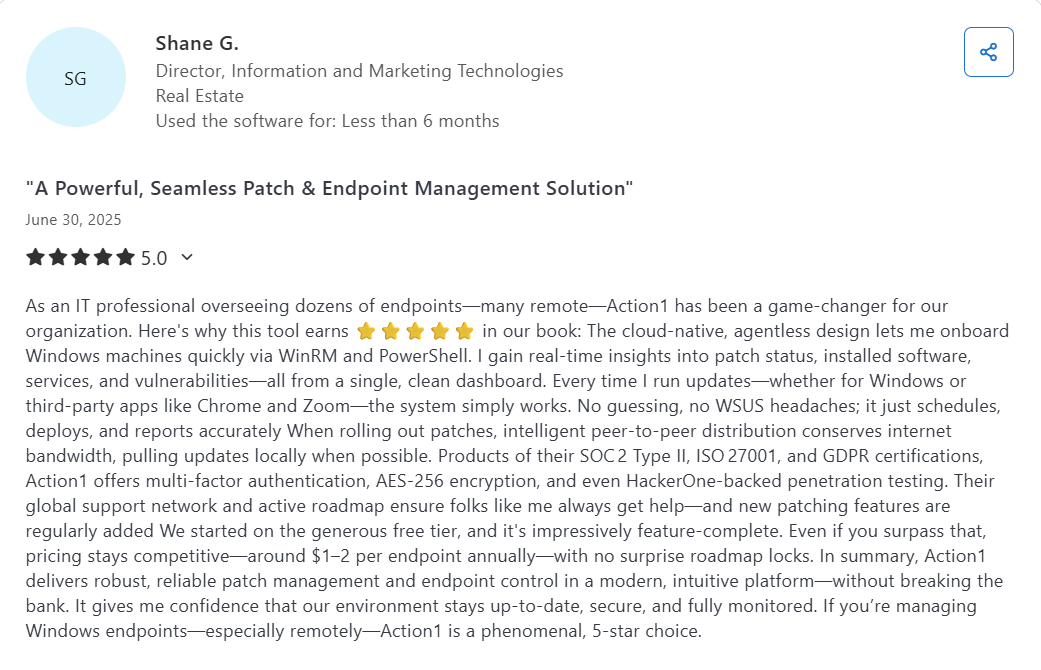
- Highly secure—certified for SOC 2 Type II, ISO/IEC 27001:2022, and TX-RAMP.
- User-friendly interface.
Cons:
- No rollback capability
G2 rating: 4.9 out of 5.0 (603+ reviews)
Capterra rating: 4.9 out of 5.0 (217+ reviews)
Microsoft Intune
Microsoft Intune is a cloud-native endpoint management platform. It provides your organization with the ability to manage user access to the company’s resources and simplify app and device management across your on-premise and remote endpoints, such as mobile devices, desktop computers, and virtual endpoints. With Intune, you can protect access and data on organization-owned and users’ personal workstations.
Key Features:
- Cross OS Support – Windows, macOS, and Linux (limited support)
- Mobile Device Management (MDM) using Configuration Service Provider (CSP) policies – iOS, iPadOS, and Android devices
- Application Management
- Windows Autopilot (zero-touch provisioning)
- Endpoint Analytics
- Zero Trust security support
- BitLocker encryption management
- Compliance Reporting
- Update rings (staged rollouts)
- Expedited patch deployment
- Conditional access based on compliance
- Integration with Microsoft Defender Vulnerability Management
Pros:
- Seamless integration with the Microsoft ecosystem
- Supports mobile and BYOD patching
- Scalable cloud architecture
Cons:
- No built-in third-party patching capabilities; limited to Microsoft products only.
- Basic per-patch reporting
- Requires higher-tier Microsoft licensing for some features
G2 rating: 4.5 out of 5.0 (210+ reviews)
Capterra rating: 4.5 out of 5.0 (35+ reviews)
Patch My PC
Patch My PC is an automated patch management platform that simplifies software updates and strengthens your endpoint security posture by identifying and remediating vulnerabilities with minimal manual work. The software integrates with Microsoft Configuration Manager, Intune, and WSUS to streamline third-party application patching across Windows and macOS environments.
Key Features:
- Cross-platform OS support: Windows and macOS (Intune Cloud version)
- Third-party application patching
- Phased deployment with Update Rings for staged rollouts across pilot, testing, and production groups.
- Custom pre-install and post-install scripts for advanced application configurations.
- Automated update detection and packaging with 24-hour turnaround for new releases.
- CVE vulnerability tracking with detailed security information for prioritization.
- Real-time notifications via Microsoft Teams and Slack webhooks for update alerts.
- Advanced compliance reporting through Patch Insights and Advanced Insights dashboards.
- Application retention and rollback capabilities for problematic updates.
- Custom app packaging and deployment for proprietary and line-of-business applications.
- Integration with Microsoft Configuration Manager, Intune, and Windows Server Update Services.
- Flexible sync scheduling (daily, weekly, or monthly) for automated update management.
- Role-based access control (RBAC) for granular permissions (Advanced Insights).
- Multi-tenant support for Managed Service Providers (MSPs).
Pros:
- Automates end-to-end patch management from detection to remediation.
- Automated patching for a wide range of third-party applications.
- Seamless integration with Microsoft tools like Intune, WSUS, and Configuration Manager.
- Improves patch reliability through automated testing before deployment.
Cons:
- The free version does not offer any reporting capabilities; you have to upgrade to a paid plan to have access to that essential feature.
- The desktop interface is outdated and less intuitive compared to modern cloud-based solutions, and the platform is missing several features that competitors offer.
- The cloud platform is still catching up to the on-premises version in terms of features. While Patch My PC is actively working on closing the gap, the transition is taking longer than many users would like, leaving some organizations stuck using both versions.
- The pricing is on the higher end compared to other third-party patching solutions.
G2 rating: 4.8 out of 5.0 (700+ reviews)
Capterra rating: 4.9 out of 5.0 (215 + reviews)
ManageEngine Patch Manager Plus
ManageEngine Patch Manager Plus helps your IT team remediate vulnerabilities in a timely manner by automatically deploying patches across Windows, Linux, and macOS-based endpoints and third-party applications. With the software, you can keep your on-premise and remote devices secure, compliant, and running smoothly from a single console.
Key Features:
- Cross-platform OS support: Windows, macOS, Linux
- Third-party application patching
- Flexible deployment policies
- Patch compliance management
- Patch prioritization based on CVSS scores
- Pre-deployment and post-deployment notifications
- Mobile app for patch management
- Self-Service Portal for end-user patch installation
- Ability to decline patches for legacy applications
- One-click rollback for problematic patches
- Automated patch testing and approval process
- Supports driver patching and BIOS updates (Enterprise Edition)
- Remote shutdown and wake-on-LAN capabilities (Enterprise Edition)
Pros:
- Automates end-to-end patch management from detection to remediation.
- Supports patching for Windows, macOS, Linux, and a wide range of third-party applications.
- Patches systems across LANs, WANs, DMZs, and remote work-from-home systems without a VPN.
- Improves patch reliability through automated testing before deployment.
Cons:
- The initial setup is not as straightforward as expected; users report struggling with compatibility issues, especially with older server versions.
- The agent is not customizable enough for specific customer labeling.
- In some cases, patches fail to install without a clear reason. To solve these issues, you must contact their customer support, which can take time, from a couple of hours to several days.
G2 rating: 4.5 out of 5.0 (180+ reviews)
Capterra rating: 4.6 out of 5.0 (330+ reviews)
PDQ Deploy & Inventory
PDQ Deploy & Inventory is a device management solution that automates patching across Windows operating systems and third-party applications, helping you save time and keep systems secure and up-to-date. As its name suggests, the tool is built on two components:
- PDQ Deploy helps you update third-party software, deploy custom scripts, and handle configuration management changes.
- PDQ Inventory scans your network, collects detailed information on your on-prem Windows machines, and organizes them so deployments reach exactly the right endpoints.
Key Features:
- Supports Windows OS (for on-premises or VPN-connected devices)
- Third-party patching (for on-premises or VPN-connected devices)
- Custom device groupings to organize endpoints for testing, security purposes, and targeted deployment strategies.
- Heartbeat scheduling for automatic deployment when devices come online (Pro/Enterprise).
- Wake-on-LAN for offline device management (Enterprise).
- Dynamic and static collections for automated device grouping.
- Local data storage with full encryption
- Scheduled update deployments with flexible timing controls to avoid unexpected downtime.
- Custom script deployment and management capabilities for Windows devices.
- Automatic asset discovery through PDQ Inventory to identify and catalog all on-premises devices.
- Active Directory integration for automatic synchronization and computer record imports.
- Prebuilt collection library for quick environment organization and device status insights.
- Comprehensive package library with popular application updates and custom deployment tools.
- Technical support
- 14-day free trial
Pros:
- Simplifies patch management by automating updates for Windows and third-party applications.
- Reduces downtime risks by allowing you to schedule, test, and deploy patches outside business hours.
- Saves IT teams time through powerful automation that eliminates manual patching work.
- Improves security by keeping endpoints consistently updated and less vulnerable.
- Ensures precise deployment by providing detailed device insights from PDQ Inventory.
Cons:
- Doesn’t provide cross-platform OS support.
- Not a cloud-native solution; requires VPN connectivity to manage remote endpoints.
- Basic reporting capabilities.
G2 rating: 4.8 out of 5.0 (290+ reviews)
Capterra rating: 4.8 out of 5.0 (340+ reviews)
SolarWinds Patch Manager
SolarWinds Patch Manager integrates with your existing Microsoft WSUS and SCCM systems to automatically deploy Windows OS and third-party application updates, addressing software security vulnerabilities on your devices. The solution also enhances your company’s compliance reporting, helping keep Windows endpoints both up-to-date and secure while meeting the regulatory standards your organization must follow.
Key Features:
- OS Support: Windows-based endpoints
- Pre-tested third-party update catalog
- Microsoft WSUS/SCCM integration
- Remote patch management
- Vulnerability management
- Advanced patch scheduling with configurable restart policies
- Automated patch testing
- Patch compliance dashboards
- PackageBoot technology for complex patch scenarios (Oracle Java, etc.)
- Custom Package Wizard (no SCUP or scripting required)
- Virtual machine patching with offline VM support
- Update Management Wizard with dynamic rules
- Orion platform integration
- Intuitive user interface
- Role-based access controls
- 30-day free trial
Pros:
- Simplifies third-party patching in WSUS/SCCM
- Leverages existing Microsoft infrastructure
- Good reporting options
Cons:
- Supports only Windows-based endpoints
- Requires WSUS/SCCM infrastructure
- Not cloud-native
G2 rating: 4.3 out of 5.0 (790+ reviews)
Capterra rating: 4.6 out of 5.0 (570+ reviews)
Automox
Automox is a cloud-based IT automation platform that equips organizations with centralized patch management and endpoint control across Windows, macOS, and Linux systems. The software successfully automates patching for operating systems and third-party applications from a single user-friendly console. With it, you don’t need VPNs or on-premise servers for remote endpoint management.
Key Features:
- Cross-platform OS support: Windows, macOS, Linux
- Third-party application patching
- Advanced patch scheduling
- Automated patch testing
- Custom patch and configuration policy creation
- Automated task execution (patch management, configuration, deployment, Worklets) with endpoint targeting by hostname, IP address, OS, or Active Directory OU
- Detailed endpoint status visibility
- Role-based access controls
- Full-featured API for third-party integrations
- Pre-built reports for monitoring and analysis
- Remote patch management
- Automox Worklets (368+ pre-built script automations)
- Patch Safe malware scanning for third-party packages
- Complete endpoint inventory and visibility
- Otto AI assistant for custom script creation
- 15-day free trial
Pros:
- Efficient scalable automation with Worklets that allow scripted remediation and configuration for consistent deployments.
- The software is easy to set up and use with a straightforward interface that requires minimal learning time.
- Equips you with real-time dashboards showing each endpoint’s device health, patch status, vulnerabilities, and compliance data.
- Reduces downtime risks by allowing you to schedule, test, and deploy patches outside business hours.
- Saves your company time and money by automating patch management while improving your overall security posture by keeping endpoints up-to-date and compliant.
Cons:
- Patch reporting lacks depth.
- Lacks built-in rollback capabilities.
- Slow remote control performance compared to other remote desktop solutions.
- The interface is not as intuitive as advertised.
G2 rating: 4.5 out of 5.0 (278 reviews)
Capterra rating: 4.7 out of 5.0 (150 reviews)
NinjaOne
NinjaOne is a cloud-native platform that streamlines patching processes across your Windows, macOS, and Linux devices. You can also automate updates for many third-party applications with the flexibility, control, and visibility you need. This platform keeps both on-premise and remote endpoints up-to-date, minimizes the attack surface across your network, and eases regulatory compliance by generating audit-ready reports
Key Features:
- Cross-platform OS support: Windows, macOS, Linux
- Mobile Device Management – iOS, iPadOS, and Android
- Third-party application patching
- Automated patch testing
- Advanced patch scheduling
- Risk-based patch management
- AI-driven Patch Sentiment (auto-pause unstable updates)
- Patch caching for bandwidth optimization
- Role-based access controls
- Patch compliance reporting
- Real-time monitoring
- Remote patch management
- 14-day free trial
Pros:
- Cloud-based patching platform that doesn’t require a VPN connection
- Proactive patching with CVE/CVSS integration
- Works across in-office, remote, and hybrid IT environments
- 14-day free trial period
Cons:
- The initial setup is not as straightforward as expected, with customers reporting compatibility issues, especially with older server versions.
- Limited flexibility for custom patching and user-based applications, as it cannot deploy fully custom patches (e.g., uploaded files) and often struggles with apps like Zoom.
- In some cases, patches fail to install without a clear reason. To solve the issues, you must contact their customer support, which can take time, from a couple of hours to several days.
G2 rating: 4.7 out of 5.0 (2650+ reviews)
Capterra rating: 4.7 out of 5.0 (252+ reviews)
Comparison Table: WUfB vs Alternatives
| Solution | Control | Reporting | Deployment | 3rd-Party | Security | Cost |
|---|---|---|---|---|---|---|
| WUfB | Basic rings | Limited insights | Cloud-native | Windows only | Limited rollback | Included |
| Action1 | Granular control | Real-time reports | Cloud + remote | Windows, macOS | SOC 2, staging | Free up to 200 |
| Intune | Policy-based | Basic reports | Hybrid ready | Windows only | Reliable, tested | With M365 license |
| Patch My PC | Custom scripts | Dashboards (paid) | Integrates WSUS | Strong coverage | Rollback support | Free + Paid |
| ManageEngine | Flexible policies | Full compliance | Hybrid + offline | Cross-platform | Secure rollback | Licensed tiers |
| PDQ | Granular scripts | Basic inventory | On-prem focused | Windows only | Encrypted local | Moderate cost |
| SolarWinds | Template-based | Advanced dashboards | WSUS/SCCM req’d | Limited 3rd-party | Reliable, rollback | Infra + license |
| Automox | Highly granular | Real-time reports | Cloud-native | Cross-platform | No rollback | SaaS pricing |
| NinjaOne | AI patch control | Detailed logs | Cloud & hybrid | Full OS support | Stability focused | Subscription-based |
How to Choose the Right Update Management Solution to Replace WUfB?
Choosing the right update management software is easier said than done, especially when you have tons of vendors on the market advertising their product as the best possible choice. But in reality, other things matter, and in the following paragraphs, we are going to discuss the most important topics, such as factors to consider, how WUfB compares to third-party patch management tools, how to ensure compliance with update policies in regulated industries, what the best solution is for small businesses, and which update management solutions work best with large hybrid environments.
The answers to these questions will guide you toward making an informed decision without wasting hours researching. Windows Update for Business, without any doubt, does a pretty decent job of patching your Windows OS and applications to address vulnerabilities across your endpoints. However, its obvious limitations, like the inability to deliver patches and updates for third-party apps outside Microsoft’s catalog, basic reporting, average automation capabilities, and limited control over the update management process, leave business owners with no choice but to look for a platform that addresses all these pain points.
What Factors Should I Consider When Choosing a Windows Update Management Tool?
Here’s what to look for when picking a Windows update management tool:
- Cloud-Native Architecture: Enables you to keep all your endpoints current, secure, and compliant from anywhere, without a VPN connection or any on-premises hardware. Agents are deployed to endpoints directly, and once installed, they immediately begin checking in with the platform, automatically providing information about existing vulnerabilities, allowing remote deployments, and generating audit-ready reports based on the real-time status of the endpoints.
- Cross-OS Support: If your company uses endpoints with different operating systems, then you need a tool that offers support for Windows, macOS, and Linux.
- Third-Party Application Patching: Look for a solution that is able not only to automate patch and update deployments but also to offer a wide range of third-party application coverage; a bigger catalog means fewer gaps.
- Autonomous Patch Management: By automating each step of the process—from vulnerability identification, missing patch detection, scheduling, testing, deployment, and report generation—you ensure that your endpoints remain secure, compliant, and performing at their best with just a few clicks.
- Vulnerability Management and Remediation: The software must offer real-time identification of all vulnerable software and operating systems installed on your endpoints, prioritized by CVE numbers, CVSS scores, and indicators of active exploitation (CISA KEV). Once they are identified, the built-in remediation capabilities apply available patches to address the software flaws in a timely manner.
- P2P Patch Distribution: Minimizes external bandwidth usage by downloading patches and updates only once and then sharing them internally between your endpoints, which not only solves bandwidth constraints but also speeds up large deployments and eliminates the need for on-premises cache servers.
- Private Software Repository: Ensures that only reliable and safe patches reach your endpoints, since they are thoroughly tested before being released.
- Advanced Testing Features: Allow you to test specific updates on a small group of endpoints and ensure their reliability before proceeding to organization-wide deployment. An example is Update Rings, which let you roll out patches and updates in controlled stages, moving from a pilot ring to wider deployment only when predefined success criteria are met, minimizing the risk of unexpected downtime caused by problematic deployments.
- Security Certifications: SOC 2 Type II, ISO/IEC 27001:2022, and TX-RAMP guarantee that the software is safe to use, protects your sensitive information, and helps you comply with the strict regulatory standards your company operates under.
- Real-Time Reporting: Complete visibility into every endpoint across your organization in real time is a must, since it allows you to detect and remediate vulnerabilities in a timely manner and generate audit-ready reports after each patch and update lifecycle.
- Flexible Scheduling: Lets you manage updates efficiently, deploy them immediately, or schedule them outside active hours to avoid operational disruptions or downtime
- Seamless Scalability: The software should allow you to go from hundreds to hundreds of thousands of endpoints seamlessly without requiring additional infrastructure.
Is Windows Update for Business Enough for Enterprise Environments?
No, Windows Update for Business (WUfB) on its own is not enough to keep enterprise environments secure and compliant, because it lacks support for macOS, Linux, Windows Server updates, and third-party applications outside Microsoft’s catalog. Plus, it doesn’t provide granular control, and the report generation process is complex and time-consuming.
To solve these challenges, many enterprises use WUfB in conjunction with other tools like Microsoft Intune and Microsoft Endpoint Manager to fill these gaps. Or they replace WUfB entirely with modern, reliable, and efficient cloud-native patch management platforms like Action1.
These platforms simplify and streamline the patching process and offer cross-OS support, third-party application patching, risk-based prioritization, flexible scheduling, and testing and deployment options. And last, but not least, comprehensive report generation. This allows large enterprises to minimize their attack surface, strengthen their security posture, and boost their teams’ productivity.
How Does WUfB Compare to Third-Party Patch Management Tools?
Windows Update for Business is able to update only Microsoft products but can’t patch third-party applications, leaving your systems vulnerable to cyberattacks. Add to that the limited and complex reporting capabilities and basic deployment scheduling options, and it becomes obvious that WUfB has too many downsides.
Third-party patch management platforms offer you automation across each step of the patching process, cross-OS and third-party application support, risk-based prioritization, flexible testing and scheduling options, P2P patch distribution, remote endpoint management, audit-ready reports, real-time visibility, and many more features and capabilities which reduce the risk of cyberattacks, ransomware, and compliance failures that occur when even a single application or OS system is left unpatched.
What’s the Best Update Management Solution for Small Businesses?
Action1 is the best update management solution not only for large enterprises but also for small businesses, because it automates update management across Windows, macOS, and third-party applications. It allows you to deploy updates and patches immediately or schedule them for a convenient time. With the update rings feature, you can stage risk-free, autonomous rollouts that minimize operational disruptions by letting stable patches move forward while stopping unstable ones in the testing ring.
Add to that the fact that Action1 is free for the first 200 endpoints with no functional limits, forever, along with its P2P patch distribution that minimizes external bandwidth and speeds up large deployments, plus its cloud-based design that requires no VPN connectivity to manage both on-premises and remote endpoints, and you end up with the perfect solution for small businesses—at zero cost.
Are There Free or Open-Source Alternatives to WUfB?
Yes, Action1 is free for up to 200 endpoints, fully functional, and never expires. The software is a top patch management option and a great WUfB alternative. With it, you can automate each step of the update process, from vulnerability identification to remediation. It provides the flexibility to plan and schedule deployments outside business hours and offers deployment rings for staged rollouts to avoid operational disruptions.
Following each update cycle, you can generate detailed audit-ready reports, ensuring you have the necessary documentation during compliance audits. Action1 is the only patch management platform that offers full functionality at no cost, meaning small-to-mid-sized businesses can use it permanently, while enterprises can test it extensively across their environment before upgrading to a paid tier.
What Update Management Solution Works Best With Hybrid Environments?
Cloud-native update management solutions like Action1, Microsoft Intune, NinjaOne, and Automox work best across hybrid environments. Because apart from their remarkable feature set, they can update both your on-premises and remote endpoints without requiring VPN connectivity or any additional hardware.
These platforms identify all existing vulnerabilities across your systems, allow you to deploy updates at your convenience, test them before organization-wide rollout, monitor your endpoints’ current update and compliance status, and generate detailed reports in just a few clicks.
Action1: Your go-to Best WUfB Alternative
WUfB was built to help IT admins secure their endpoints and escape the vicious cycle of manual update deployment by automating update management. Although the software gets the job done, it has its limitations, like limited granular control, no cross-OS support, complex group policy setup for larger environments, reporting that requires extra setup and has critical gaps, and strict device requirements.
That leaves IT professionals with a bitter taste, expecting much more from WUfB, and they have no choice but to look for modern and advanced update management software that addresses all the pain points across their networks and fills the gaps that WUfB leaves.
Action1 brings options to the table that WUfB never had to begin with, such as cross-OS support, the ability to patch third-party applications outside the Windows Update catalog, comprehensive reporting with 100+ built-in templates that can be customized, the option to approve or decline updates at the organizational level, MFA, and dynamic endpoint grouping. Moreover, Action1 installation takes up to 5 minutes, automates each step of the update management process, scales effortlessly, and delivers the visibility and reporting IT teams require.
Additionally, the P2P distribution, update rings feature, and the privately maintained software repository ensure that you can keep your endpoints secure with minimal external bandwidth usage and risk of operational disruptions during deployments. Add to that advanced scheduling, scripting and automation, live reporting and alerting, and remote access from anywhere.
Action1 is not just another replacement; it is a platform that allows you to minimize your endpoints’ attack surface, strengthen their overall security posture, avoid unexpected downtime, boost your IT teams’ productivity, and ensure regulatory compliance with just a few clicks.
Comparing WUfB and Action1 feels like jumping from the past to the future; this transition is necessary because cyberattacks evolve, and hackers become quicker at exploiting software vulnerabilities. Action1 helps you manage these threats, providing peace of mind that your endpoints are protected.