






There’s some confusion around a Microsoft product that is referenced by different names: SCCM, System Center Configuration Manager, Microsoft Endpoint Configuration Manager and Microsoft Configuration Manager. All these refer to the same product at different points in time. If you’re evaluating or running it today, its current name is Microsoft Configuration Manager, or ConfigMgr for short. Here is a quick peek into its rebranding history.
| Year | Name | Notes |
|---|---|---|
| 1994 | Systems Management Server (SMS) | Original release |
| 2007 | System Center Configuration Manager (SCCM) | Joined the broader System Center suite. This name remained in use for over a decade and is still widely used by IT professionals today. |
| 2019 | Microsoft Endpoint Configuration Manager (MECM) | The original 2019 Microsoft Endpoint Manager announcement brought together Intune and Configuration Manager, along with the Device Management Admin Center and Desktop Analytics. Endpoint Analytics didn’t enter public preview until 2020. |
| 2023 | Microsoft Configuration Manager (ConfigMgr) | Starting with version 2303, Microsoft renamed it to Microsoft Configuration Manager and brought it into the Microsoft Intune family. |
You should still expect SCCM and ConfigMgr to keep showing up interchangeably in articles, documentation, job postings, and related media.
Configuration Manager is an on-premises endpoint management platform that helps IT teams manage PCs and servers. It can deploy applications, patch operating systems, apply configuration and security policies, inventory hardware and software, monitor system status, and give employees access to corporate applications.
Its current release line is Current Branch, and as of this writing:
- The latest baseline version is 2509, released in November 2025
- The latest in-console update version is 2603, released in May 2026
A baseline version provides the installation media for setting up a new Configuration Manager site, while an in-console update upgrades an existing installation to a newer version.
What is Microsoft Configuration Manager?
Configuration Manager is a distributed system with several components.
- The site server runs the core services.
- The site database is hosted on SQL Server and stores information such as device inventory, deployment status, and compliance state.
- Site system roles provide specific services to clients and the Configuration Manager infrastructure. Examples include:
- Management point, which clients check in with for policy.
- Distribution point, which hosts the content that clients download during deployments.
- Every managed device runs a client agent that communicates with the site infrastructure on a regular schedule to retrieve policy, report status, and perform management tasks.
Using Configuration Manager, you can manage supported Windows client and server operating systems. Co-management specifically enables you to manage eligible Windows 10 and later devices using both Configuration Manager and Microsoft Intune, combining on-premises management with cloud-based capabilities. For cross-platform endpoint management, Microsoft Intune supports Windows, macOS, Linux, iOS/iPadOS, Android, and Chrome OS, with platform-specific capabilities.
Client numbers for sites and hierarchies
A standalone primary site supports up to 175,000 devices.
Beyond that, a hierarchy with a central administration site (CAS) scales to 825,000 devices, provided the CAS site runs SQL Server Enterprise edition.
These numbers can help you decide whether you need a single site or a full hierarchy.
Caution: Configuration Manager can potentially affect every computer in your organization. Microsoft recommends that you plan and test its management features thoroughly before running it in production. Deployed carefully, it reduces administrative overhead and total cost of ownership.
Which Systems Management Activities does Configuration Manager Handle?
Configuration Manager provides the following capabilities, with an Intune equivalent for each one:
| ConfigMgr feature | What it manages | Related Intune capability |
|---|---|---|
| Application management | Install, update, and remove software | Win32/LOB app management |
| Software updates | Deploy and manage Windows and other software updates | Windows Update policies / Update rings |
| OS deployment | Deploy Windows images and perform in-place upgrades | Windows Autopilot |
| Compliance settings | Check and remediate the configuration compliance of client devices | Compliance policies |
| Hardware/software inventory | Collect hardware, software, and device information, as well as monitor software license usage | Device and app inventory |
| Remote control | Remotely connect to a user’s device for support | Remote Help |
| Endpoint protection | Manage antivirus, firewall, and other Windows security settings | Endpoint security policies |
IT Outcomes
Configuration Manager helps you deliver more effective IT services that justify investment:
- Productivity boost: It reduces manual work, since automatic deployment rules and collection-based targeting replace machine-by-machine software installs and configuration changes.
- Better use of existing assets: Hardware and software inventory gives IT teams visibility into what is deployed. This helps them plan device refreshes and identify unused or unlicensed software.
- More predictable updates: Phased deployments and maintenance windows let IT teams schedule software updates and patches.
- Secure and scalable deployment: Configuration Manager can automate application updates and OS deployments in large environments without requiring a corresponding increase in manual effort.
Fact Check: A Microsoft-published business-value study of Configuration Manager 2012 estimated 4,900 hours of annual administrative labor savings, worth about $260,000, for a composite organization managing 50,000 clients. The study also estimated 3,000 hours of one-time labor savings worth about $160,000. These figures are study estimates, not guaranteed results.
What Configuration Manager Branches and Versions are Available?
Microsoft offers three Configuration Manager branches:
- Microsoft historically released two Configuration Manager Current Branch versions each year. Starting with version 2609, Microsoft is moving to an annual release cadence, with one release per year. The version currently offered through the Microsoft Evaluation Center is 2509 (32-bit and 64-bit).
- Technical Preview Branch: Used for lab testing and evaluating upcoming features. It is not intended for production use.
- Long-Term Servicing Branch (LTSB): For organizations that require a more limited, long-term servicing model. Although LTSB 1606 is a legacy branch with fewer capabilities than Current Branch, it remains in extended support until January 12, 2027.
Current Branch remains the standard production release model.
A Current Branch release has a 4-digit version number that follows a YYMM pattern:
- The first two digits represent the year
- The last two identify the release cycle.
For example, version 2509 belongs to the September 2025 release cycle, even though it reached general availability in November 2025. Here’s the recent Configuration Manager release history with support end dates:
| Version | Decoded | Released | Support ends |
|---|---|---|---|
| 2603 | 2026, cycle 03 | May 5, 2026 | November 5, 2027 |
| 2509 | 2025, cycle 09 | November 12, 2025 | May 12, 2027 |
| 2503 | 2025, cycle 03 | March 31, 2025 | September 30, 2026 |
| 2409 | 2024, cycle 09 | December 4, 2024 | June 4, 2026 |
| 2403 | 2024, cycle 03 | April 22, 2024 | October 22, 2025 |
| 2309 | 2023, cycle 09 | October 9, 2023 | April 9, 2025 |
Each version is supported for about 18 months. Once a version reaches its support end date, Microsoft does not provide support for it.
Is Microsoft SCCM End of Life? Configuration Manager Lifecycle and Support
Microsoft Configuration Manager (formerly SCCM) is not end of life. The product remains supported under Microsoft’s Modern Lifecycle Policy, which means support continues as long as customers meet the applicable servicing and system requirements.
However, support timelines vary by branch and version. Configuration Manager Current Branch receives regular updates, and each version has its own support lifecycle. Organizations must upgrade to a supported version to remain within Microsoft’s support window.
It’s also important to distinguish the current product from legacy releases. Configuration Manager 2012 and 2012 R2 reached end of support in 2022, while the legacy Long-Term Servicing Branch (LTSB) 1606 remains in extended support until January 12, 2027.
In short, Configuration Manager is still supported, but individual versions and legacy releases have specific end-of-support dates.
How do Microsoft Configuration Manager and Intune Work Together?
Configuration Manager and Intune are two different products. ConfigMgr is on-premises and manages devices through infrastructure that you own. Microsoft Intune is a cloud-based service that offers mobile device management (MDM) and mobile application management (MAM). It controls how an organization’s devices are used (mobile phones, tablets, laptops) and lets you configure specific policies to control applications.
Co-management is the bridge between ConfigMgr and Intune. You can manage a device by both ConfigMgr and Intune at the same time, with each platform managing specific workloads instead of applying conflicting policies to the same settings.
Cloud Attach, Tenant Attach, and the Cloud Management Gateway (CMG)
You say that a Configuration Manager environment is cloud attached when it uses at least one of the following primary cloud attach features:
- Tenant attach
- Endpoint analytics
- Co-management
You can enable them independently and in any order, or all at the same time.
- Tenant attach syncs Configuration Manager device data to the Intune admin center, giving you cloud-based visibility and access to selected ConfigMgr actions, without enrolling those devices in Intune. You can view near real-time client data, monitor antivirus and endpoint security, and execute remote actions (such as running PowerShell scripts, triggering client policy syncs, and running CMPivot queries) from the cloud console for both Windows servers and client devices.
- Cloud management gateway (CMG) is an Azure-hosted service that lets you manage internet-based Configuration Manager clients through your existing workflows and processes. It lets those clients receive policy and content, and communicate with the Configuration Manager infrastructure without a VPN or exposing on-premises management infrastructure directly to the internet. ConfigMgr still manages the devices, while Azure simply provides the connection. However, CMG introduces additional Azure costs, which may include compute, storage, and outbound data transfer, depending on the deployment and usage.
One-line rule: Use tenant attach for visibility and selected management actions, CMG to manage internet-based ConfigMgr clients without a VPN, and co-management to gradually shift management workloads to Intune.
Co-Management Workloads
Co-management is an approach that brings Configuration Manager and Intune together without a complex migration and with simplified licensing. It allows administrators to manage the same Windows devices through both Configuration Manager and Intune at the same time. For each workload, administrators choose whether Configuration Manager or Intune manages it, so the two platforms don’t apply conflicting policies to the same settings.
Organizations can keep using Configuration Manager while gradually moving management workloads to Intune at their own pace and in a specific order:
| Workload | Comments |
|---|---|
| Compliance policies | Usually the first workload to move because Intune compliance policies can integrate with Conditional Access. |
| Device configuration | Move when Intune policies can meet the organization’s configuration requirements. |
| Endpoint Protection | Covers security settings such as Microsoft Defender and related endpoint protection policies. |
| Windows Update policies | Allows Windows Update management to move to Intune. |
| Office Click-to-Run apps | Moves Microsoft 365 Apps management to Intune. |
| Client apps | Moves application deployment to Intune. |
You do not have to move every workload to Intune though. Many organizations move compliance and updates while application deployment stays on ConfigMgr.
What are the Core Capabilities of Microsoft Configuration Manager?
Configuration Manager offers several capabilities, which are discussed in detail below.
Application Management and Deployment
Using Configuration Manager, you can create, manage, deploy, and monitor applications to a range of devices. The Configuration Manager console also lets you deploy, update, and manage Microsoft 365 Apps.
An application contains one or more deployment types. Each deployment type defines how the application is installed, along with its detection method, requirement rules, installation commands, and any dependencies.
- A deployment type: Defines how the application is installed.
- A detection method: Tells the client how to determine whether the application is already installed (usually a registry key or MSI product code).
- Requirement rules: Define which devices or users are eligible for the deployment.
This application model provides more control than the older package model. Unlike packages and programs, applications support built-in detection methods, requirement rules, dependencies, and other application-model logic. Configuration Manager also provides deployment status and reporting for package and program deployments.
A deployment works like this:
- Create the application and specify its source files.
- Distribute the content to distribution points.
- Deploy it to a collection as either Required (installs automatically) or Available (users can install it from Software Center).
Operating System Deployment
With ConfigMgr, you can upgrade Windows in place or capture and deploy operating system images.
For image-based deployments, you can use PXE, multicast, or bootable media. ConfigMgr can also help redeploy existing devices using Windows Autopilot.
Task sequences automate the deployment process by running a series of steps in a specific order. For example, they can partition the disk, apply an OS image, install drivers, join the device to a domain, and install applications. Task sequences can run from a WinPE boot image or start from an existing Windows installation.
A wipe-and-load deployment erases the disk and installs a fresh operating system. Any user data is lost unless you back it up first using tools such as the User State Migration Tool.
An in-place upgrade, on the other hand, keeps the OS, applications, and user data in place, making it a faster option for routine Windows feature upgrades. However, it doesn’t help with a corrupted OS or a major hardware change.
Software Updates and Patch Management
Configuration Manager lets you manage, deploy, and monitor software updates across the organization. It can work with Windows Delivery Optimization and other peer caching technologies to reduce bandwidth use when devices download updates.
ConfigMgr does not replace WSUS. Instead, it uses WSUS as its software update infrastructure, with the Software Update Point providing the integration between the two. WSUS synchronizes update metadata from Microsoft Update, while ConfigMgr adds device targeting, deployment scheduling, and reporting.
Automatic deployment rules find updates that match your defined criteria and deploy them on a schedule, without requiring you to select updates manually each month. Maintenance windows control when deployments can install and restart devices, so servers and workstations can run on different schedules.
However, the built-in update workflow mainly pertains to Windows and other Microsoft products. It also supports third-party software updates through partner catalogs. However, catalog coverage, publishing, and ongoing maintenance can add operational overhead. A dedicated patching platform can provide broaden update coverage and simplify the overall workflow.
Device Compliance and Configuration Management
ConfigMgr enables you to assess, track, and remediate the configuration compliance of client devices. You can also use compliance settings to configure several features and security settings on devices.
Configuration items define what ConfigMgr should check and what a compliant state looks like. For example, an item might check whether a registry value is set correctly or whether a required file exists. Configuration baselines group multiple items into a single set of checks and deploy them to a collection. For instance, a baseline verifies that BitLocker is enabled and meets your minimum encryption requirements. When ConfigMgr finds a non-compliant device, it can automatically remediate certain settings or report the issue for manual follow-up.
Endpoint Protection and Security (Microsoft Defender for Endpoint and BitLocker)
Configuration Manager can manage antimalware policies, Windows Firewall settings, and other endpoint security features. It also integrates with Microsoft Defender technologies, including:
- Microsoft Defender Antivirus
- Microsoft Defender for Endpoint
- Microsoft Defender Firewall
In practice, Endpoint Protection lets ConfigMgr deploy and manage Microsoft Defender Antivirus and related security policies. Microsoft Defender for Endpoint integration can onboard devices to the Defender service, while security monitoring and investigation take place in the Defender portal rather than the ConfigMgr console.
ConfigMgr can also manage BitLocker encryption policies and store recovery information in the site database, allowing authorized administrators to retrieve recovery keys when needed.
Real-Time Management (CMPivot and PowerShell Scripts)
You can perform real-time actions on managed devices.
CMPivot lets you run a query against online devices in a collection and view the results in near real time. You can then filter and group the results for deeper insights. CMPivot uses a subset of the Kusto Query Language, the same language behind Azure Log Analytics. For example, this query checks free space on the C: drive:
Disk| where Name == 'C:'| project Device, Name, Size, FreeSpace| order by FreeSpace ascThe results show one row for each responding device and sort the devices with the least available space first. It looks like this:
| Device | Name | Size | FreeSpace |
|---|---|---|---|
| WKS-0142 | C: | 256,060,514,304 | 8,412,102,656 |
| WKS-0389 | C: | 512,110,190,592 | 19,660,800,000 |
| WKS-0021 | C: | 256,060,514,304 | 41,875,931,136 |
You can also deploy and run PowerShell scripts on managed Windows devices from the Configuration Manager console. Administrators can approve scripts before deployment and target them at specific device collections.
These real-time management features enable administrators to respond quickly during an active incident. CMPivot returns results in near real time and PowerShell scripts provide a powerful way to perform actions on targeted clients.
Core Infrastructure and Client Deployment
A ConfigMgr environment can use a standalone primary site, or a CAS with child primary sites when more than one primary site is required. Secondary sites remain optional. Primary sites manage clients directly, while secondary sites can help distribute content and reduce traffic across slower WAN links.
Boundary groups map network locations to the site systems that should serve them, helping clients locate appropriate distribution points and other site systems.
You can install the Configuration Manager client on devices in different ways:
- Client push lets the site server install the client automatically after discovering a device.
- Group Policy can assign the Configuration Manager client installer so that it runs when a computer starts.
- Script-based installation lets you deploy the client by using a script, which can be useful for automated or customized deployments.
- Manual installation is useful for individual or one-off devices.
Infrastructure Simplification and Site Server High Availability
Site server high availability lets you deploy a passive site server with your active primary site or CAS. If the active site server fails, you can promote the passive server to active status immediately. In this way, you don’t have to rebuild the site from scratch. You can also host the passive site server on an Azure VM to simplify your cloud migration strategy.
Distribution point reassignment allows you to move an existing distribution point to a different site within your hierarchy without removing and recreating the site system role or re-copying existing packages.
You can also run Configuration Manager site servers and site system roles on Azure VMs, which reduces reliance on physical datacenter infrastructure.
User Interfaces and the Admin Experience
Configuration Manager has two faces: a console for the administrators who run it, and Software Center for the users whose machines it manages.
The Configuration Manager Console
When you install Configuration Manager, you get the Configuration Manager console, which is the main administrative center. Use it to:
- Configure and manage sites and clients
- Run and monitor management tasks
The console is always installed on every site server. You can also install it on other computers, so administration is not tied to the site server. Its role-based administration allows you to restrict access and limit what each user can see in the console.
The console is organized into four workspaces:
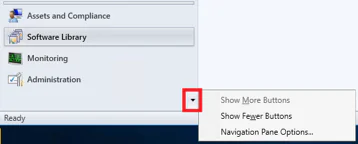
- Assets and Compliance: Manage devices, users, inventory, compliance settings, baselines, and collections.
- Software Library: Manage applications, software updates, and operating system deployments.
- Monitoring: Track deployment status, alerts, queries, and system health.
- Administration: Configure sites, site systems, boundaries, security roles, and other infrastructure settings.
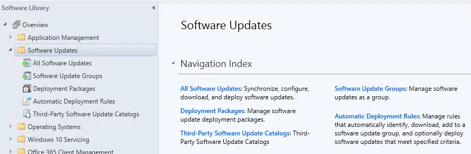
A workspace has nodes under it. For example, Software Update Groups is a node in the Software Library workspace. Nodes are usually organized into folders. When you select a folder, it displays navigation options or a dashboard.
Software Center
Software Center is the end-user side of Configuration Manager. It is installed automatically when you install the Configuration Manager client on a Windows device.
From Software Center, a user can:
- Browse for and install applications, software updates, and new OS versions.
- View their software request history.
- View device compliance against your organization’s policies.
This self-service model lets users install approved applications without requiring IT to deploy them manually.
You can also configure and display custom tabs in Software Center, so it can serve your specific business requirements.
What Technologies does Microsoft Configuration Manager Depend on and Integrate With?
Configuration Manager extends and works with many Microsoft technologies and solutions. The list is long enough to be a planning exercise in itself. It integrates with:
| Technology | Role in ConfigMgr | Required or optional |
|---|---|---|
| SQL Server | Hosts the Configuration Manager site database | Required |
| IIS | Microsoft lists roles such as management points, distribution points, software update points, fallback status points, and state migration points as using IIS. | Required for specific site system roles; not universally needed for every server or component in the environment. |
| Active Directory Domain Services | Supports device discovery and site publishing. All ConfigMgr site systems must be members of a supported Active Directory domain. ConfigMgr clients can also be workgroup devices, but site systems themselves must be domain members. | Required |
| DNS | Provides name resolution between clients and site systems | Required |
| BITS | Default protocol for background content transfer | Required |
| WSUS | Provides update synchronization infrastructure for software updates | Required for software updates |
| Windows ADK and USMT | WinPE boot images and user state migration tools | Required for OS deployment |
| Windows Deployment Services | PXE boot support | Optional |
| Certificate Services | HTTPS site systems, CMG certs, BitLocker key protection | Optional |
| Microsoft Entra ID | Cloud attach, tenant attach, CMG authentication | Optional |
| Microsoft Azure | Hosts CMG and cloud-attached services | Optional |
| Microsoft Intune | Co-management and cloud-based device management | Optional |
| Exchange Server / Exchange Online | Legacy connector for mobile device data | Optional |
| Group Policy | Alternative client installation method | Optional |
| Remote Desktop / Remote Assistance | Remote control features for client troubleshooting | Optional |
| SQL Server Reporting Services | Reporting workspace | Optional |
| Delivery Optimization | Peer-to-peer content delivery that reduces bandwidth use for supported Windows content and updates | Optional |
| BranchCache | Local content caching that reduces WAN traffic at branch offices | Optional |
| LEDBAT | Congestion control mechanism that dynamically uses available network bandwidth to reduce ConfigMgr’s impact on other network traffic | Optional |
SQL Server and core Windows networking infrastructure are mandatory for a Configuration Manager environment. Other technologies are tied to specific features, such as software updates, OS deployment, cloud attach, reporting, and bandwidth optimization.
What are the Prerequisites and System Requirements for Microsoft Configuration Manager?
Before installing Configuration Manager, review Microsoft’s supported configuration requirements:
- Windows Server: Install the site server on a Windows Server version supported by your Configuration Manager release. For instance, Configuration Manager version 2509 supports Windows Server 2016 or later for site servers.
- SQL Server: The site database requires a supported 64-bit version of SQL Server. Note that SQL Server Express is supported only for secondary sites, not for a CAS or primary site database.
- Windows ADK: Install the ADK and WinPE add-on version that is compatible with your ConfigMgr release before installing or upgrading the site, as boot images depend on it.
- Active Directory schema extension: Not required, but recommended, since it lets clients auto-discover their assigned management point and site, and allows Configuration Manager to publish site information securely to Active Directory.
- Hardware: Hardware requirements depend on the number of clients, hierarchy scale, and enabled site roles. While a small proof-of-concept can run on a modest VM, production environments require properly sized CPU, memory, and storage, with sufficient SQL Server I/O performance. SQL Server can be installed locally on the site server or hosted on a supported remote server.
- ODBC driver: Configuration Manager requires the Microsoft ODBC Driver for SQL Server when creating a new site or updating an existing one. Starting with version 2503, the minimum required version is 18.4.1.1.
What Should You Know Before Deploying Microsoft Configuration Manager?
The following points are worth knowing before you start:
- You can install the evaluation edition of Configuration Manager without a product key.
- The evaluation edition runs for 180 days, which is long enough to run a pilot. It can be upgraded to a licensed installation.
- For production use, you need active coverage through an eligible licensing option, such as:
- Microsoft 365: E3, E5, or F3 subscriptions
- Enterprise Mobility + Security (EMS): E3 or E5
- On-Premises Licenses: Core CAL Suite, Enterprise CAL Suite, or System Center suites with active Software Assurance (SA)
- Configuration Manager Setup includes a Product Key page where you choose between an evaluation installation and a licensed installation. The licensed edition asks for the product key while the evaluation edition does not. Regardless of the installation option, organizations must meet Microsoft’s licensing requirements.
Before deploying, review the official Supported Configurations, Release Notes, What’s New, and version-specific Planning Guidance to identify prerequisites, configurations, and limitations.
What does Configuration Manager Actually Cost to Run?
Here’s what it costs to run Configuration Manager in production:
- SQL Server licensing: Configuration Manager includes SQL Server use rights for supported components, including the site database, WSUS for the software update point, SSRS for the reporting point, the data warehouse service point, and management-point database replicas. A separate SQL Server license may be required if the SQL instance also hosts databases for other Microsoft or third-party products.
- Site server hardware: A pilot runs fine on one VM but larger deployments need properly sized compute, memory, and storage. Windows Server licensing is needed for Windows Server instances used in the environment; some site system roles, particularly distribution points, can run on supported Windows client operating systems.
- Client licensing: Configuration Manager rights can come through different Microsoft licensing routes, including qualifying user or device subscriptions and equivalent licensing rights. The actual cost depends on the organization’s Microsoft agreement and licensing model.
- CMG Azure costs: A cloud management gateway adds Azure compute, storage, and data-transfer charges. Your cost largely depends on the number of instances and how much data (especially deployment content) passes through the gateway.
How Can You Get Configuration Manager and Evaluate It for Free?
Microsoft makes a Configuration Manager Current Branch version available for public testing. To get started:
- Go to the Microsoft Evaluation Center for Configuration Manager.
- Register for the evaluation and download the Current Branch evaluation build.
- Extract the downloaded .exe with 7-Zip or WinRAR (the built-in Windows extractor won’t open it), so Microsoft specifically recommends these tools.
- Run setup to install the evaluation software. You can install it for free, without a product key.
The evaluation edition runs for 180 days from installation. When this period ends, the Configuration Manager console becomes read-only. You can upgrade to a full installation any time during the evaluation period or after it.
The Intune and Configuration Manager Evaluation Lab Kit
If you want to see how co-management works, the fastest way is to try the Microsoft Intune and Microsoft Configuration Manager Evaluation Lab Kit. It provides a self-deploying Configuration Manager lab environment that can be integrated with a Microsoft Intune trial instance.
The lab is built around a task rather than a product tour. It guides you on deploying Windows 11 and Microsoft 365 Apps for enterprise through co-management. By the end, you’ll have hands-on experience with key Intune features and with the native integration between Intune and Configuration Manager.
The lab demonstrates Microsoft’s unified endpoint management approach, combining Configuration Manager for Windows PCs and servers with Intune’s cloud-based management for PCs, mobile devices, and applications.
Developer and Automation Extensibility
Microsoft provides four methods to programmatically extend and automate Configuration Manager:
- Configuration Manager PowerShell Module
- Administration Service REST API
- Software Development Kit (SDK)
- SQL Server Views
PowerShell Module
The ConfigMgr PowerShell module ships with the ConfigMgr console and provides some 1,200 cmdlets for nearly everything the UI can do. Here’s an example of deploying an application to a device collection:
New-CMApplicationDeployment -Name "Adobe Acrobat Reader DC" `-CollectionName "All Windows 11 Workstations" `-DeployAction Install `-DeployPurpose Required
Administration Service REST API
The Administration Service is the modern RESTful interface for ConfigMgr. Built on the OData protocol over HTTPS, it exposes WMI objects and site data as JSON endpoints. It is the ideal choice for web dashboards, external ITSM integrations (such as ServiceNow), and cross-platform automation tools that cannot run native PowerShell or do not require domain-joined machines.
Software Development Kit (SDK)
The ConfigMgr SDK lets developers interact with the underlying Windows Management Instrumentation (WMI) provider, known as the SMS Provider. They can use managed code (C# / .NET) or custom scripts to build custom administrative utilities, automated workflows, and third-party integrations.
SQL Views (Reporting Only)
SQL views are useful for building custom SSRS reports and Power BI reports. You can query the Configuration Manager database for reporting, but you should never directly insert, update, or delete Configuration Manager data using T-SQL.
Which Tools Complement Microsoft Configuration Manager?
Microsoft provides several tools that complement Configuration Manager:
- Support Center: Helps diagnose and troubleshoot client-side issues directly on an end-user device. It can be useful when a deployment, policy, or client action isn’t behaving as expected on a specific machine.
- Microsoft Deployment Toolkit (MDT): MDT is retired, and its integration with Configuration Manager is no longer supported. Previously, MDT integrated with ConfigMgr task sequences to provide advanced scripts and automation for desktop and server OS deployment. Microsoft recommends native ConfigMgr operating system deployment (OSD) as an alternative.
- Package Conversion Manager (PCM): Analyzes older legacy packages and converts them to the modern ConfigMgr application model. It is useful when migrating from an older environment. Since ConfigMgr version 1806, PCM is built into the Configuration Manager console, so you do not have to install it separately.
- CMTrace: Lets administrators view, monitor, and analyze Configuration Manager log files.
Community, Support, and Where to Get Help
Configuration Manager has a large ecosystem of official documentation, support resources, and tech communities.
Official Documentation and Product Resources
The following resources provide authoritative information:
- Product website: Configuration Manager is part of the Microsoft Intune family.
- Microsoft Learn: The Configuration Manager documentation is the primary source for installation, configuration, feature reference, and troubleshooting guidance.
- Branch guidance: Microsoft’s which branch should I use? guidance explains the available release branches and when to use them.
- Updates and servicing: The Configuration Manager updates documentation provides release and servicing information.
- In-console feedback: For influencing the product, send a smile or frown to the engineering team, or share product ideas with them directly.
- Support and troubleshooting: Check out support articles for diagnosing and fixing issues, and Microsoft support when you need professional help.
- News and announcements: Keep an eye on the Configuration Manager blog.
Forums, Tech Community, and User Groups
The following resources are great for peer help and discussions:
- Microsoft Q&A: A good starting point for technical questions. It gets direct engagement from Microsoft engineers and MVPs.
- Microsoft Tech Community: The Configuration Manager community is useful for product discussions, announcements, and how-to questions.
- Twitter/X: Follow #ConfigMgr to keep up with news, announcements, and discussions from the wider Configuration Manager community.
Beyond Microsoft’s own channels, two independent communities are large enough that Microsoft links them from its documentation home:
- Reddit: The r/SCCM community is popular for practical troubleshooting and advice from working administrators.
- Facebook: The ConfigMgr Professionals Group is another active community for peer support and discussion.
These two platforms tend to get quicker responses from working admins, though answers there aren’t official.
Related Microsoft Endpoint Products
Microsoft names Configuration Manager, Microsoft Intune, Endpoint Analytics, and Windows Autopilot as members of the Microsoft Intune family of products.
ConfigMgr versus Intune isn’t really a question once you understand co-management. ConfigMgr primarily manages on-premises-connected Windows PCs and servers through the infrastructure you operate, while Intune is cloud-native and manages Windows, iOS, Android, and macOS endpoints. Many organizations run co-management, as described in the Cloud attach and co-management with Microsoft Intune section.
Endpoint Analytics provides insights into device performance and user experience, including startup performance and application reliability. It can analyze devices managed by Intune or connected to Intune through ConfigMgr.
Windows Autopilot handles zero-touch provisioning for new Windows devices straight from the factory. Even in a co-managed environment, Autopilot remains an Intune-managed capability.
Next Steps and the Learning Path
If you’re new to ConfigMgr, follow this learning path in order:
- Fundamentals of Configuration Manager (about 30 minutes): provides core concepts and a high-level overview of Configuration Manager.
- Features and capabilities (about 30 minutes): discusses Configuration Manager features, so you can map the feature set against what your organization needs.
- Choose a device management solution (about 1 hour): decide how much sits on ConfigMgr versus Intune versus co-management.
- Build a lab environment (a few hours to a full day): use the Evaluation Center download or the Evaluation Lab Kit to test Configuration Manager before deploying it to production (see How to get Configuration Manager and evaluate it for free).
If ConfigMgr administration is part of your job, consider the Microsoft 365 Certified: Endpoint Administrator Associate certification, which covers planning and executing an endpoint deployment strategy using modern management, co-management approaches, and Microsoft Intune integration.
FAQs
Who is SCCM Best for?
SCCM, now called Microsoft Configuration Manager, is suited to organizations that need comprehensive control over Windows devices, software deployment, patch management, and on-premises infrastructure. It can be particularly useful for environments with established Configuration Manager expertise, complex application deployments, or regulatory requirements for on-premises management. Organizations focused on cloud-managed, remote, or cross-platform environments should evaluate Microsoft Intune (or co-management) as a stronger fit.
How do I Know When it is Time to Move Away from SCCM?
Consider moving away from SCCM when maintaining on-premises infrastructure becomes burdensome, your workforce is increasingly remote, or you need broader cloud and cross-platform management. Rising infrastructure and licensing costs, limited resources for managing the Configuration Manager environment, and a strategic shift toward cloud-based management can also prompt an evaluation. The decision should be based on your organization’s technical requirements, costs, and migration priorities.
What is the Best SCCM Replacement for My Organization?
There is no standard SCCM replacement that fits every organization. Microsoft Intune is a natural option for organizations moving toward cloud-based endpoint management, while third-party platforms may provide different combinations of patching, application management, remote management, and automation. Evaluate your existing Configuration Manager workloads, device platforms, infrastructure requirements, licensing, and migration goals before selecting a replacement.
What Should I Look for When Comparing SCCM Alternatives?
Compare alternatives based on the workloads you currently manage with SCCM and the capabilities you need after migration. Key considerations include OS and third-party patching, application deployment, device configuration, inventory, remote actions, reporting, security integrations, supported platforms, automation, infrastructure requirements, licensing, and support. Also consider migration tools and whether the platform can coexist with Configuration Manager during the transition.
Can SCCM and a Replacement Platform Run Side by Side During Migration?
Yes. Configuration Manager can coexist with another endpoint management platform during a phased migration, depending on the platforms and workloads involved. For example, Microsoft supports co-management, allowing eligible Windows devices to be managed by both Configuration Manager and Intune. It also supports coexistence, which means managing Windows devices using both Configuration Manager and a third-party Mobile Device Management (MDM) service at the same time. Organizations can gradually move workloads, validate the new platform, and retire Configuration Manager components after migration.
How Long does an SCCM Migration Usually Take?
An SCCM migration can take several weeks to many months, depending on the environment. The timeline depends on factors such as the number of devices, applications, policies, users, sites, integrations, and workloads being migrated. A phased approach starts with assessment and pilot deployments, followed by workload migration and validation. Complex environments generally require more planning and testing than smaller deployments.
How does Action1 Simplify Endpoint Management and Patching Without SCCM Infrastructure?
Action1 simplifies endpoint management by replacing much of the infrastructure and operational overhead associated with Configuration Manager with a cloud-native platform. It manages patching, third-party updates, vulnerability remediation, software deployment, and remote endpoints without a VPN or on-premises patch-management infrastructure.
- Cloud-native management: Action1 manages endpoints from a cloud-based console, so you don’t have to maintain Configuration Manager site servers and other on-premises patching infrastructure. Its agent-based approach also supports remote and off-network endpoints without requiring a VPN.
- Windows, macOS, and Linux patching: Action1 provides a standard patching workflow for Windows, macOS, and supported Linux distributions. Administrators can identify missing updates, schedule deployments, automate rollouts, and monitor patch status without maintaining separate patching workflows for each operating system.
- Third-party application patching: Action1 can automatically detect and deploy updates for supported third-party applications. Its curated software repository provides tested application patches, while policies can automate deployments based on criteria such as severity, application, vendor, and update type.
- Vulnerability detection and remediation: Action1 continuously identifies vulnerabilities affecting operating systems and supported applications, and connects those findings to patch deployment.
- Automated update management: Administrators can create policies to schedule, stage, approve, and monitor updates. Ring-based deployments and maintenance windows help organizations roll out patches in stages while reducing disruption to business.
- Software deployment and removal: Action1 supports remote software deployment and application removal at scale. Administrators can use its software repository for common applications or add custom packages, and can handle many software-management tasks without traditional on-premises deployment infrastructure.
- Remote endpoint management: Action1 includes browser-based remote access and endpoint management capabilities, so IT teams can manage and troubleshoot endpoints without VPN-dependent workflows. This is particularly useful for remote and distributed environments.
- Reporting and visibility: Action1 provides visibility into missing patches, vulnerabilities, deployment status, and patch compliance from its cloud console. Teams can use this information to monitor remediation progress and identify endpoints that require attention.
- 200 endpoints free: Action1 provides its full product free for the first 200 endpoints, with no feature or time limits. Organizations can use the free tier indefinitely to evaluate the platform in a real environment before scaling.
Where Action1 does not Replace Configuration Manager
Action1 can replace or simplify many Configuration Manager workloads, particularly patch management, third-party application updates, vulnerability remediation, software deployment, and remote endpoint management. However, Action1 is not a full replacement for Configuration Manager’s bare-metal operating system imaging capabilities.





