





Patching your systems is essential for three reasons. First and foremost, security—unpatched software vulnerabilities allow cybercriminals to easily penetrate your endpoints and collect sensitive information, install malware, or even paralyze your business by locking each device until a ransom is paid.
Second, compliance—adhering to regulatory frameworks like PCI DSS, HIPAA, GDPR, SOC 2, and many others is possible only if your systems are updated and operating with the latest OS and third-party application software.
And third, stability—properly managed updates prevent hardware or software conflicts and fix application bugs.
However, the whole process must be done correctly because an improper patching process can bring serious risks. If you deploy a kernel update organization-wide without first testing it on a small group of endpoints, you might face system-wide failures, logically leading to unexpected downtime. On the other hand, the risk of skipping critical security patches or delaying their deployment for months leaves your systems exposed to active exploits, where a single cyberattack can become a reason not only for financial but also reputational losses—or even business shutdown.
At the end of the day, patching your Ubuntu endpoints keeps them secure, compliant, and smoothly performing, but poorly planned actions or deployments can turn everything around and deliver unexpected downtime, unsatisfied clients, and many headaches to your IT team.
That’s why in this article we will talk in detail about what Ubuntu patch management is, why it is critical, and what the best practices are to follow when patching your endpoints. We will also provide you with a step-by-step guide covering the updating process itself and, of course, talk about the mistakes to avoid during Ubuntu patching. In other words, you will get practical guidance that your team can implement immediately across your SMB, MSP, or enterprise organization.
What Is Ubuntu Patch Management?
Ubuntu patch management is the process of identifying, testing, and deploying security updates, kernel updates, and package updates across your Ubuntu systems. This way, software vulnerabilities are remediated, bug fixes are applied, and of course, new features are introduced for a better user experience.
Being more specific:
-
Security patches are the ones that fix software flaws in your operating system and installed packages.
-
Kernel updates fix bugs and address security flaws in the Linux kernel itself.
-
Package updates, as their name suggests, deliver a combination of security patches, bug fixes, new features, and performance improvements.
The common thing between them is that despite their different purposes, all contribute to reducing risk across your systems, whether it is security, operational, or compliance-related.
What Are the Differences Between Manual Patching, Unattended Upgrades, and Enterprise Automation Platforms?
Manual patching, unattended upgrades, and enterprise automation differ in the level of control, effort required, and scalability they provide.
-
Manual patching gives you full control over each step of the process, but the problem is that it is time-consuming, labor-intensive, and consumes significant IT resources. You have to use the advanced package tool and execute specific commands to check for missing updates across your system, start the deployment process, and then reboot the system. While it works for home users, it is not an adequate choice for SMBs, MSPs, and large enterprise organizations.
-
Unattended upgrades is an Ubuntu feature that eliminates manual work by automatically downloading and installing critical security updates and other package updates. In fact, it can even be configured to handle automatic reboots, making it an acceptable choice for SMBs but not for large enterprises.
-
Enterprise automation platforms offer centralized management, and they reduce human effort by up to 90% by delivering end-to-end automation. Such software identifies all missing updates across your endpoints, servers, and virtual machines. It allows you to create patching policies that test these updates in a small group of endpoints (update rings) and deploy updates immediately or on a schedule with flexible rebooting options. After the completion of the update cycle, you can generate detailed audit-ready reports using multiple built-in customizable templates. Thanks to that, enterprises with thousands of on-premises and remote endpoints can keep each of them secure, compliant, and smoothly performing with minimal downtime. The benefits include reduced IT workload, improved security posture, and streamlined compliance.
Why is Ubuntu Patch Management Critical?
Creating a strong patch management strategy that automatically deploys updates and patches on a repetitive schedule is critical in terms of security, productivity, and compliance. How exactly? Let’s explain:
-
Security risk reduction – Cybercriminals need to exploit a software flaw in your OS or third-party apps to get access to your systems and achieve their intentions, like causing a data breach, launching a ransomware attack, or installing other malicious software like spyware to collect credentials and other sensitive information. Patching your systems regularly and ensuring they operate with the latest software versions minimizes those risks by remediating security vulnerabilities and shrinking your attack surface.
-
Vulnerability mitigation timelines – Automating security updates not only eliminates human effort, it reduces remediation time by multiple times. Ubuntu patch management platforms enable you and your team to create a patching policy that deploys all missing patches on a schedule, starting by testing them on a small group of endpoints before reaching all of your devices. For instance, Action1 equips you with end-to-end automation that makes the patching process a set-it-and-forget-it process. Once you install the agent on each device, it monitors it 24/7/365, which prevents blind spot creation and ensures all your on-premises and remote endpoints stay up-to-date and free of known vulnerabilities.
-
Compliance with strict regulatory standards – By automating each step of the process—identifying vulnerabilities, detecting missing patches, testing and deploying security updates, and generating audit-ready reports for standards like PCI DSS, HIPAA, and ISO 27001—patch management platforms help you meet stringent compliance requirements while providing real-time visibility into your network. They arm you and your IT team with centralized control over each of your on-premises and remote endpoints, providing you with accurate information about their current patch and compliance state. From there, you can deploy the missing critical updates immediately or at a convenient time to remediate the security flaws in just a few clicks. So when regulatory bodies knock on your door, you can feel confident and give them the documentation they need, proving that your systems are up to date and aligned with the standards.
-
System stability and performance – Regularly applying patches to your Ubuntu systems keeps them functioning at their peak levels by fixing software bugs, which of course results in improved system stability and overall performance. Thanks to that, your team’s productivity is boosted since they are not wasting time restarting their devices or applications.
-
Reduced expected and unexpected downtime – Patch management platforms come with features that offer you the flexibility to deploy updates immediately or on a schedule, like outside business hours, to avoid operational disruptions. Moreover, for further mitigating unexpected downtime risks, leading vendors like Action1 offer staged, autonomous, risk-free deployments, allowing you to set specific success metrics and update counts and create separate groups of endpoints (rings), where updates progress from the inner to the outer rings only if they prove their stability by meeting these criteria—those that don’t qualify are automatically stopped. So you can control not only the timing of the deployments but also the reliability of the patches that reach your endpoints, thus preventing unexpected downtime.
|
Area |
Without Patch Management |
With Automated Patch Management |
|
Security |
High attack surface, unpatched vulnerabilities remain exploitable for months |
Vulnerabilities remediated quickly, attack surface minimized through continuous patching |
|
Remediation Time |
Manual process takes weeks to identify and deploy patches across all systems |
Automated deployment reduces remediation time by up to 90%, patches applied in hours or days |
|
Compliance |
Manual tracking, difficult to prove compliance, audit failures, potential fines |
Automated audit-ready reports for PCI DSS, HIPAA, ISO 27001 with real-time compliance visibility |
|
System Stability |
Unresolved bugs cause crashes, application failures, and performance degradation |
Regular patching fixes bugs proactively, maintaining peak system performance and stability |
|
Downtime |
Unexpected outages from security incidents or failed manual updates |
Scheduled deployments during maintenance windows, staged rollouts prevent unexpected failures |
|
IT Workload |
15-25 hours weekly spent on manual patching tasks across infrastructure |
90% reduction in manual effort through policy-based automation and autonomous deployment |
Best Practices for Ubuntu Patch Management (Core Section)
When patching your Ubuntu systems, it is important to understand the standard best practices to accomplish exceptional outcomes. To help you keep your endpoints updated and secure with minimal unexpected downtime, we’ve created a list of proven Ubuntu patch management best practices that help you plan, deploy, and maintain patches with confidence.
1. Maintain an Accurate Inventory of Systems
First and foremost, it is mandatory to create a complete inventory of your Ubuntu systems, know their exact number, their versions, installed packages, and divide them into groups (on-premises, remote, VMs, etc.). This is the first step that is the foundation of effective patch management that keeps all your endpoints secure, compliant, and performing at their peak levels.
Remember that even a single unpatched vulnerability is all that hackers need to start a cyberattack, so you can’t afford to leave even one endpoint outside this list, because this can wipe out all your efforts and become a reason for regulatory fines, damaged reputation, and in the worst case even business shutdown.
Key inventory elements to track:
-
Ubuntu version and release (20.04 LTS, 22.04 LTS, 24.04 LTS)
-
Installed package versions and update status
-
System roles (production servers, development workstations, test environments)
-
Network location (on-premises, cloud, remote offices)
-
Critical applications and dependencies
2. Use a Standardized Patch Management Policy
Create and establish clear guidelines that will be followed every single time before updating your Ubuntu systems. This policy should address compliance requirements specific to your industry and regulatory framework. It should include which endpoints, when, how, and by whom these updates are deployed. Next, you have to set frequency guidelines:
-
Daily security checks – You should check every single day for newly released security patches and the criticality of the vulnerabilities they are remediating to take appropriate actions, like whether you should apply them immediately or they can wait a day or two. Run automated scans to identify newly released security patches and critical CVEs affecting your systems.
-
Weekly updates – It is recommended to schedule weekly deployments of non-critical patches and package updates during regular maintenance windows.
-
Urgent CVE patches – Be ready for immediate patch deployments for critical vulnerabilities (CVSS 9.0+) or those that cybercriminals are actively exploiting. These software flaws should be remediated as soon as possible to prevent exploitation and the catastrophic consequences it can have on your business.
Define vulnerability criticality levels:
-
Critical (deploy within 24-48 hours) – Patches addressing actively exploited vulnerabilities or those with CVSS scores of 9.0 or higher. These affect internet-facing systems or core infrastructure.
-
High (deploy within 7 days) – Security patches with CVSS scores of 7.0-8.9 that affect important systems but aren’t actively exploited.
-
Medium (deploy within 30 days) – Security updates with CVSS scores of 4.0-6.9 or bug fixes affecting system stability.
-
Low (deploy within 90 days) – Minor updates, feature enhancements, or patches affecting non-critical systems.
3. Enable and Configure Unattended Upgrades (for Security Patches)
Unattended upgrades automate the installation of security patches, so critical updates will be applied upon release without any manual effort. If you are not familiar with how to enable unattended upgrades, just follow these simple steps:
-
Install the unattended-upgrades package if it isn’t already installed on your system
Execute the following command in Terminal:
sudo apt update
sudo apt install unattended-upgrades
Note: You will be asked to enter your password to execute these commands.
-
Enable unattended upgrades
Proceed with the next command:
sudo dpkg-reconfigure –priority=low unattended-upgrades
Once you press Enter, you will be asked if you want to “Automatically download and install stable updates?” Select Yes and press Enter.
-
Verify unattended upgrades are enabled
Check if you have enabled unattended upgrades successfully by executing this command:
cat /etc/apt/apt.conf.d/20auto-upgrades
If everything works as expected you will see the following:
APT::Periodic::Update-Package-Lists “1”;
APT::Periodic::Unattended-Upgrade “1”;
-
Enable automatic reboot
Execute the following command:
sudo nano /etc/apt/apt.conf.d/50unattended-upgrades
Inside the file, scroll down to find two lines that start with // (which means they’re commented out and inactive). These lines control automatic reboots. Just remove the // from the beginning of each line and change “false” to “true” for the first line. Optionally, adjust the reboot time to your preferred schedule (e.g., “03:00” for 3:00 AM). After editing, the lines should look like this:
Unattended-Upgrade::Automatic-Reboot “true”;
Unattended-Upgrade::Automatic-Reboot-Time “03:00”;
Save the file by pressing Ctrl + O, then Enter, and exit by pressing Ctrl + X.
-
Test your configuration
Verify your configuration works as expected by running a simple test that simulates the upgrade process without actually installing packages. Just input the following in the command line:
sudo unattended-upgrades –dry-run –debug
You will now see which packages would be upgraded and from which repositories. From now on, unattended upgrades will automatically install security patches daily without any manual effort on your part. Last but not least, you can check logs at: /var/log/unattended-upgrades/unattended-upgrades.log
4. Test Updates in a Non-Production Environment
Never deploy patches across all your systems with a single rollout. Instead, use a staged approach starting with a test environment (small group of non-critical endpoints), then continue rolling out the updates to the rest of your devices. Such a proactive approach checks the reliability of every patch and prevents problematic ones from reaching your most important systems, saving you from financial losses, wasted resources, unexpected downtime, and disappointed clients.
Nowadays, many business leaders and their IT teams use canary groups, VMs and containers, and automated CI testing to check whether upgrades work as expected or not.
-
Canary groups – A small group of non-critical systems that receives the update/patch first. Post-deployment, monitoring these systems for 24-48 hours is of utmost importance to catch any bugs or instabilities before expanding deployment.
-
VMs and containers – VMs are widely used for testing purposes because they can easily mirror your production environment. IT teams then apply patches and run functional tests to verify their reliability before proceeding to real-production endpoints. VMs are easy to create and remove, which is why they are one of the most preferred methods for testing upgrades.
-
Automated CI testing – Last but not least, you can integrate patch testing into your continuous integration pipeline. Automated test suites verify that patched systems still perform expected functions and maintain proper functionality, catching regressions before they reach production.
5. Use Automated Patch Deployment Tools
Patch management platforms help you protect your Ubuntu systems and keep them compliant with minimal human efforts and downtime risks. They automate each step of the patching process from vulnerability identification to remediation and report generation. With such software you can test, schedule, and deploy patches at your convenience in just a few clicks. Some of the best platforms on the market are Action1, Landscape, Canonical Pro, Ansible Puppet, Chef, and AWS Systems Manager (for cloud fleets).
Let’s take a quick look at their capabilities to help you understand which is the right one for your organization.
-
Action1
Action1 is a cloud-native autonomous endpoint management platform that automates the discovery, deployment, and reporting of software patches across Windows, macOS, and Linux endpoints. It helps SMBs and large enterprises keep their systems secure, compliant, and smoothly performing without needing on-premises servers or VPNs to deploy OS and third-party application patches. The platform offers centralized management, real-time visibility, a rich feature set, and advanced reporting capabilities.
It takes up to 5 minutes to visit the website, create your account, deploy the agent, and start patching your on-premises and remote endpoints. Through the intuitive user interface, you can see all identified security flaws across your systems and remediate them by using the update rings feature that enables scheduled, staged, risk-free, autonomous deployments. The software is highly secure and infinitely scalable, allowing you to go from hundreds to hundreds of endpoints at a gradually lowering per-endpoint price. Last, but not least, Action1 is free for your first 200 endpoints, with no functional limits, forever.
-
Landscape
Landscape for Ubuntu is Canonical’s centralized system management platform that provides centralized patch deployment, compliance reporting, and integration with Livepatch for reboot-less kernel updates. It uses a client-server model, with agents on each endpoint reporting to a central server, allowing you to manage both on-premises and remote devices for keeping them secure and compliant.
-
Ansible
Ansible is an open-source IT automation tool for provisioning, configuration management, and software deployment. It offers a user-friendly interface, agentless design (using SSH), and human-readable YAML syntax for writing “playbooks” that automate various tasks across servers and endpoints. IT teams use it to efficiently manage updates, install software, and automate workflows from a single platform. While you can run it on-prem (or as a cloud service), its core strength is managing diverse infrastructure without being tied to one location, making it ideal for modern, complex IT setups.
-
Puppet
Puppet is an open-source configuration management tool that automates Ubuntu server setup and management at scale. It uses a client-server model: you install Puppet agents (small programs) on each Ubuntu system, and a central Puppet Master controls them. Where you have the option to write code in Puppet’s declarative language describing how your servers should be configured—like which software to install or which users to create. Agents periodically check in with the master, pull their configurations, and automatically enforce them. If someone accidentally changes a setting, Puppet detects and fixes it back to your desired state, ensuring consistency across hundreds or thousands of systems.
-
AWS Systems Manager (for cloud fleets)
AWS Systems Manager is a powerful AWS service that equips you with the ability to remotely manage, automate, and gain visibility for all your Ubuntu servers (EC2 or on-premises). It is ideal for patching, inventory, running different commands, and secure access from a single console.
6. Schedule Patches to Minimize Downtime
Scheduling patch deployments outside business hours successfully minimizes planned and unexpected downtime. Different strategies work for different companies, which is why you have to find the best time for establishing patch maintenance windows, where after deployment you can reboot systems without disrupting your employees’ work process. Saturday and Sunday are the perfect times to test patches because you have enough time to monitor the systems and address issues before the workweek begins.
7. Prepare Rollback Plans
Even after thorough testing, particular patches end up problematic once they are deployed across your production systems. That’s why it’s necessary to have a plan B, and by that we mean being able to swiftly return the affected system(s) to an operational state before the deployment.
But what are your real options? Well, they are:
Kernel rollback: Ubuntu offers you built-in rollback capabilities that can be accessed from the boot menu. So if a new kernel upgrade causes unexpected issues, just reboot your endpoint, enter the boot menu, and select the previous kernel version from GRUB.
Using Timeshift for system snapshots: You have another handy tool provided by Ubuntu that creates snapshots of your system. As most of you know, this enables you to rely on complete system restoration if a particular upgrade causes unexpected issues.
Backup : Upgrades cannot remove or erase your files and applications; however, they can disrupt system functionality, potentially causing it to fail to start or crash unexpectedly. To protect your information from being permanently lost or to facilitate easy restoration, one of the simplest methods is to utilize backup software that can automatically create copies of all files stored on your Ubuntu system.
8. Keep Kernel and Firmware Updated
It’s well known that the Linux kernel is the foundation of your Ubuntu system, and you must keep it updated to not only prevent vulnerability exploitation but also ensure the smooth performance of your system and avoid annoying software bugs.
Today, package updates, firmware updates, and kernel upgrades are still confusing people about their purpose and effect on their systems. So let’s explain the difference:
-
Kernel upgrades – Critical OS-level updates affecting the entire system
-
Firmware updates – Hardware-level updates (BIOS/UEFI, device firmware)
-
Package updates – Application/service-level updates
9. Track CVEs and Security Advisories
Proactive CVE tracking helps you understand clearly which vulnerabilities pose the greatest risk to your systems, allowing you to prioritize their remediation adequately. To do so, you can subscribe to Canonical’s Ubuntu Security Notices (USN) mailing list to receive notifications about software flaws affecting Ubuntu packages. Next, you must address vulnerabilities listed in CISA’s Known Exploited Vulnerabilities (KEV) catalog by deploying the relevant patches, since they are actively exploited in the wild.
Step-by-Step Ubuntu Patch Management Workflow with Action1Using Action1
To automate ubuntu patch management workflow by using Action1 follow these steps:
-
Step 1. Visit Action1 and create your account.
-
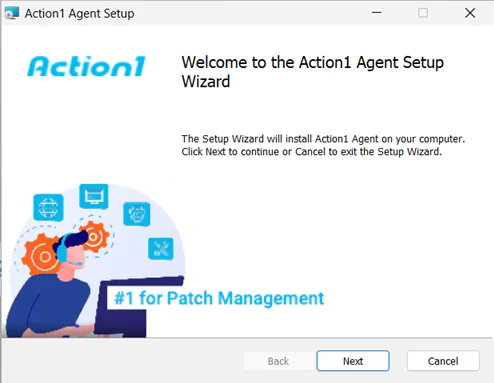
Step 2. Add endpoints – You need to install the Action1 agent on the endpoints you want to manage. This is a lightweight software with minimal system footprint. To deploy the agent, navigate to “Endpoints”, click “Install Agent”, then click on “download.deb” from the delivery options. Install the agent by following the steps in the wizard.
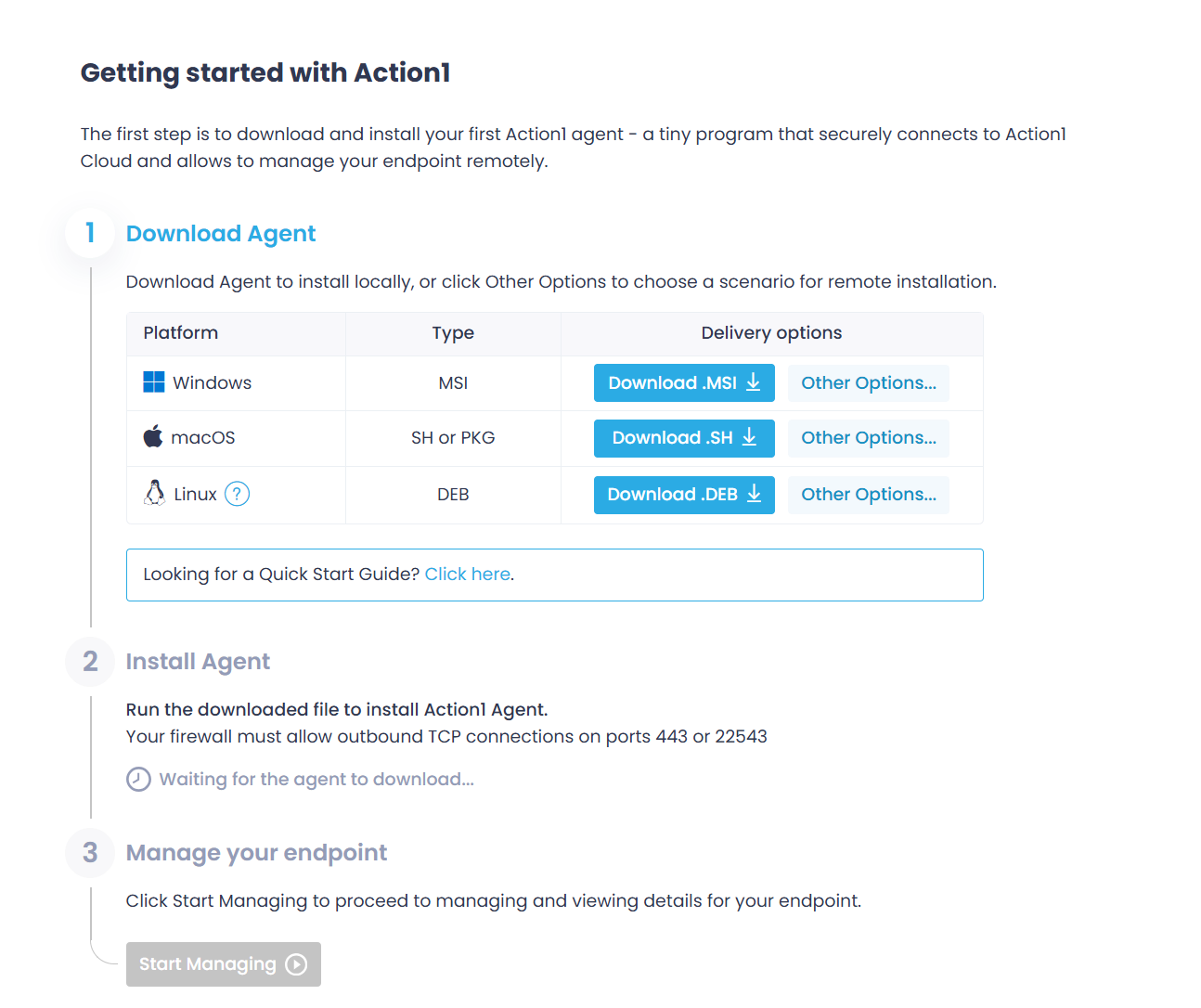
Note! For installation on remote machines, you have to do the following: In the “Getting started” wizard, click “Other options”. Then use the first option and copy the script, then you just have to run it on your target endpoints as root. This will automatically start the Action1 agent installation.
p=”/tmp” && curl -o “${p}/action1_agent(My_Organization).deb” “https://app.eu.action1.com/agent/a32424c4-e392-11ef-b556-c9135690d780/Linux/agent(My_Organization).deb” && sudo apt install “${p}/action1_agent(My_Organization).deb”
-
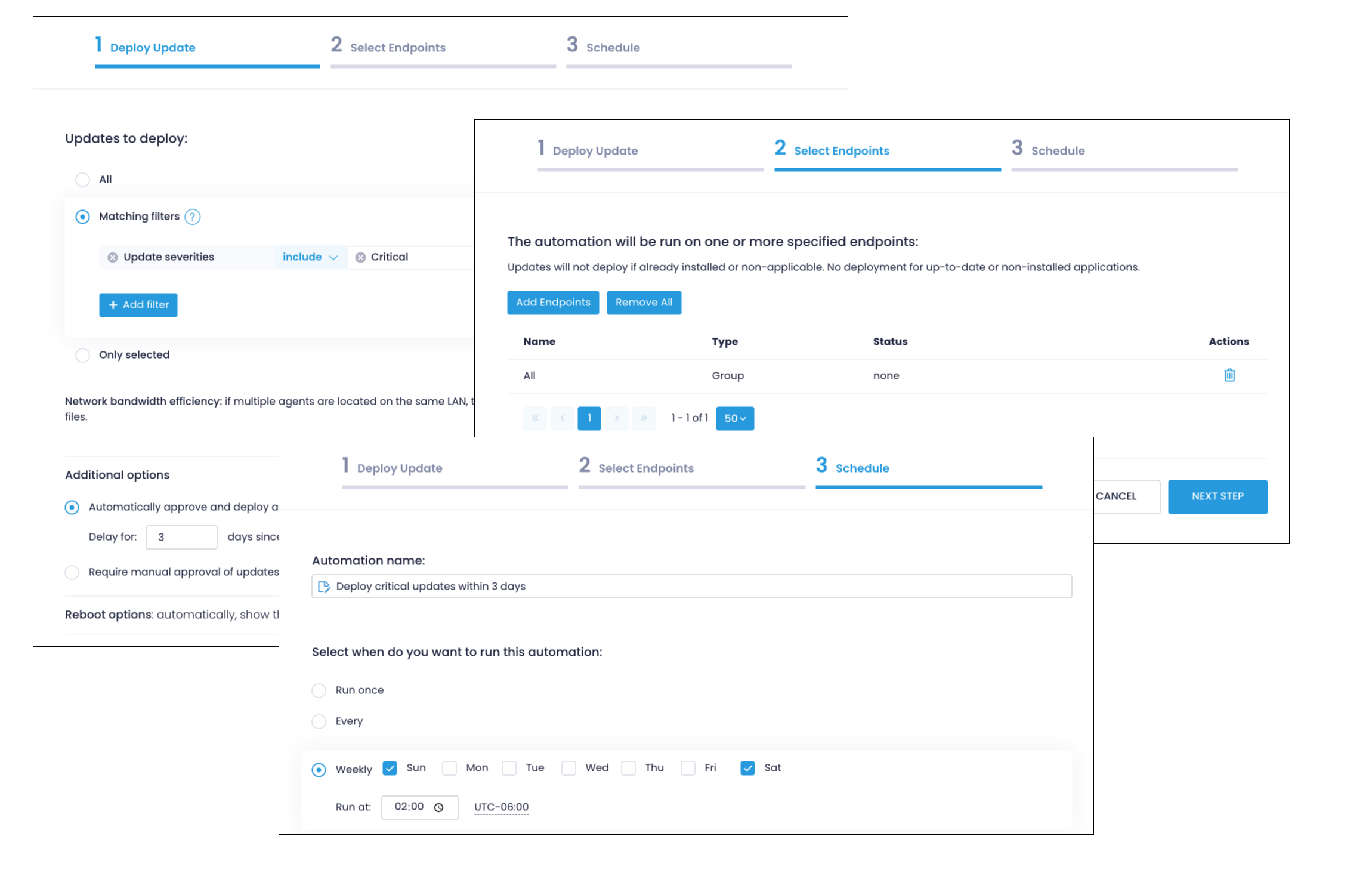
Step 3. Automate update deployments
-
Go to “Automations”, select “New Automations”, and click “Deploy Updates.”
-
Select “Matching Filters”, click “Add filter” and select “Update severities”, and choose whether you want to deploy patches that are: “Critical”, “Important”, “Low”, “Moderate”, or “Unspecified.”
-
Click on “Additional options”, select “Automatically approve and deploy all missing updates”, and choose your delay parameter (in how many days updates will be installed after their release.)
-
Adjust the “Reboot options” as needed.
-
Click “Add endpoints” to select which devices will be automatically updated.
-
.On the “Schedule” step, specify when the automation should run—weekly, monthly, or immediately according to your needs.
Read Also:
Tools for Ubuntu Patch Management
As we’ve outlined earlier Ubuntu comes with several built-in tools that enable you to efficiently deploy security patches across your endpoints to keep them secure and compliant. However, you can also use cloud-native patch management tools that work even better by offering end-to-end automation, features to schedule, test, and install patches, generate audit-ready reports, monitor your systems in real-time, and much more.
But let’s have a closer look at what built-in and third-party software offer and which is the better choice for your organization.
1. apt, apt-get, and do-release-upgrade
These are Ubuntu’s core command-line tools for patch management. “sudo apt update” retrieves available updates, “sudo apt upgrade” installs them, and “sudo apt full-upgrade” handles updates that involve dependency changes. When you need to move to a new Ubuntu release, “do-release-upgrade” safely guides you through the OS upgrade and ensures all repositories and packages transition correctly.
2. Canonical Landscape
Landscape is a centralized management solution for organizations of all sizes that need to manage hundreds of Ubuntu systems at scale. It gives you visibility into installed packages across your systems and available updates, allowing you to monitor their patch compliance status in real-time. This software gives you better control over the patching process because you can schedule updates, enforce configuration policies, and generate audit-ready reports, making it a reasonable choice for enterprises running large fleets of Linux endpoints.
3. Canonical Livepatch
The special thing about Livepatch is that it applies kernel updates without forcing a reboot after deployment, which helps maintain uptime without worrying about leaving your systems vulnerable. In the real world, this software is widely used for production servers where reboots must be minimized as much as possible. By installing kernel patches in the background, Livepatch successfully reduces the attack surface across your endpoints while keeping them protected from known vulnerability exploitation.
4. Action1
Nowadays, cloud-native autonomous endpoint management platforms like Action1 are the most preferred option not only for large enterprises but also for SMBs and MSPs because they automate patching across Windows, macOS, Linux, and third-party applications from the first to the last step. Action1 detects missing patches, allows you to schedule their deployment at convenient times, test them in small groups of endpoints to ensure their stability, and offers real-time reporting—all without needing on-premises servers or VPNs. From a single console, you can keep all your on-premises and remote endpoints secure, compliant, and smoothly performing directly in your web browser.
The software works equally well for office-based and remote employee endpoints, servers, virtual machines, and cloud workloads, thus eliminating manual effort, minimizing downtime, strengthening your overall security posture, and ensuring regulatory compliance. What took IT teams hundreds of hours monthly now takes a couple of hours using Action1.
|
Tool |
Purpose |
Ideal Use Cases |
Limitations |
|
apt, apt-get, do-release-upgrade |
Command-line package management for installing, updating, and upgrading Ubuntu systems |
Individual system administration; |
No centralized visibility across multiple systems; Requires manual execution on each system; |
|
Canonical Landscape |
Centralized systems management platform for Ubuntu fleets |
Enterprises managing hundreds to thousands of Ubuntu systems; |
Requires Ubuntu Pro subscription (free for up to 5 machines personal use); |
|
Canonical Livepatch |
Rebootless kernel security patching service |
Production servers requiring maximum uptime; |
Only patches high and critical kernel vulnerabilities; |
|
Action1 |
Cloud-native autonomous endpoint management platform |
Multi-OS environments (Windows, macOS, Linux); Organizations with remote/distributed workforces; |
Requires internet connectivity’ |
Common Mistakes to Avoid
If you want to keep your Ubuntu systems updated and secure with minimal downtime and security risks, here’s what you need to watch for:
1. Not Testing Patches
Deploying patches directly to all of your production systems without testing them first in a controlled environment or a small group of endpoints is the fastest way to cause widespread system failures, leading to indefinite downtime and turning a simple deployment into a nightmare. To prevent such catastrophic scenarios, every single patch must be tested in non-production environments like virtual machines, containers, or canary groups to ensure they work as expected. This way, you can catch any compatibility problems, performance degradation, and unexpected behavior early and prevent them from affecting critical systems.
2. Forgetting Kernel Restarts
It’s well known that kernel updates require a system restart to take effect. However, for one reason or another, even experienced administrators forget to schedule reboots, which means the updated systems will continue running vulnerable kernels until the systems are rebooted. In some cases, this can become a reason for vulnerability exploitation and a successful cyberattack. That’s why it’s mandatory to find a convenient time and restart the updated system. By using third-party patch management platforms like Action1, you can schedule not only update deployments but also reboots, leaving no room for costly mistakes with no manual effort required.
3. Over-Reliance on Manual Processes
Manual patching is adequate when managing up to ten endpoints maximum, but beyond that number, you can easily lose track of what’s patched or which systems need a restart. Automation through tools like unattended-upgrades, Landscape, or cloud-native platforms like Action1 eliminates these risks and ensures every system receives patches according to your policy. Manual patching should only be used for edge cases like highly customized systems or emergency patches requiring immediate attention. For regular patching, manual processes create prerequisites for unexpected downtime, falling victim to cyberattacks, and even regulatory fines.
4. Delayed Patching of Critical CVEs
Always prioritize remediating critical vulnerabilities with CVSS scores of 9.0+ or those listed in CISA’s Known Exploited Vulnerabilities catalog—they are the most dangerous because cybercriminals exploit these flaws within hours or days of disclosure. That’s why your Ubuntu patch management strategy must include an emergency patching procedure outside of regular maintenance windows.
Never neglect these, because every day you delay patching such a flaw is another day hackers have to target your company, and the consequences are always mind-blowing. In such cases, it’s always better to sacrifice a couple of hours of uptime to secure your systems instead of feeling sorry that you haven’t done it after seeing the message that gives you instructions on how to pay the ransom to cybercriminals who have hacked your systems and locked them.
5. Skipping Rollback Planning
We’ve all been in a situation where a particular patch works flawlessly in a testing environment, and once it reaches your production systems, it causes unexpected problems that weren’t caught earlier. Without a plan B, you can find yourself in a difficult situation scrambling to fix issues under pressure while your systems remain offline or vulnerable. Remember that before deploying patches to critical systems, you must create Timeshift snapshots that allow complete system restoration if patches cause any unexpected problems.
Moreover, keep in mind that Ubuntu retains previous kernel versions in GRUB, which can be your life-saving option for quick rollback if new kernels cause boot failures. Last but not least, create a plan describing each step of how to act in such a situation, because you can easily panic in a moment of unexpected downtime and make mistakes that would make the situation even worse.
Frequently Asked Questions
How Often Should Ubuntu Systems Be Patched?
You should patch Ubuntu systems as soon as possible for critical flaws—ideally within 24-48 hours after the patch release. Less severe issues can be scheduled for monthly or bi-weekly deployment, while non-security updates can wait for your next scheduled maintenance window.
What’s the Difference Between apt upgrade and apt full-upgrade?
APT upgrade safely updates packages by only upgrading existing ones, it does not remove or install new ones. On the other hand “apt full-upgrade command installs updates and handles complex dependency changes by removing obsolete packages or installing new ones as needed. This ensures all the packages reach their latest versions, even when dependency conflicts require removing old packages.
Is Livepatch Enough On Its Own?
No, Livepatch isn’t enough on its own. While it applies critical kernel security fixes without rebooting, it only covers high-priority kernel vulnerabilities and doesn’t patch user space applications, system libraries, or other Ubuntu packages. You still need regular patching cycles for complete system updates. Many organizations use this approach as a temporary solution that buys them time until their next scheduled maintenance window—they use it to maintain uptime while staying protected.
What Is the Safest Way to Test Kernel Updates?
The safest way to test kernel updates is by using virtual machines that mirror your production environment. For example, you can clone your production configuration into a VM, apply the kernel update, then verify all critical services start correctly, network connectivity works, and applications function as expected.
A good practice is to monitor these test systems for a couple of days to see if any issues arise. If none occur, you can proceed by deploying the kernel updates to a canary group (a small group of production systems) before rolling out widely. Keep in mind that you must always maintain snapshots, backups, and a rollback plan before applying these updates, so you always have a plan B in emergency situations.
Conclusion
Patching your Ubuntu systems without prolonged delays helps you keep them secure and compliant with regulatory standards by remediating software vulnerabilities, delivering faster performance by fixing bugs, and providing a better user experience by introducing the latest features.
However, every system administrator knows that manual patching is a full-time job that often does not pay off in the end because it increases your attack surface and security risks, which in most cases has a devastating effect on your organization. A single unpatched and exploited vulnerability is enough to see your client base decreasing, experience indefinite downtime, face regulatory fines, and even suffer business shutdown.
Fortunately, all of that can be prevented by using the right tools that can reduce or eliminate manual effort and by following best practices like maintaining an accurate inventory, using a standardized patch management policy, testing patches in non-production environments, using automated patch deployment tools, scheduling patches to minimize downtime, establishing a rollback plan, and tracking CVEs and security advisories.
Manual patching is ineffective and risky. Unattended upgrades work in most cases but are still not a complete solution. And obviously, cloud-based autonomous endpoint management platforms like Action1 are the best choice.
They automate Ubuntu patching end-to-end by identifying missing patches, allowing you to test and deploy them on schedule or immediately, and generating detailed audit-ready reports—all with just a few clicks, turning patching into a set-it-and-forget-it process. Such software eliminates manual workload, strengthens your security posture, minimizes planned and unplanned downtime, and allows a single administrator to manage thousands or even hundreds of thousands of endpoints using one user-friendly console offering real-time visibility into the patch and compliance status of each endpoint.
About Action1
Action1 is an autonomous endpoint management platform trusted by many Fortune 500 companies. Cloud-native, infinitely scalable, highly secure, and configurable in 5 minutes—it just works and is always free for the first 200 endpoints, with no functional limits. By pioneering autonomous OS and third-party patching with peer-to-peer patch distribution and real-time vulnerability assessment without needing a VPN, it eliminates routine labor, preempts ransomware and security risks, and protects the digital employee experience.
In 2025, Action1 was recognized by Inc. 5000 as the fastest-growing private software company in America. The company is founder-led by Alex Vovk and Mike Walters, American entrepreneurs who previously founded Netwrix, a multi-billion-dollar cybersecurity company.